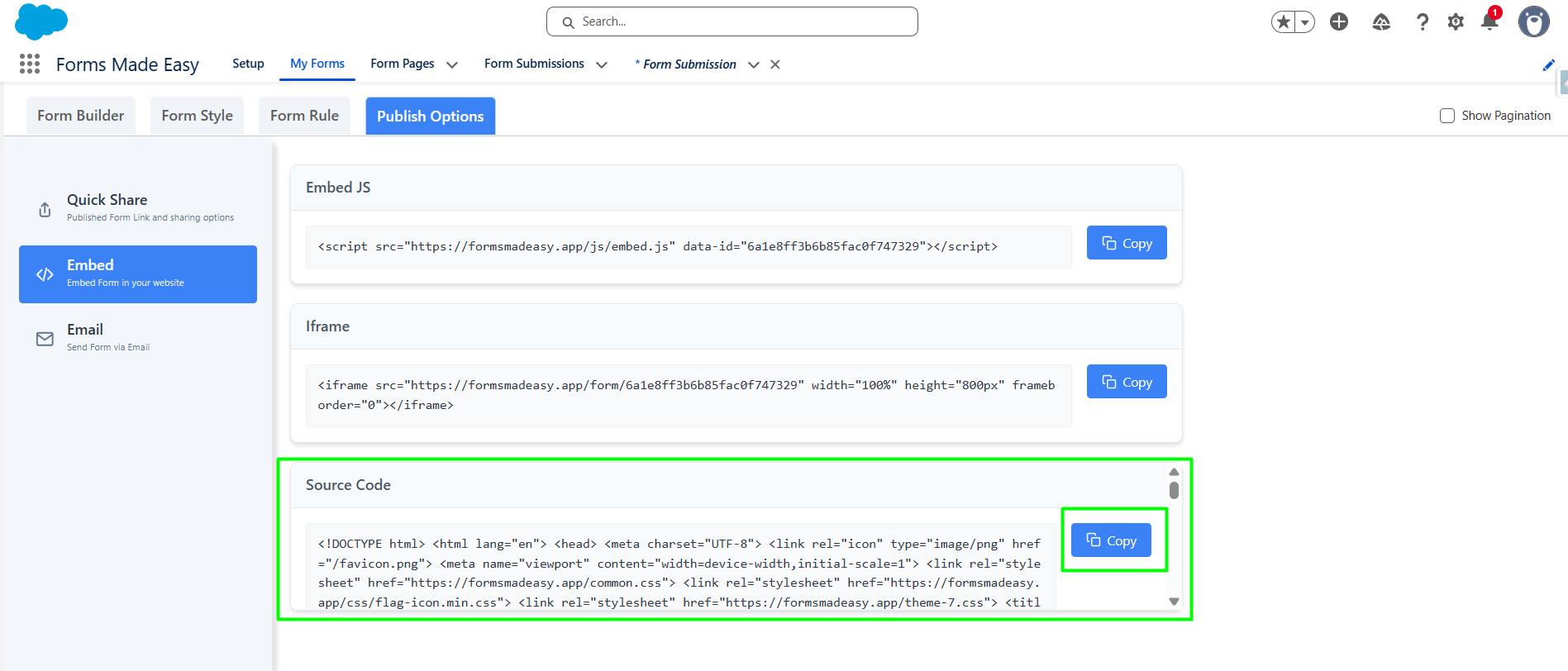
To begin, create a form with the required fields and publish it. Once the form is published, a Publish tab becomes available. Under the Publish tab, you'll find the Embed section, which provides three options: Embed JS, Iframe, and Source Code.
Embed JS allows for dynamic integration with better customization options, making it ideal for developers who want more control over form behavior and appearance.
Iframe provides a quick and simple way to display the form, perfect for those looking for a straightforward implementation without extensive coding.
Source Code gives you full control to customize the form's HTML before embedding, offering maximum flexibility for advanced users who want to modify every aspect of the form.
Steps to Create the Form in Forms Made Easy :
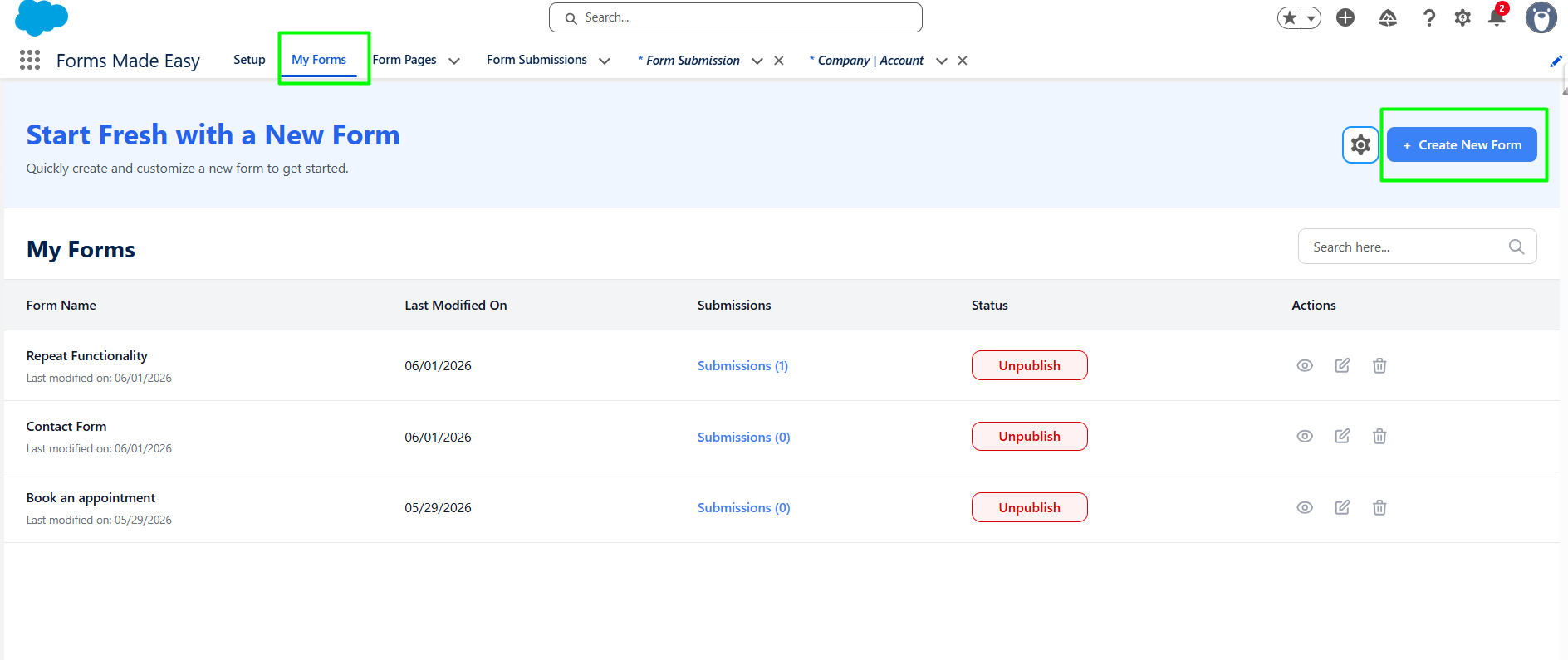
Step 1: Go to the My Forms tab and click on the "Create New Form" button.
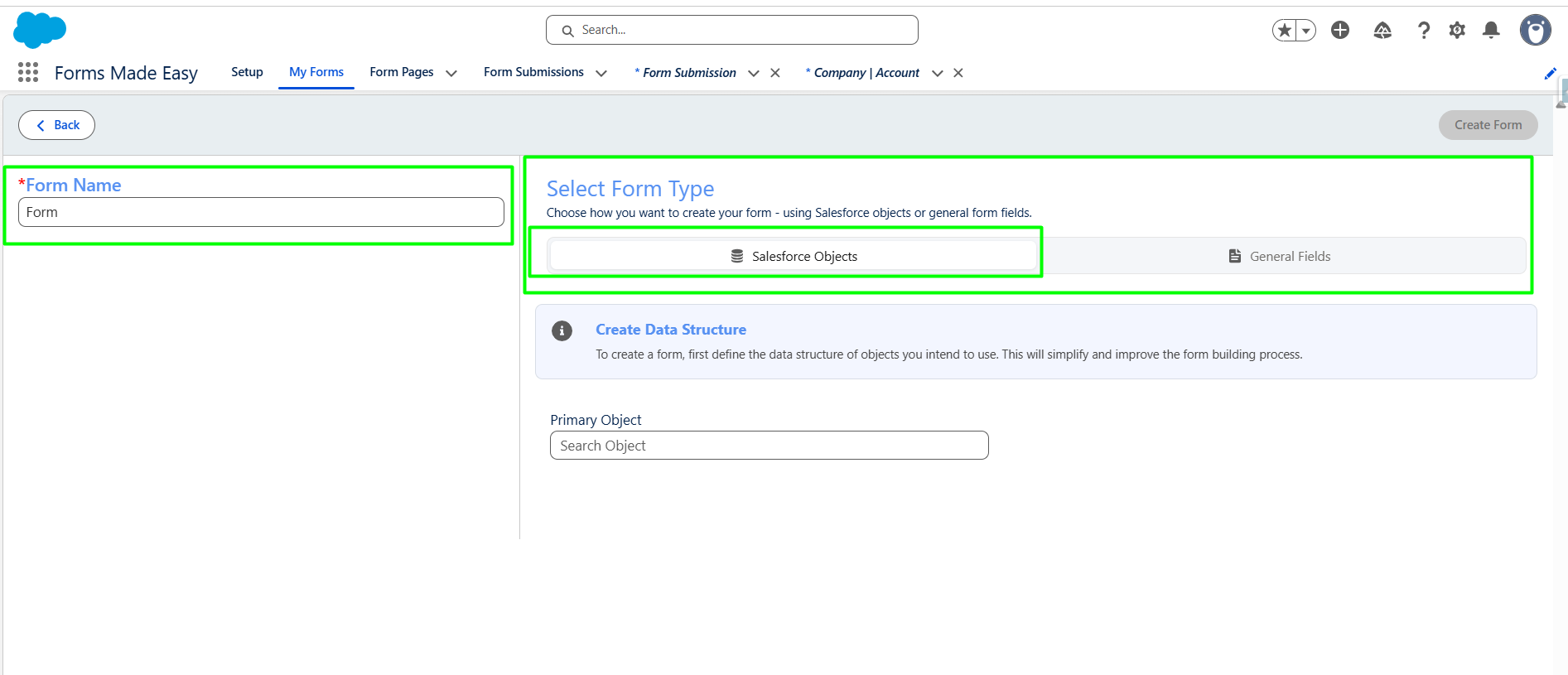
Step 2: Enter the form name and select the form type (Salesforce Objects or General Fields). Currently I have chosen the Salesforce Object option.
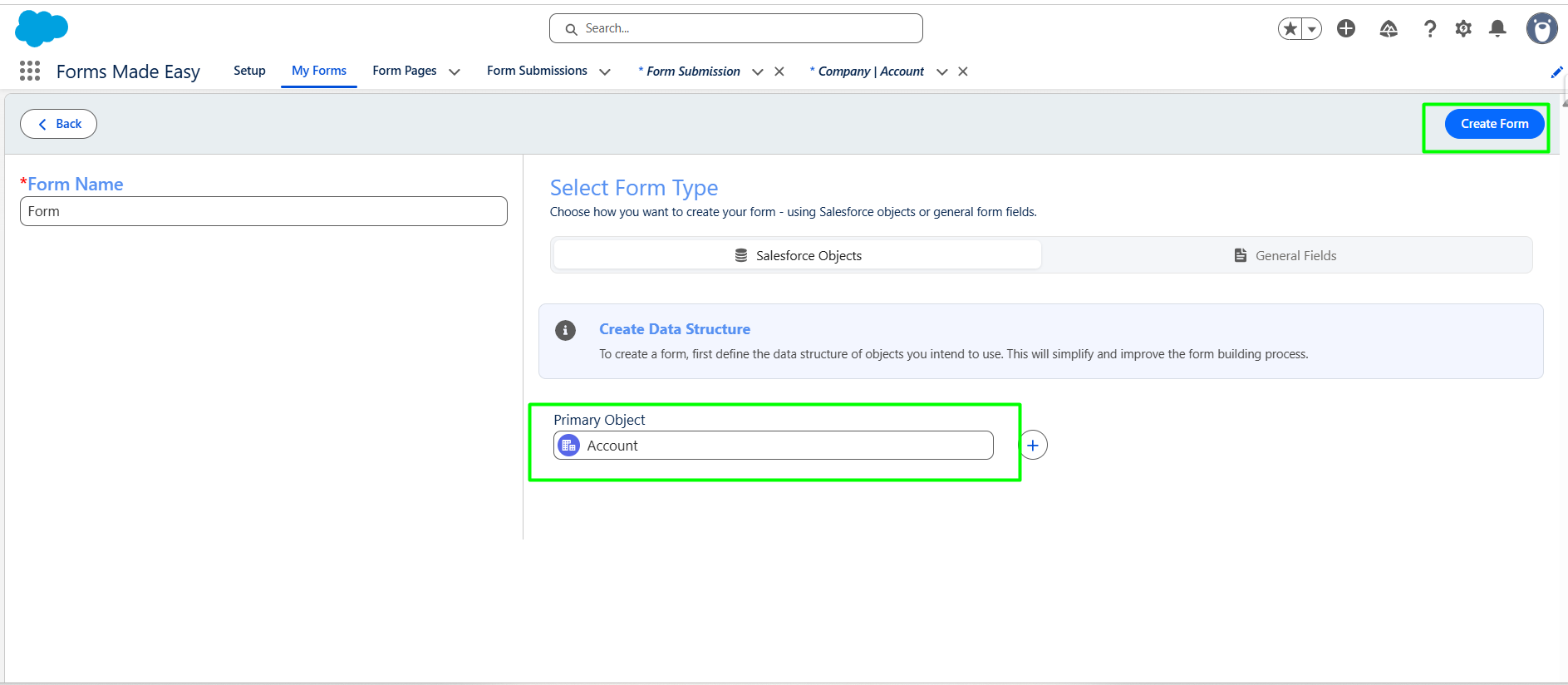
Step 3: Select "Account" as the Primary Object and click the "Create Form" button.
Step 4: Go to the Object Fields section and click on "Account."
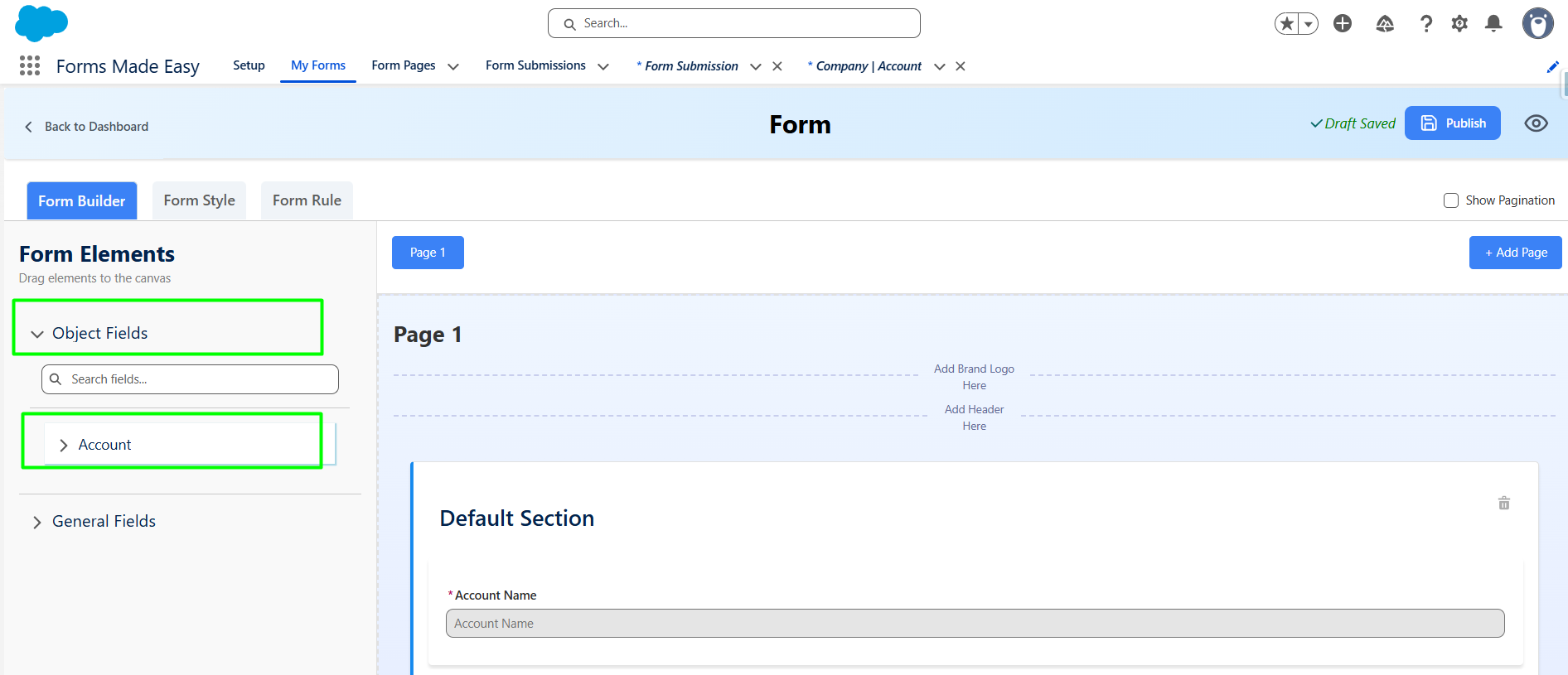
Step 5: Drag and drop your required fields onto the form.
Note: The Account Name field is a mandatory field on the Account Object in Salesforce.
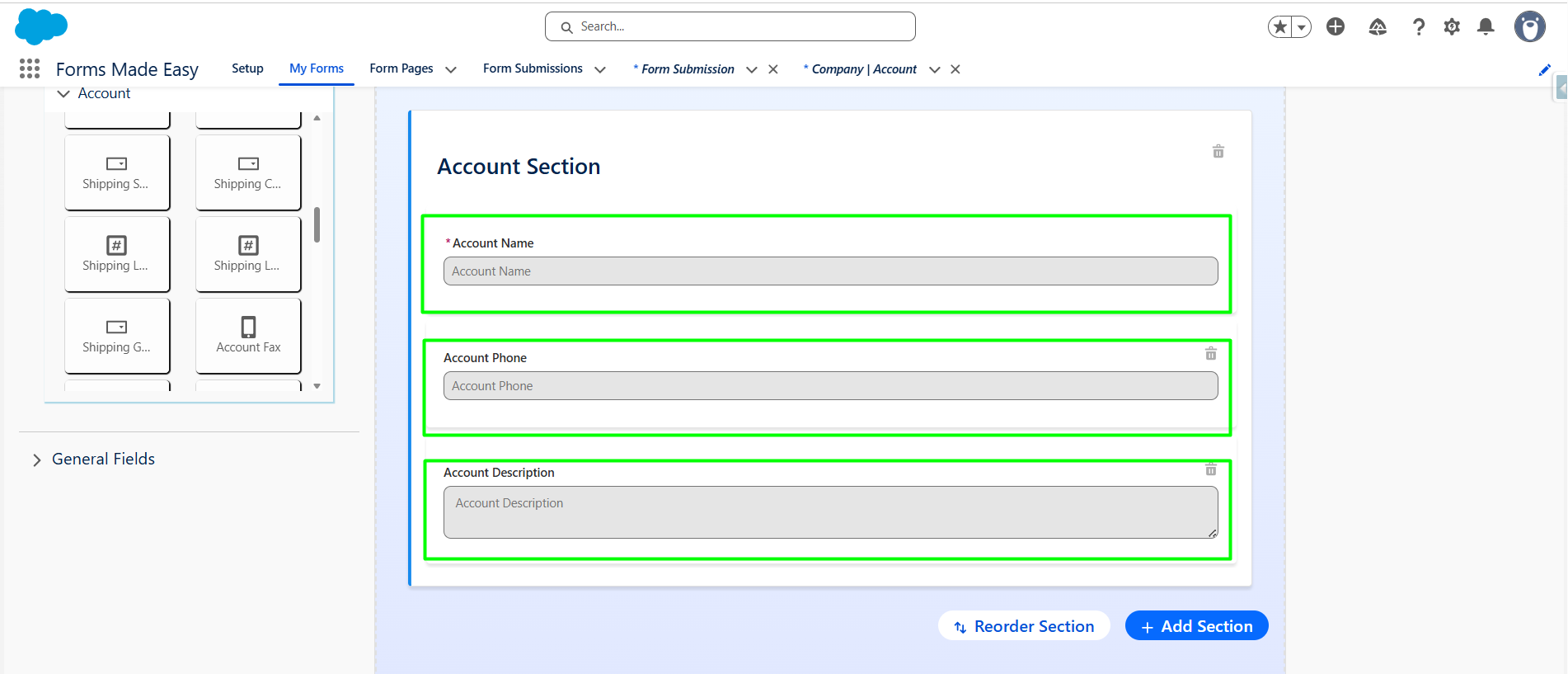
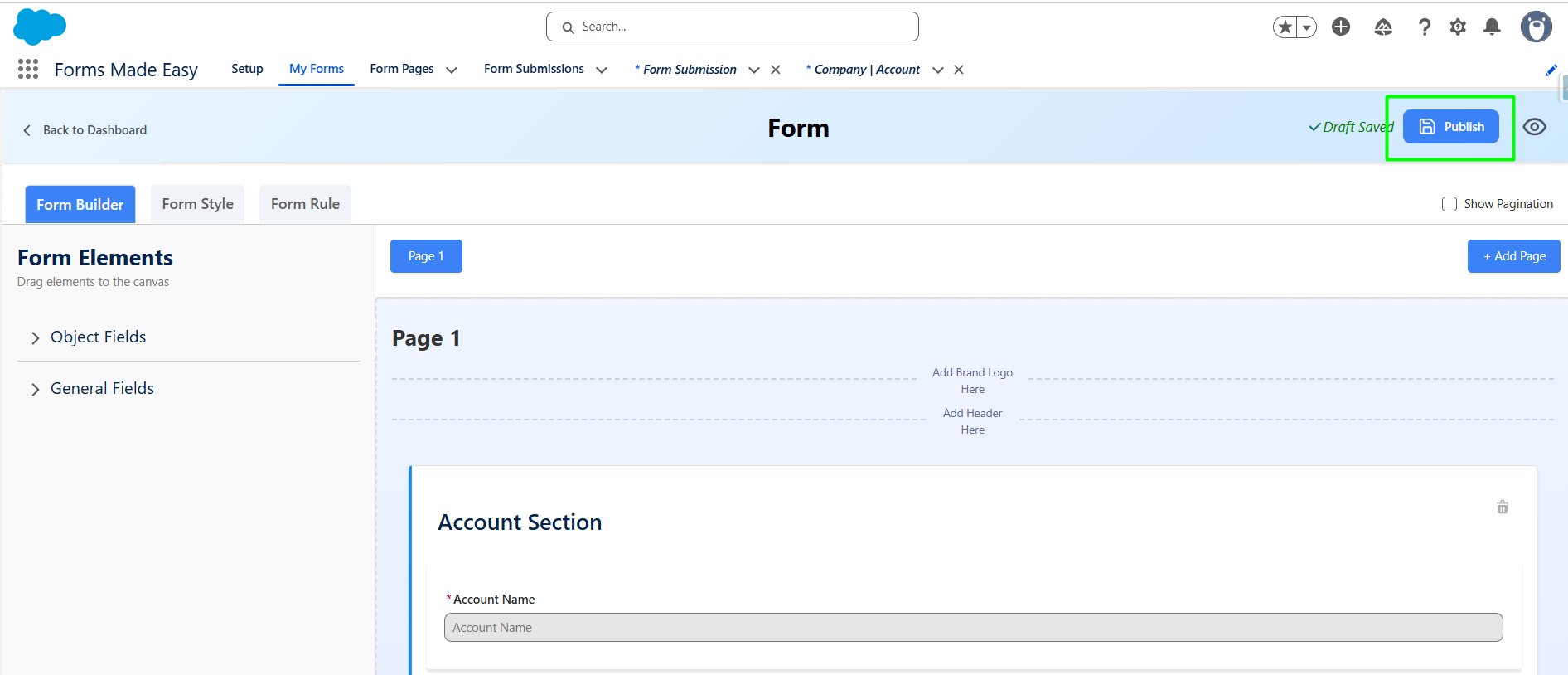
Step 6: After all of that, you can publish the form by clicking the "Publish" button.
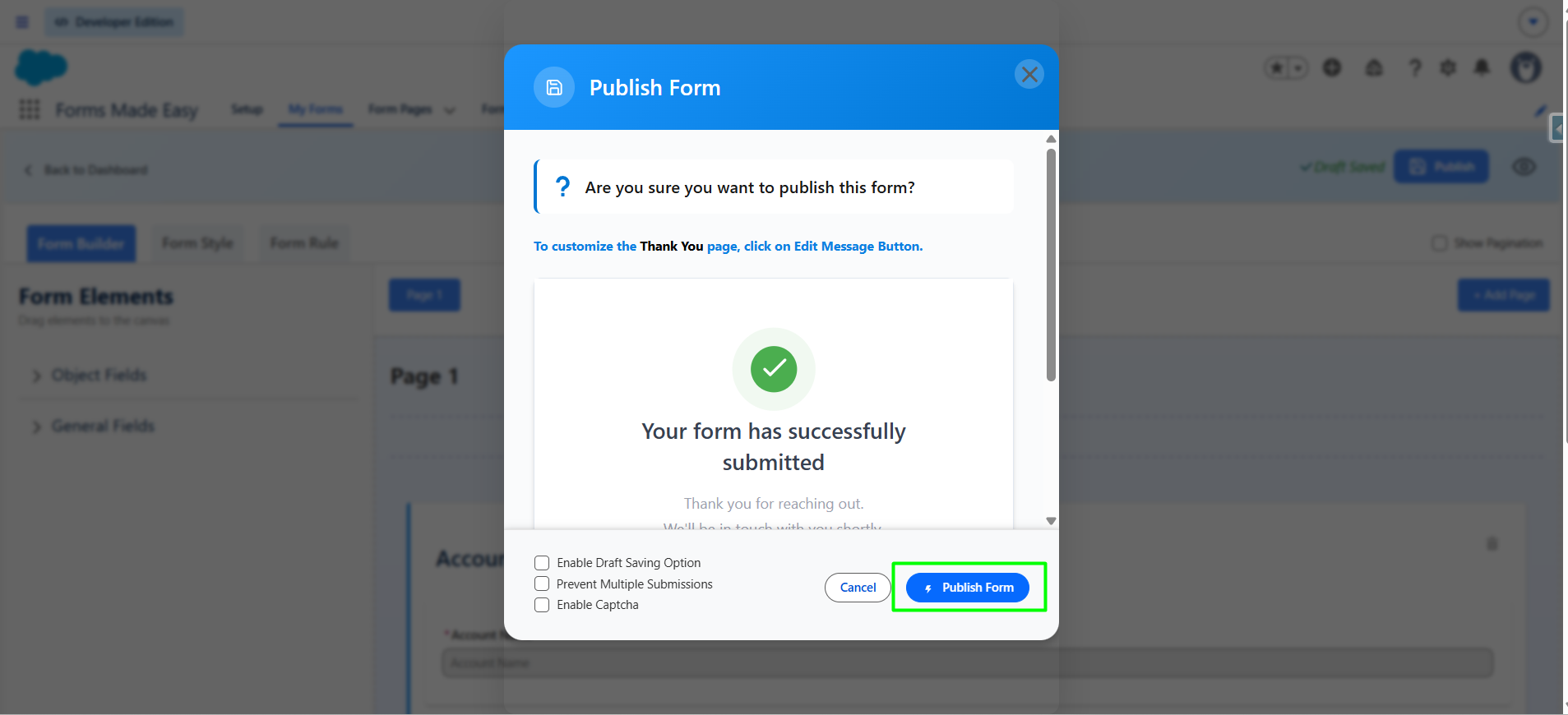
Step 7: Click the "Publish Form" button.
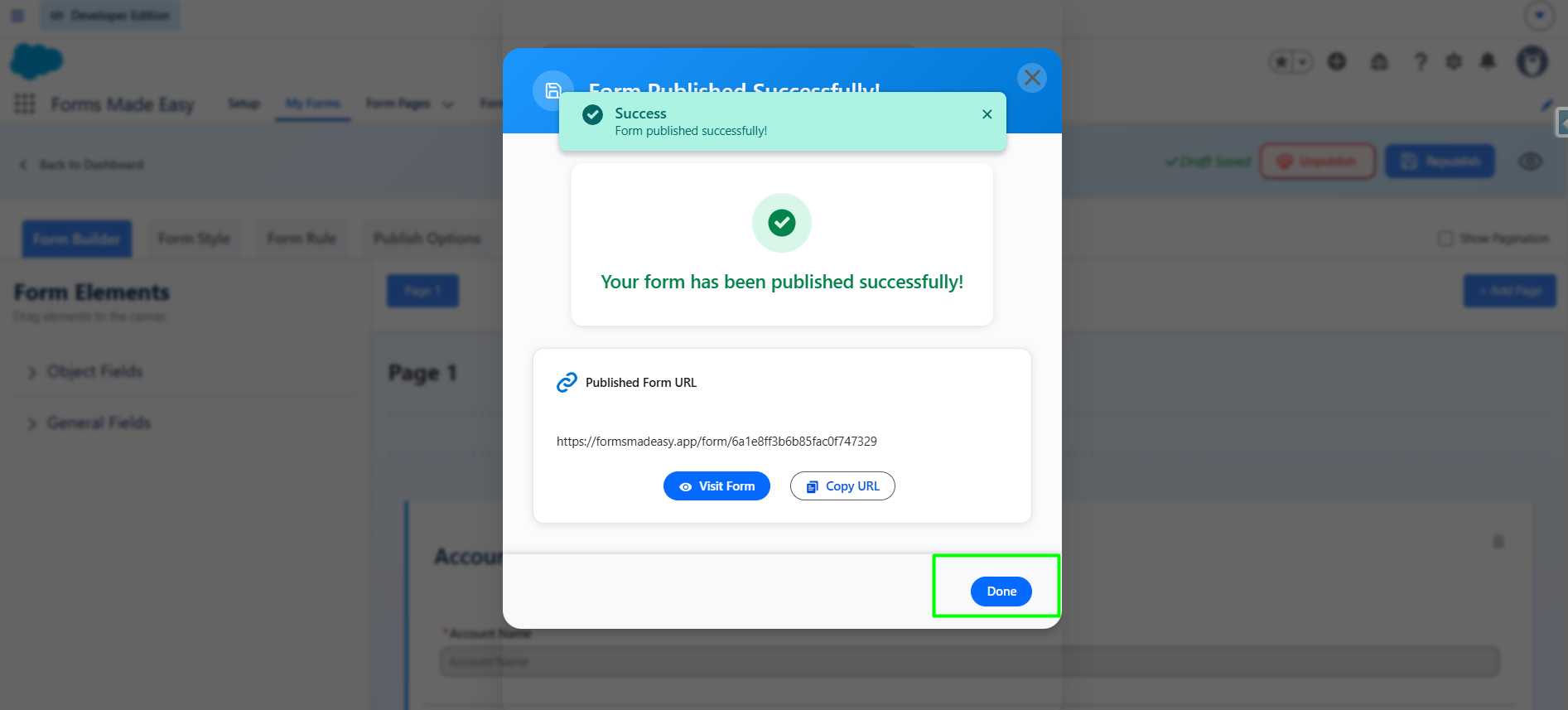
Step 8: Click on "Done" to close the modal.
Step 9: Once the form is published, an additional Publish Options tab becomes available. Under this tab, there is a sub-option called Embed. Click on "Embed."
Note: If the form is already created, click "Edit," go to Publish Options, and click "Embed."
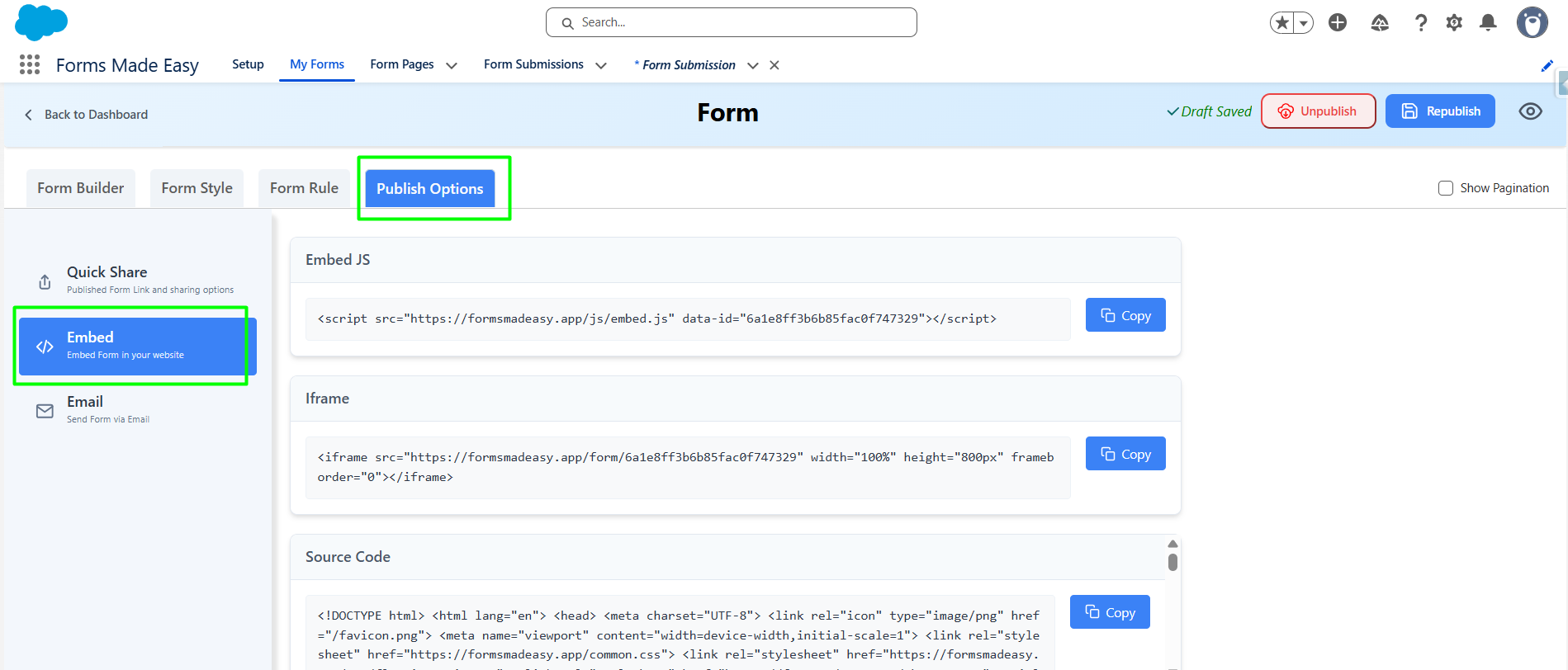
How to use Embed JS code :
Step 1: Inside the Embed section, you will see three options : Embed JS, Iframe and Source Code. Currently I have chosen the Embed JS.
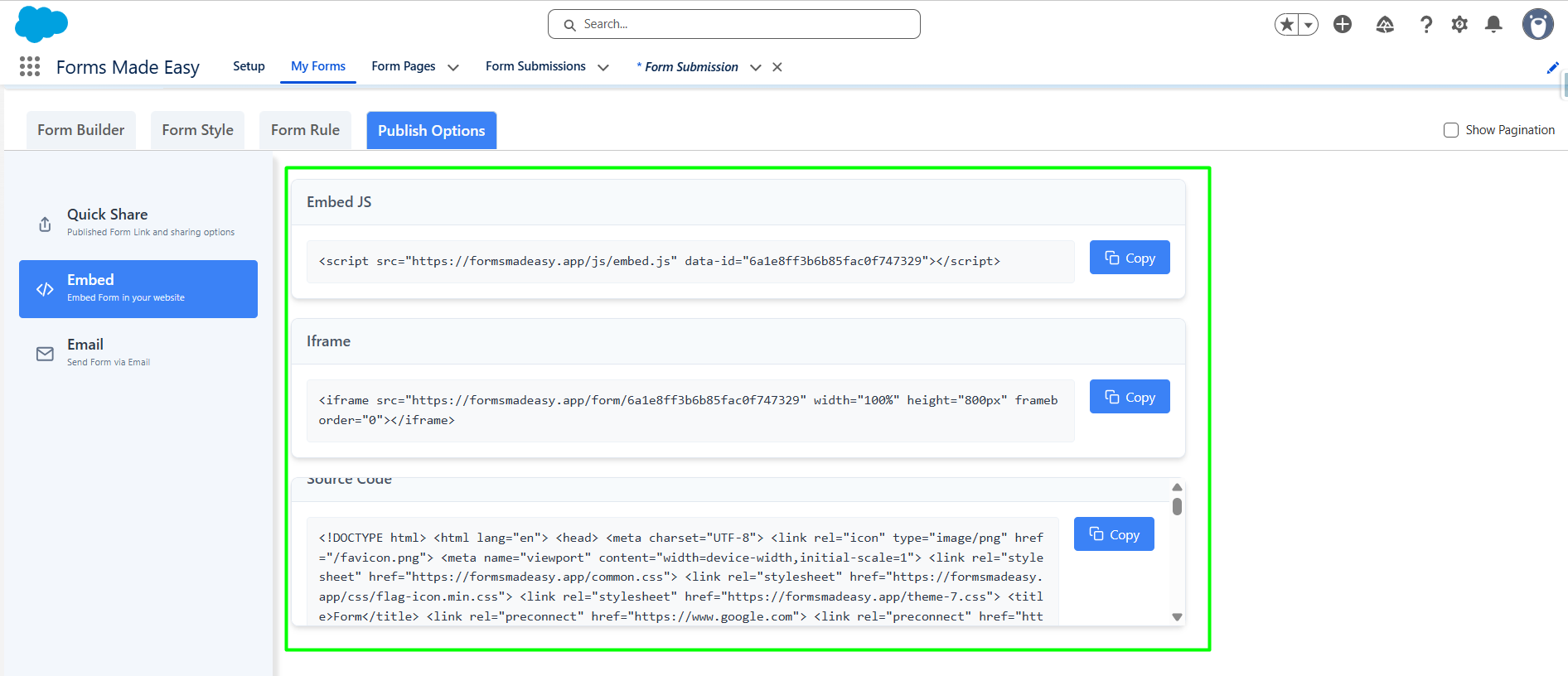
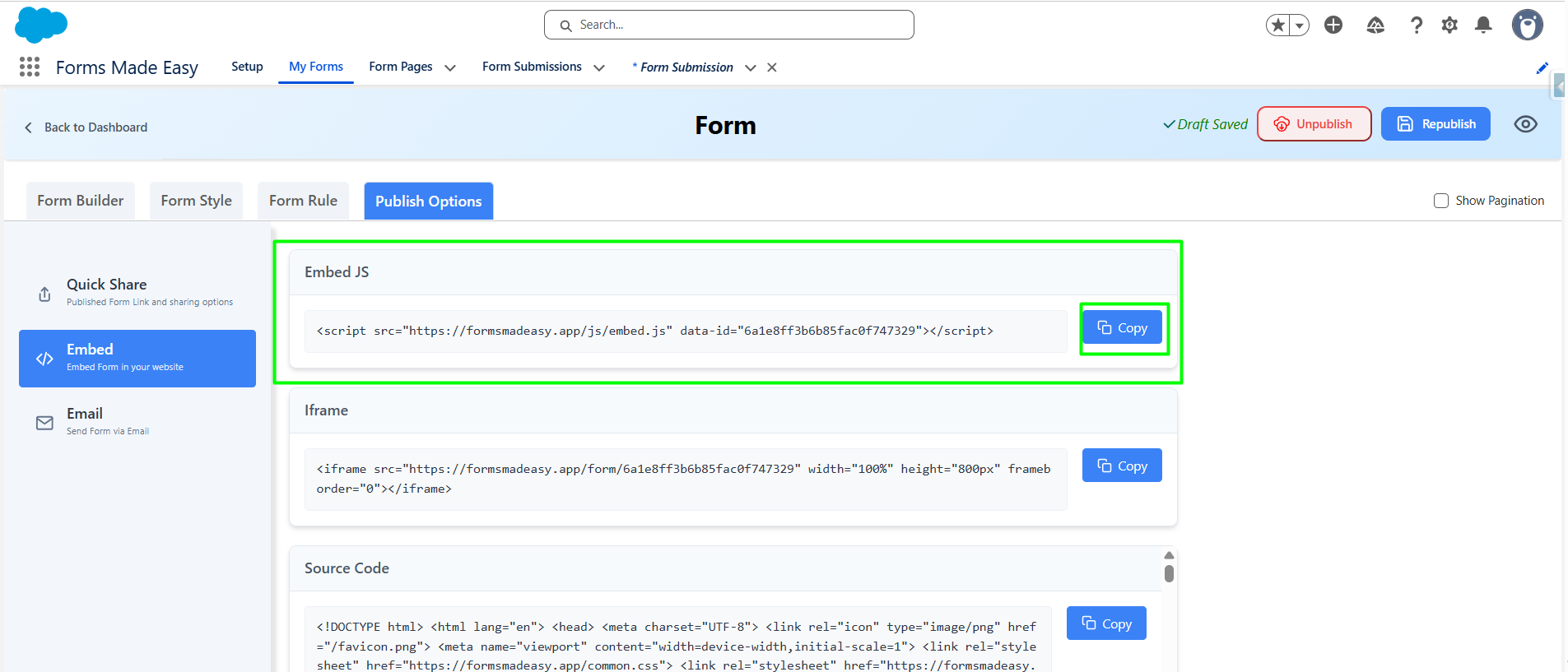
Step 2: For Embed JS, simply click the "Copy" button to copy the embed code.
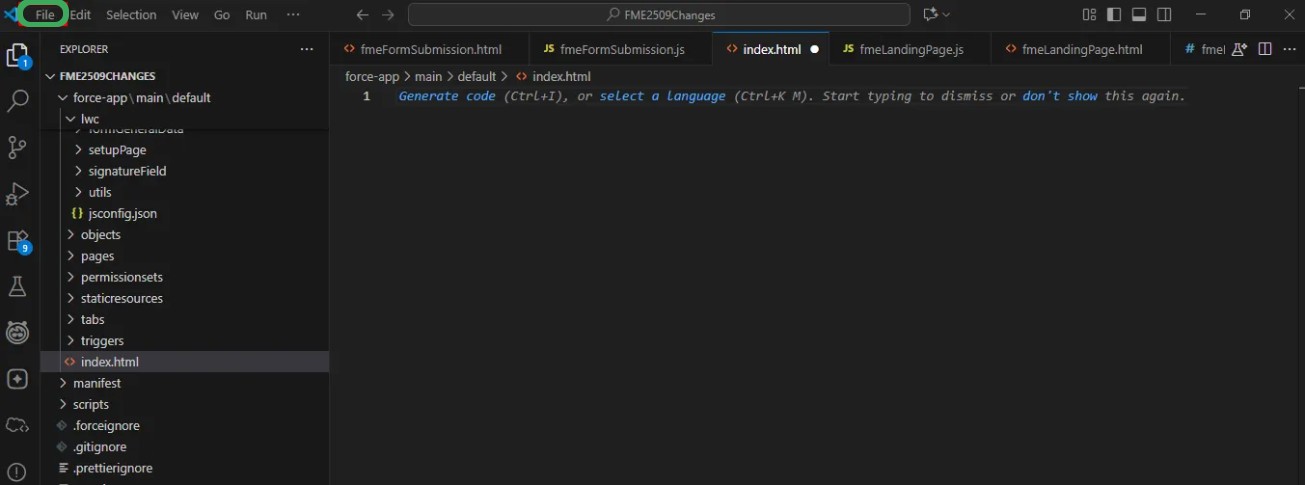
Step 3: Now, open your preferred HTML editor to begin the embedding process. You can choose any online HTML editor that suits your needs, but in my case, I’ll be using VS Code. To get started, open VS Code and click on File in the top menu.
Step 4: Next, click on New File give it name, and save it with the .html extension. (E.g., index.html)
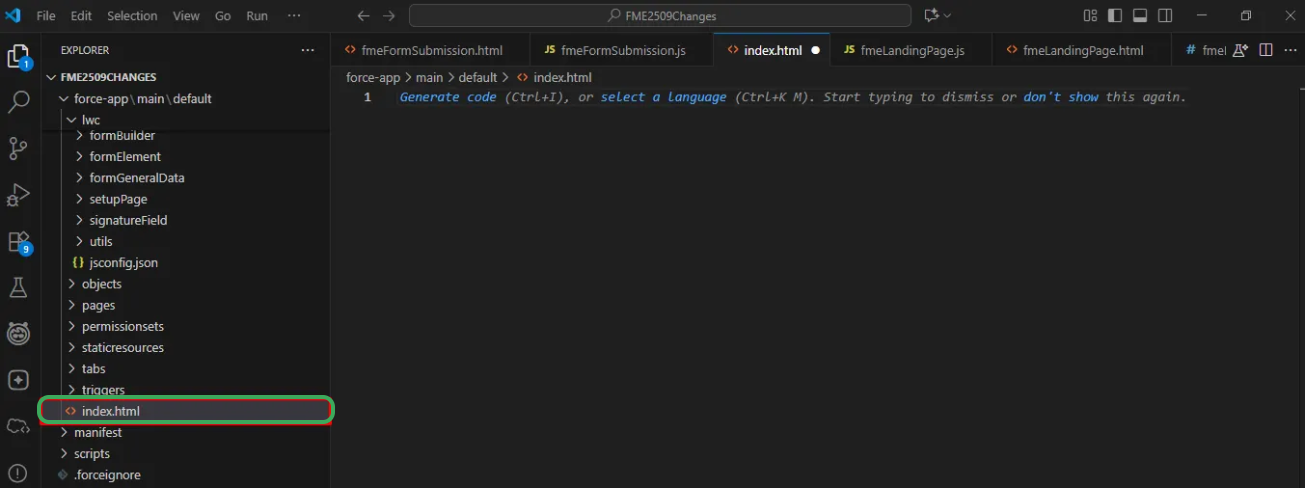
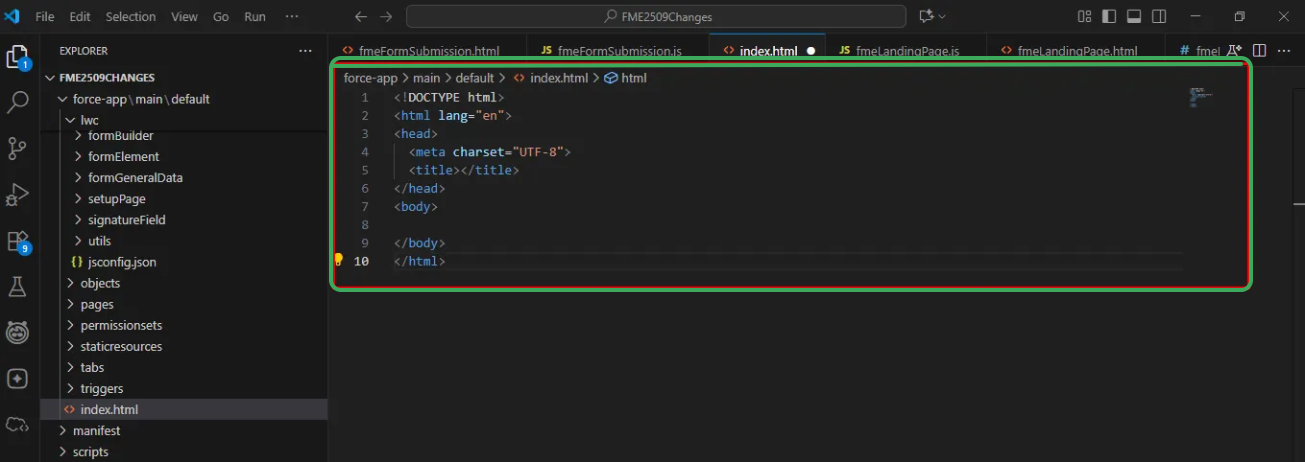
Step 5: Inside the newly created .html file, type “!” and press Tab (or Enter) to generate a basic HTML boilerplate template automatically.
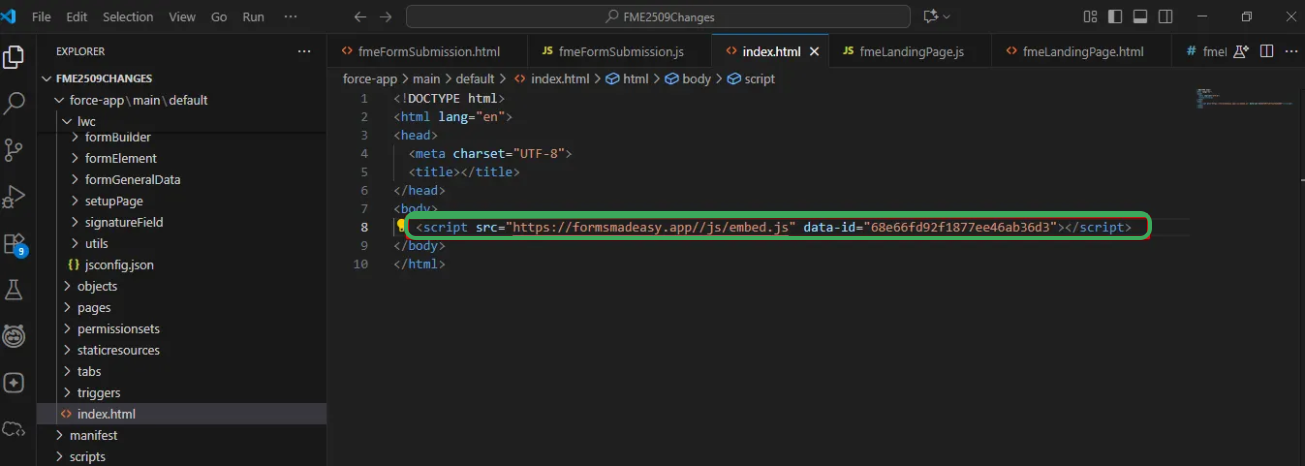
Step 6: Paste the copied Embed JS code inside the <body> tag of your HTML file. Then, save the file to keep your changes. Then, Right-click the file in VS Code and choose Open with Live Server to run it in your browser.
Note: Make sure the Live Server extension is installed in VS Code.
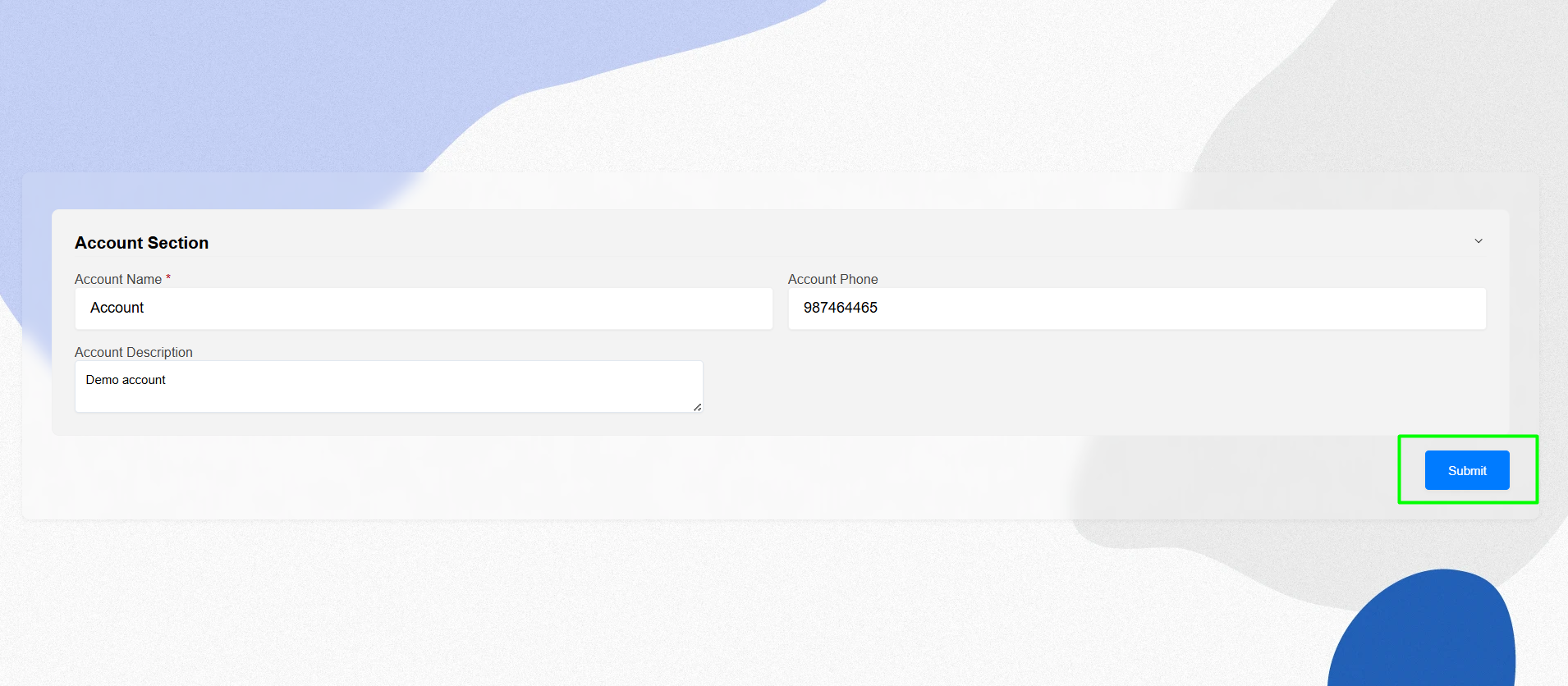
Step 7: Now, The form will open in your browser. Fill in all the details and click the Submit button.
How to use Iframe Code :
Step 1: Now, for the second (Iframe) option, click the “Copy” button to copy the Iframe code.
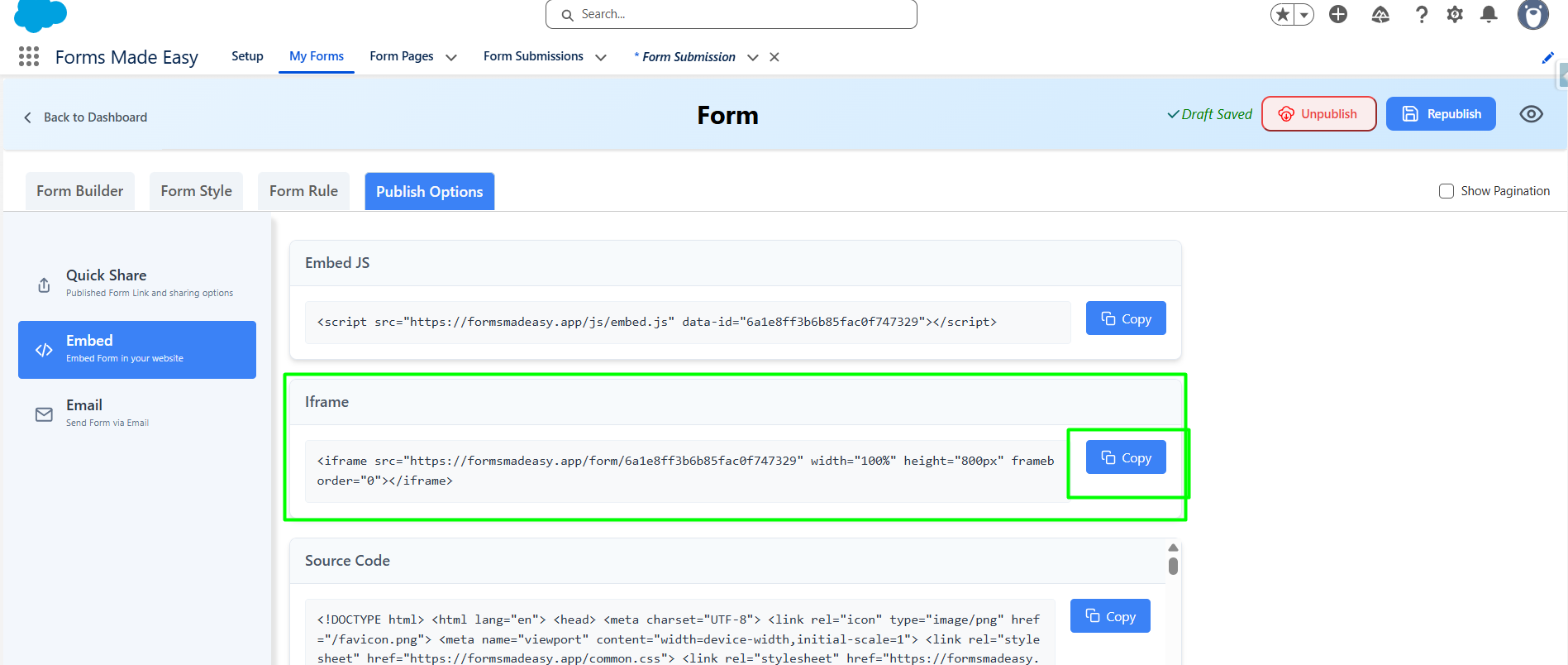
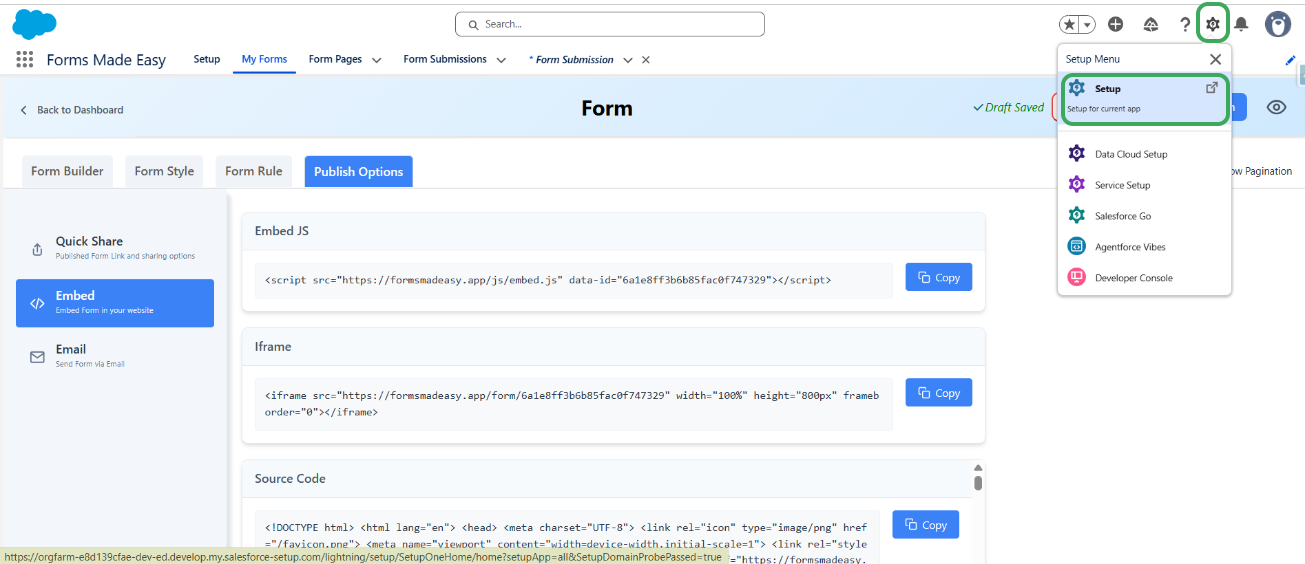
Step 2: For accessing Iframe code, Enable Digital Experiences : First, click on Setup gear icon in the top right corner.
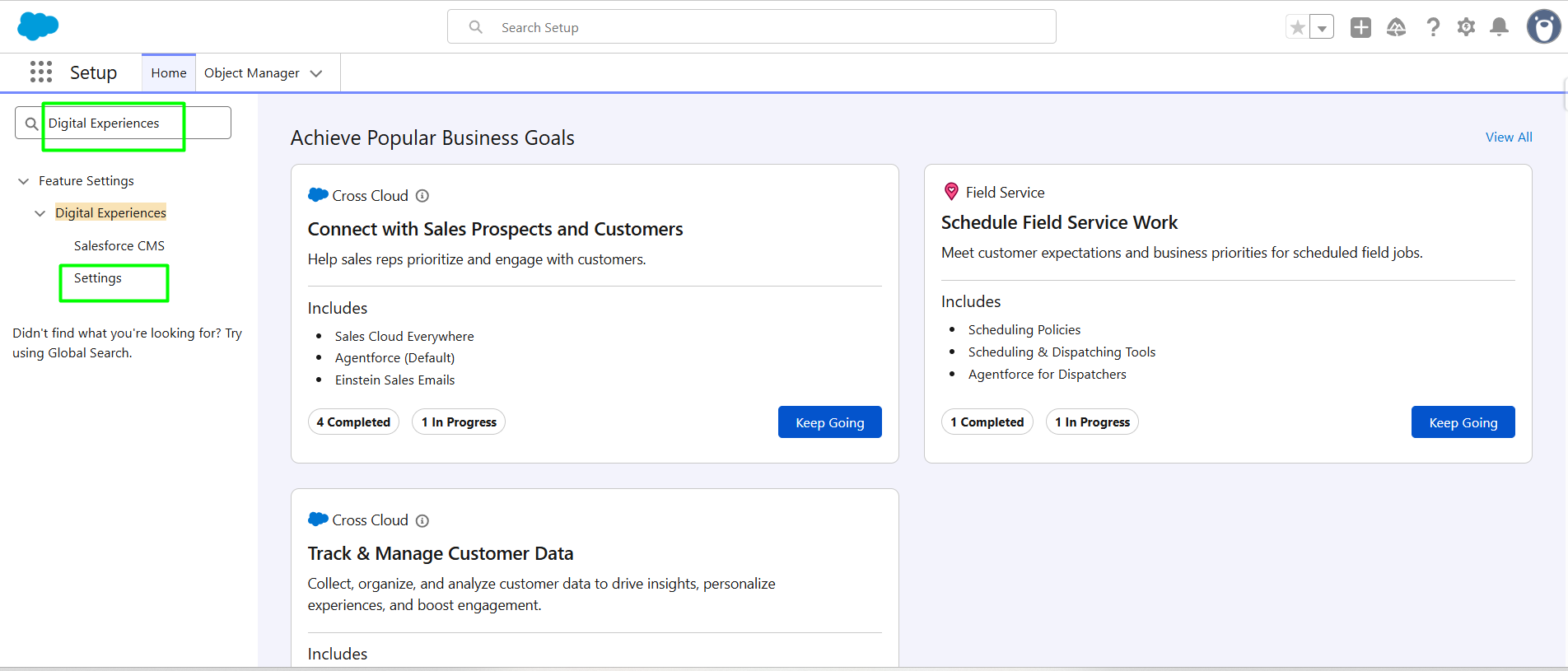
Step 3: In the, Quick Find box, type “Digital Experiences” and select Settings.
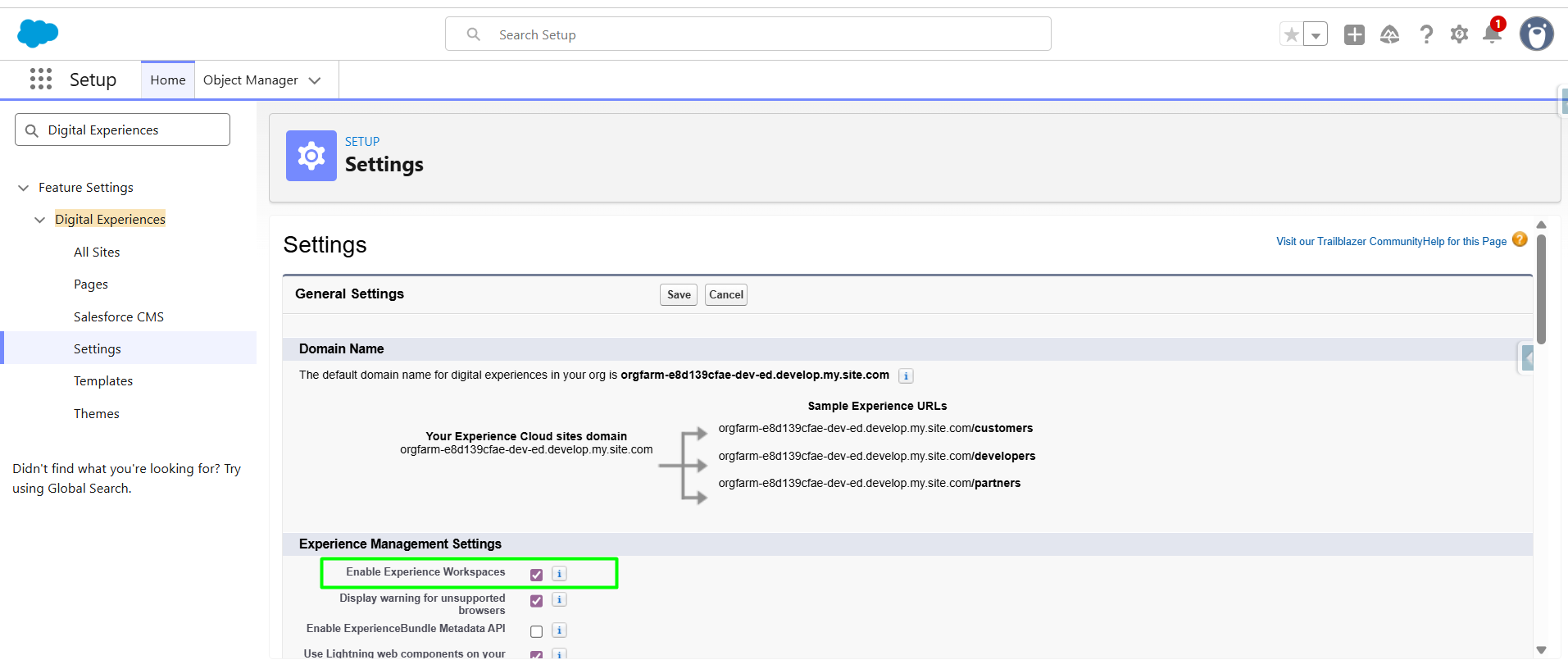
Step 4: Now, Click on the Enable Experience Workspaces.
Step 5: After Enabling Experience Workspaces, Click on "All Sites" .then To create a new site, simply click the “New” button.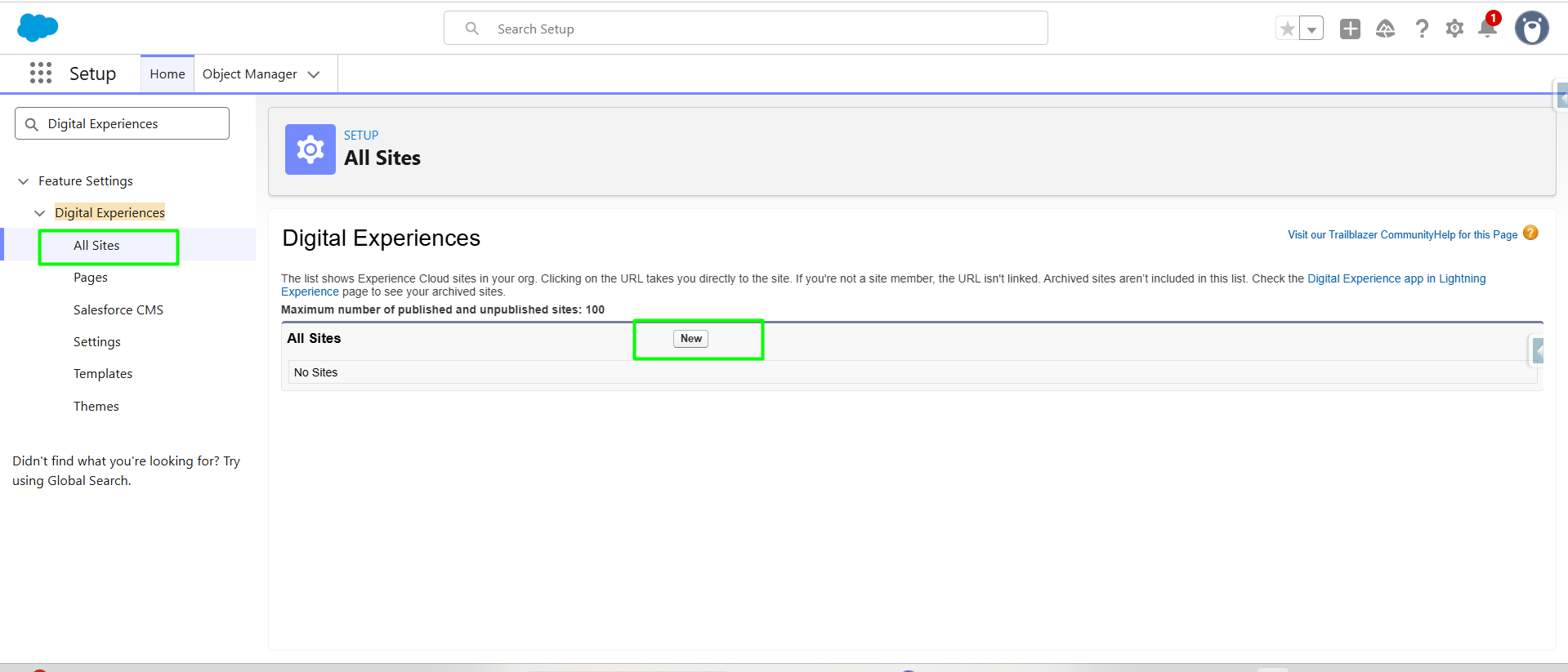
Step 6: Select a template to get started. Note: In this scenario, we’ll use the Build Your Own (LWR) template.
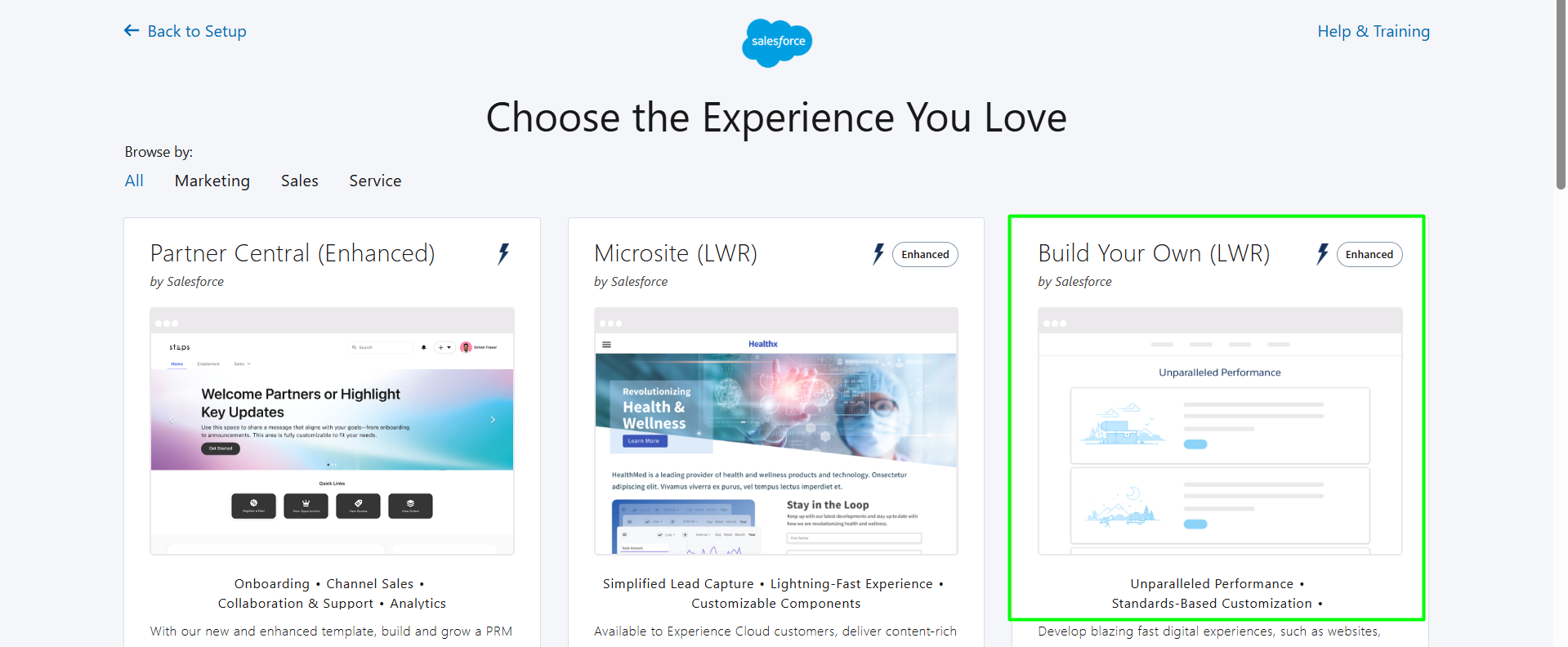
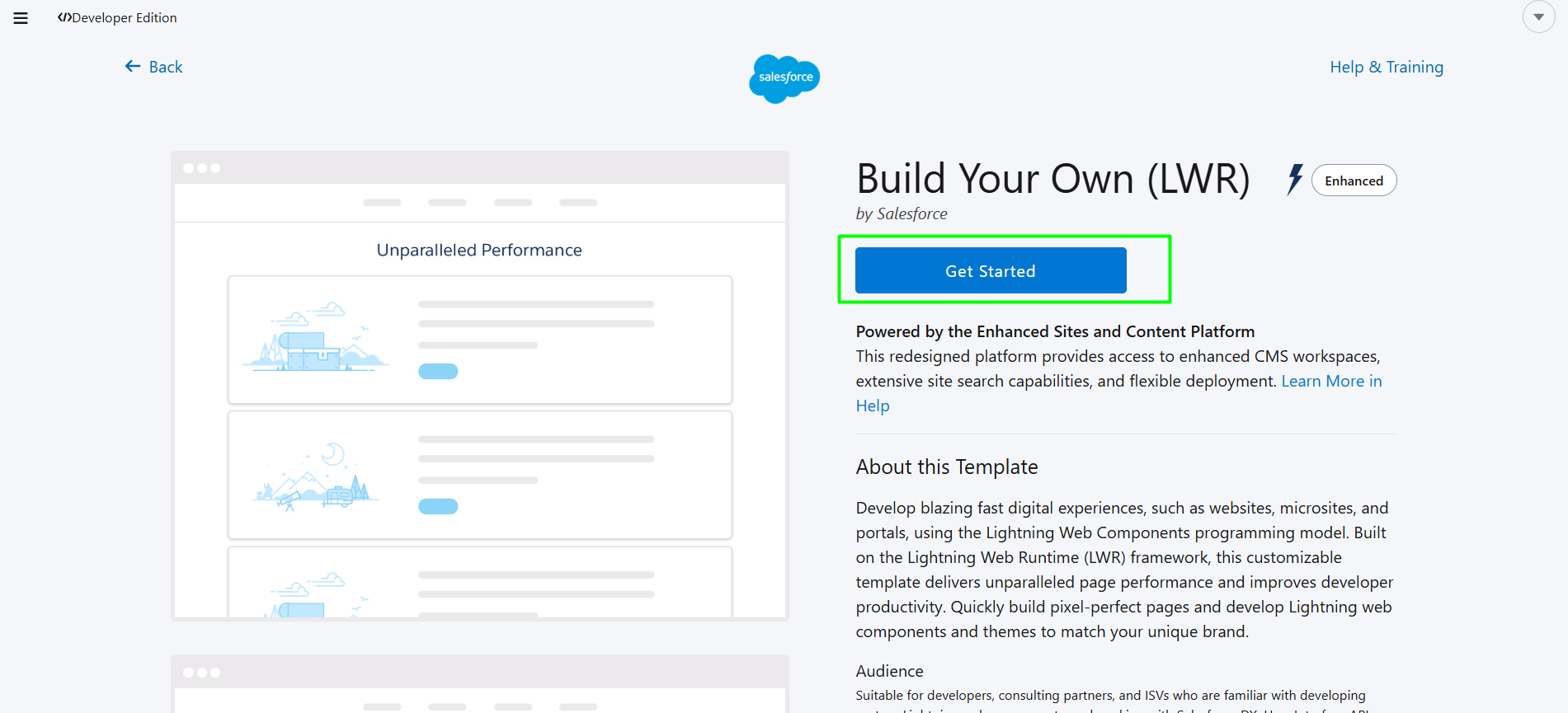
Step 7: Click on Get Started button.
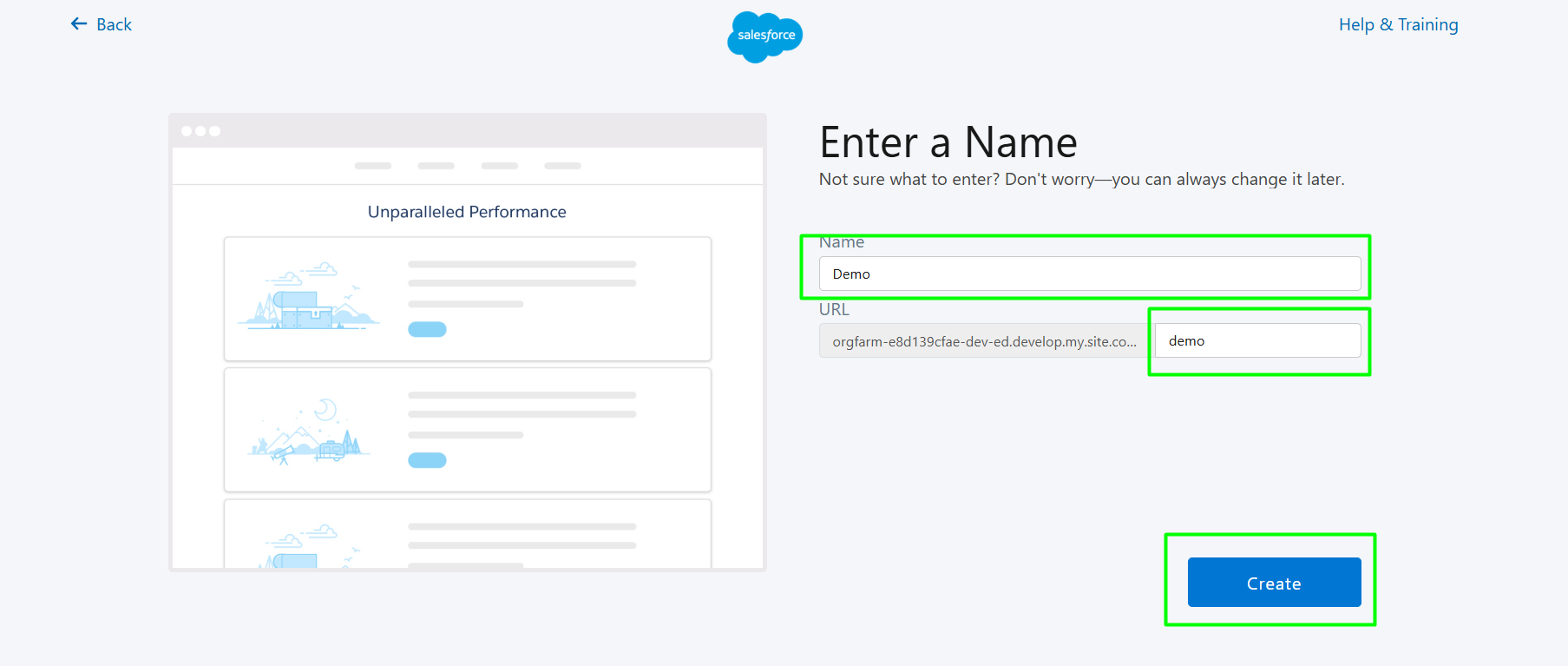
Step 8: Enter the site Name and URL, then click the Create button.
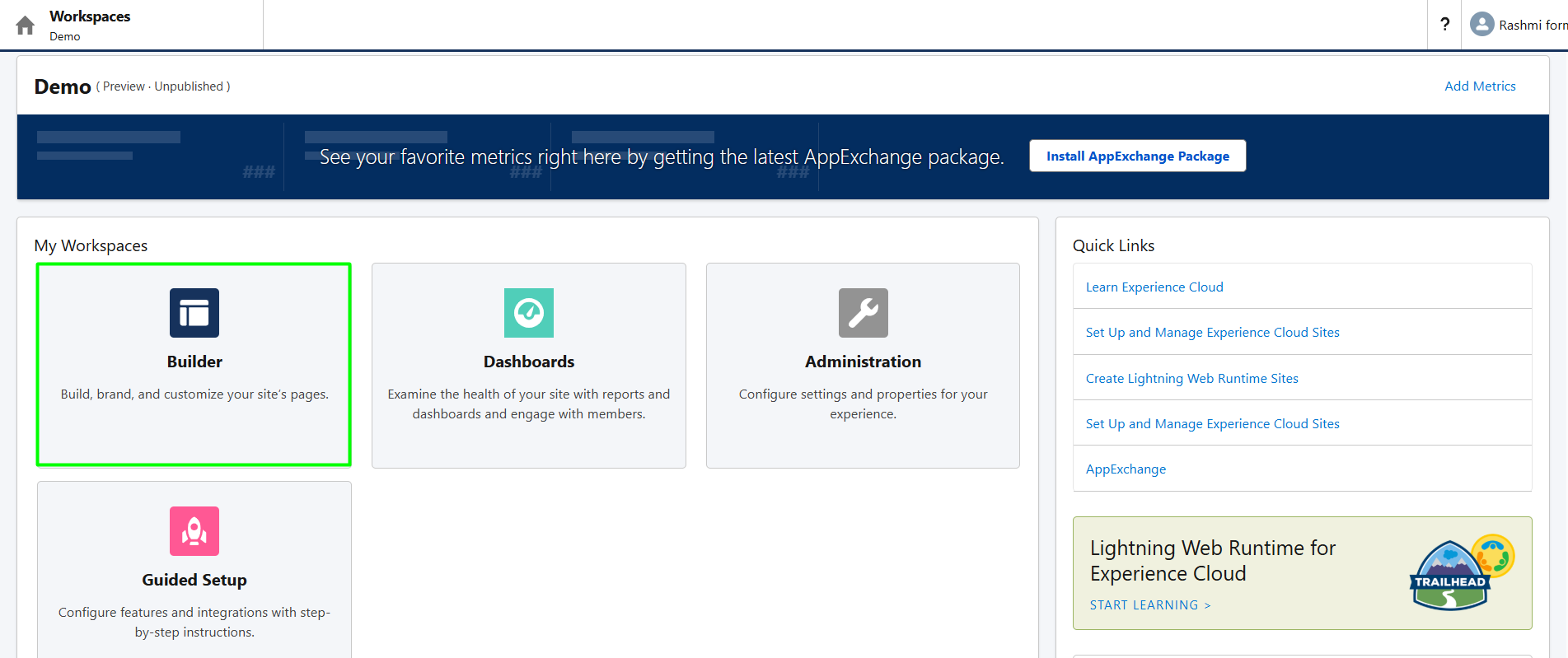
Step 9: Now, click on Builder to start customizing your site.
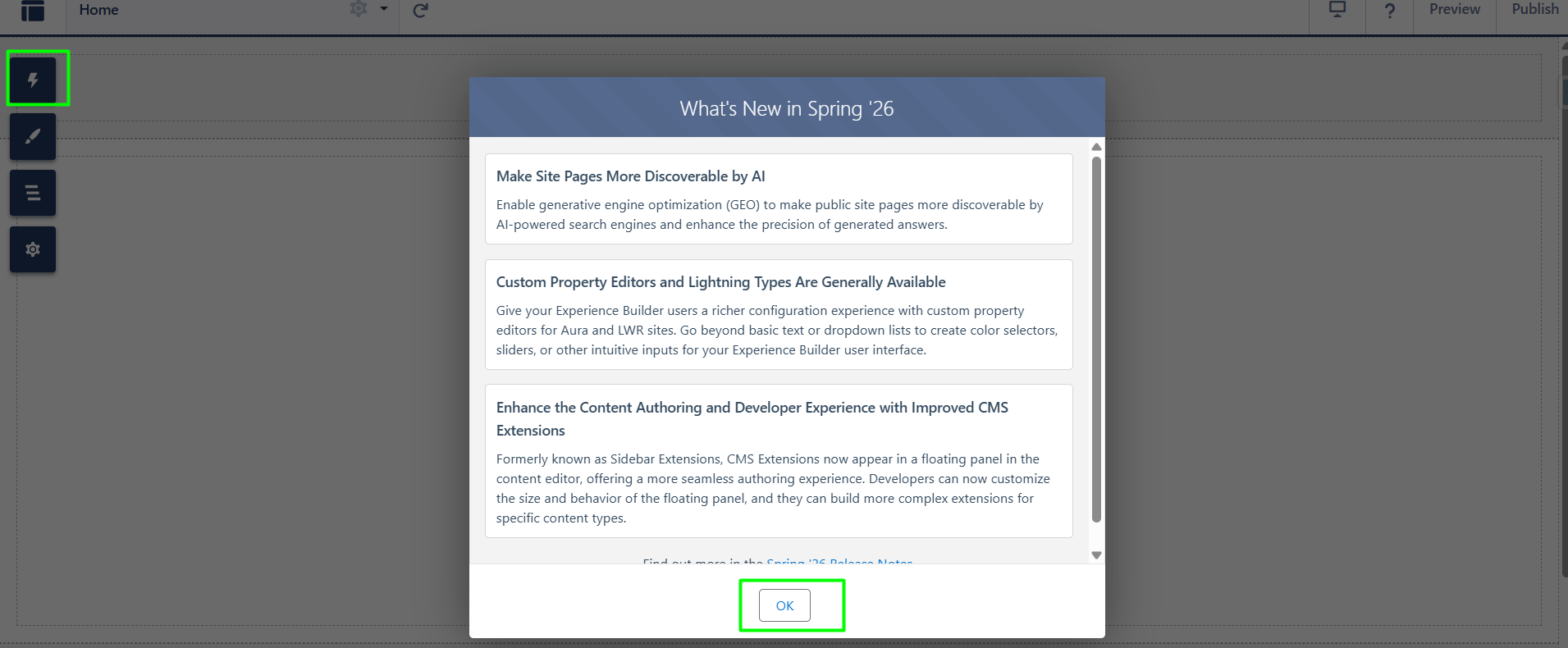
Step 10: Next, click on ok then Component icon to access the available elements you can add to your site.
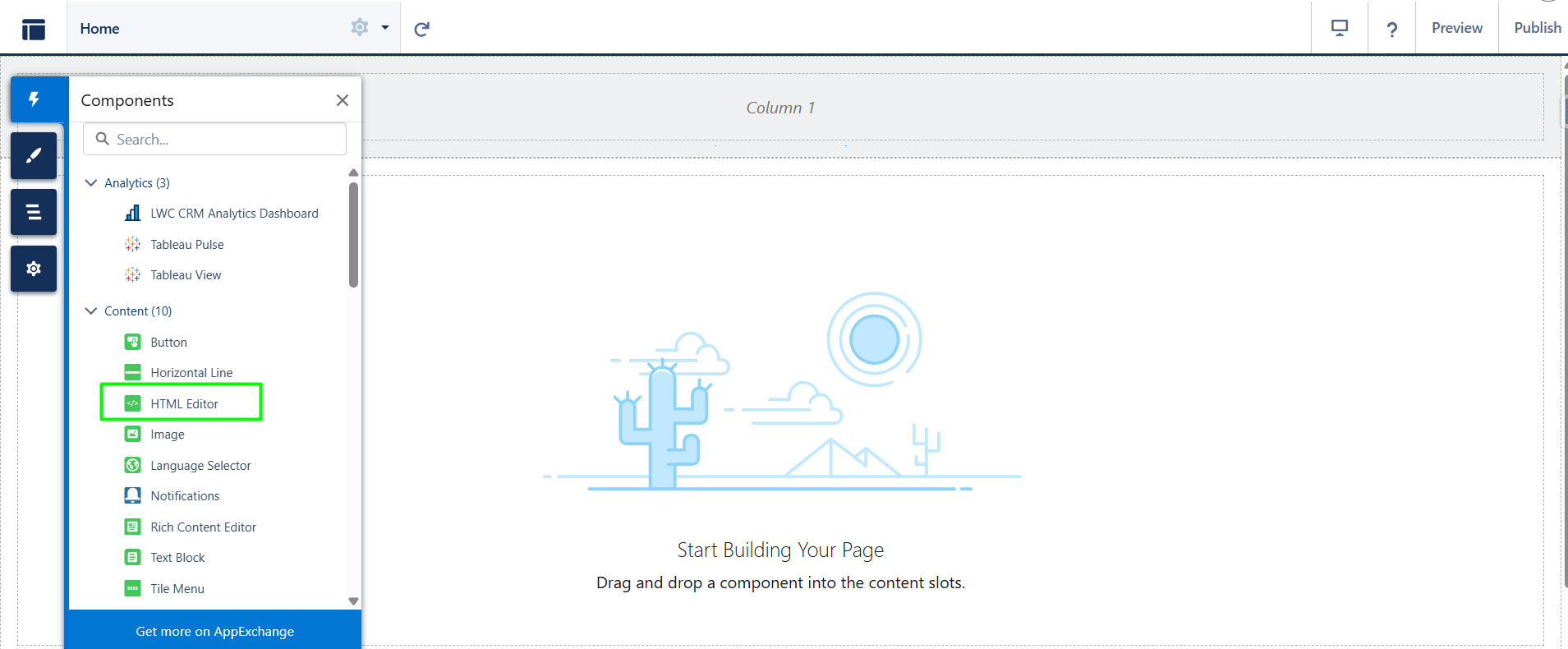
Step 11: Click on the HTML Editor component, then drag and drop it onto your page where you want to add custom code.
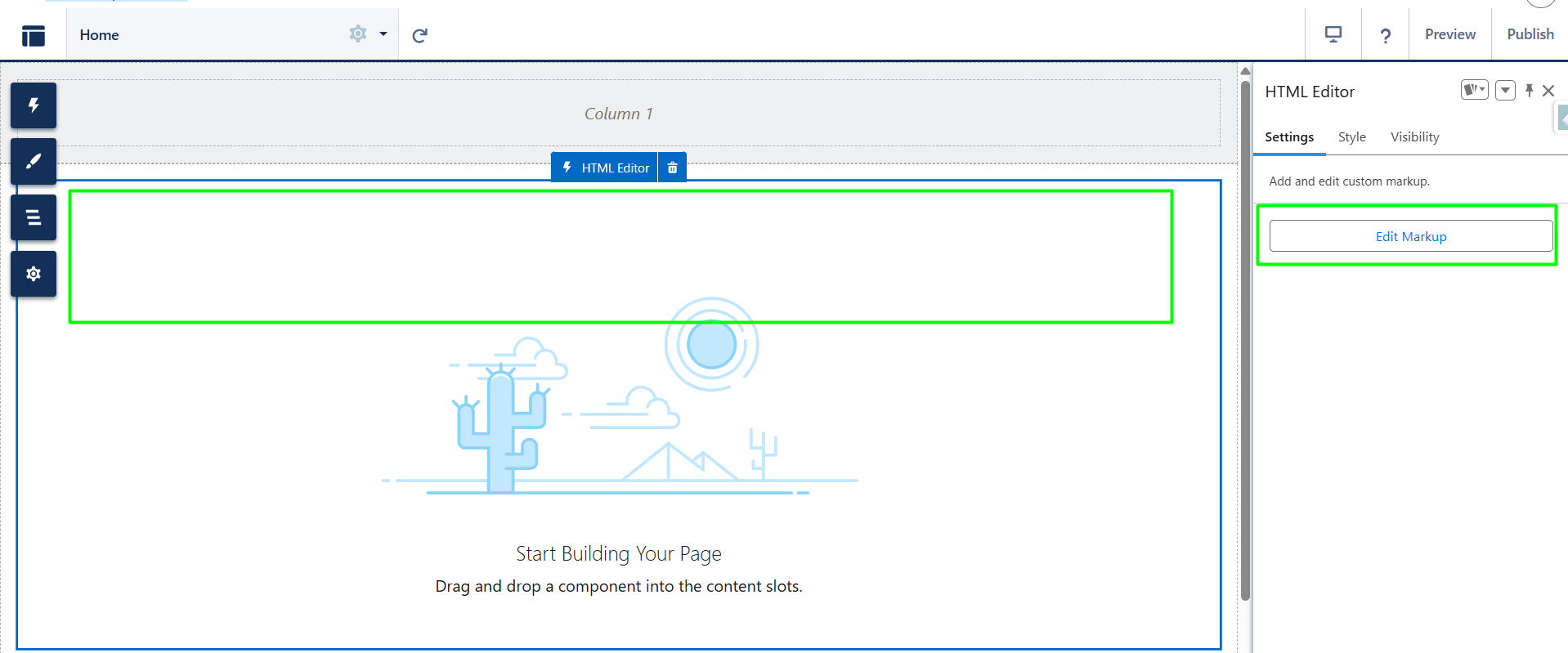
Step 12: Click on Use this HTML Editor to add your own markup, then click Edit Markup to open the editor.
Step 13: Paste the copied Iframe code inside the HTML Editor, then click on Save button.

Step 14: Click the Publish button to make your form live.
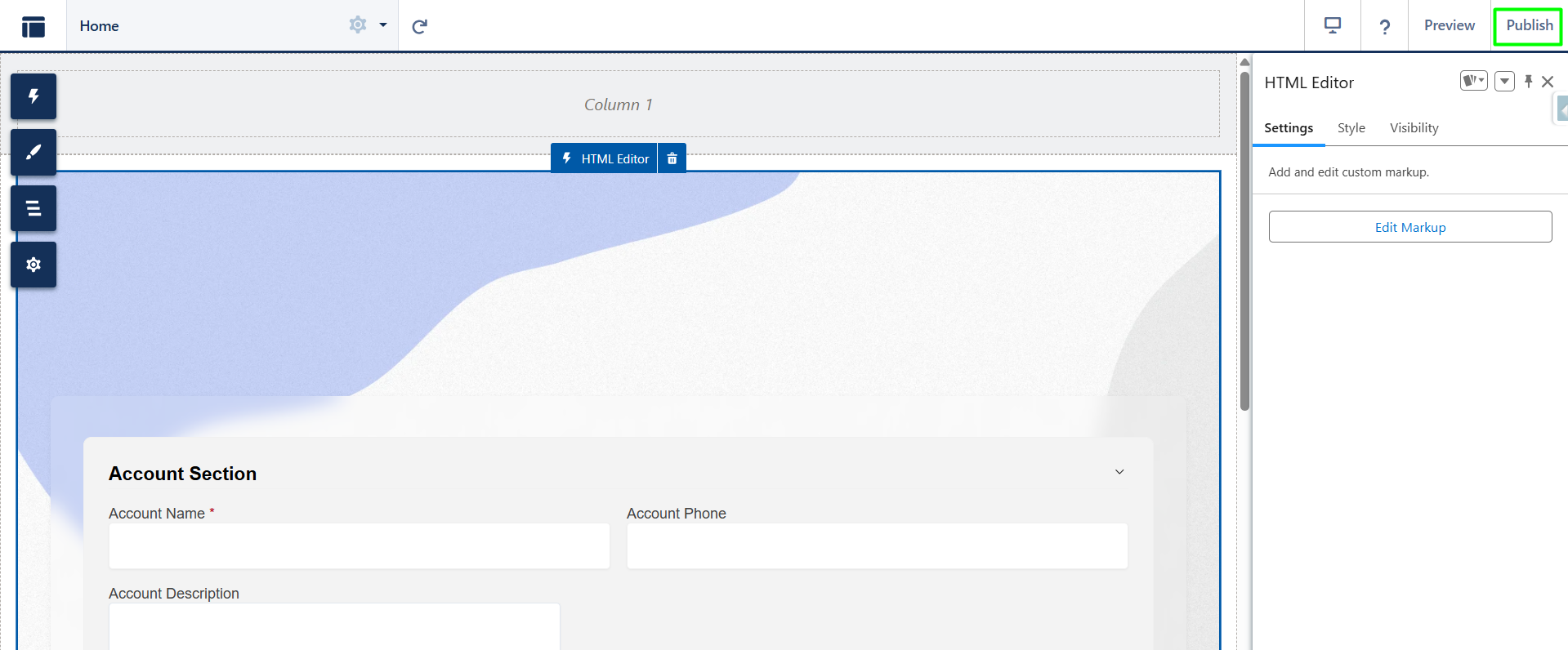
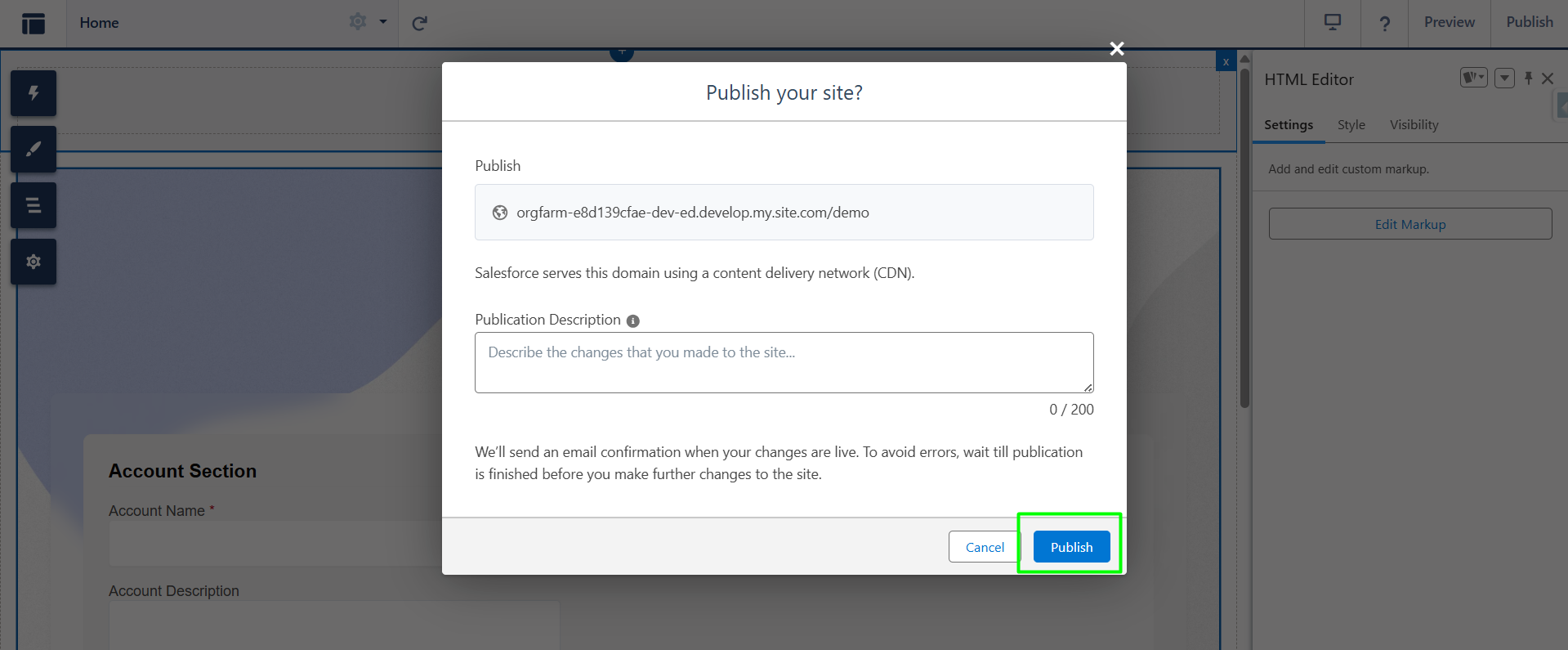
Step 15: Again, click on the Publish button. then Click on Got it.
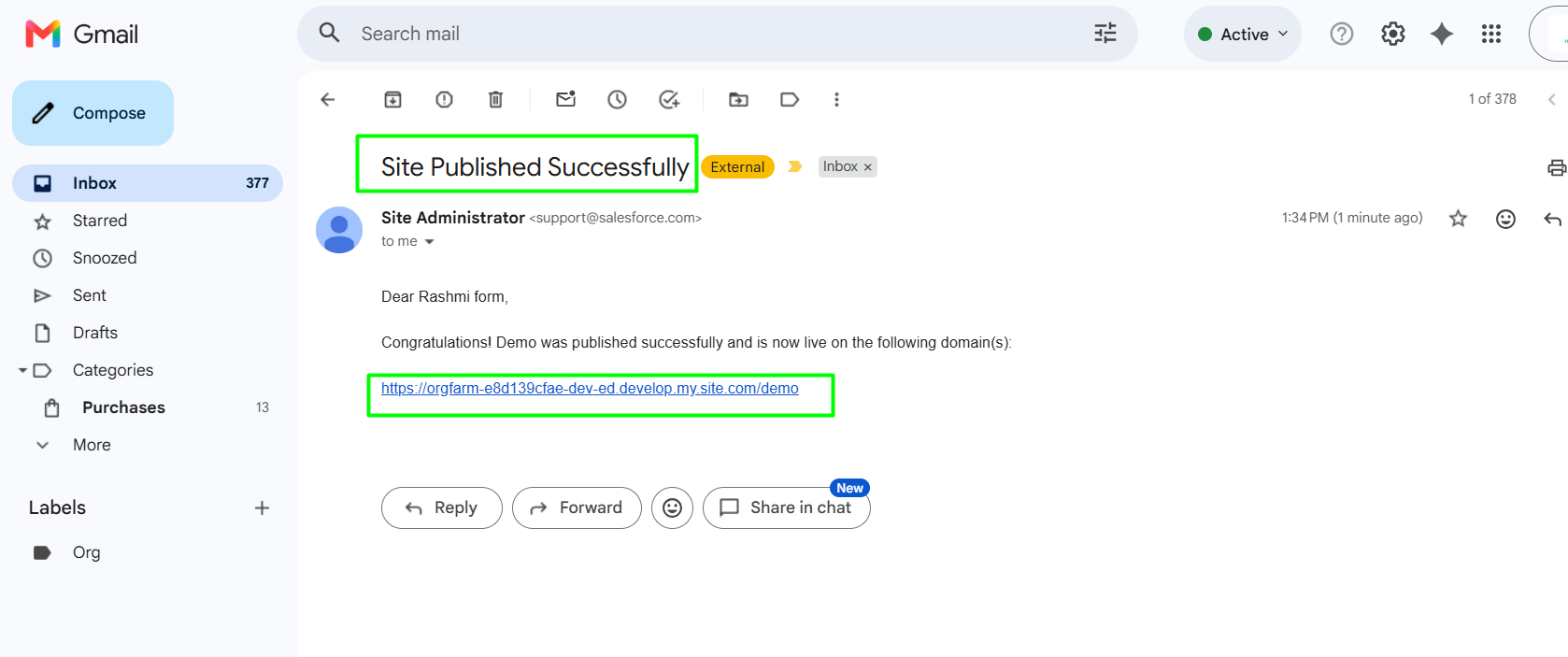
Step 16: After publishing, you will receive an email with the subject ‘Site Published Successfully’. The email will also include the URL to access your live form. Click on the live URL in the email to open and view your published form.
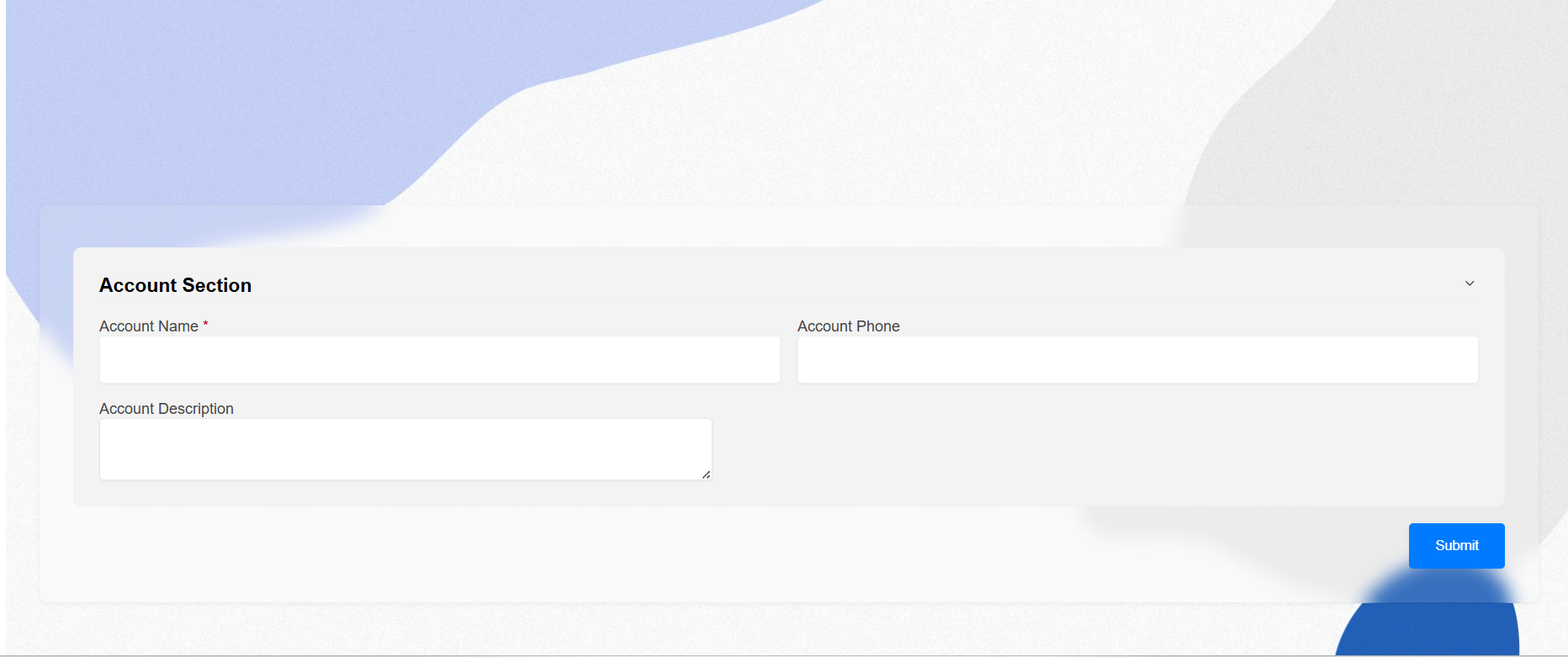
Step 17: The form will now open in your browser, ready for use.
How to use Source Code :
Step 1: Now, for the third (Source Code) option, click the “Copy” button to copy the Source Code.
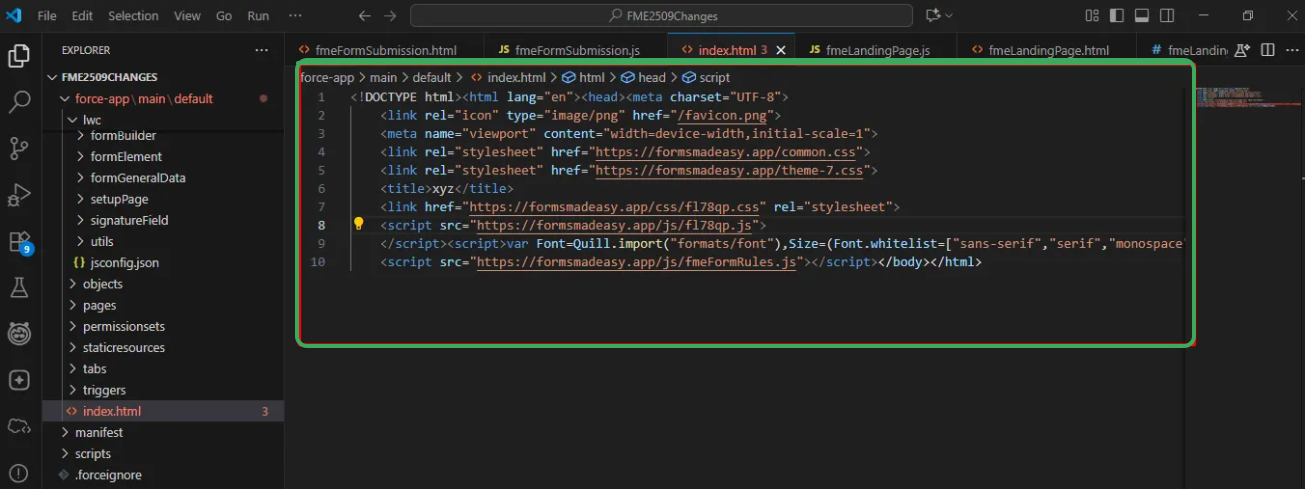
Step 2: Now, open VS Code and navigate to your HTML file. Paste the copied Source Code into the file, save it, and then open HTML file using Live Server to preview it in your browser.
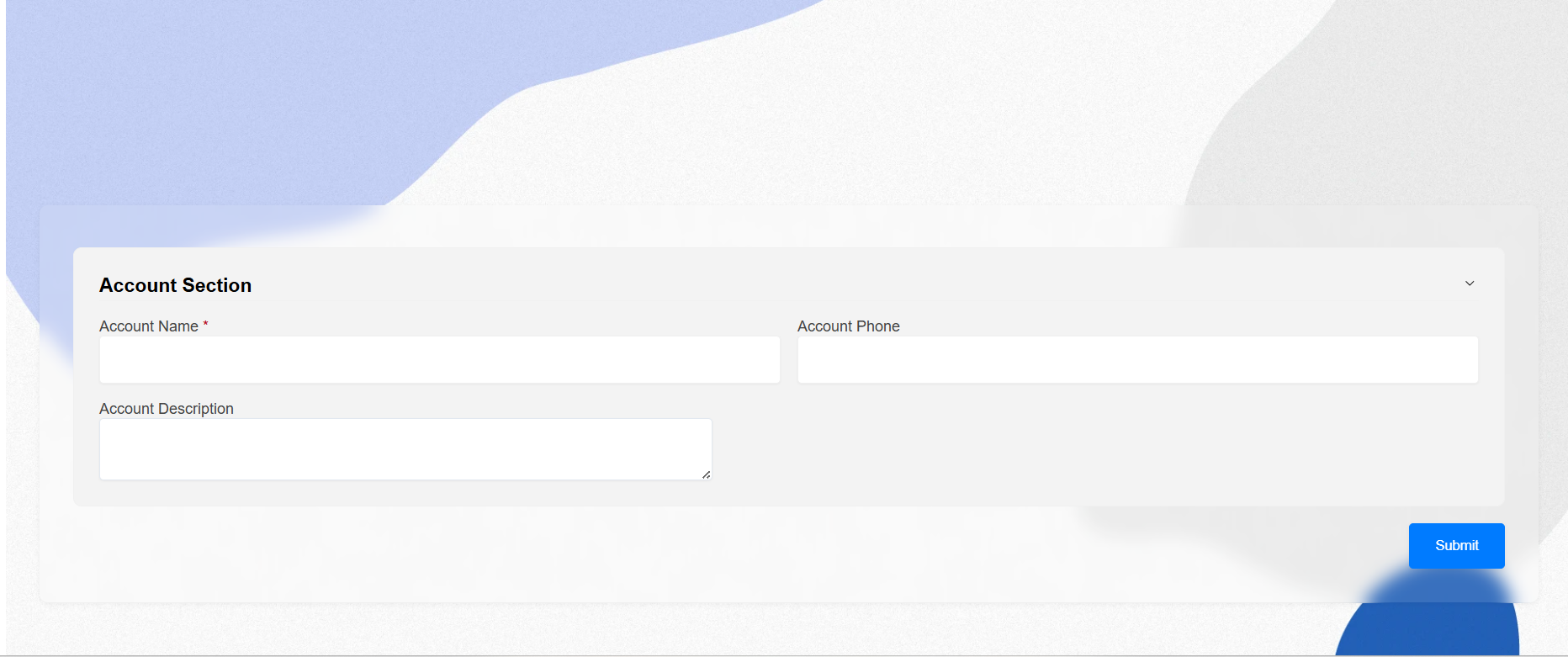
- Step 3: The form will now be displayed in your browser.
Was this article helpful?
That’s Great!
Thank you for your feedback
Sorry! We couldn't be helpful
Thank you for your feedback
Feedback sent
We appreciate your effort and will try to fix the article