In this blog, we will walk through how to use the Start with a Template feature to quickly create a form using pre-built templates.
The Start with a Template functionality is useful when you want to save time by using ready-made form designs instead of building one from scratch. It provides pre-configured templates such as Contact Form, Lead Form and Account Form, which you can customize further based on your requirements.
Once you select a template, the form structure with predefined fields becomes available. You can then modify, add, or remove fields as needed to align the form with your specific use case.
Using the Start with a Template option, you can streamline the form creation process and maintain consistency in design and structure, ensuring a faster and more efficient workflow.
Steps to Create the Form in Forms Made Easy :
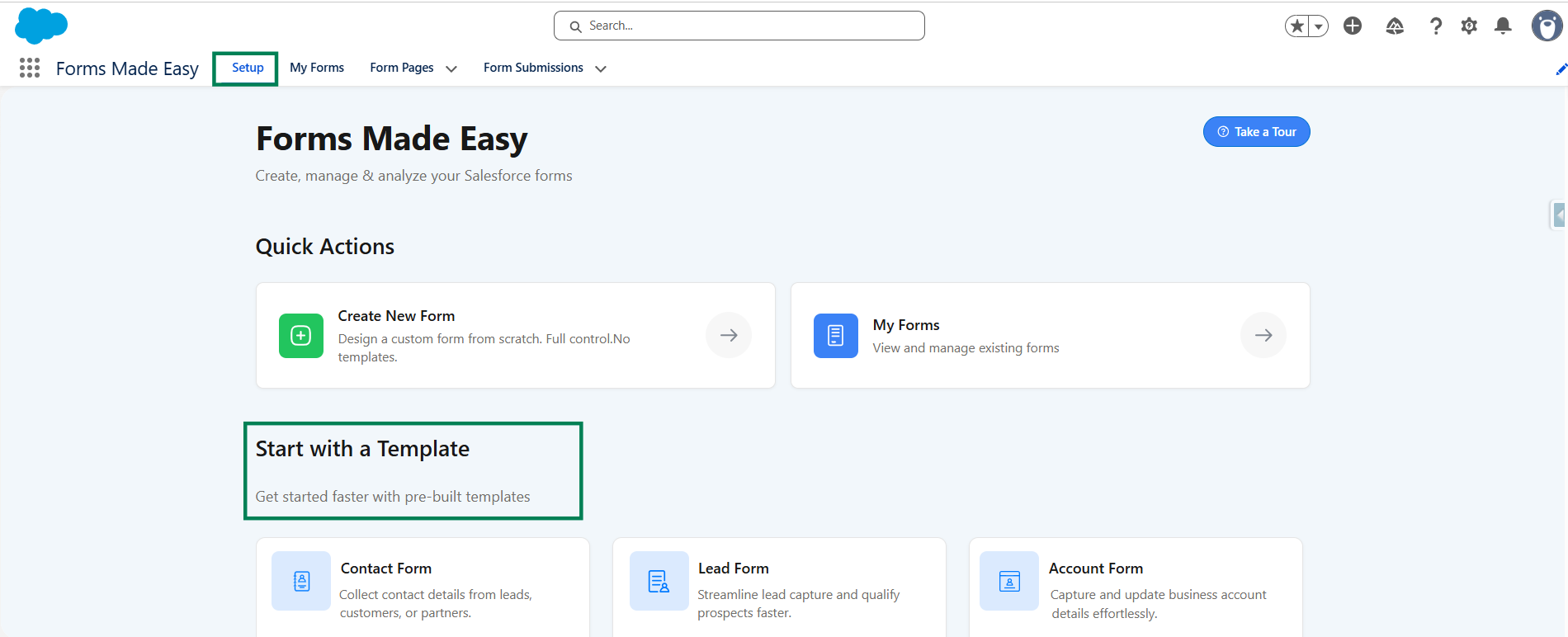
Step 1: Go to the Setup tab and scroll down to the Start with a Template section.
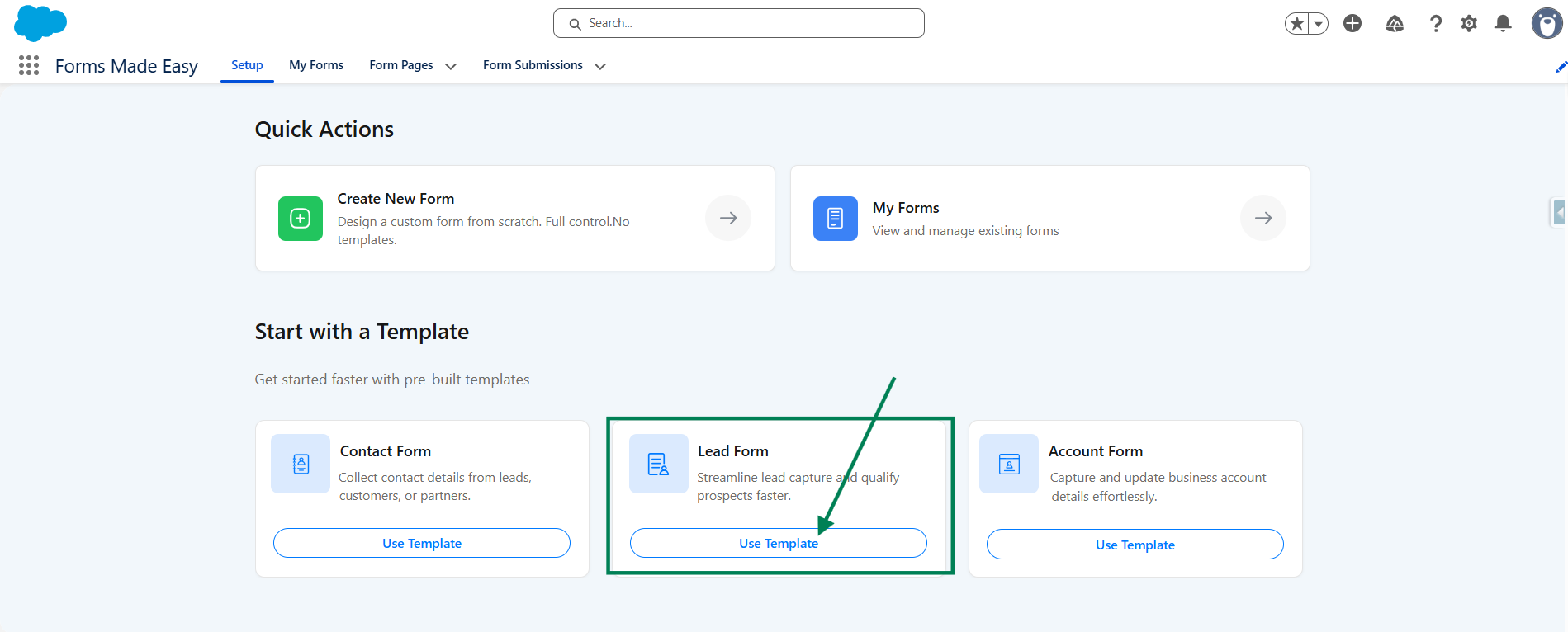
Step 2: Click on the Use Template button to access the pre-built form templates available under this section. You can choose from Contact Form, Lead Form, and Account Form templates according to your requirements.
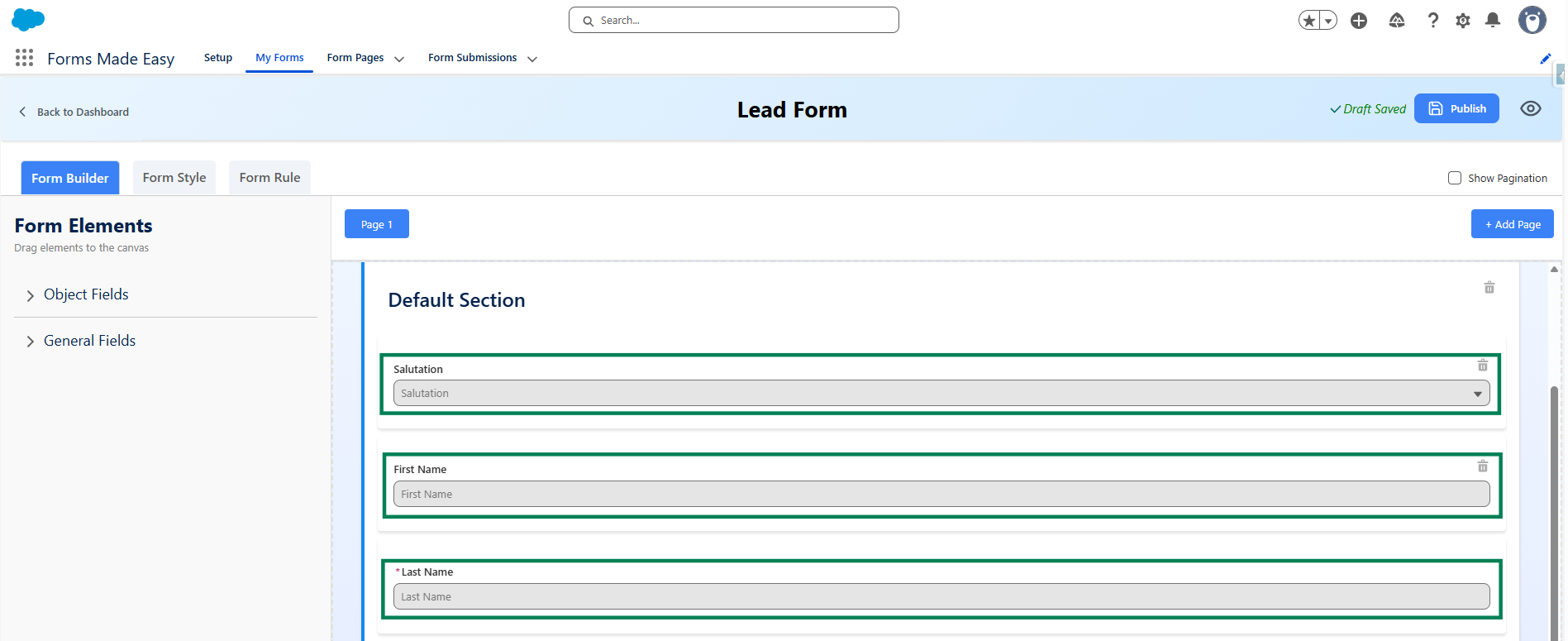
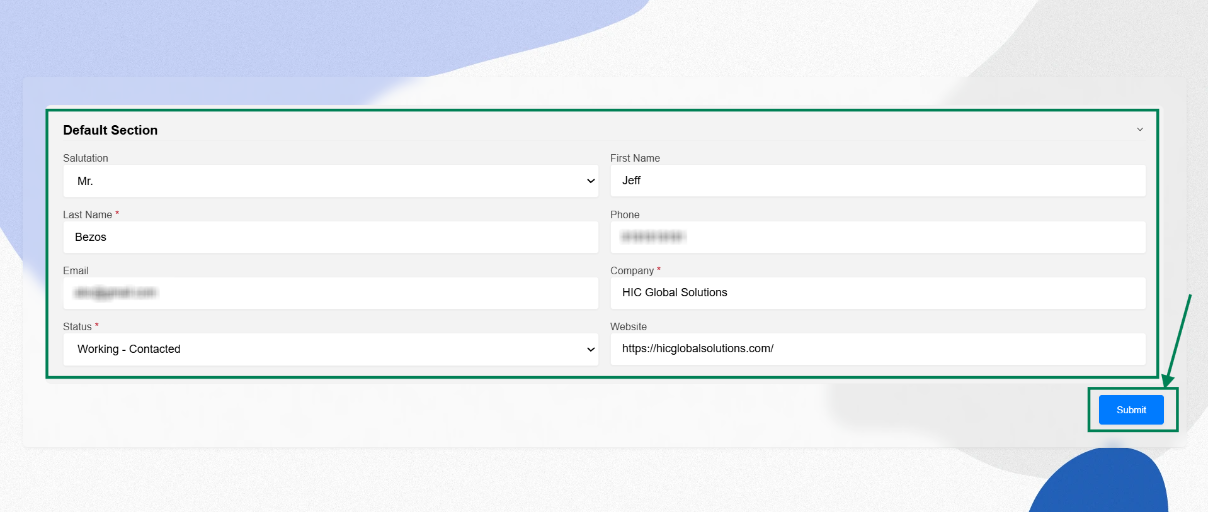
Note: In this example, we will proceed with the Lead Form template. For the Lead Form template, the fields Salutation, First Name, Last Name, Phone, Email, Company, and Status will be automatically populated. For the Contact Form template, the fields Salutation, First Name, Last Name, Mobile Phone, and Email will be automatically populated. For the Account Form template, the Account Name and Account Phone will be automatically populated.
Step 3: After clicking on the Use Template button, the predefined fields will be automatically populated in the form based on the selected template.
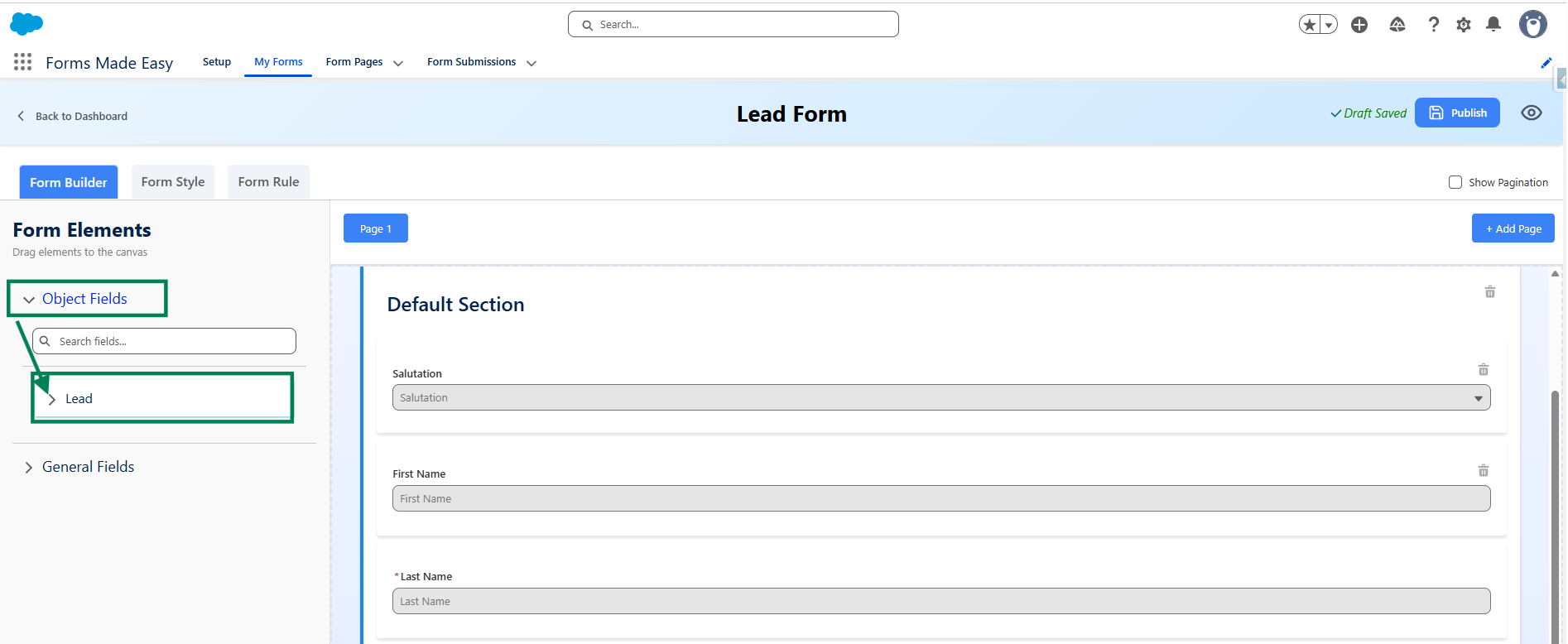
Step 4: Go to the Object Fields section and click on Lead.
Step 5: Drag and drop your required fields onto the form.
Note: In this example, we will only drag and drop the Industry field from the Lead object, while the remaining fields will be automatically populated in the form.
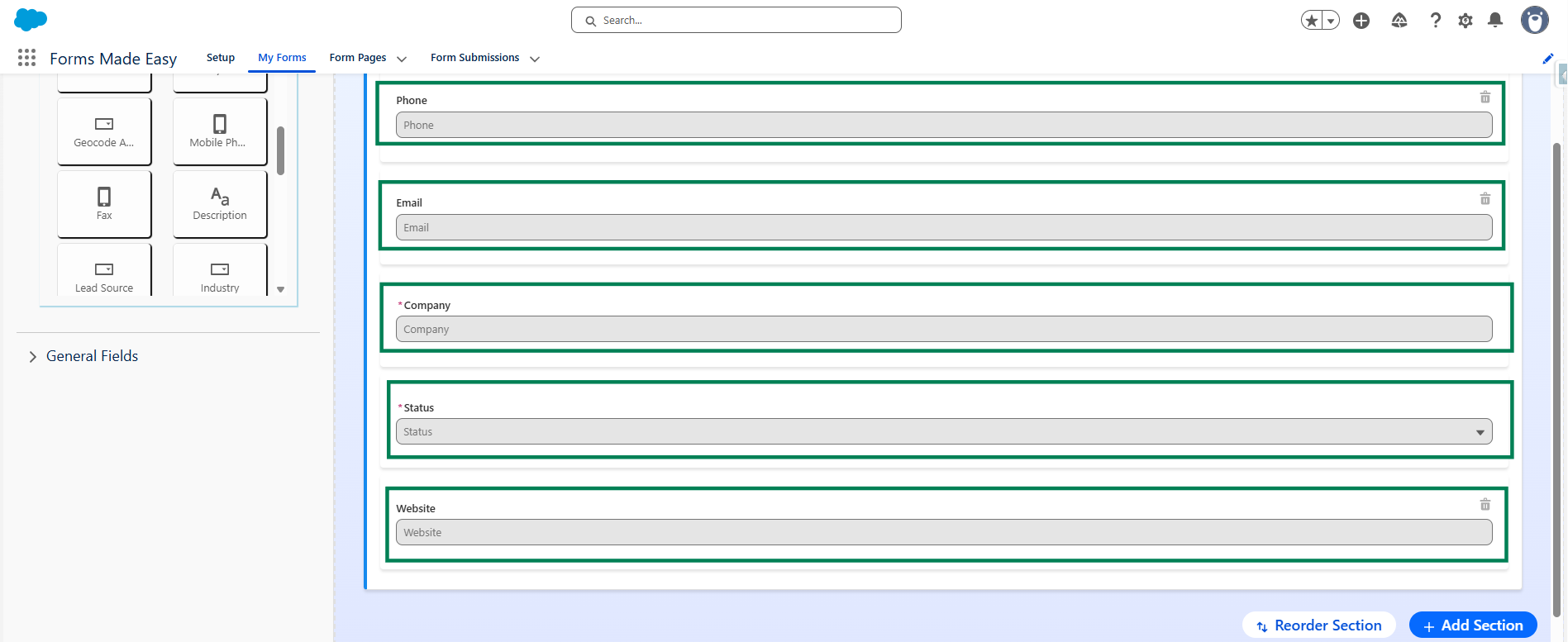
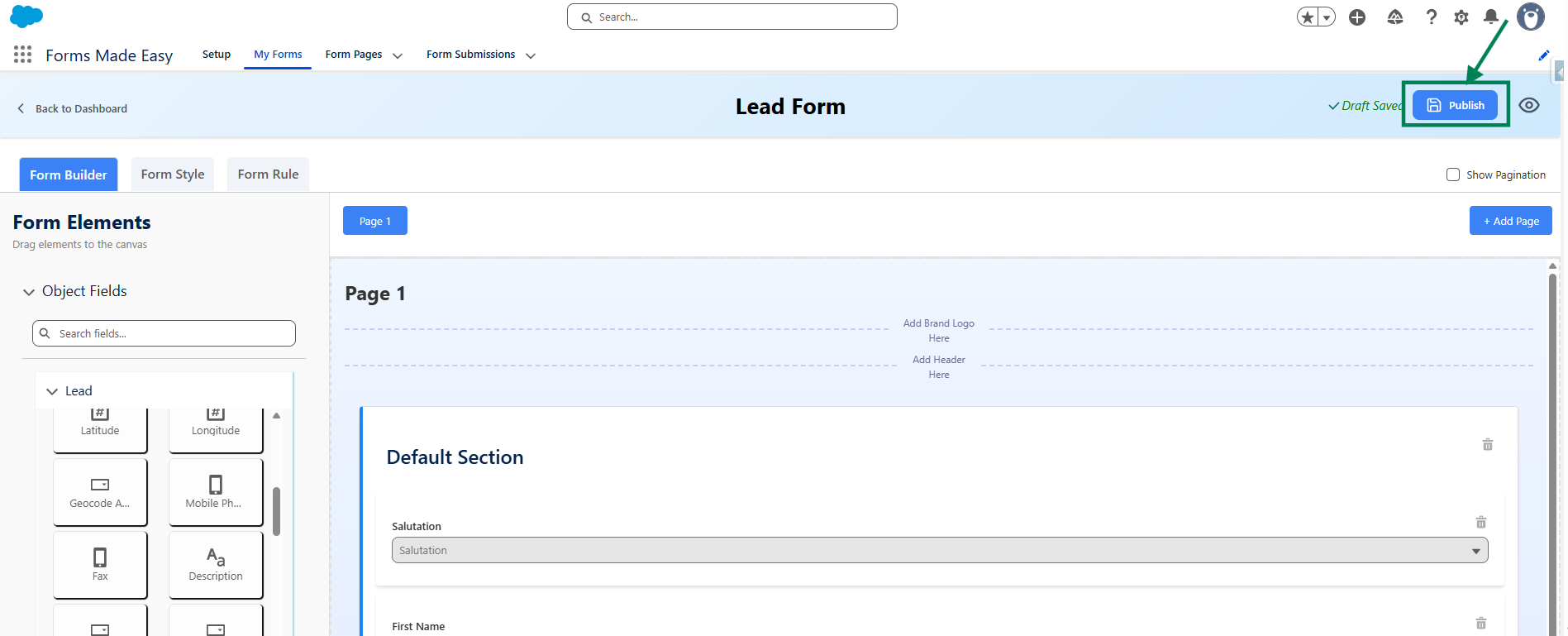
Step 6: After all of that, you can publish the form by clicking the Publish button.
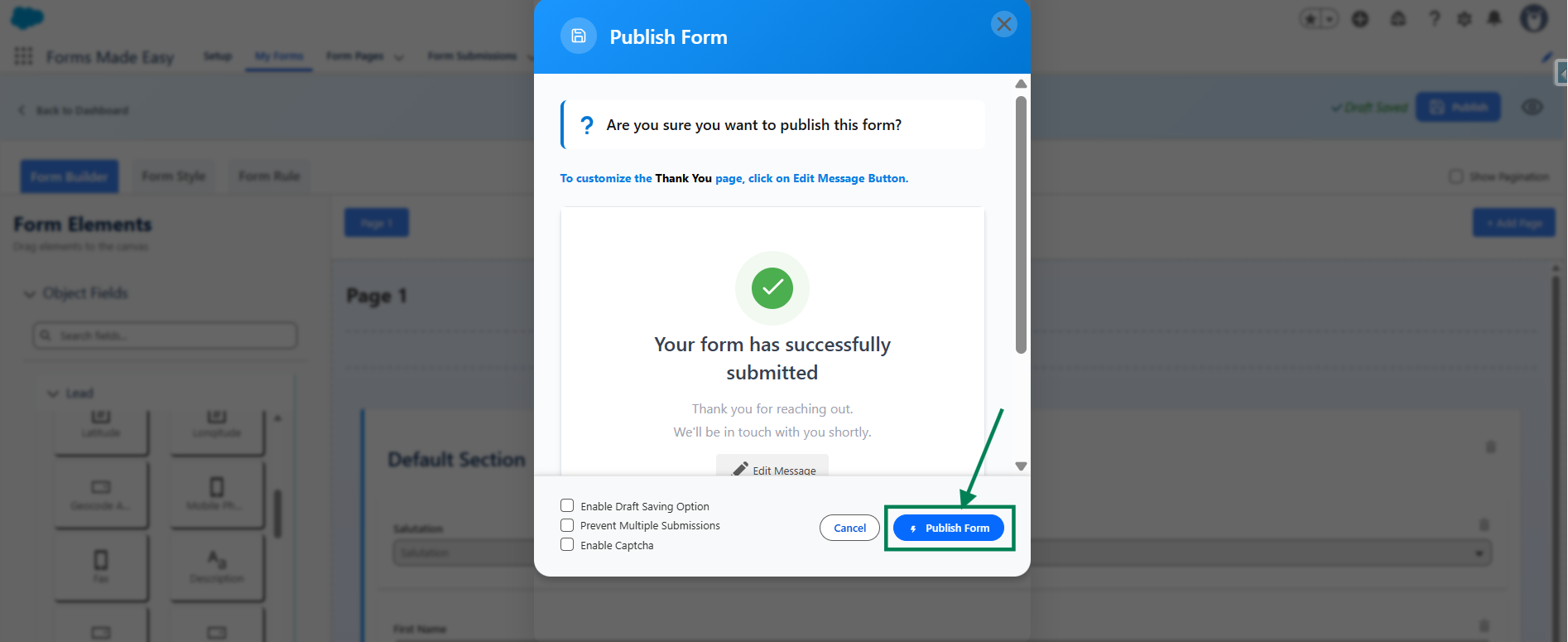
Step 7: Click the Publish Form button.
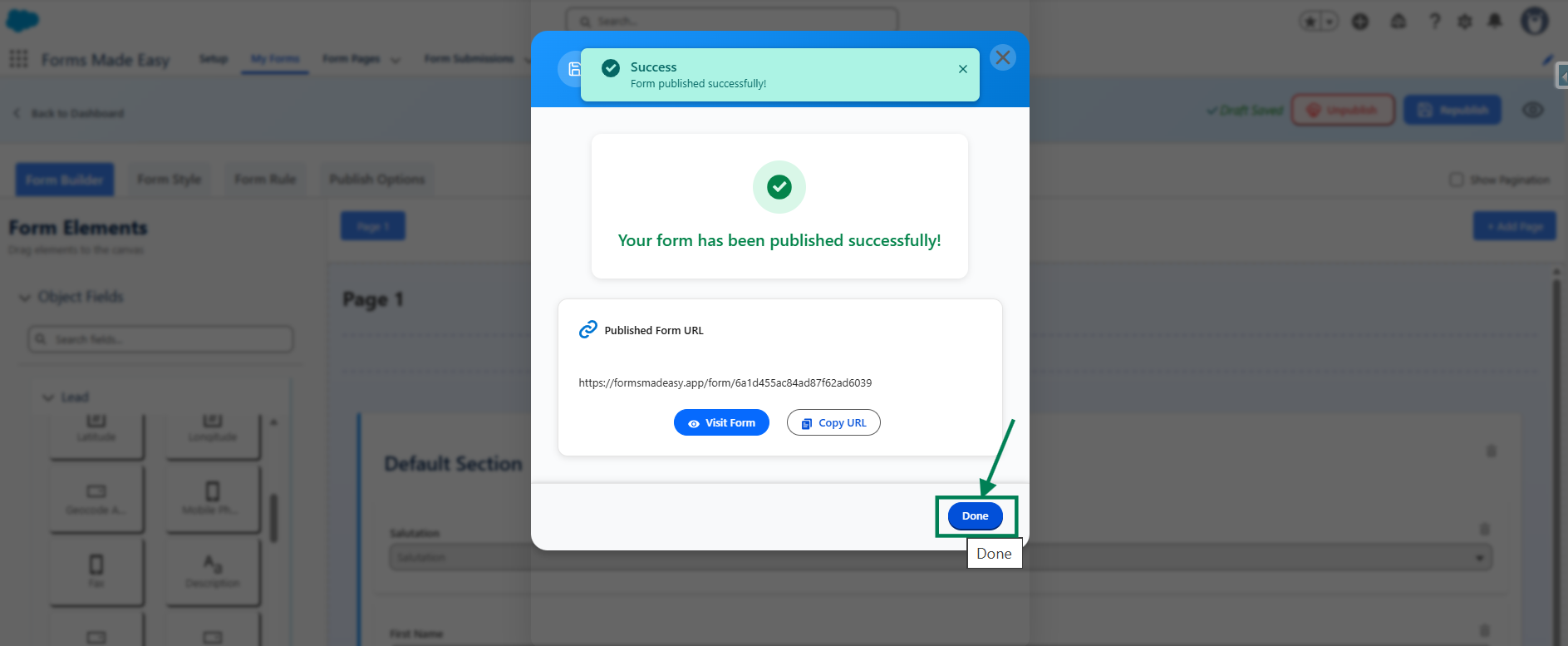
Step 8: Click on Done to close the modal.
Step 9: Once the form is published, an additional Publish Options tab becomes available.
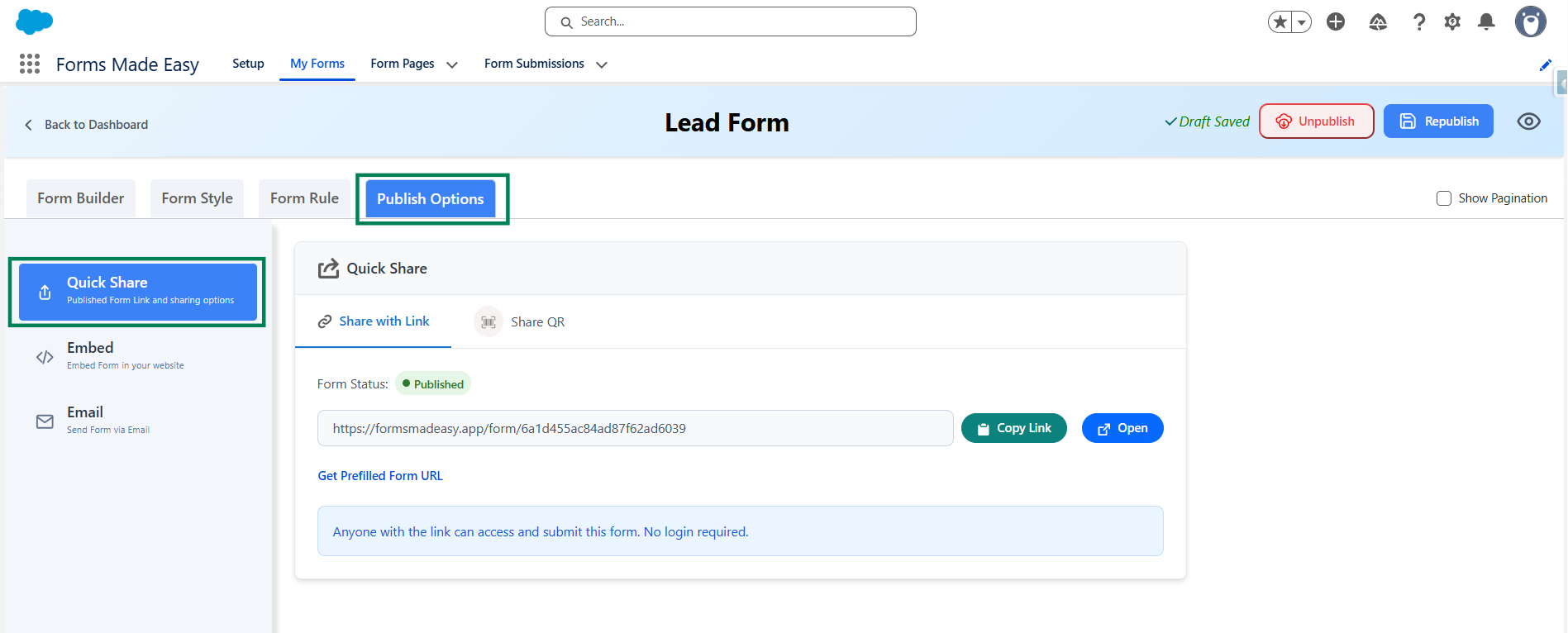
Step 10: Click on the Copy Link button to copy the form URL, which you can then share with others. You can also manually copy the link.
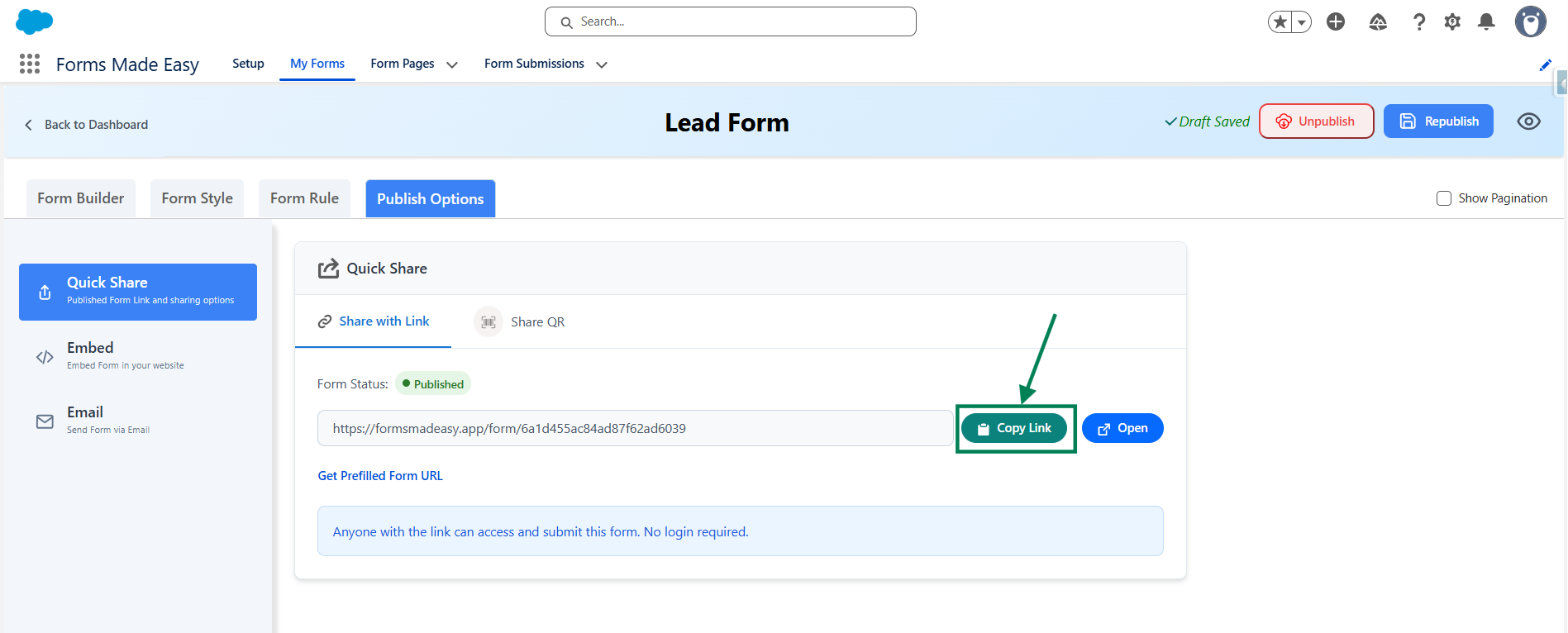
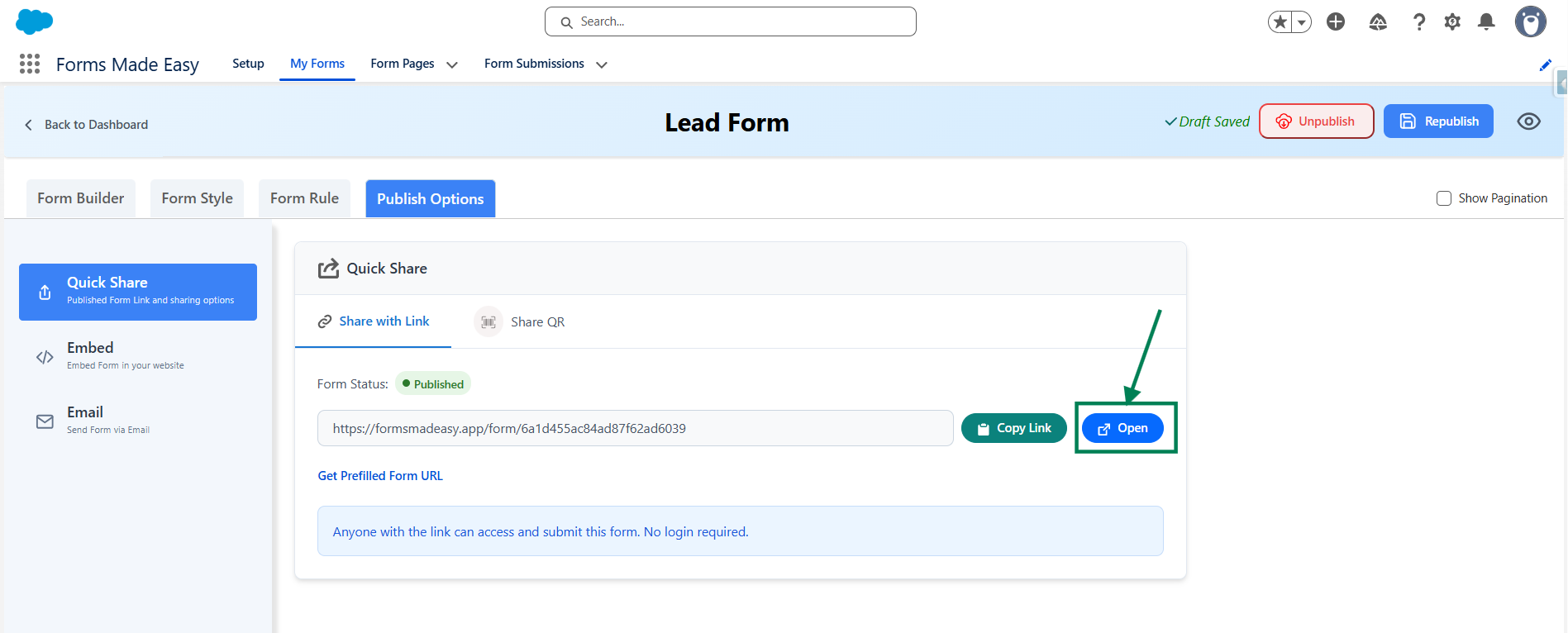
Step 11: Click on the Open button to directly open the form in your web browser.
Step 12: After filling all the information, click the Submit button to submit the records.
Step 13: Go to the My Forms tab and refresh the page.
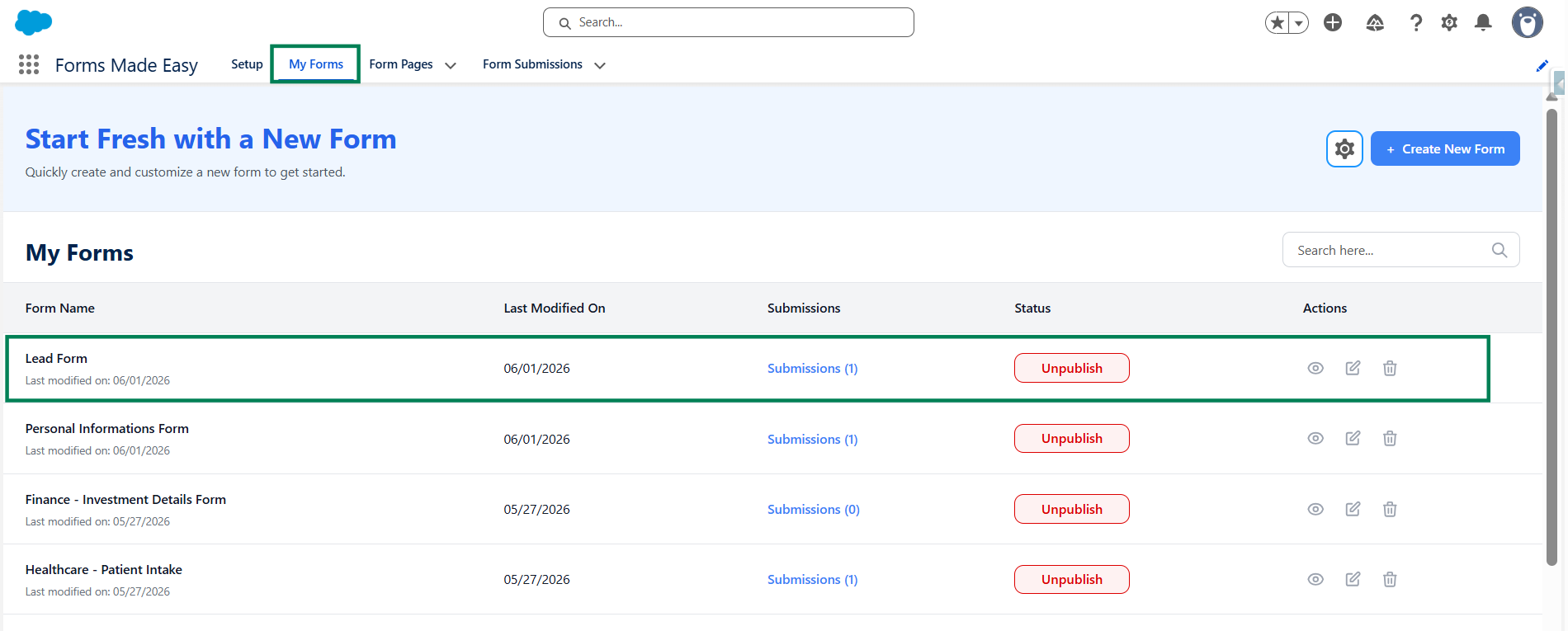
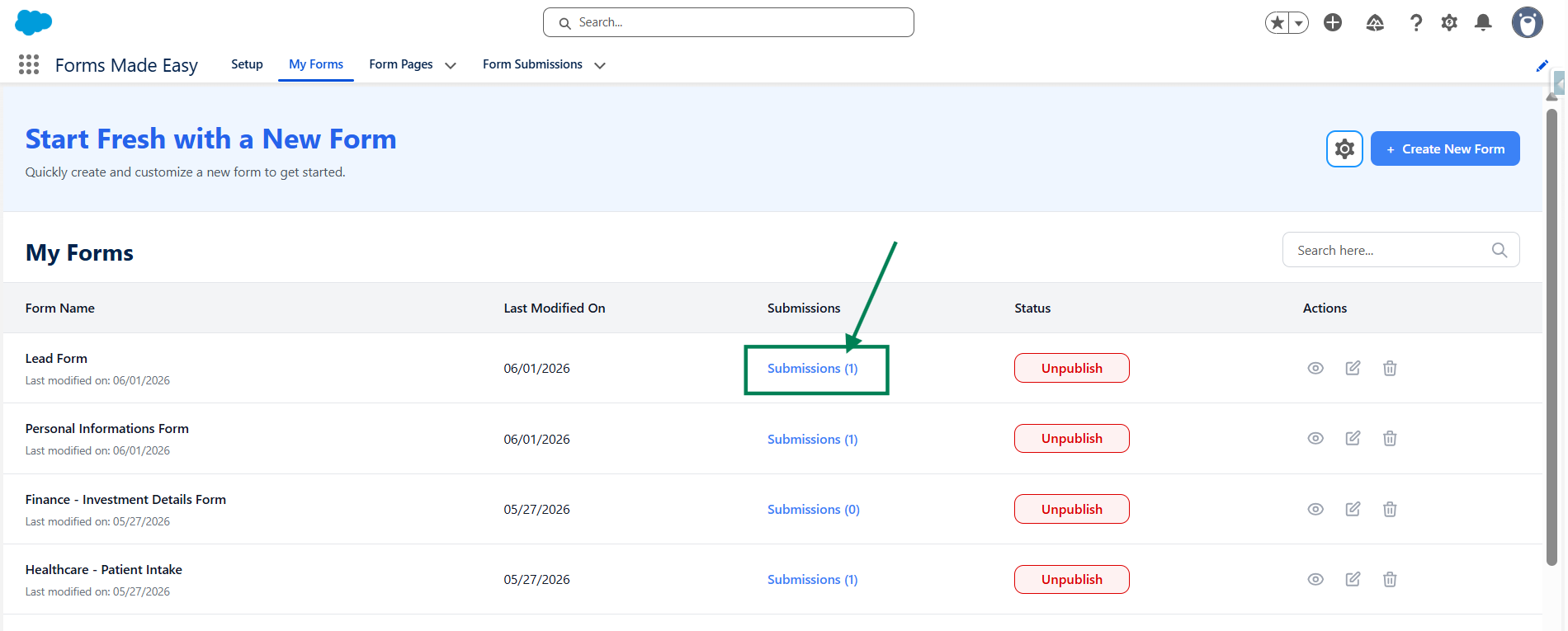
Step 14: Click on the Submission button of that form.
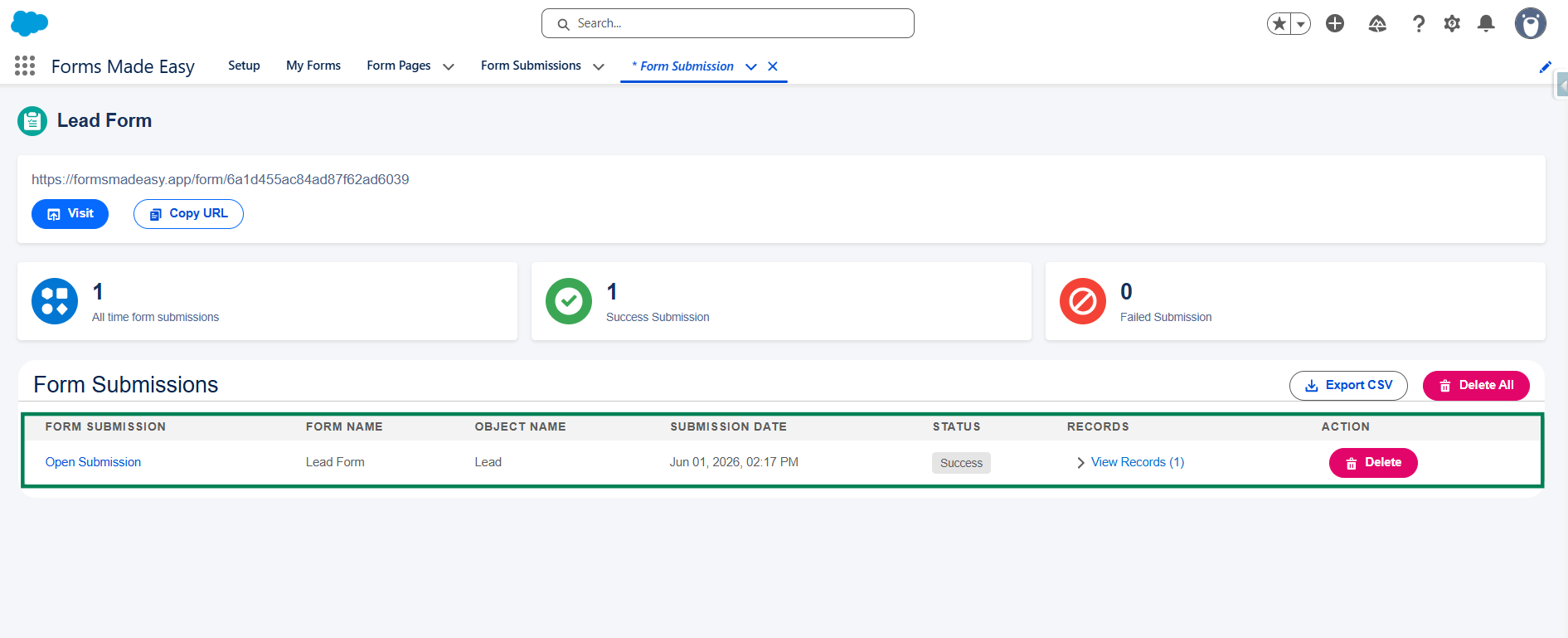
Step 15: Here, all submissions for that form will be displayed.
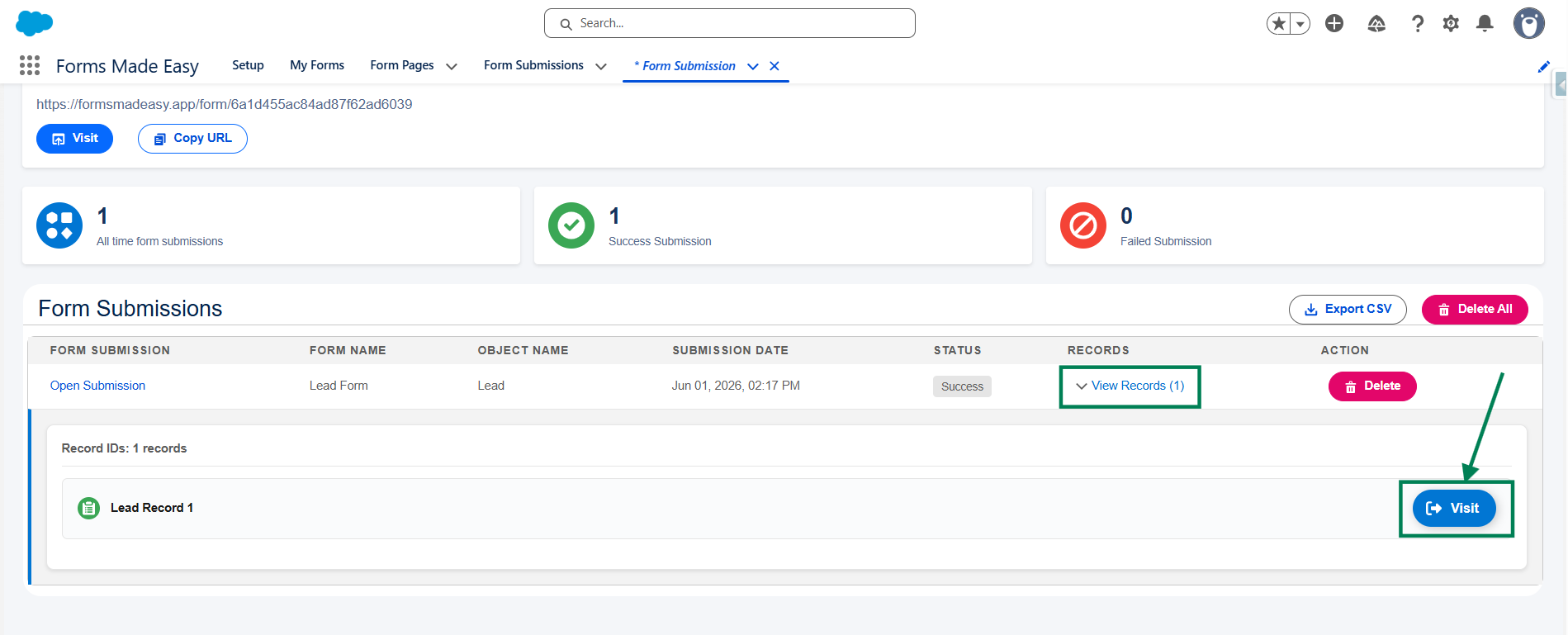
Step 16: Click on View Records, then click the Preview button to see the submitted form data.
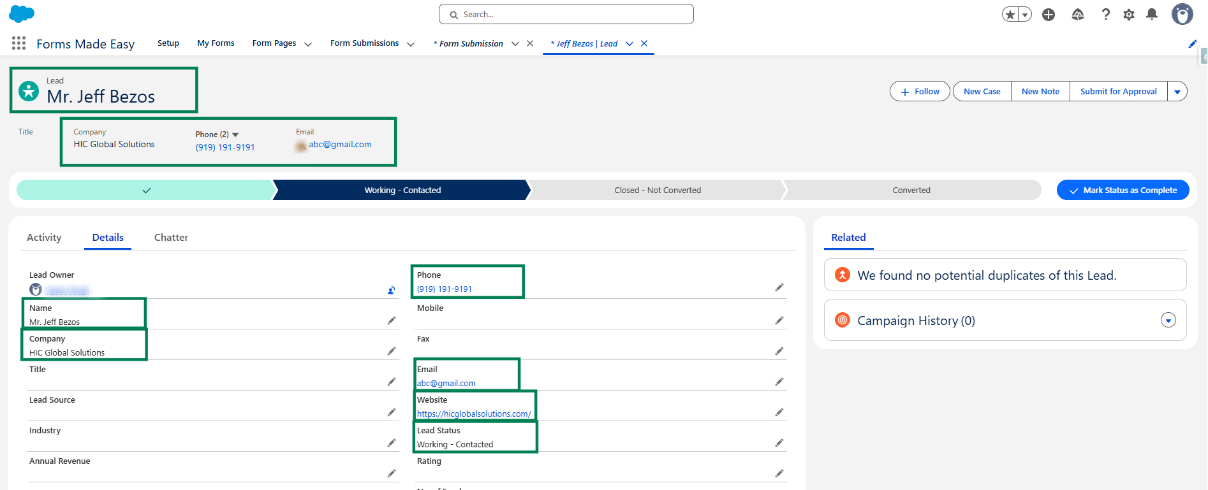
Step 17: The submitted records will now appear under the Lead object in Salesforce.
We hope this article helps! If you still face any issues, feel free to contact us at support@formsmadeasy.com.
Was this article helpful?
That’s Great!
Thank you for your feedback
Sorry! We couldn't be helpful
Thank you for your feedback
Feedback sent
We appreciate your effort and will try to fix the article