In this blog, we will walk through how to use the Form Style feature to customize the look and feel of your form once it has been created.
The Form Style functionality is useful when you want to enhance the visual appearance of your form by applying custom styles, background images, layouts, and color themes. It also provides options such as a Color Picker, along with Reset and Save buttons to manage your design changes.
Once the form is created, the Form Style tab becomes available. Under this tab, you can adjust the design elements and overall layout of your form according to your preferences.
Using the Form Style tab, you can make your form visually appealing and consistent with your brand, ensuring an engaging and user-friendly experience for your users.
Steps to Create and Update Form Styles in Forms Made Easy :
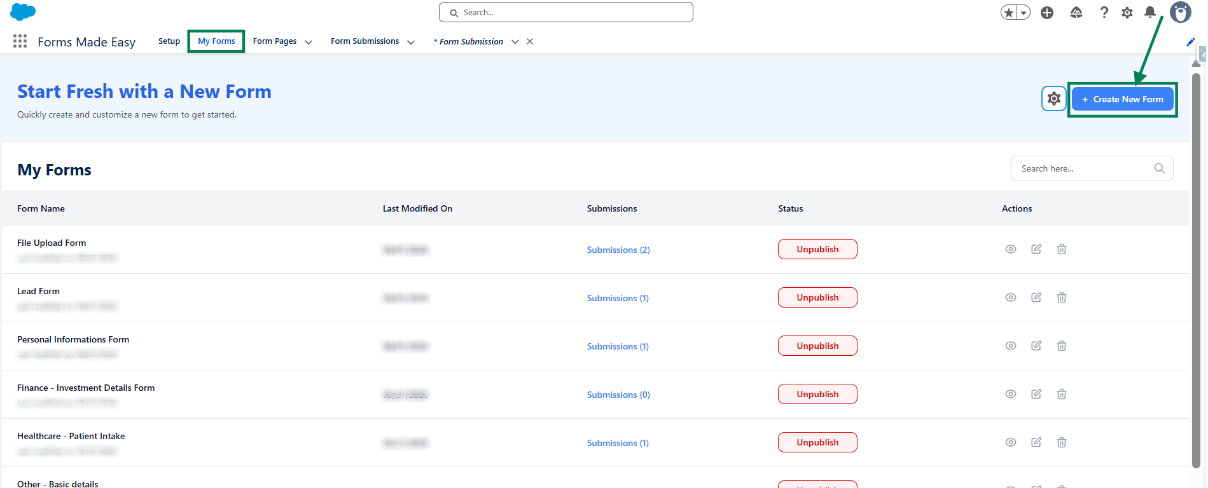
Step 1: Go to the My Forms tab and click on the "Create New Form" button.
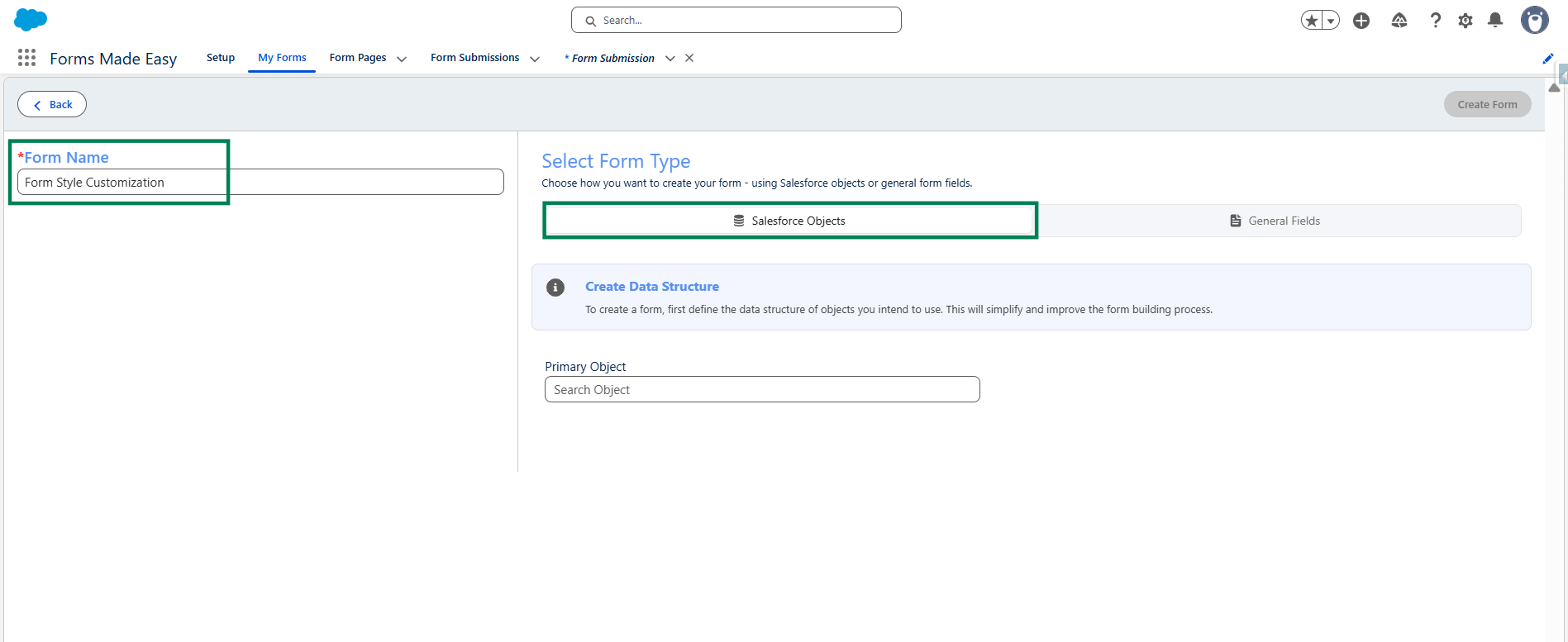
Step 2: Enter the Form Name and select the form type (Salesforce Objects or General Fields).
- Currently I have chosen the Salesforce Object option.
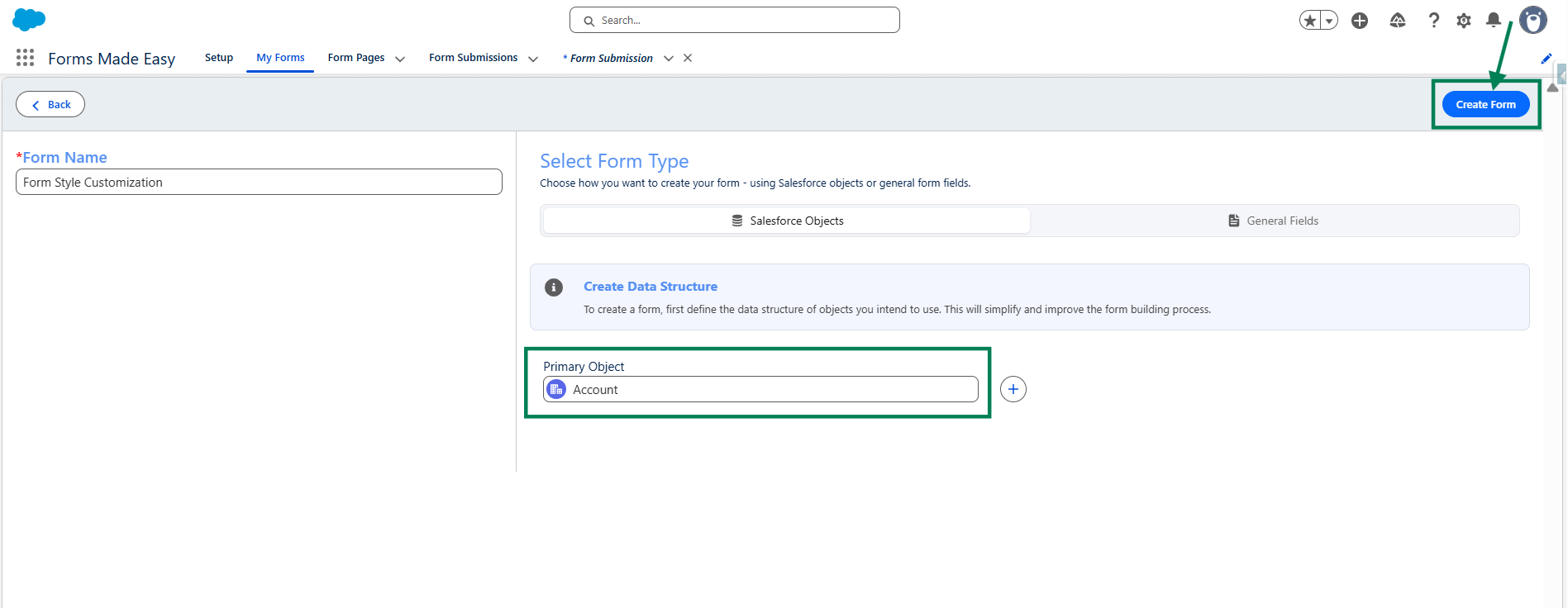
Step 3: Select "Account" as the Primary Object and click the "Create Form" button.
Step 4: Go to the Object Fields section and click on "Account".
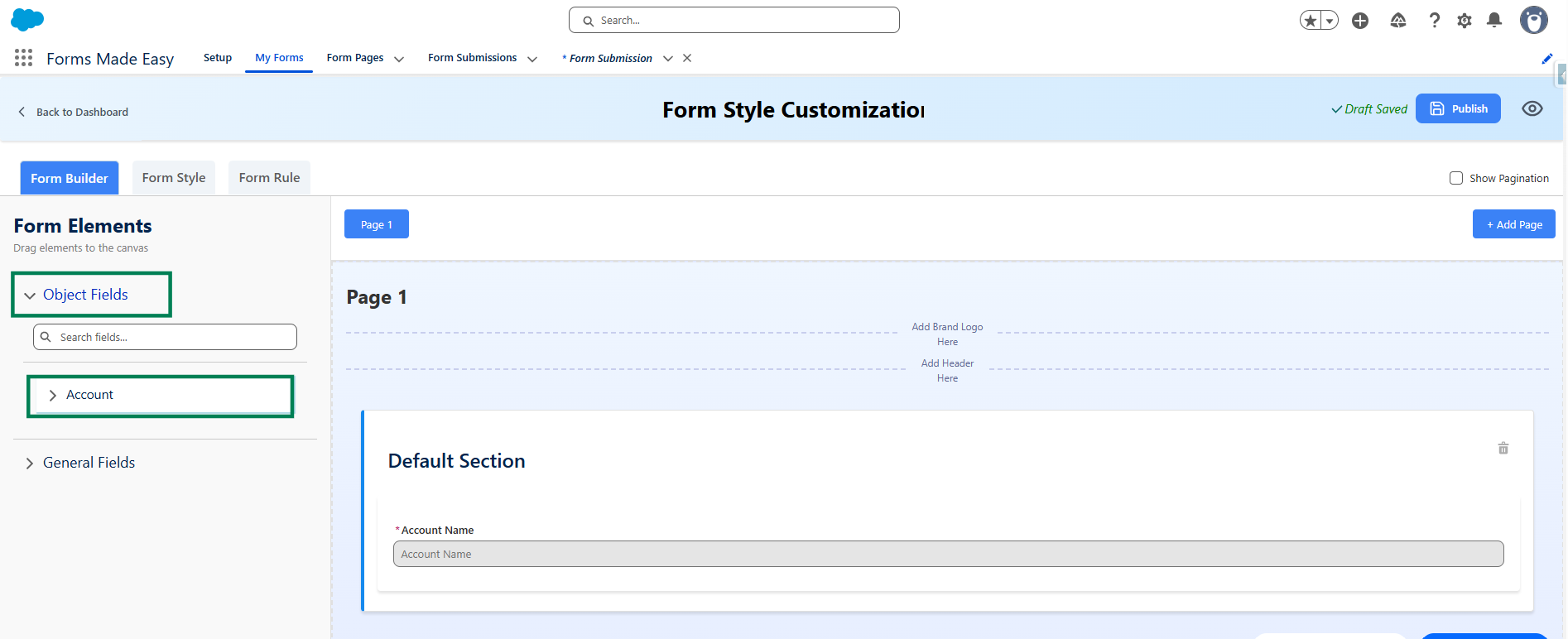
Step 5: Drag and drop your required fields onto the form.
Note: The Account Name field is a mandatory field on the Account Object in Salesforce.
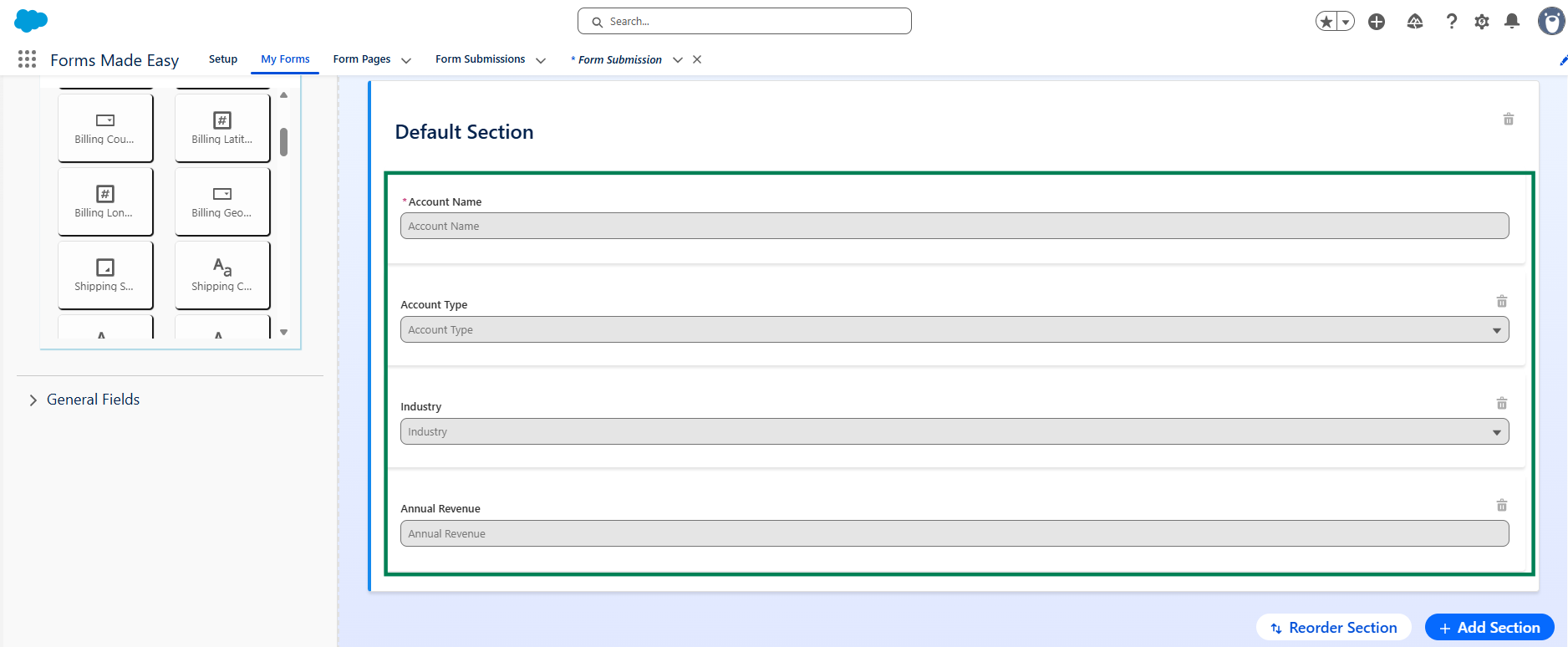
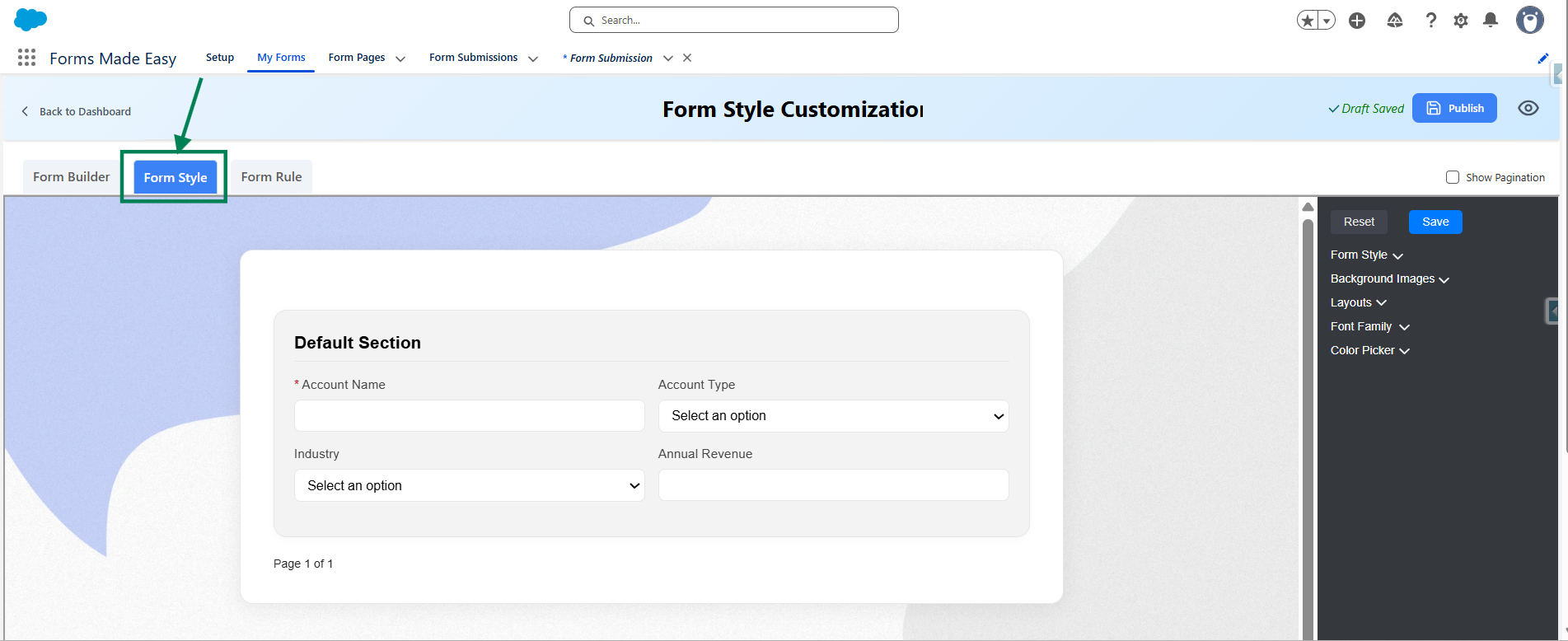
Step 6: After dragging and dropping all the required fields into your form, click on the "Form Style" tab to open it and start customizing your form’s appearance.
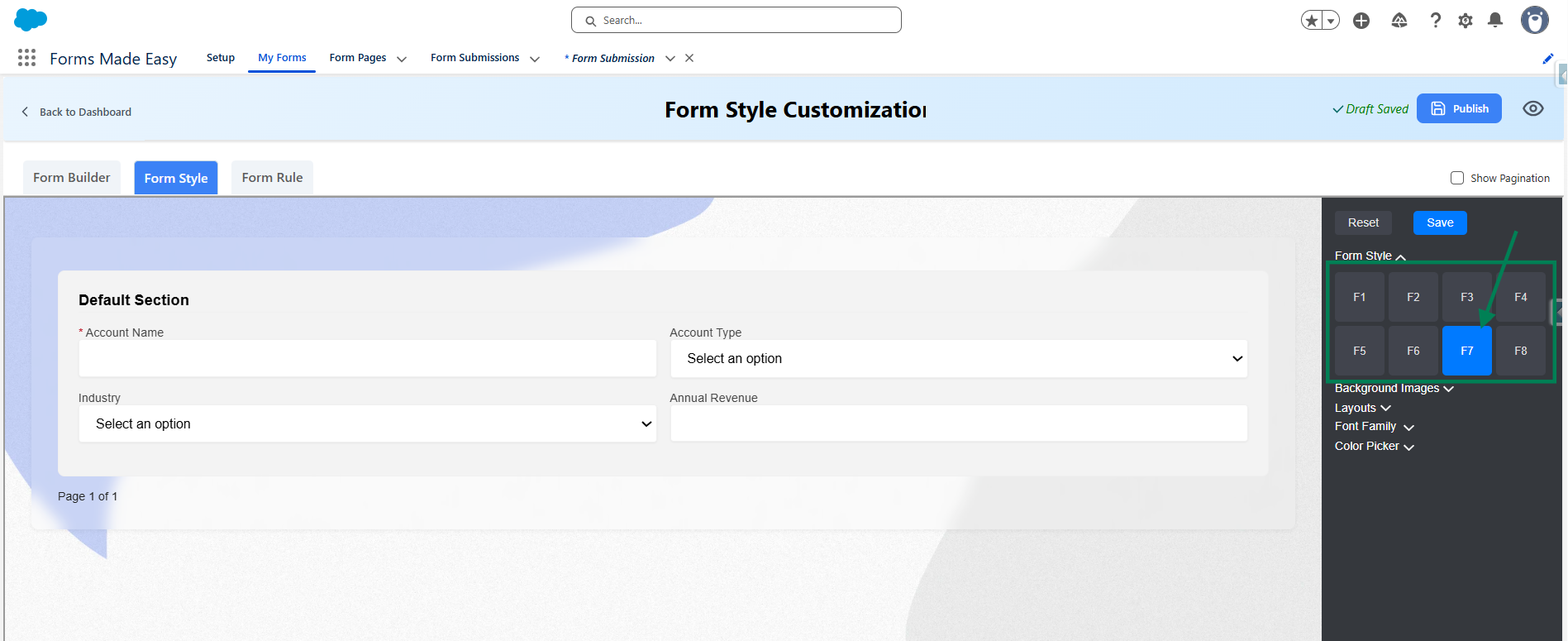
Step 7: Click on the Form Style option, and you will find multiple predefined styles labeled F1 to F8, each offering a different design and layout for the form. Choose the style that best fits your requirements to enhance the overall look and feel of your form.
Note: In this scenario, we will select the F7 style for the form.
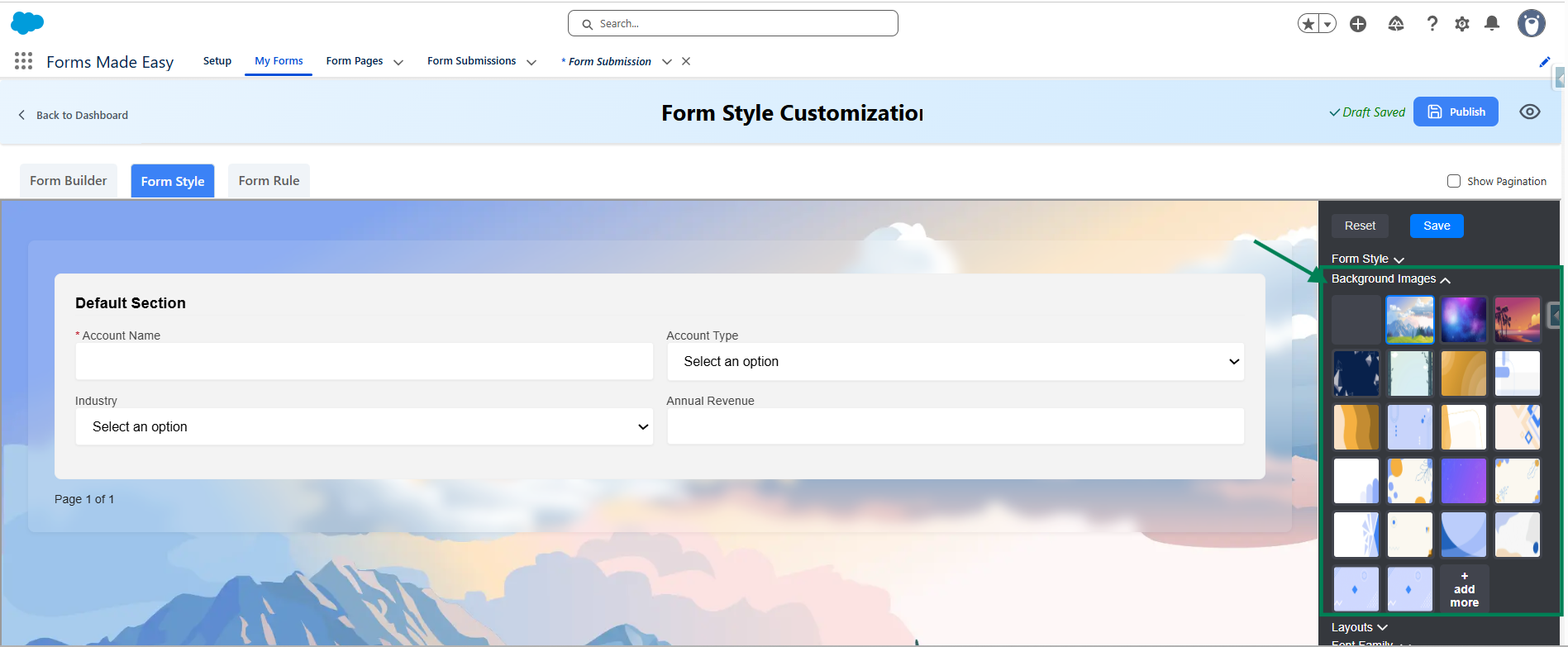
Step 8: Click on the Background Images option, and you will find various background image choices. Select the one that best suits your form’s design and aligns with your overall requirements.
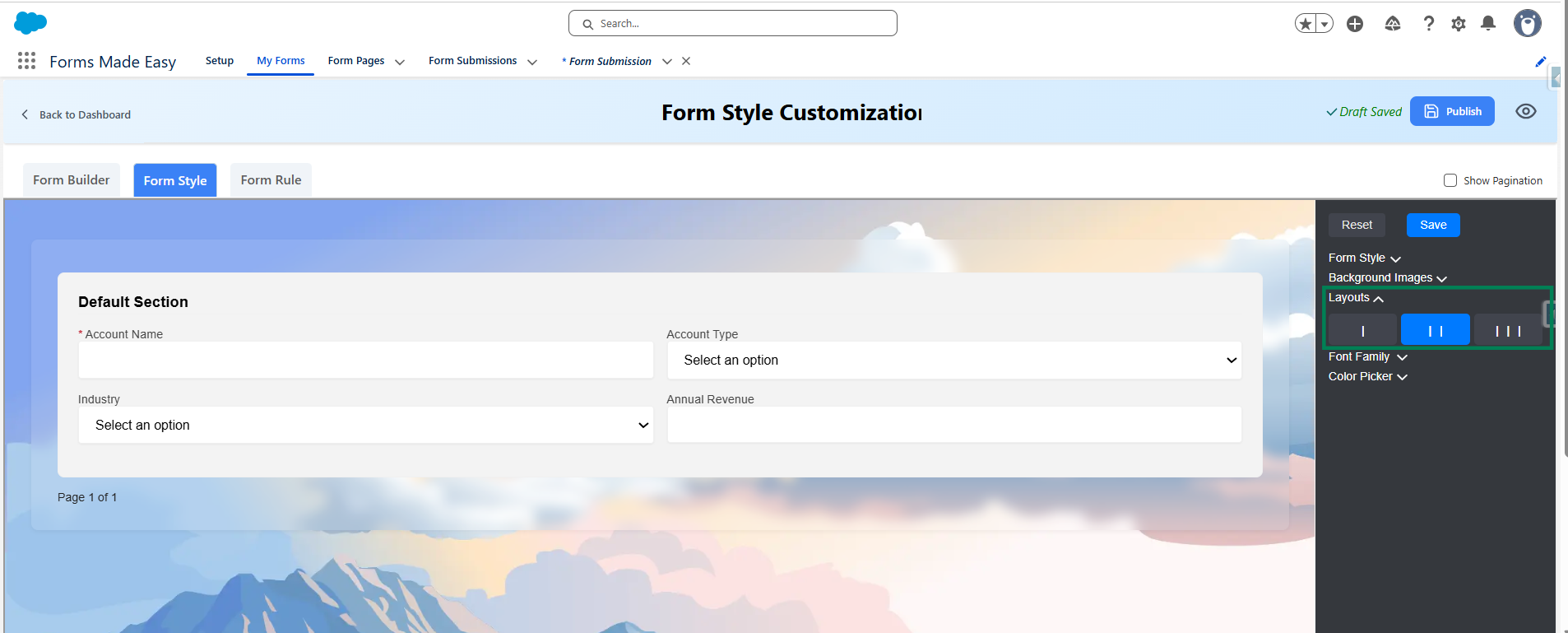
Step 9: Click on the Layout option, and you will find three layout choices : I, II, and III. Layout I displays one field in a single row, Layout II displays two fields in a single row and Layout III displays three fields in a single row.
Note: In this scenario, we will select Layout II for the form.
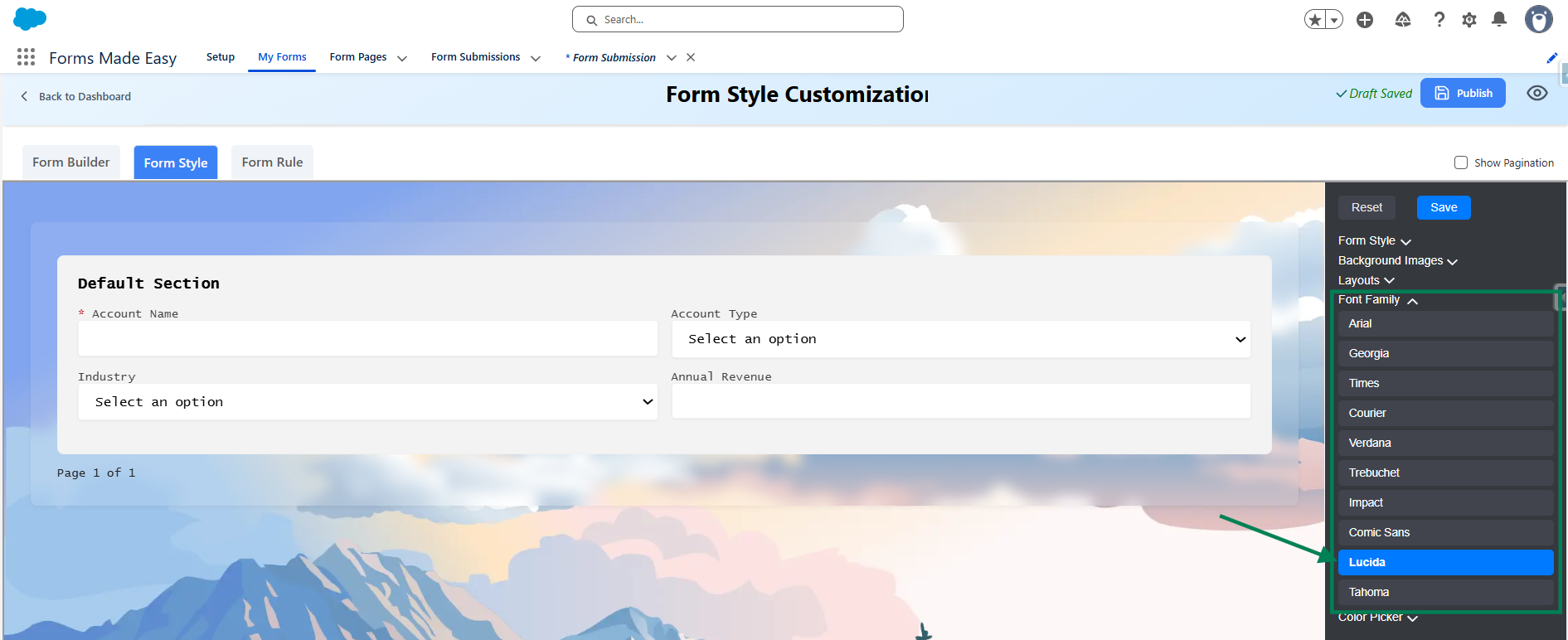
Step 10: Click the Font Family section and choose any available font to update the form's font style.
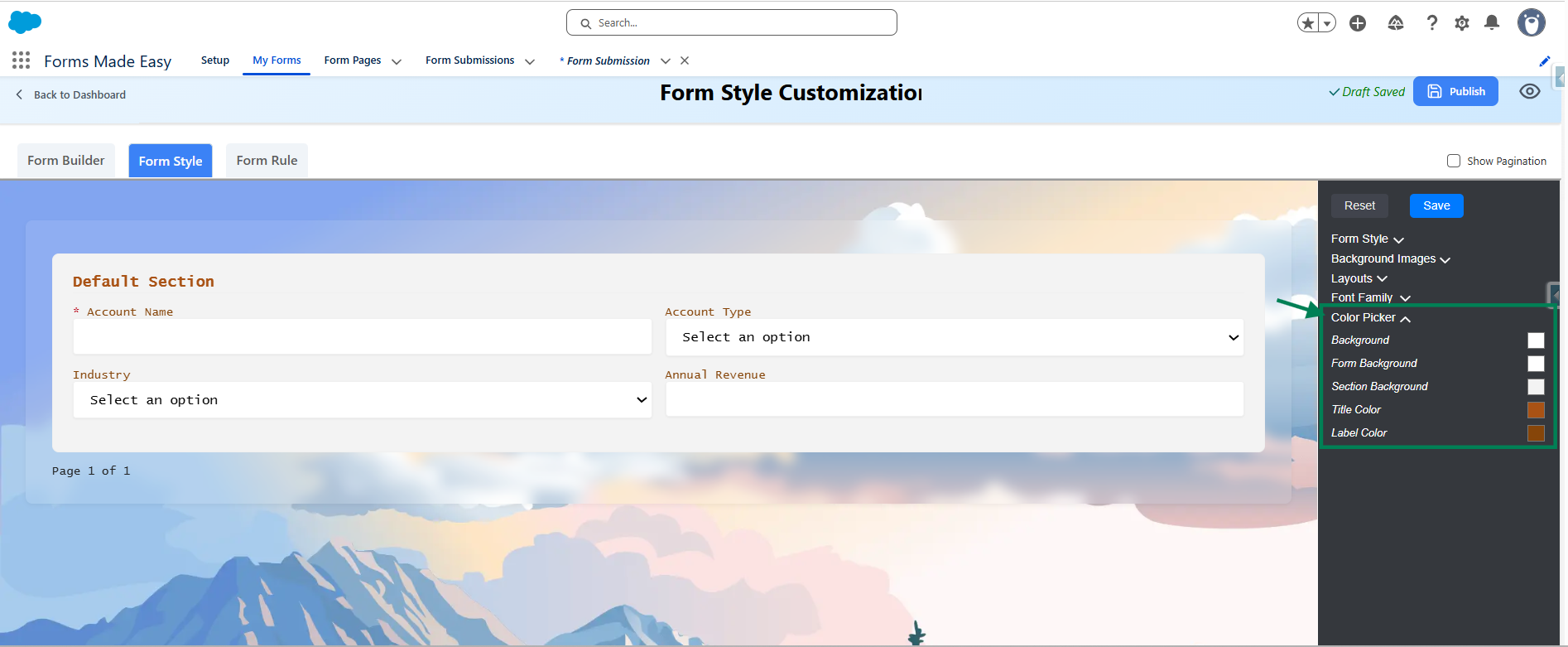
Step 11: Click on the Color Picker option, where you can customize the colors for various elements of your form, including Background Color, Form Background Color, Section Background Color, Title Color and Label Color.
Note: In this scenario, we will select Label color as Red.
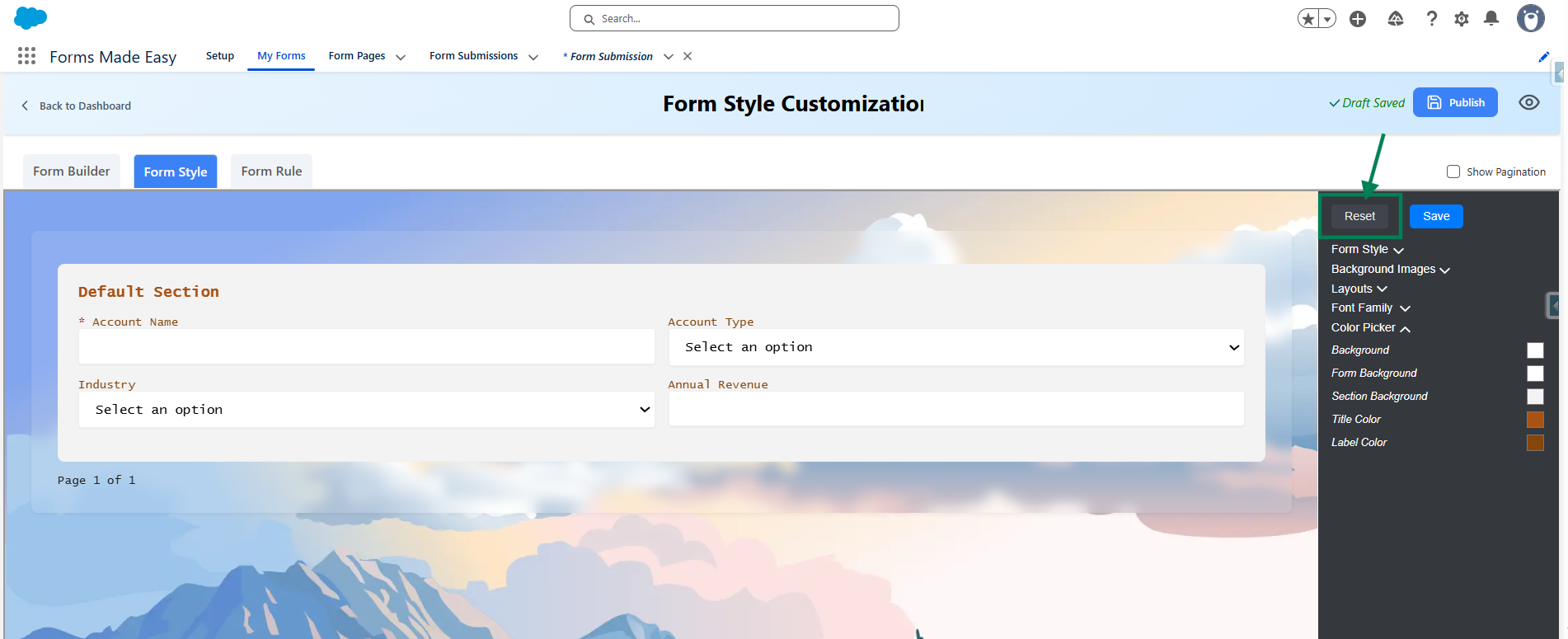
Step 12: Click on the Reset button if you want to discard all unsaved changes made to the form’s styling, restoring it to the previous saved state.
Step 13: Finally, click on the Save button to save all the changes you have made to the form’s styling.
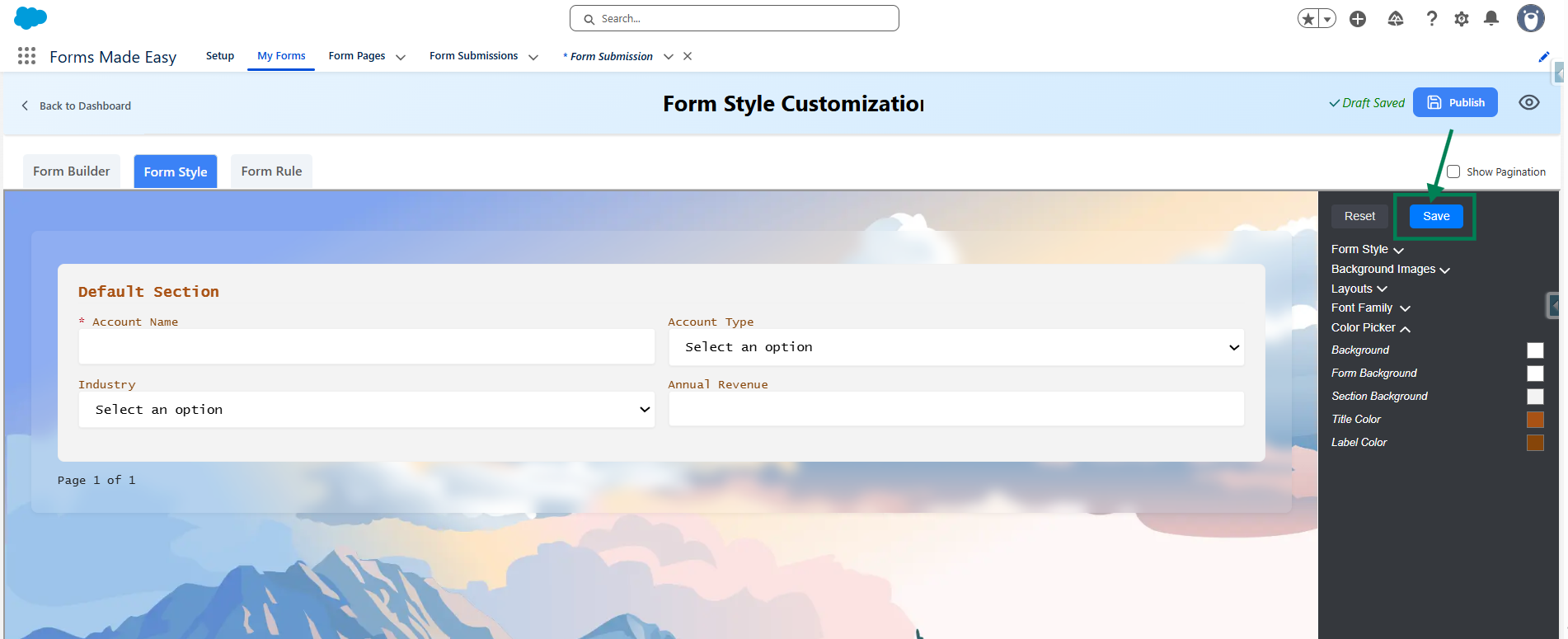
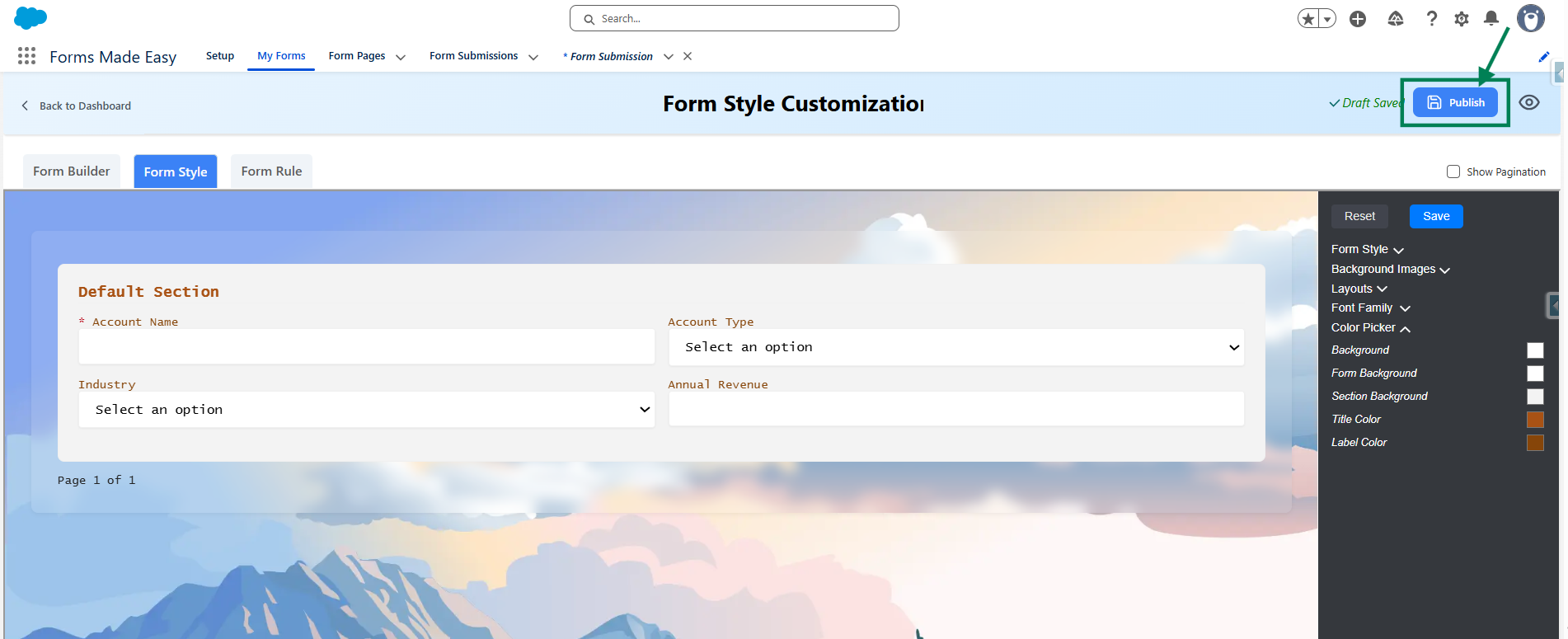
Step 14: After all of that, you can publish the form by clicking the "Publish" button.
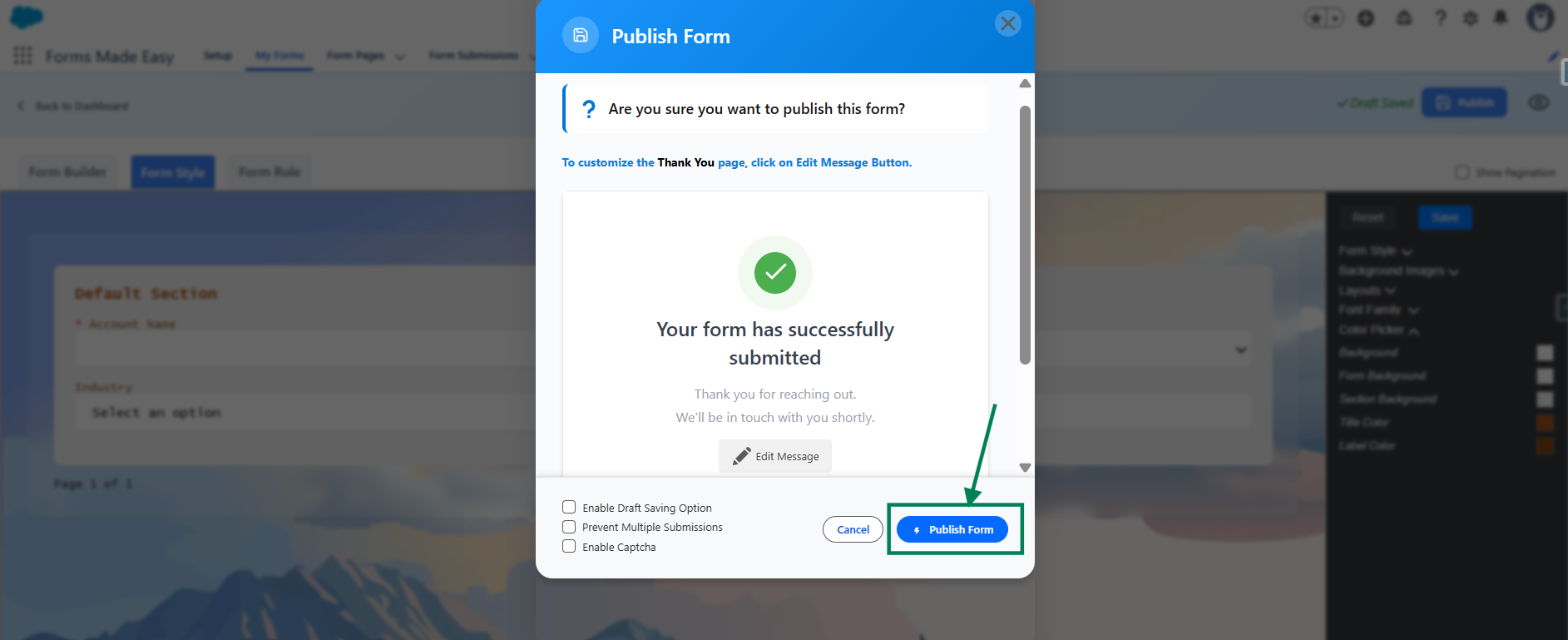
Step 15: Click the "Publish Form" button.
Step 16: Click on "Done" to close the modal.
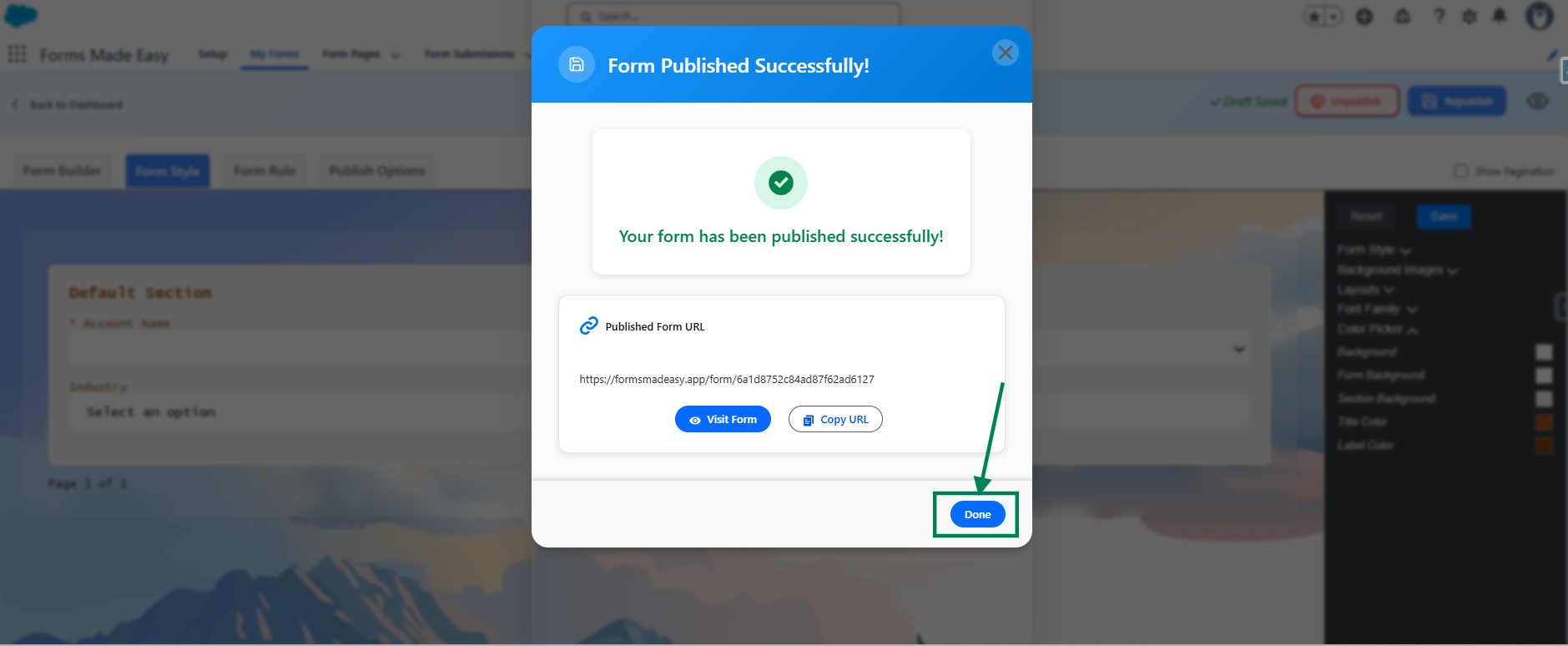
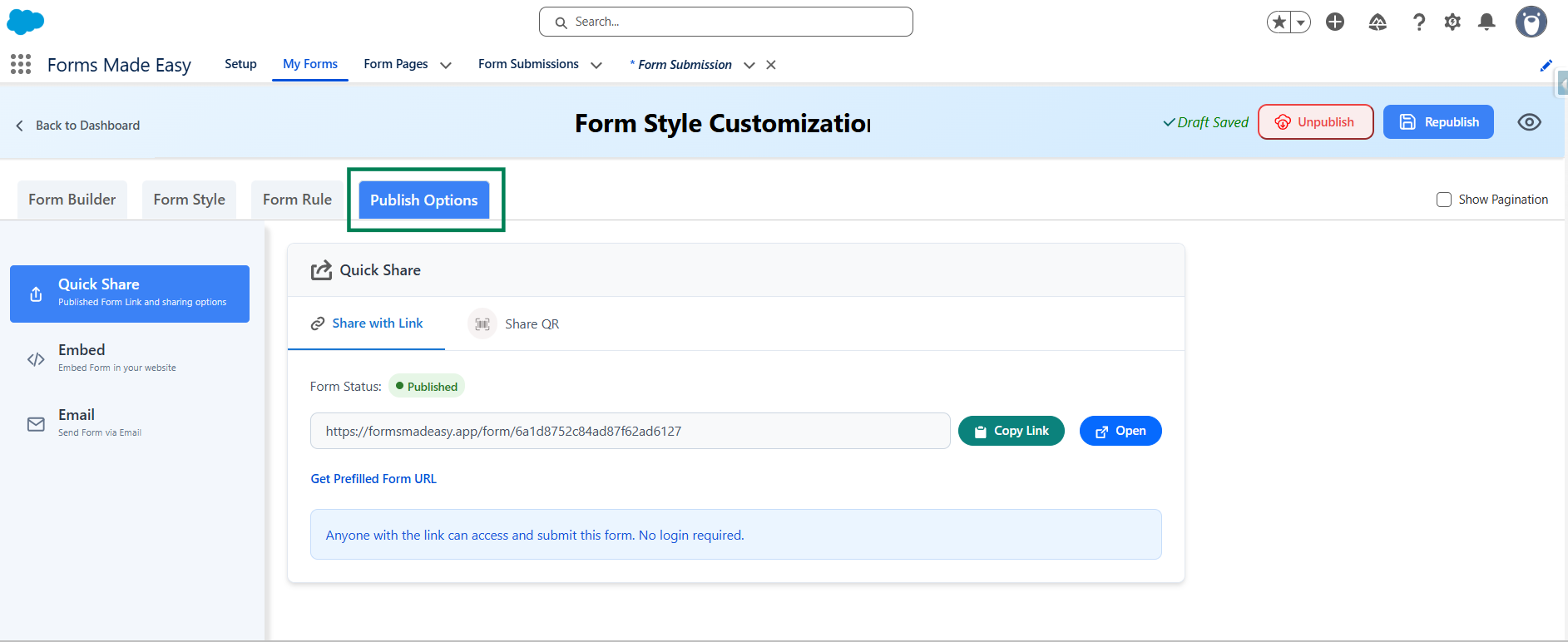
Step 17: Once the form is published, an additional Publish Optios tab becomes available.
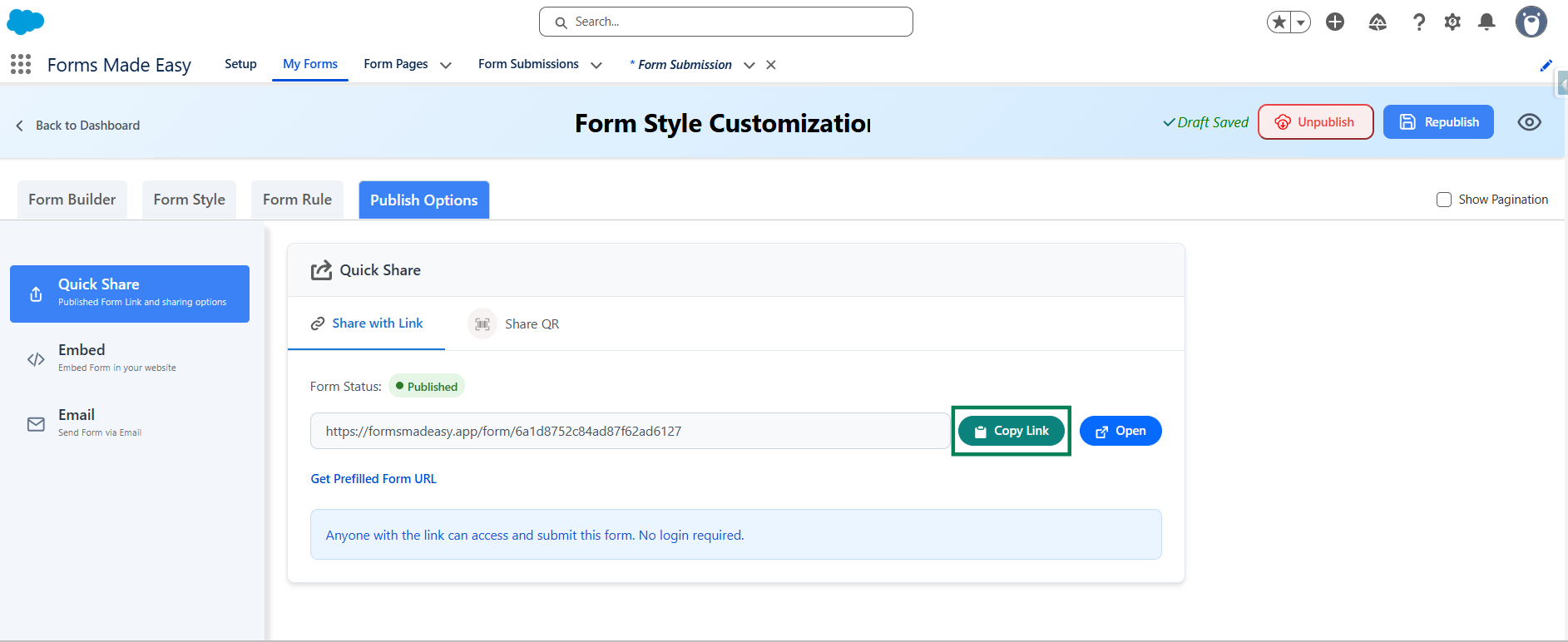
Step 18: Click on the "Copy Link" button to copy the form URL, which you can then share with others. You can also manually copy the link.
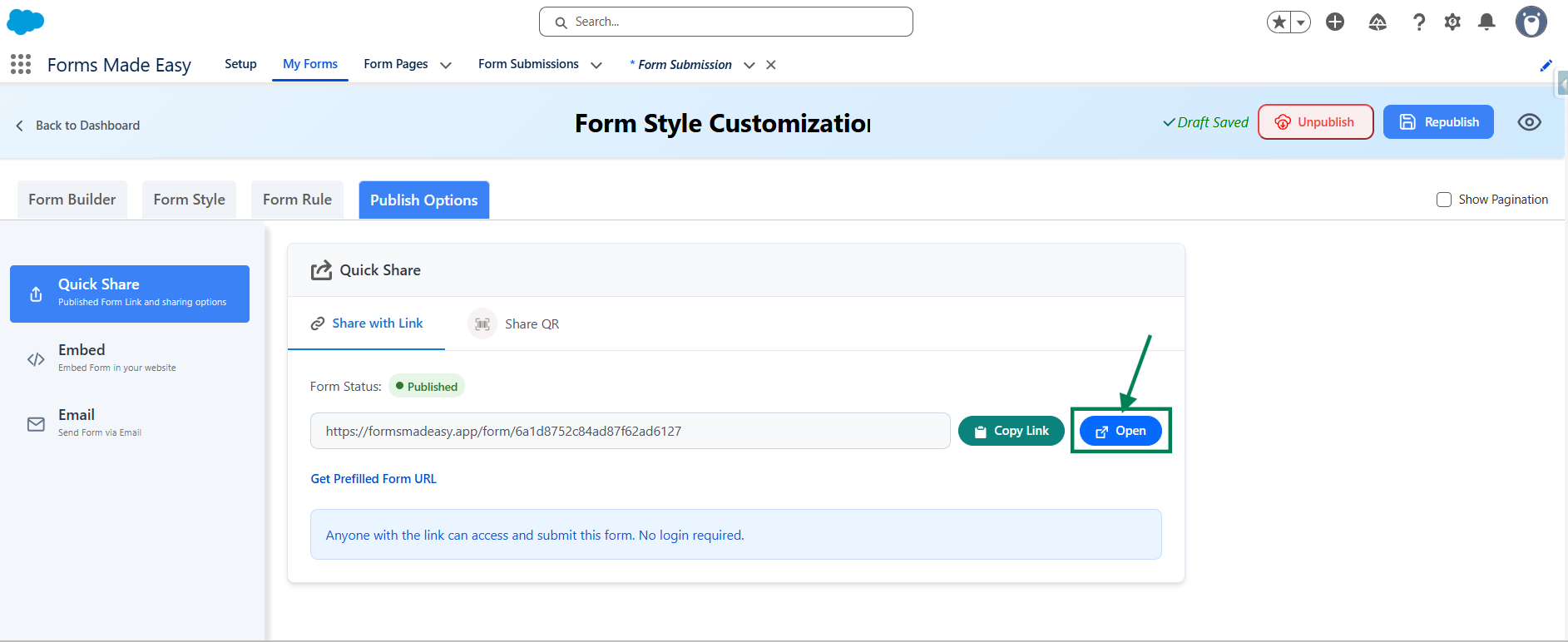
Step 19: Click on the "Open" button to directly open the form in your web browser.
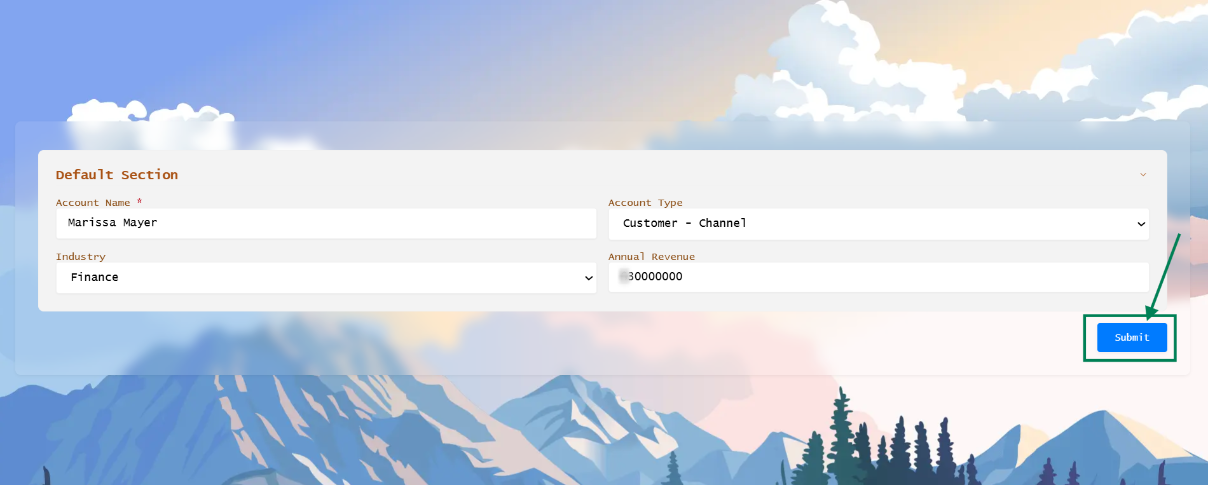
Step 20: After filling all the information, click the Submit button to submit the records.
Step 21: Go to the "My Forms" tab and refresh the page.
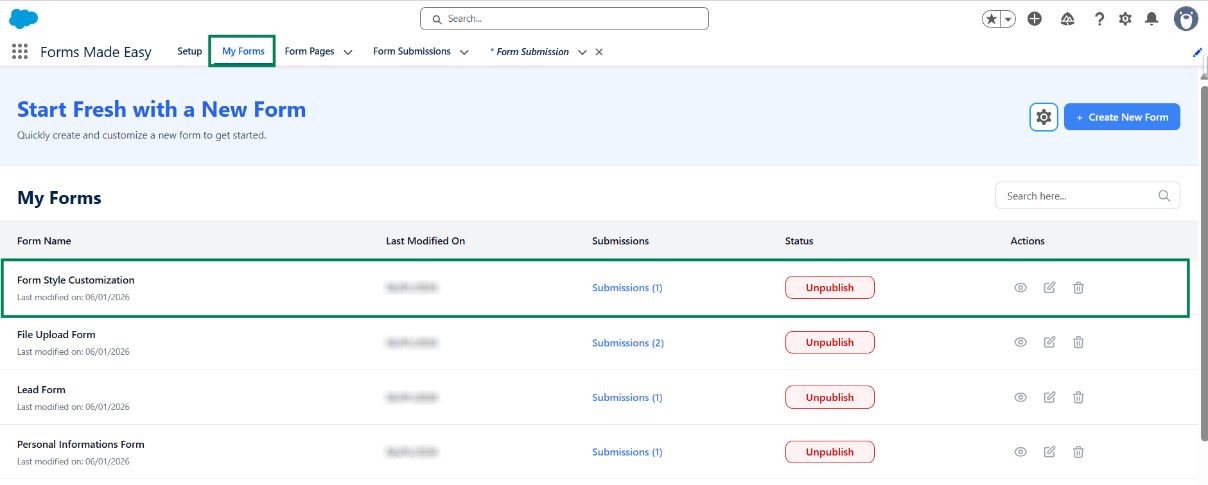
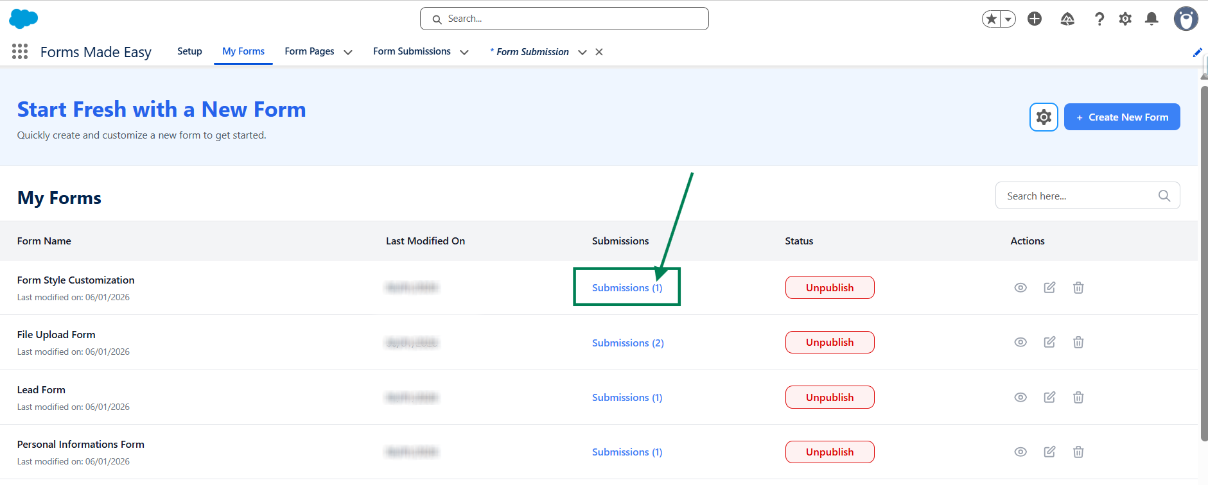
Step 22: Click on the Submission button of that form.
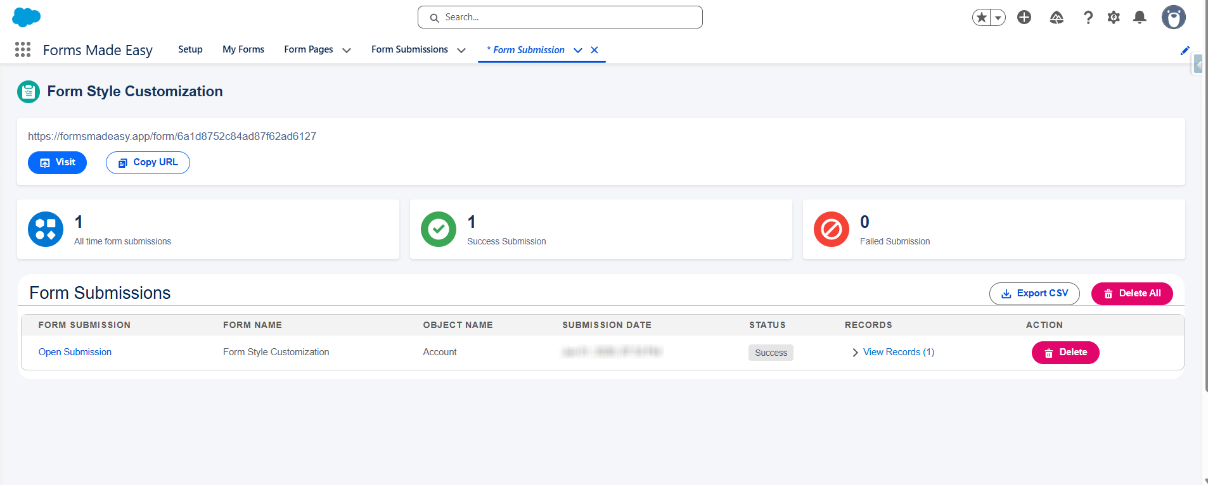
Step 23: Here, all submissions for that form will be displayed.
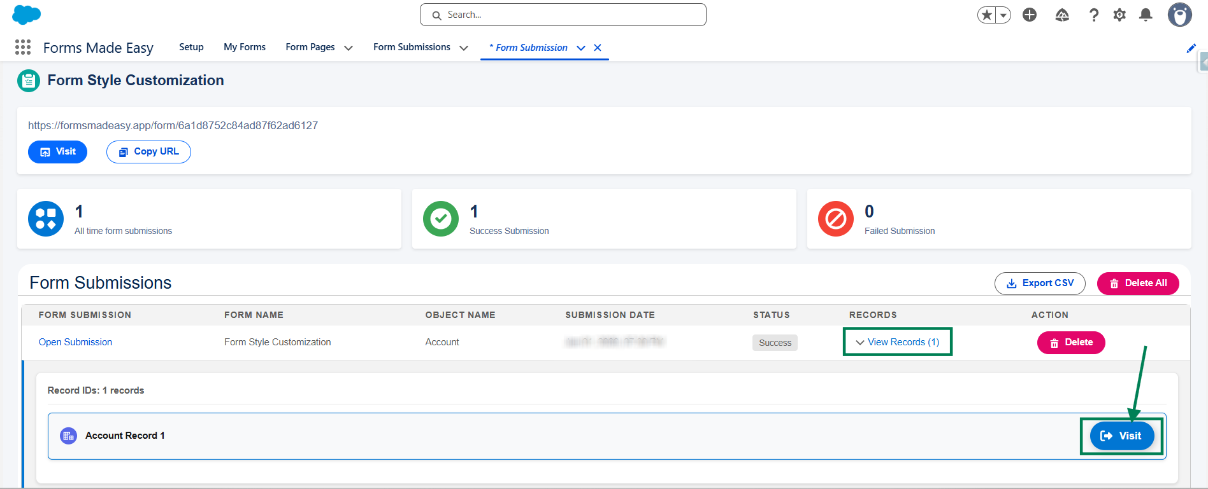
Step 24: Click on View Records, then click the Preview button to see the submitted form data.
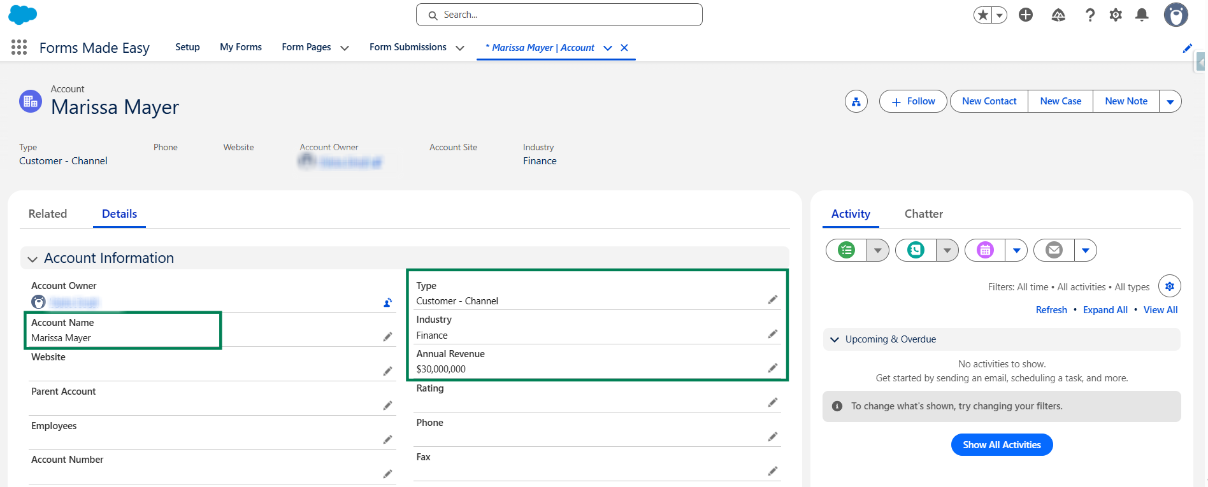
Step 25: The submitted records will now appear under the Account object in Salesforce.
We hope this article helps! If you still face any issues, feel free to contact us at support@formsmadeasy.com.
Was this article helpful?
That’s Great!
Thank you for your feedback
Sorry! We couldn't be helpful
Thank you for your feedback
Feedback sent
We appreciate your effort and will try to fix the article