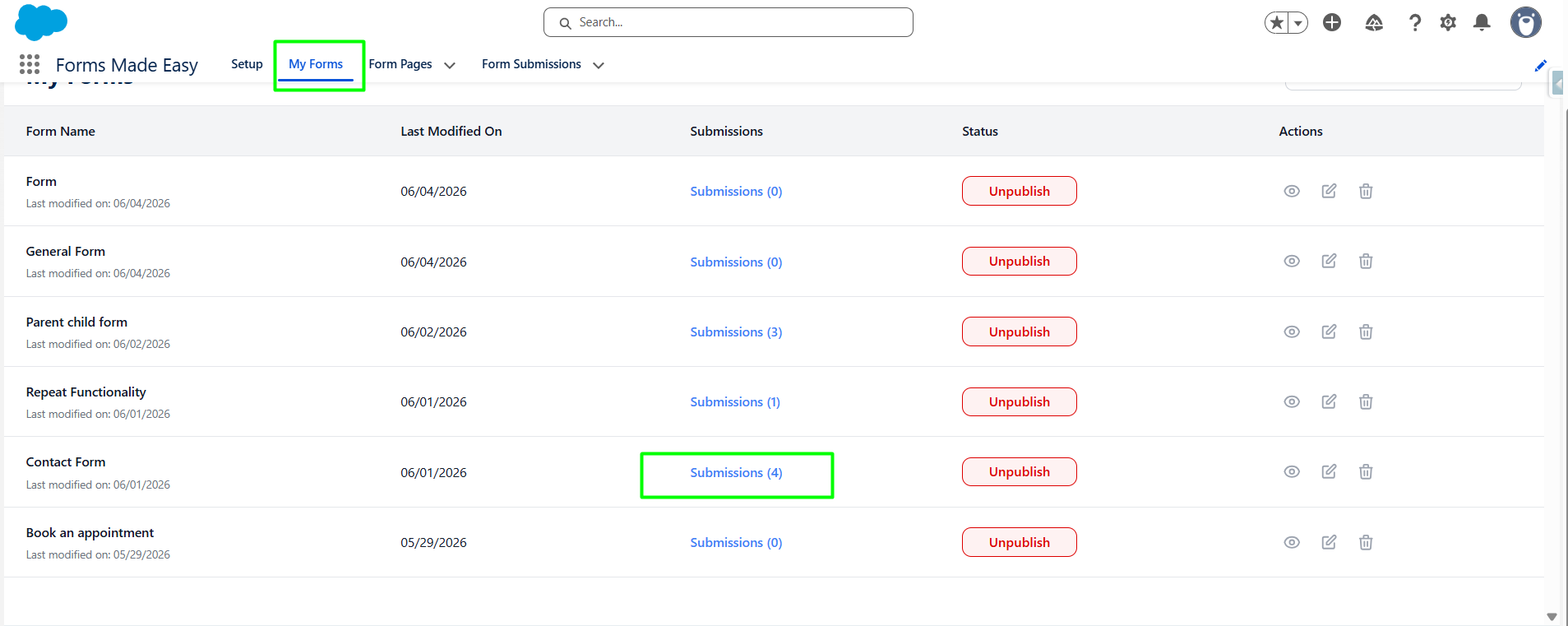
In this blog, we will walk through how to export form submission data using the Export CSV button.
This functionality is useful when you need to download and analyze the responses collected through your form. To begin, create and publish a form. Once submissions are received, you can access them from inside the form using the Submission button. Inside Submissions, you’ll find the Export CSV option.
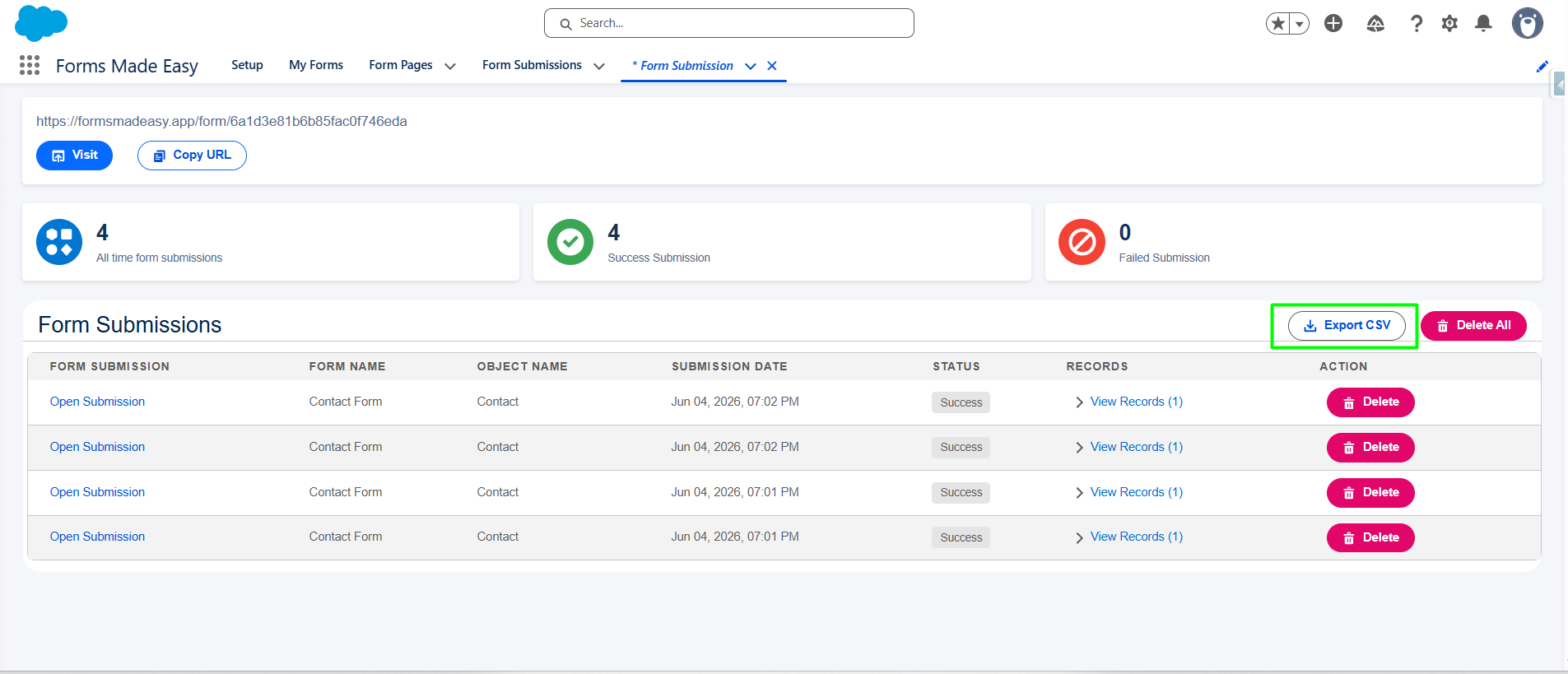
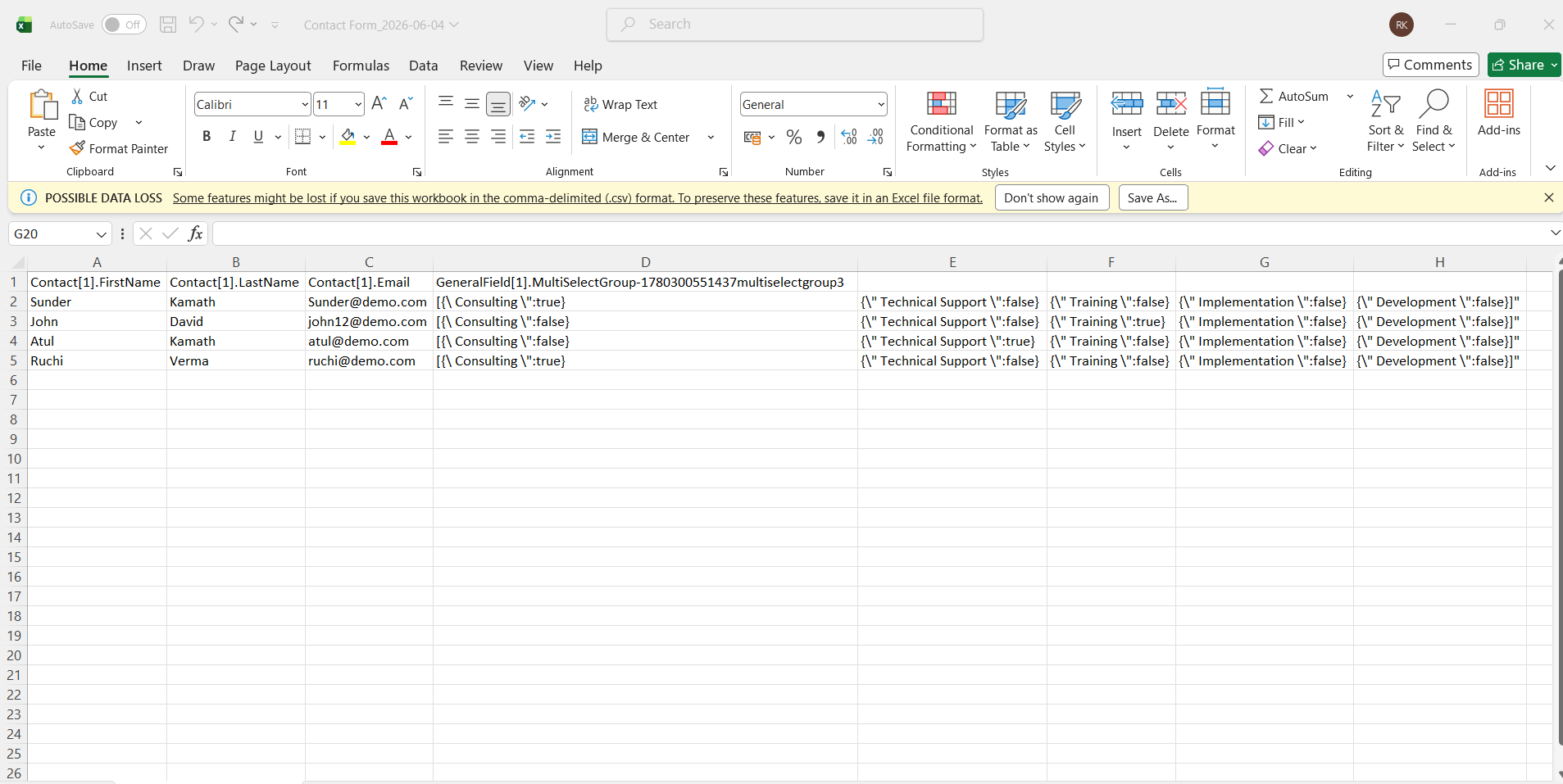
Using this option, you can download all the submitted data in a CSV format. This file can be opened in a spreadsheet tools like Excel, making it easy to review responses, generate reports, or share data with your team. The export process is quick and efficient, helping you work with your collected data seamlessly.
Steps to Create the Form in Forms Made Easy :
- Step 1: Go to the My Forms tab and click on the "Create New Form" button.

- Step 2: Enter the form name and select the form type (Salesforce Objects or General Fields).
- Currently I have chosen the General Fields option.

- Step 3: Click on the "Create Form" button to create the form.

- Step 4: Click on the "General Fields" Section.

- Step 5: From General fields, Drag and drop the necessary fields based on your requirements.
(Note : Here, we can drag and drop Text Field.)

- Step 6: Click on the "Text Field" and update the Label of the field if needed.
(Note : You can also add your brand logo by clicking on Add Brand Logo Here.)

- Step 7: Now, a Configuration side panel will be displayed. From here, you can change the Label and optionally set the field as required or hidden according to your needs.

- Step 8: After all of that, you can publish the form by clicking the "Publish" button.

- Step 9: Click the "Publish Form" button.

- Step 10: Click on "Done" to close the modal.

- Step 11: Click on the "Copy Link" button to copy the form URL, which you can then share with others. You can also manually copy the link.

- Step 12: Click on the "Open" button to directly open the form in your web browser.

- Step 13: After filling all the information, click the Submit button to submit the records.

- Step 14: Go to the "My Forms" tab and refresh the page.

- Step 15: Click on the Submission button of that form.

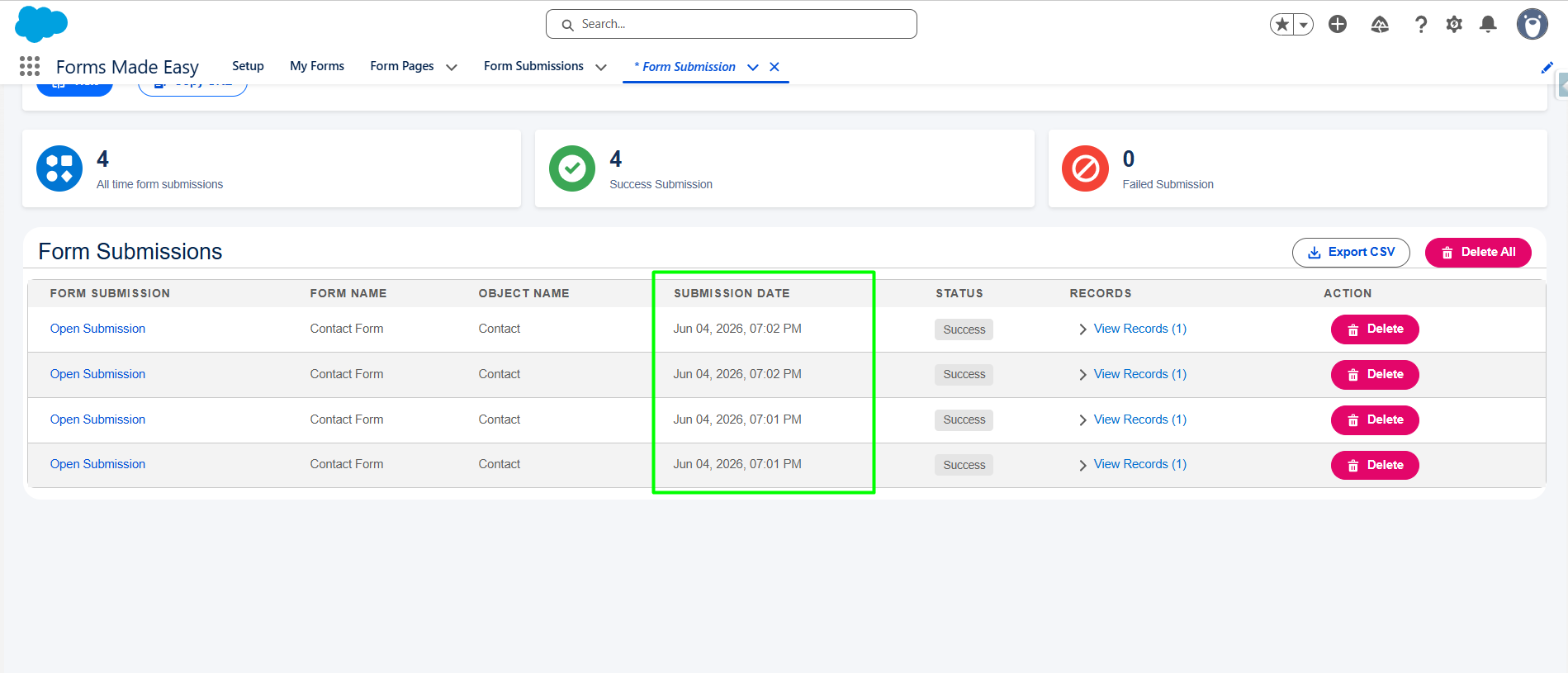
- Step 16: Now, you can view all the form submissions.
- Step 17: Click on the Export CSV button to download an Excel file with all the submitted records.
- Step 18: You will now see all the submitted records in the Excel file.
Was this article helpful?
That’s Great!
Thank you for your feedback
Sorry! We couldn't be helpful
Thank you for your feedback
Feedback sent
We appreciate your effort and will try to fix the article