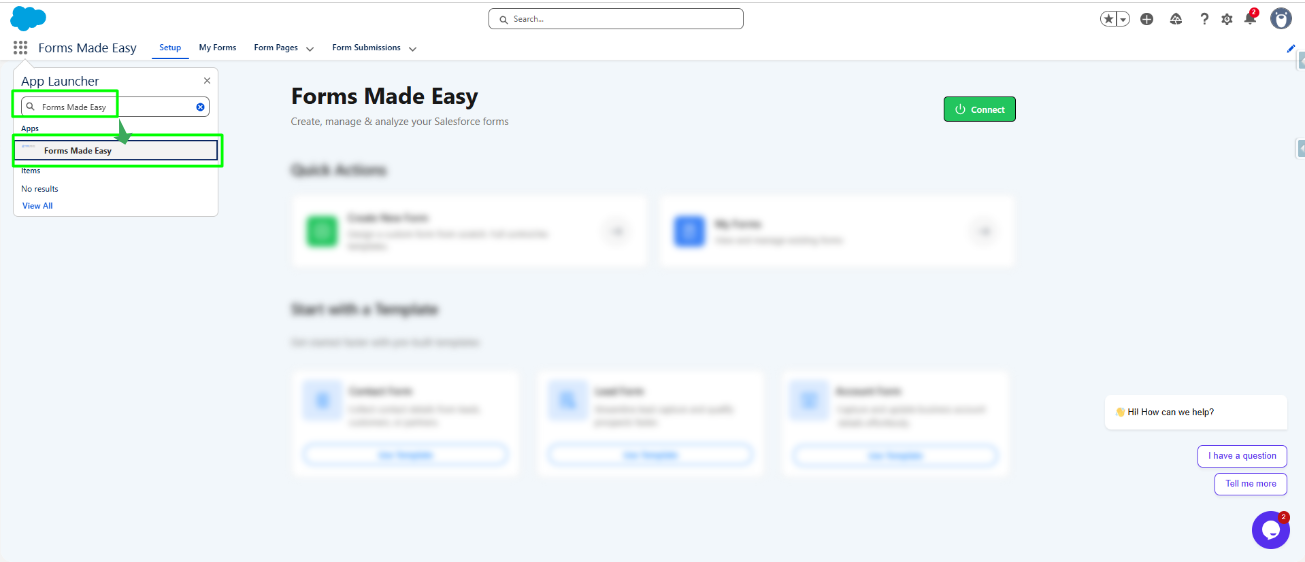
Step 1: After installing the package, go to the App Launcher and search for Forms Made Easy.
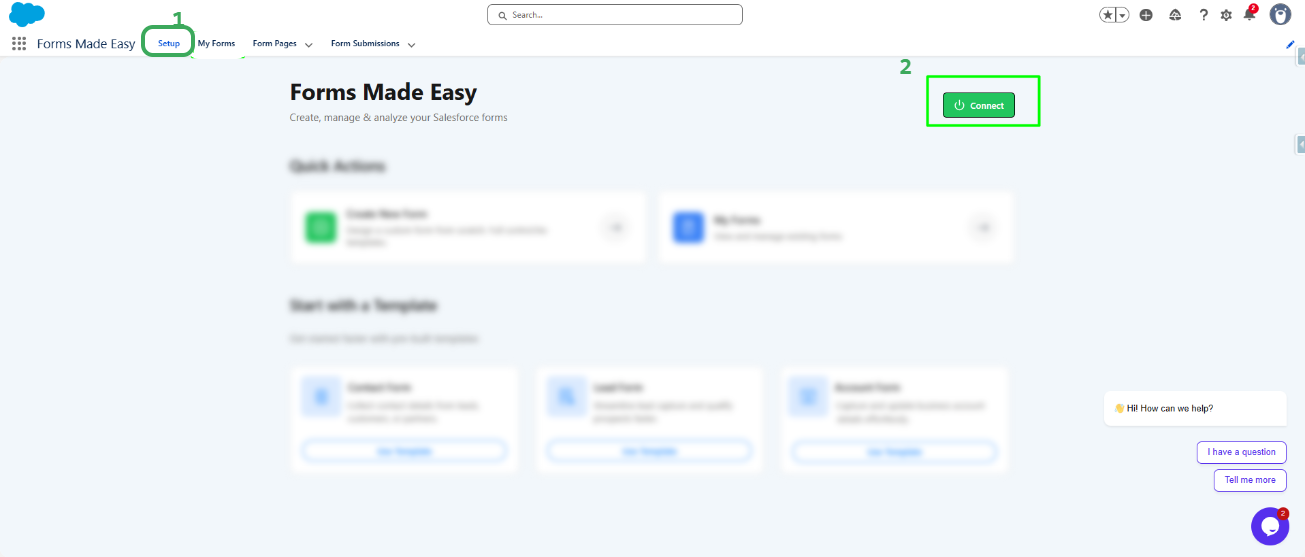
Step 2: Go to the Setup page, where you will see a Connect button. Click on the Connect .
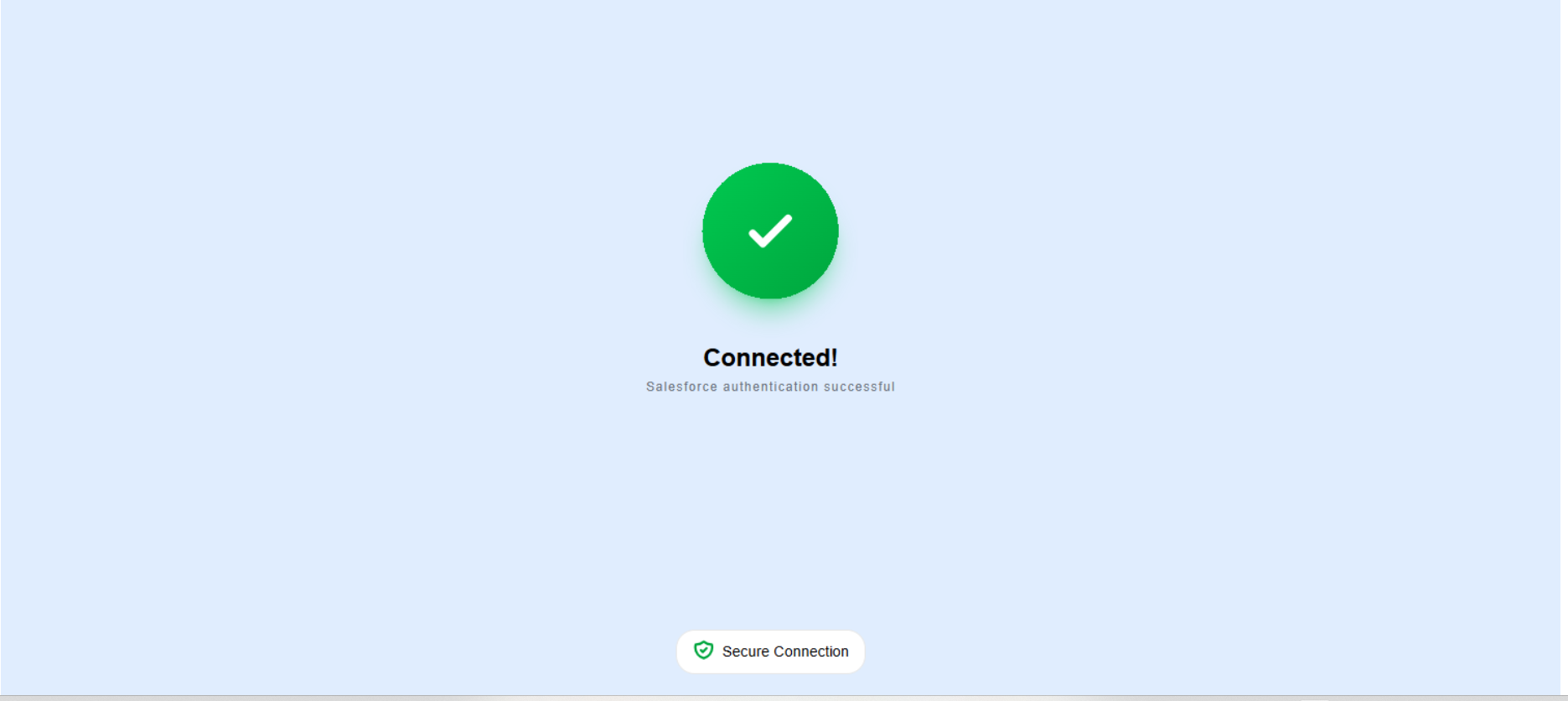
Step 3:. Once connected, the Connected message will be shown.
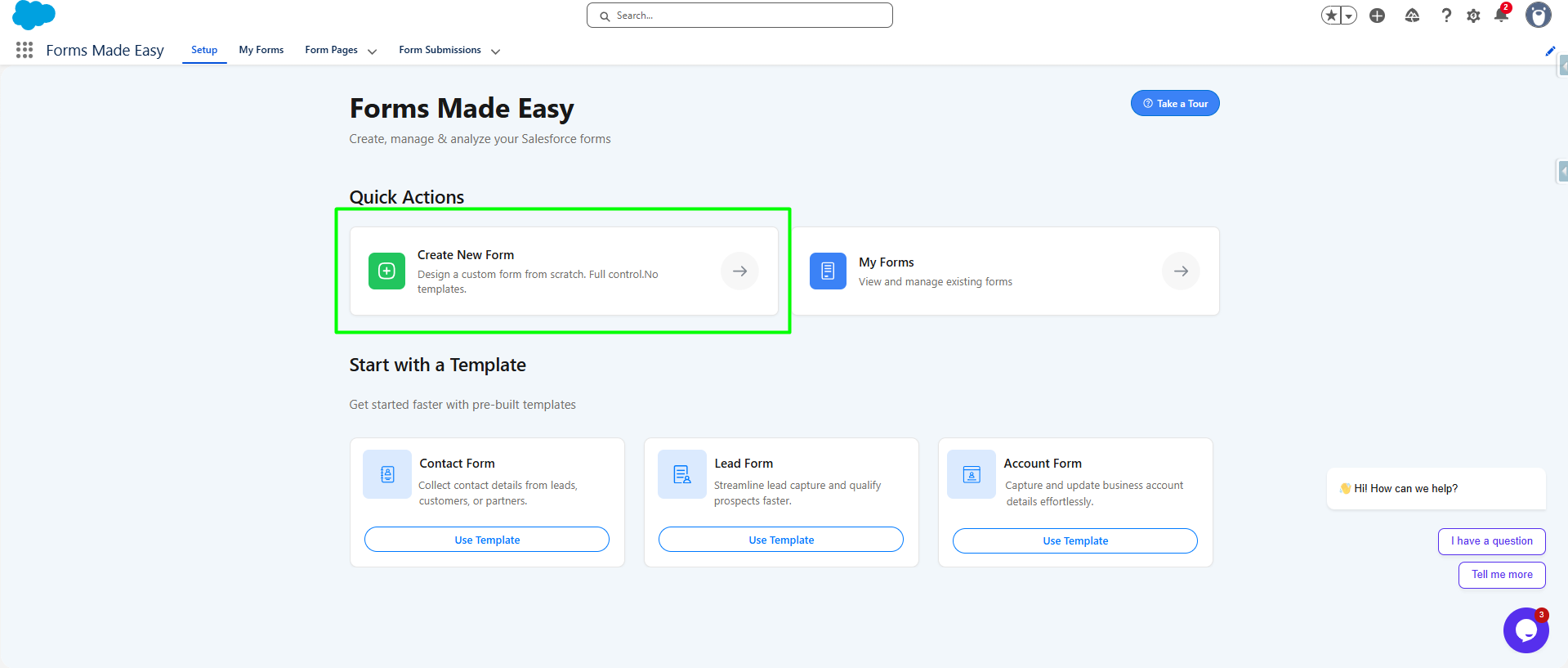
Step 4: In the Quick Action menu, Click on Create New Form.
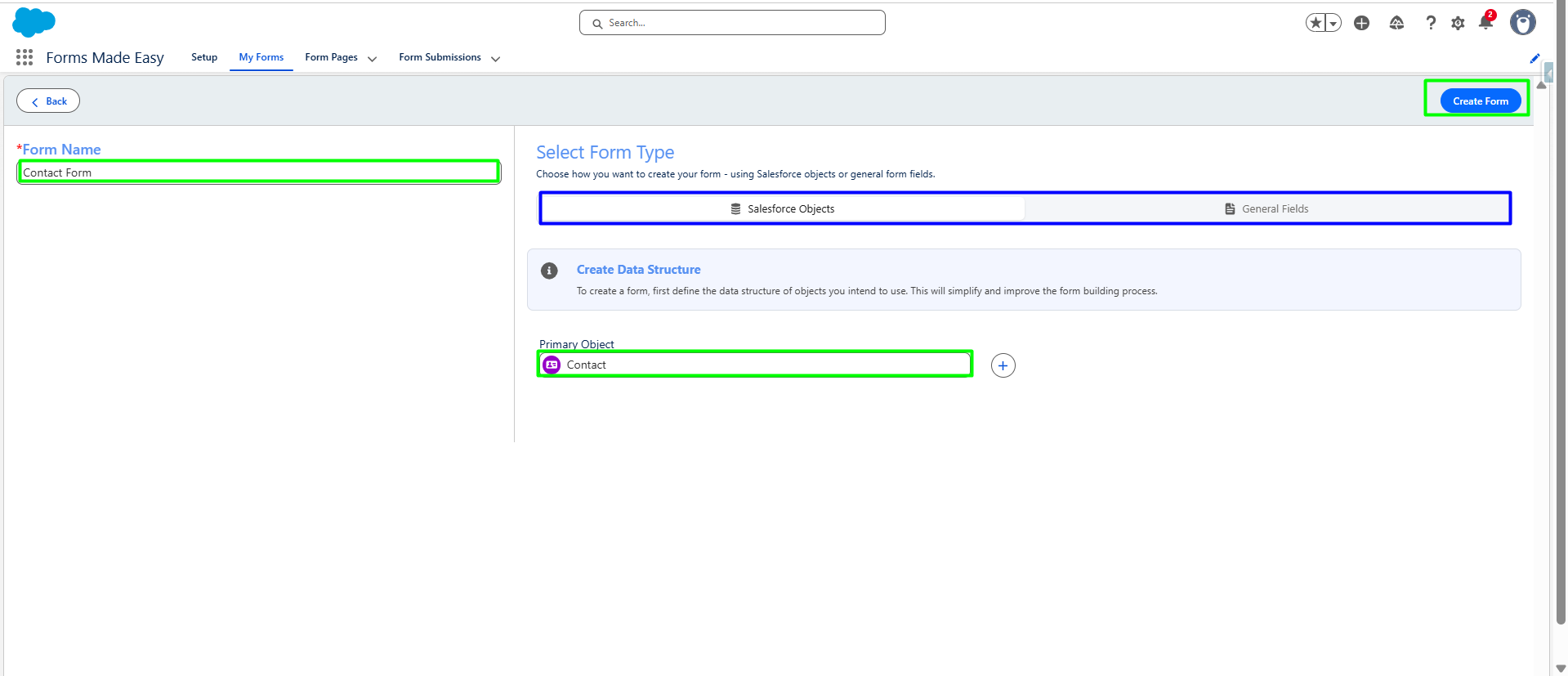
Step 5: Enter the Form Name, select the Primary Object, or General Field and click on the Create Form button.
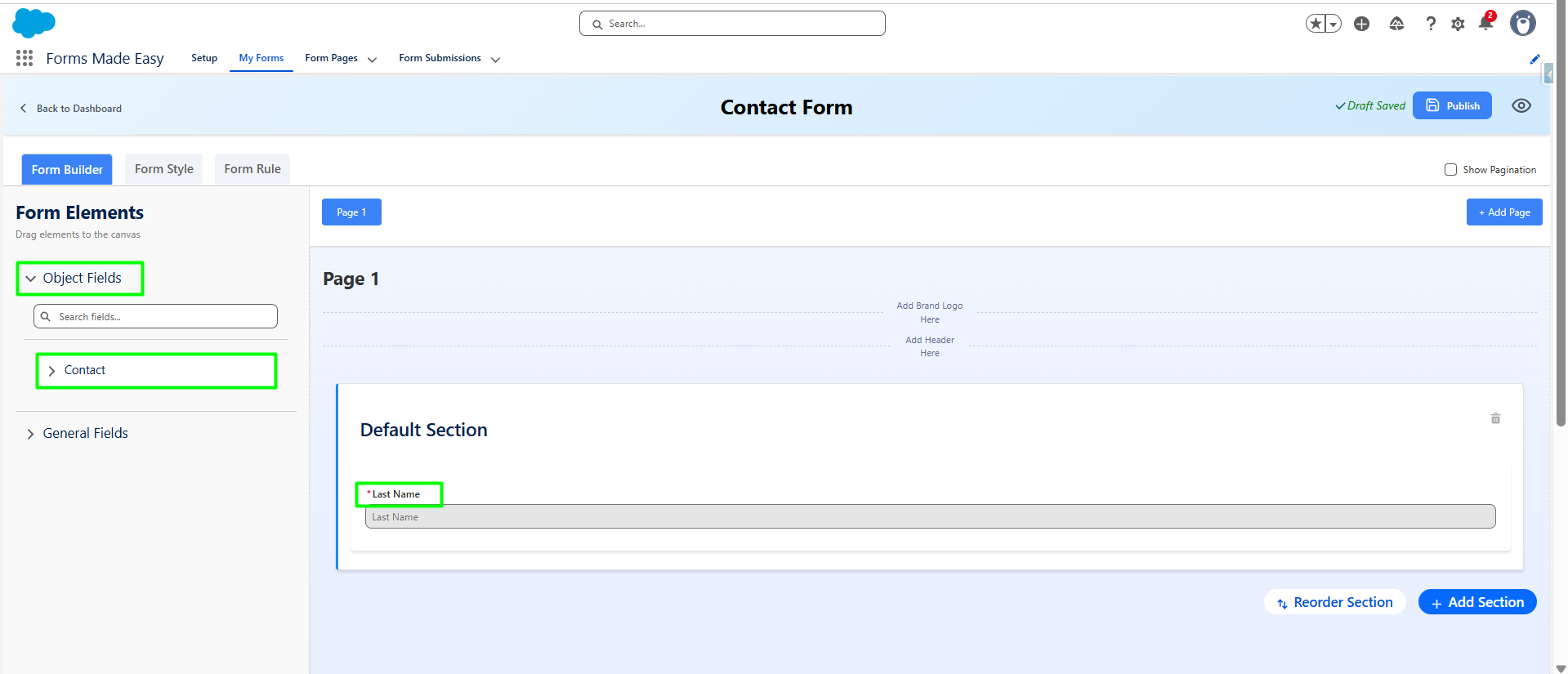
Step 6: You will be redirected to the Form Builder screen. Selected objects are displayed in the Form Elements section , and required fields are already added in the form automatically.
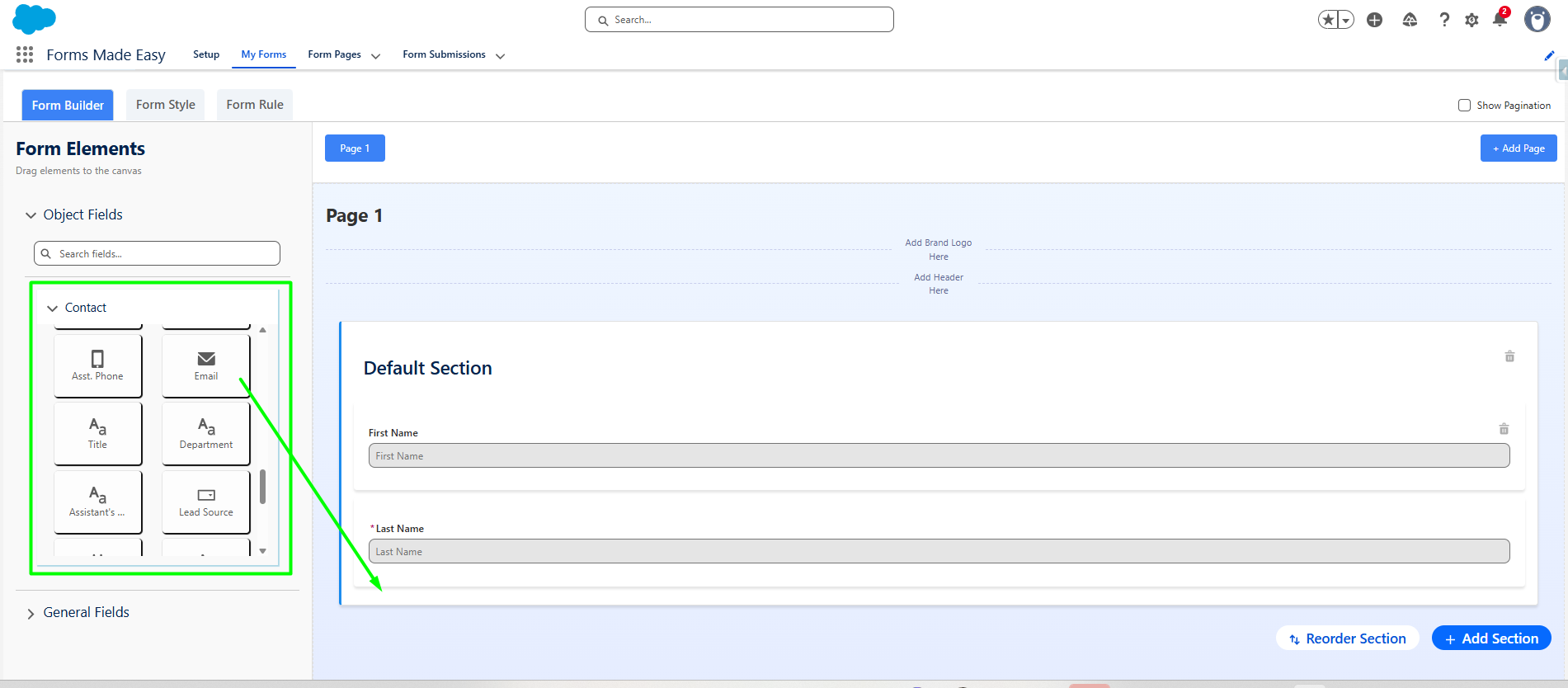
Step 7: In the Form Elements section, you will see all fields of the selected object. And From that you can Drag and drop any field (e.g., First Name, Email).
Step 8: Below the Objects fields section, you will find the General Fields section. These are non-Salesforce fields that you can drag and drop into your form as needed.
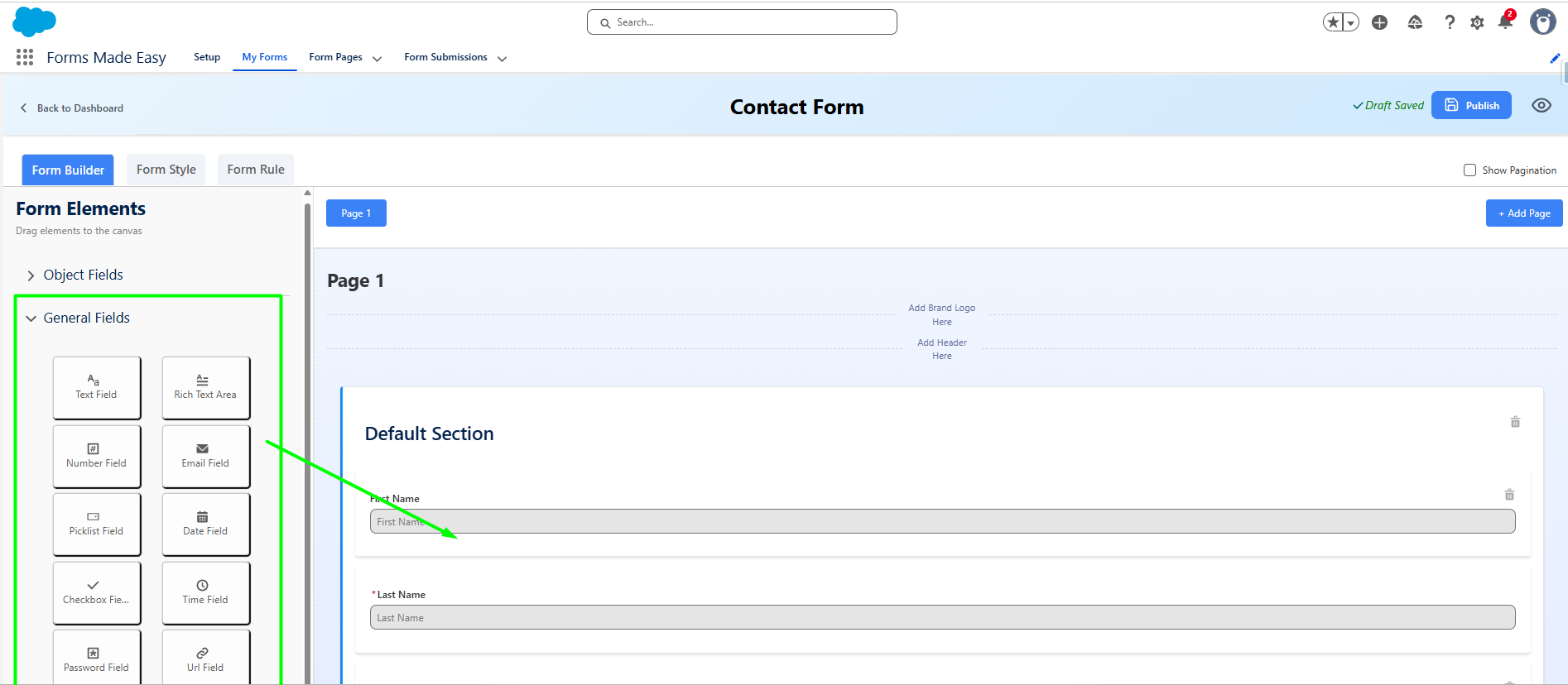
For example, we added the multi Select field.
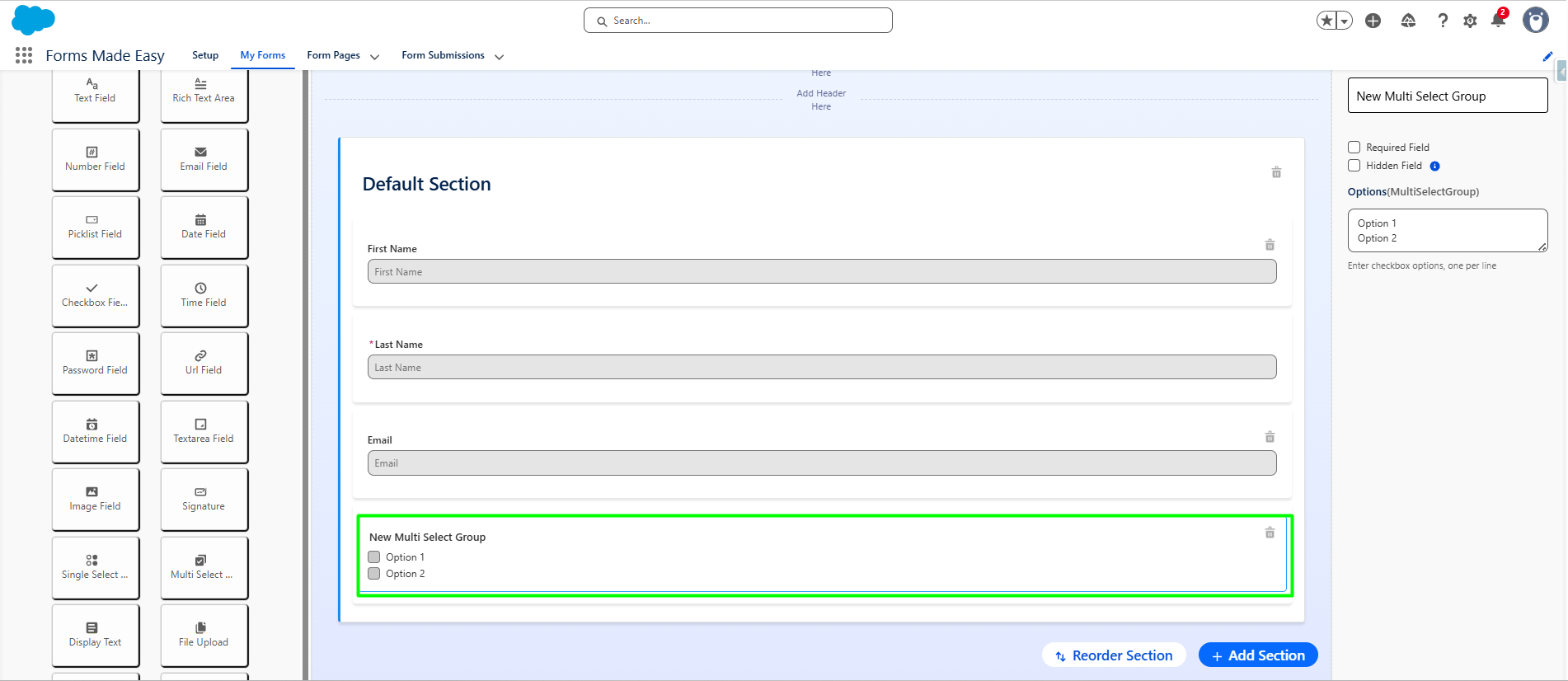
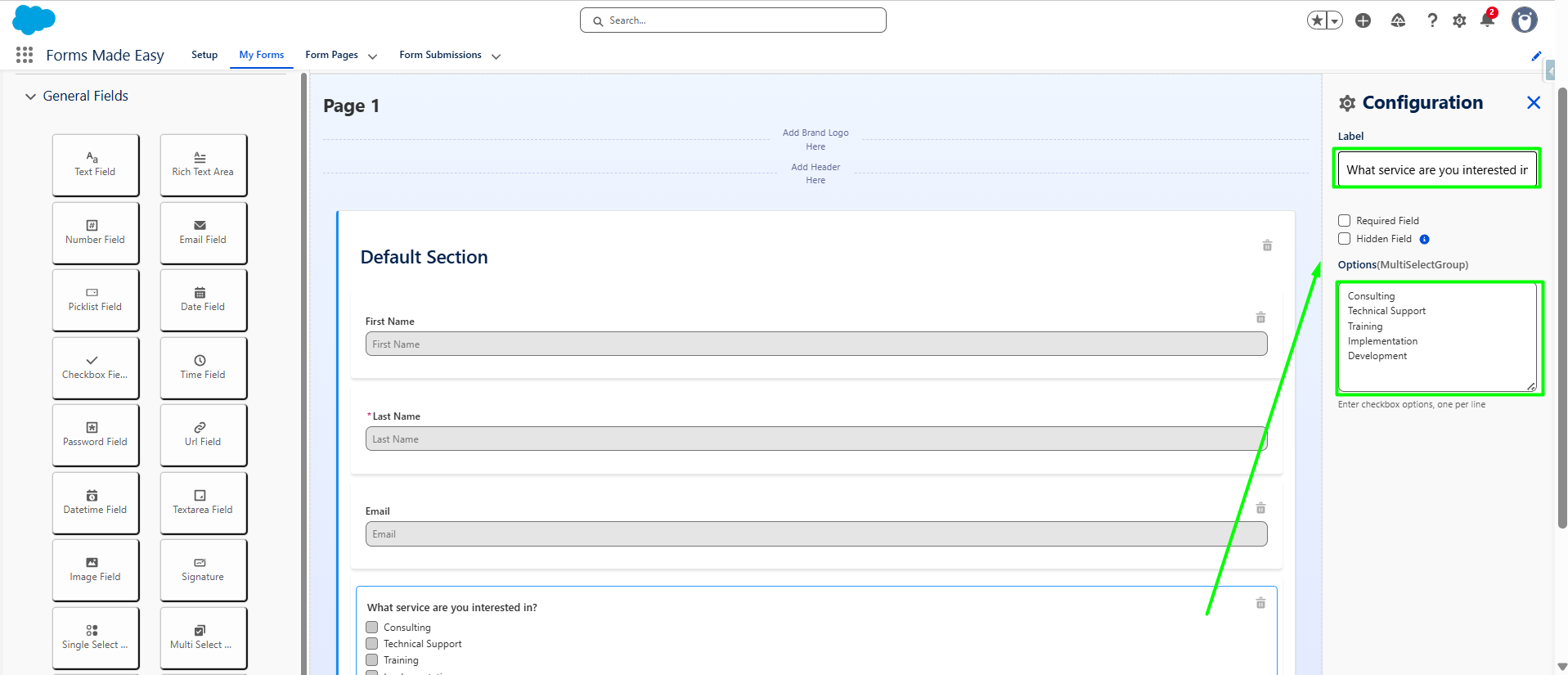
Step 9: click on the field then you can see Configuration in the right where you can edit the text.
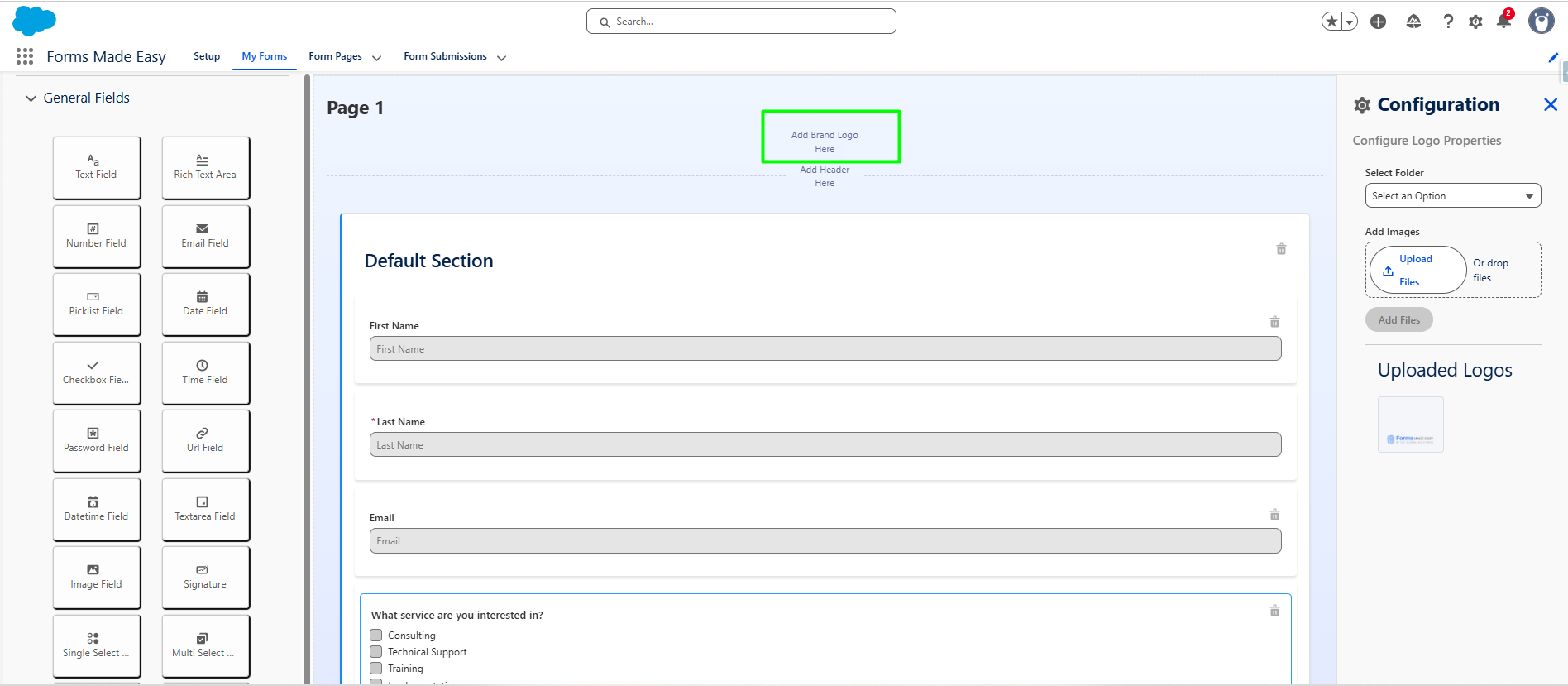
Step 10: To add your brand logo: Click on Add Brand Logo in the canvas.
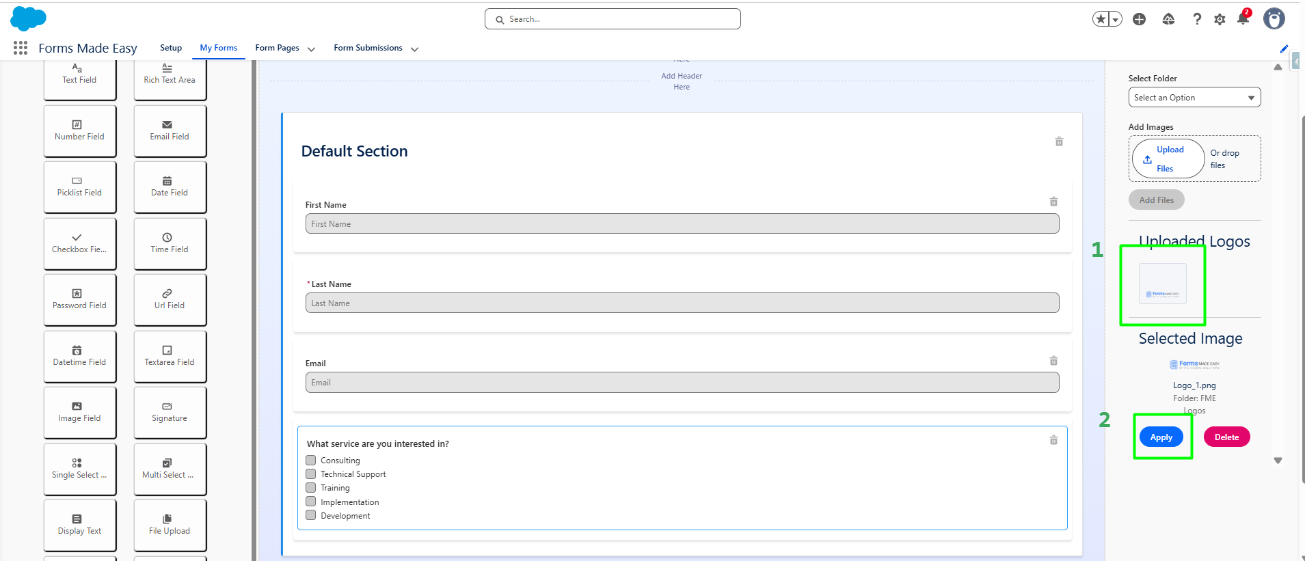
Step 11: Select the logo and click Apply.
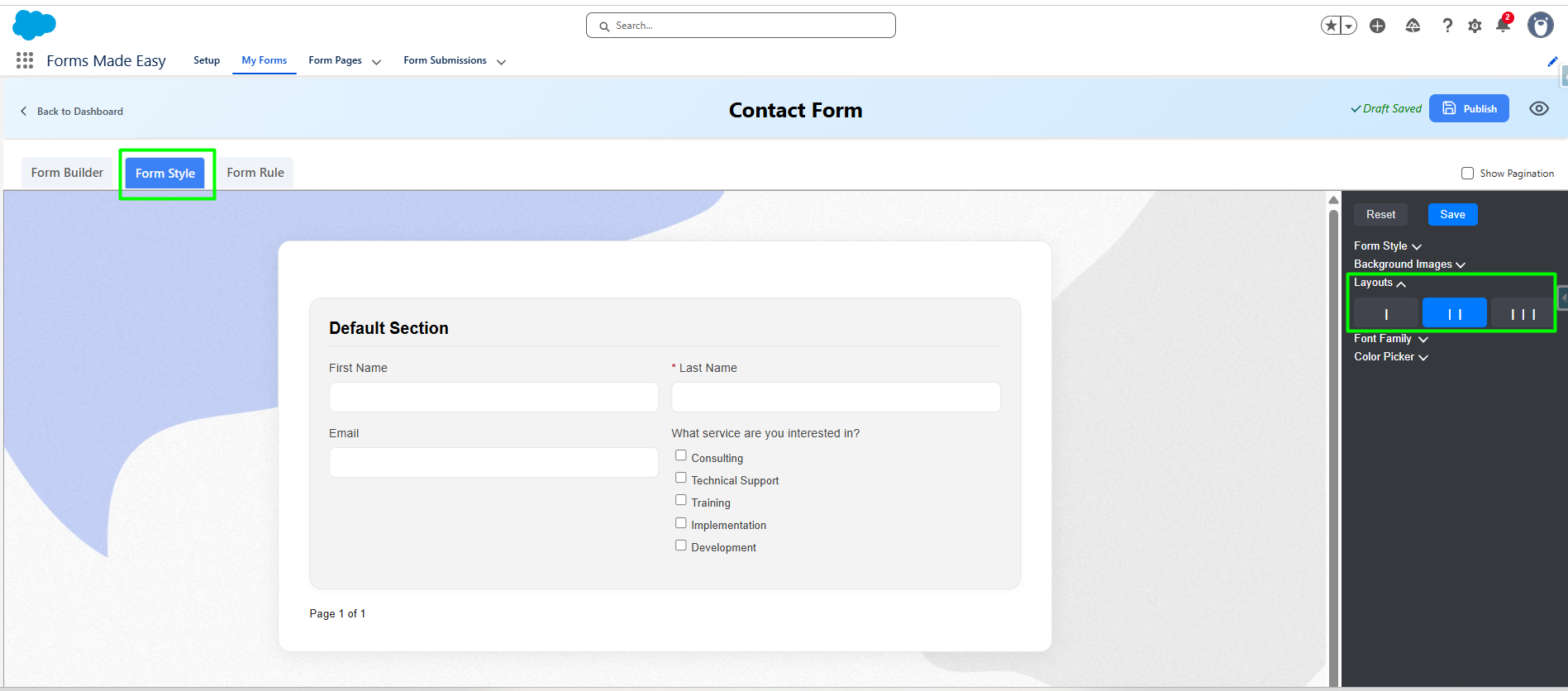
Step 12: After updating the logo, click on the Form Style button. Then select Layouts to change the form standard.
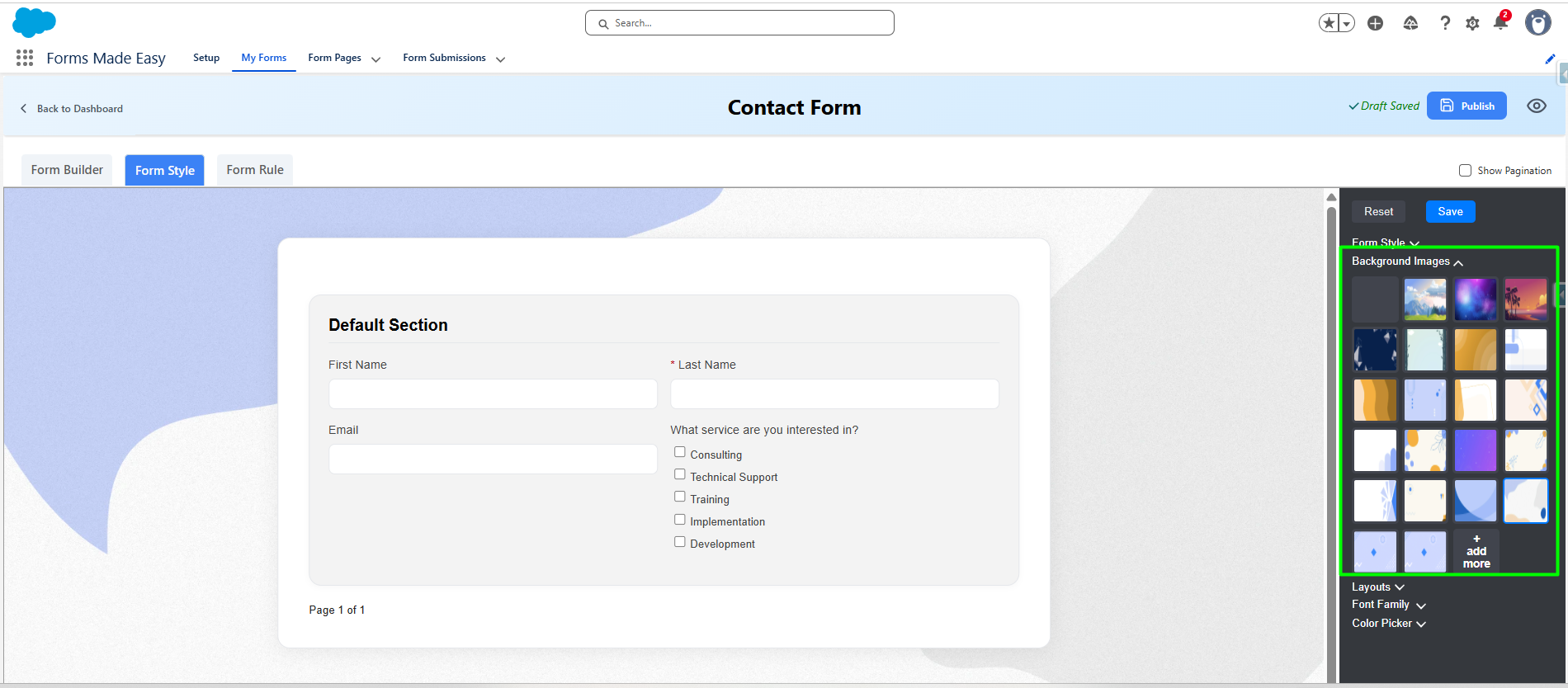
Step 13: Click on the Background Images and change the form background according to your needs.
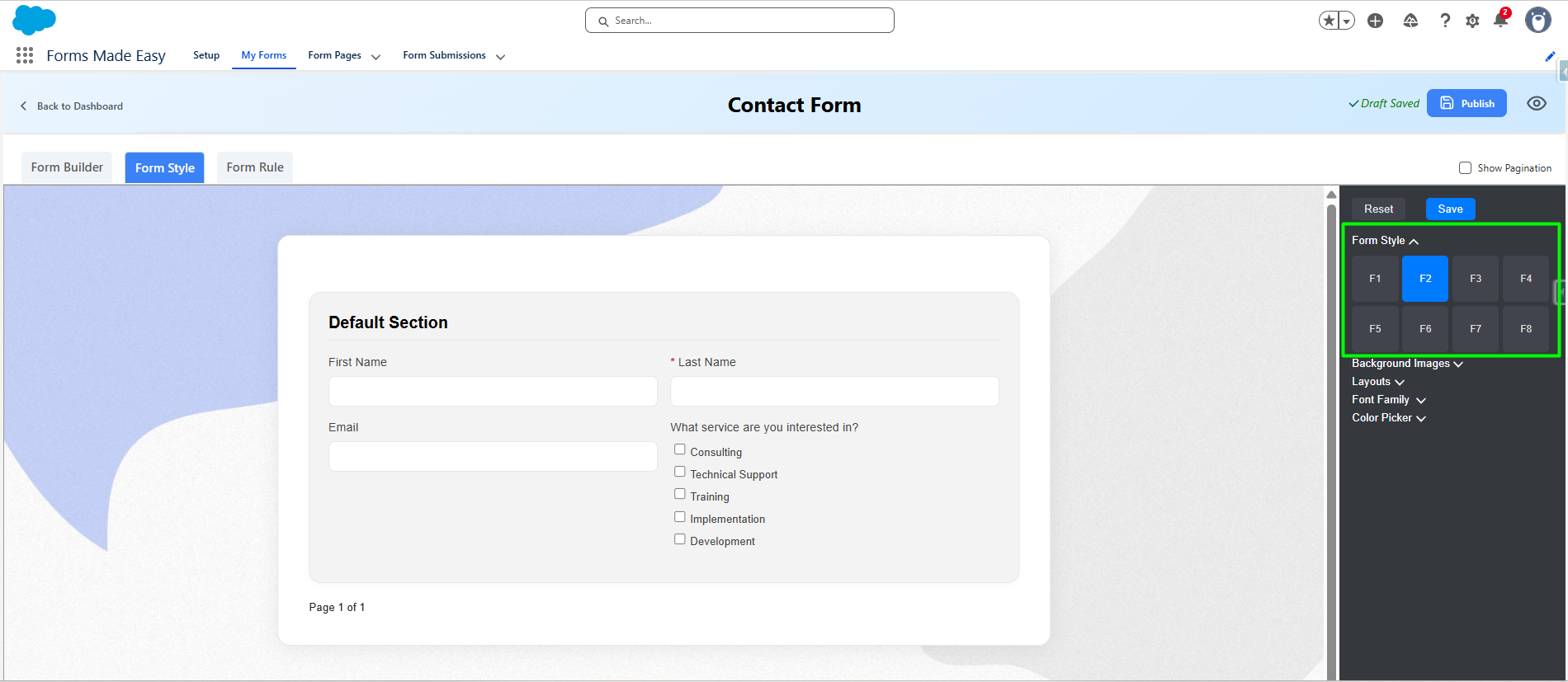
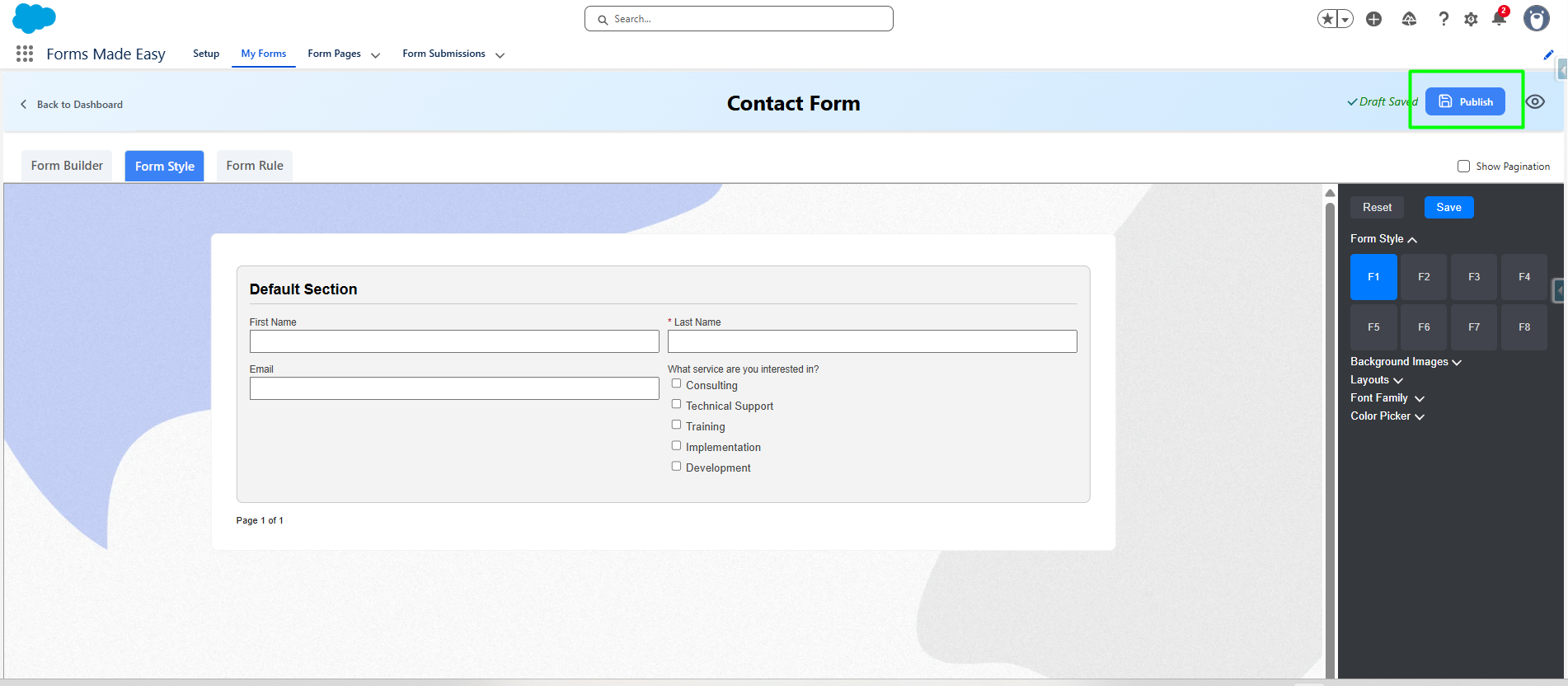
Step 14: Click on the Form Style button to change the design.
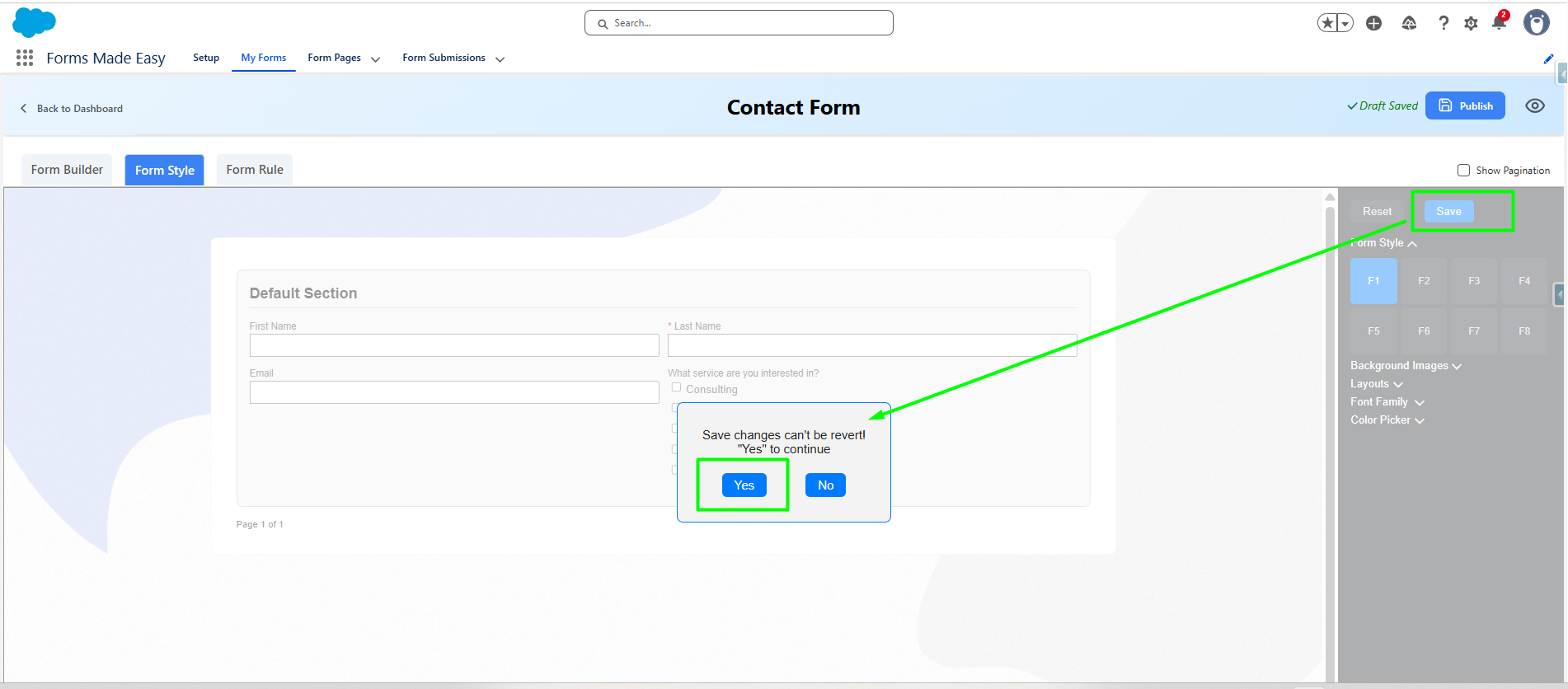
Step 15: Once you have changed the form design, click on the Save button and select Yes to save the changes.
Step 16: Then click on the Publish button.
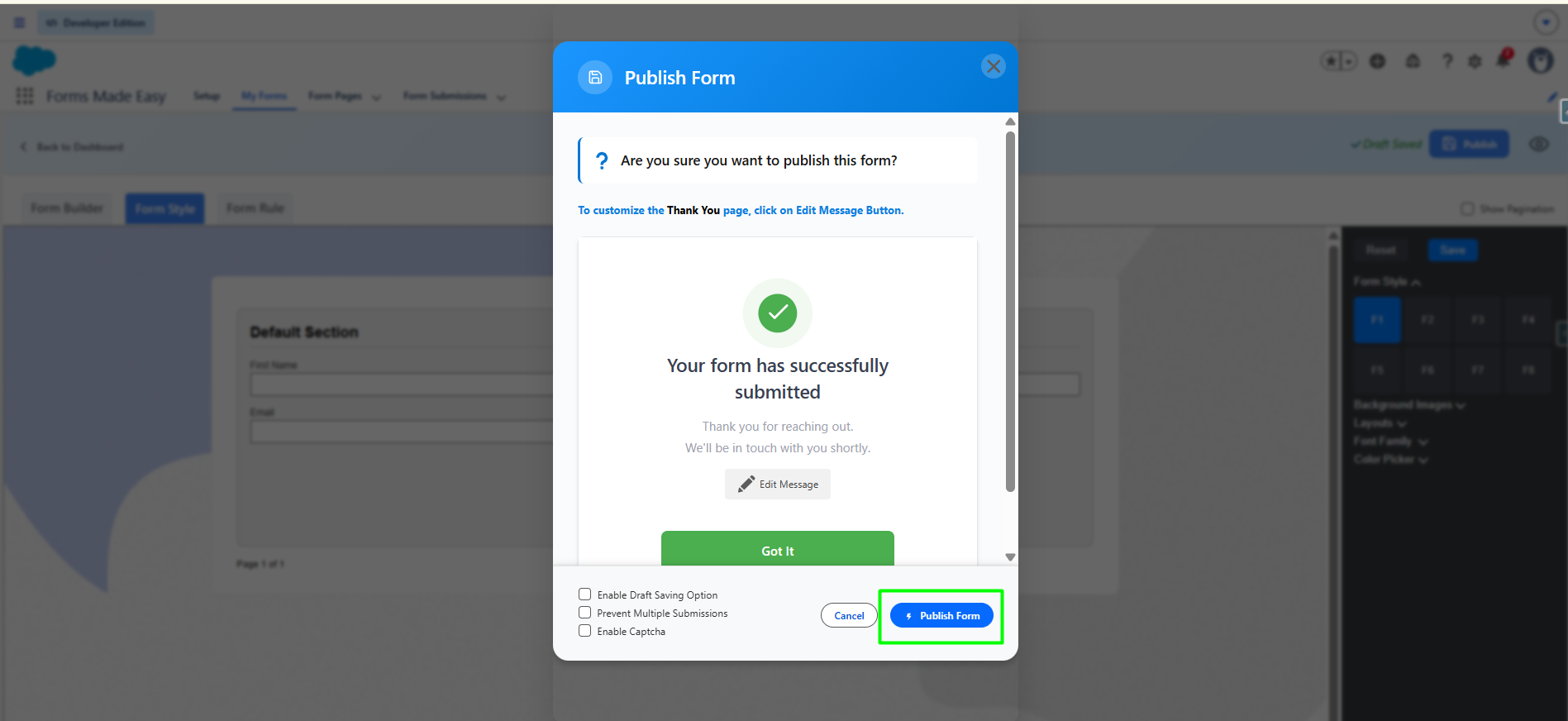
Step 17: Then click on the Publish Form.
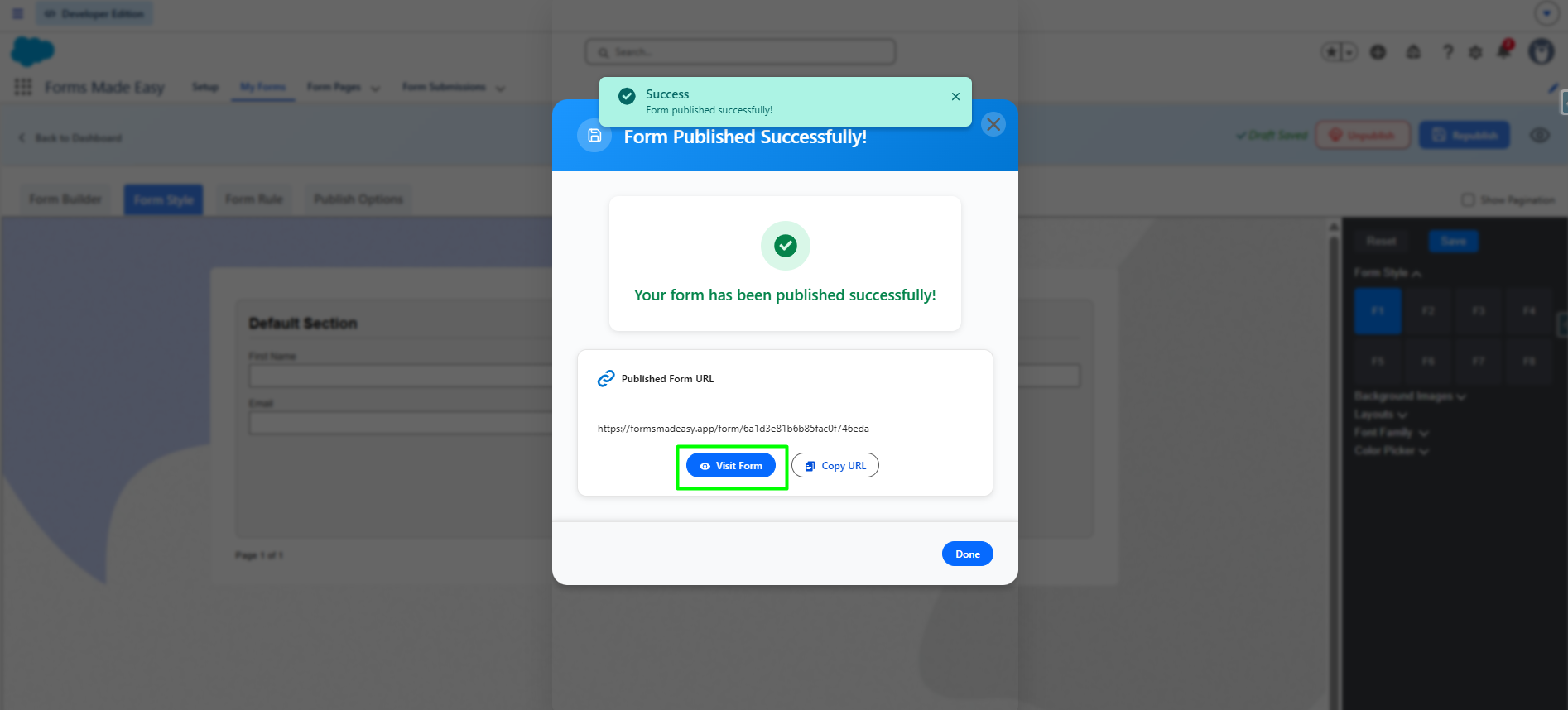
Step 18: A Public URL will be generated for your form. Copy the form URL to share it. Now, the second option is to click on Visit Site — the form will be visible there.
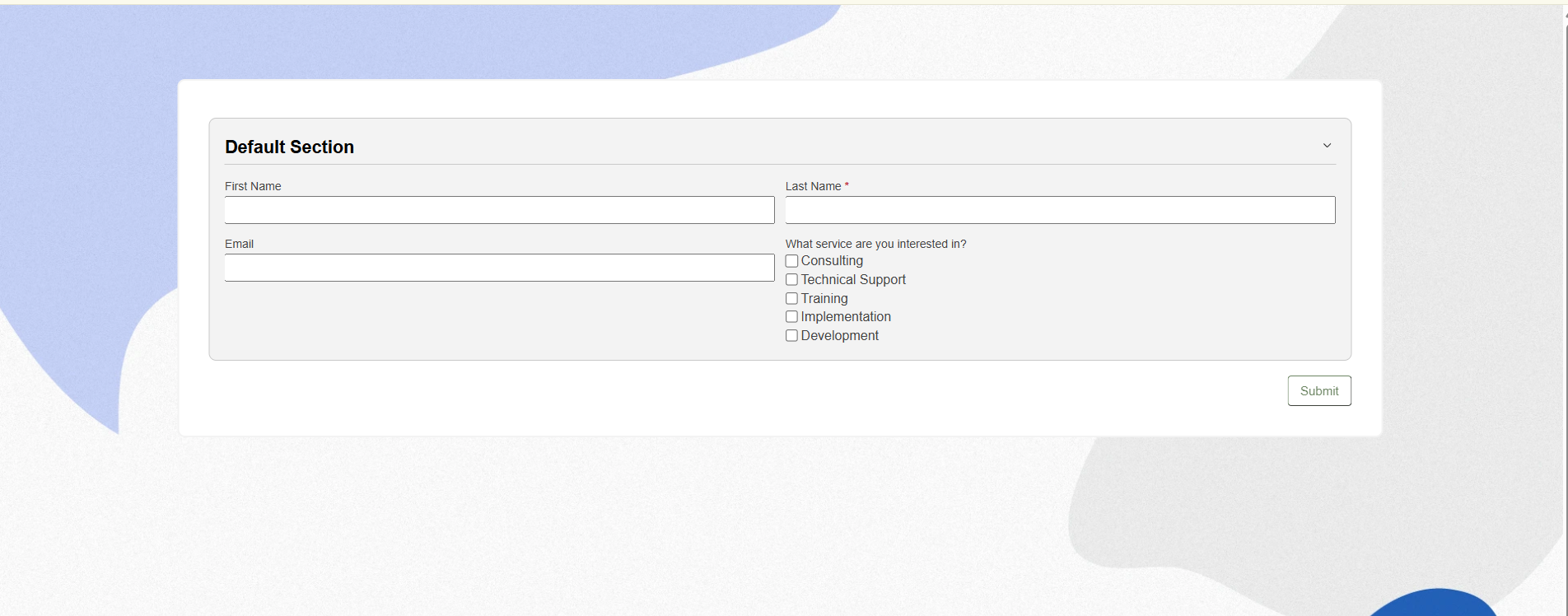
Step 19: After clicking Visit Form, the form will open in your web browser and will appear as shown below.
Was this article helpful?
That’s Great!
Thank you for your feedback
Sorry! We couldn't be helpful
Thank you for your feedback
Feedback sent
We appreciate your effort and will try to fix the article