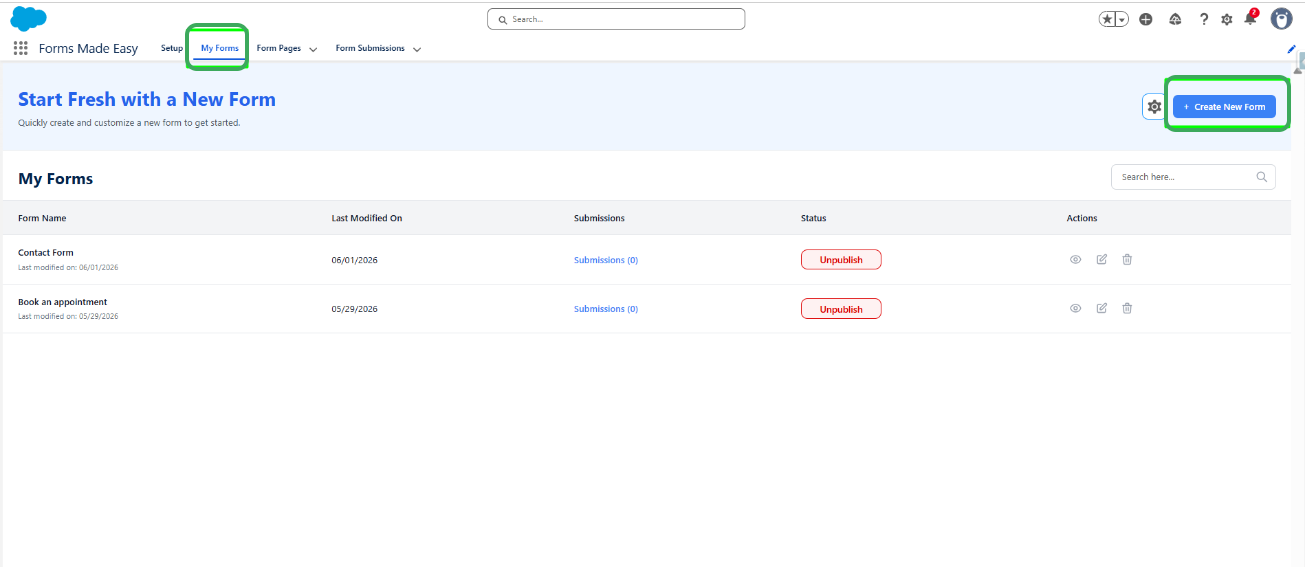
Step 1: Start the process by going to the My Forms tab and clicking on the "Create New Form" button.
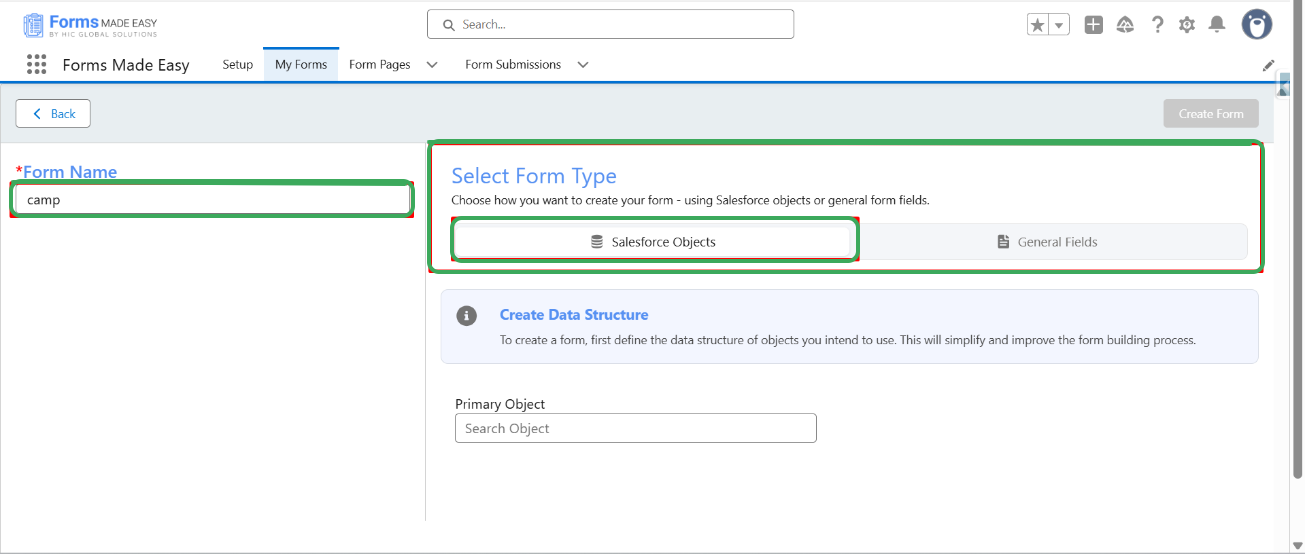
Step 2: Enter the Form Name and select the Form Type (Salesforce Objects / General Fields). Currently, I have chosen the Salesforce Objects option.
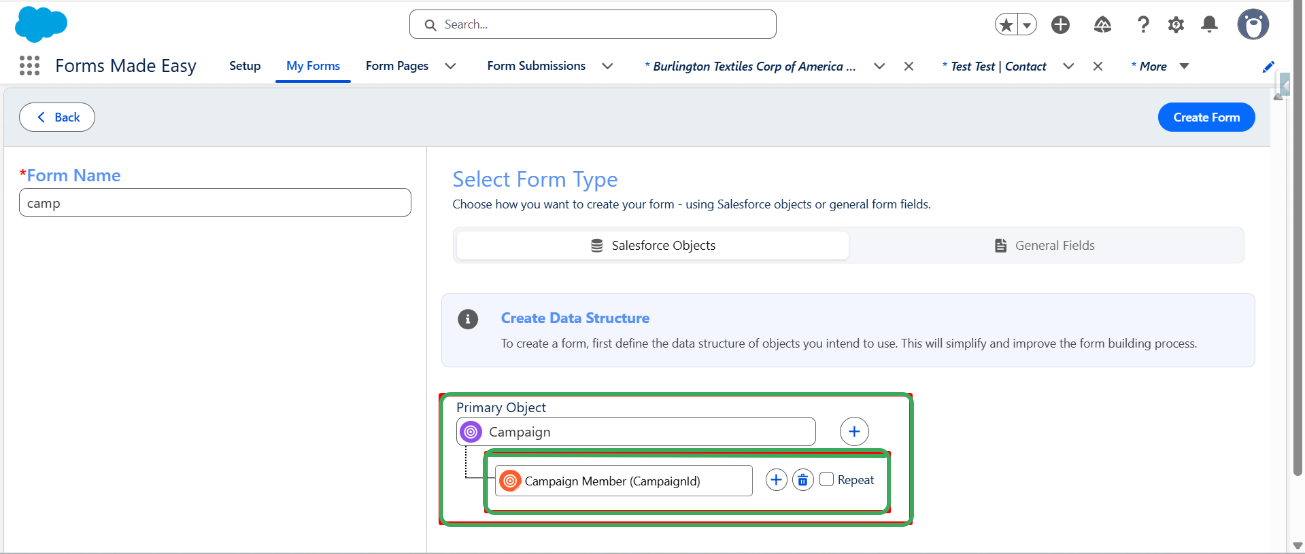
Step 3: Select the required Salesforce object. I have selected “Campaign Member ” as the primary object and selected “Campaign ” as the child object.
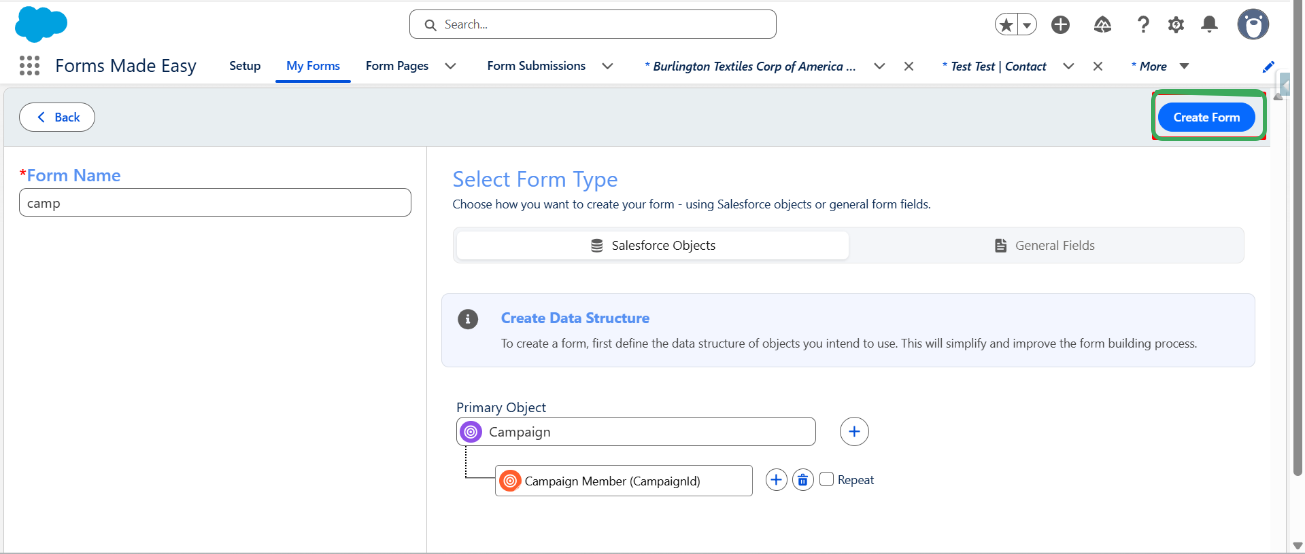
Step 4: Click on the “Create Form” button.
Step 5: Drag and drop your required fields on the form. After all of that, you can publish the form by clicking the "Publish" button.
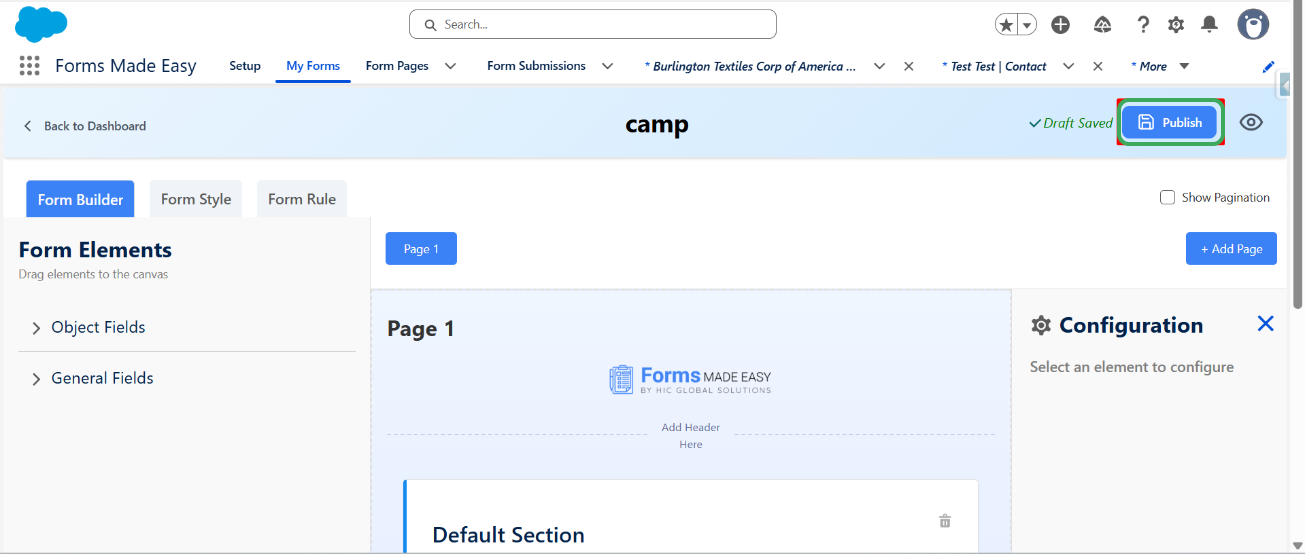
Step 6: Click on the “Publish form” button.
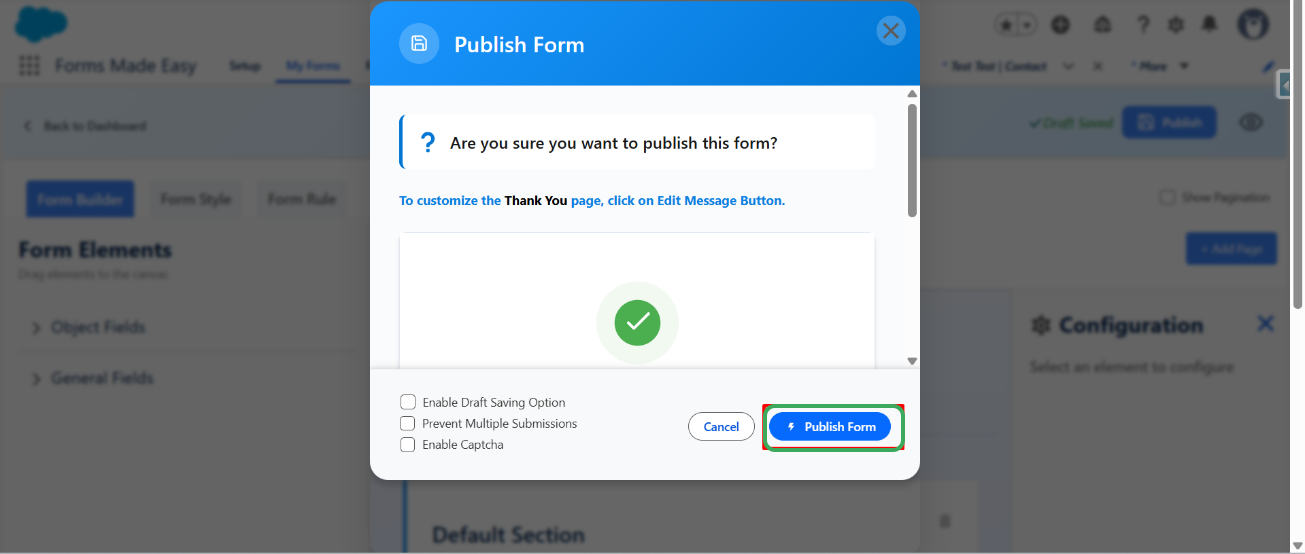
Step 7: Then, click on "Done" to close the modal.
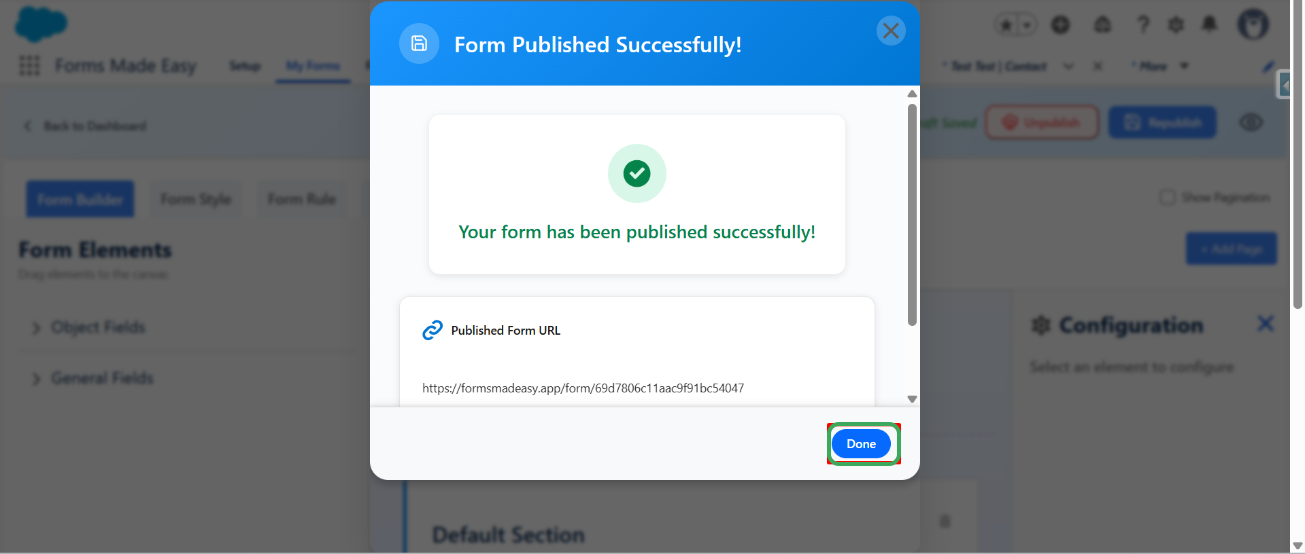
Step 8: Now, click on "Publish Options”.
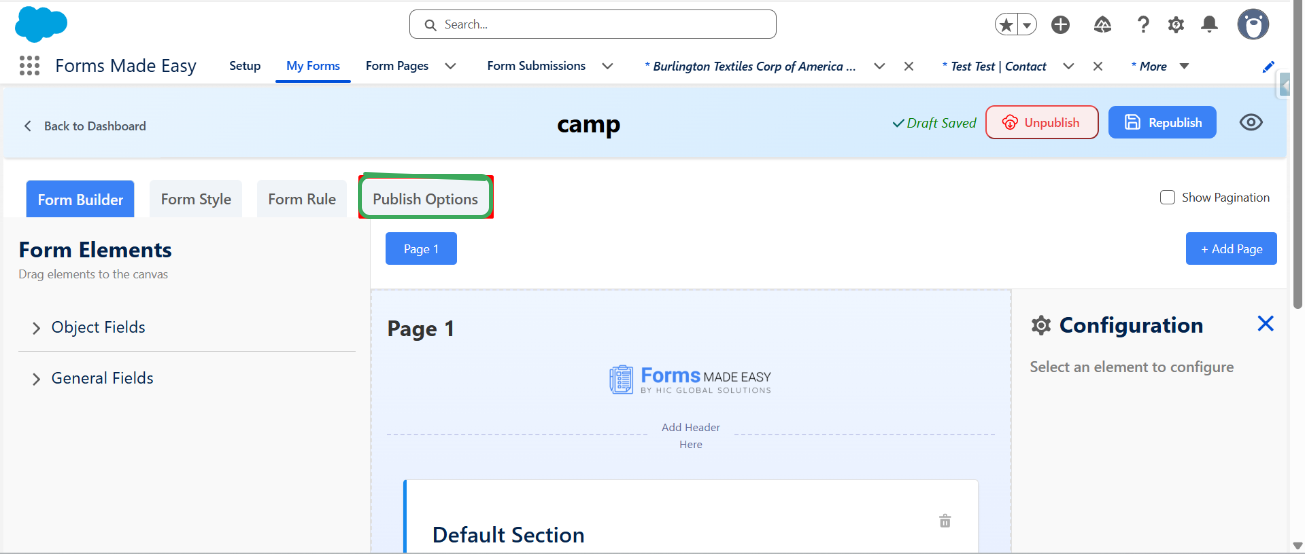
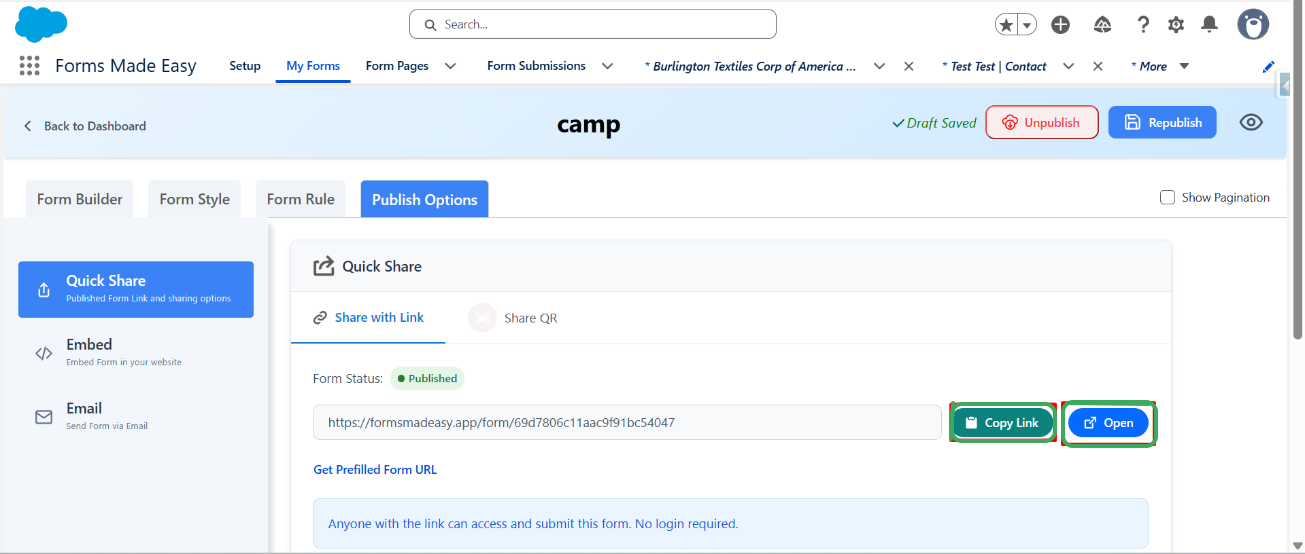
Step 9: Here, click on the “Copy Link” or “Open” buttons to open the forms directly on the web.
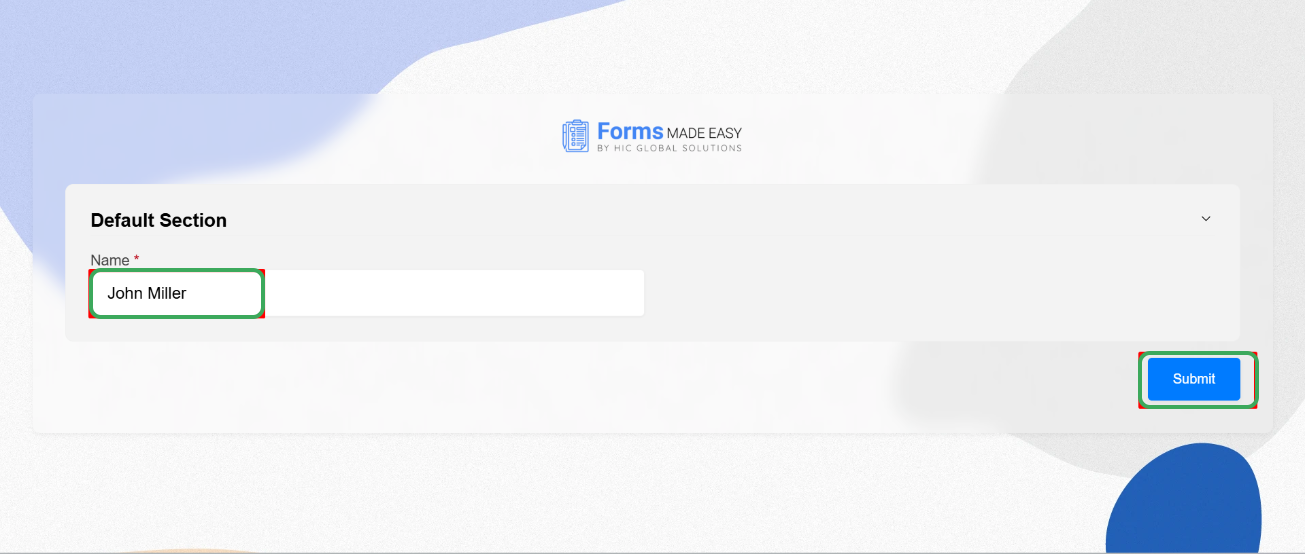
Step 10: Enter the required “Name” in the designated field, then click on the “Submit” button to proceed with the form.
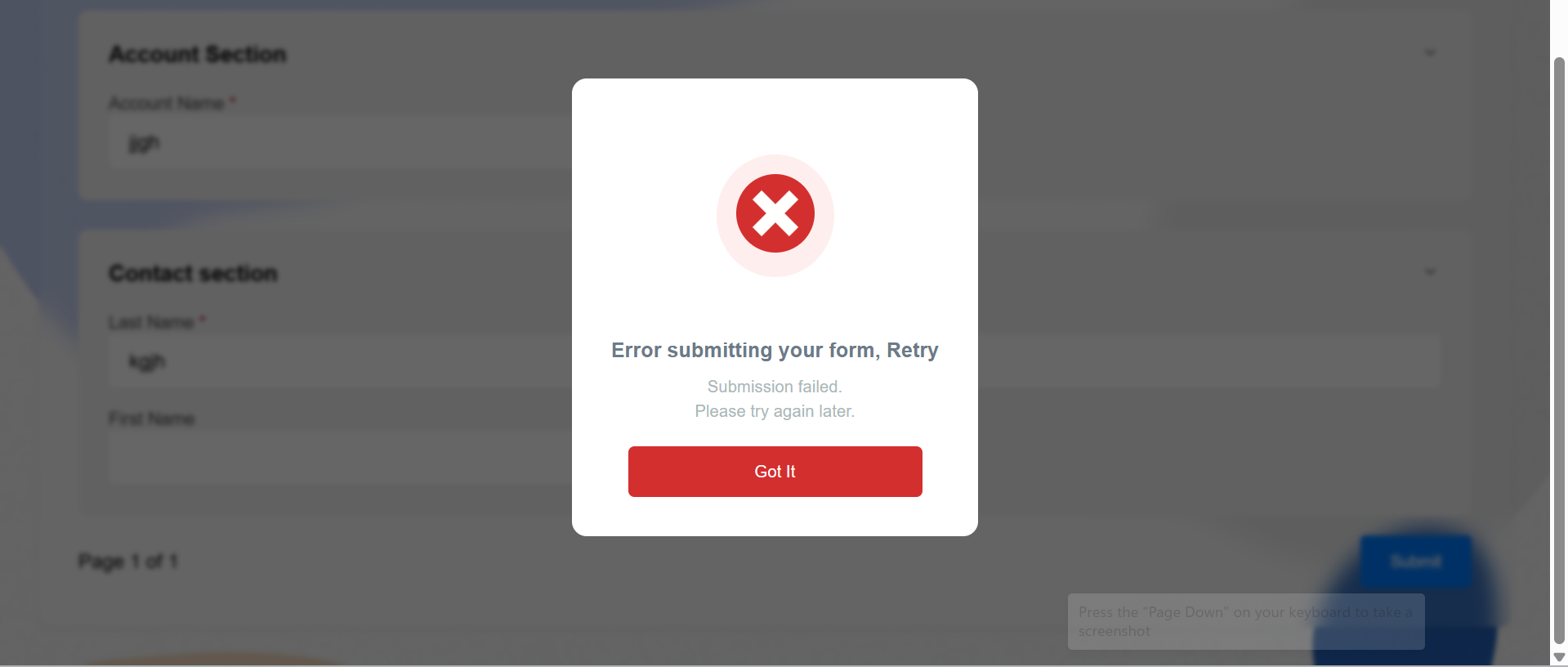
Step 11: If an error occurs, an error message pop-up will appear on the screen.
Notes: The message will indicate that the submission has failed.
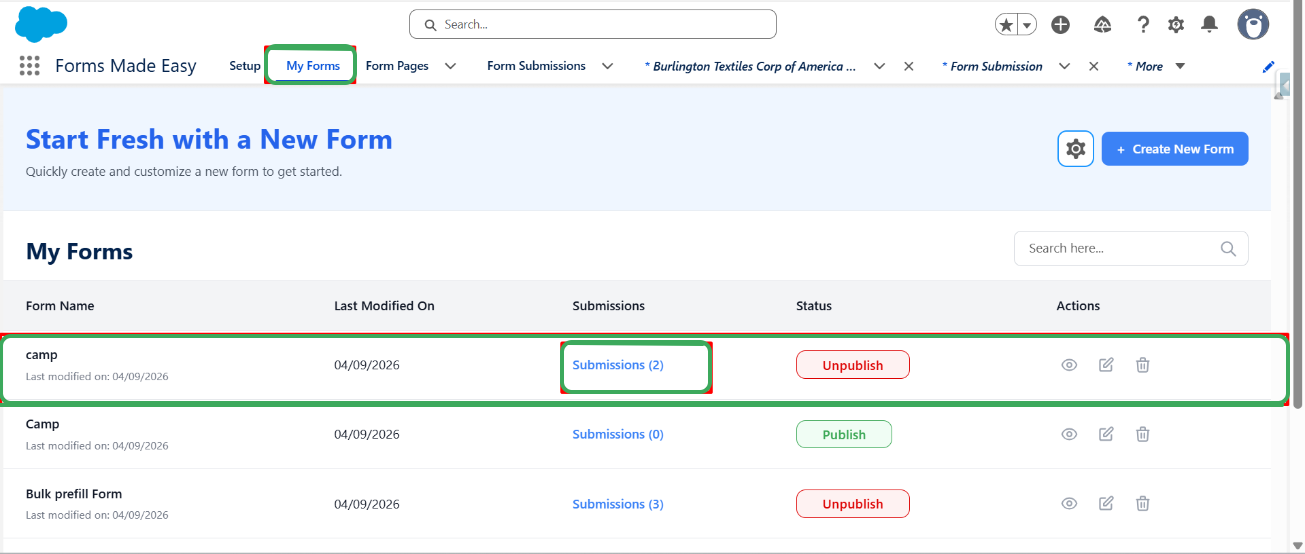
Step 12: Navigate to the Forms Made Easy application and click on the “My Forms” tab. In the “Submissions” column of that form, click on the “Submissions” To open the submissions record page.
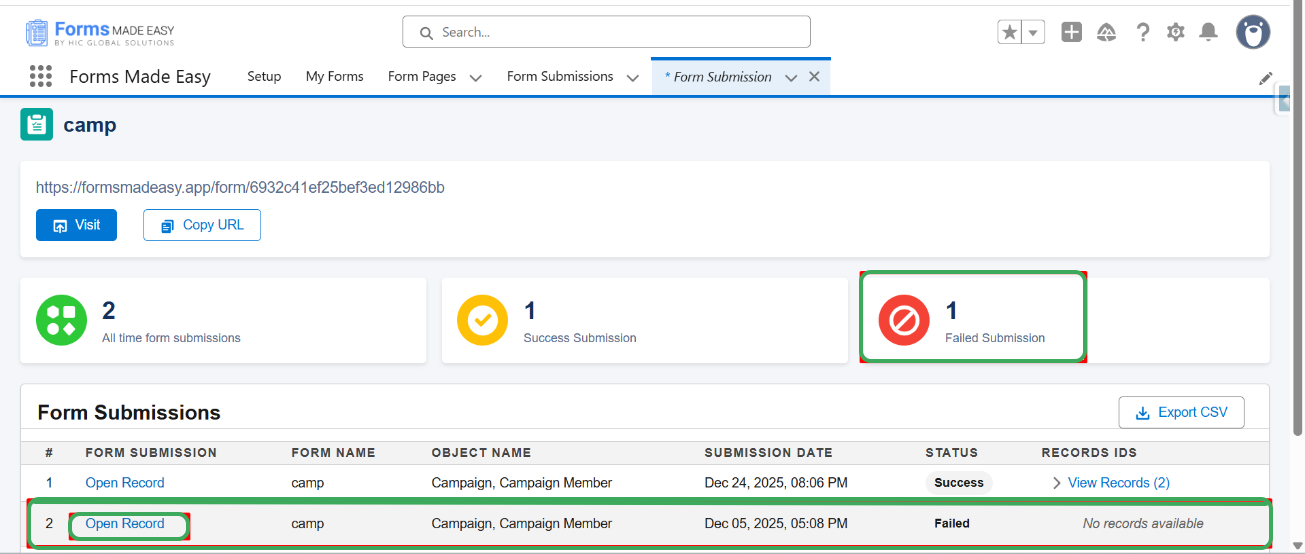
Step 13: Now, the Form Submissions page will be open. You can see that the “1” submission has failed in the failed Submission section, then click on “Open Record” to open the submission record.
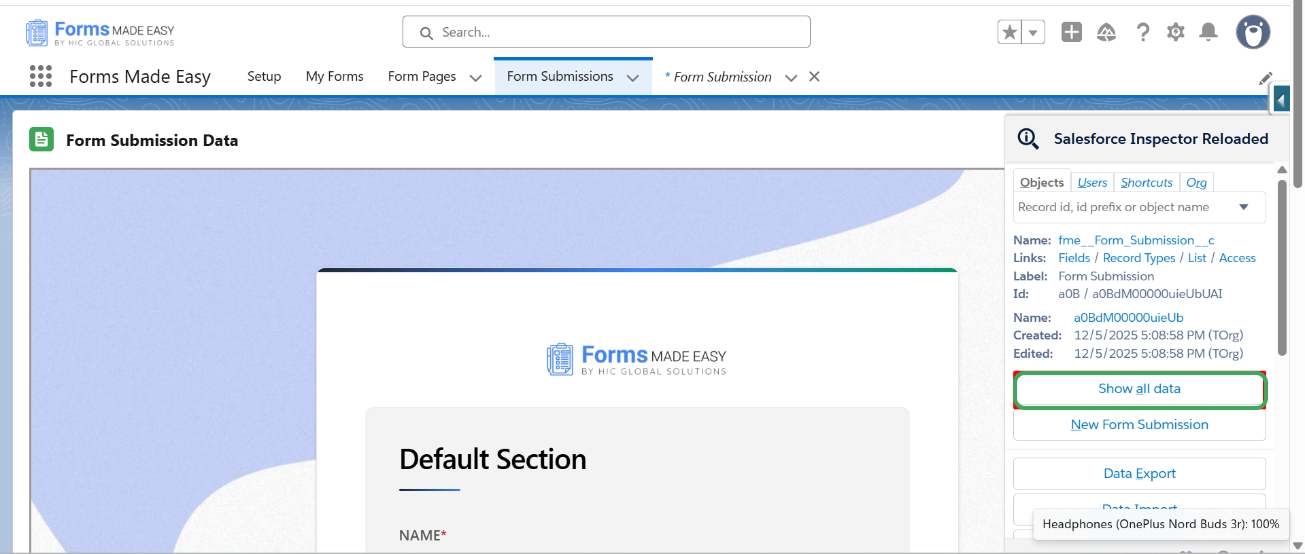
Step 14: On the Form Submission Data page, click on the Salesforce Inspector Reloaded extension. From the extension options, click on “Show All Data”.
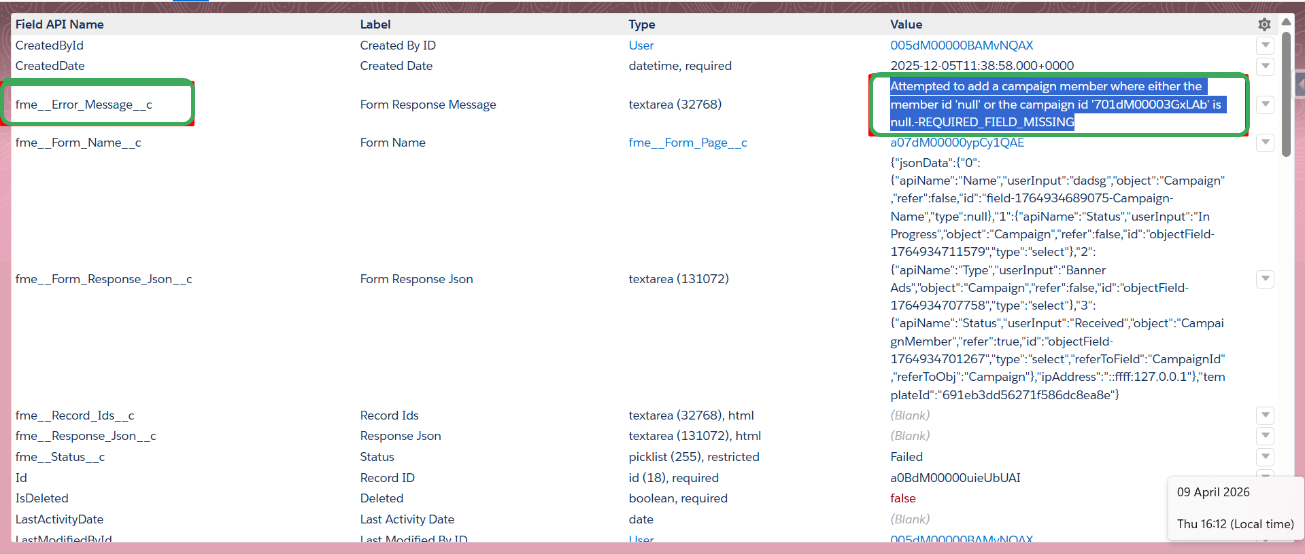
Step 15: All available data related to the submission will be displayed. Now check the Value of the Form Response Message, which comes from the Field API Name (fme_Error_Message_c) in the value section.
Was this article helpful?
That’s Great!
Thank you for your feedback
Sorry! We couldn't be helpful
Thank you for your feedback
Feedback sent
We appreciate your effort and will try to fix the article