Before you can start using Forms Made Easy, you need to connect your Salesforce. Follow the steps below to complete the setup successfully.
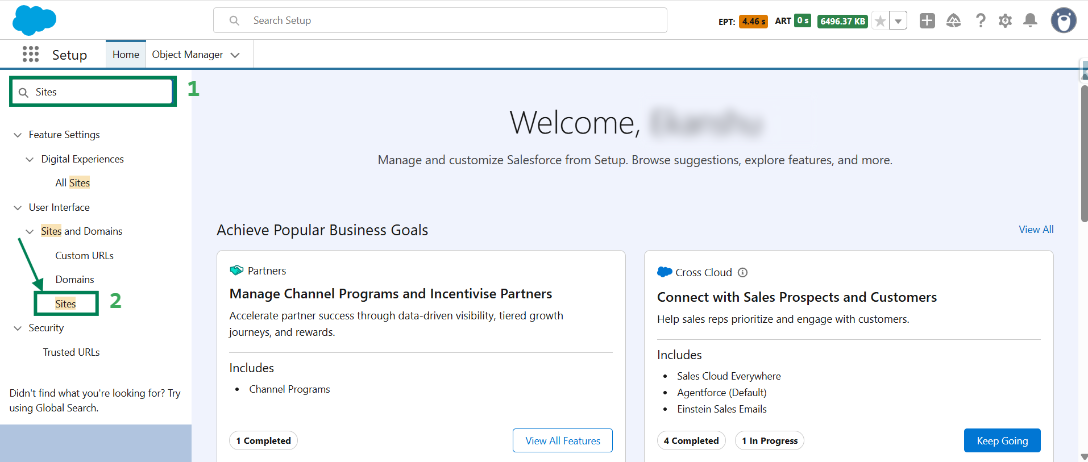
Step 1: After installing Forms Made Easy, search for Sites in the Quick Find box and click Sites.
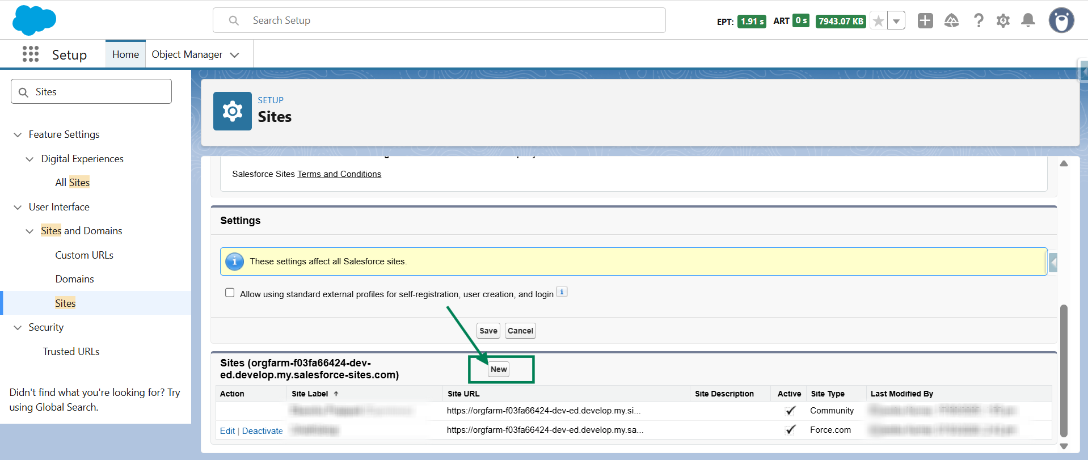
Step 2: Click the New button to create a new site.
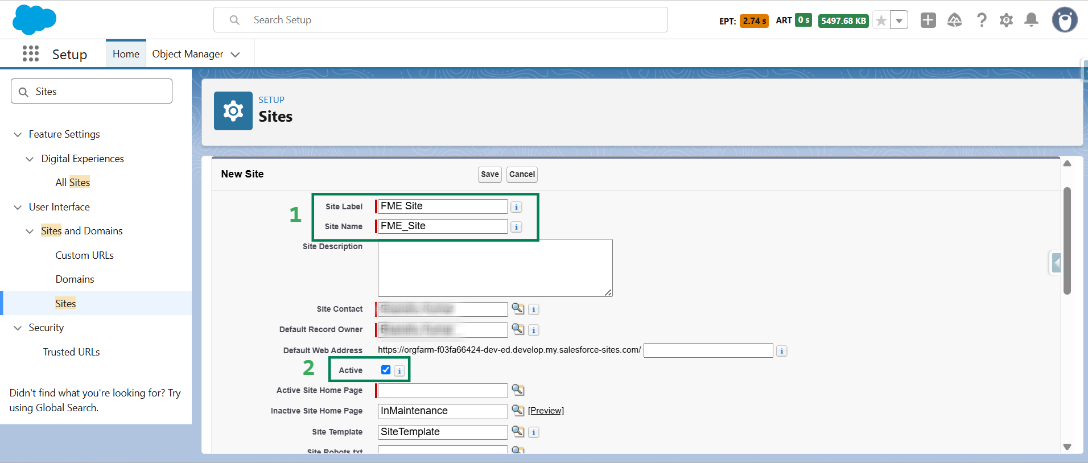
Step 3: Enter the Site Label and Site Name, then check the Active checkbox.
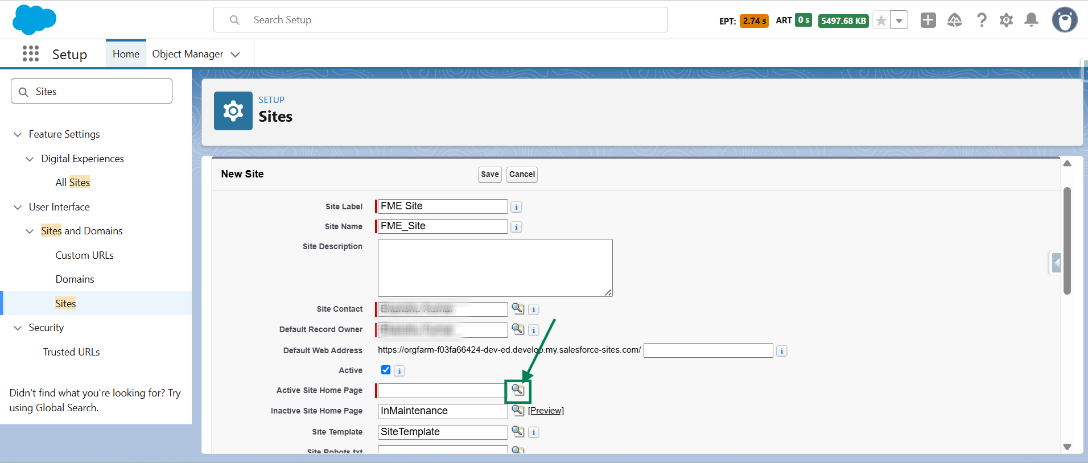
Step 4: Click the Search icon next to Active Site Home Page.
Step 5: Select AnswersHome.
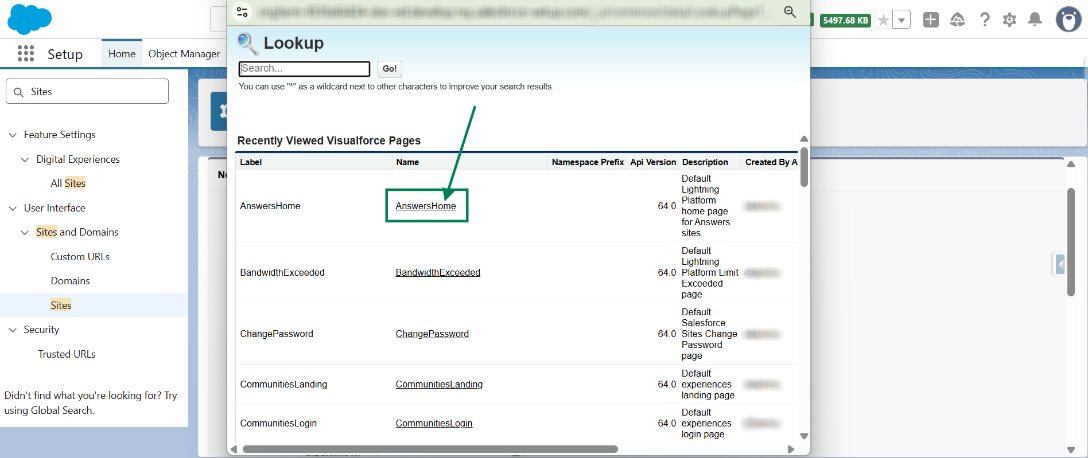
Step 6: Click Save.
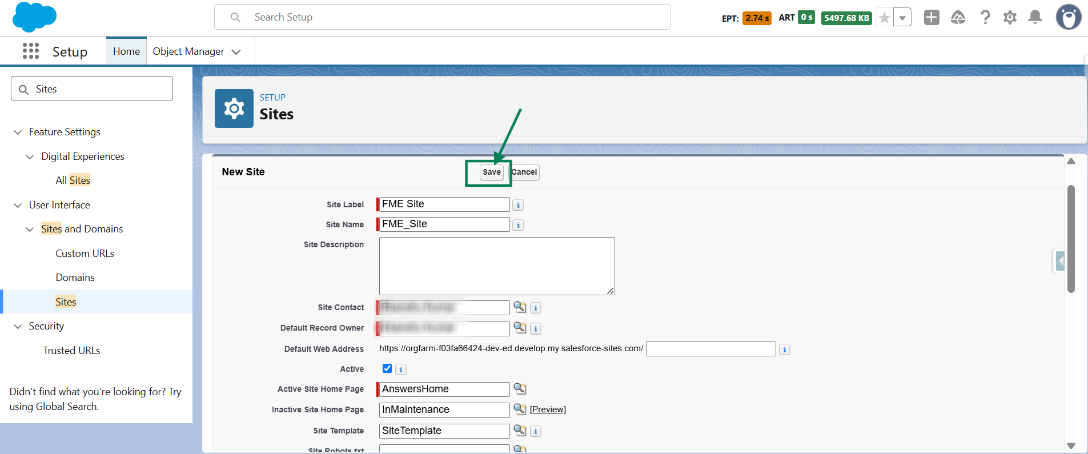
Step 7: Click Public Access Settings.
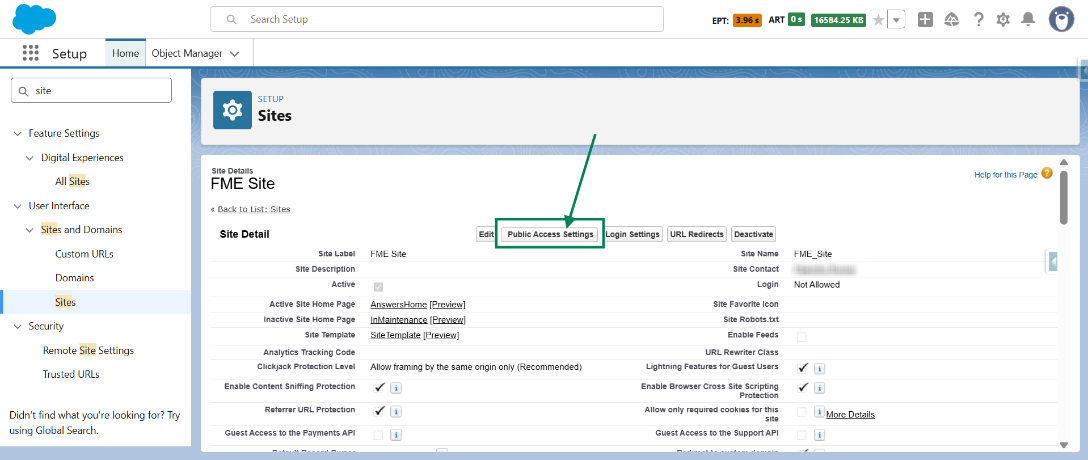
Step 8: Click the View Users button.
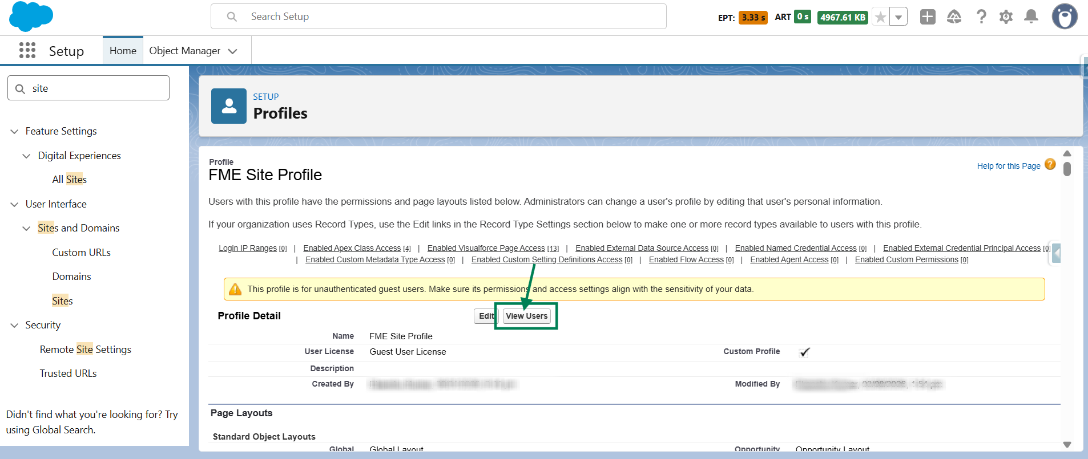
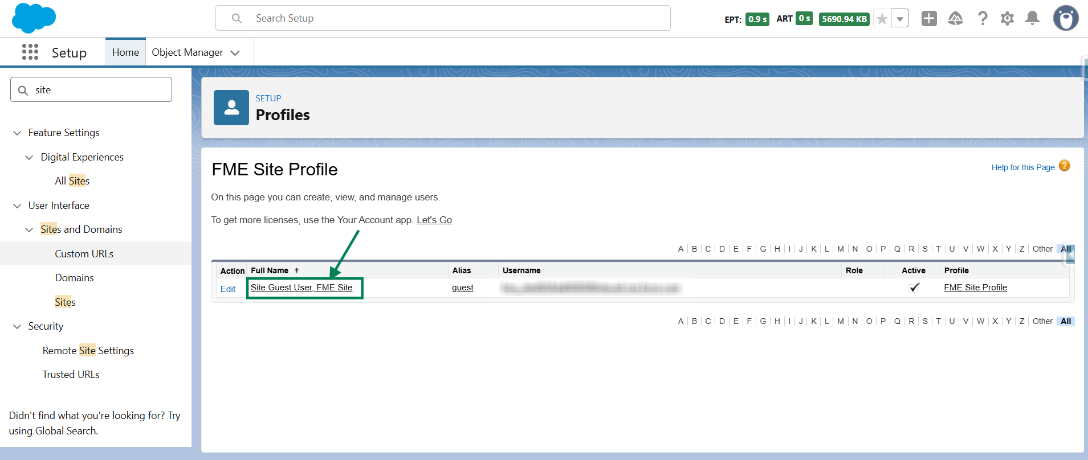
Step 9: Click the site's Full Name.
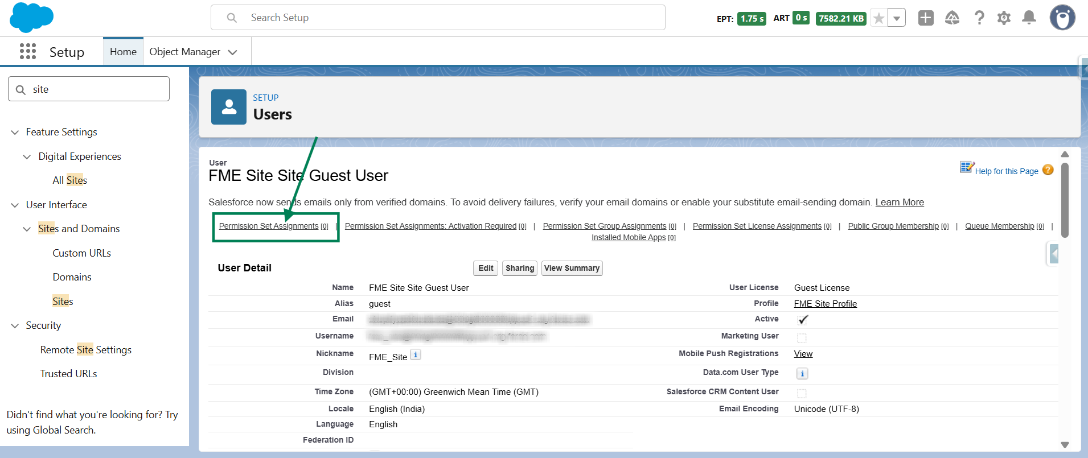
Step 10: Click Permission Set Assignments.
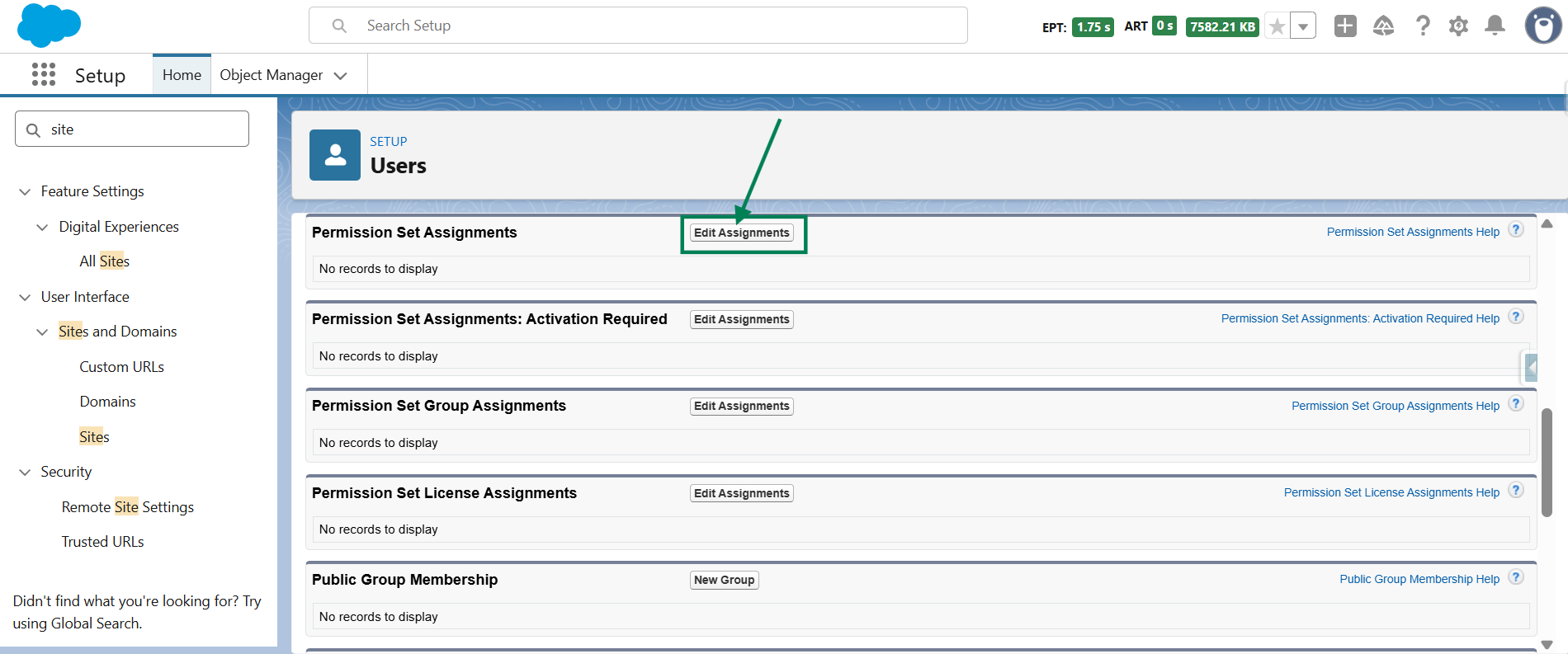
Step 11: Click the Edit Assignments button.
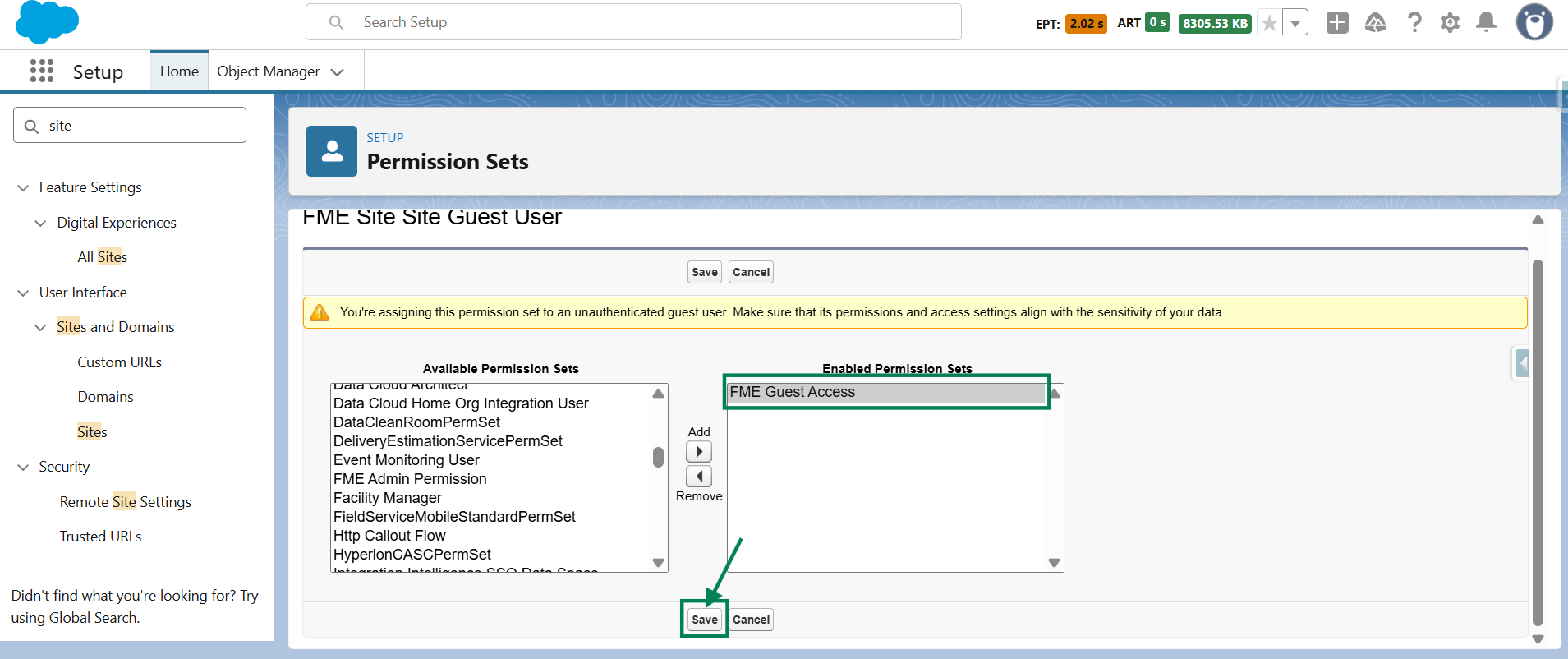
Step 12: Select FME Guest Access and click Add.
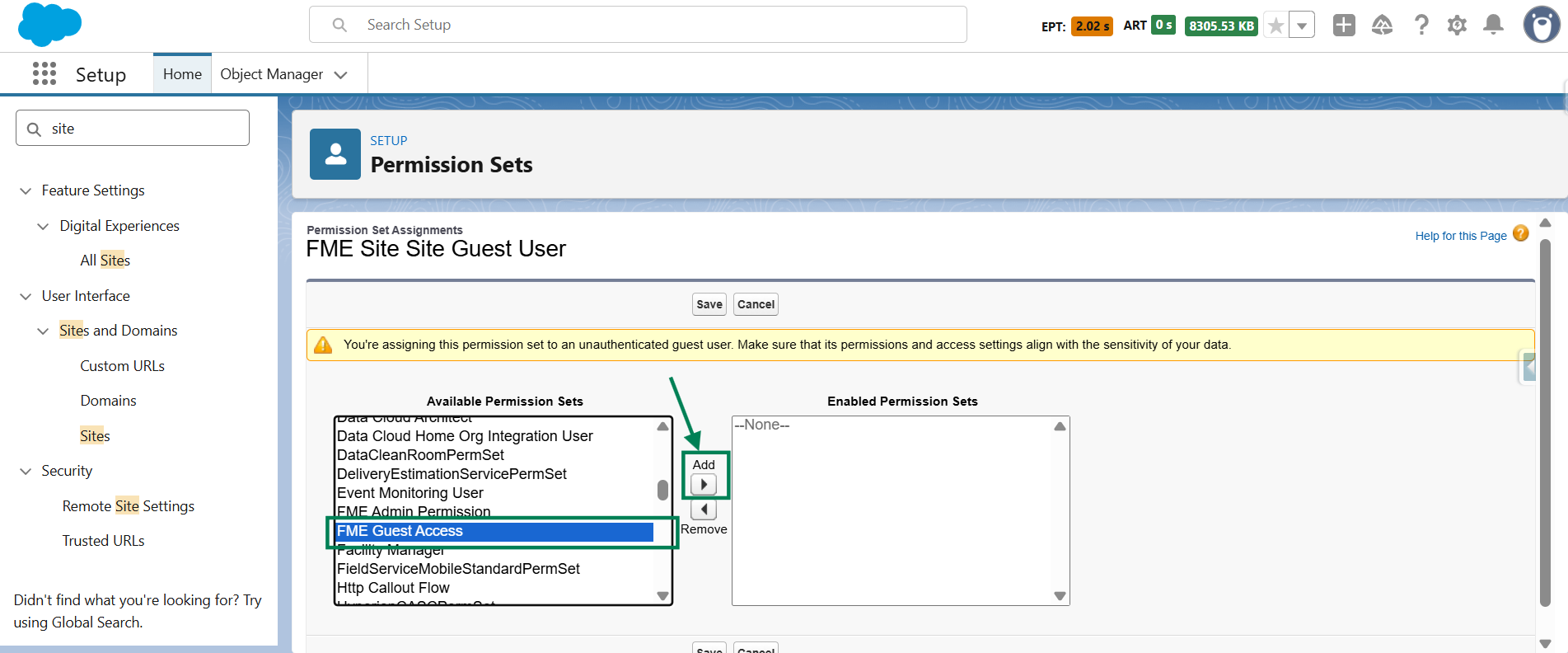
Step 13: After the permission set is added successfully, click Save.
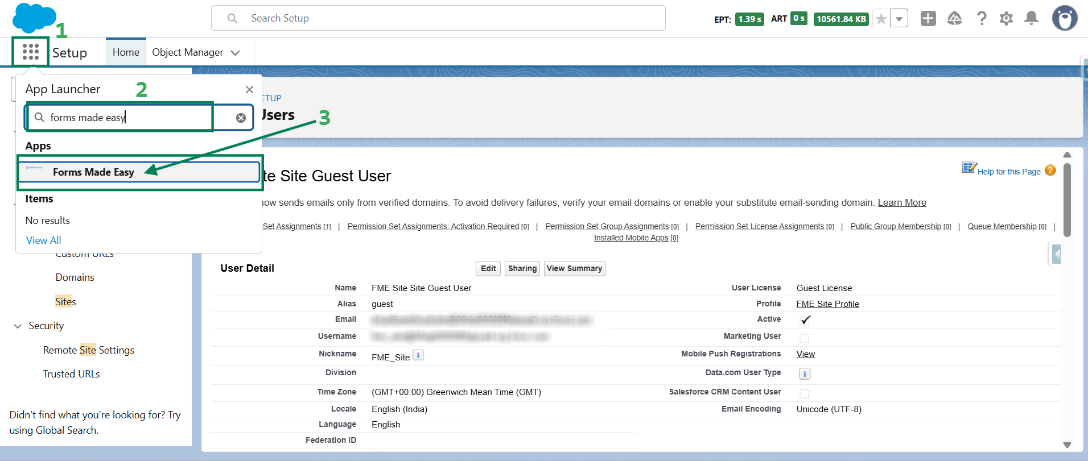
Step 14: Open the App Launcher, search for Forms Made Easy, and click on it.
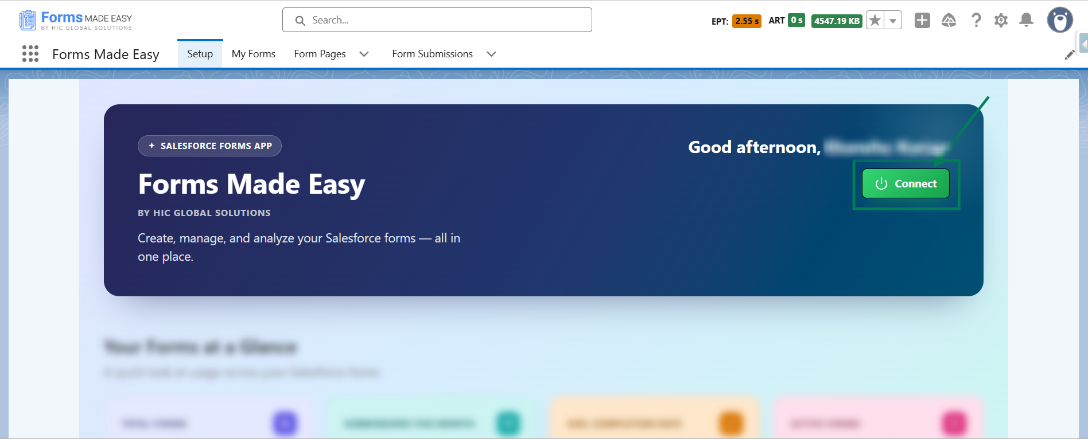
Step 15: Click the Connect button.
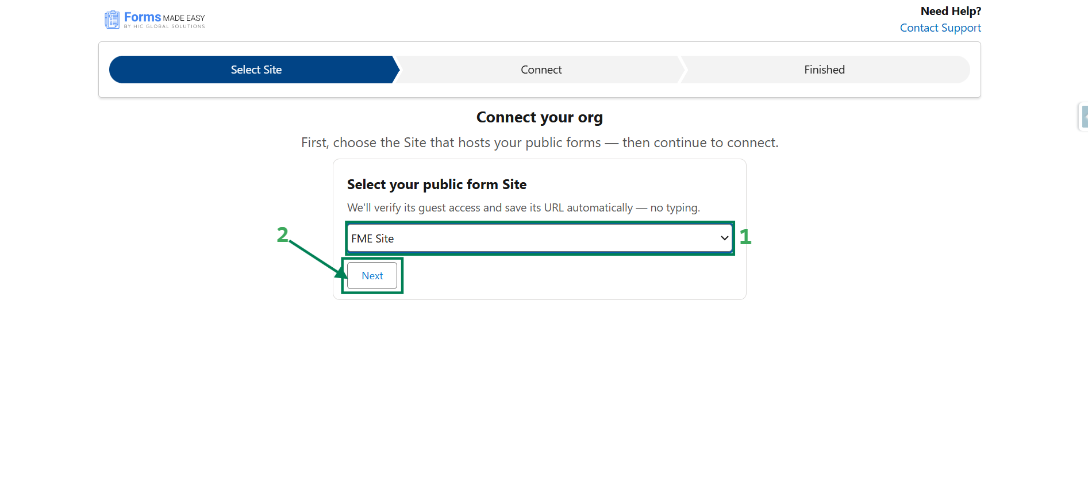
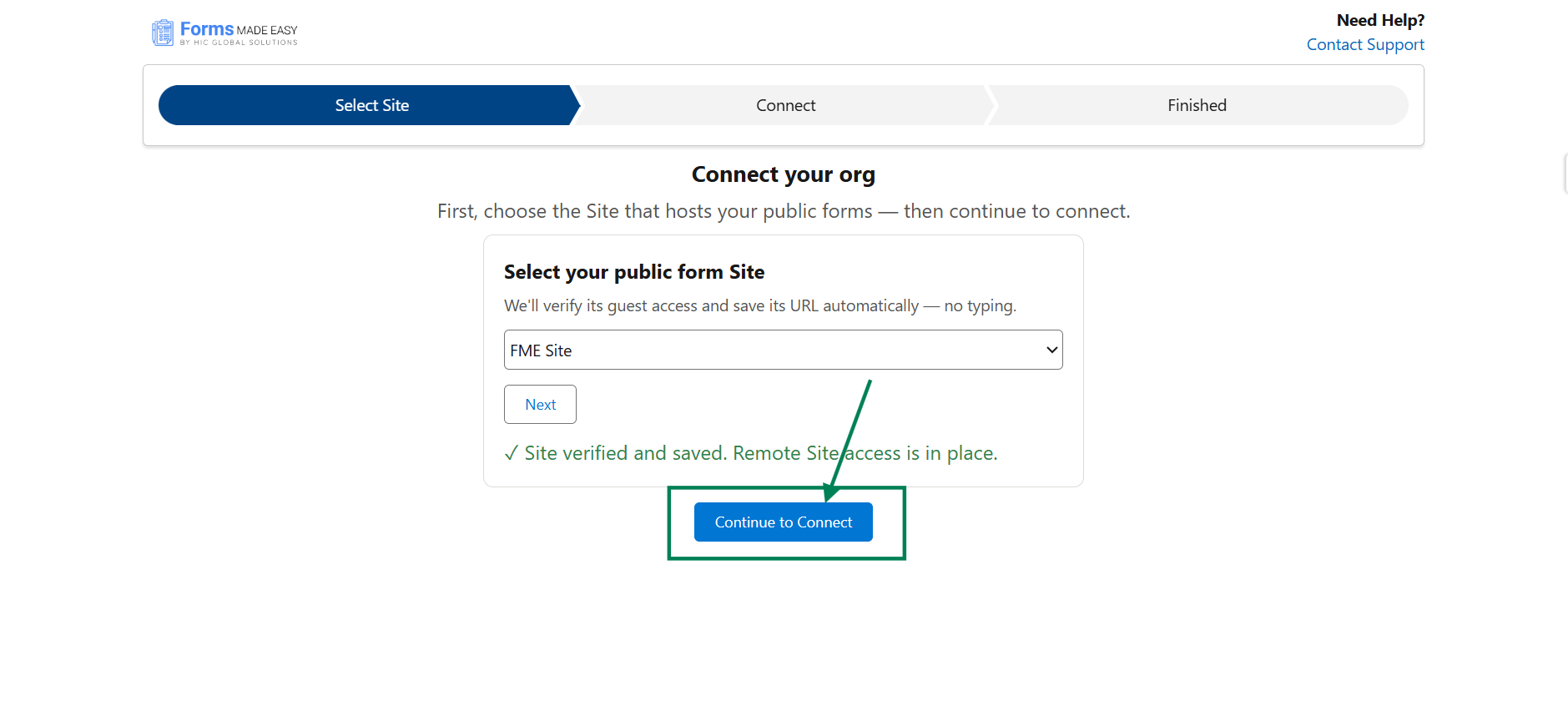
Step 16: Select your site from the dropdown list and click Next.
Step 17: Click Continue to Connect.
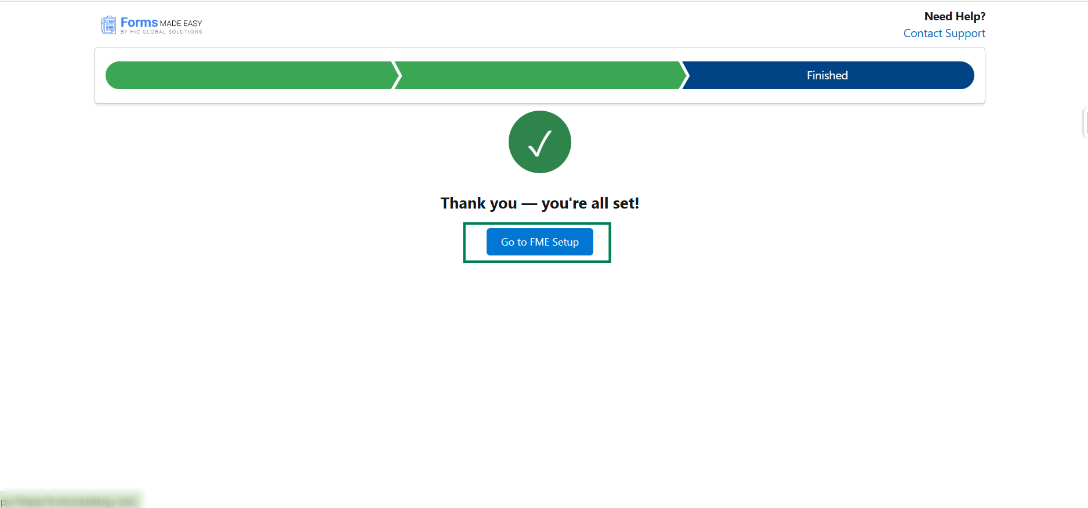
Step 18: Click Go to FME Setup.
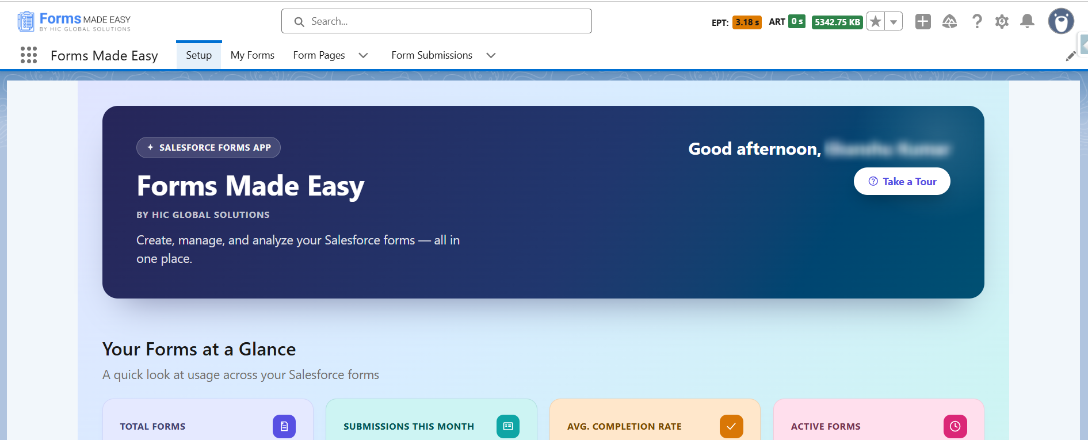
Step 19: Your Salesforce org is now connected successfully. You will be redirected to the Forms Made Easy Setup page.
We hope this article helps! If you still face any issues, feel free to contact us at support@formsmadeasy.com.
Was this article helpful?
That’s Great!
Thank you for your feedback
Sorry! We couldn't be helpful
Thank you for your feedback
Feedback sent
We appreciate your effort and will try to fix the article