In this guide , you can know how to enhance your forms by adding and configuring custom fields such as Videos, Ratings, and Terms & Conditions.
Steps to Add and Configure Fields:
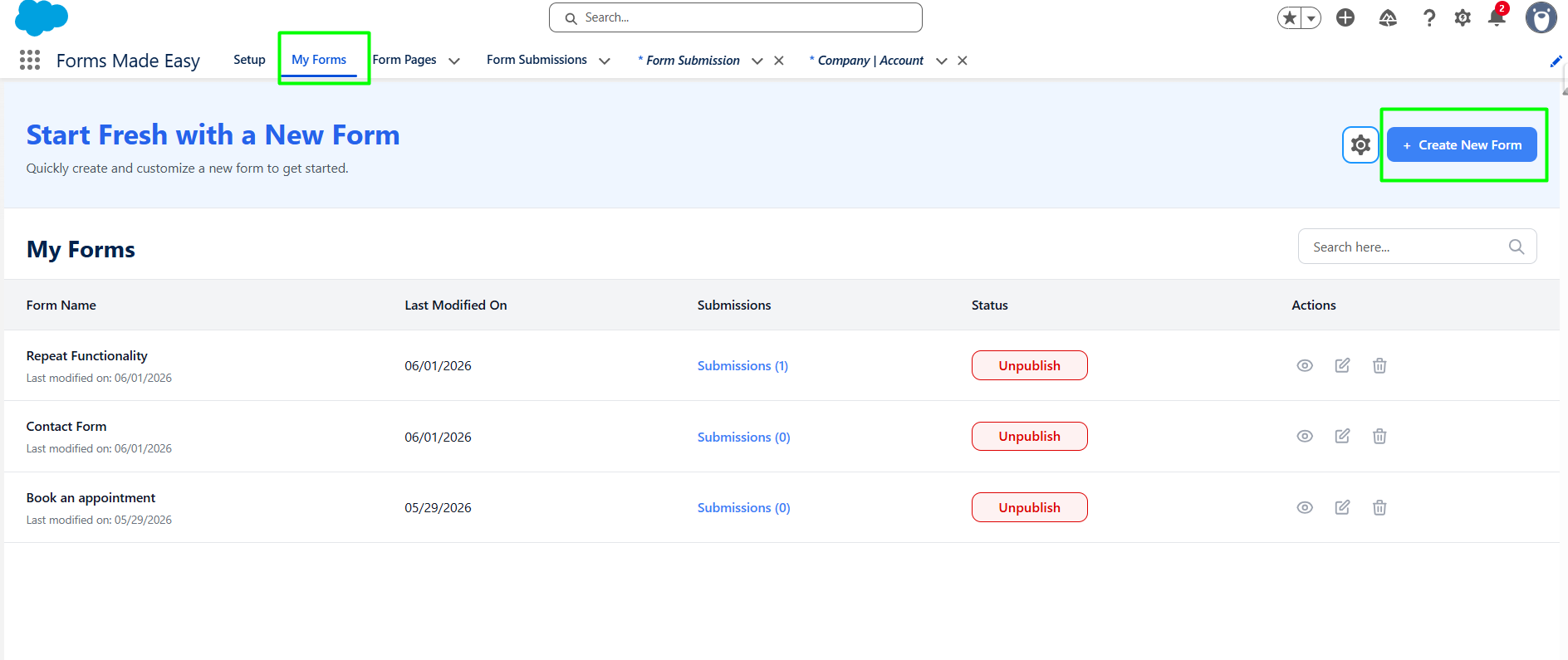
Step 1: Go to the My Forms tab and click on the "Create New Form" button.
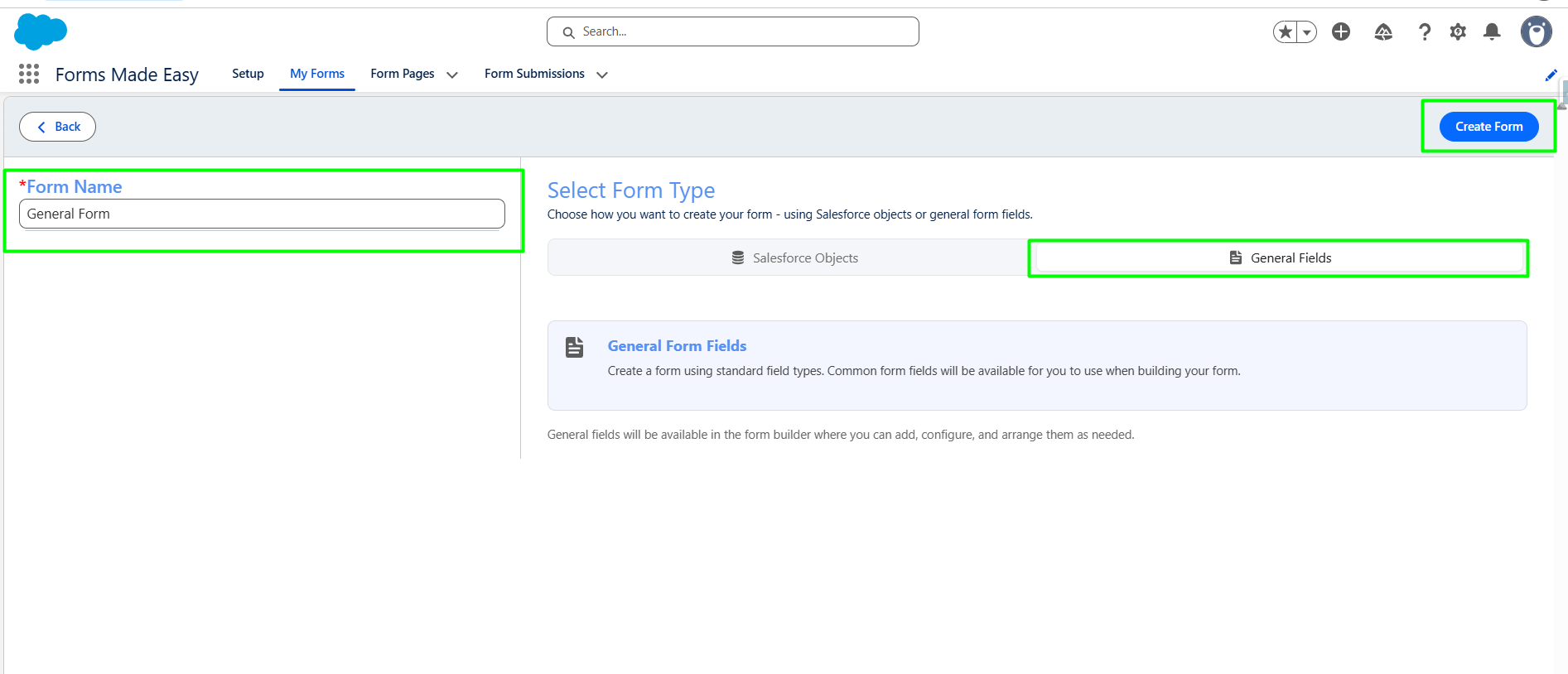
Step 2: From “Select Form Type” Choose “General Field”. Click on “Create Form” button.
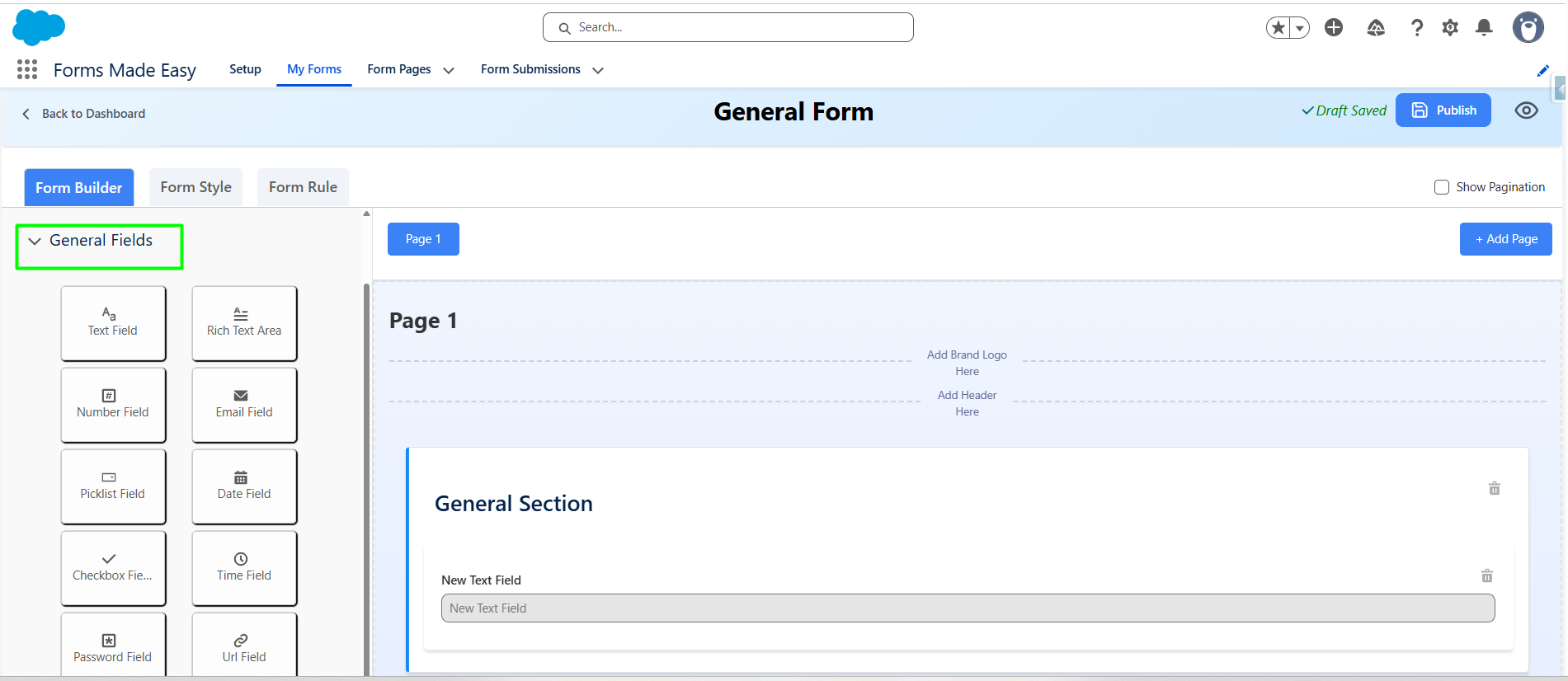
Step 3: Expand the “General field” Section.
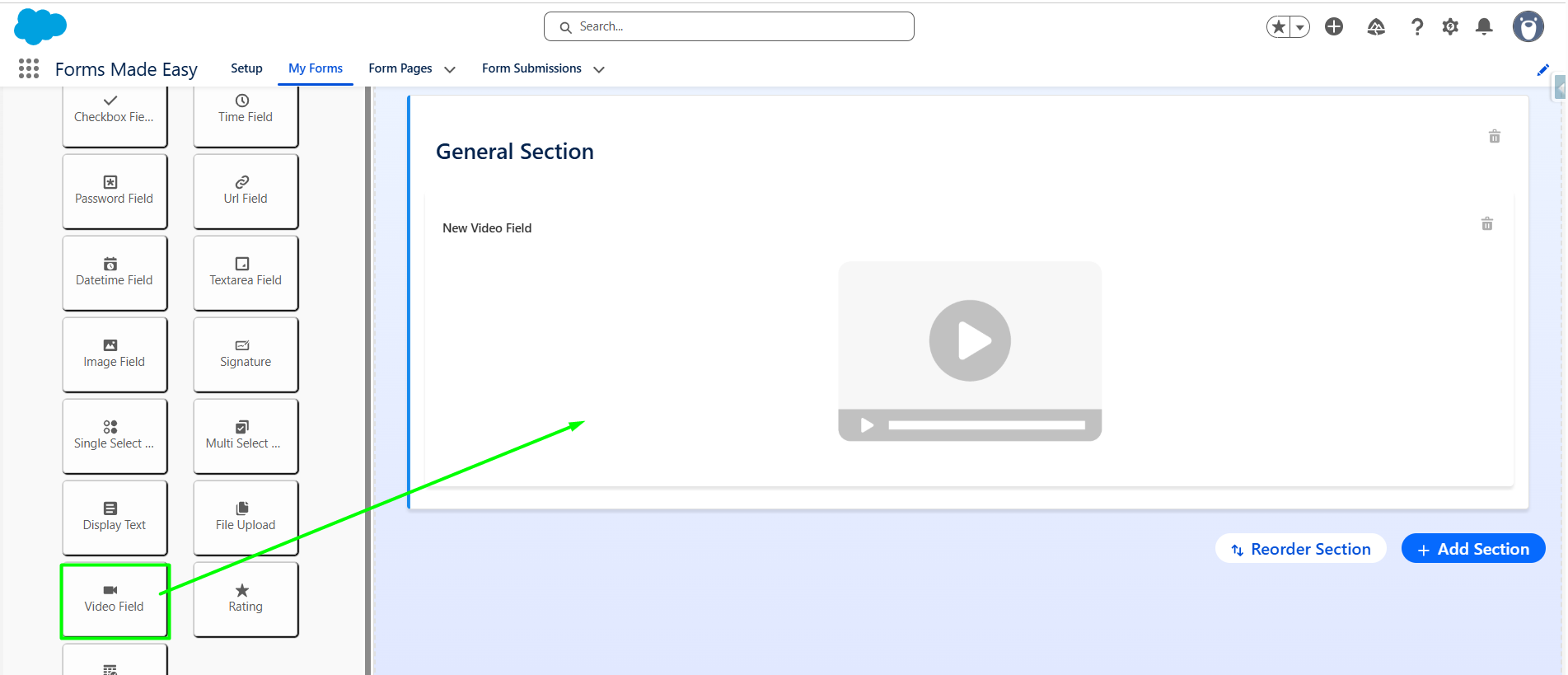
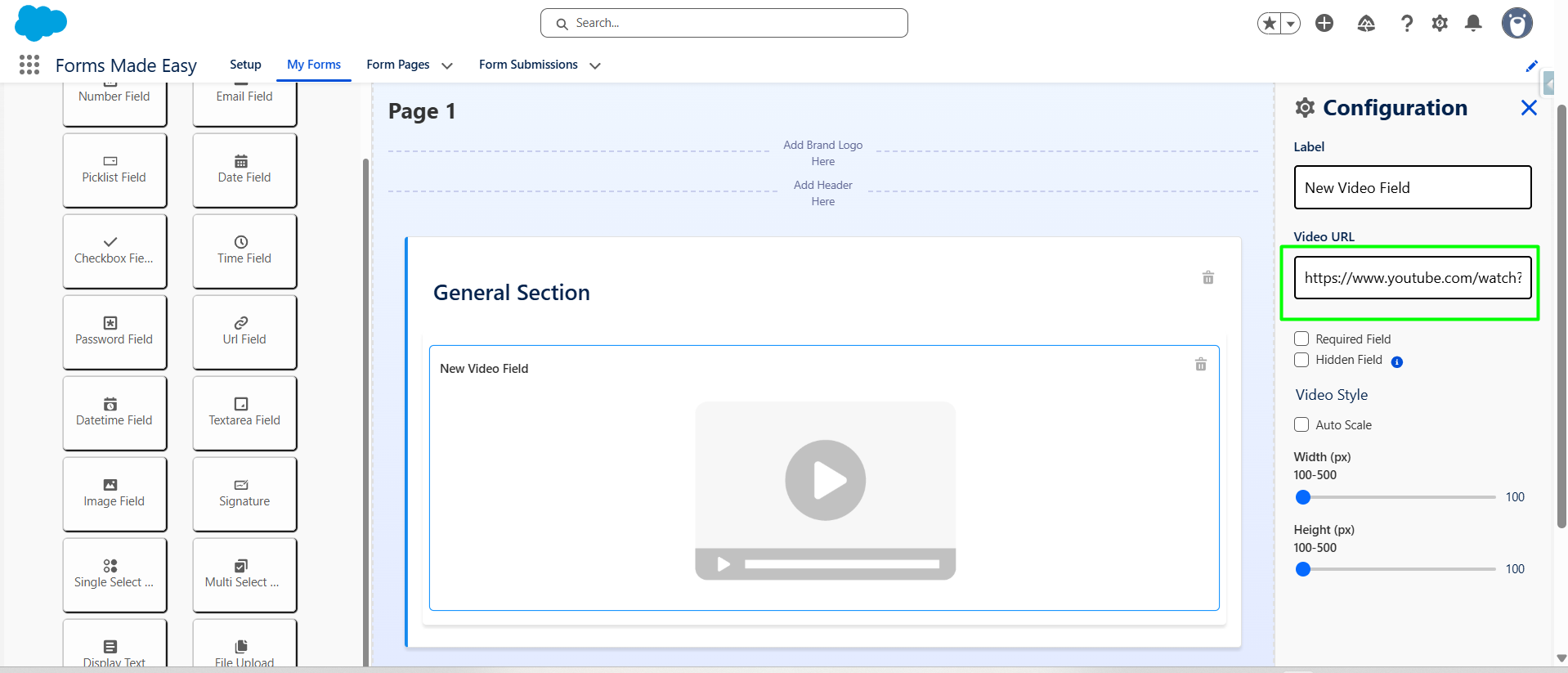
Step 4: Drag and drop the “Video Field”.
Step 5: Click on the dropped field to open the configuration panel. When the configuration panel opens , then enter the URL of the video in the Video URL Field.
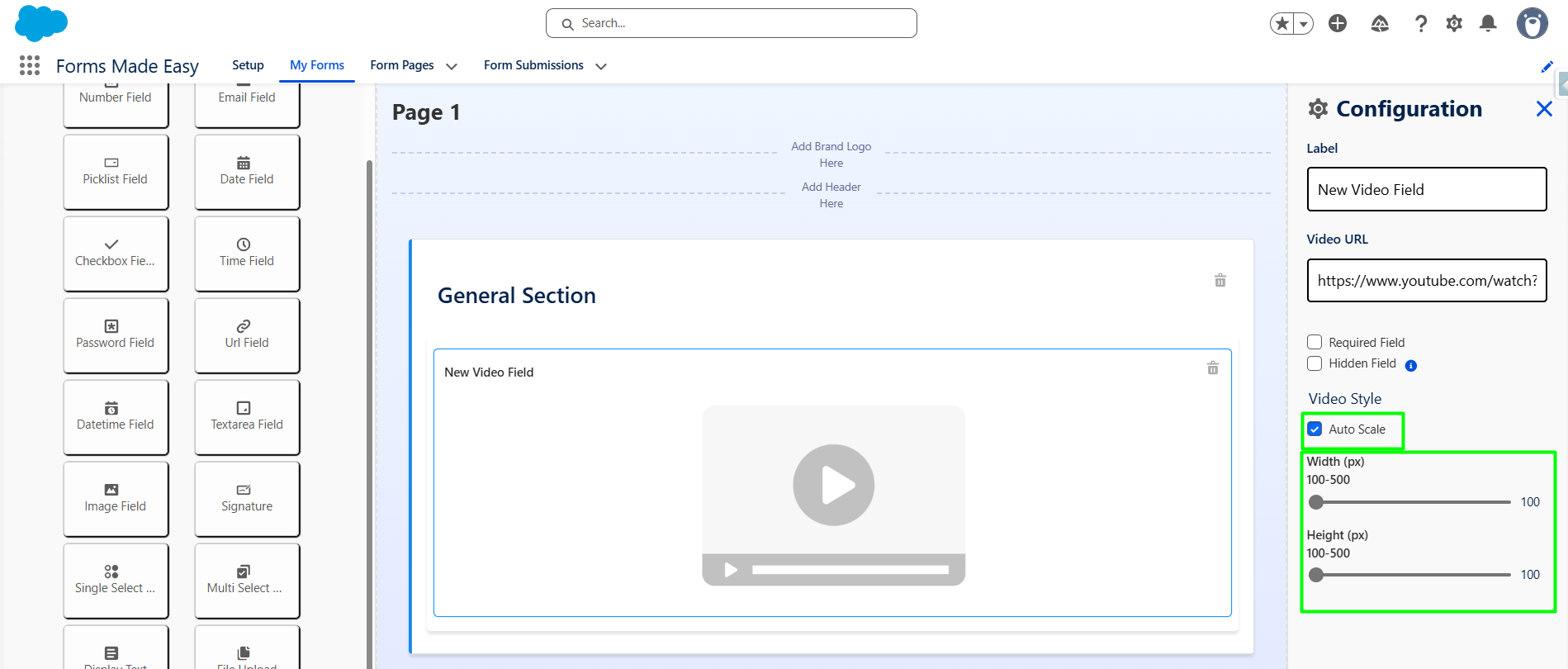
Step 6: In the configuration panel, locate Auto Scale option. Enable Auto Scale toggle (if needed) “Or” Set required Width and Height with scale controls (slider).
Note: Video will automatically adjust based on screen size (responsive behavior).
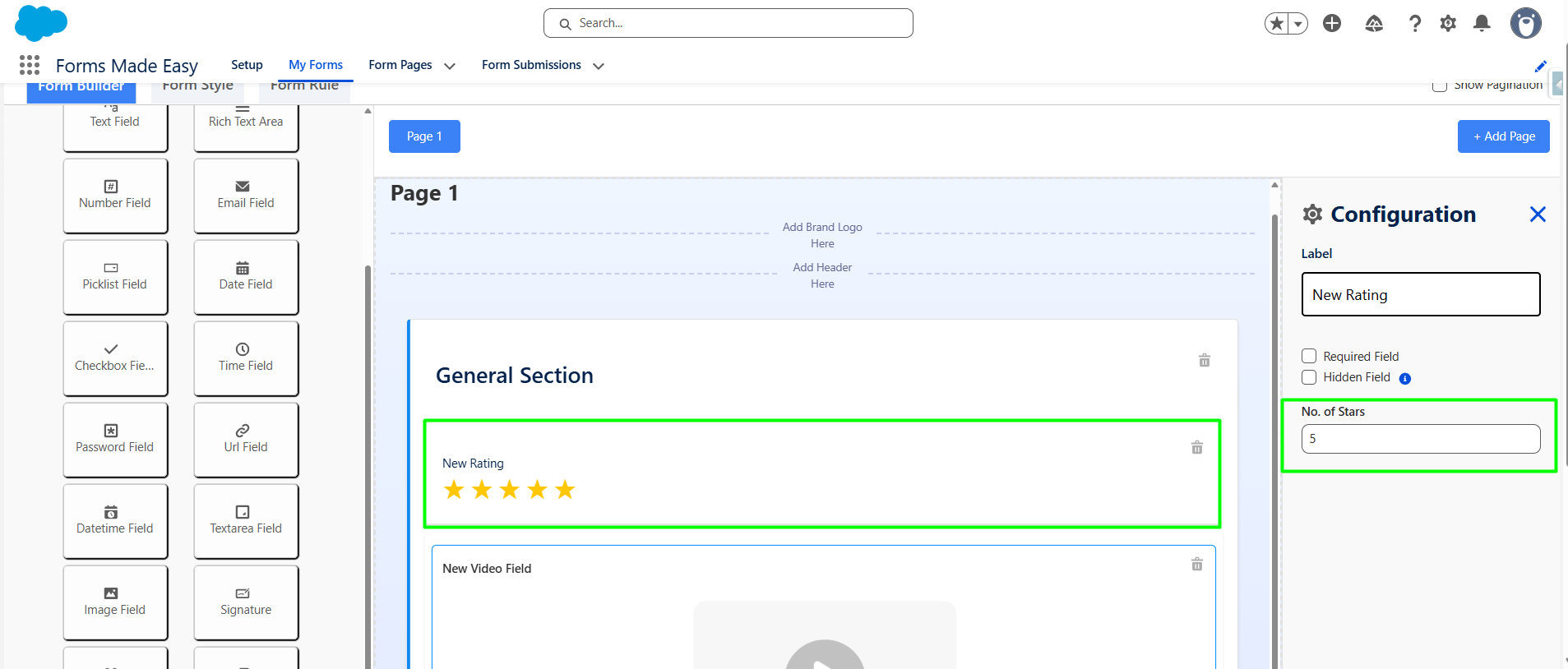
Step 7: Now drag and drop the Rating Field on form. Click on the Rating Field to open the Configuration Panel ,Locate Number of Stars field Enter the required value (e.g., 3, 5).
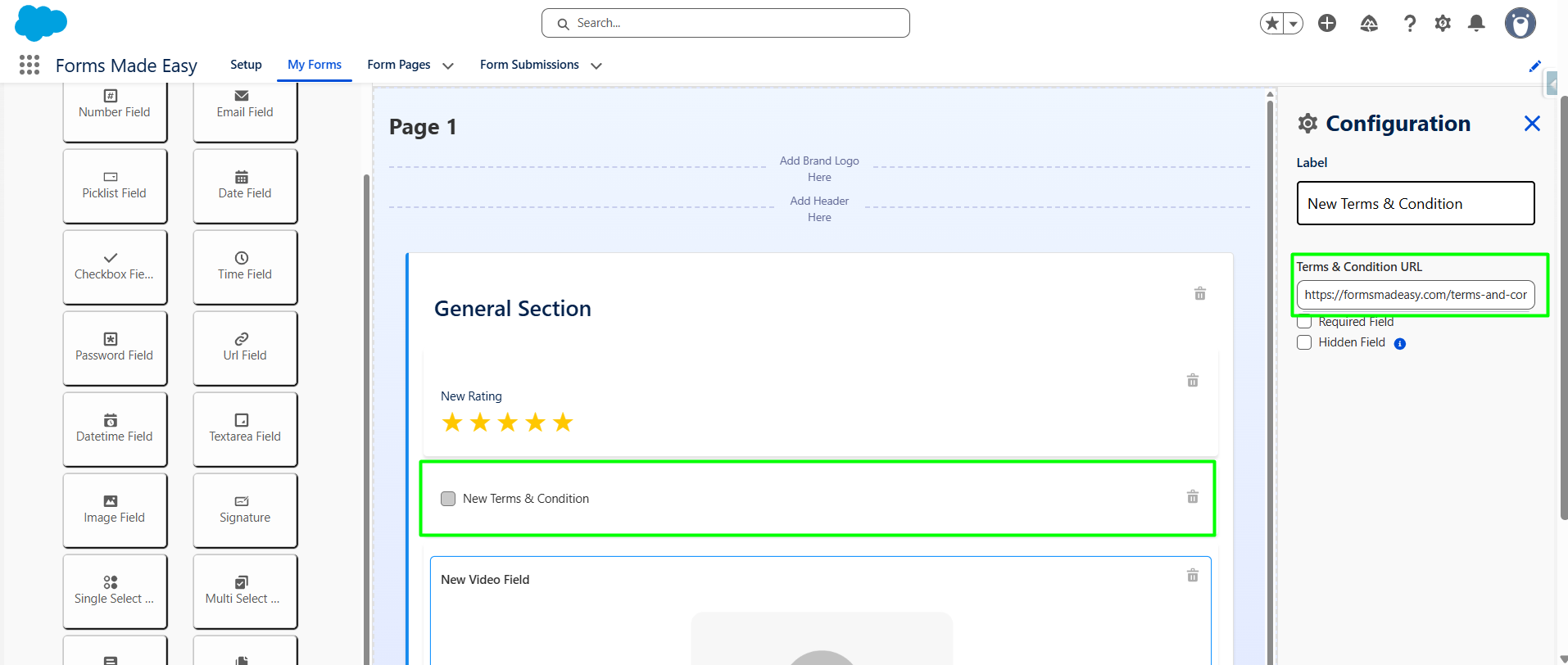
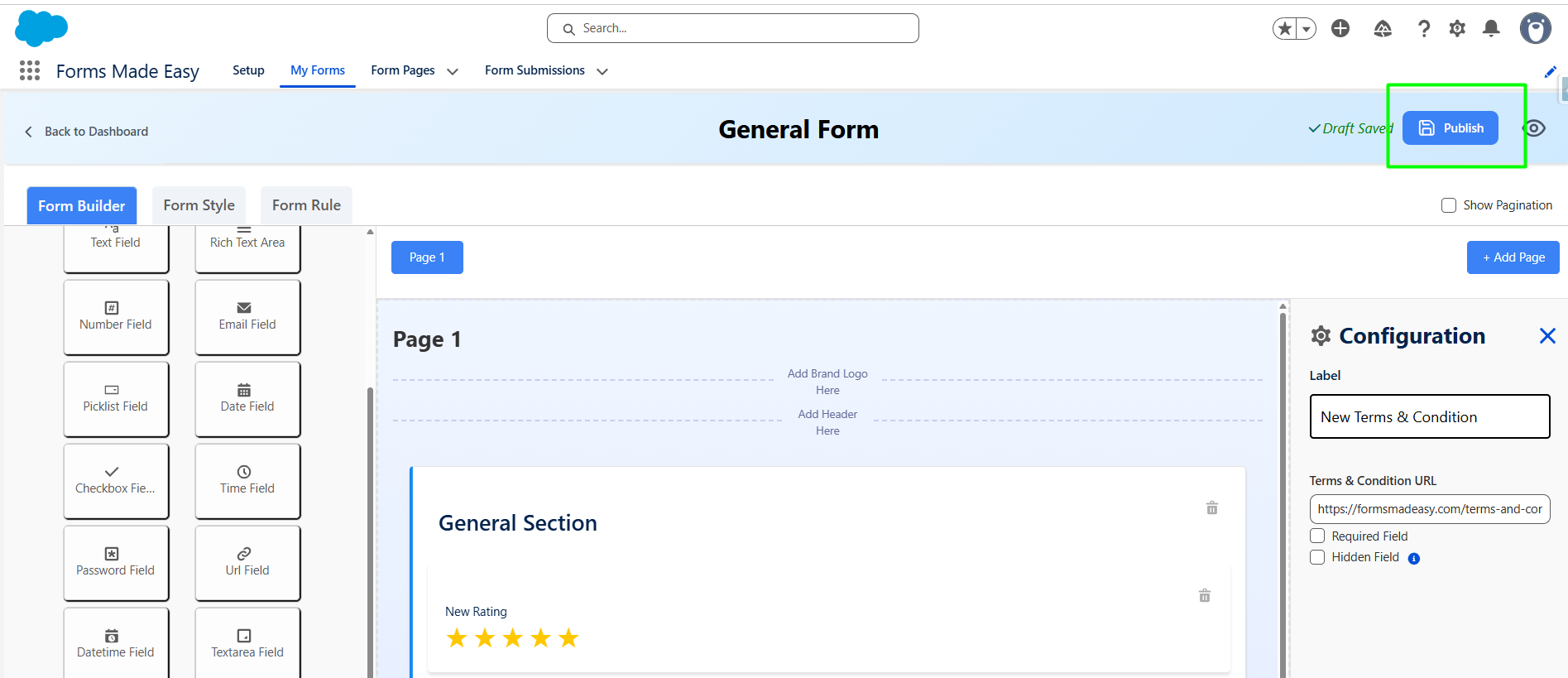
Step 8: Drag and drop the Term & conditions field on form. Click on the Term & conditions Field to open the Configuration Panel. Now Add Terms & conditions URL. and close the configuration panel.
Step 9: Click on “publish” Button.
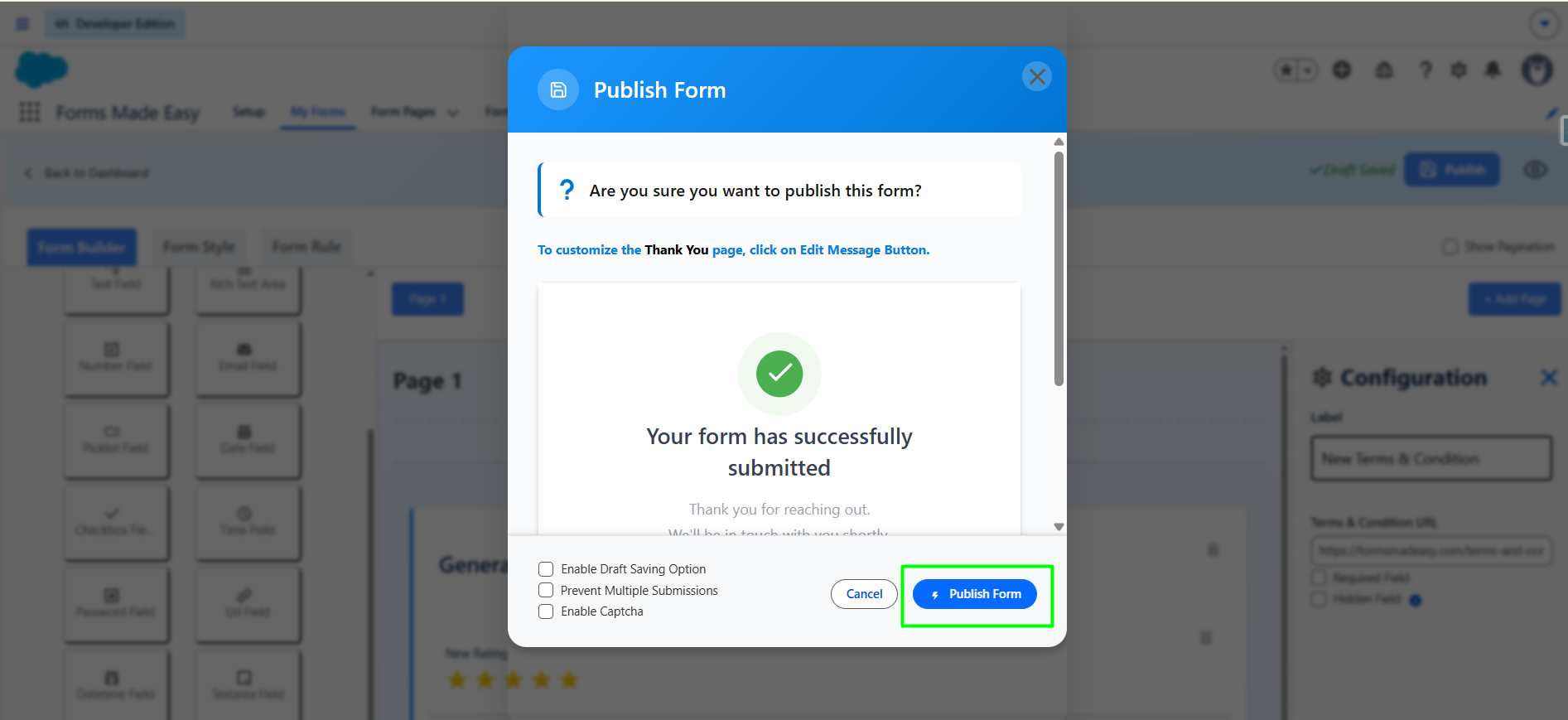
Step 10: Click on “Publish form” Button.
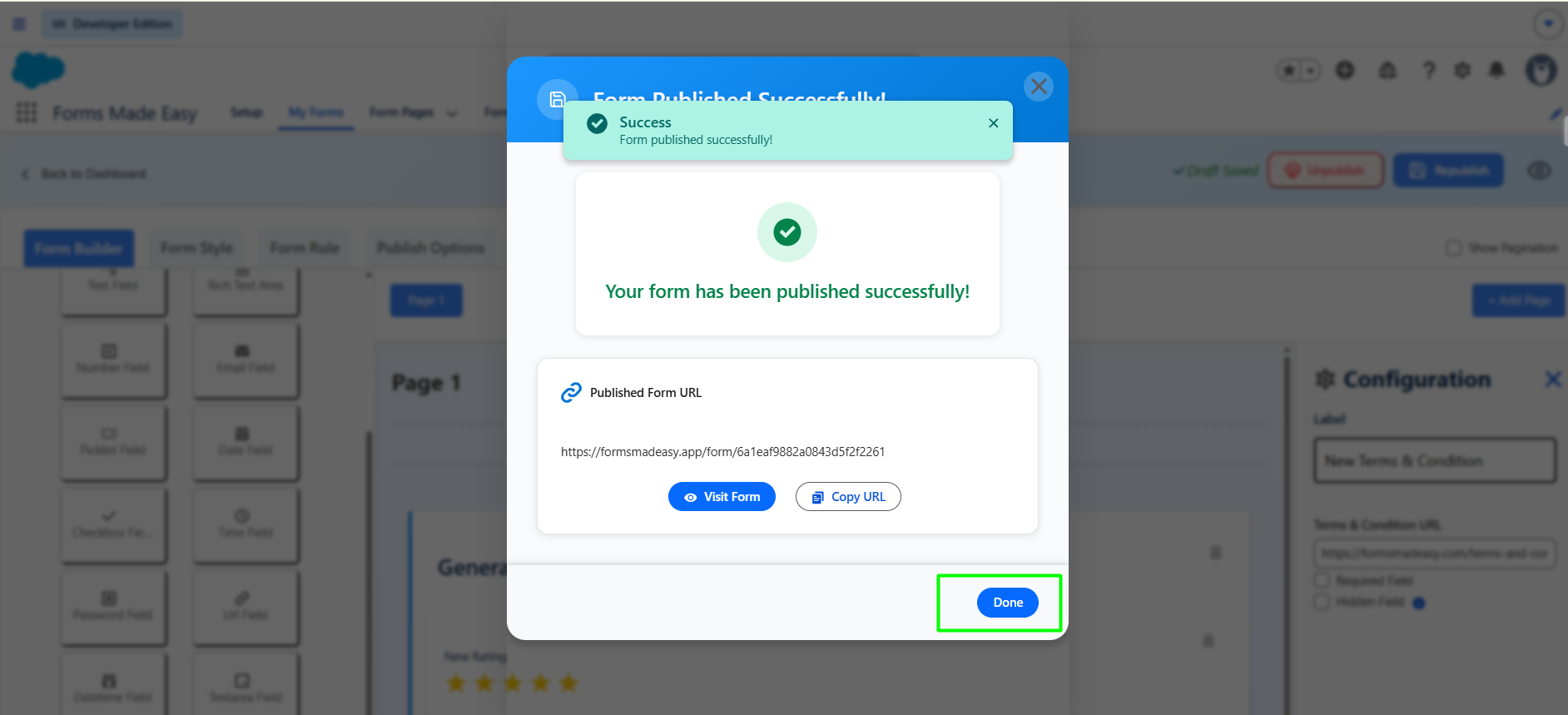
Step 11: Click on "Done" to close the modal.
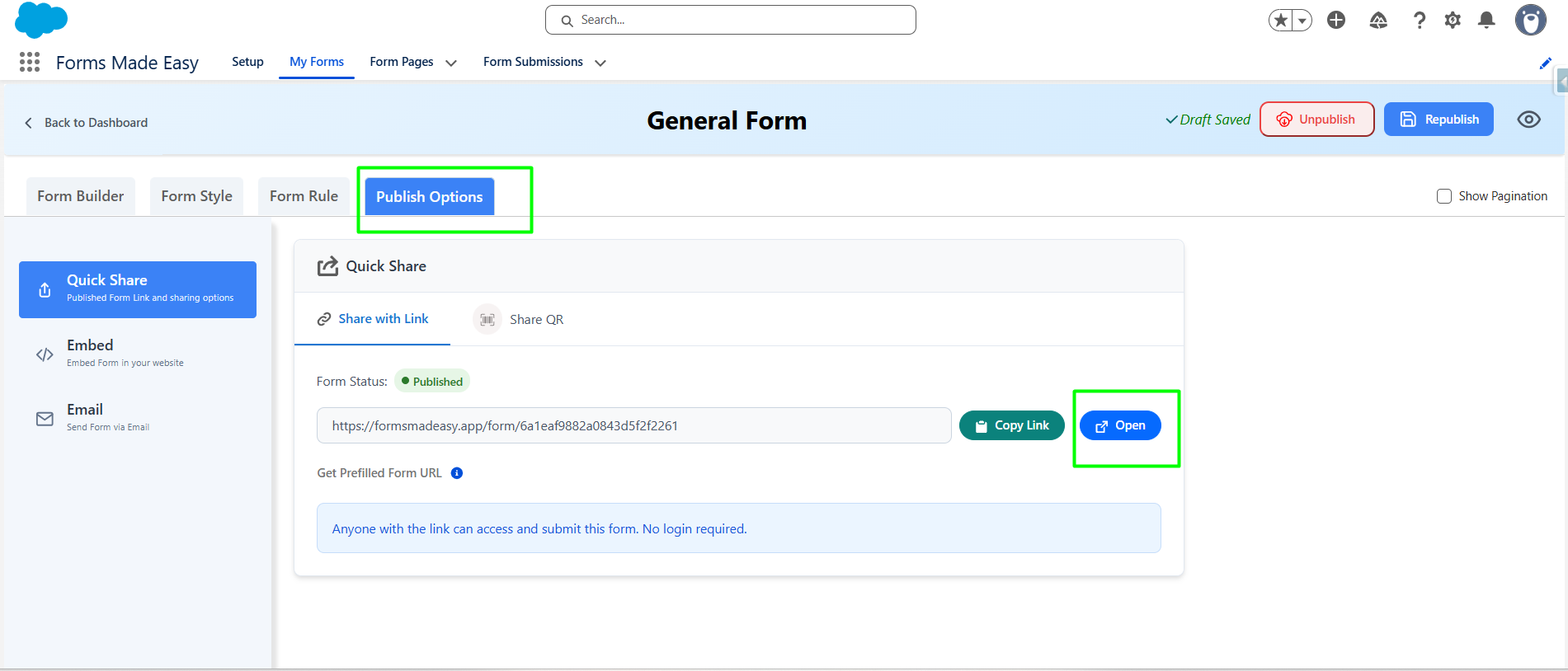
Step 12: Click on "Publish Options”. Click on the “Copy Link” or “Open” buttons to open the forms directly on the web.
Step 13: The added fields will now be fully displayed and functional on your live form.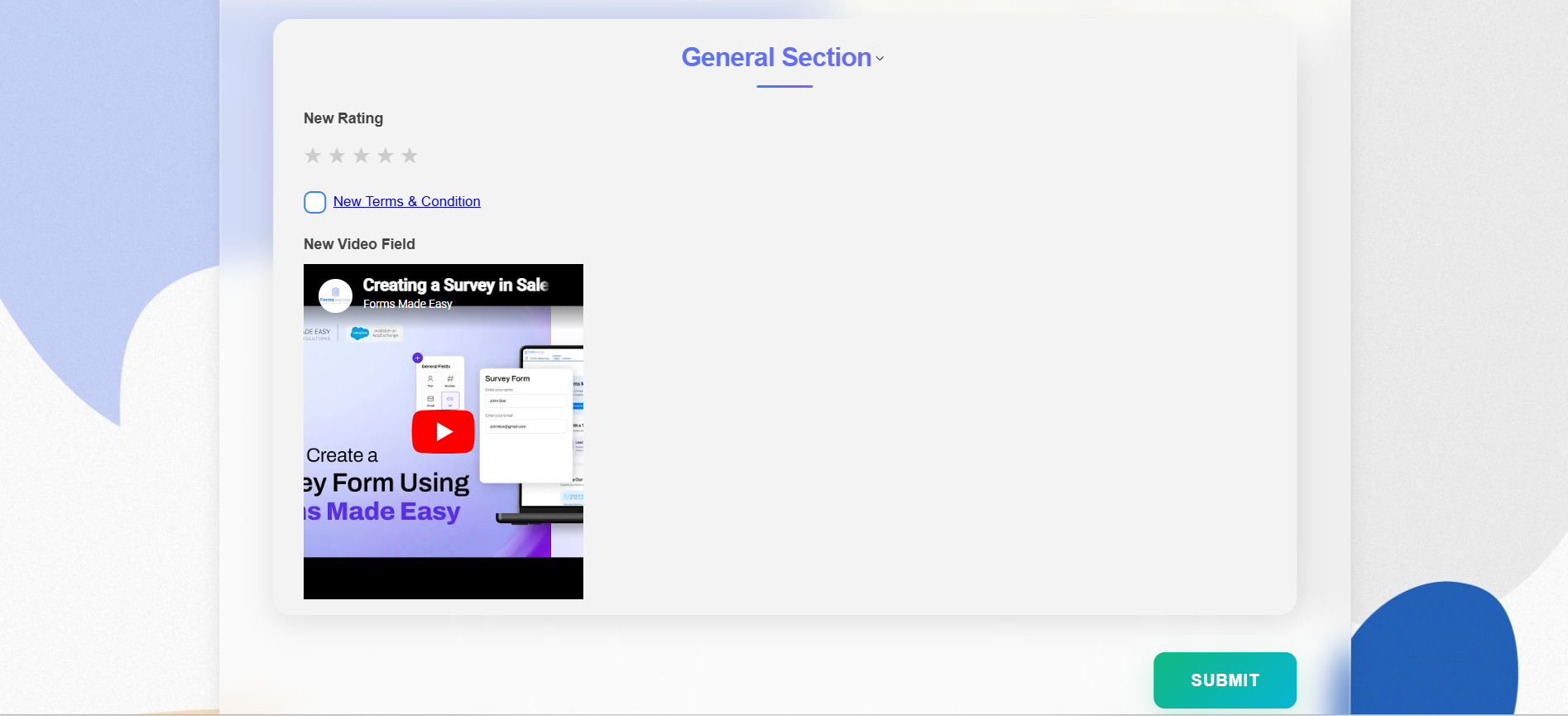
Was this article helpful?
That’s Great!
Thank you for your feedback
Sorry! We couldn't be helpful
Thank you for your feedback
Feedback sent
We appreciate your effort and will try to fix the article