In this blog, we will see how to Send Bulk Prefill email via list view in Forms Made Easy, This feature allows you to send prefilled form emails to multiple records directly from the list view at once, helping save time and streamline bulk form distribution in Forms Made Easy.
Steps to Send Bulk Prefill email via list View:
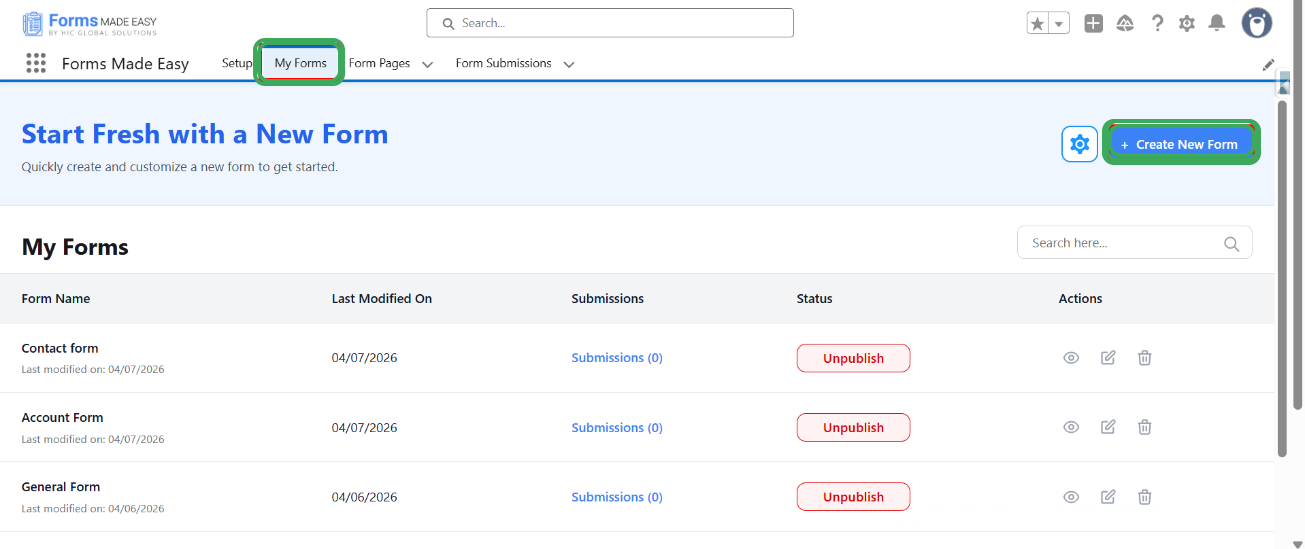
Step 1: Go to the My Forms tab and click on the "Create New” Form" button.
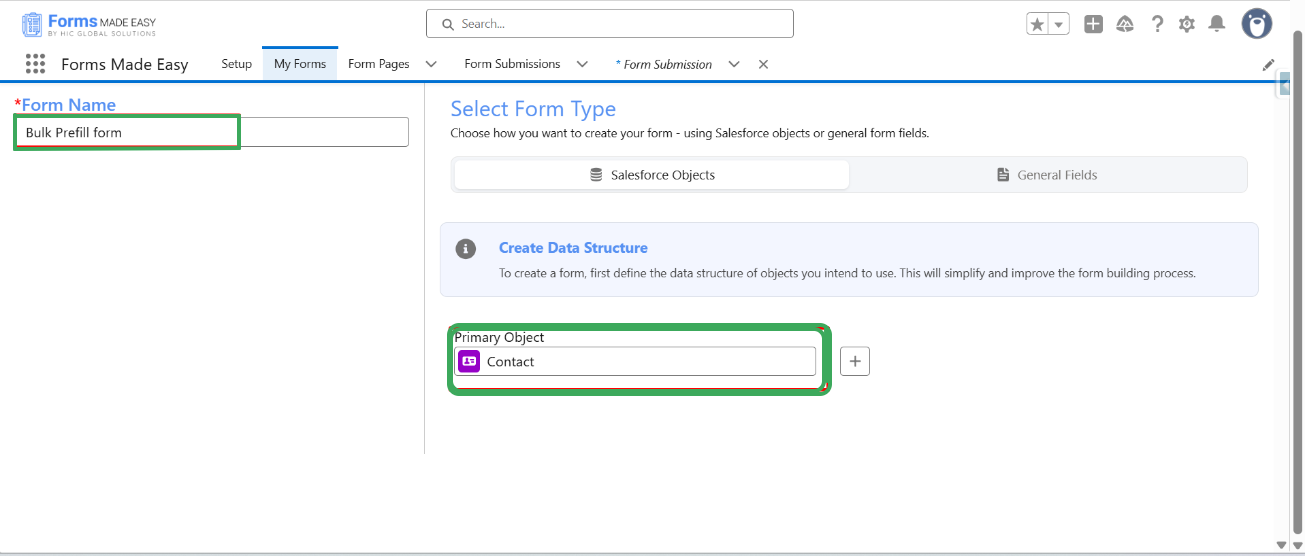
Step 2: Enter the form “Name” and Select "Contact" as the Primary Object.
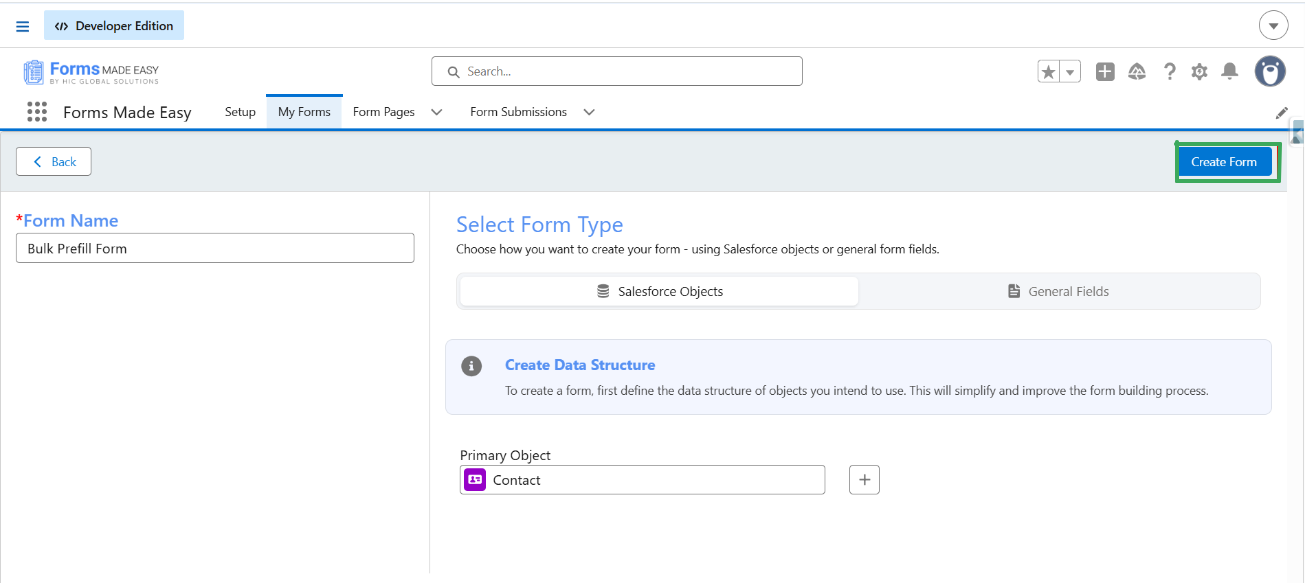
Step 3: Click on “Create form”.
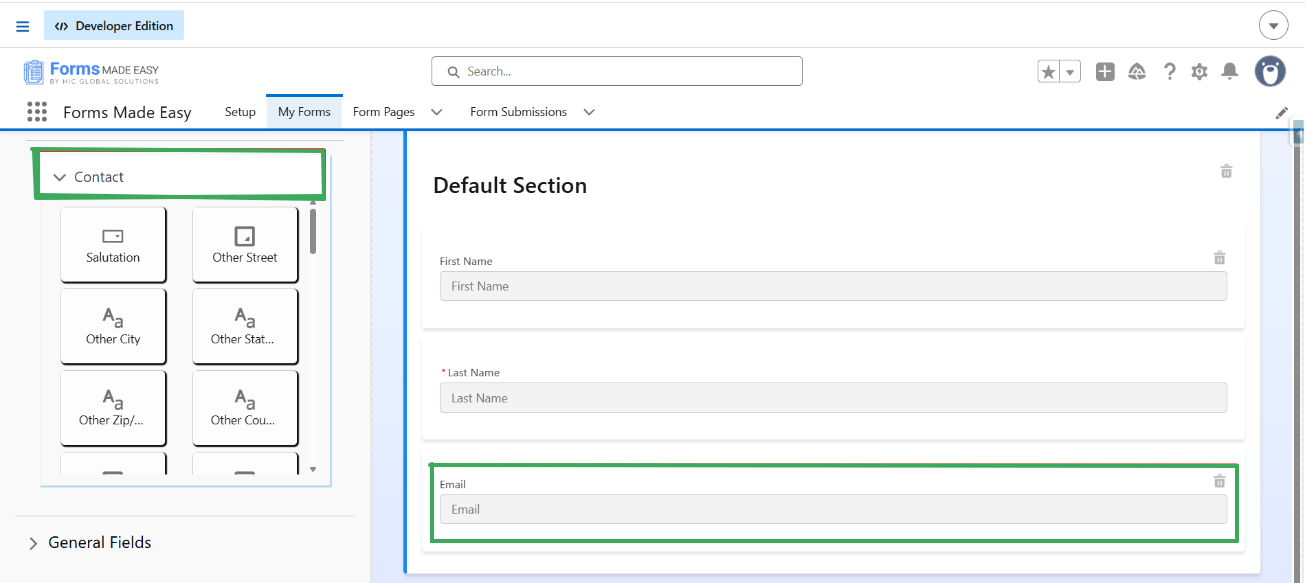
Step 4: Drag and drop the First Name and Email fields from Contact. The Email field from Contact is mandatory to send emails.
(Note: The Email field from General Fields is not valid for sending emails).
Step 5: Click on “Publish Button”. 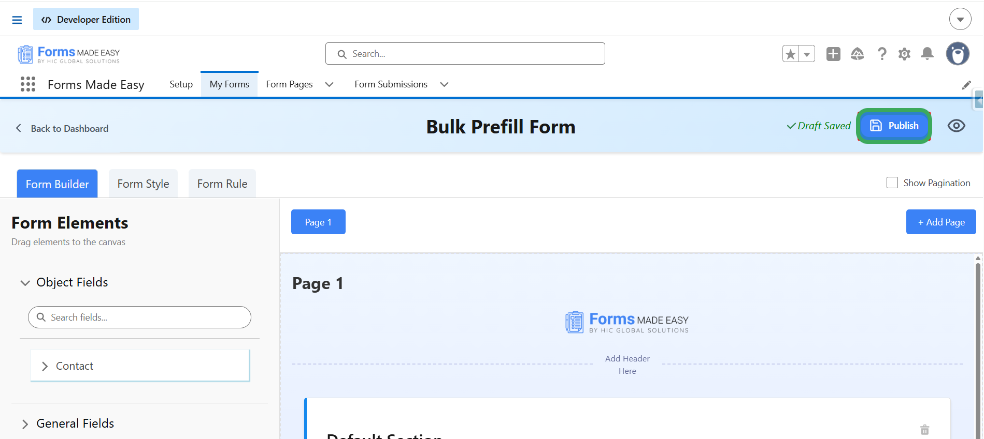
Step 6: Click on “Publish Form”. 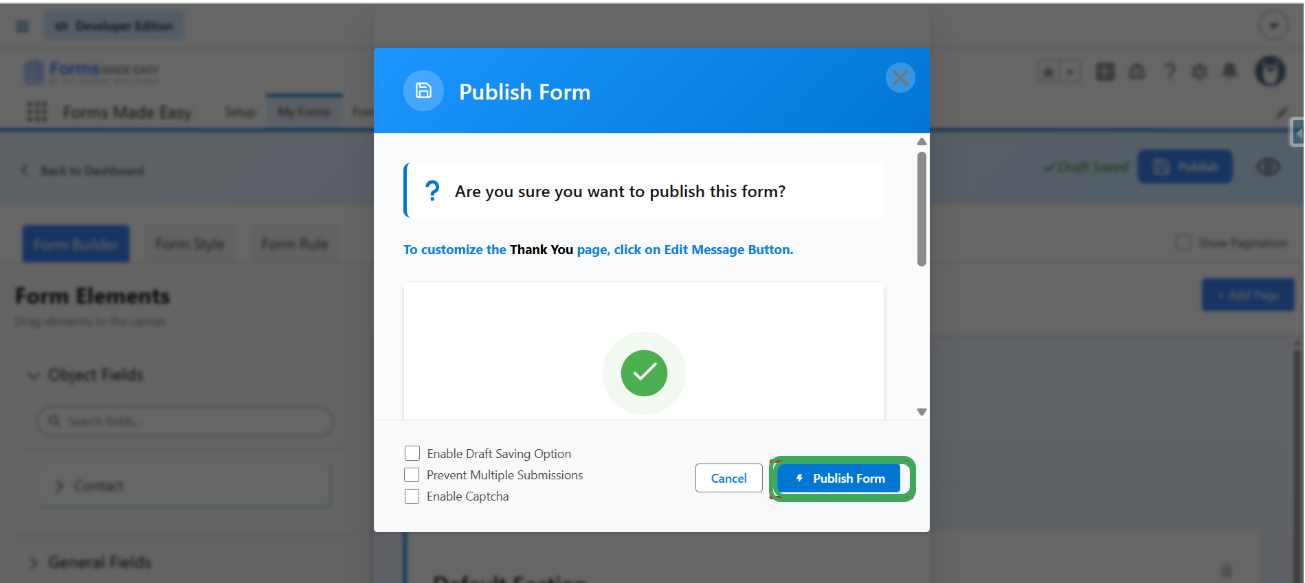
Step 7: Click on "Done" to close the modal. 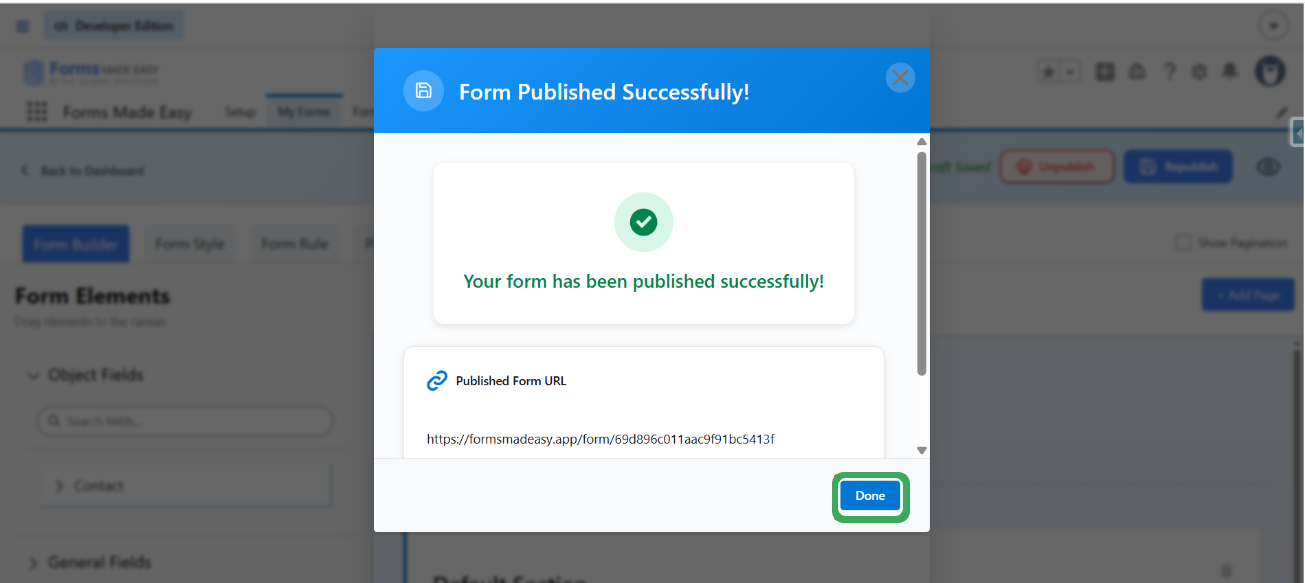
Step 8: Click on "Publish Options”.
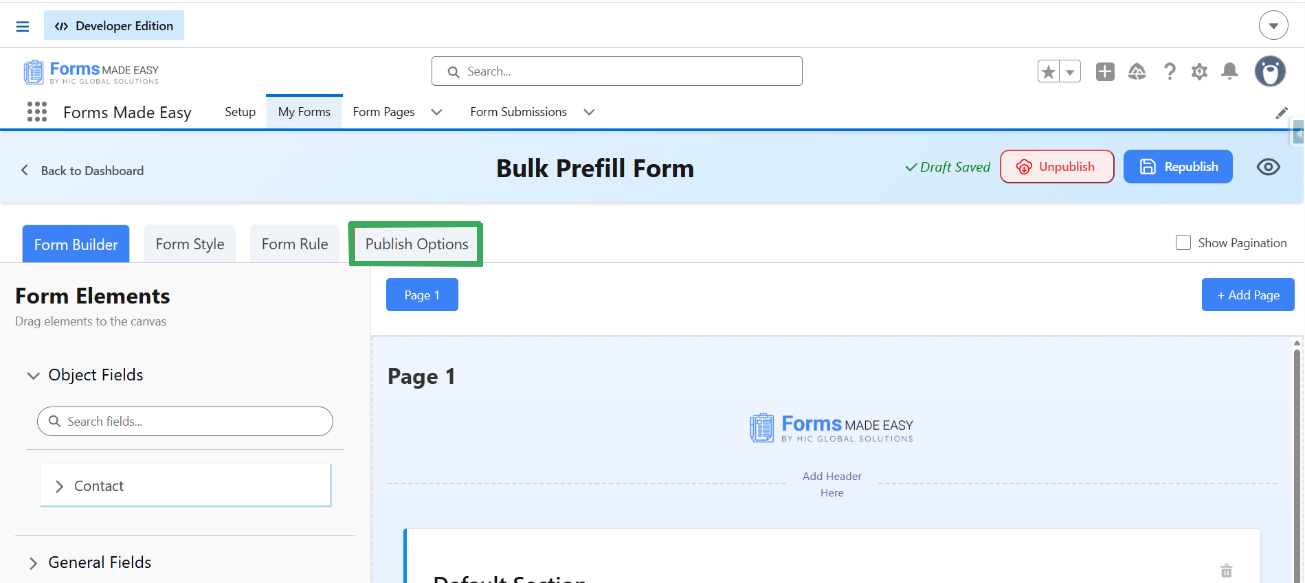
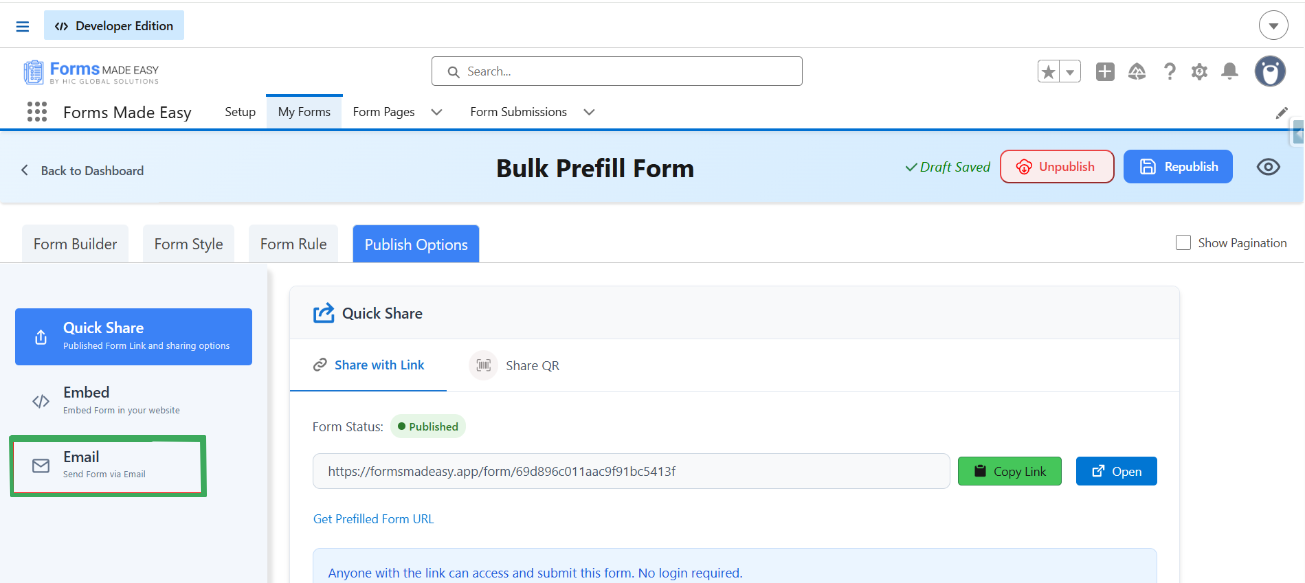
Step 9: Once the form is published, an additional Publish Options tab becomes available. Under this tab, there is a sub-option called Email. Click on "Email."
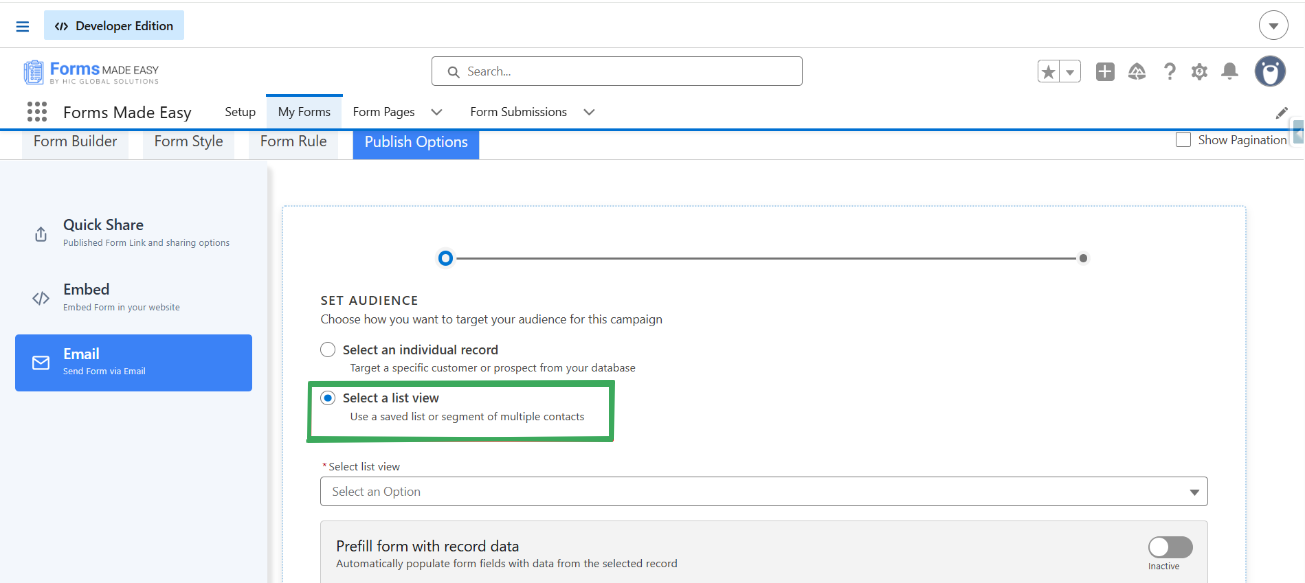
Step 10: Choose the “Select a list view” option.
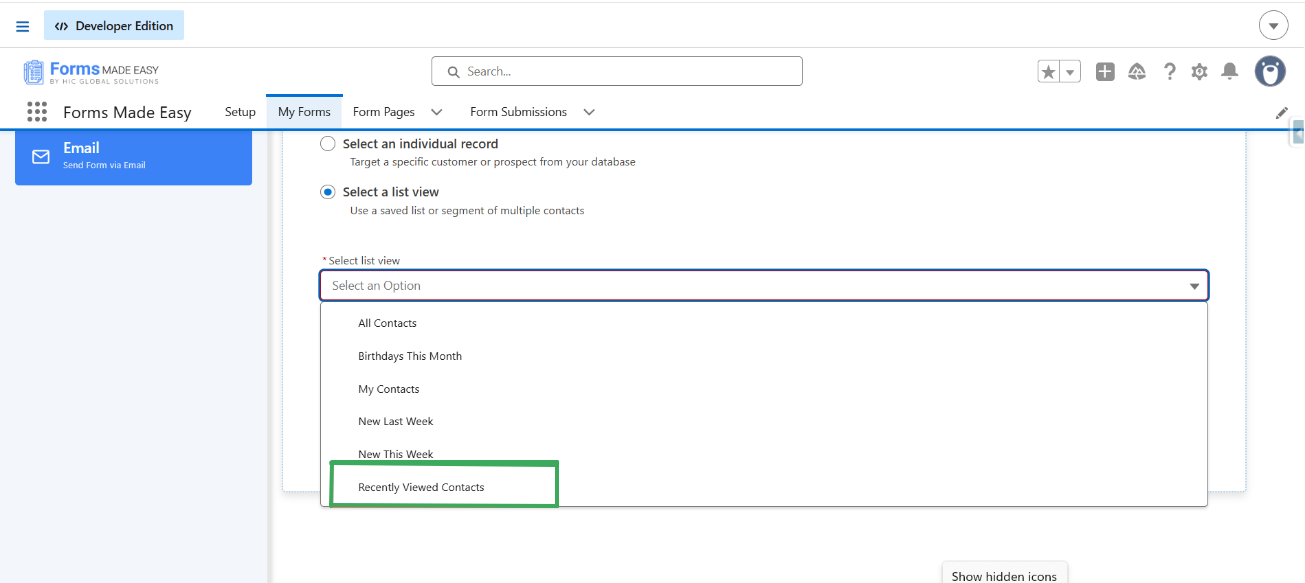
Step 11: Select an required option from the drop down. Currently I have chosen the Recently viewed contact option.
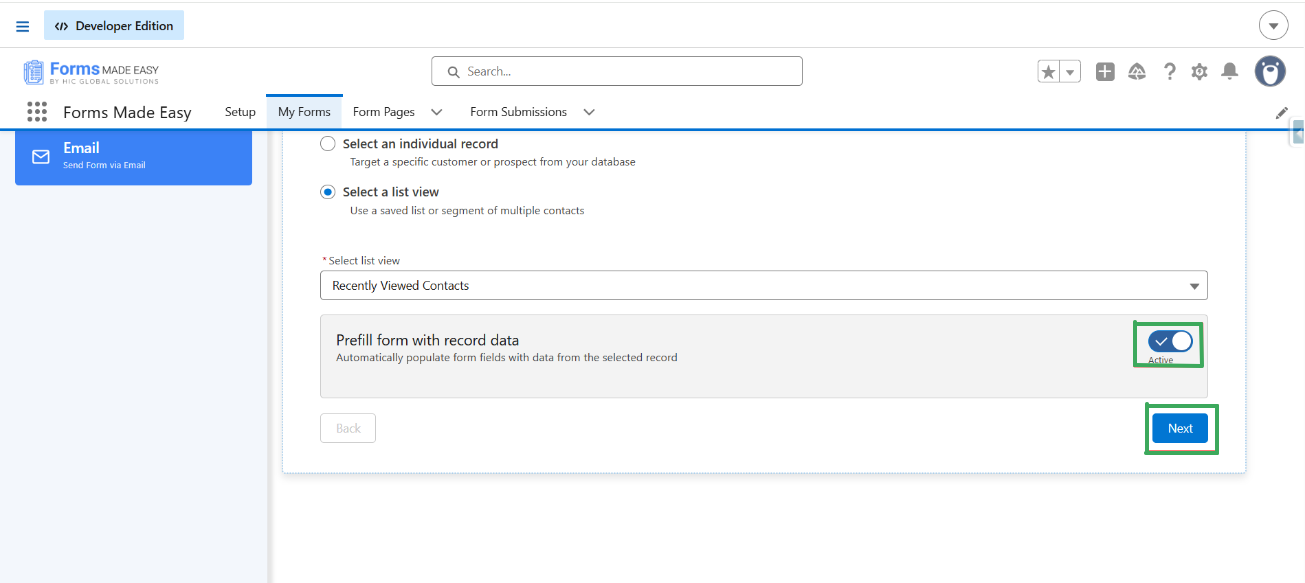
Step 12: For prefill form click on the toggle "Prefill form with record data" and click "Next."
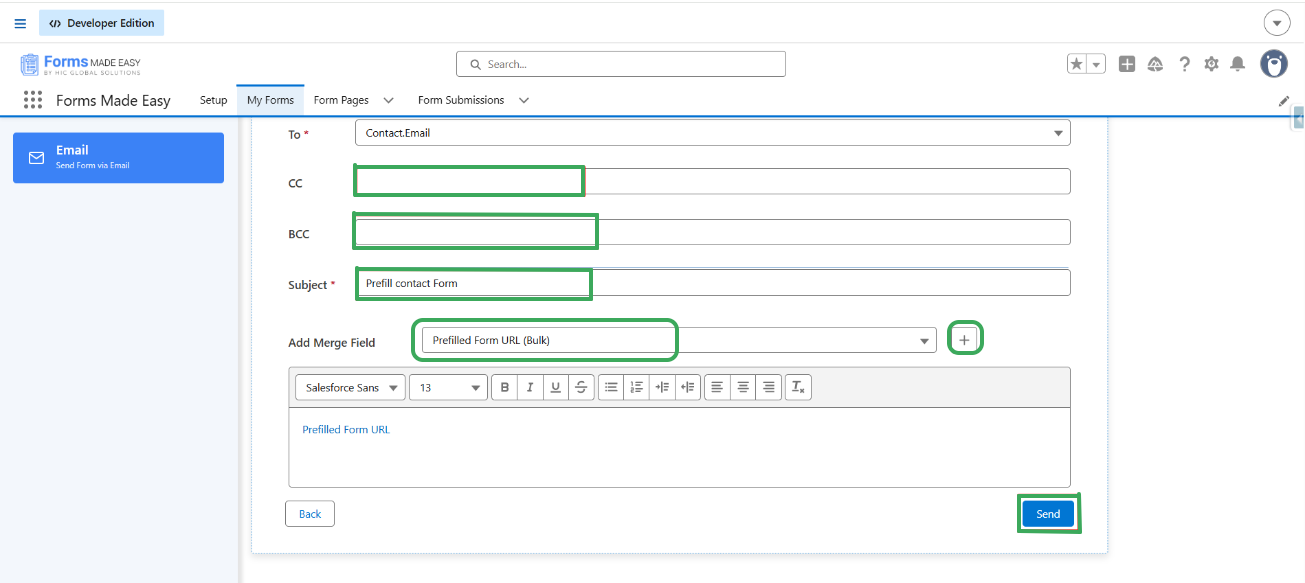
Step 13: Now from the Add Merge Field option select the “Prefill Form URL”.
(Note: You can add the other merge field too. But only those fields will be shown which you have dragged & dropped into the form builder.)
Click the “+” icon to add that merge field into the email body. We can also add CC and BCC in mail if needed. After all of that, click on “send”. To send the mail.
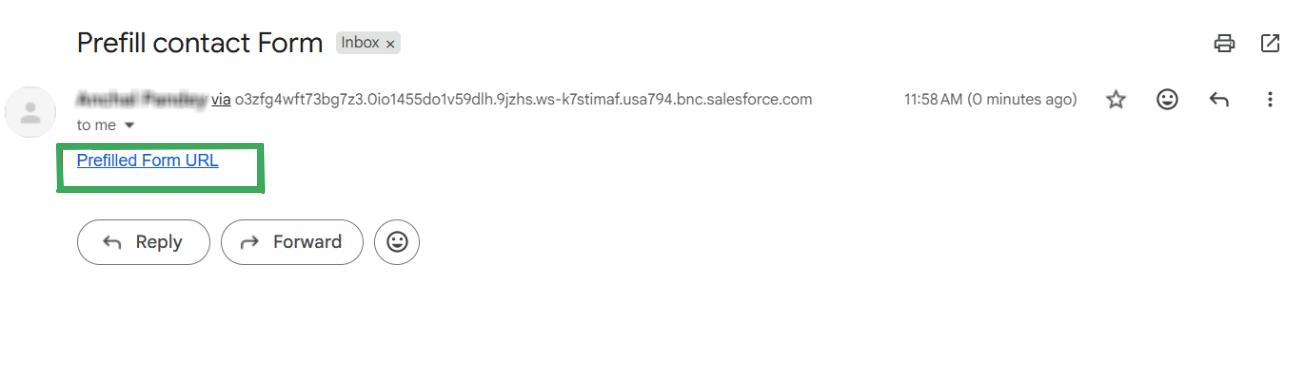
Step 14: Check your email and click on the Prefilled Form URL.
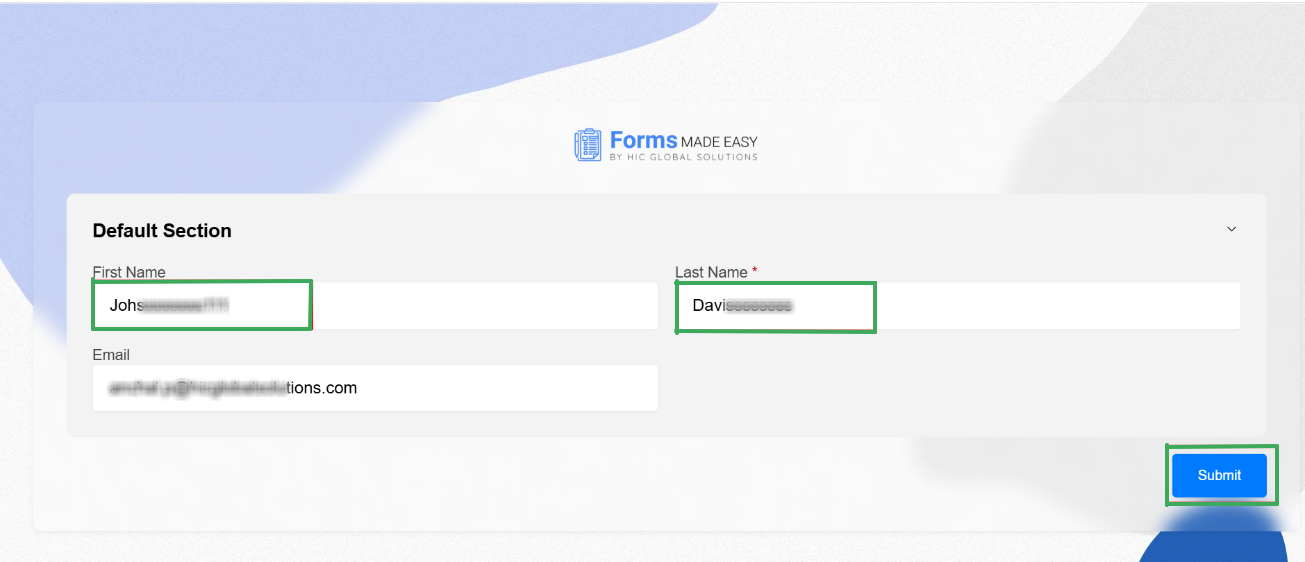
Step 15: When you open the prefill form, the selected user details are shown in the field. Now the user can update or fill the details and then "submit" the form.
(for ex: I have updated the first and last names and then click the "Submit" button.)
Step 16: Now you will see that the Contact Record is updated in Salesforce.

Was this article helpful?
That’s Great!
Thank you for your feedback
Sorry! We couldn't be helpful
Thank you for your feedback
Feedback sent
We appreciate your effort and will try to fix the article