In this blog, we will see how to Apply different fonts to forms in Forms Made Easy. Using this feature, you can customize the appearance of your forms by applying different font families to enhance the overall visual presentation of the form.
Steps to Apply Different fonts :
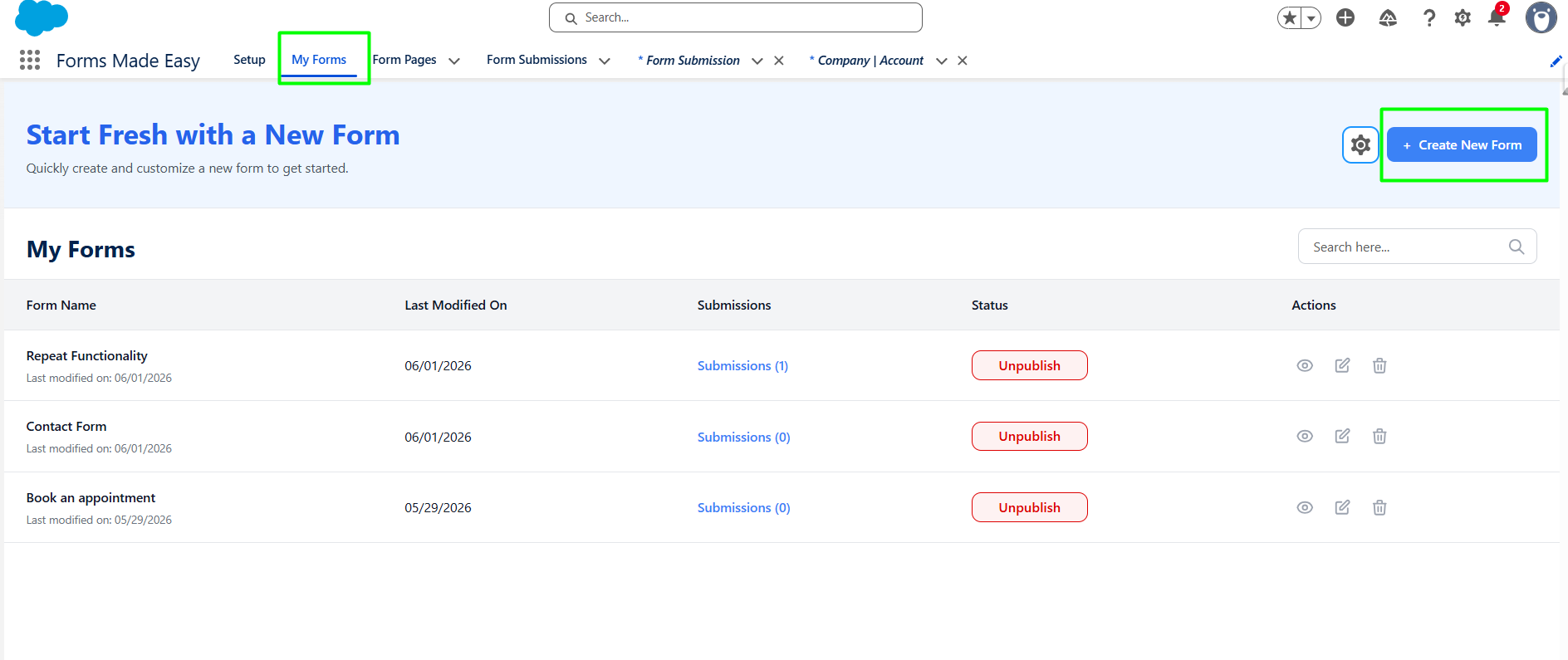
Step 1: Go to the My Forms tab and click on the "Create New Form" button.
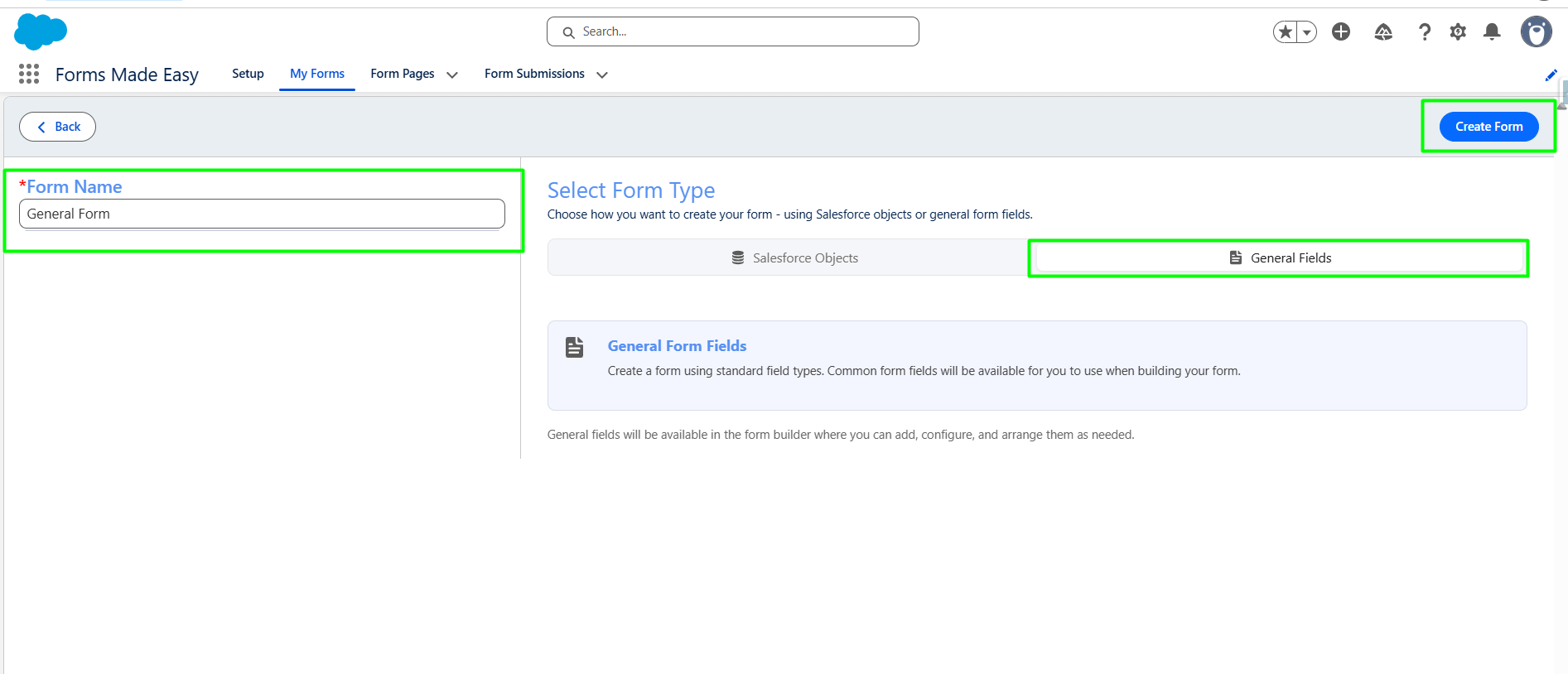
Step 2: Enter the form Name and select the form type (Salesforce Objects or General Fields). Currently I have chosen the general fields option. Click on “Create form”.
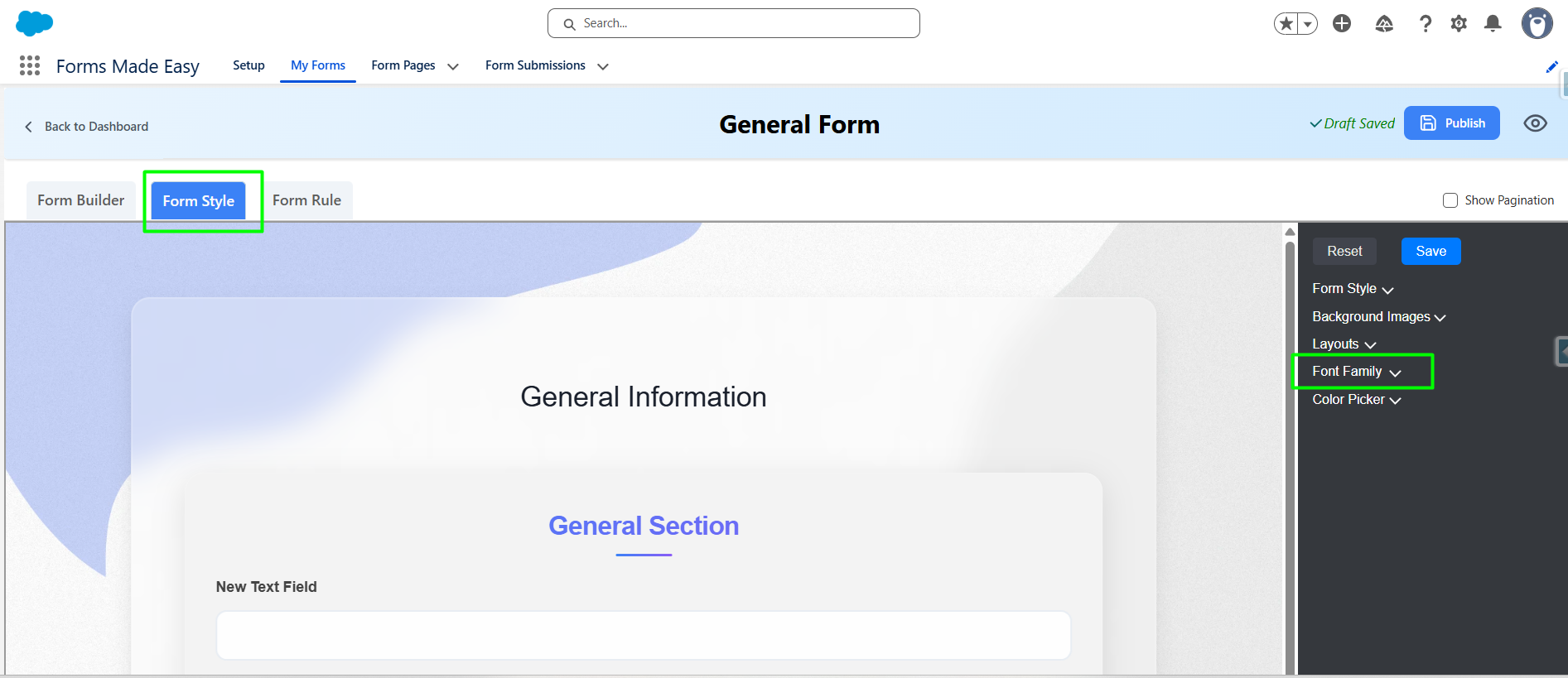
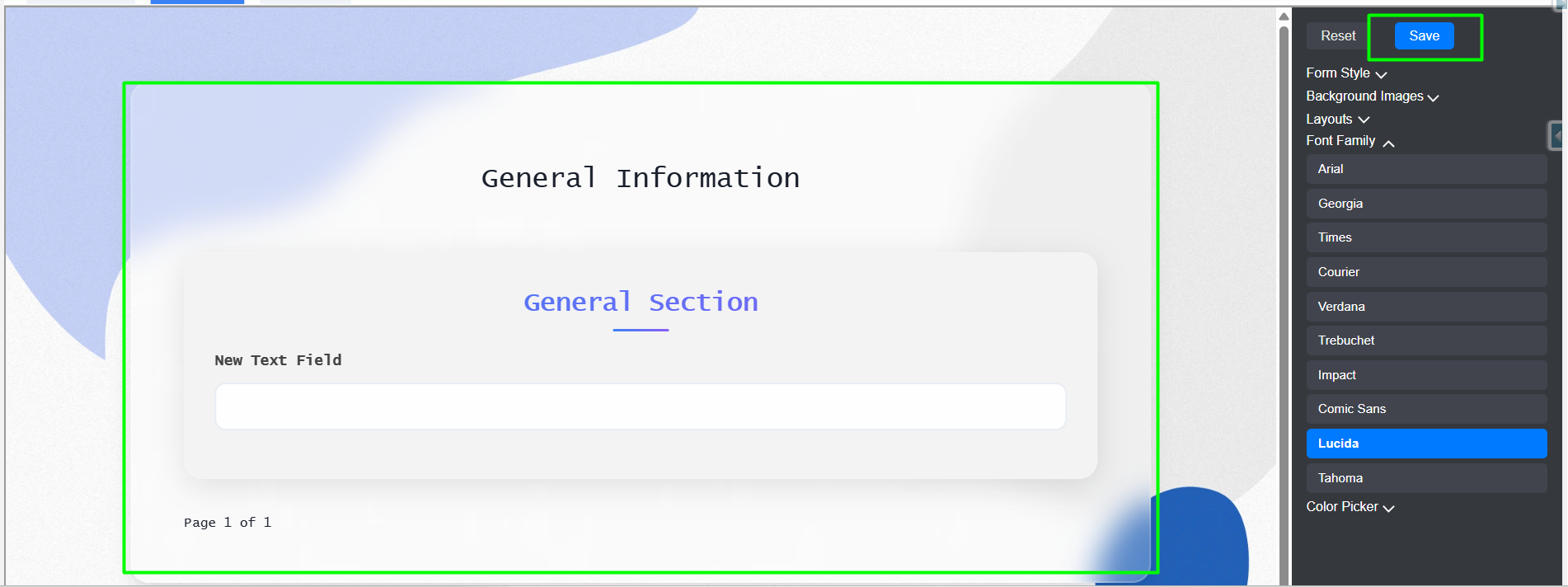
Step 3: Navigate to the “Form Style” tab. and Click on "Font Family" to view the list of available font options.
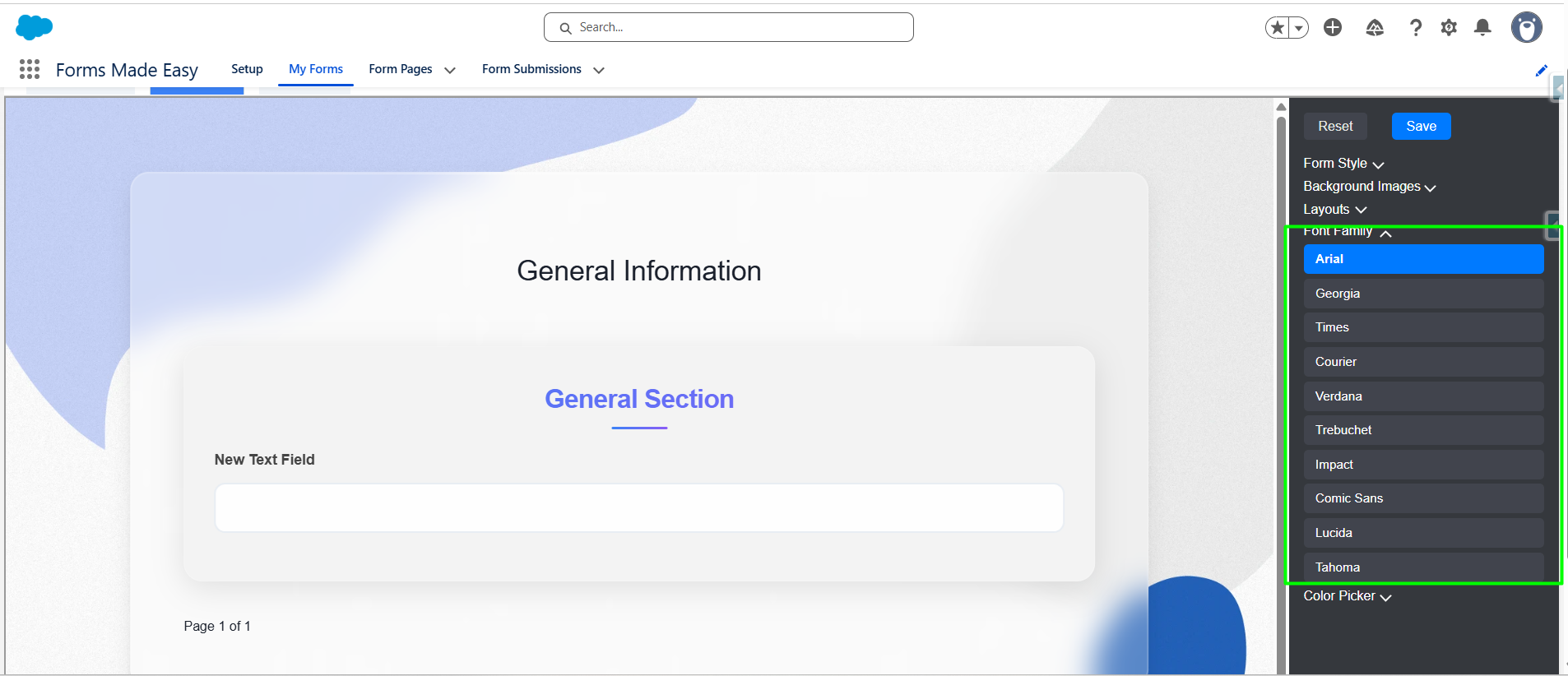
Step 4: Select the Required font from the list.
Step 5: After selecting the font, click on the "Save" button to apply the changes.
You can now see the updated font reflected on the form.
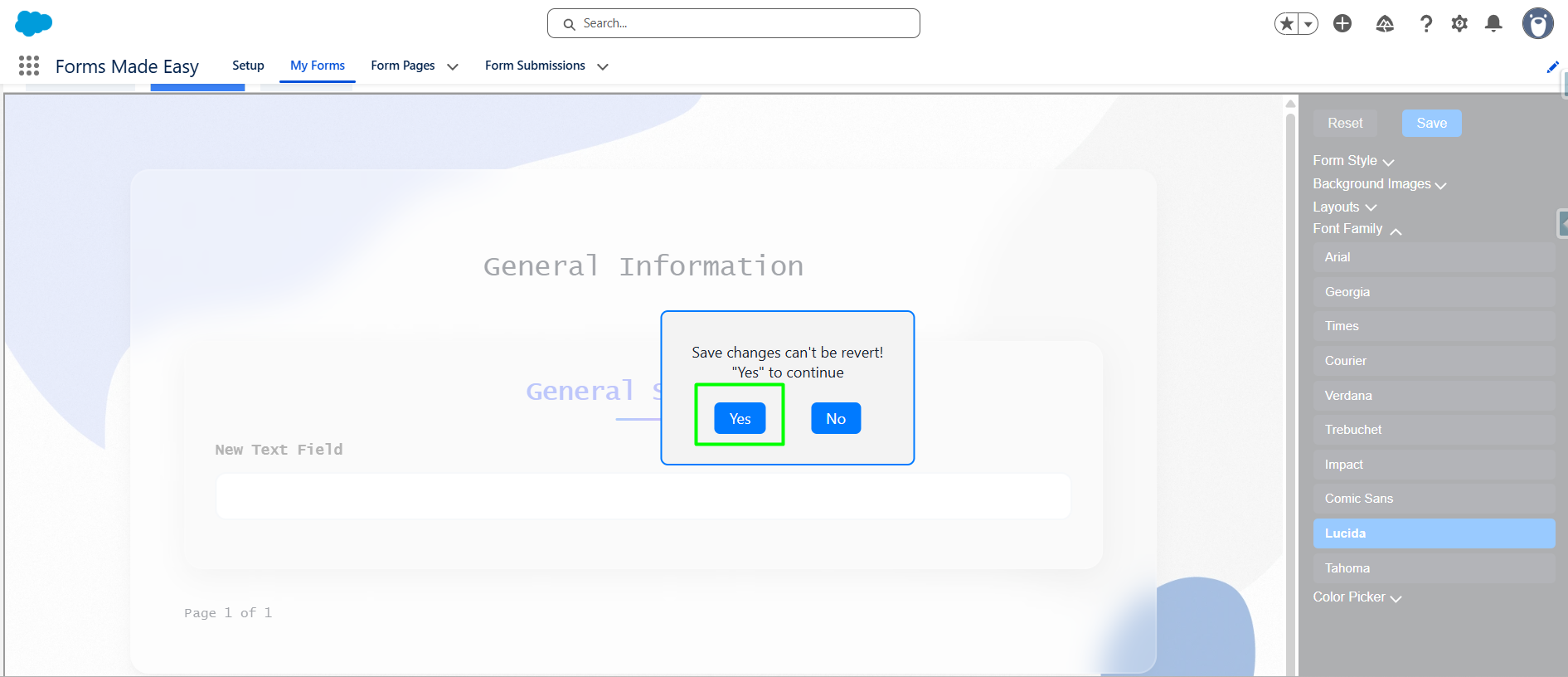
Step 6: Click on “Yes” button to confirm and save the changes.
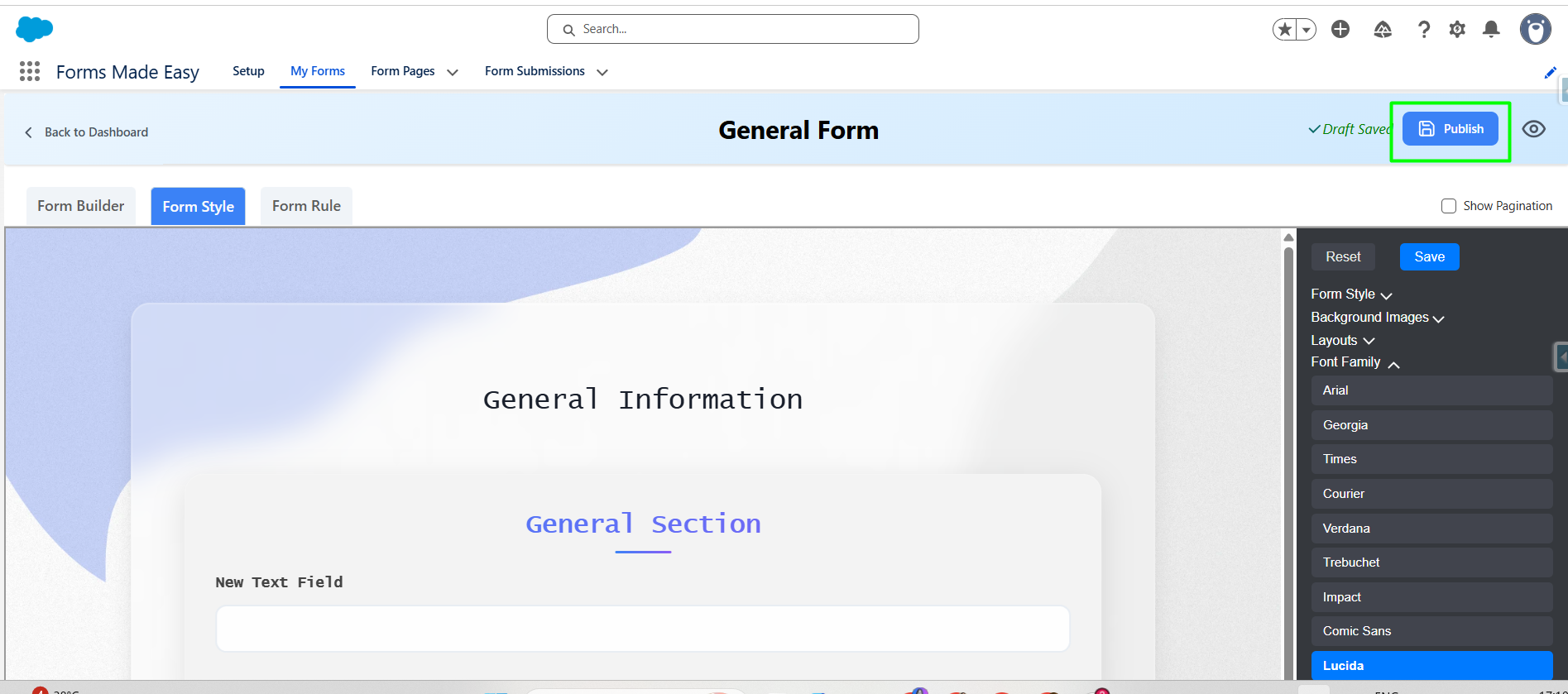
Step 7: Now click on the “Publish” button.
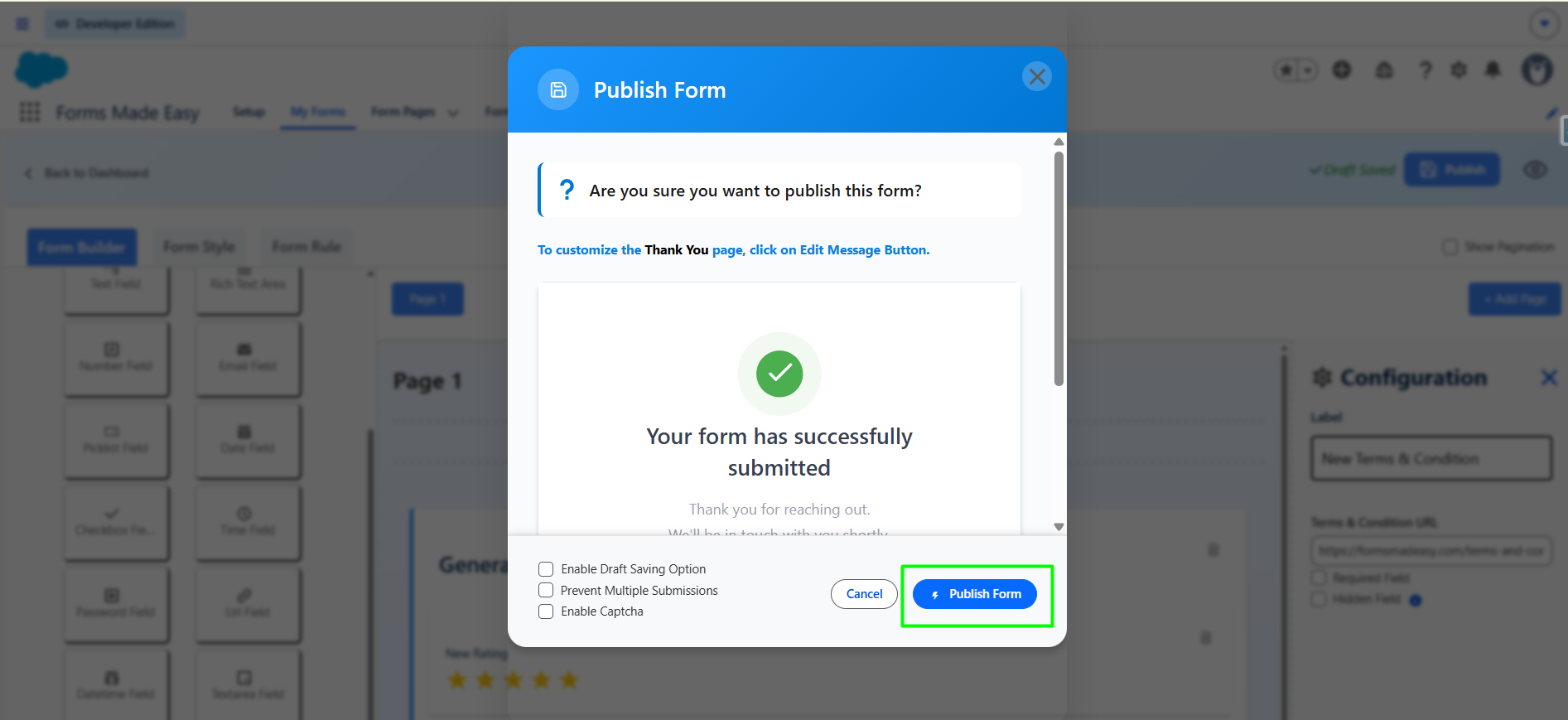
Step 8: Click on “Publish form” Button.
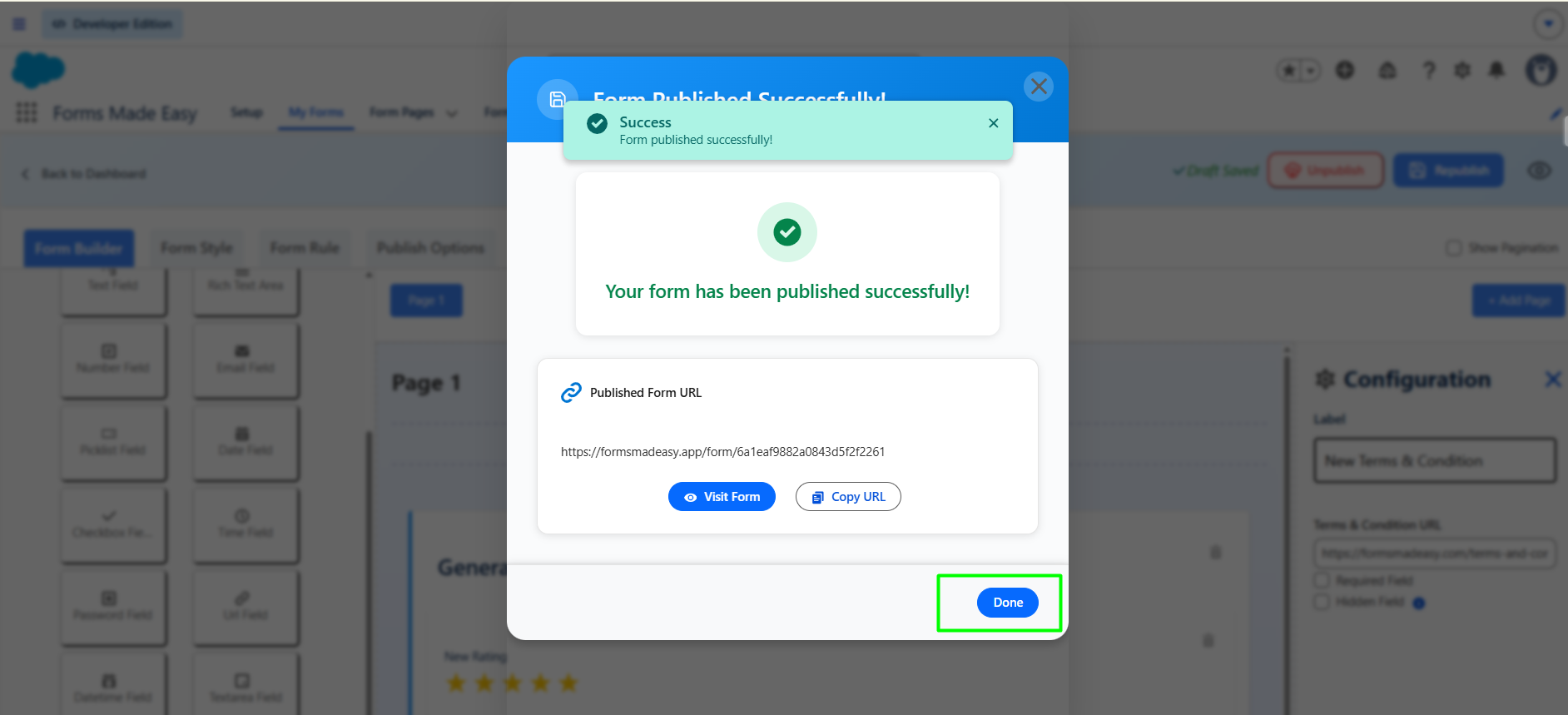
Step 9: Click on the “Copy Link” or “Open” buttons to open the forms directly on the web.
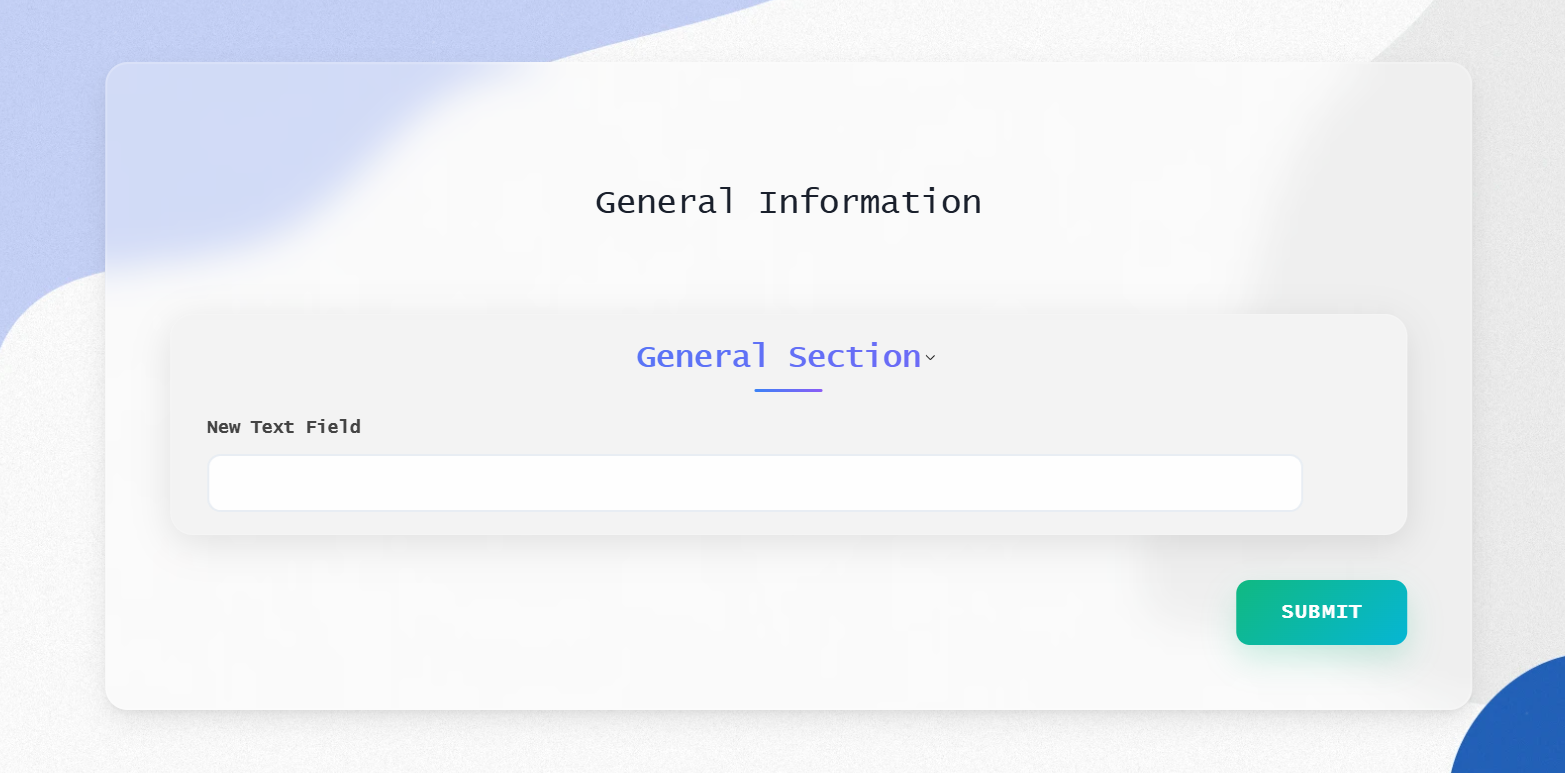
Step 10: You can see the applied font family on the published form. : Fill in the form and click on the Submit button to submit the record.
Was this article helpful?
That’s Great!
Thank you for your feedback
Sorry! We couldn't be helpful
Thank you for your feedback
Feedback sent
We appreciate your effort and will try to fix the article