In this blog, we will see how to handle dependent picklists in Forms Made Easy. You can configure dependent picklists such as State/Country by setting field dependencies so that child picklist values appear dynamically based on the selected parent field value.
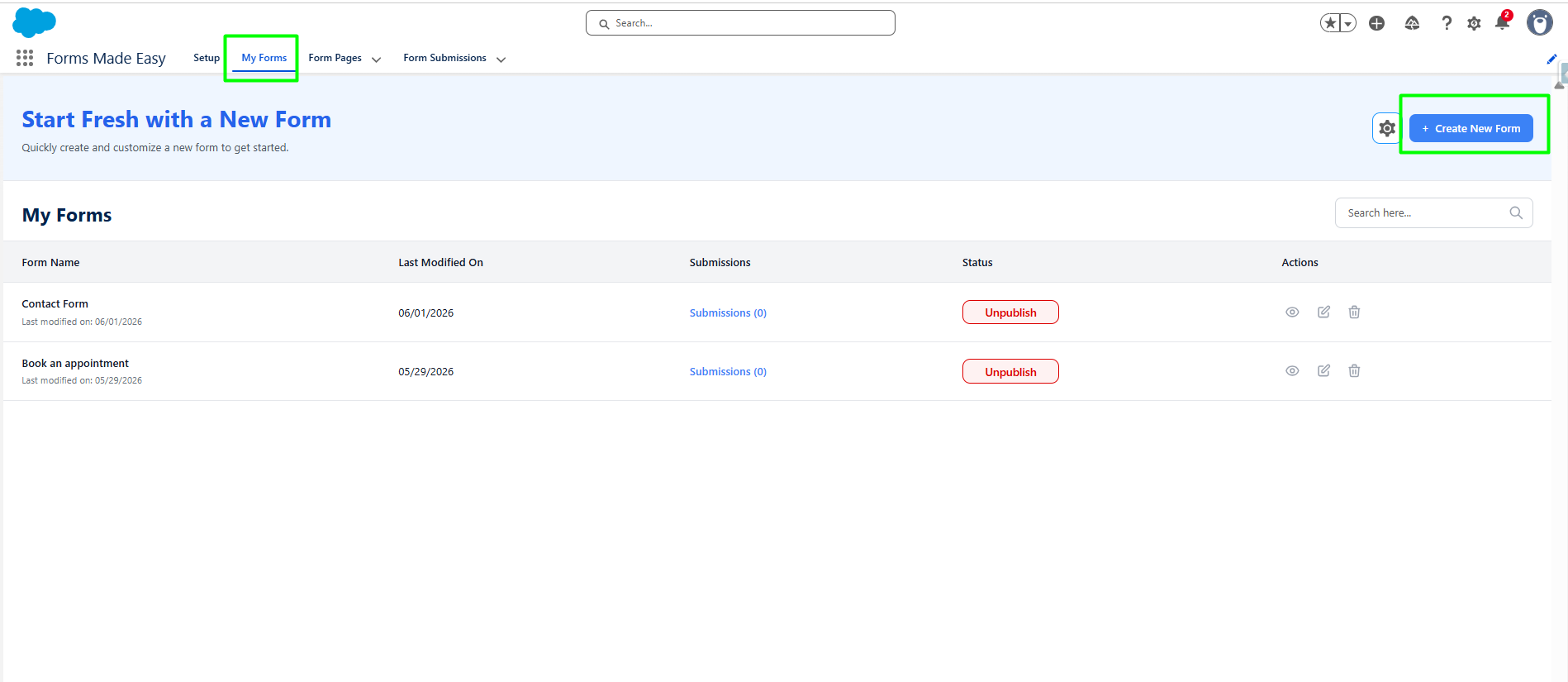
Step 1: Go to the My Forms tab and click on the "Create New Form" button.
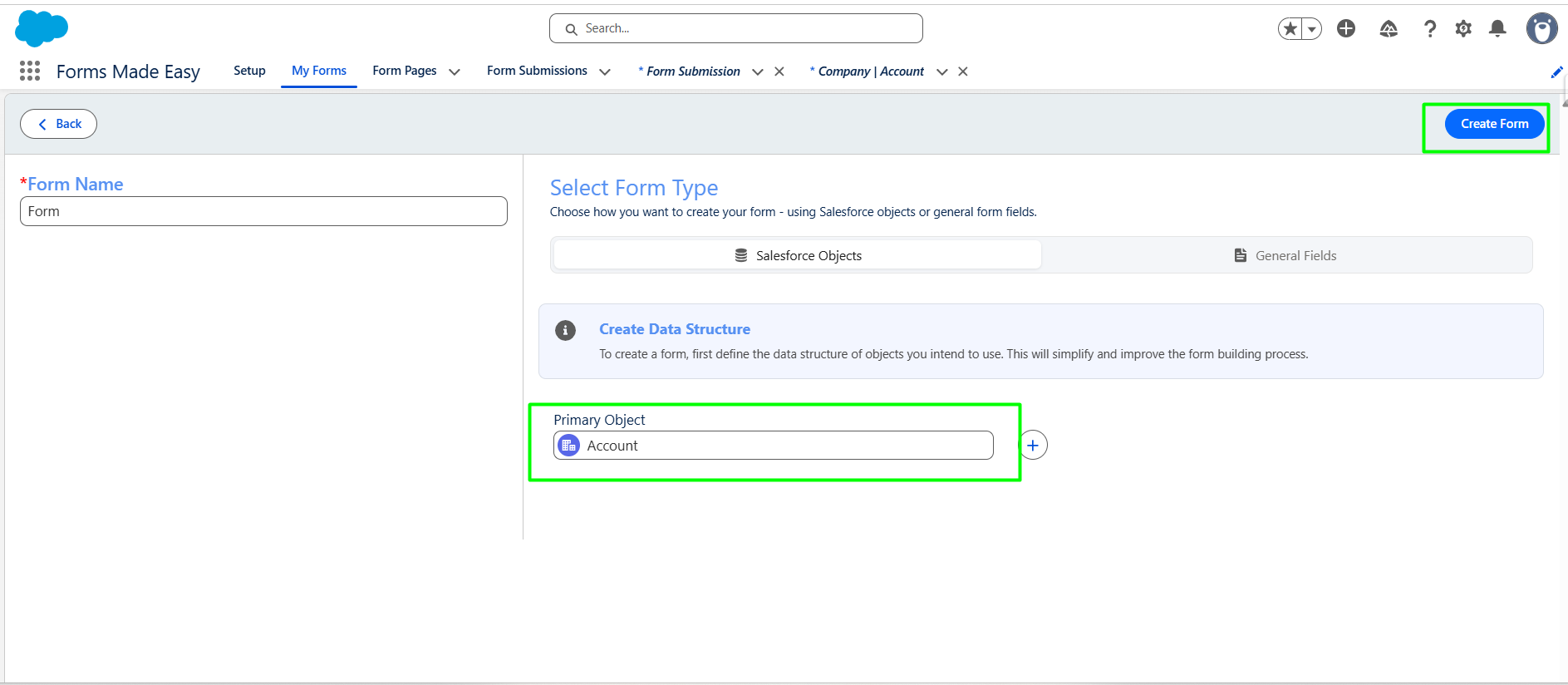
Step 2: Enter Form Name and select Account as primary object. Click on “Create Form” button.
Note: The Account object contains standard address fields (Country and State). When State & Country Picklists are enabled, these fields behave as dependent picklists:
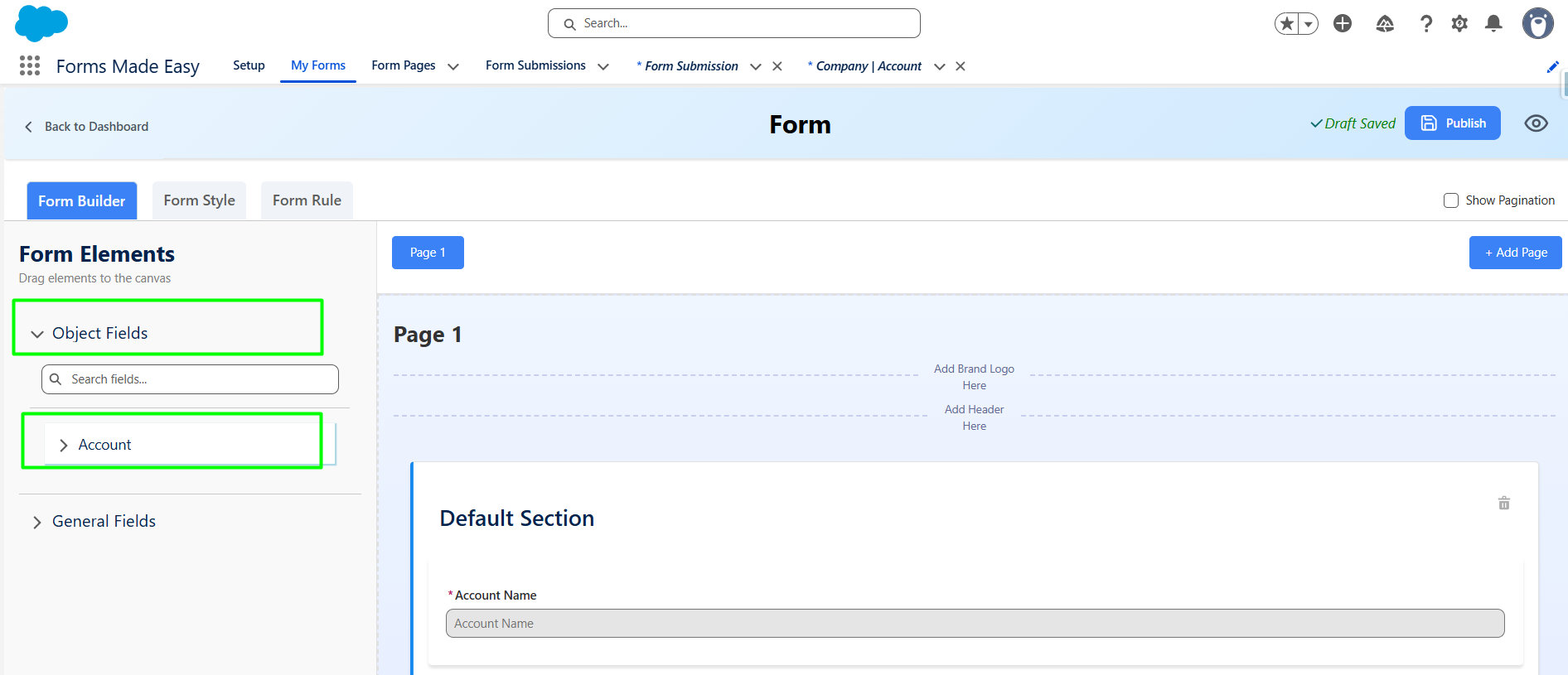
Step 3: From the Object Fields section Expand the Account field section.
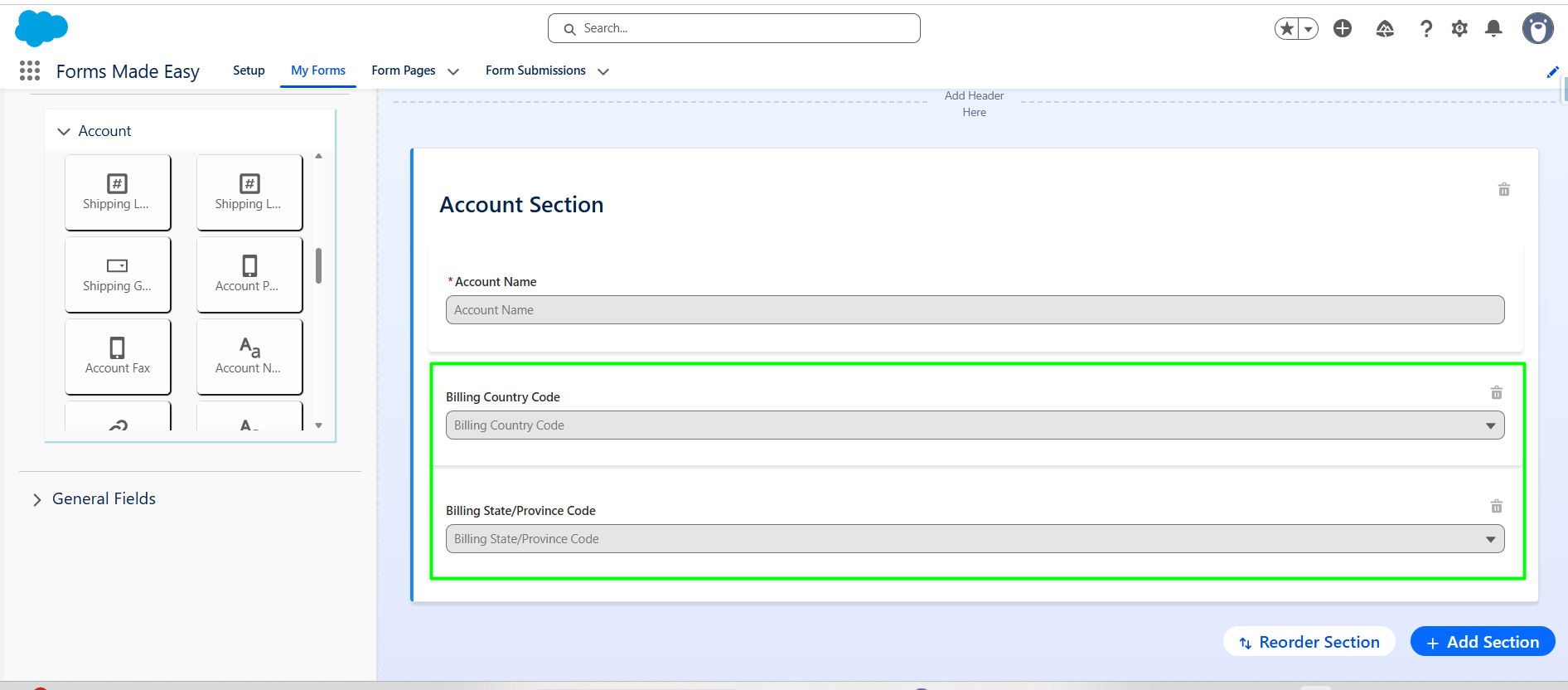
Step 4: Drag and drop the country or state field on form.
Note :Dropping Country or State automatically adds the other because dependent picklists require both controlling (Country) and dependent (State) fields to work.
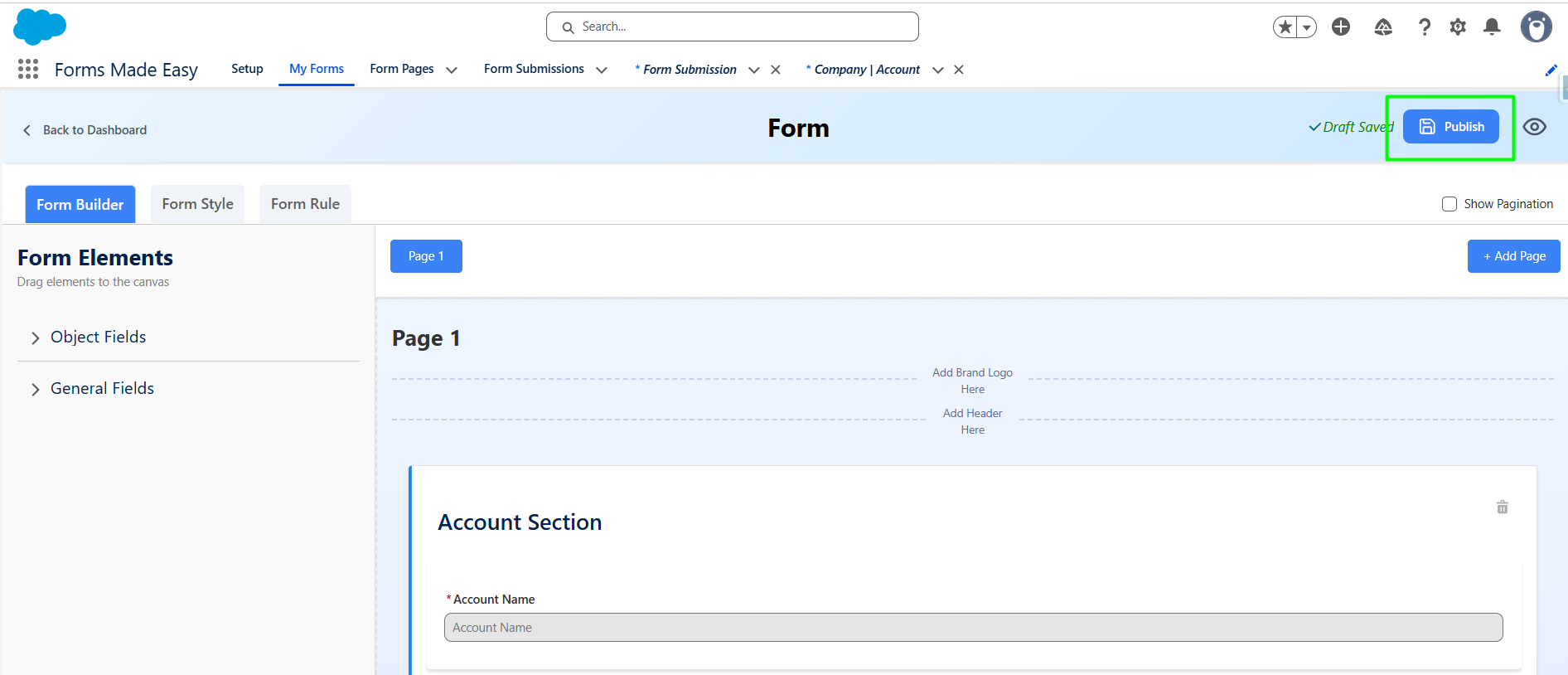
Step 5: Click on “Publish” Button.
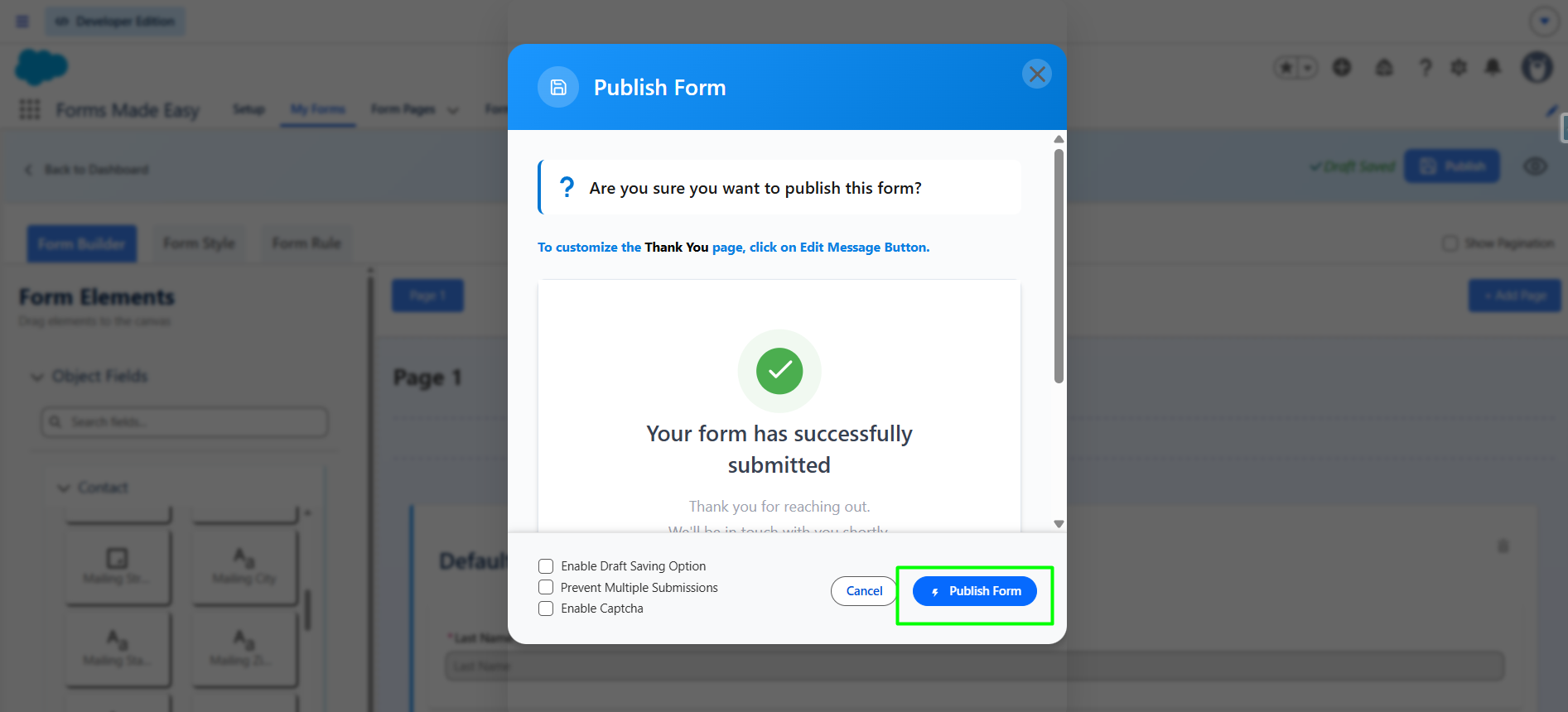
Step 6: Click on “Publish Form” button.
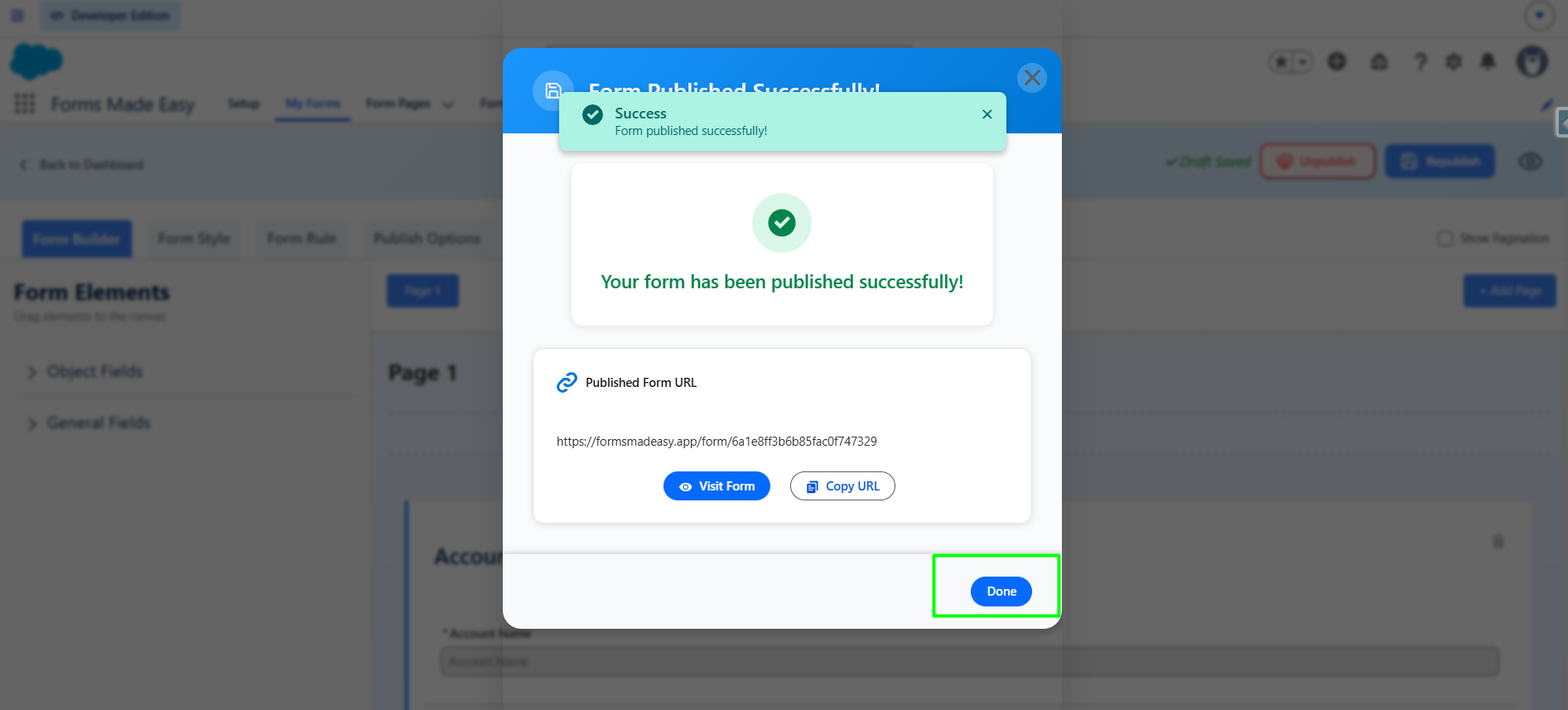
Step 7: Click on "Done" to close the modal.
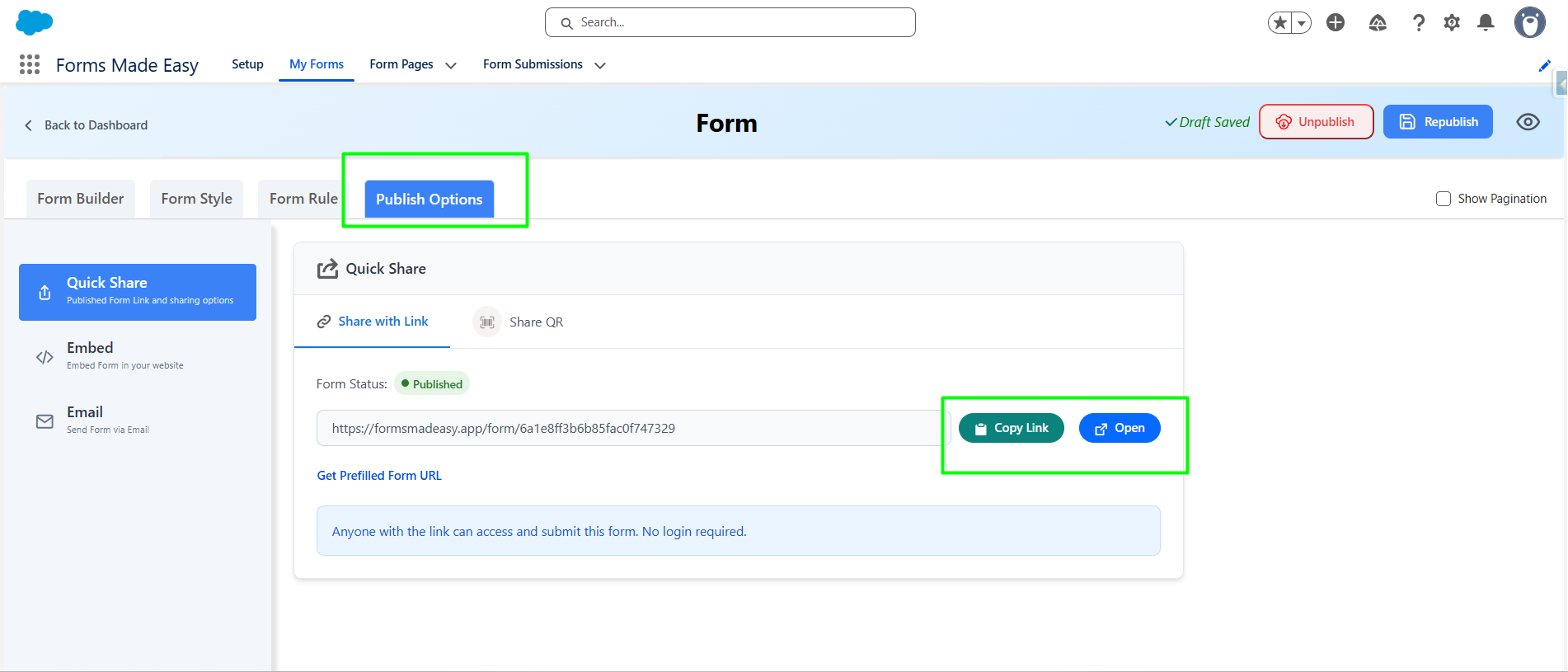
Step 8: Click on “publish Options”. Click on the “Copy Link” or “Open” buttons to open the forms directly on the web.
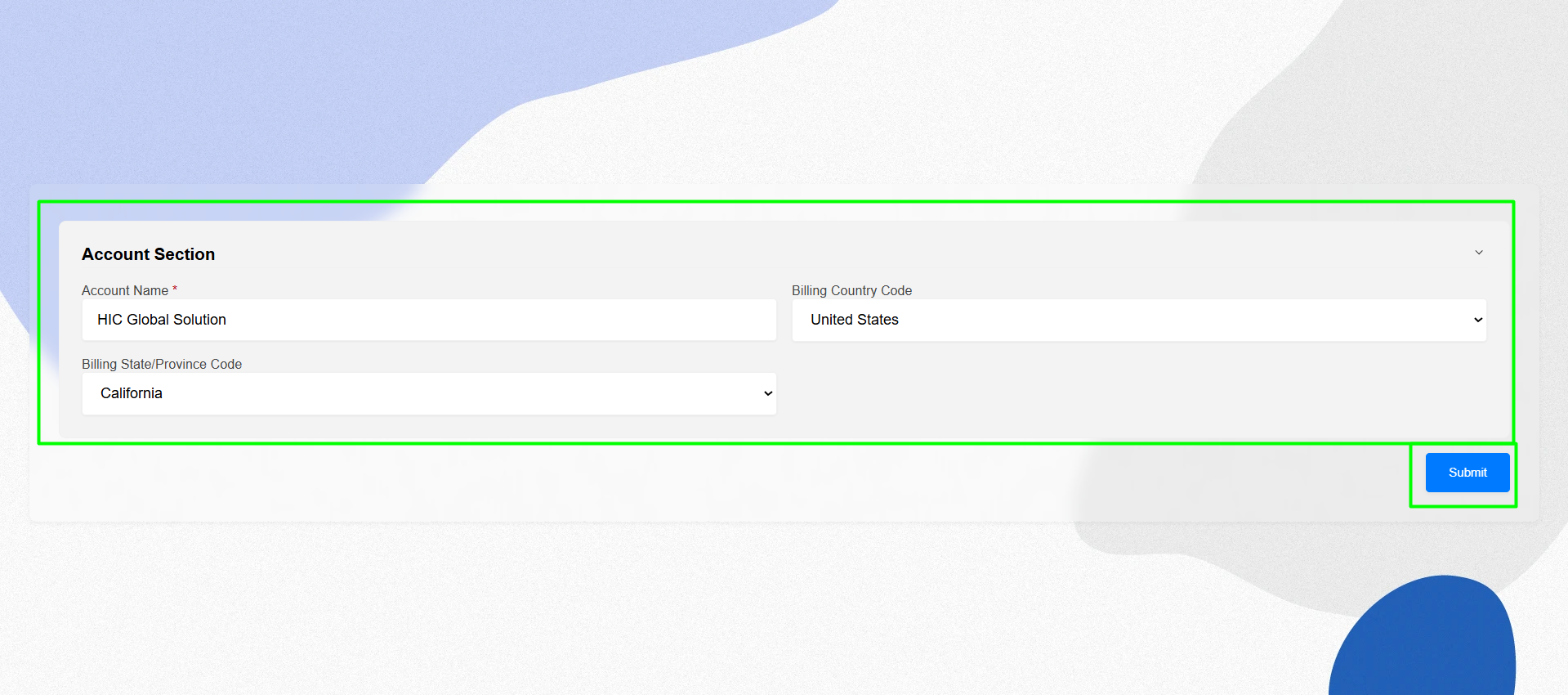
Step 9: The "Billing State/Province" field prompts you to select the Country first, because it is a dependent field controlled by the Billing Country Code. First, select the Billing Country, and the Billing State options will be displayed based on the selected country. Select the required state, then click on the "Submit" button to submit the form.
Was this article helpful?
That’s Great!
Thank you for your feedback
Sorry! We couldn't be helpful
Thank you for your feedback
Feedback sent
We appreciate your effort and will try to fix the article