Customizing the Thank You page in Forms Made Easy allows you to display a personalized confirmation message to respondents after they submit a form. You can configure the page title, add supporting messages, and optionally redirect respondents to another webpage.
Follow the steps below to customize the Thank You page.
Steps to Customize the Thank You Page
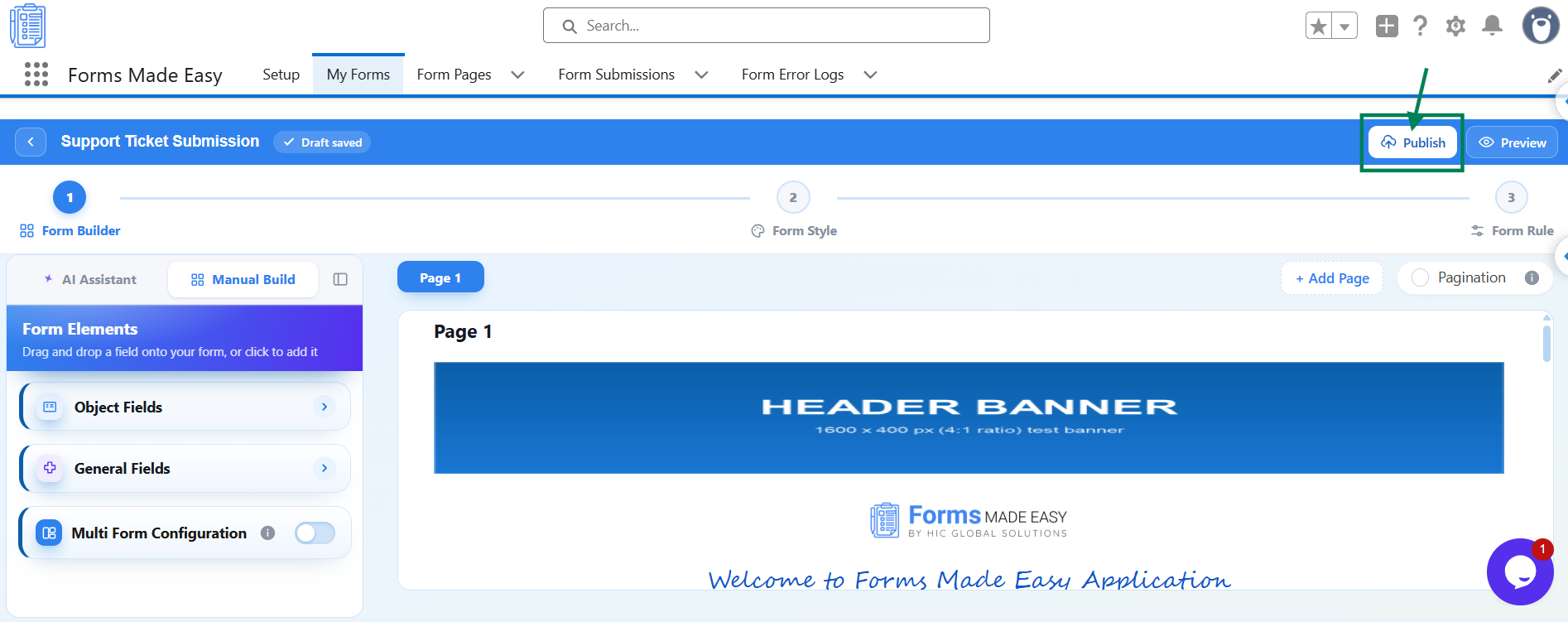
Step 1: Open your form in the Form Builder and click the Publish button (or Republish if your form is already published).
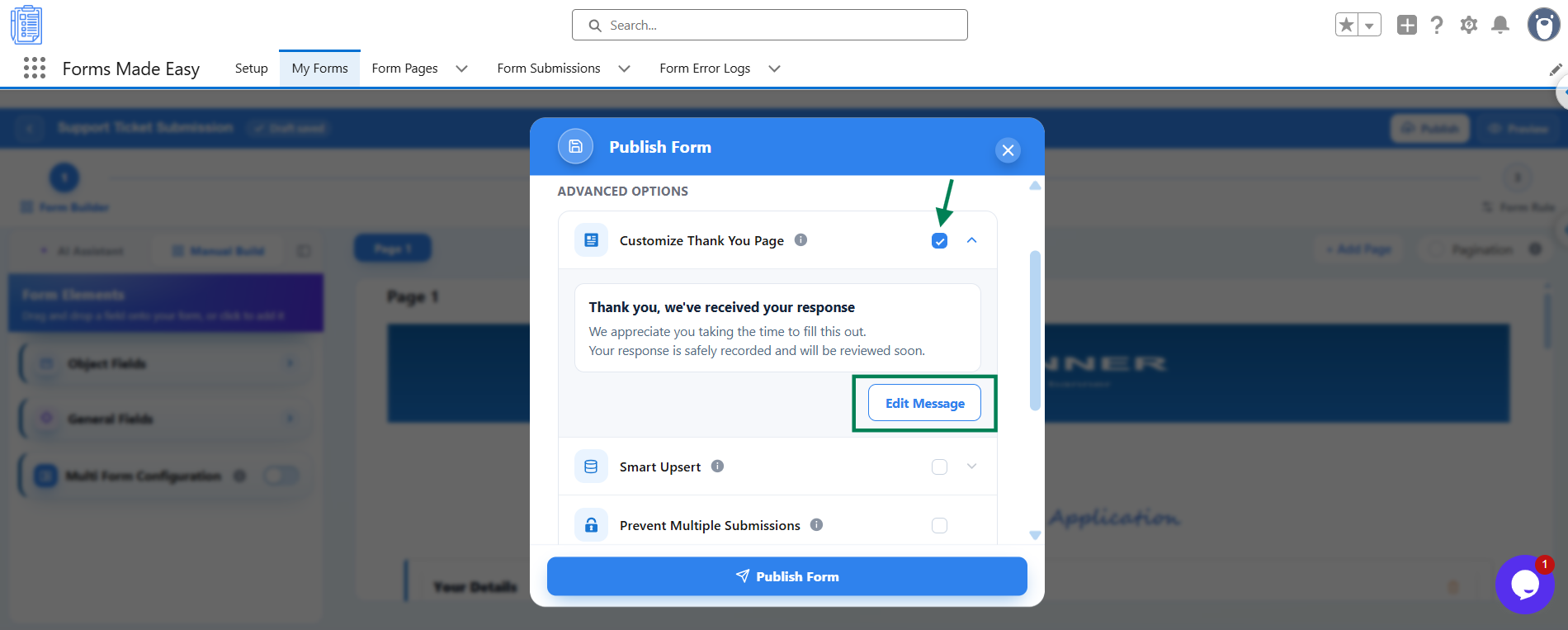
Step 2: A Publish Form window will appear, displaying the Publish Form button. Under Advanced Options, find the Customize Thank You Page option.
Step 3: Turn on Customize Thank You Page and click Edit Message to configure the Thank You page.
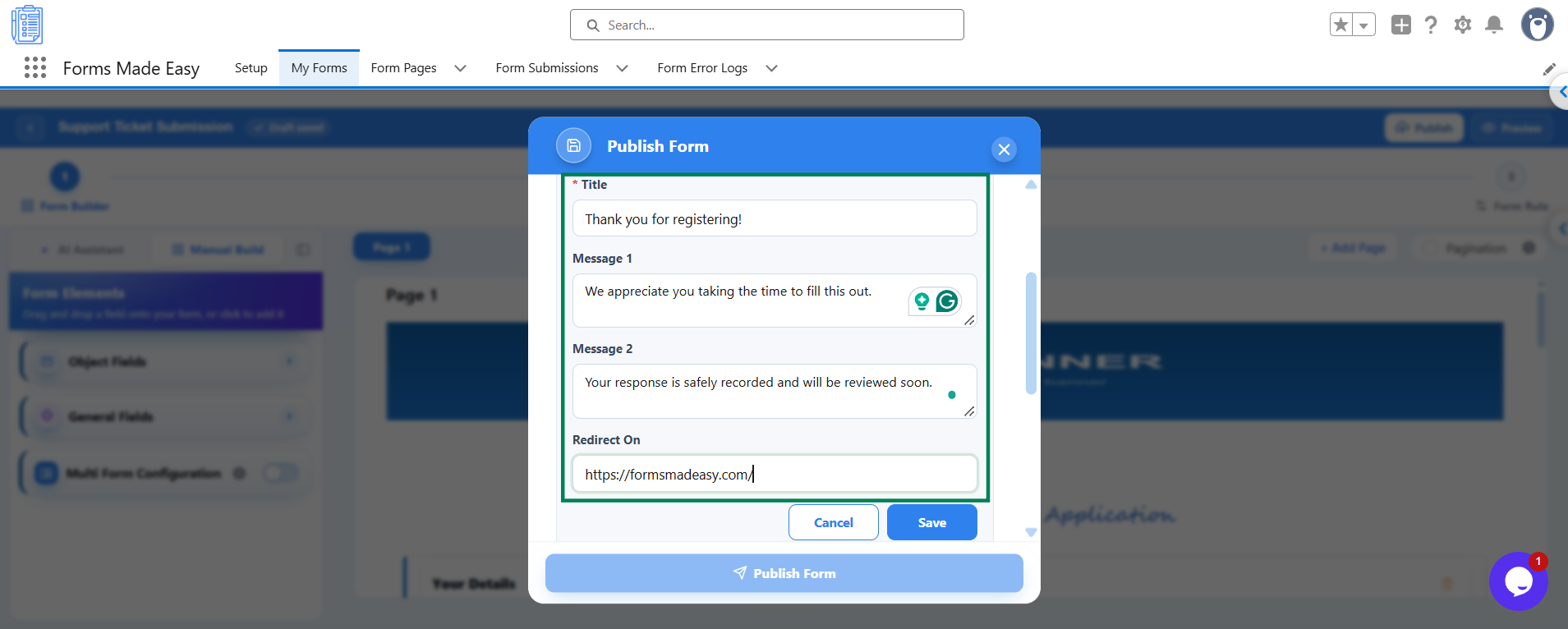
Step 4: Fill in the following fields:
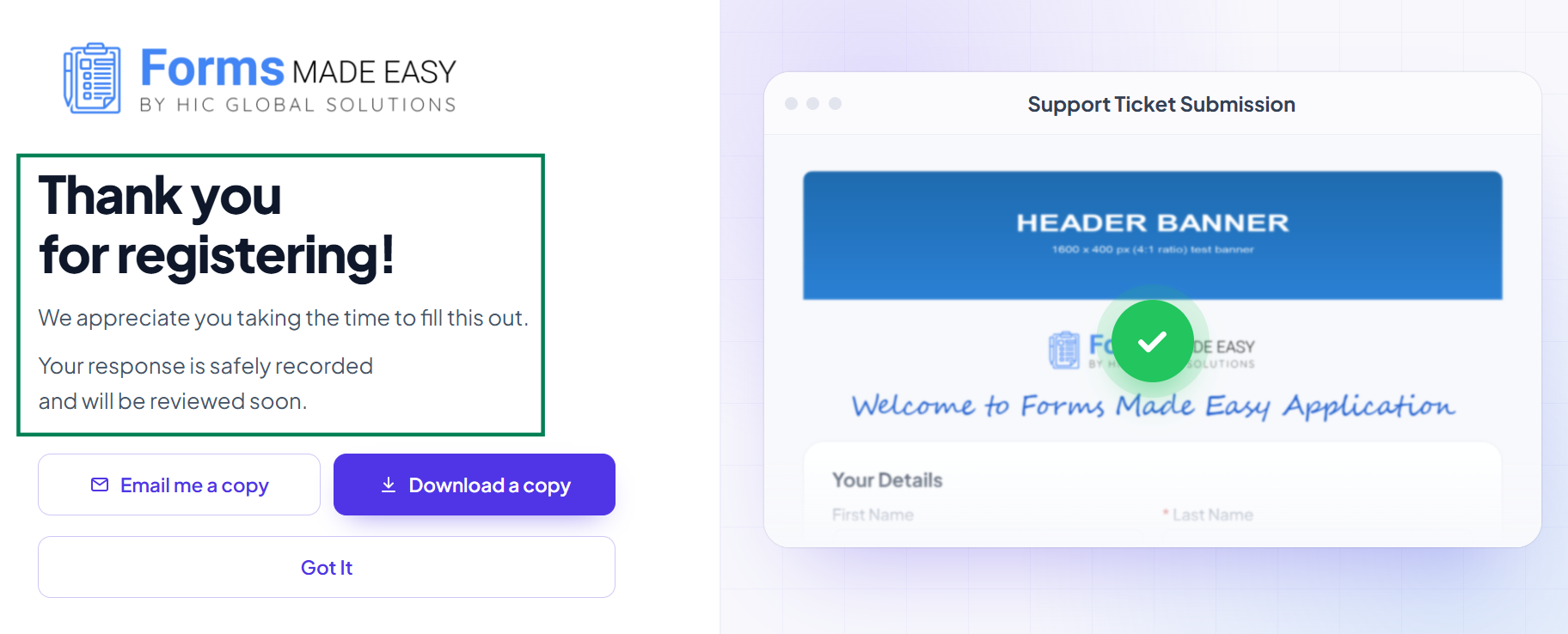
Title (Required): Enter the main heading for the Thank You page. For example, "Thank you for registering!"
Message 1: Enter the supporting text you want to display to respondents.
Message 2: Enter additional supporting text, if required.
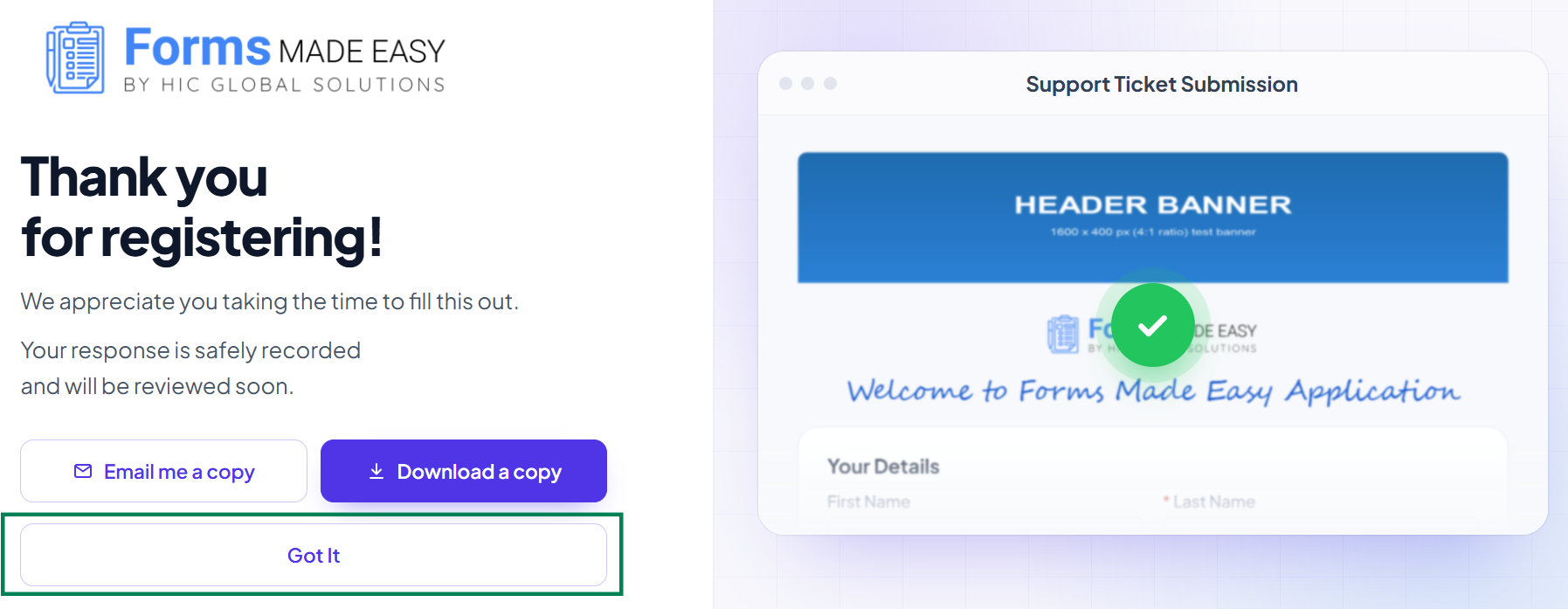
Redirect On (Optional): Enter the full destination URL, starting with https://, if you want to redirect respondents to another webpage.
Step 5: Click Save to save your Thank You page configuration.
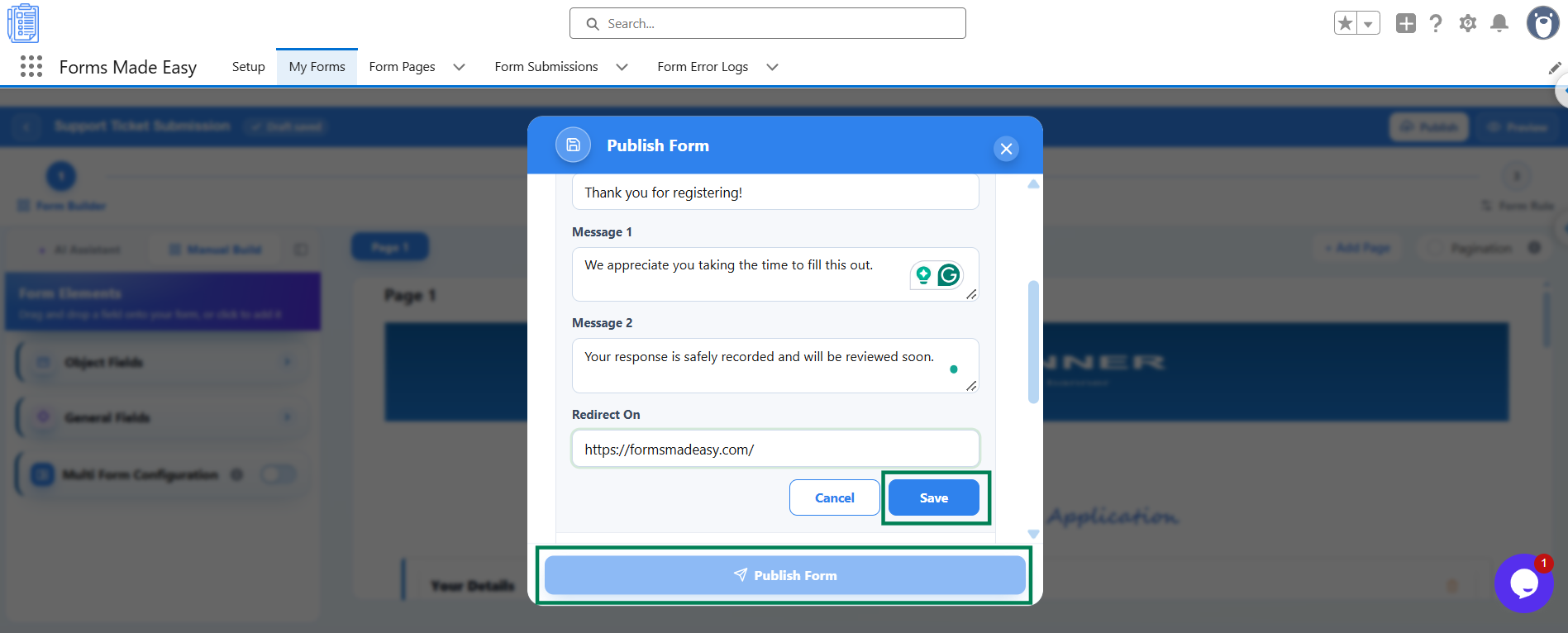
Step 6: Click Publish Form to publish your form with the customized Thank You page. If your form is already published, republish it to apply the latest changes.
Once the form is published or republished successfully, the customized Thank You page will be available to respondents after they submit the form.
What Your Respondents See
After submitting the form, respondents will see the customized Thank You page with the title and messages you configured.
Without a redirect URL: Respondents can view the Thank You page and click the Got It button.
With a redirect URL: Clicking the Got It button redirects respondents to the specified webpage.
How to Update the Thank You Page After Publishing
You can modify your Thank You page settings even after publishing your form.
Open your form in the Form Builder.
Navigate to Share & Embed > Submission Page.
Update the Thank You page settings as required. You can also configure the Button Text.
Save your changes and republish your form if required to apply the updates to the live form.
Important Notes
Title is required: Make sure to provide a title when customizing the Thank You page.
Redirect URL is optional: Enter a valid destination URL starting with https:// if you want to redirect respondents. Leave the field blank if you want respondents to remain on the Thank You page.
Update after publishing: You can modify the Thank You page after publishing. Ensure the latest changes are applied to the live form.
Button Text: You can customize the button text from Share & Embed > Submission Page.
Was this article helpful?
That’s Great!
Thank you for your feedback
Sorry! We couldn't be helpful
Thank you for your feedback
Feedback sent
We appreciate your effort and will try to fix the article