The Form Builder lets you create and customise forms using a simple drag-and-drop interface. You can add fields, organise them into sections and pages, configure field settings, and publish your form when it is ready.
You can build forms using existing Salesforce object fields or start from scratch with generic fields. Your changes are automatically saved as a draft, so you can continue editing whenever needed.
Prerequisites:
Make sure you have the following ready:
Connected Salesforce org: Your Salesforce org must be connected. If you see the message "Connection not completed yet", click Go to Setup and complete the connection by clicking Connect.
Form type: Decide whether you want to create a Salesforce Objects form or a General Fields form.
Salesforce Objects: Creates or updates Salesforce records using existing object fields.
General Fields: Uses generic form fields and does not create Salesforce records.
Related objects (optional): If you want to collect related records in one submission, such as an Account and its Contacts, identify the required child objects beforehand.
Step-by-Step Guide:
Step 1: Start a New Form
Navigate to My Forms.
Click Create New Form.
Alternatively, open the Setup page and click Build Form Manually.
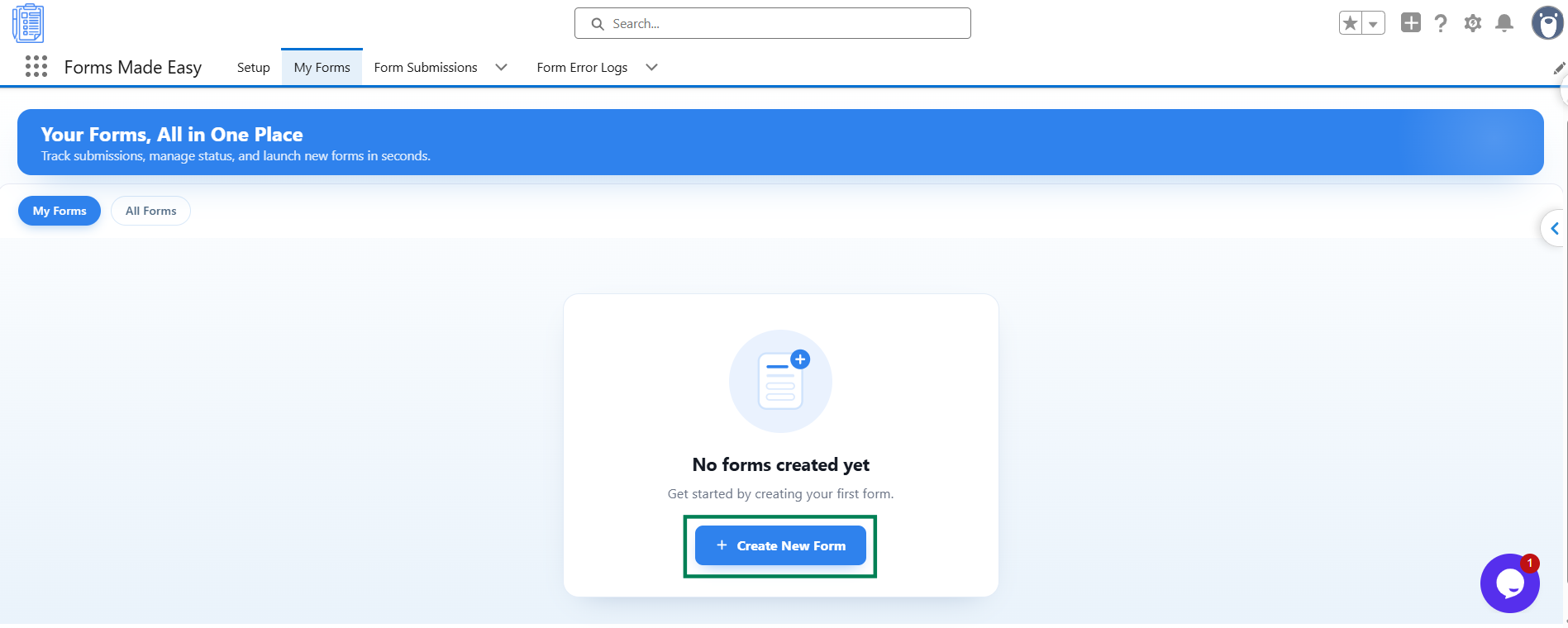
The New Form page will open.
Step 2: Choose a Form Type
Under Select Form Type, choose one of the following options:
Salesforce Objects: Build a form using existing Salesforce objects and their fields.
General Fields: Create a form from scratch using generic form fields.
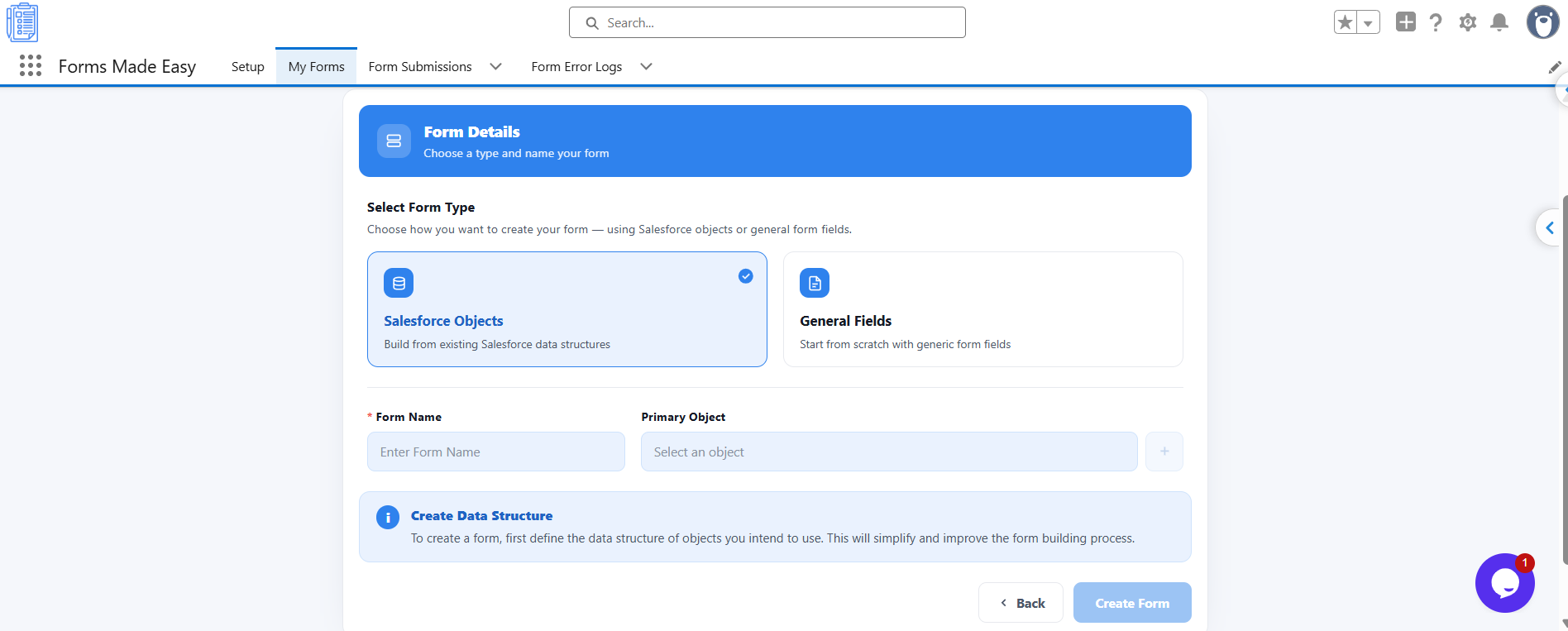
Select the option that matches your requirements.
Step 3: Enter the Form Name and Select Objects
Enter a Form Name. This field is required.
If you selected Salesforce Objects, choose a Primary Object from the dropdown.
You can also configure the following options:
Add Child Object (+): Click the plus (+) button to add related child objects.
Repeat: Enable this option on a child object to allow respondents to add multiple child records in one submission. Set the maximum number of records between 2 and 100.
Record Type: Enable this option if you want to create records using a selected Salesforce record type.
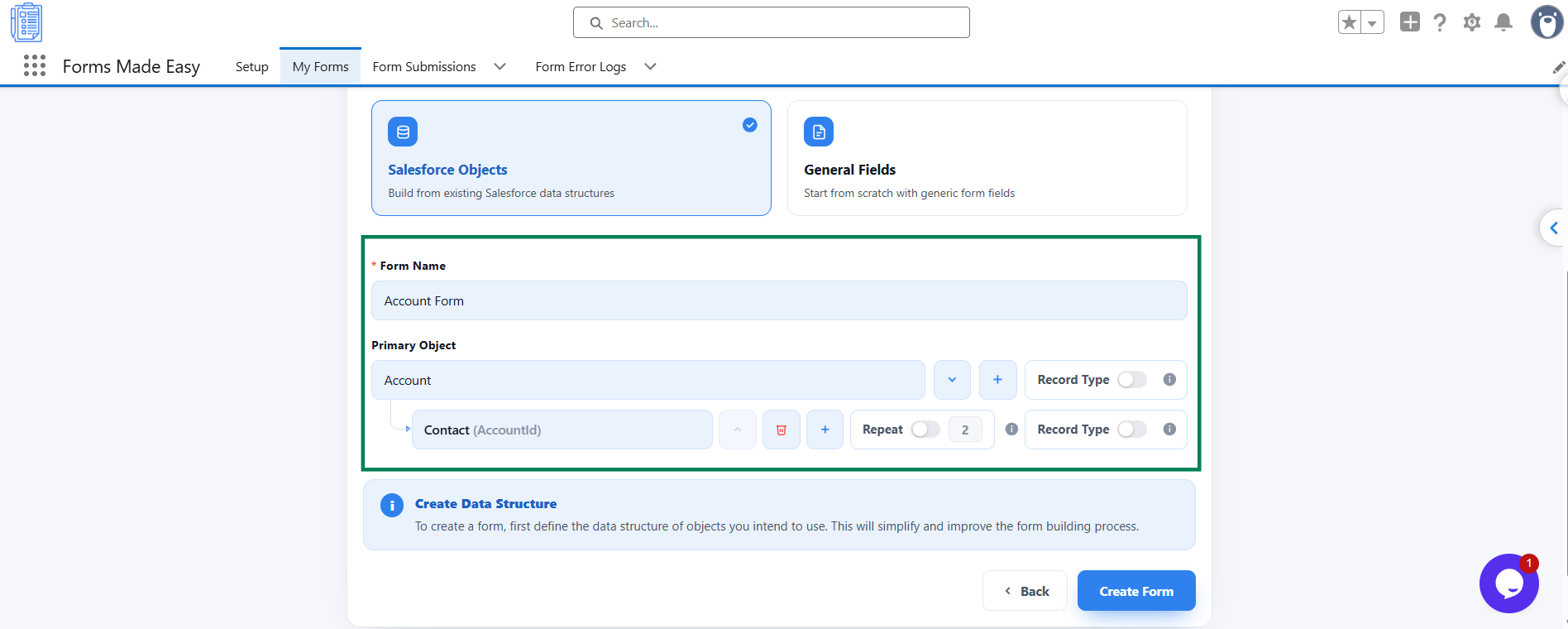
Step 4: Create the Form
Review the form name and selected objects.
Click Create Form.
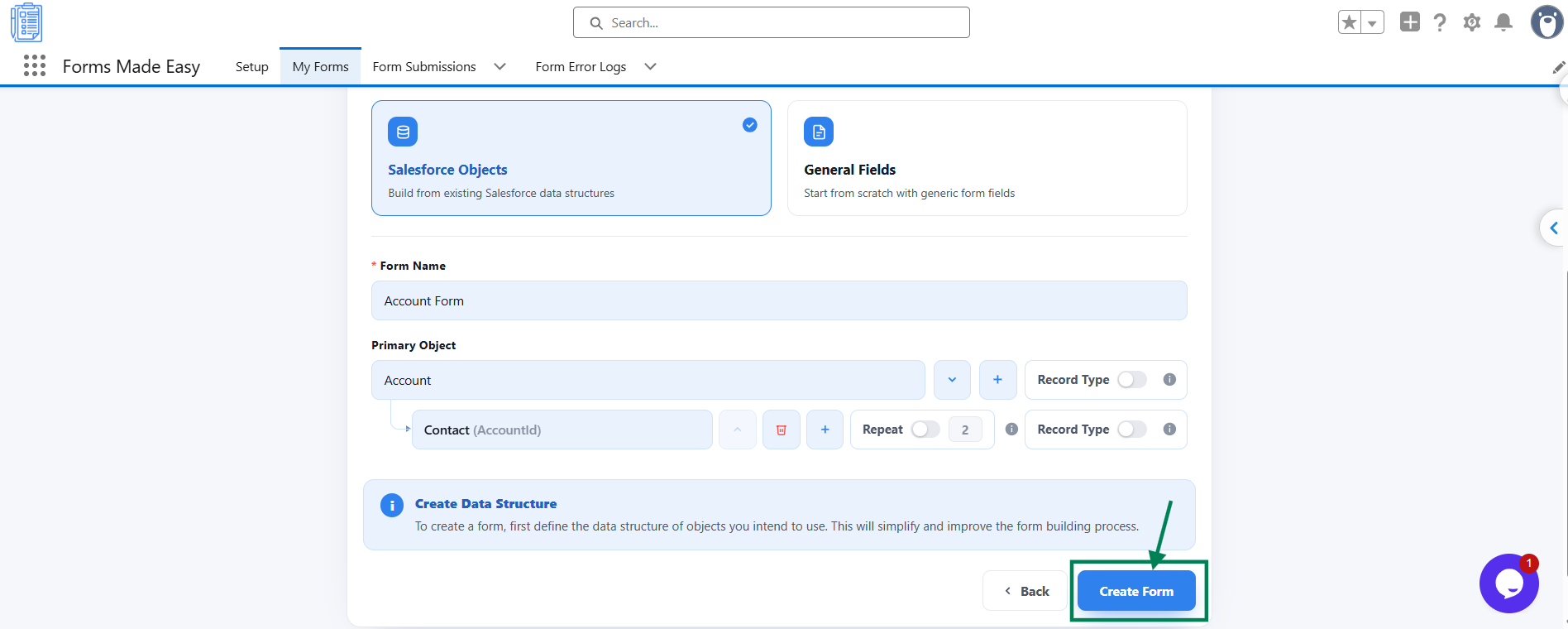
The button remains disabled until all required information is provided. For Salesforce Objects forms, you must select a Primary Object and complete or remove any empty child object rows.
Once the required details are entered, the Form Builder opens.
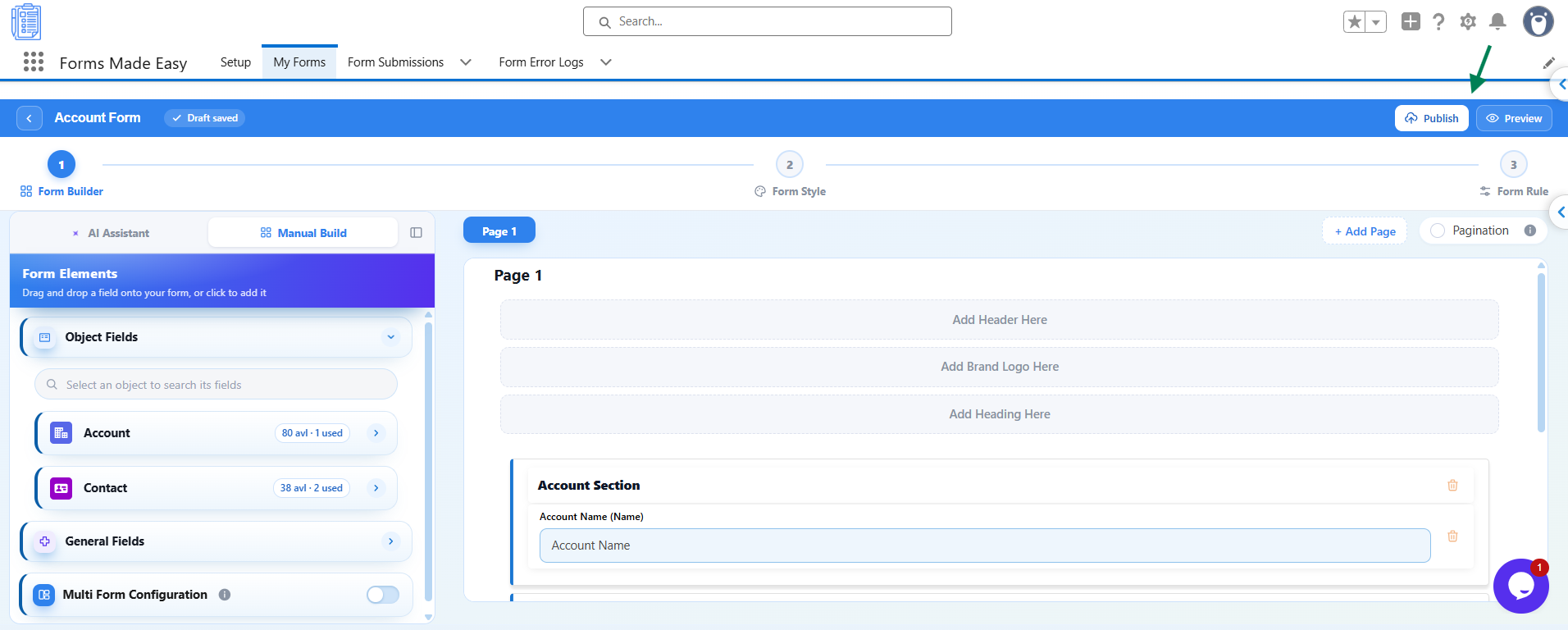
Step 5: Understand the Form Builder Interface
The Form Builder contains the following areas:
Top Bar: Includes the Back arrow, form name (click to rename), Draft Saved indicator, and Publish, Preview, and Unpublish buttons. The Unpublish button appears once the form is published.
Steps: Displays three stages: Form Builder, Form Style, and Form Rule. This article focuses on the Form Builder stage.
Left Panel: Contains two tabs: AI Assistant and Manual Build. Select Manual Build to add fields using drag and drop.
Canvas: The central workspace where you design and arrange your form elements.
Configuration Panel: Appears on the right and displays the message "Select an element to configure" until you select a form element.
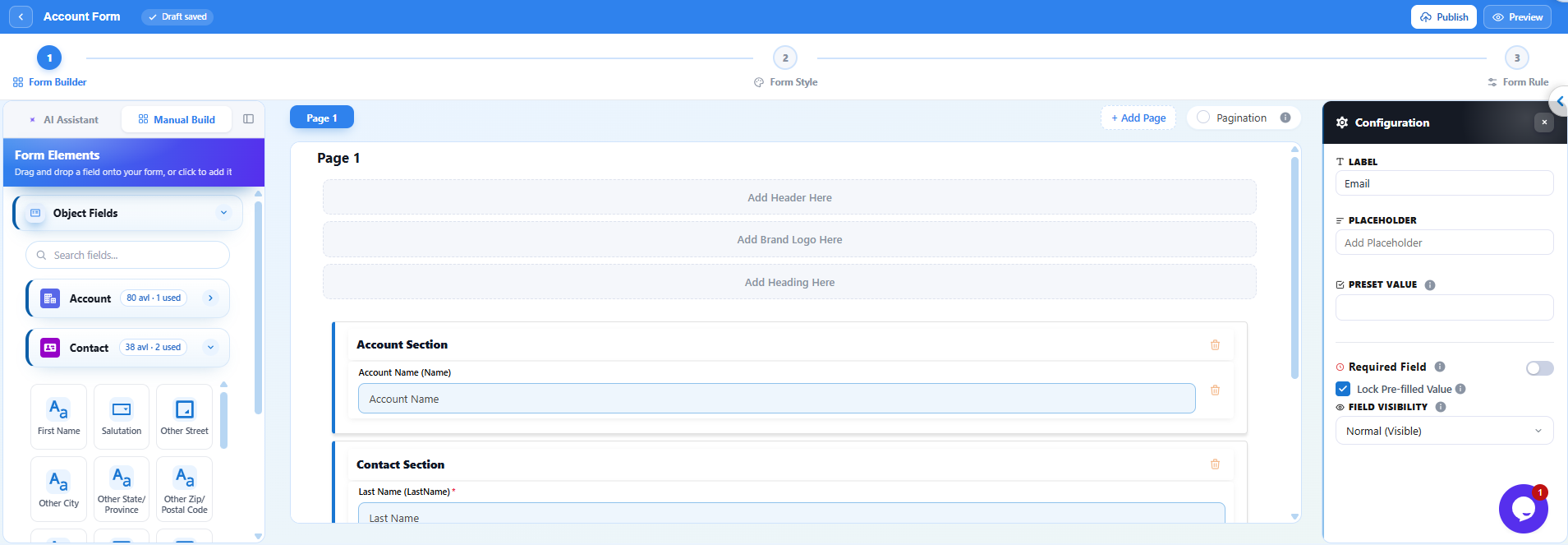
Step 6: Add Fields to the Canvas
In the left panel, select Manual Build.
Explore the available fields under the Form Elements panel.
Add fields by dragging them onto the canvas or clicking them.
You can use the following field categories:
Object Fields: Displays fields from the selected Salesforce objects. This option is available only for Salesforce Objects forms.
General Fields: Provides generic field types, including Text Field, Email Field, Phone Field, Picklist Field, Date Field, File Upload, Signature, Rating, Display Text, T&C Fields, and more.
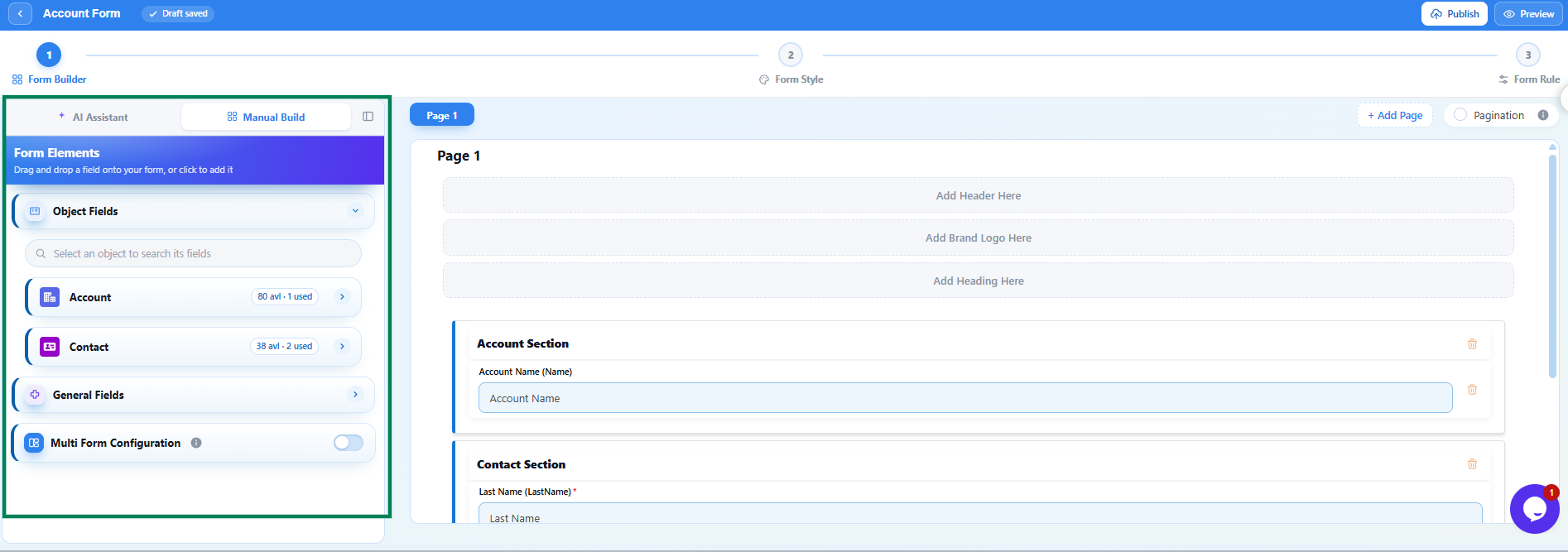
You can drag a field onto the canvas or click it to add it directly. If the canvas is empty, it displays the instruction "Drag and drop elements here".
Step 7: Configure Field Settings
Click the field you added to the canvas.
Open the Configuration panel on the right.
Configure the available settings according to your requirements.
Depending on the selected field type, you can configure options such as:
Label
Placeholder
Preset Value
Required Field
Field Visibility
Options (for choice fields)
File Upload Settings (for File Upload fields)
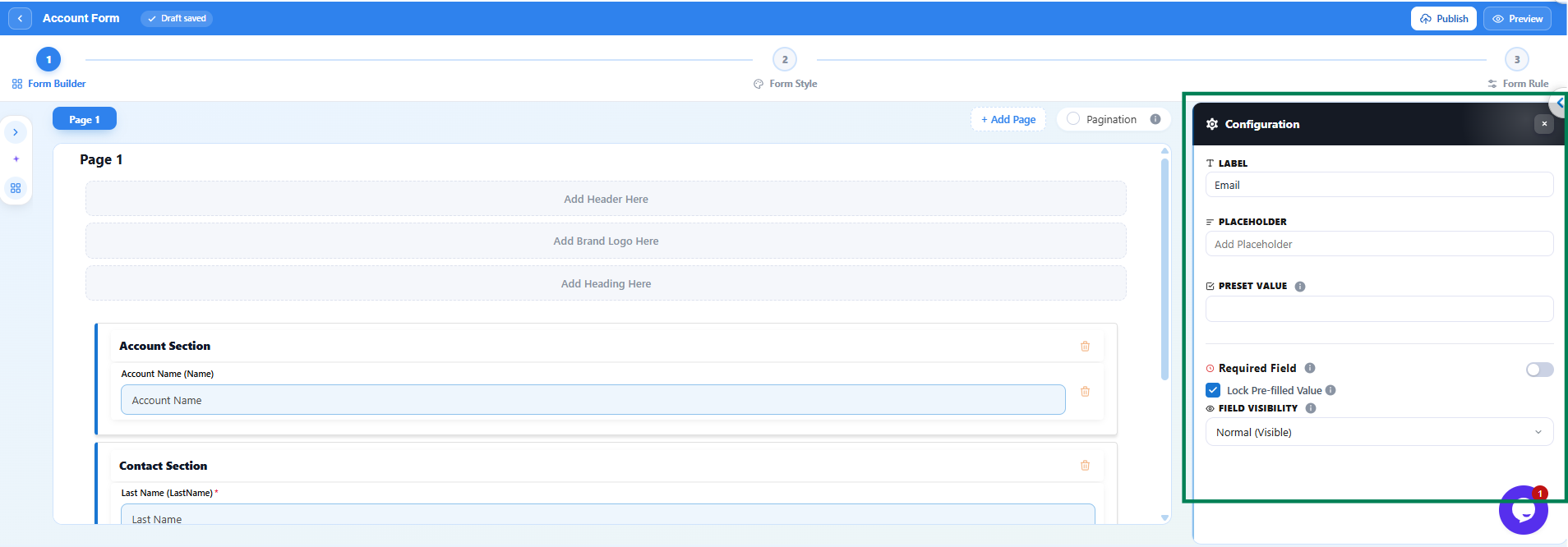
Repeat these steps for each field you want to configure.
Step 8: Organise Sections and Pages
Use the options available around the canvas to organise your form.
Add Section: Adds a new section to your form.
Reorder Section: Opens the Reorder Sections panel, where you can drag sections into your preferred order.
Add Page: Click + Add Page above the canvas to divide a long form into multiple pages.
You can also customise the form layout by adding:
Add Header Here
Add Brand Logo Here
Add Heading Here
Add Footer Here
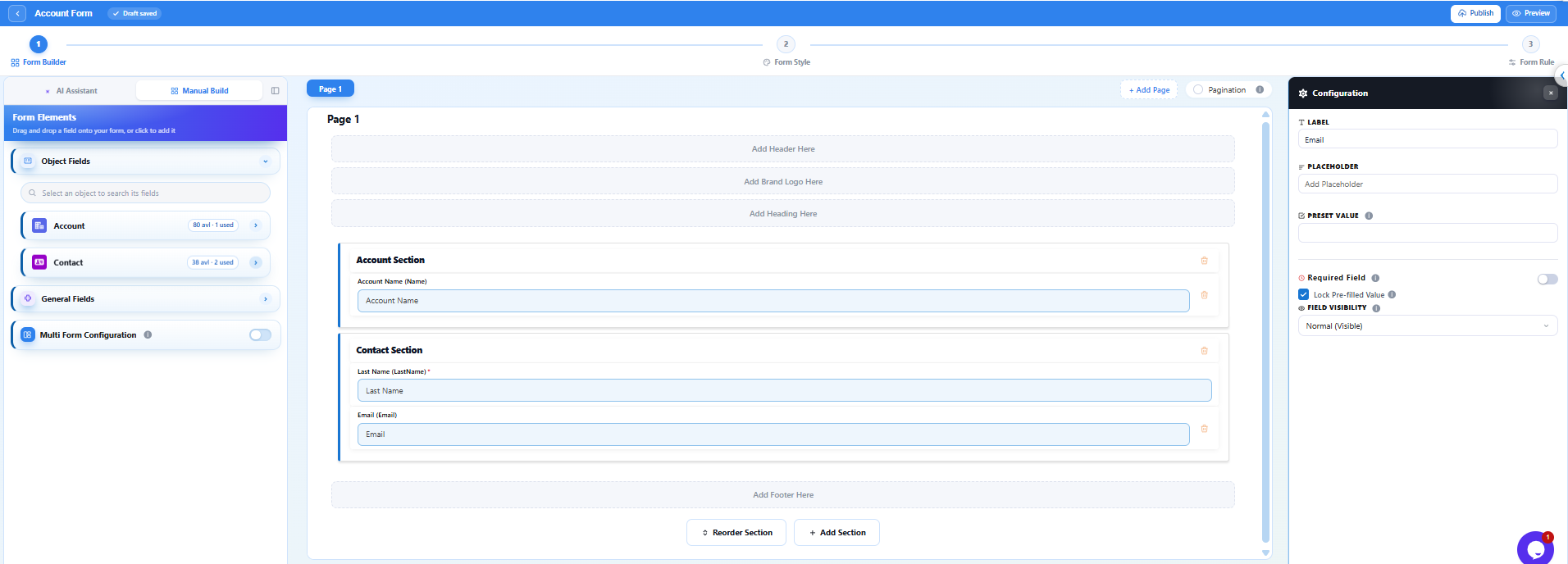
These options help you organise and brand your form.
Step 9: Preview and Publish the Form
Click Preview to review how the form will appear to respondents.
Check the layout, fields, and configurations.
When everything is ready, click Publish.
In the Publish Form dialog, review the available options.
Click Publish Form to confirm.
Once publishing is successful, the message "Form Published Successfully!" appears along with the Published Form URL.
Share this URL with respondents so they can access and submit the form.
How to Verify Your Form
After publishing, follow these steps to confirm that your form is working correctly:
Open the Published Form URL.
Fill in the form with test information.
Submit the form.
Return to My Forms and check whether the Submissions count has increased.
For Salesforce Objects forms, open the corresponding object in Salesforce and verify that the submitted record has been created.
Expected Result: The submission should be recorded successfully. For Salesforce Objects forms, the corresponding Salesforce record should also be available.
Troubleshooting Common Issues in the Drag-and-Drop Form Builder
While creating Salesforce forms using the Forms Made Easy drag-and-drop form builder, you may encounter configuration, field selection, or publishing issues. The following troubleshooting guide covers common scenarios and their recommended solutions.
| Issue | Possible Cause | Recommended Solution |
|---|---|---|
| Salesforce Connection Not Completed | The Salesforce connection has not been configured or authorized. | Click Go to Setup, select Connect, and complete the Salesforce connection process before creating your form. |
| Create Form Button Is Disabled | Required configuration details are missing, such as the form name, primary Salesforce object, or incomplete child object selections. | Enter a valid Form Name. For Salesforce Objects forms, select a Primary Object and complete or remove any empty child object rows. |
| No Fields Available in Object Fields | The form was created using General Fields, or no Salesforce object was selected. | Verify the form type. Use General Fields for standard input fields, or create a Salesforce Objects form with the required object selected to access its fields. |
| Publish Button Is Disabled | The form does not meet the minimum field requirements for publishing. | For General Fields forms, drag and drop at least one field onto the form canvas before clicking Publish. |
| Character Limit Exceeded | The form name exceeds the maximum supported length of 80 characters. | Update the Form Name to ensure it contains no more than 80 characters. |
| Published Form Does Not Reflect Recent Changes | Changes made in the Form Builder have not been applied to the published version. | Open the form in Form Builder, review your updates, and click Republish to update the live form. |
Best Practices to Avoid Form Configuration Issues
To ensure a smooth form-building experience:
Verify Salesforce Connectivity: Confirm that your Salesforce connection is active before configuring object-based forms.
Select the Appropriate Form Type: Choose between General Fields and Salesforce Objects based on your data collection requirements.
Validate Object and Field Configuration: Ensure the primary object is selected and all child object configurations are complete.
Review Form Fields Before Publishing: Confirm that the required input fields have been added and configured correctly.
Republish After Modifications: Whenever changes are made to a published form, use Republish to ensure the latest version is accessible to users.
Following these troubleshooting steps can help resolve common configuration issues and maintain a consistent form-building and publishing experience in Salesforce.
Was this article helpful?
That’s Great!
Thank you for your feedback
Sorry! We couldn't be helpful
Thank you for your feedback
Feedback sent
We appreciate your effort and will try to fix the article