In this blog, we will walk through how to use the Form Rule feature, specifically focusing on how to create and manage Multiple Rules within your form.
The Form Rule functionality allows you to customize the form’s behavior by setting conditions that trigger specific actions - such as showing or hiding fields, making fields required, displaying error messages, displaying custom messages, or making fields read-only.
Once the form is created, the Form Rule tab becomes available. Under this tab, you can define multiple rules, each with its own set of conditions and actions. This enables you to handle different scenarios independently—for example, showing certain fields based on one condition and hiding others based on another.
By configuring multiple rules, you can create highly dynamic and interactive forms that respond intelligently to user input, ensuring that users only see and complete the fields relevant to them.
Using the Form Rule feature with multiple rules, you can enhance the overall user experience, reduce input errors, and make your forms more efficient and intuitive.
Steps to Create a Form and Apply Multiple Form Rules
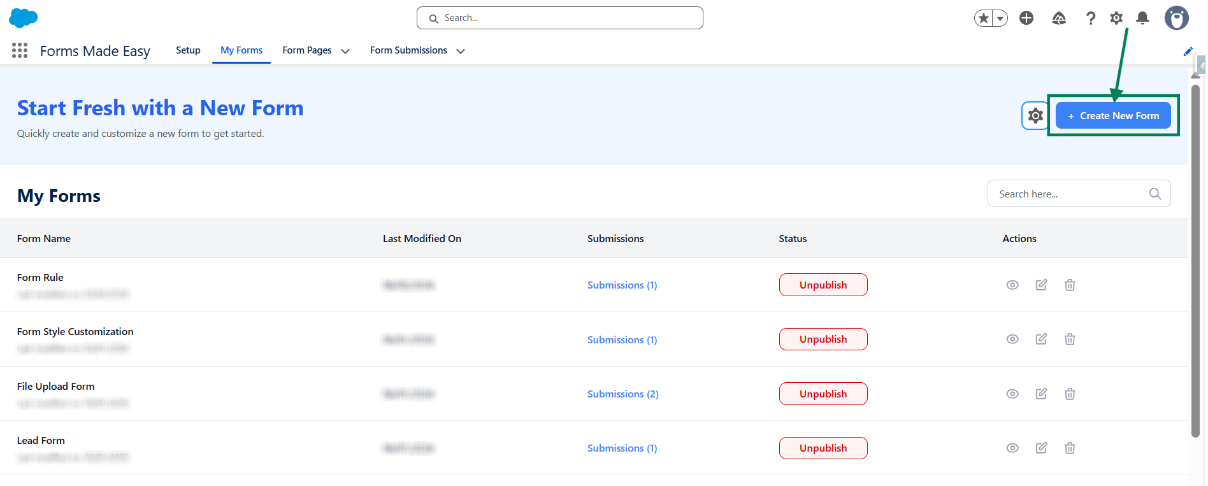
Step 1: Go to the My Forms tab and click on the Create New Form button.
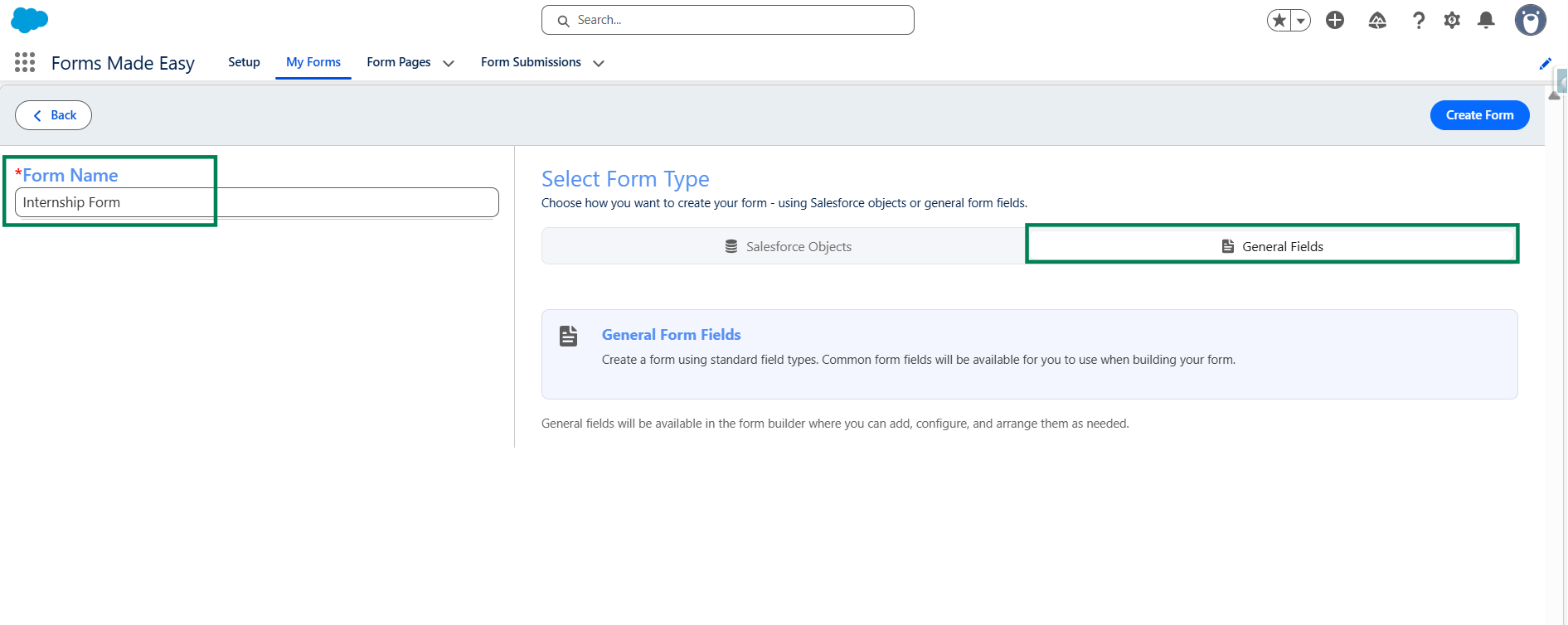
Step 2: Enter the form name and select the form type (Salesforce Objects or General Fields).
Currently I have chosen the General Fields option.
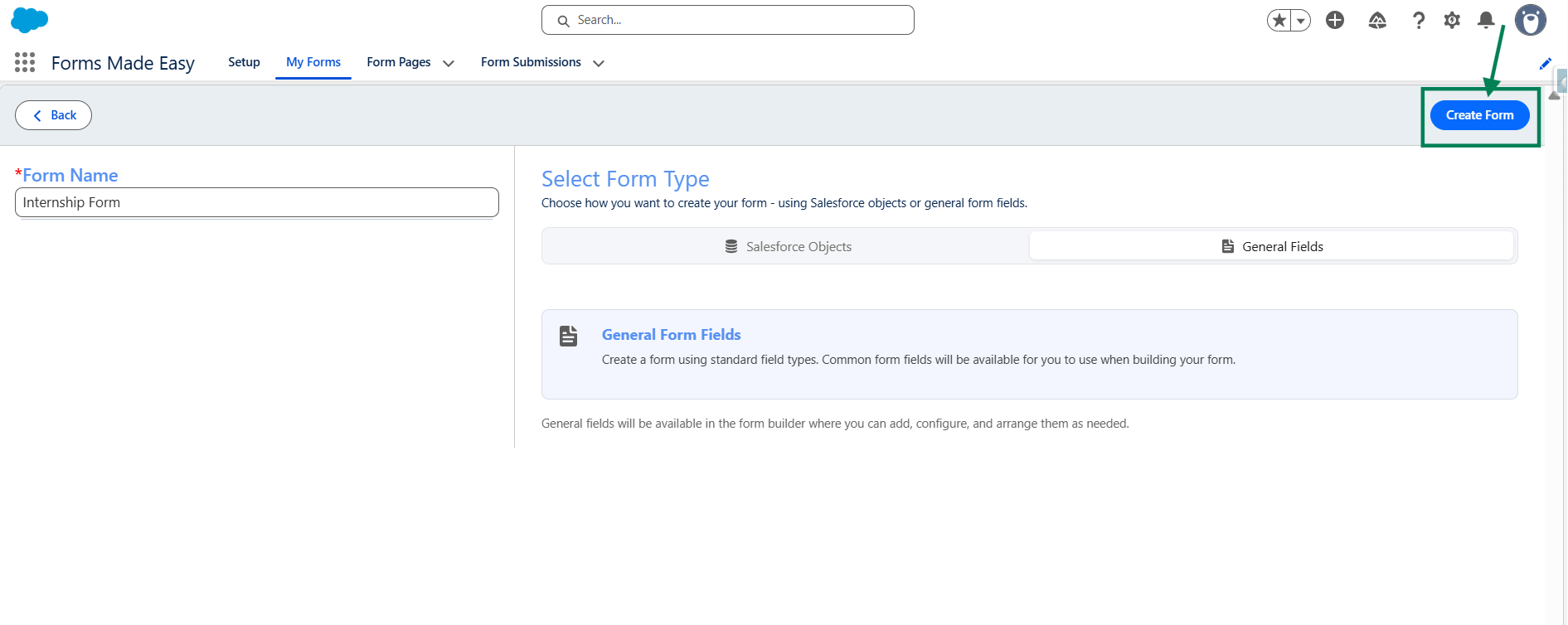
Step 3: Click on the Create Form button.
Step 4: Click on the General Section.
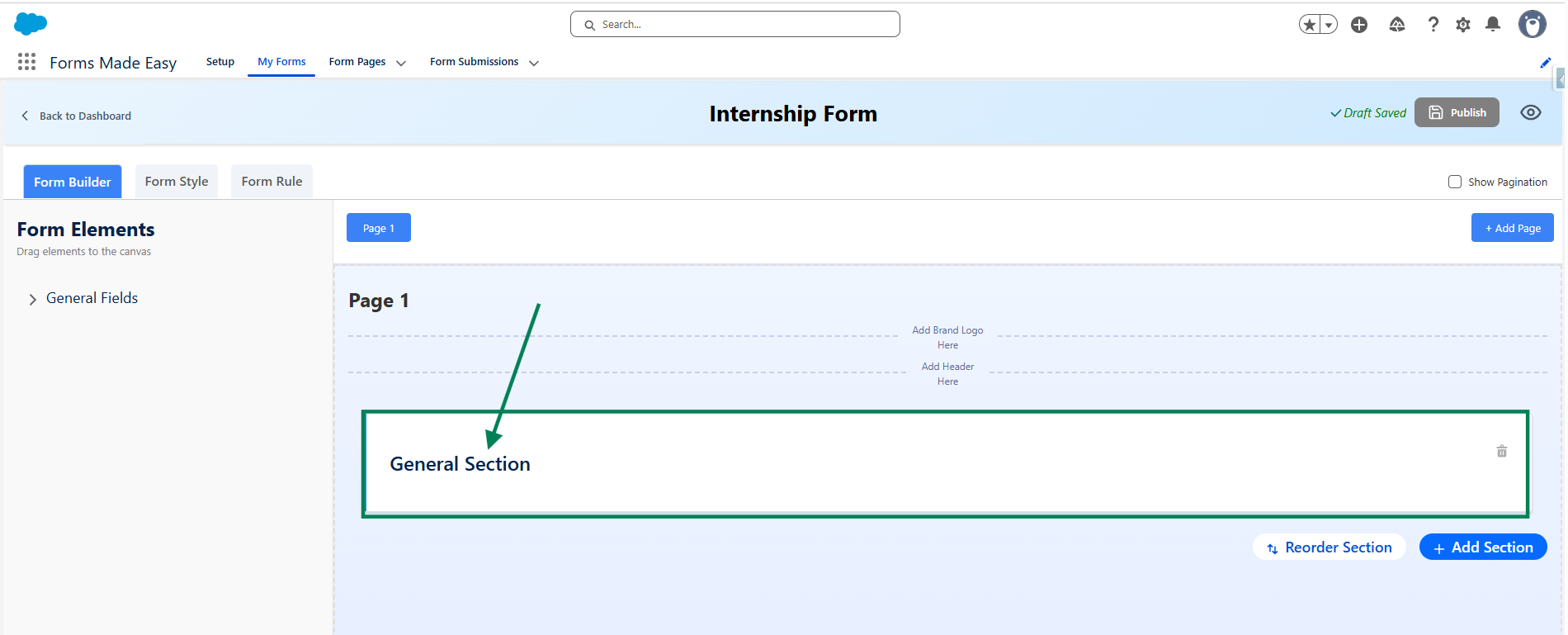
Step 5: Now a configuration side panel will be displayed. In that, enter the Section Name as per your requirement to identify and organize the section appropriately.
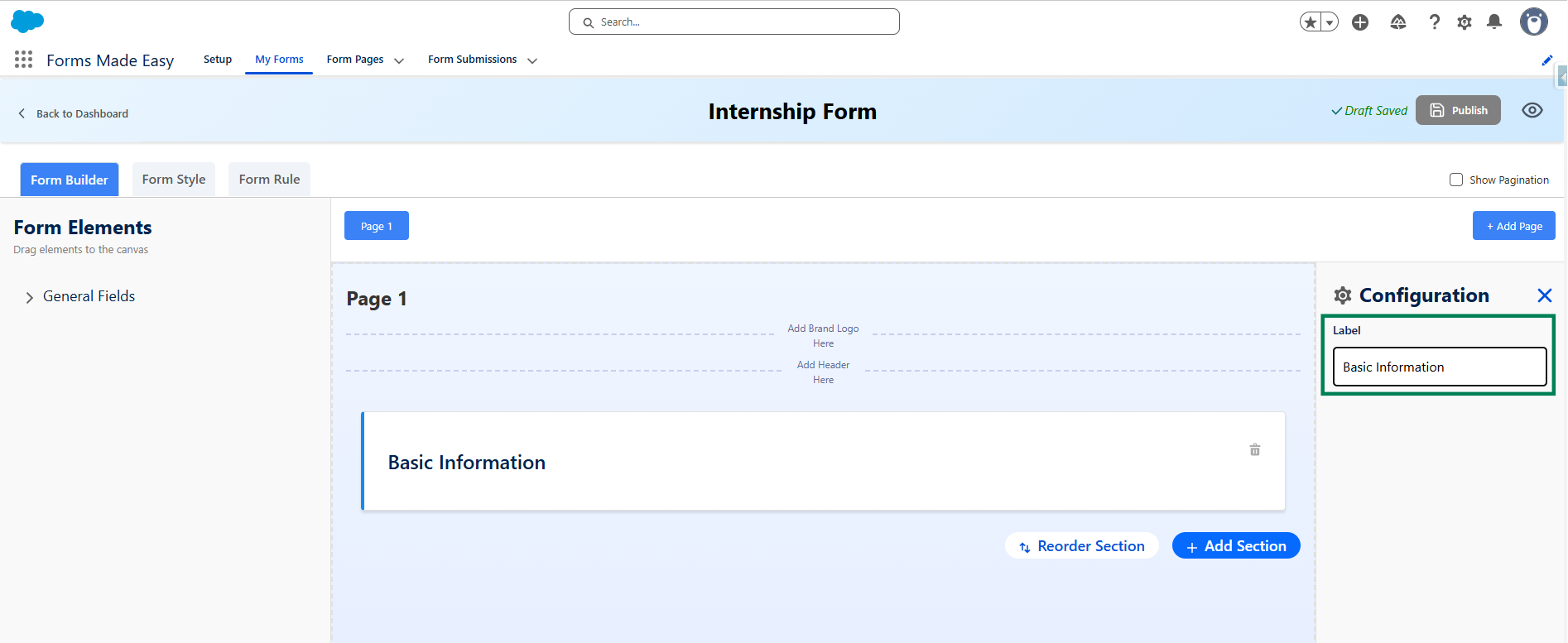
Step 6: Go to the General Fields section.
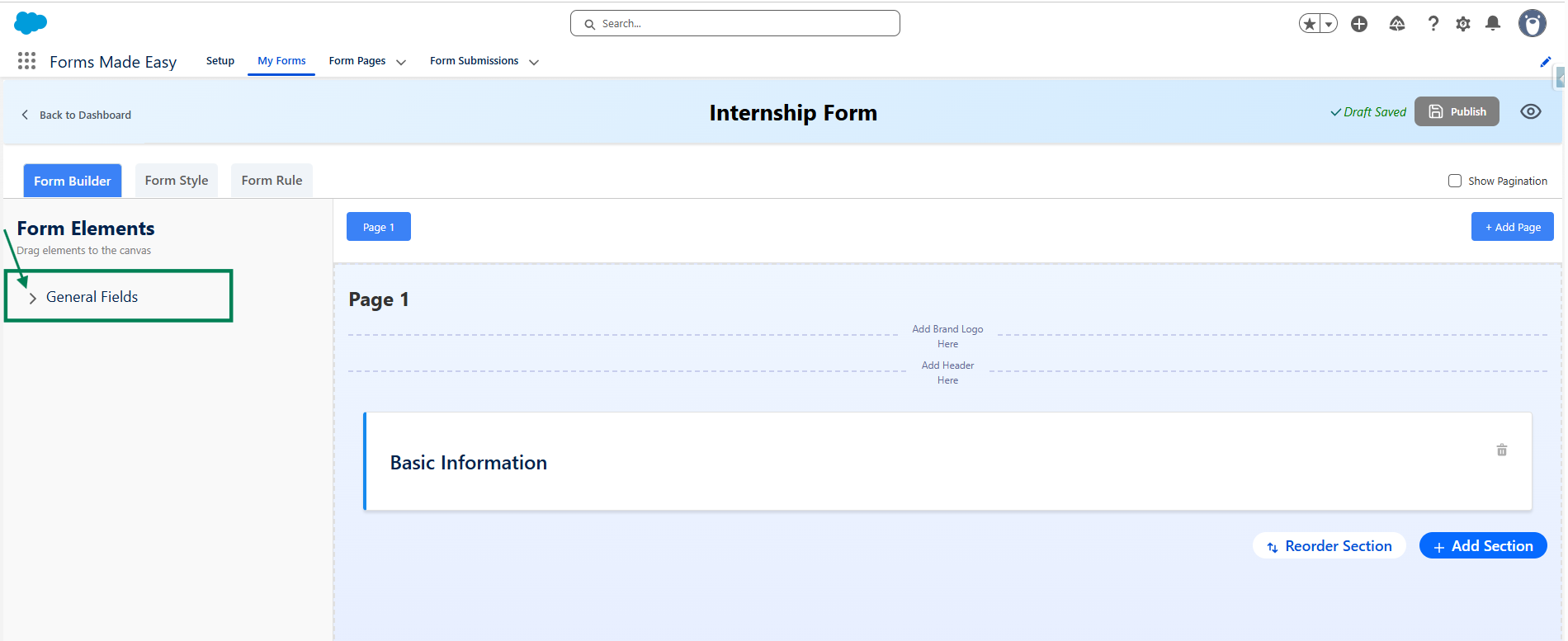
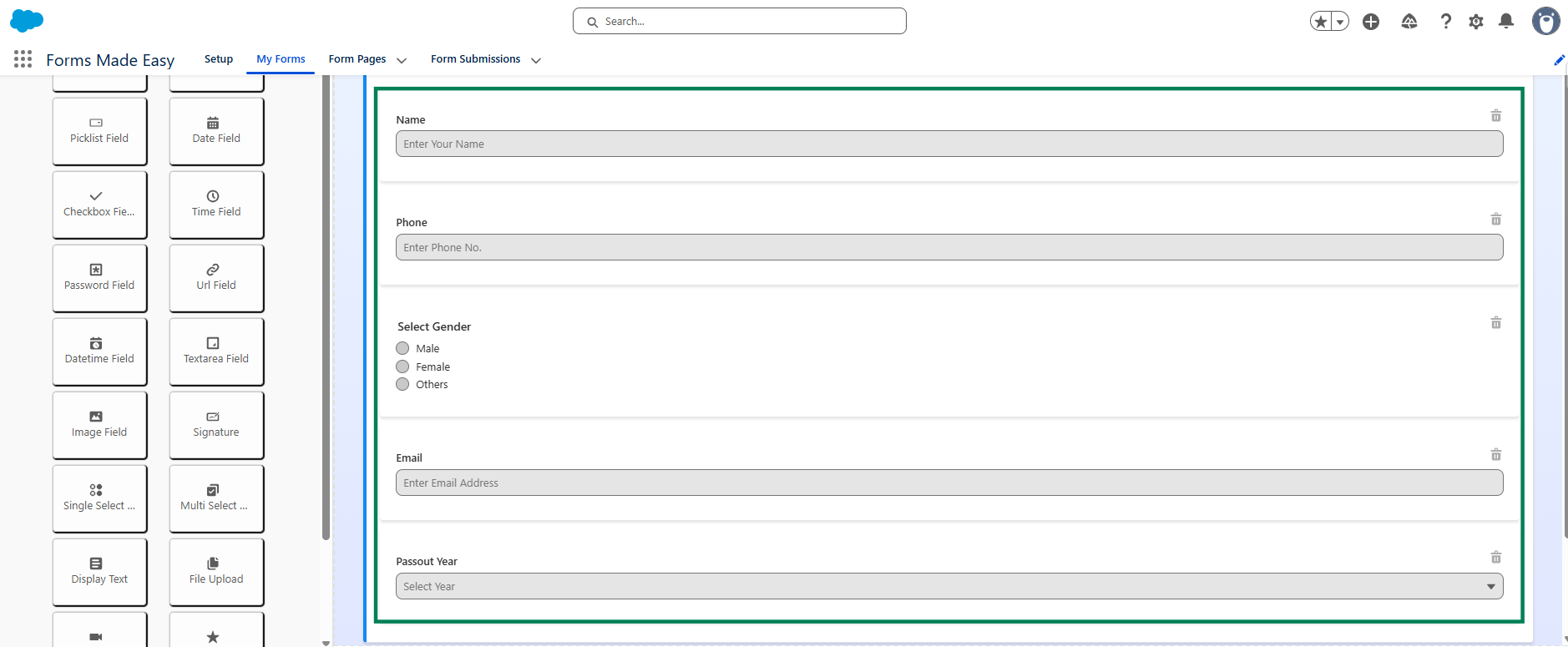
Step 7: Drag and drop your required fields into this section to include them in your form.
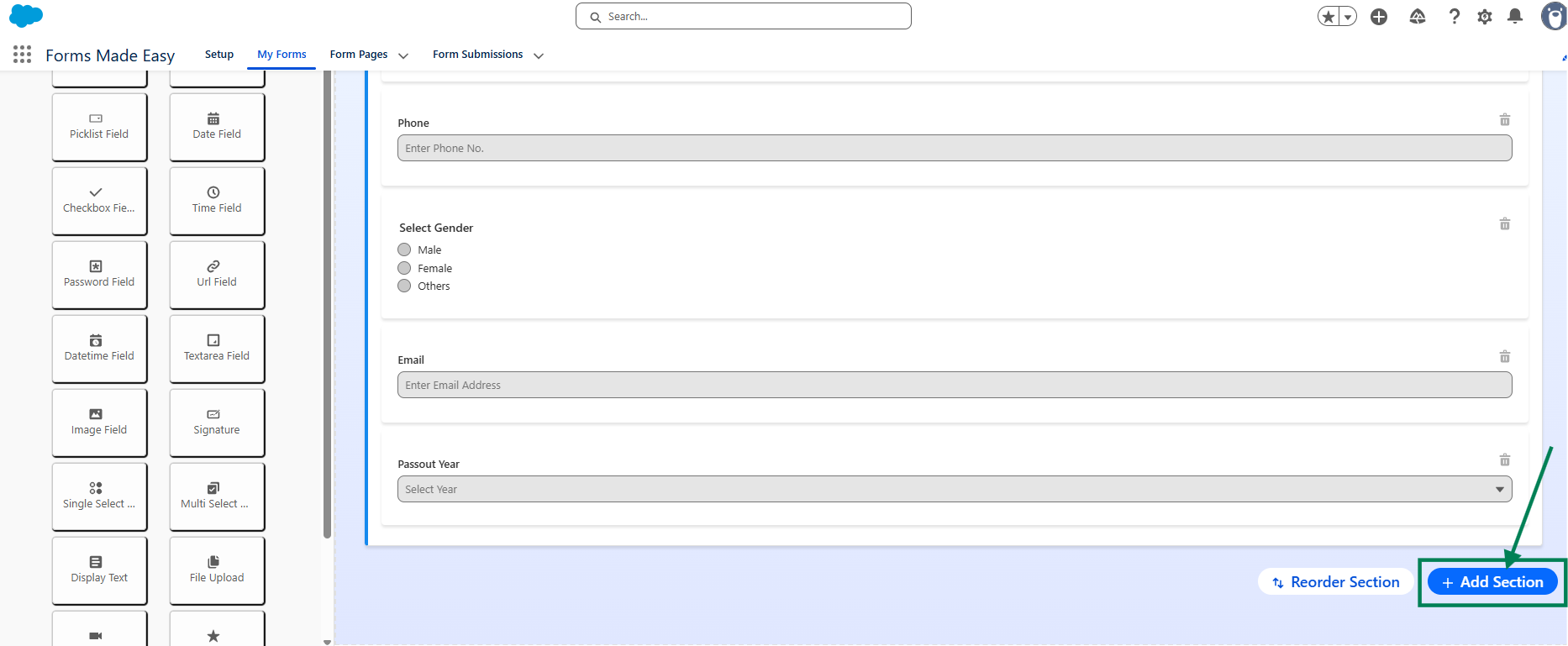
Step 8: Click on the Add section button to add a new section to your form.
Step 9: Click on the New Section Title and enter a name for the section as per your requirements. After that, drag and drop your required fields into this section to include them in your form.
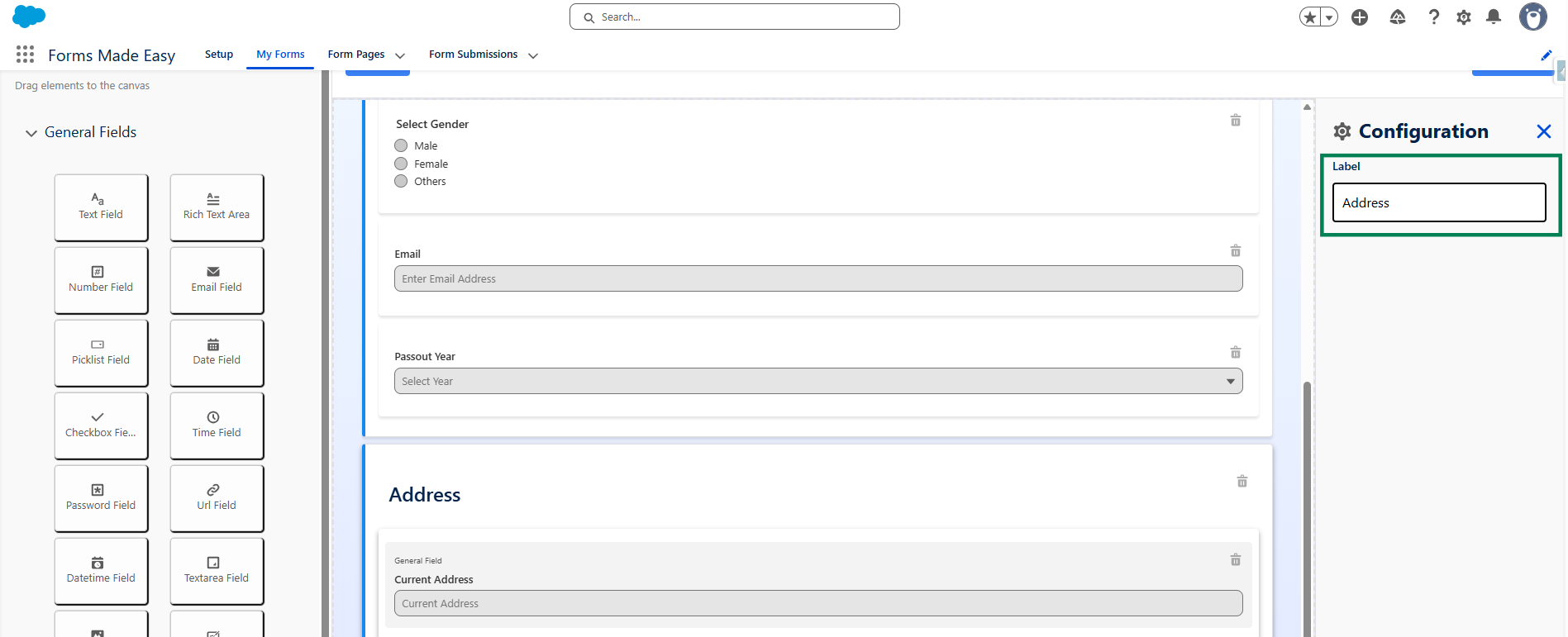
Step 10: After dragging and dropping all the required fields and sections into your form, click on the Form Rule tab to open it and start configuring rules based on specific conditions.
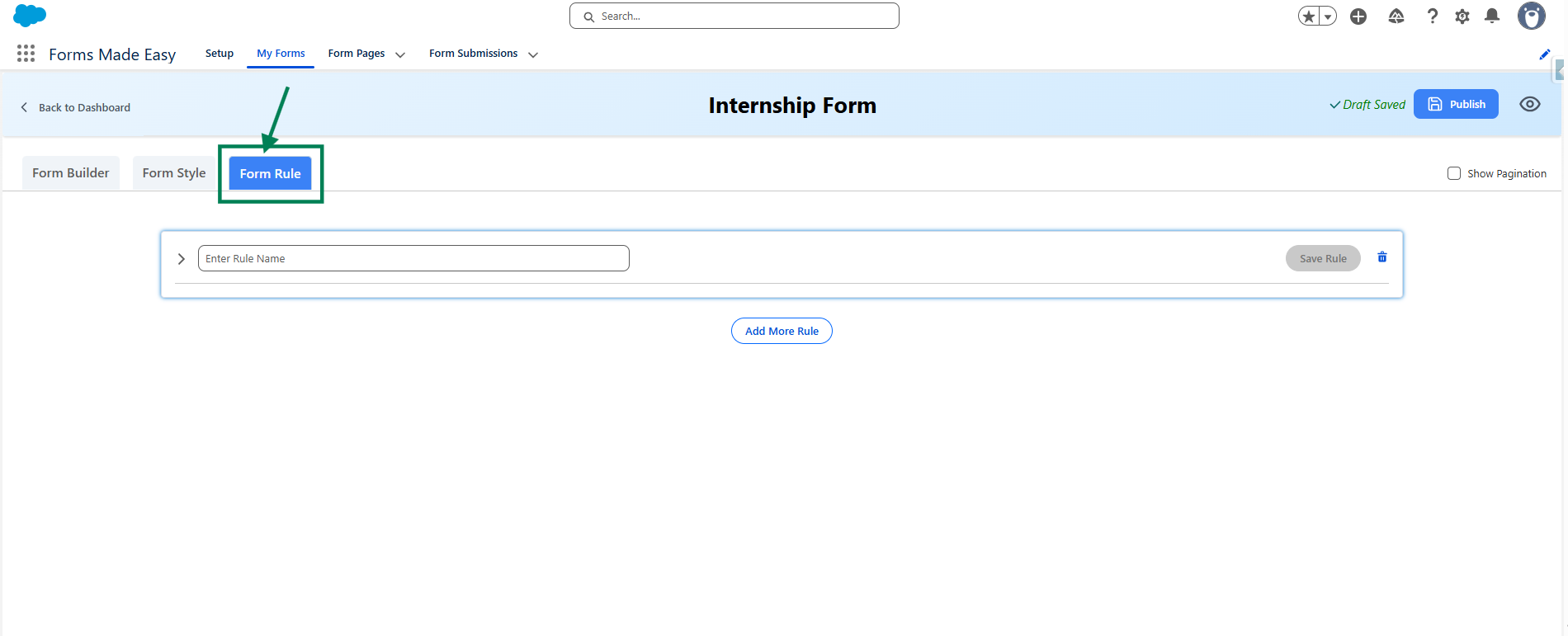
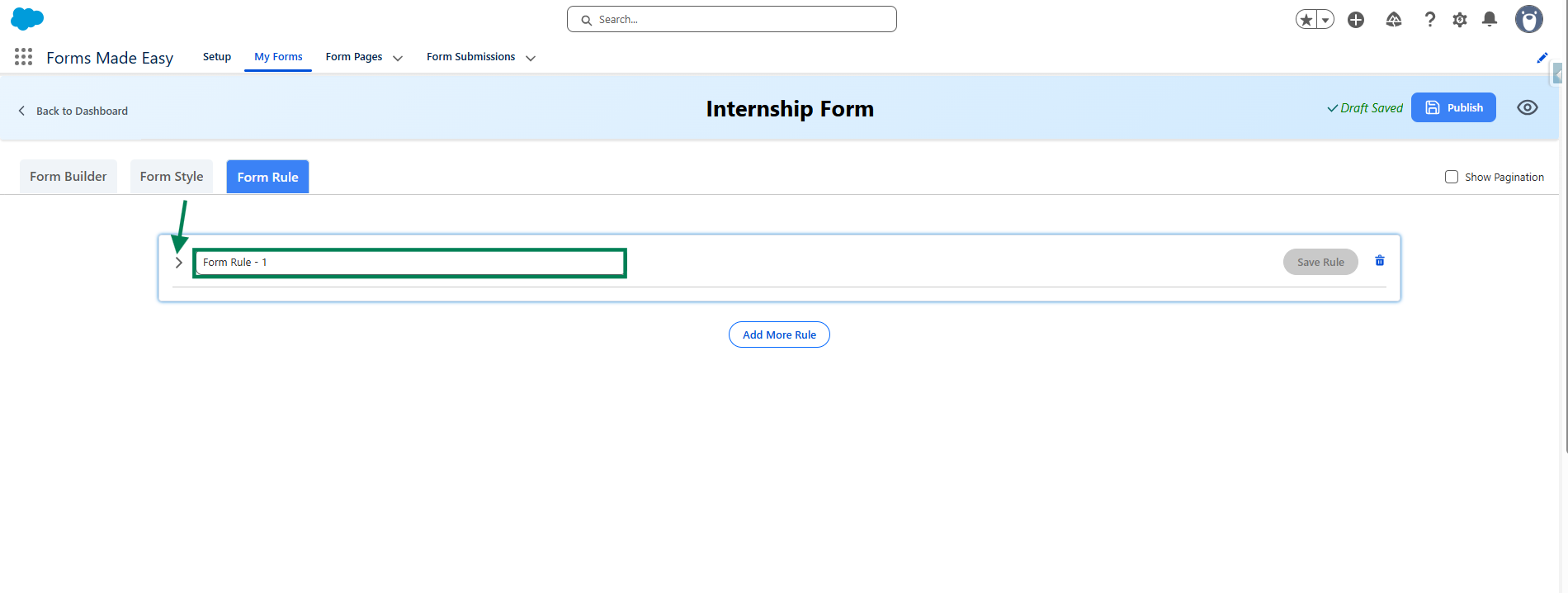
Step 11: Enter a name for the rule in the Enter Rule Name field, then click on “>” to define the specific conditions for the rule.
Step 12: After clicking on “>”, you will be taken to the condition builder. Here, you can set specific conditions that determine when the rule should be triggered. Choose the relevant field, set the condition type (e.g., is equal to, contains, is empty), and then provide the value to match. You can also add multiple conditions using AND/OR logic, depending on your rule requirements.
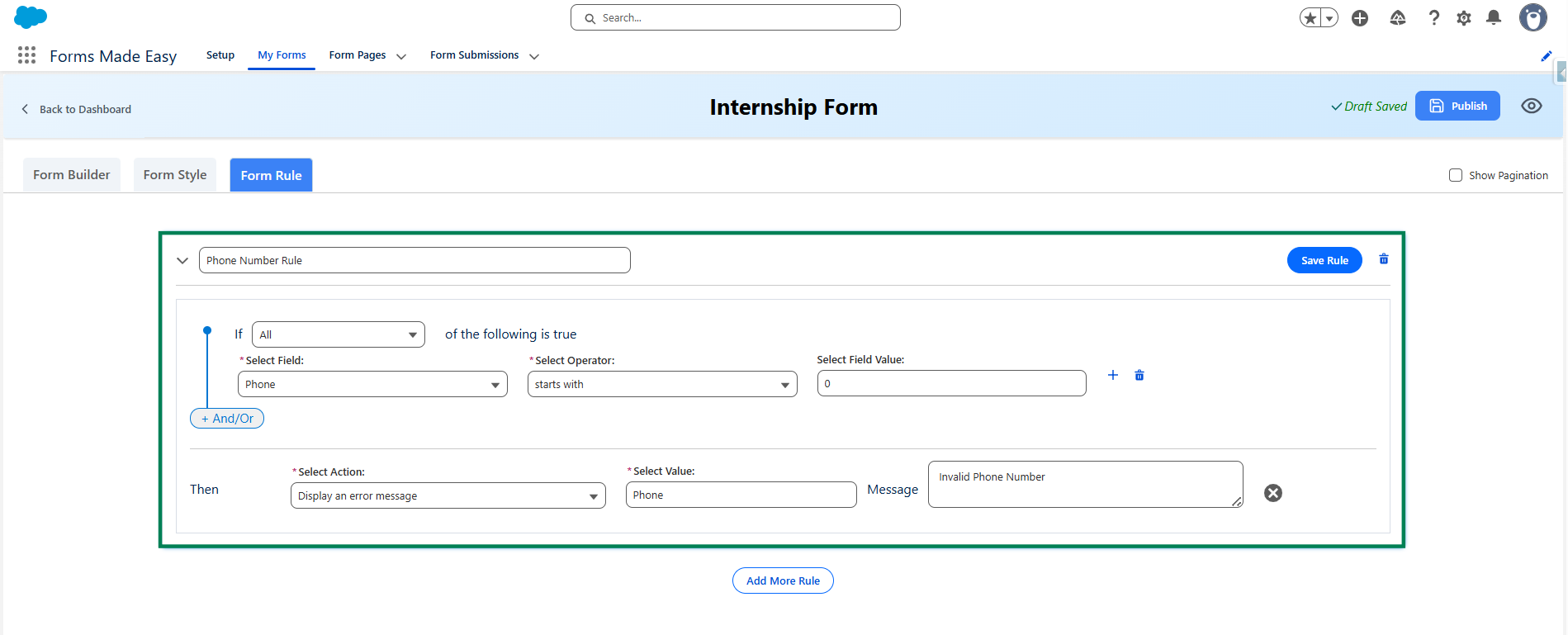
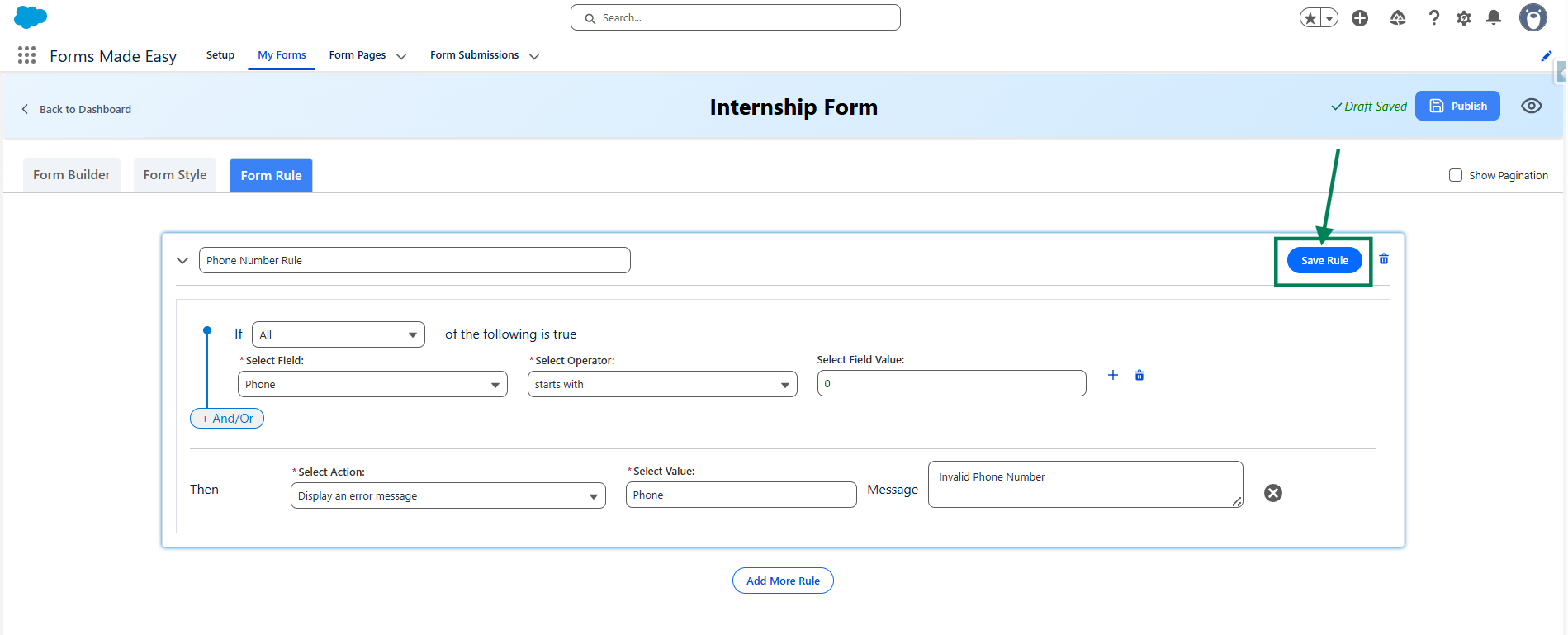
Step 13: Now, click on the Save Rule button to save the rule.
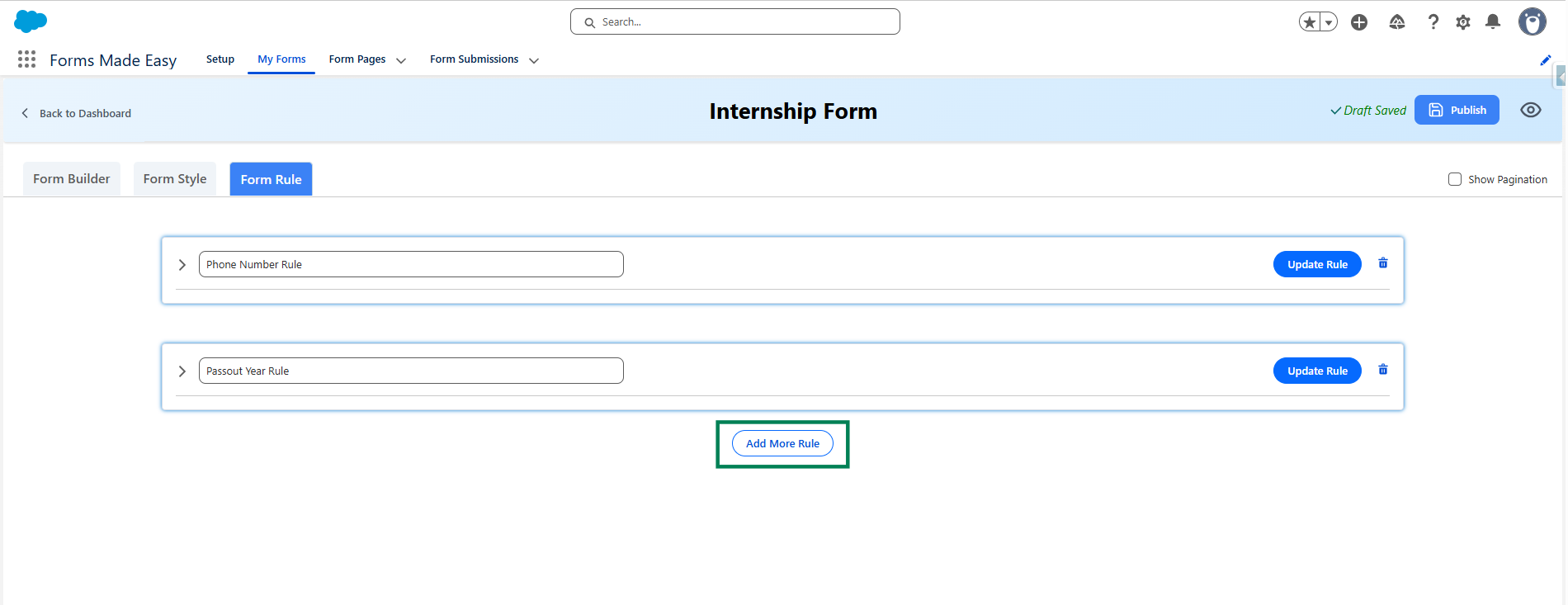
Step 14: Click on the Add More Rule button to create and configure multiple rules within your form.
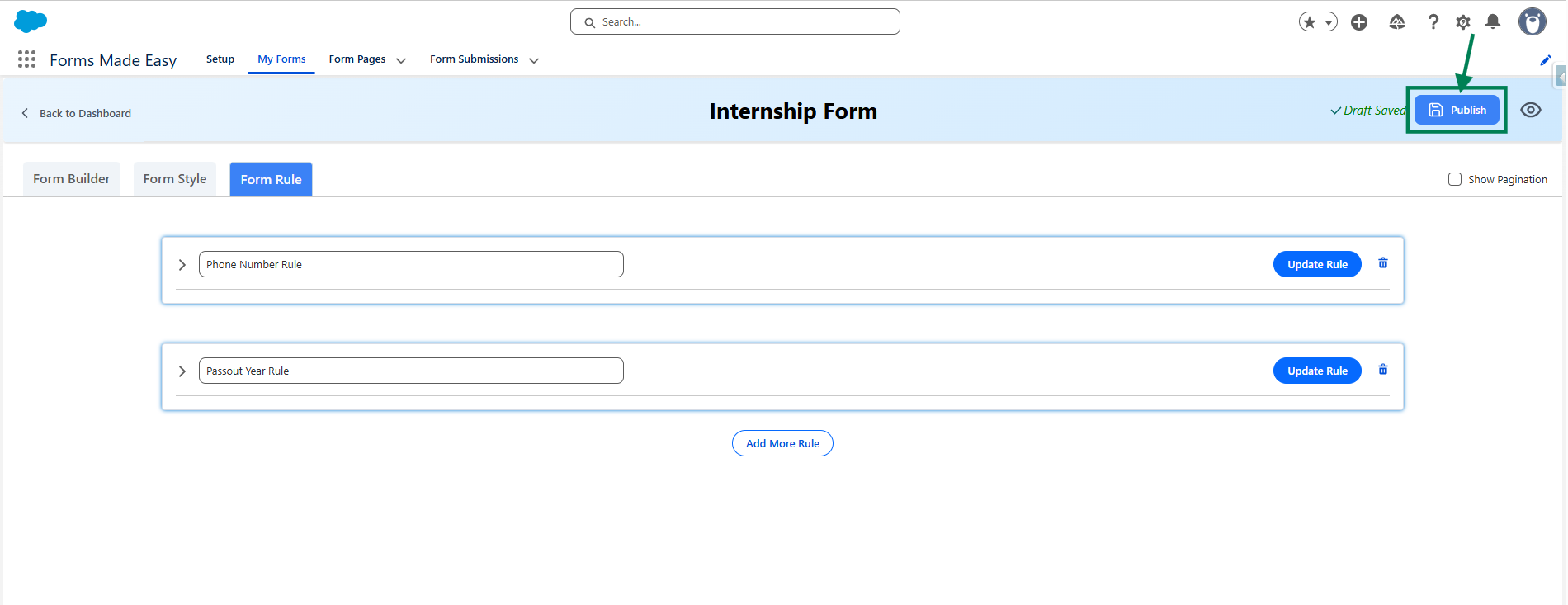
Step 15: After all of that, you can publish the form by clicking the Publish button.
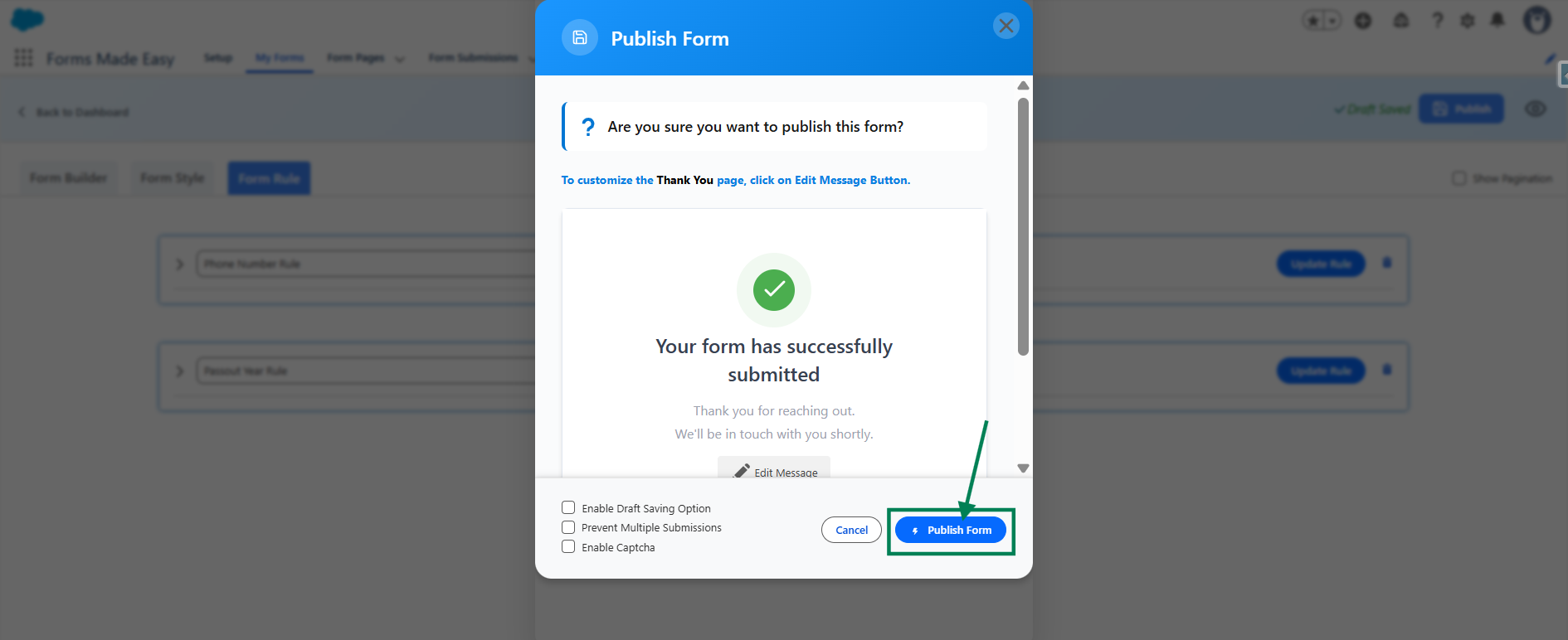
Step 16: Click the Publish Form button.
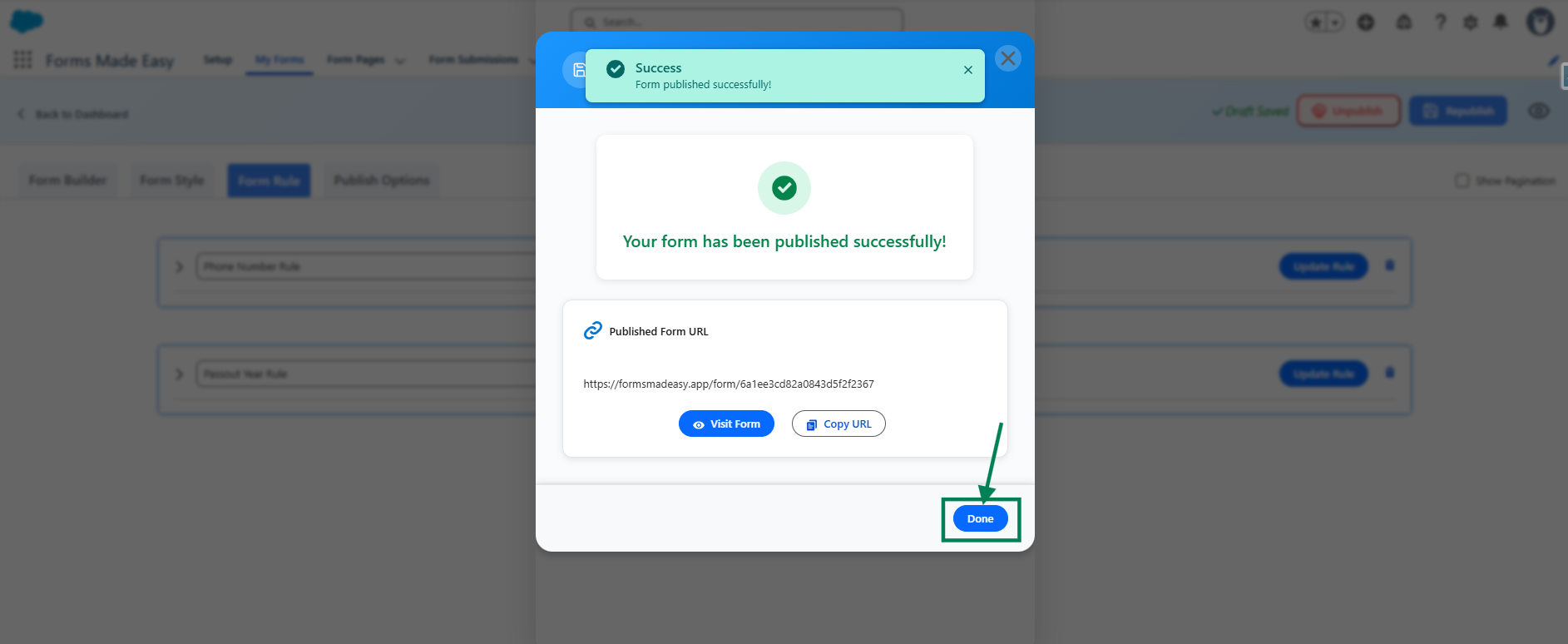
Step 17: Click on Done to close the modal.
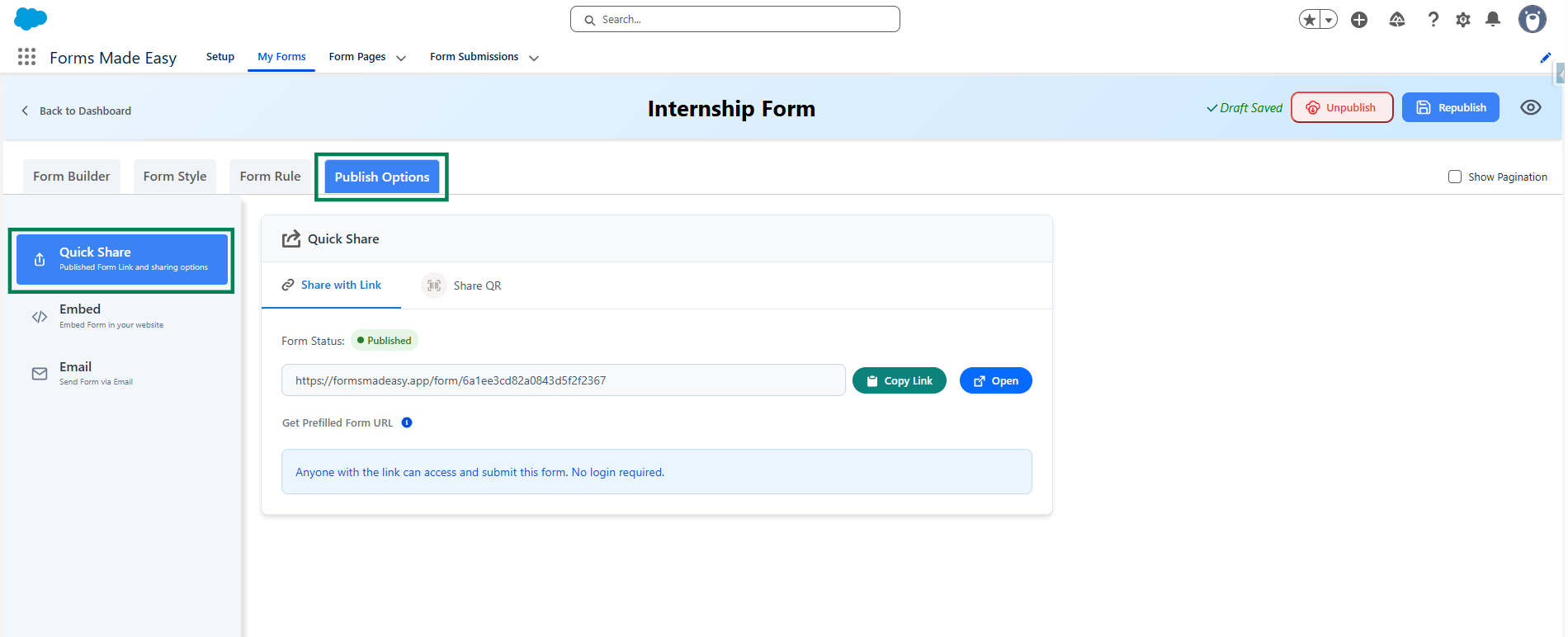
Step 18: Once the form is published, an additional Publish Options tab becomes available.
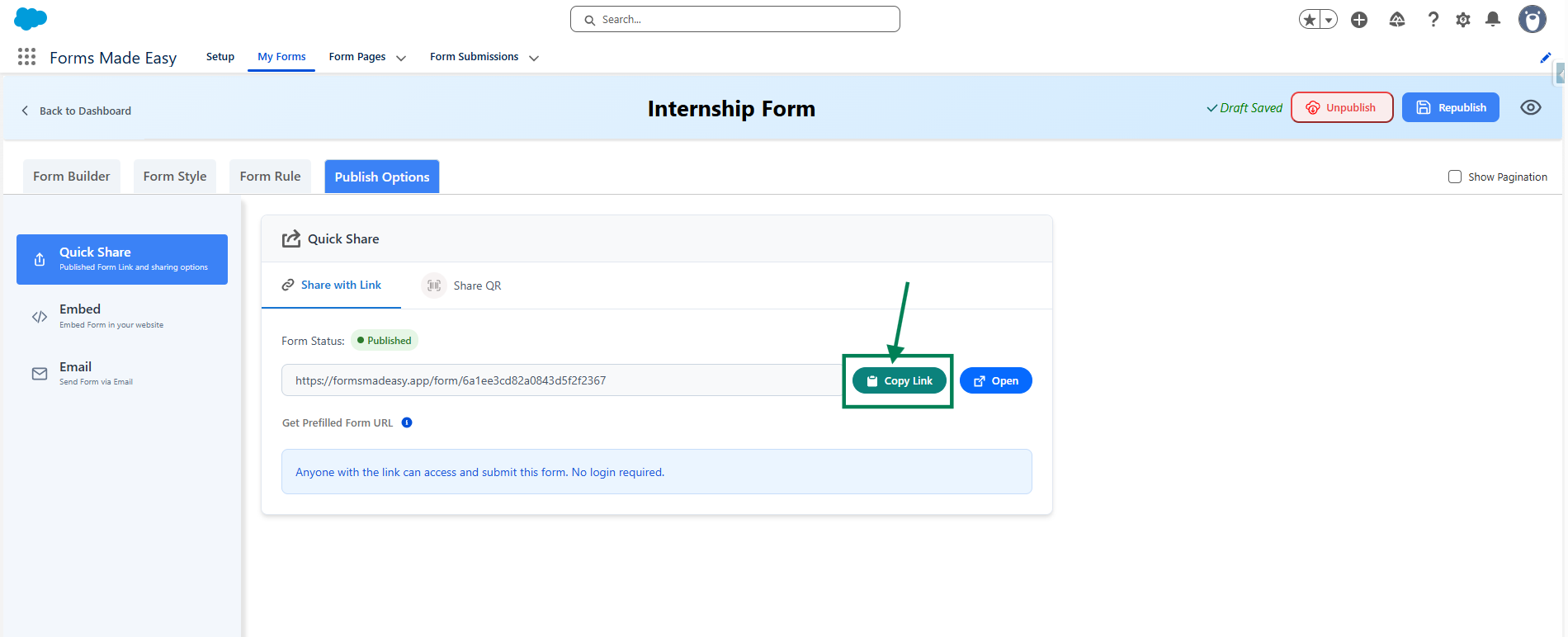
Step 19: Click on the Copy Link button to copy the form URL, which you can then share with others. You can also manually copy the link.
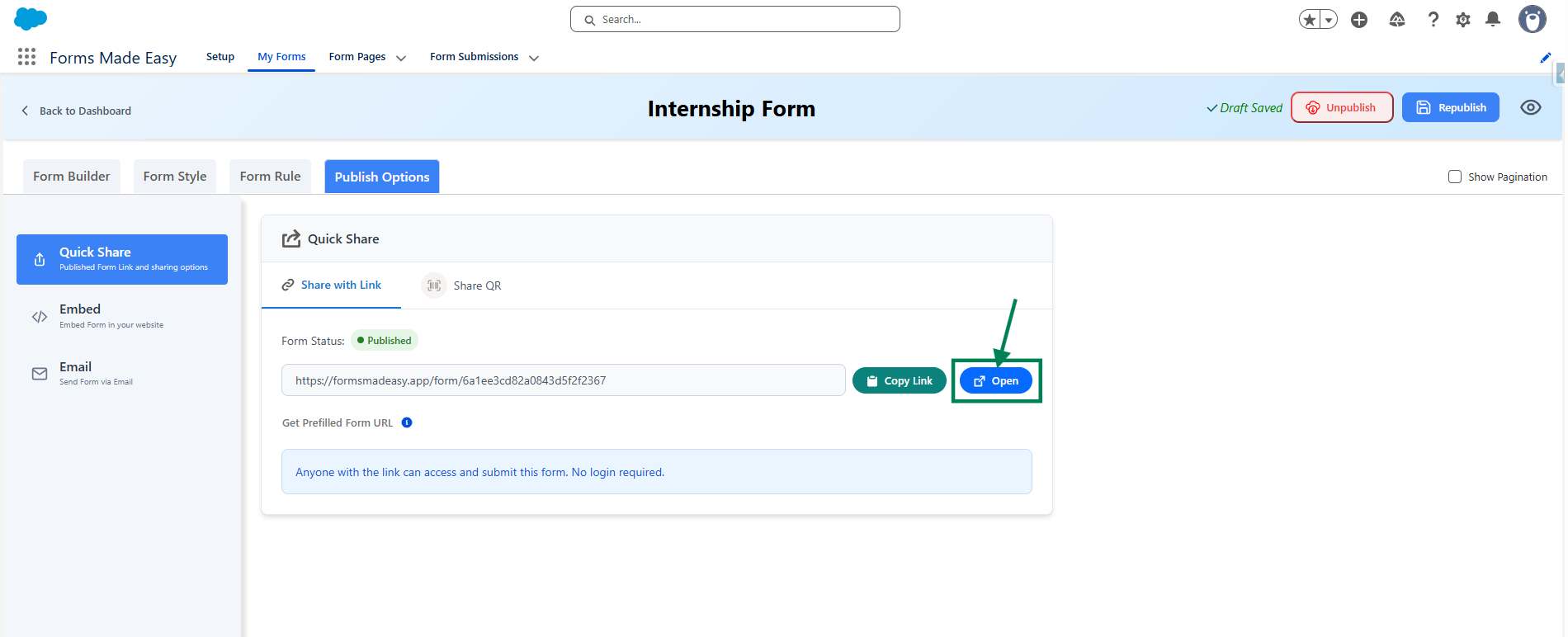
Step 20: Click on the Open button to directly open the form in your web browser.
Step 21: Enter values in the fields to test the configured form rules.
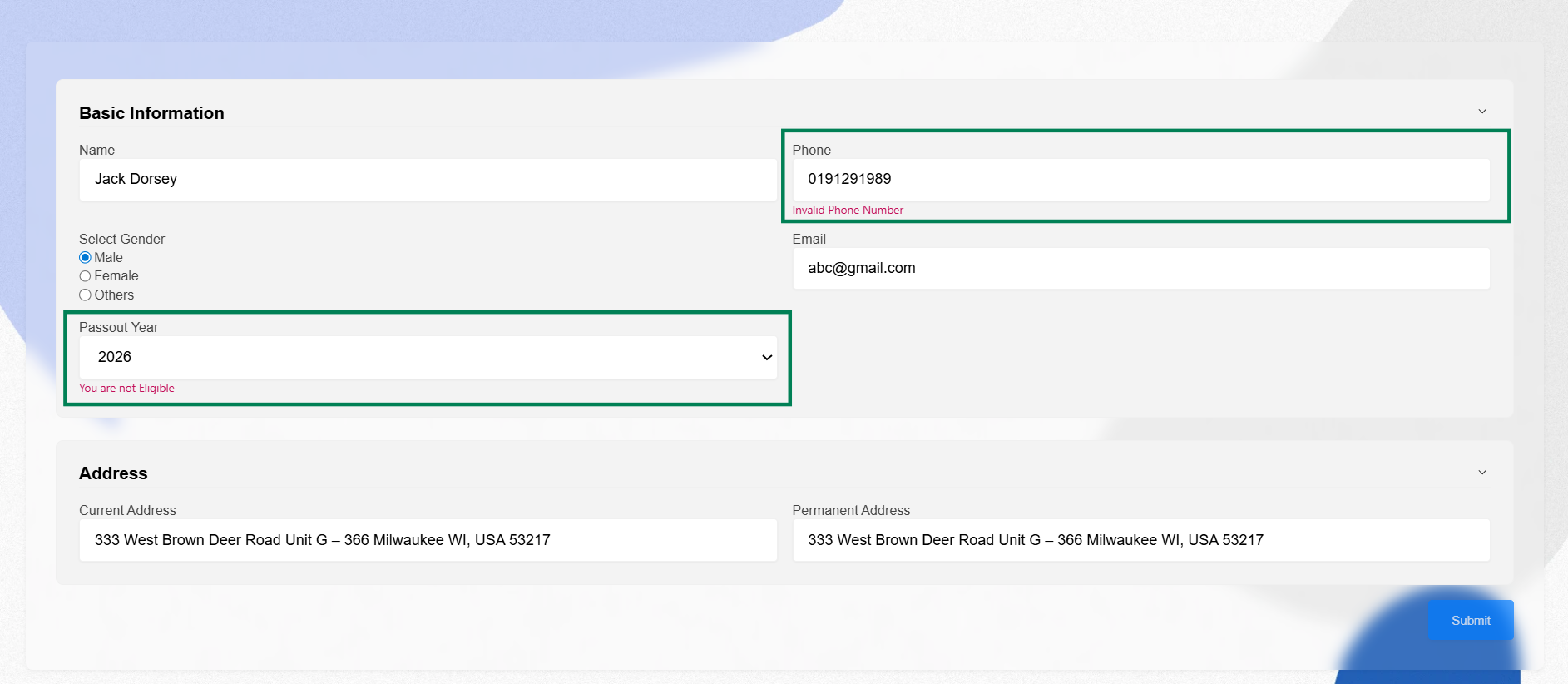
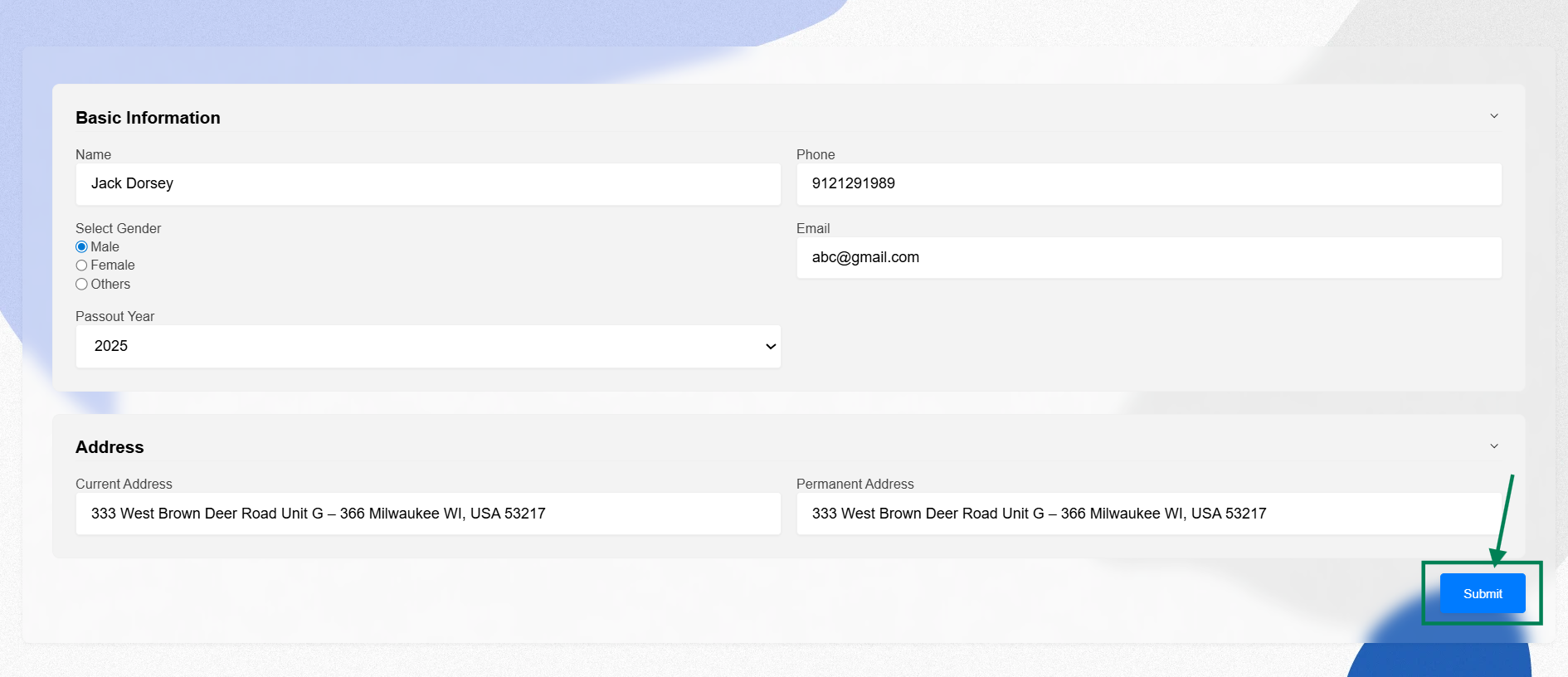
Step 22: Update the values, click the Submit button to submit the records.
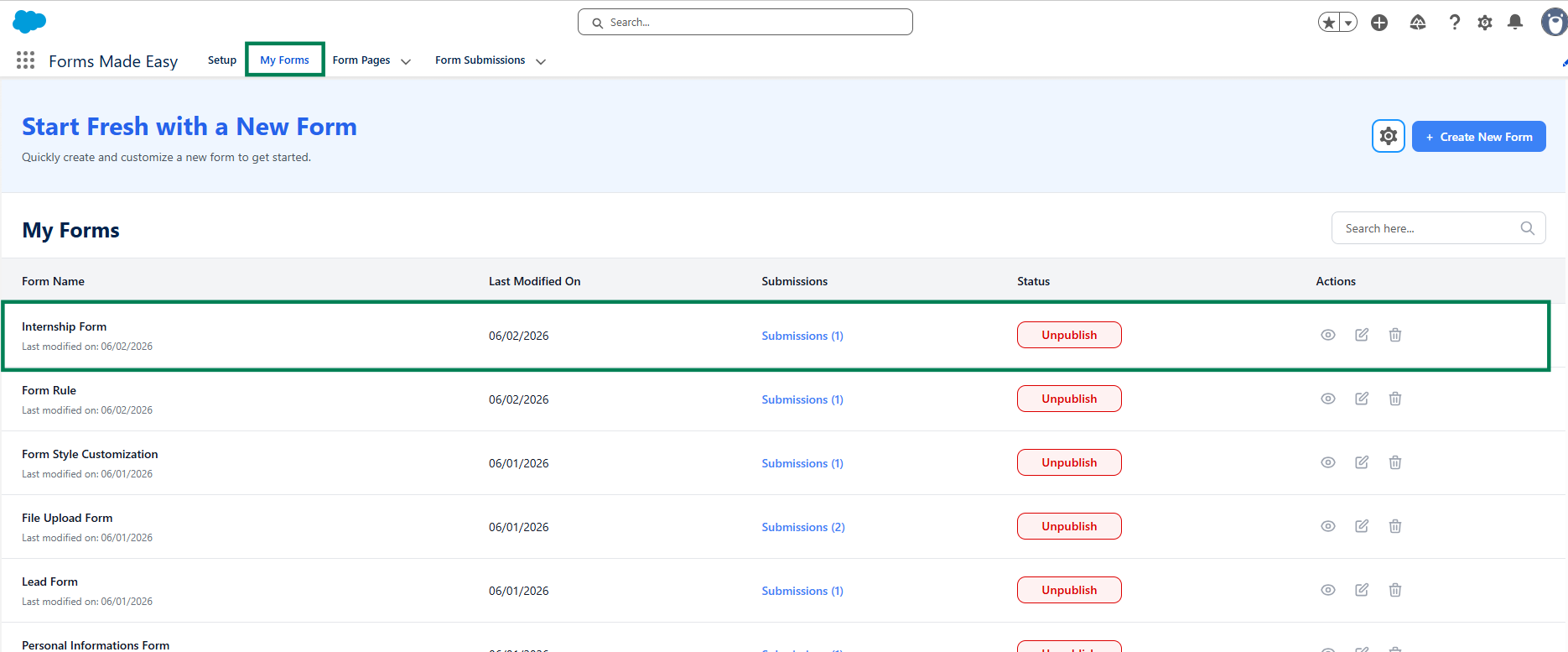
Step 23: Go to the My Forms tab and refresh the page.
Step 24: Click on the Submission button of that form.
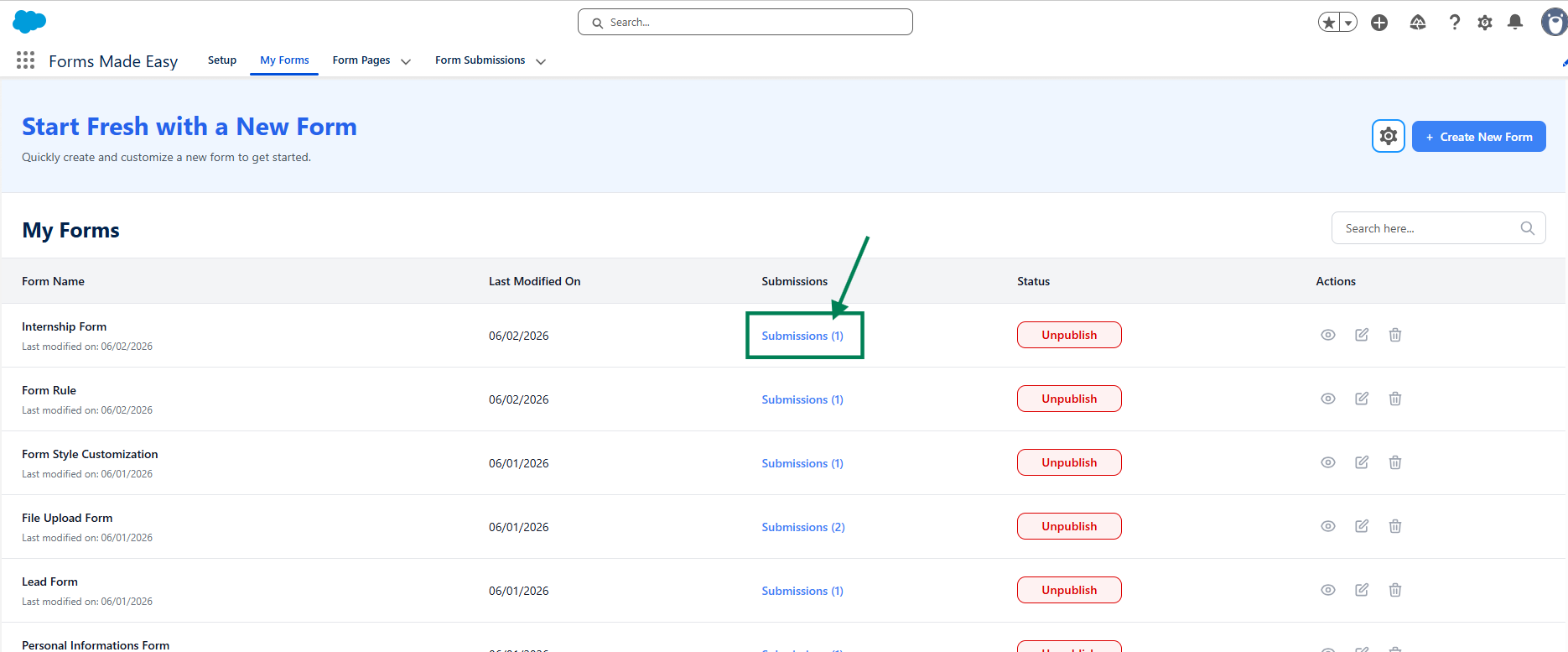
Step 25: Here, all submissions for that form will be displayed.
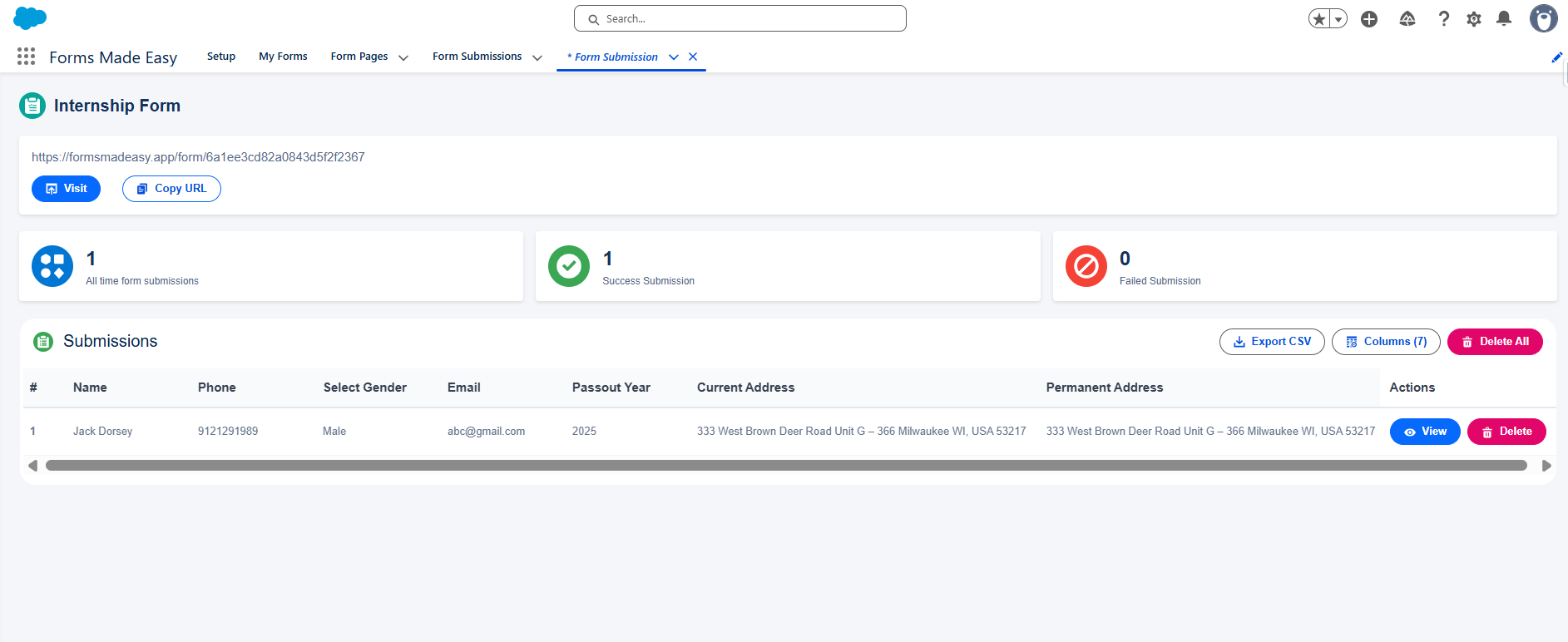
Step 26: Click on View button to view the submitted form data.
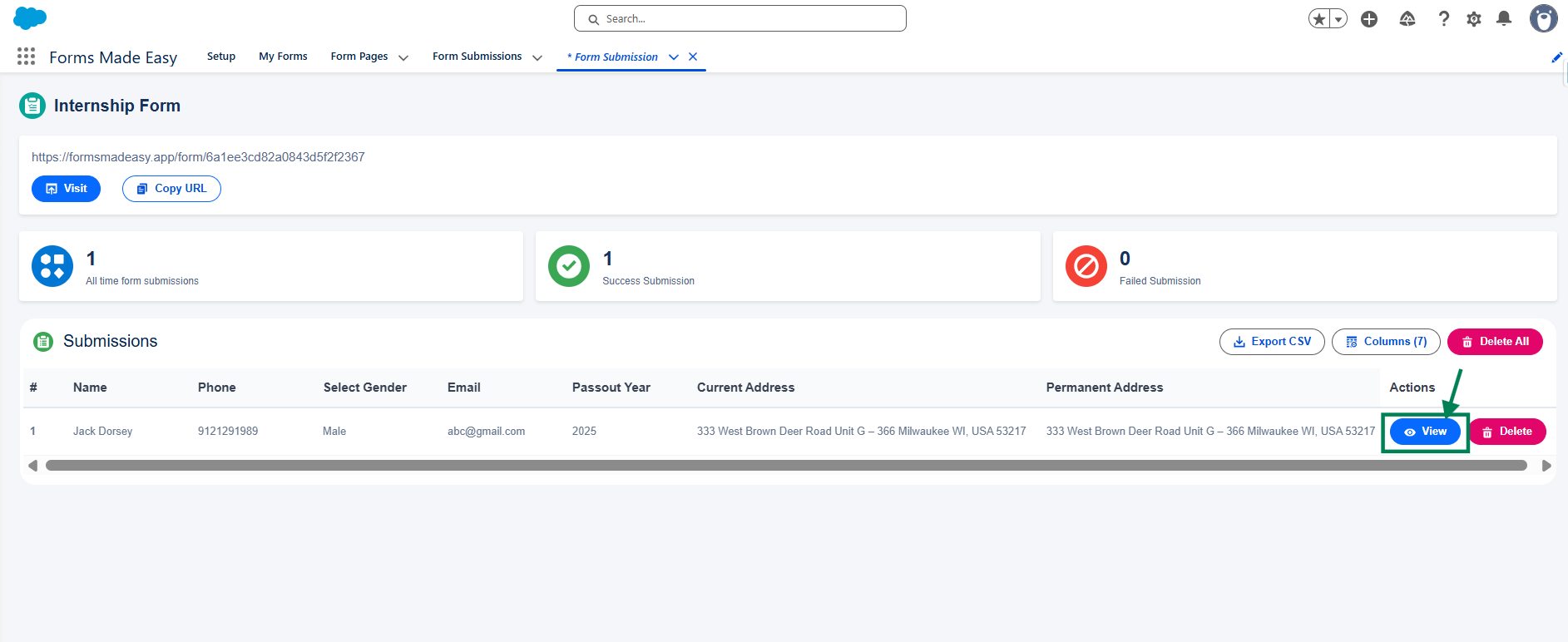
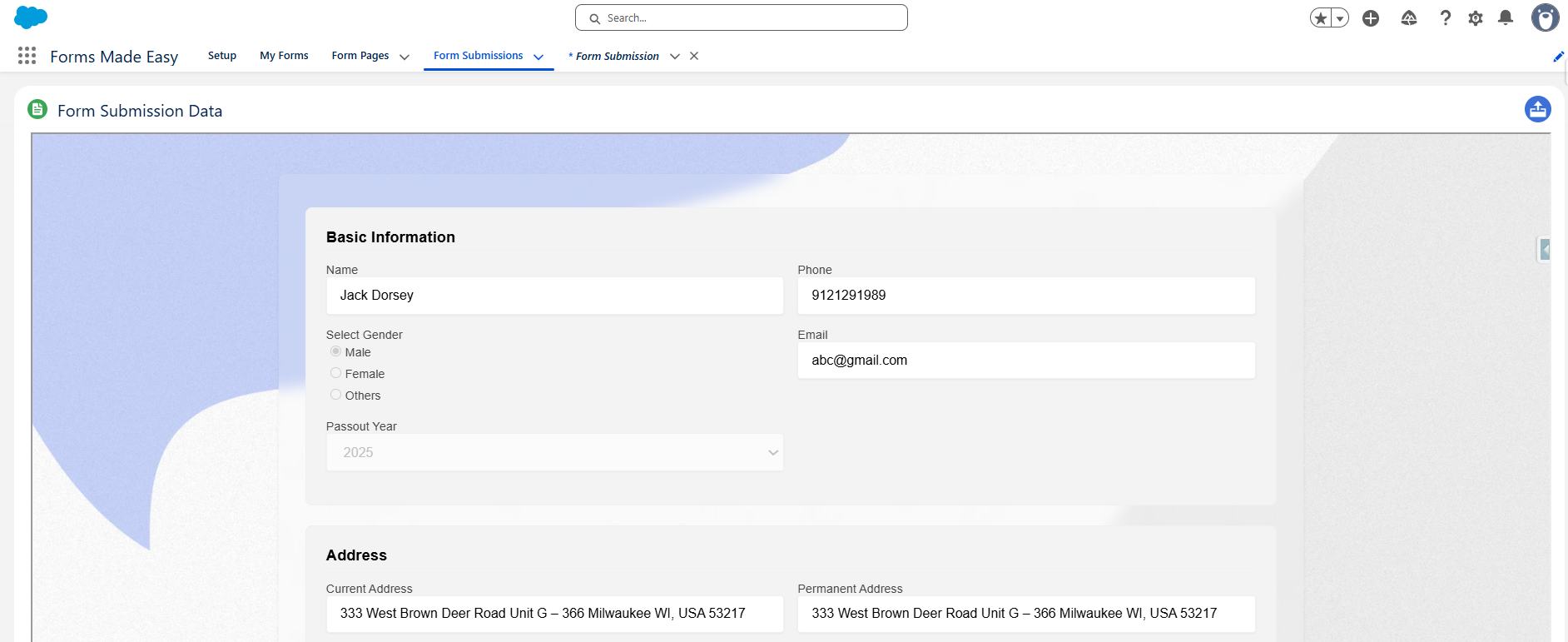
Step 27: The submitted records will appear as shown below.
We hope this article helps! If you still face any issues, feel free to contact us at support@formsmadeasy.com.
Was this article helpful?
That’s Great!
Thank you for your feedback
Sorry! We couldn't be helpful
Thank you for your feedback
Feedback sent
We appreciate your effort and will try to fix the article