In this blog, we will walk through how to use the Form Rule feature to apply rules based on specific conditions in your form.
The Form Rule functionality is useful when you want to customize form behavior by setting conditions that trigger certain actions, such as showing or hiding fields, making fields required, Display an error message, Display message, and Make the fields read only.
To get started, create your form with the necessary fields. Once the form is created, the Form Rule tab becomes available. Under this tab, you can define rules by specifying conditions and the corresponding actions to take when those conditions are met.
Using the Form Rule tab, you can enhance the form experience by tailoring it to your specific requirements, ensuring that users see and complete only the relevant fields based on their input.
A Step-by-Step Guide to Creating Forms and Using Form Rules -
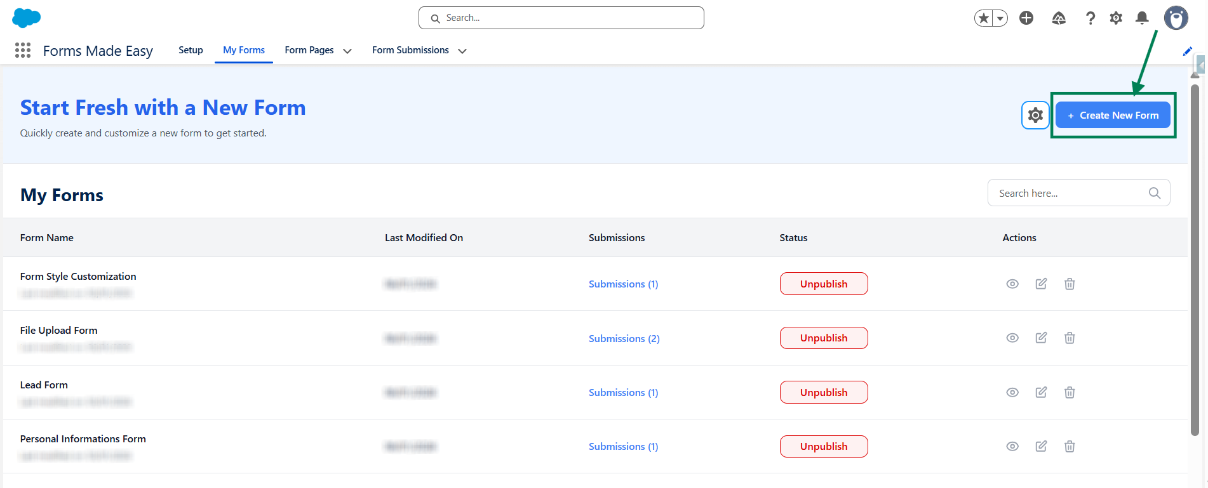
Step 1: Go to the My Forms tab and click on the "Create New Form" button.
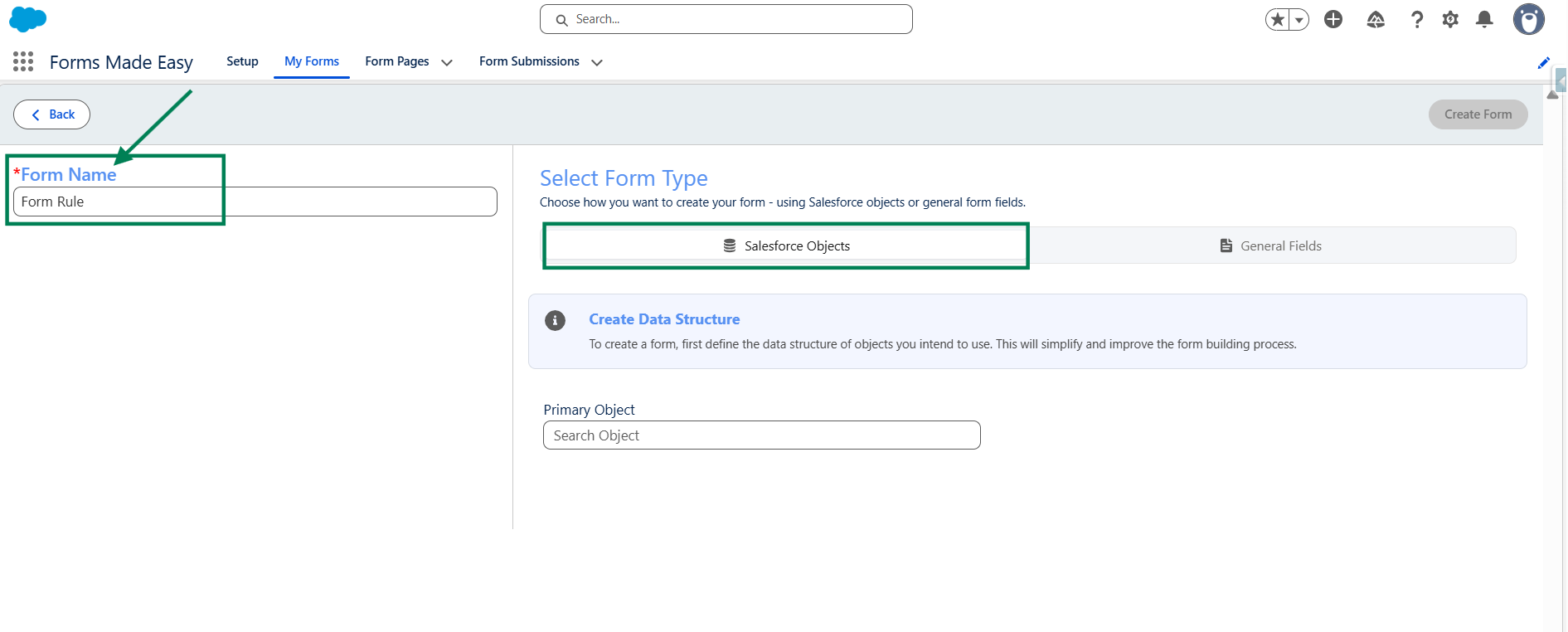
Step 2: Enter the form name and select the form type (Salesforce Objects or General Fields).
- Currently I have chosen the Salesforce Object option.
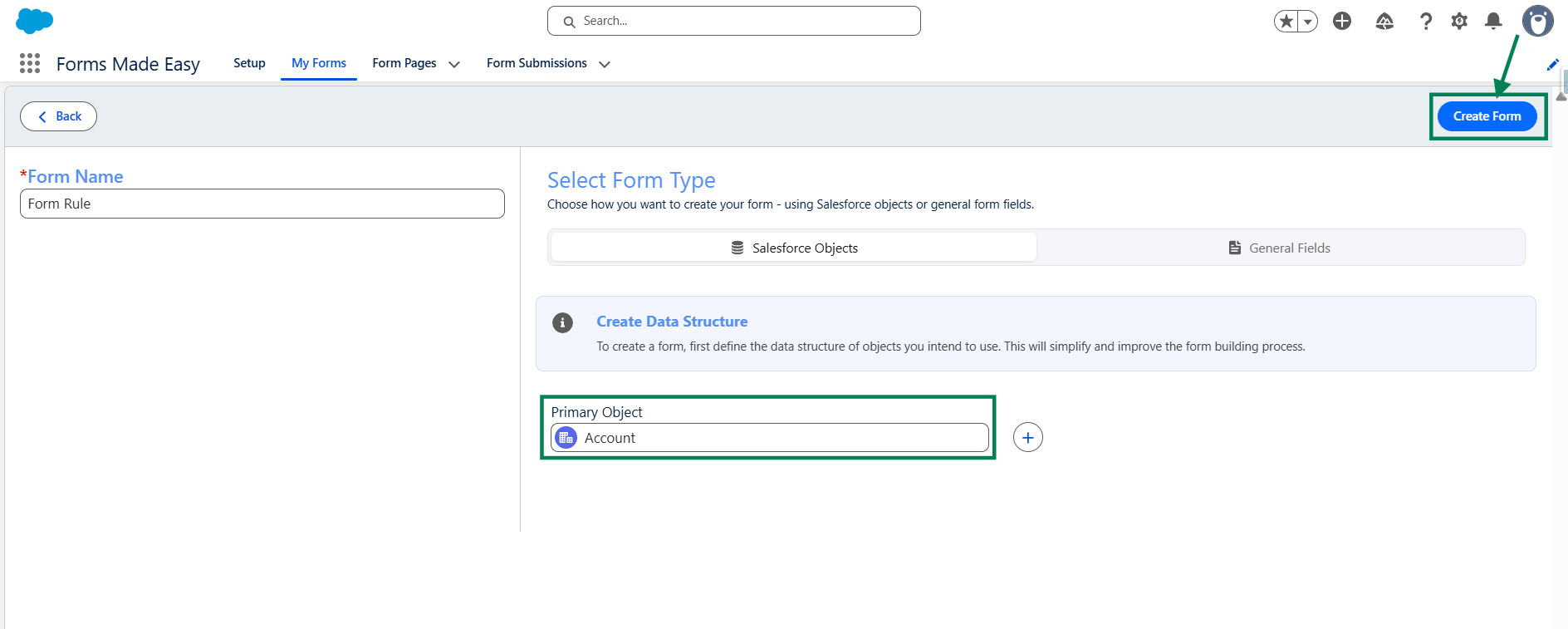
Step 3: Select "Account" as the Primary Object and click the "Create Form" button.
Step 4: Go to the Object Fields section and click on "Account".
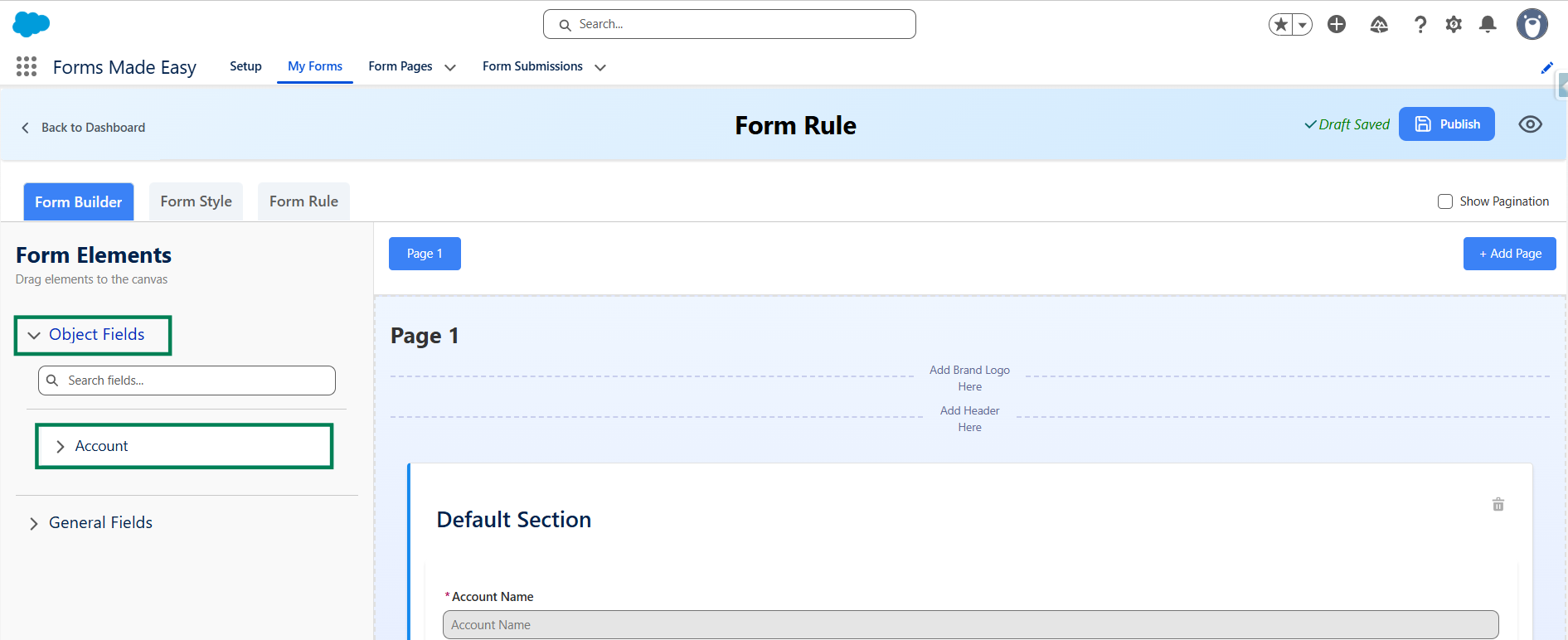
Step 5: Drag and drop your required fields onto the form.
Note: The Account Name field is a mandatory field on the Account Object in Salesforce.
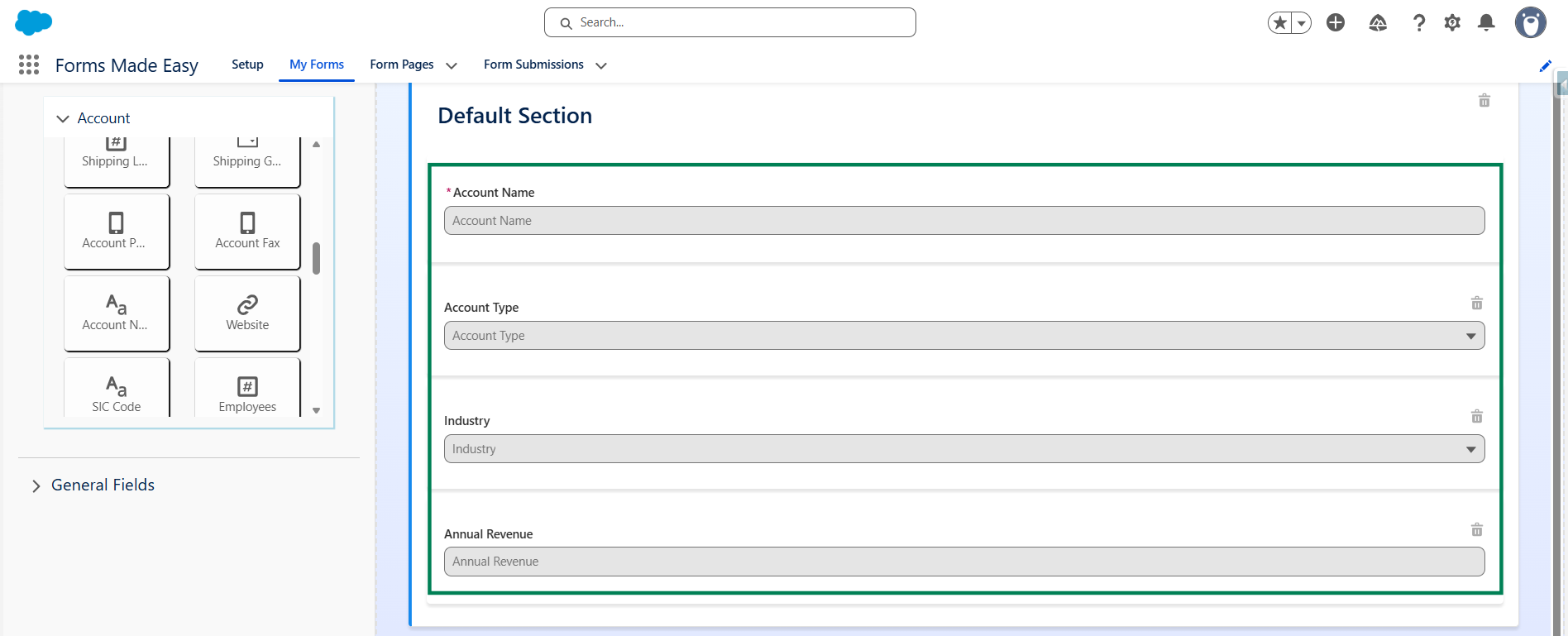
Step 6: After dragging and dropping all the required fields into your form, click on the "Form Rule" tab to open it and start configuring rules based on specific conditions.
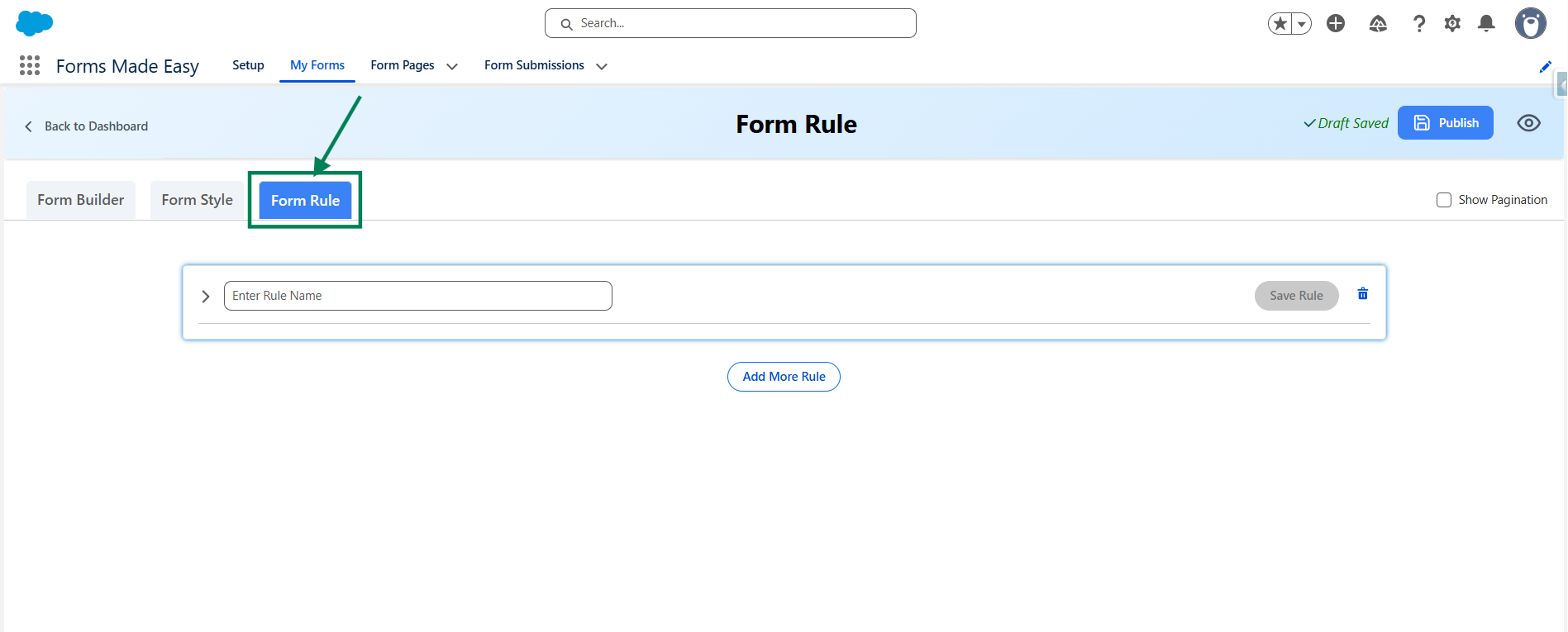
Step 7: Enter a name for the rule in the Enter Rule Name field, then click on ">" to define the specific conditions for the rule.
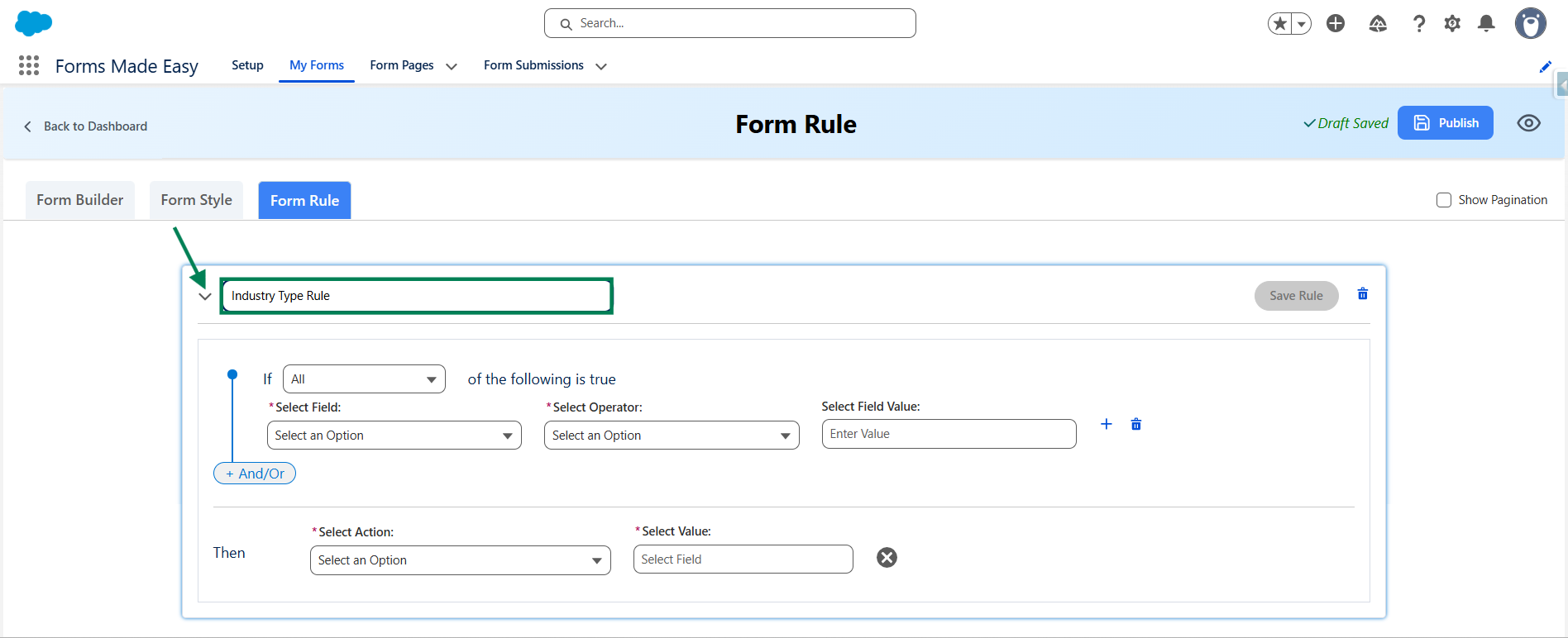
Step 8: After clicking on ">", you will be taken to the condition builder. Here, you can set specific conditions that determine when the rule should be triggered. Choose the relevant field, set the condition type (e.g., is equal to, contains, is empty), and then provide the value to match. You can also add multiple conditions using AND/OR logic, depending on your rule requirements.
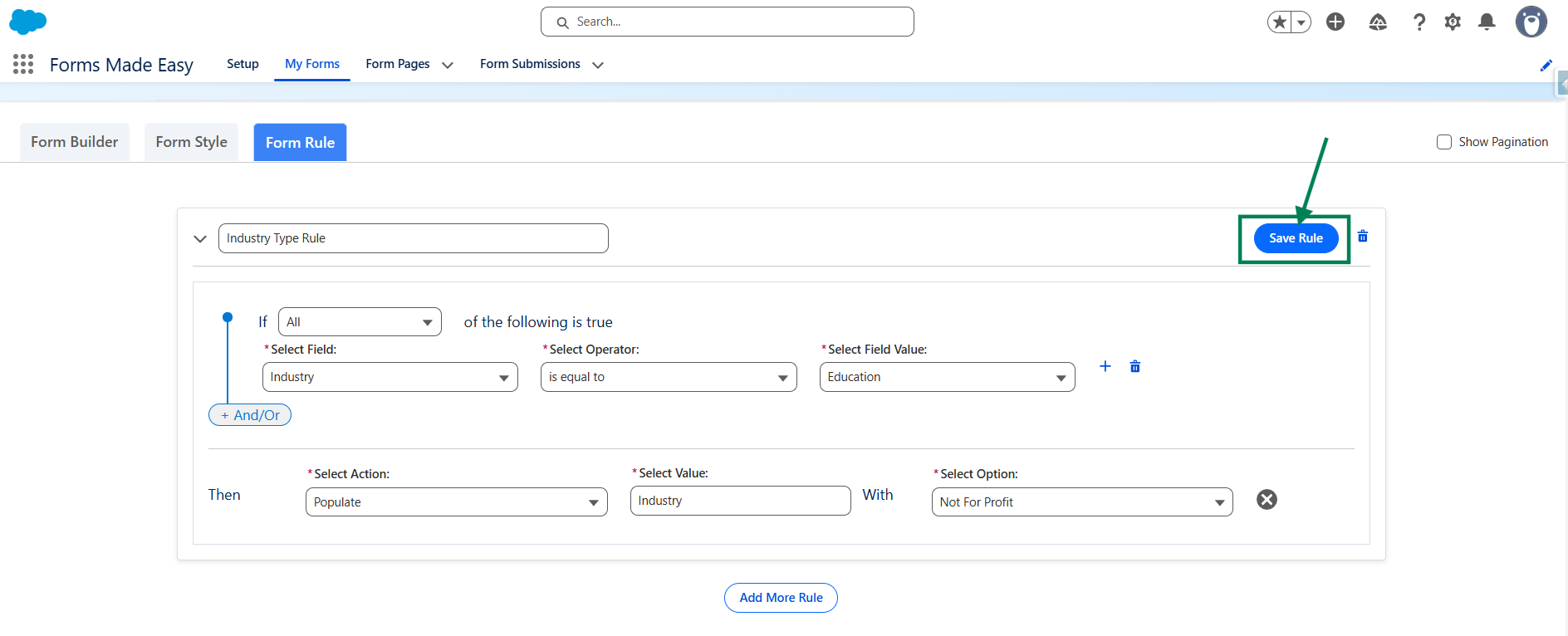
Note: In this case, we use the condition : If the Account Type is equal to Technology Partner, then the Industry field will be populated with the value Consulting.
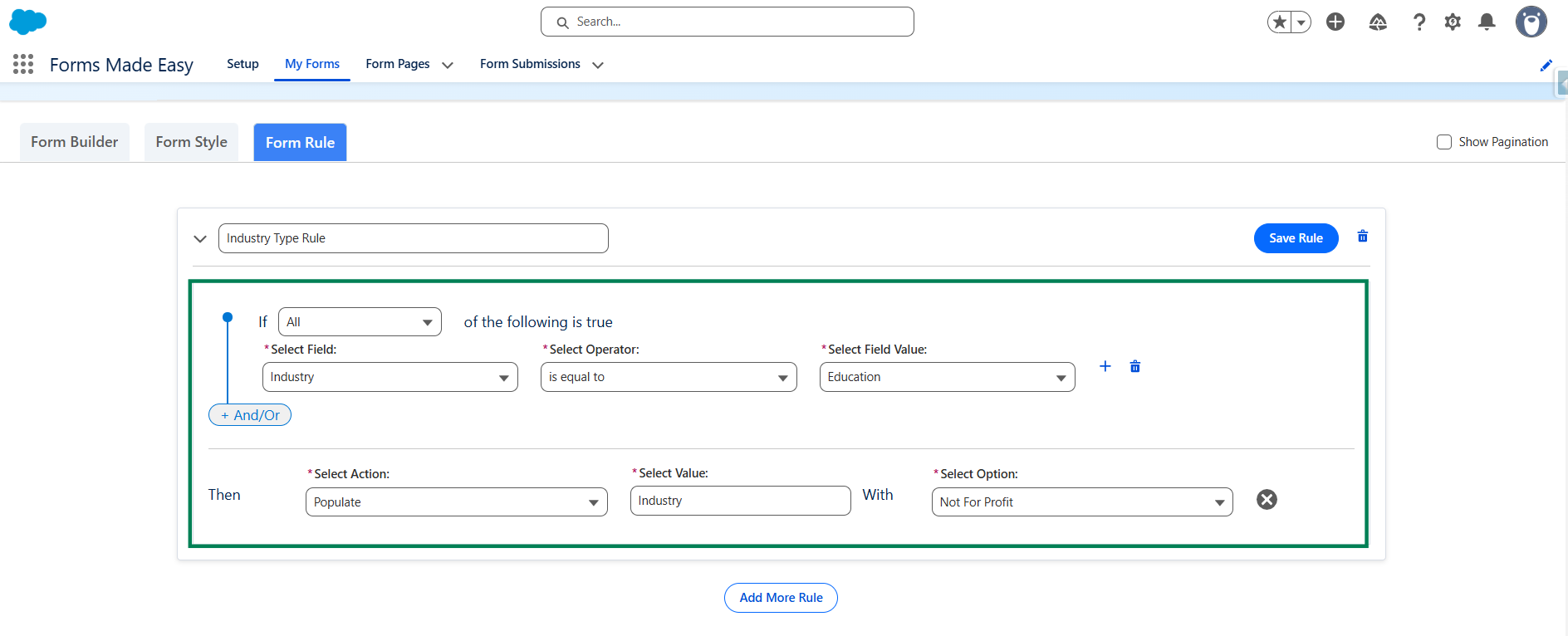
Step 9: Now, click on the "Save Rule" button to save the rule.
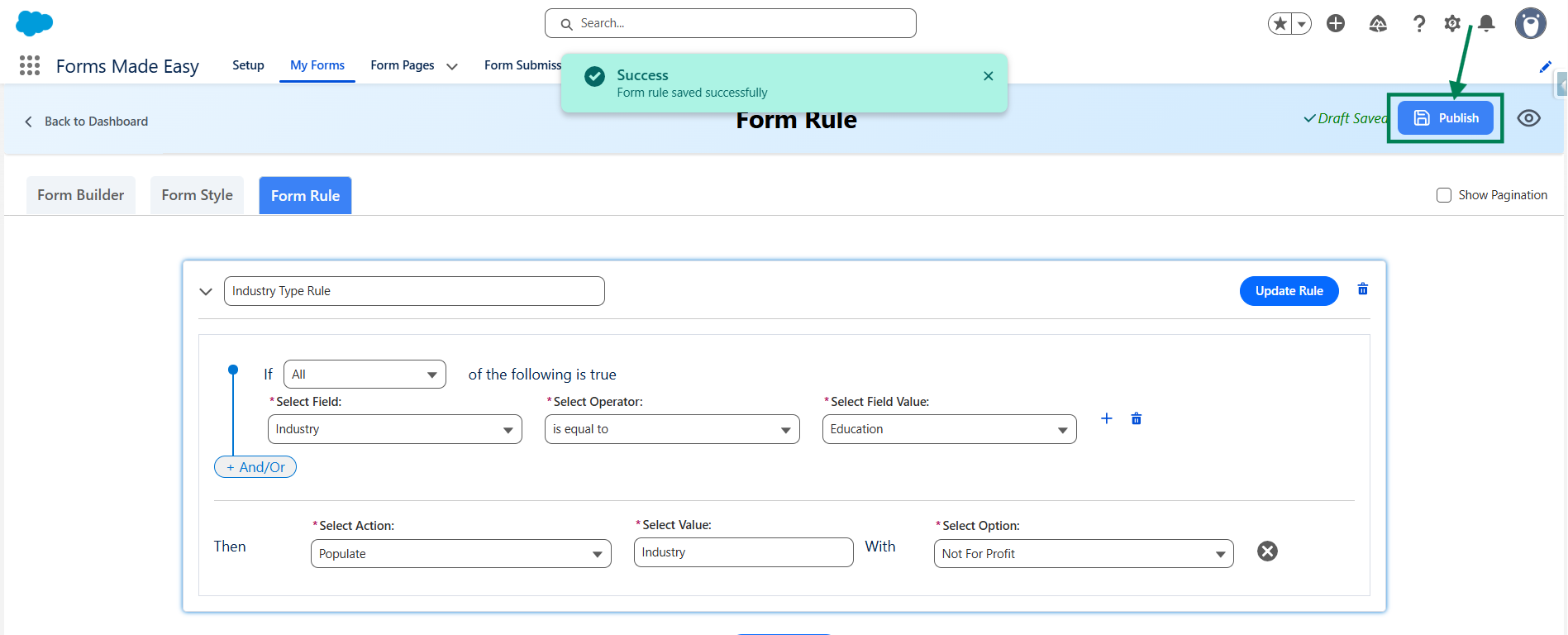
Step 10: After all of that, you can publish the form by clicking the "Publish" button.
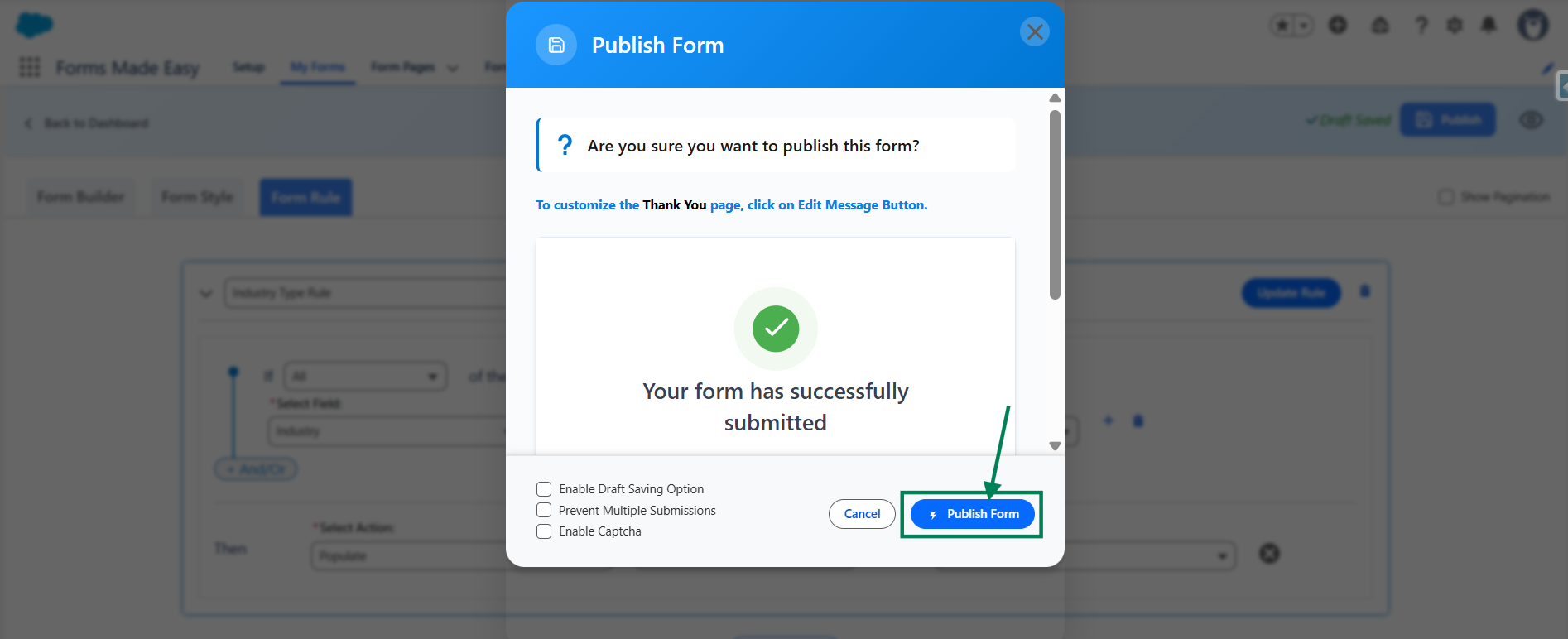
Step 11: Click the "Publish Form" button.
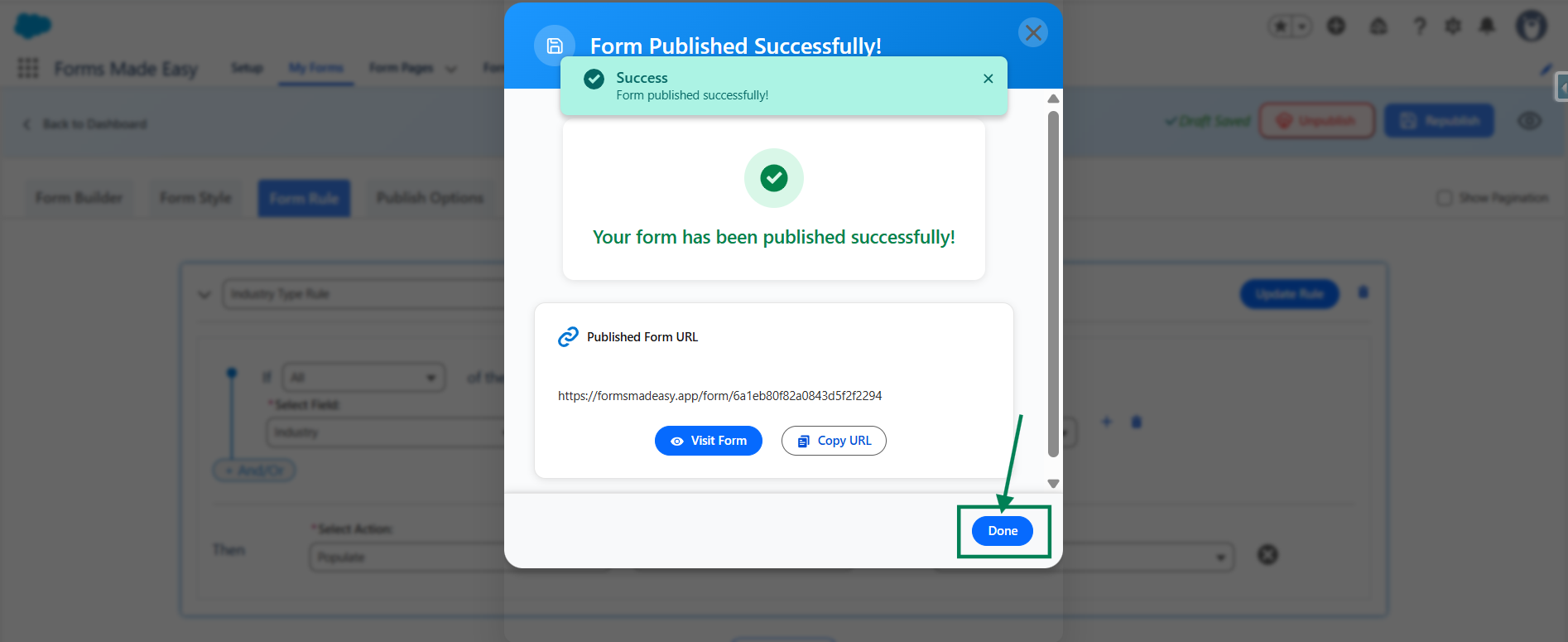
Step 12: Click on "Done" to close the modal.
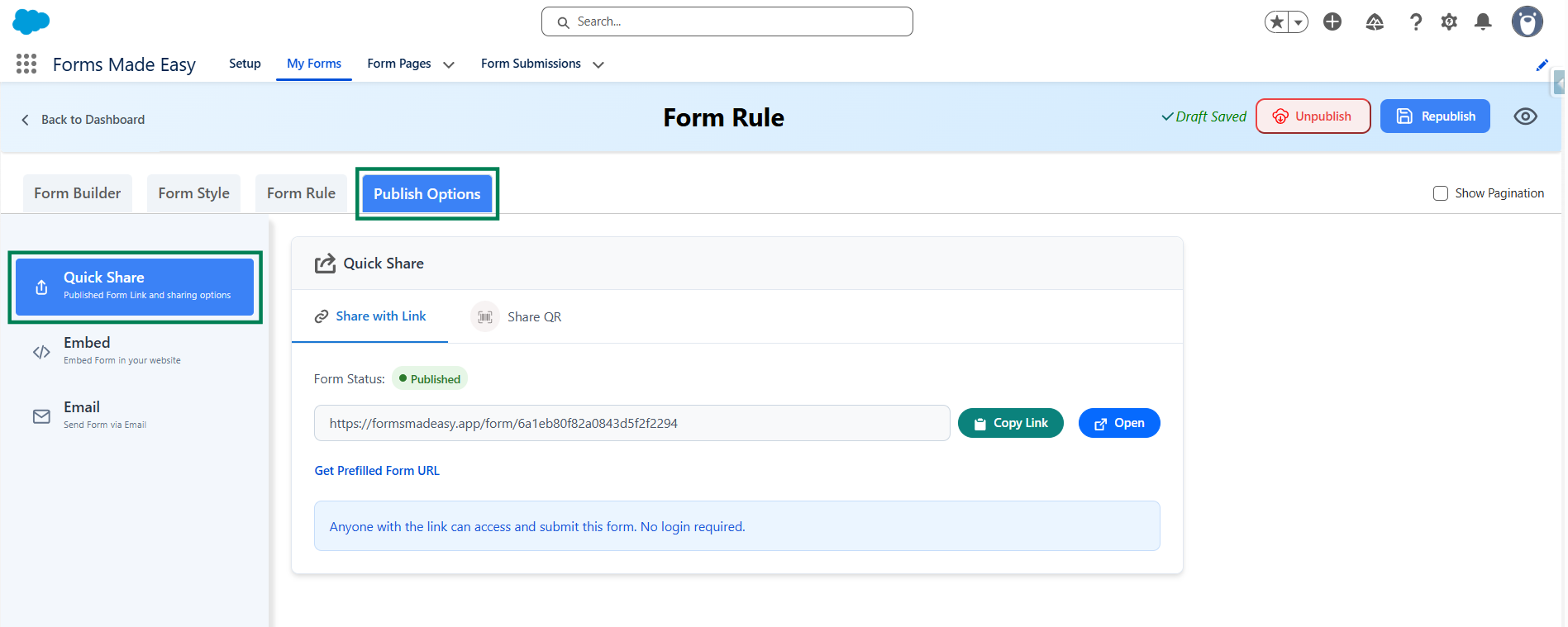
Step 13: Once the form is published, an additional Publish Options tab becomes available.
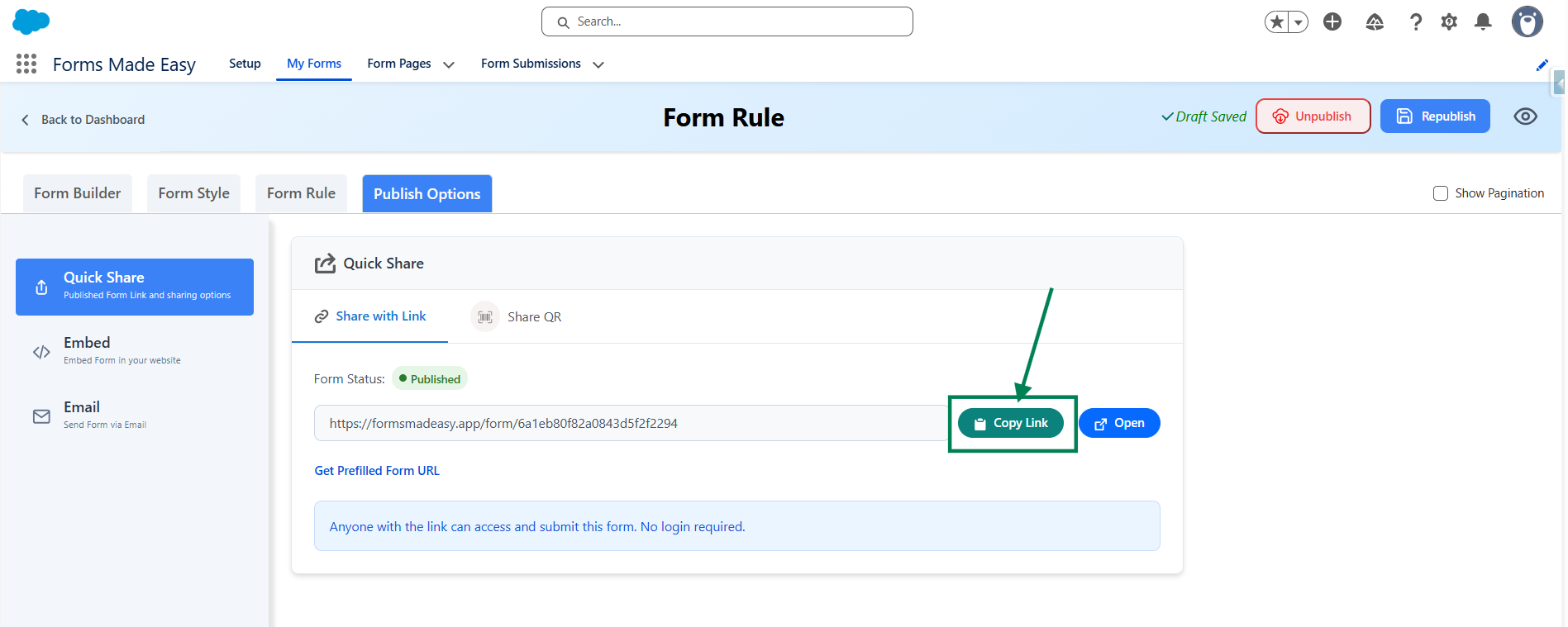
Step 14: Click on the "Copy Link" button to copy the form URL, which you can then share with others.
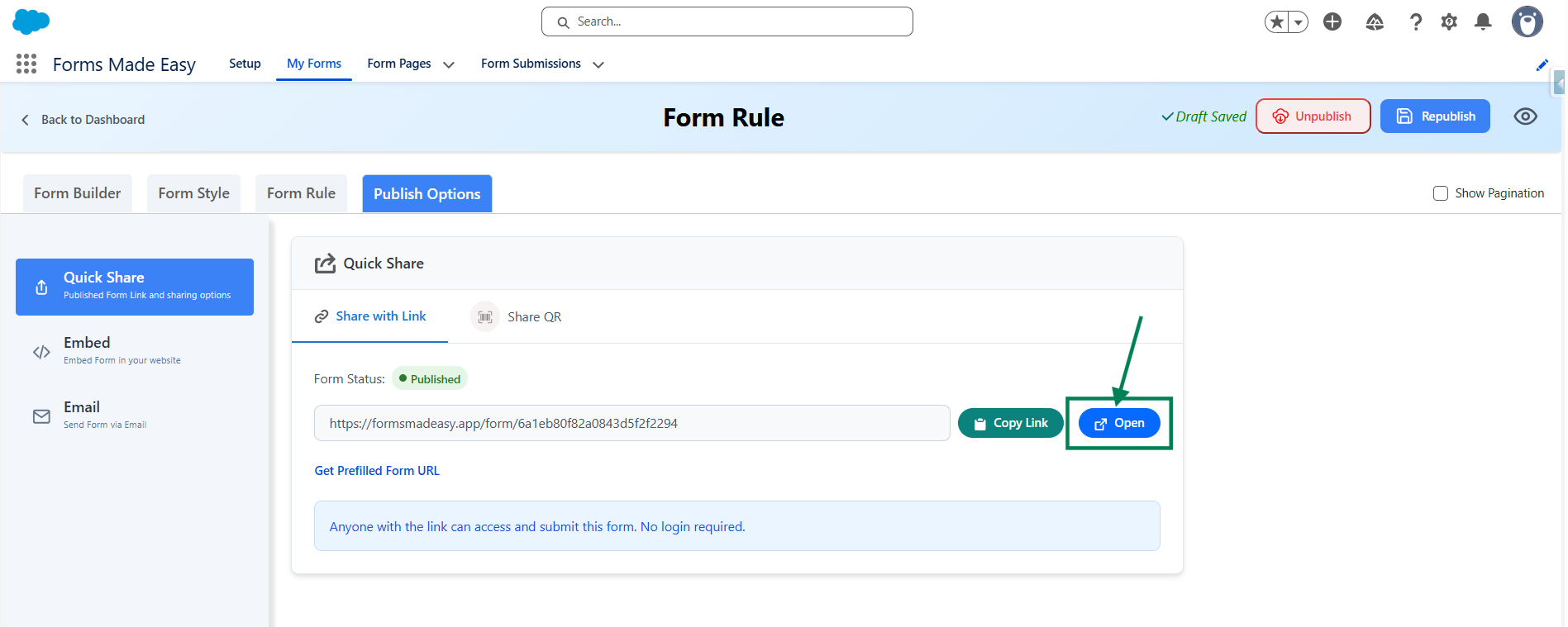
Step 15: Click on the "Open" button to directly open the form in your web browser.
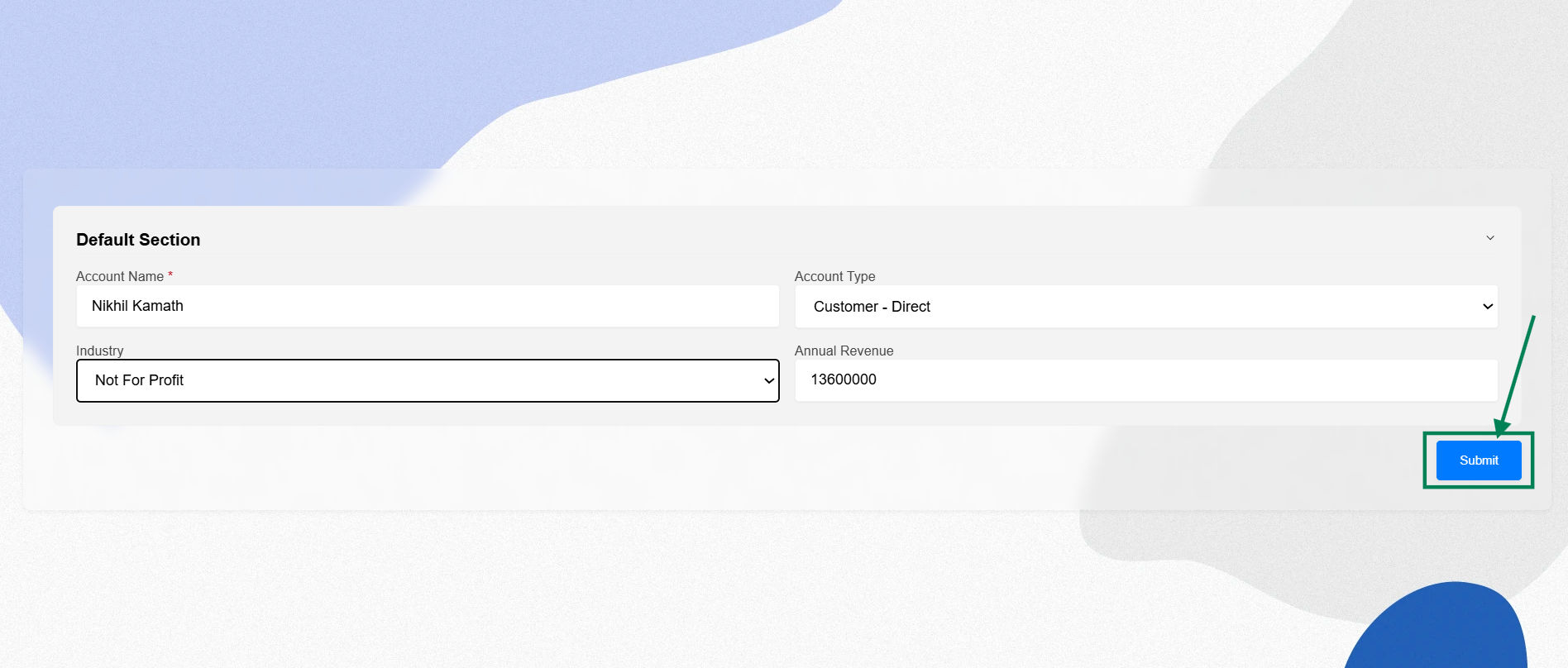
Step 16: After filling all the information, click the Submit button to submit the records.
Note: When you select Industry as Education, the Industry field will automatically populate with the value Not For Profit.
Step 17: Go to the "My Forms" tab and refresh the page.
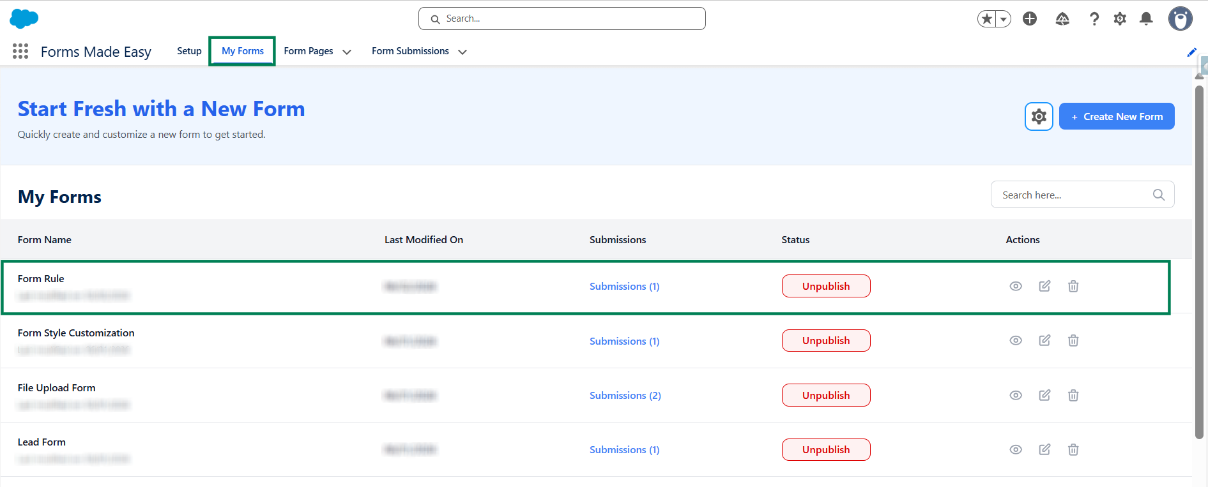
Step 18: Click on the Submission button of that form.
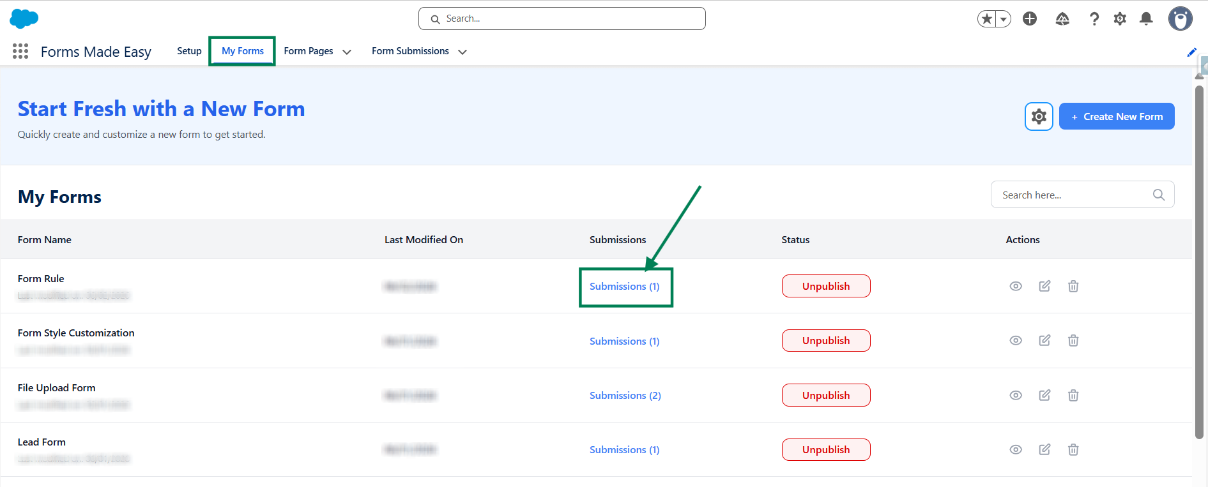
Step 19: Here, all submissions for that form will be displayed.
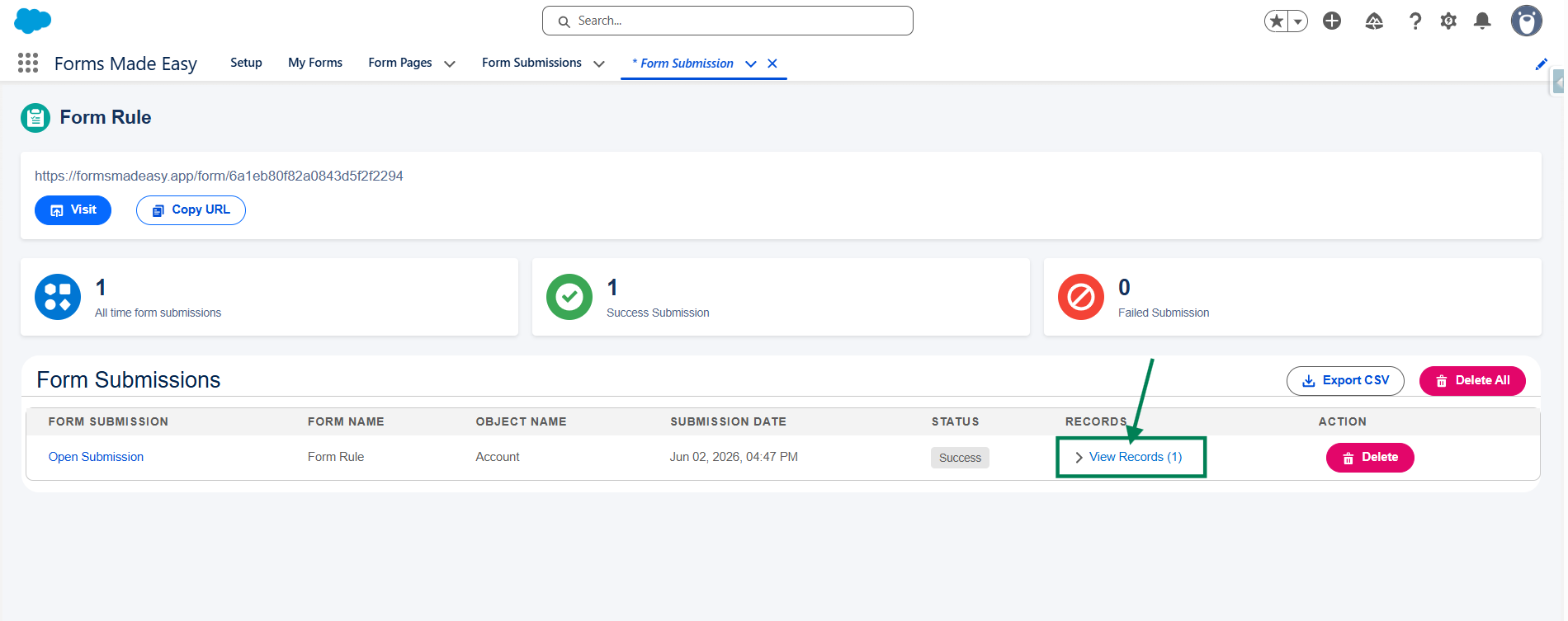
Step 20: Click on View Records, then click the Preview button to see the submitted form data.
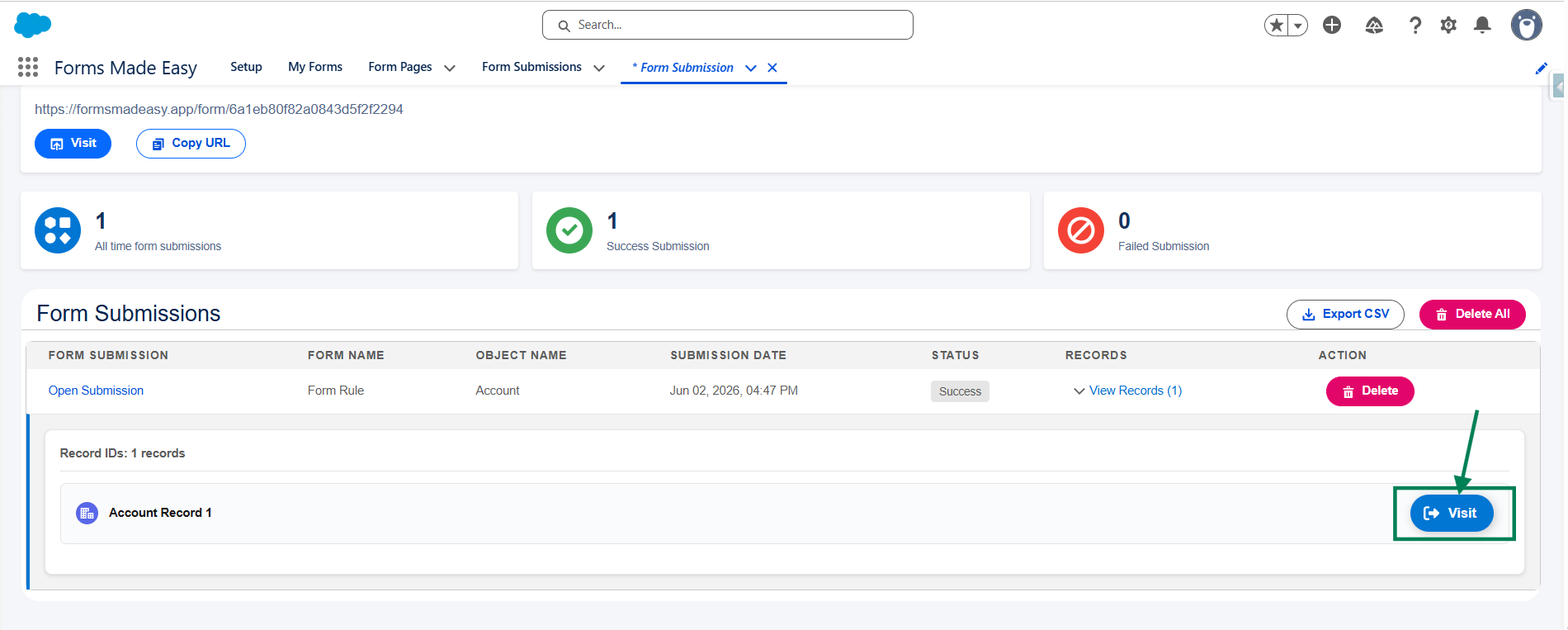
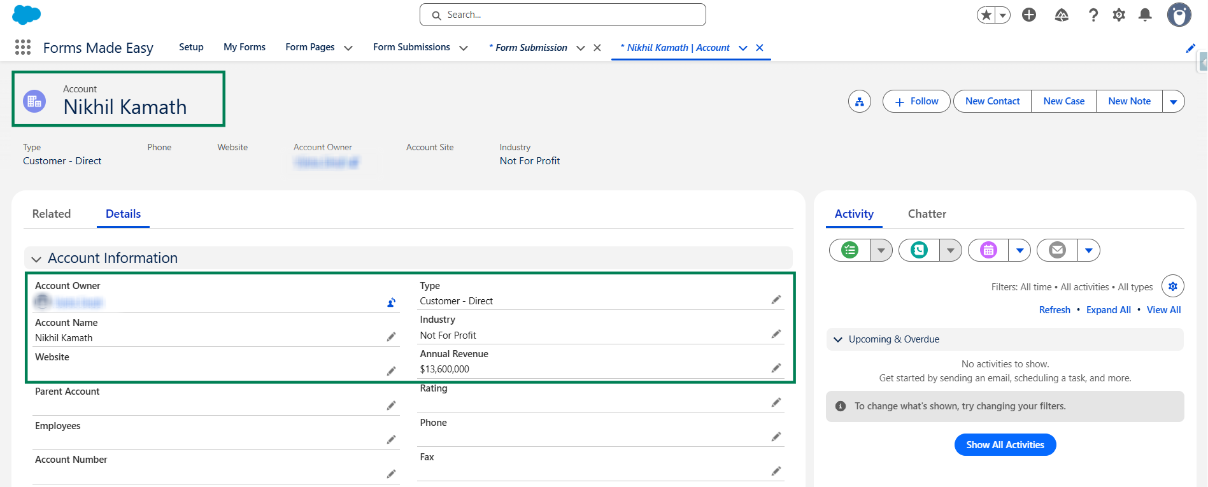
Step 21: The submitted records will now appear under the Account object in Salesforce.
We hope this article helps! If you still face any issues, feel free to contact us at support@formsmadeasy.com.
Was this article helpful?
That’s Great!
Thank you for your feedback
Sorry! We couldn't be helpful
Thank you for your feedback
Feedback sent
We appreciate your effort and will try to fix the article