In this blog you will see how you can receive the signature confirmation from the user using the signature field in forms made easy.
Steps to Create a Signature Field in Forms Made Easy -
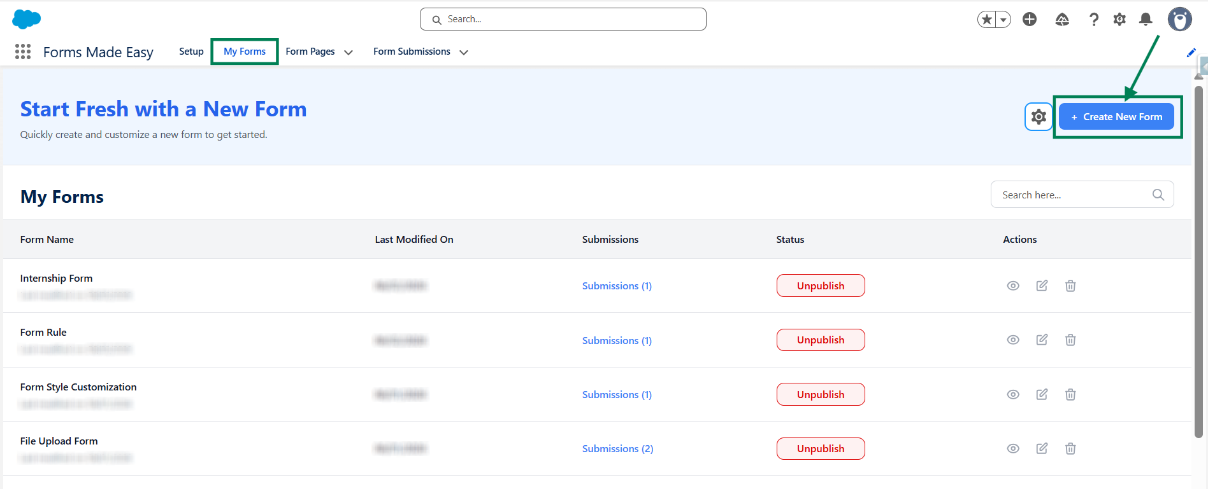
Step 1: Go to the My Forms tab and click on the "Create New Form" button.
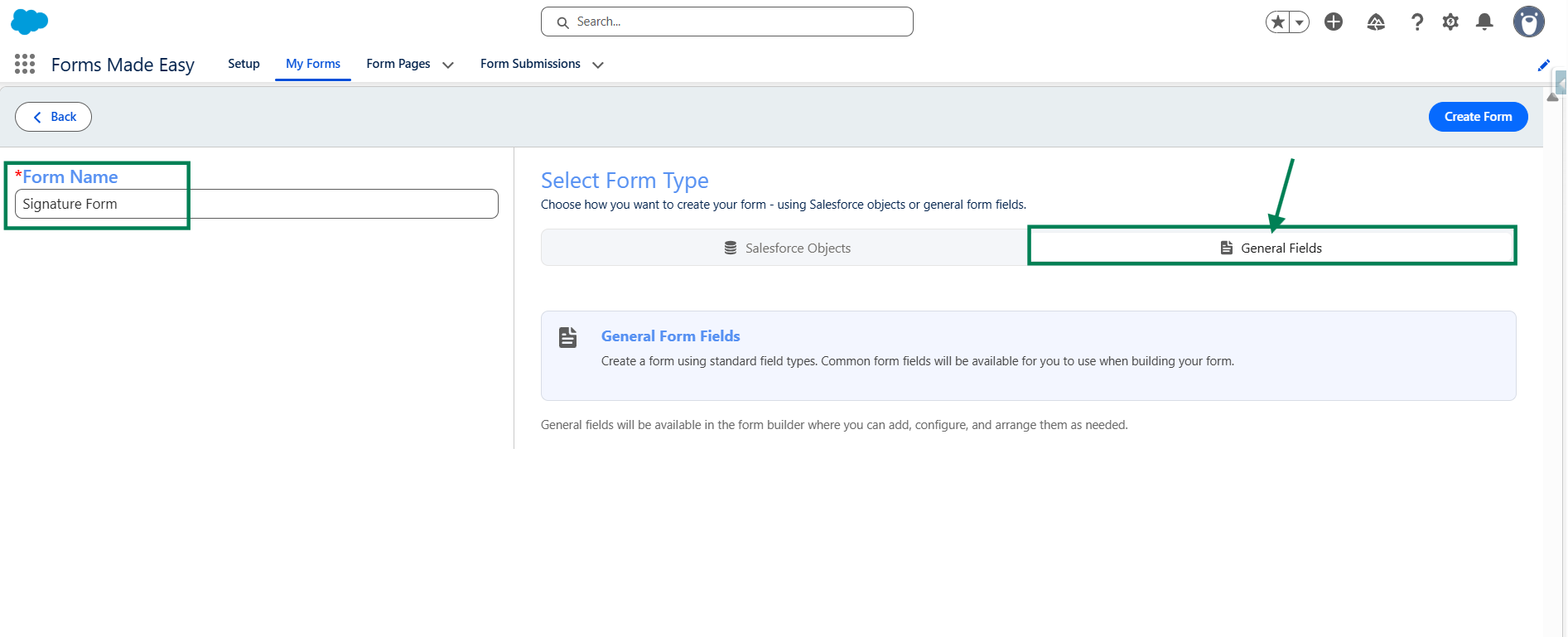
Step 2: Enter the Form Name and select the Form Type (Salesforce or General Fields).
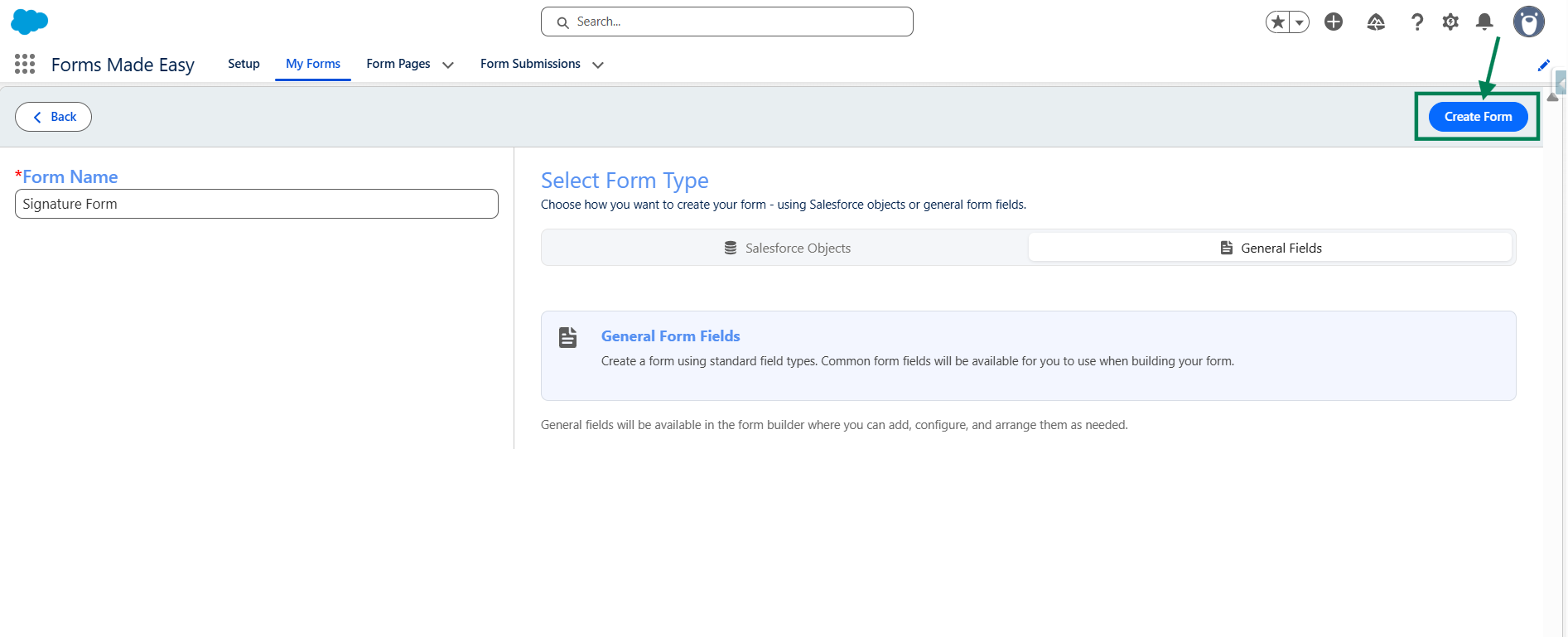
Step 3: Click on the "Create Form" button.
Step 4: Click on “General Fields” Section.
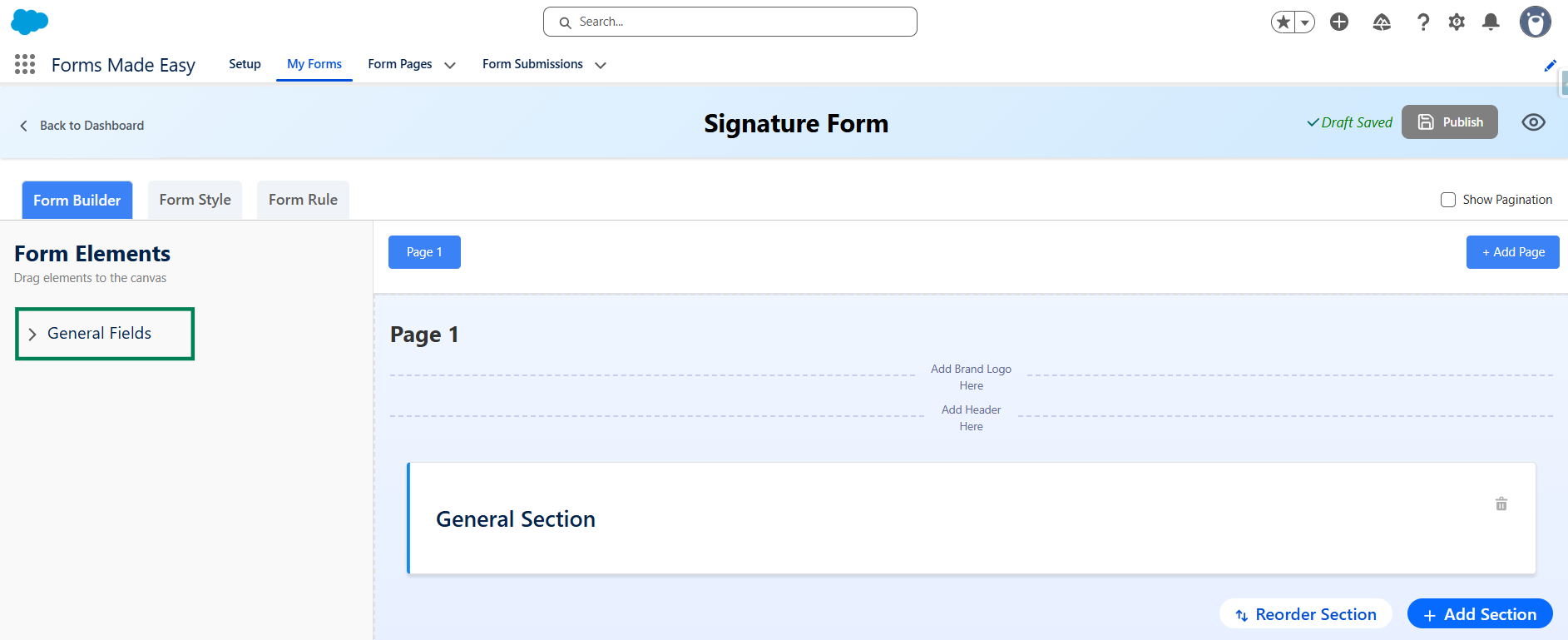
Step 5: Drag and Drop Signature field from General Fields.
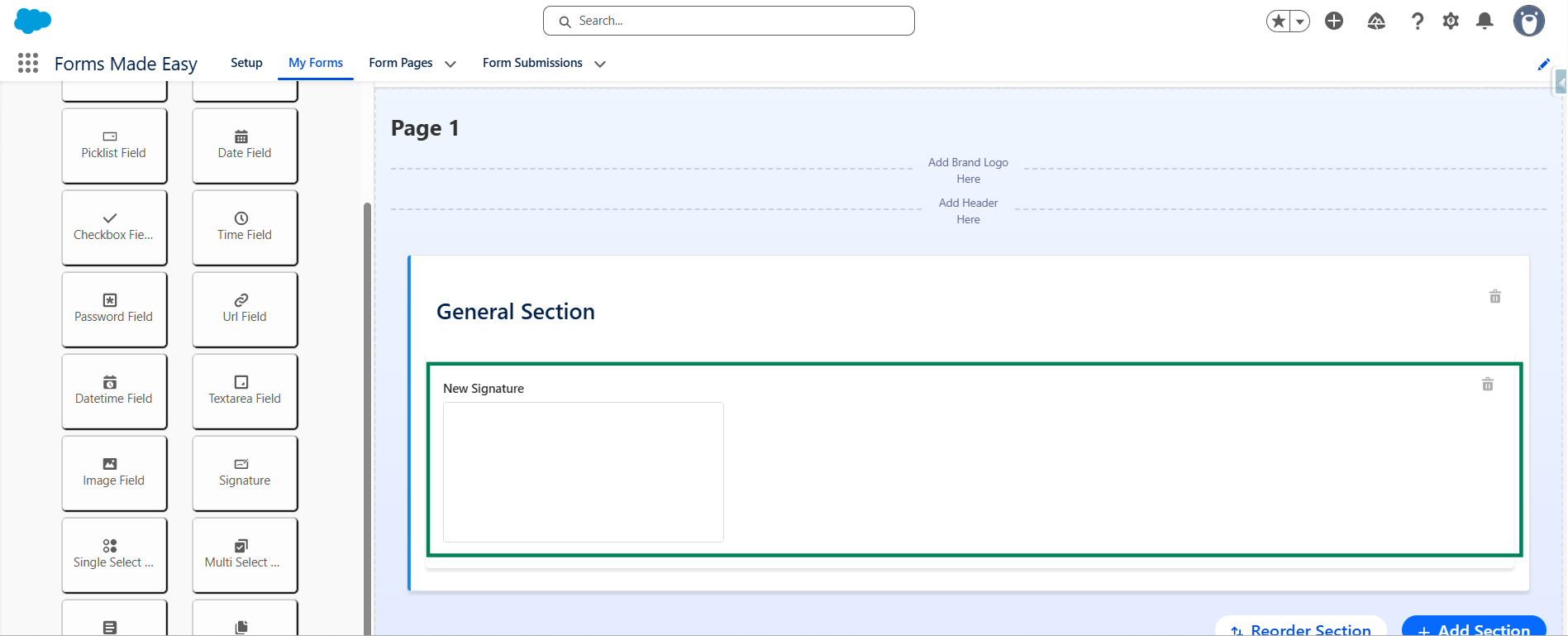
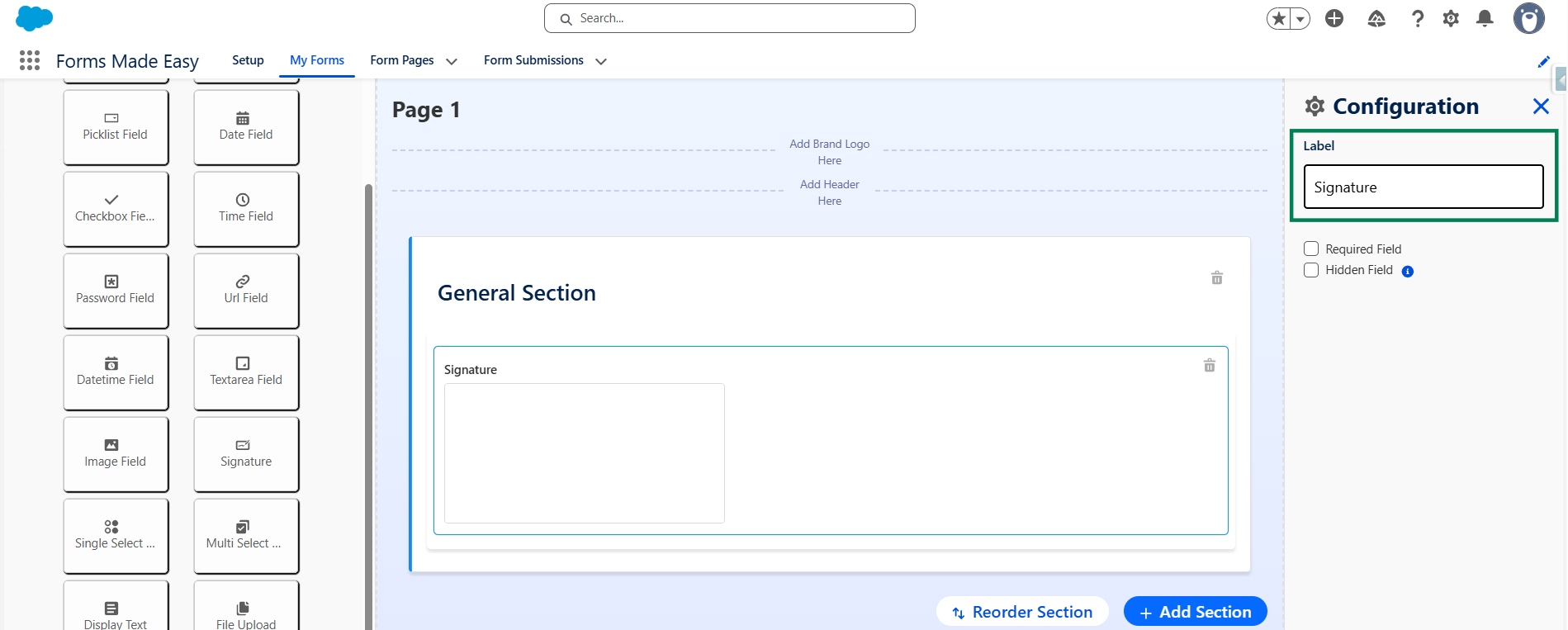
Step 6: Click on Signature Fields and change the Label of Signature Fields.
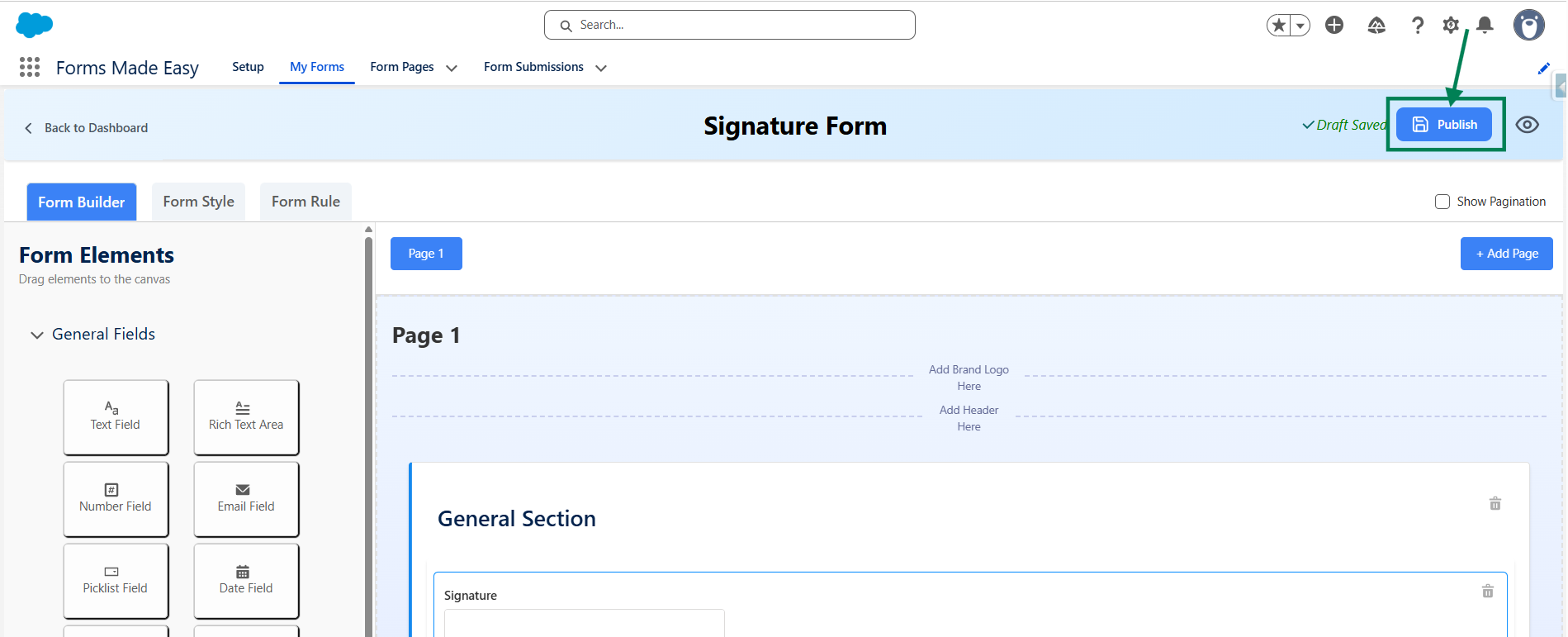
Step 7: After that, click the "Publish" button.
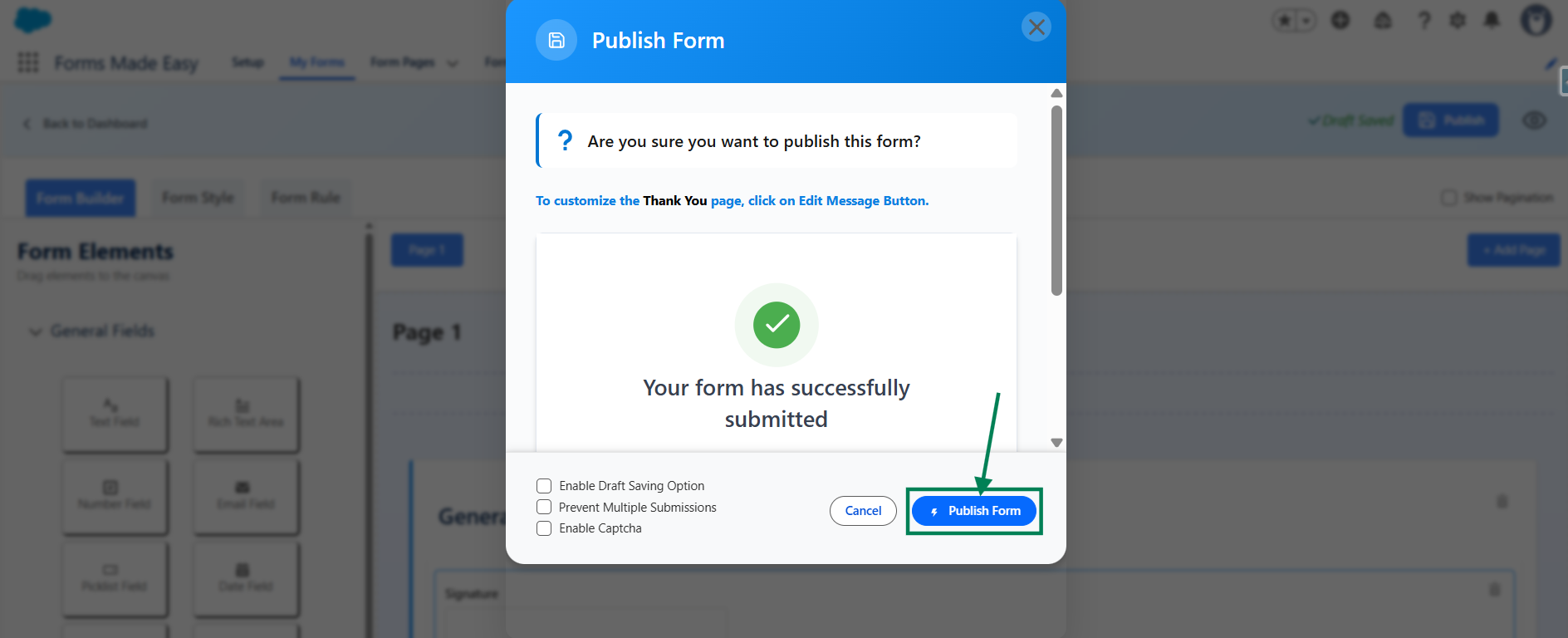
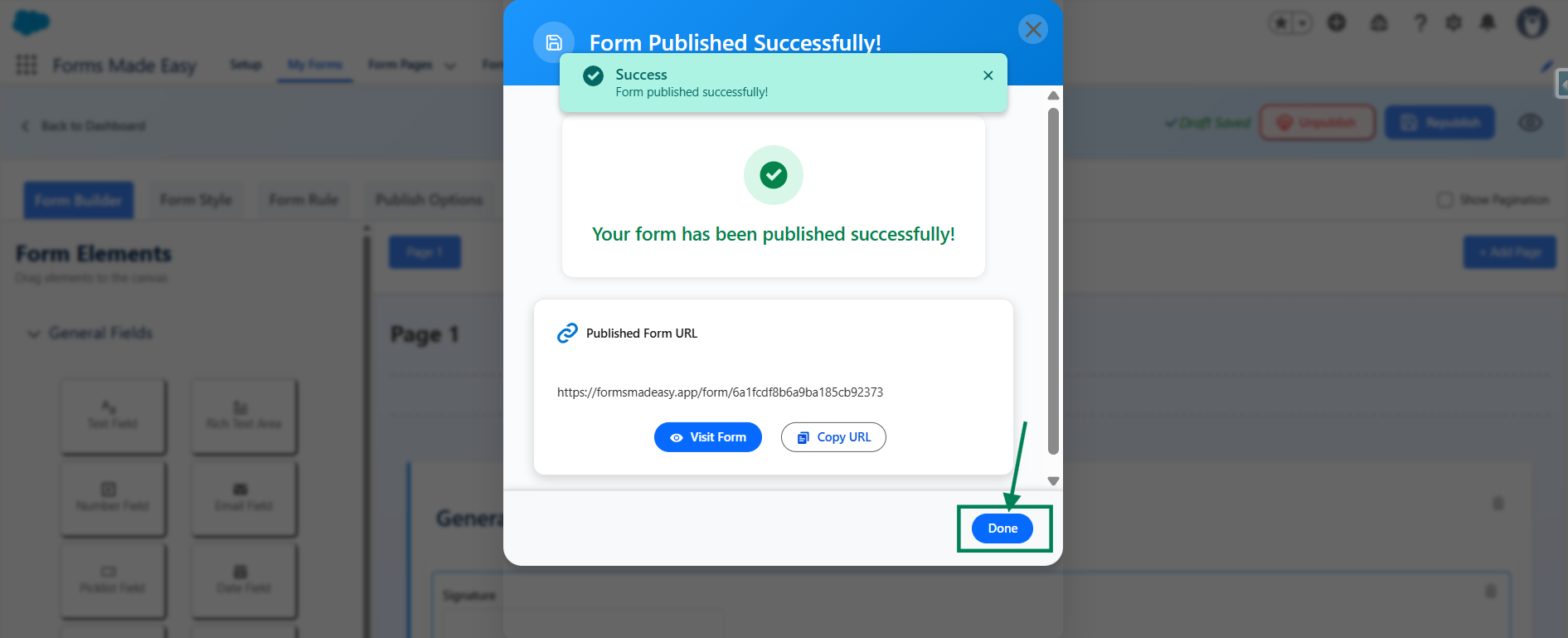
Step 8: Click the "Publish Form" button.
Step 9: To close the modal Click on the "Done" button.
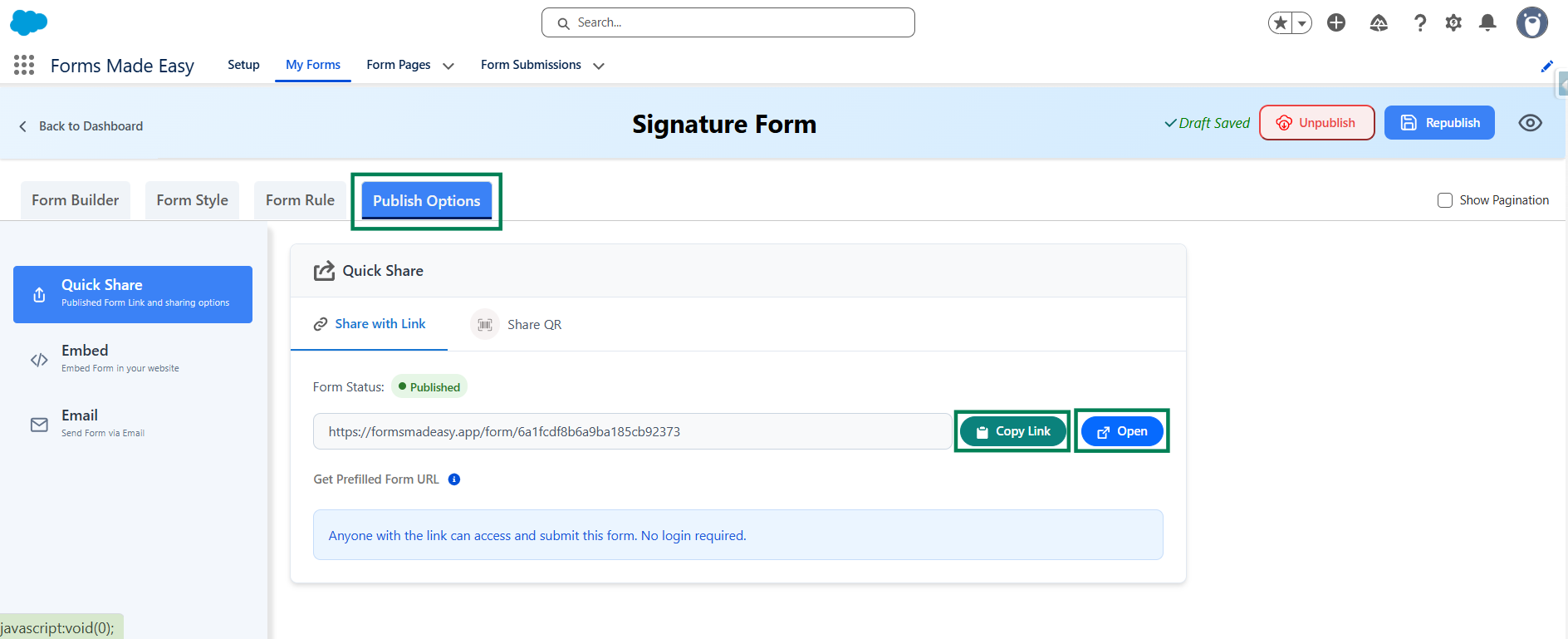
Step 10: Click on “Copy Link” or “Open” Buttons to open the forms in Publish Options.
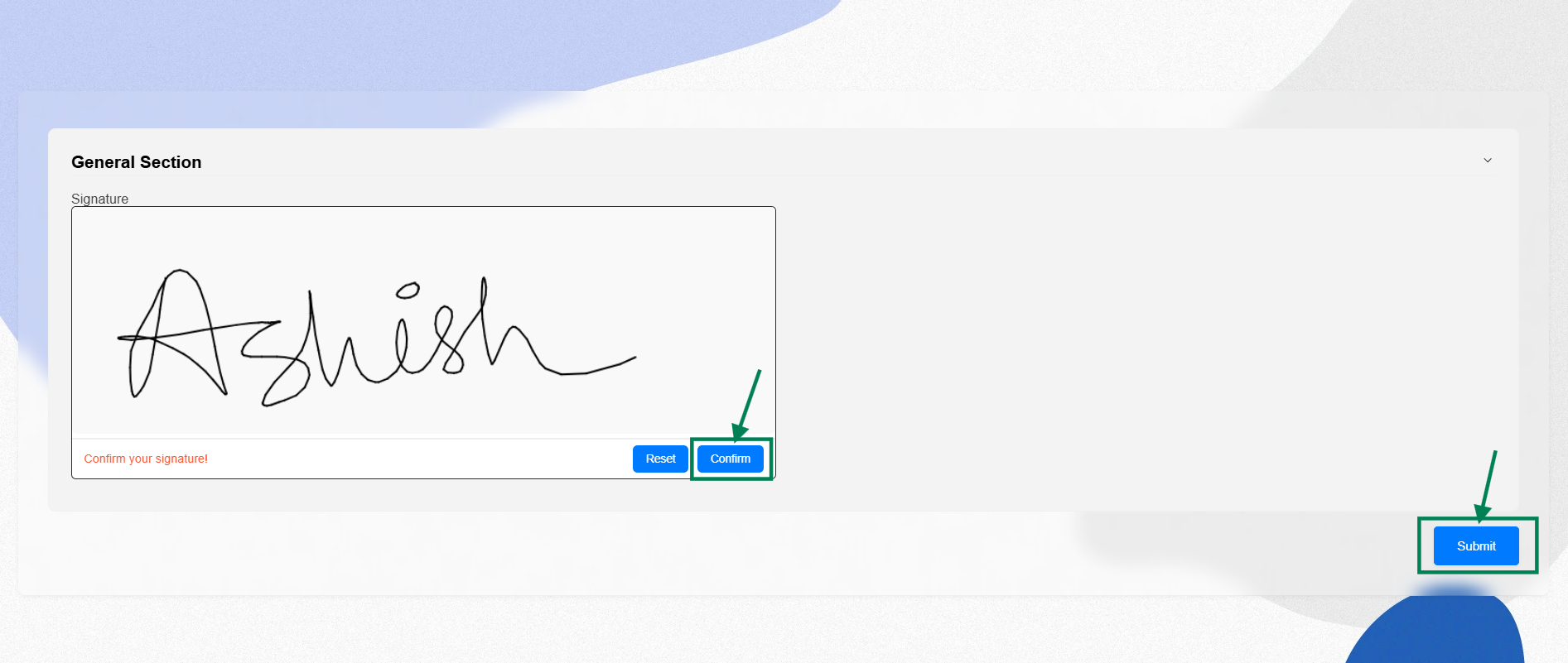
Step 11: Fill the “Signature” and Click on “Confirm” buttons and click on “Submit”.
Step 12: Go to the “My Forms” tab and refresh the page.
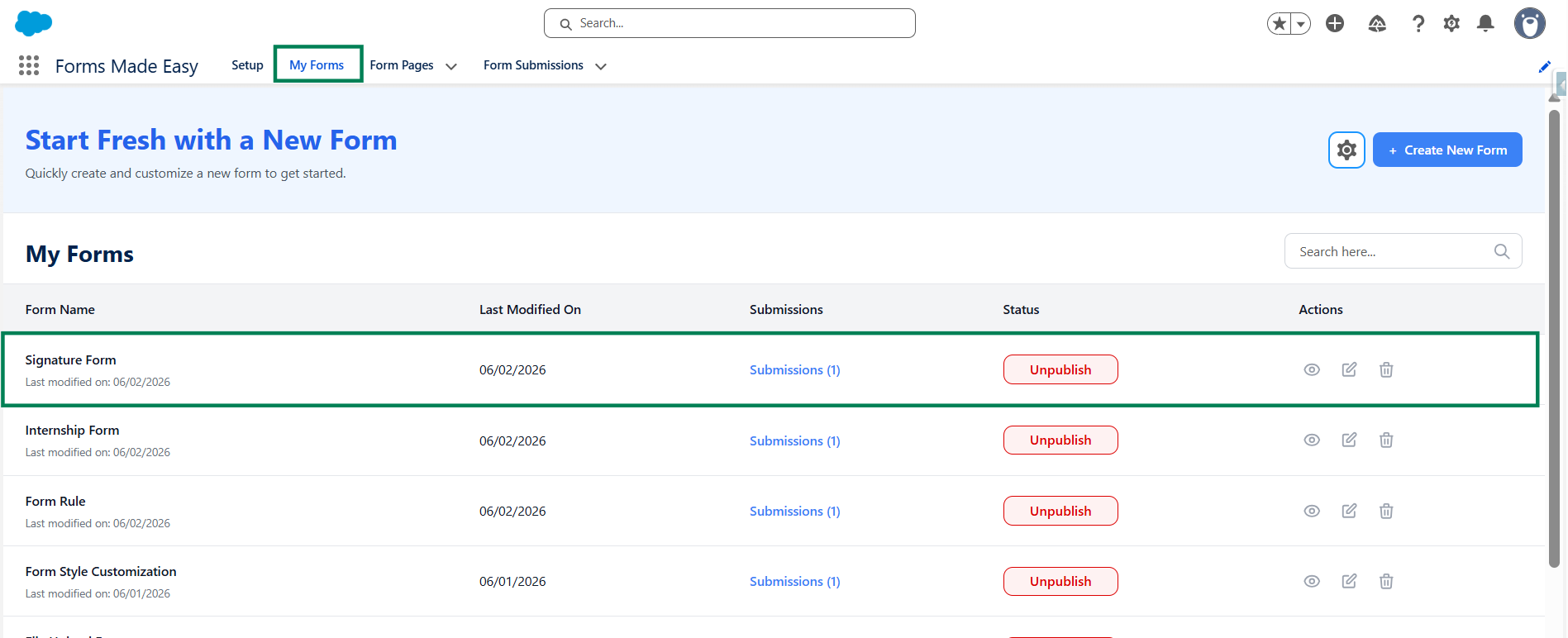
Step 13: Click on “Submission” buttons to see the submissions.
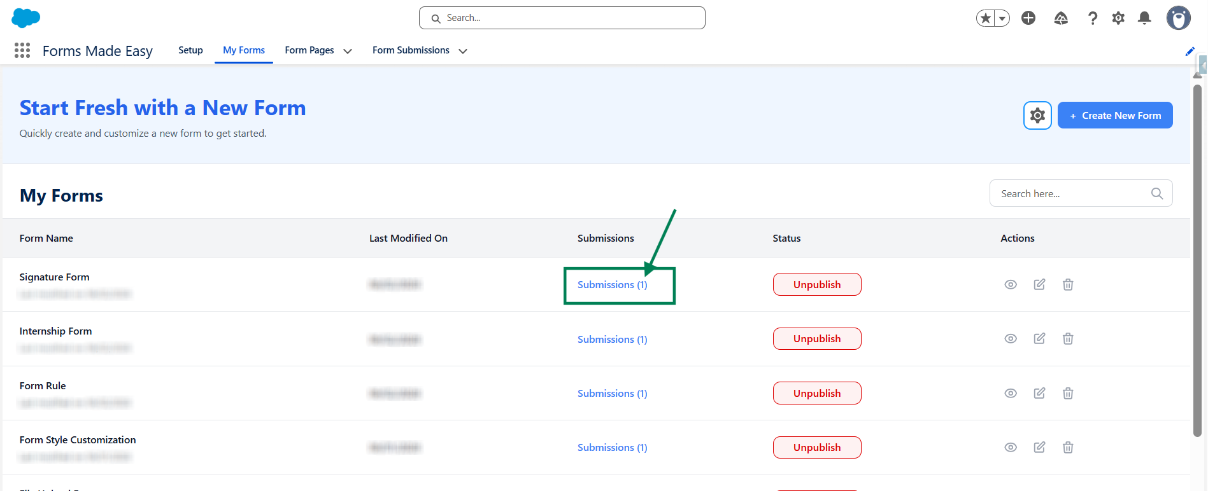
Step 14: Here, all submissions for that form will be displayed.
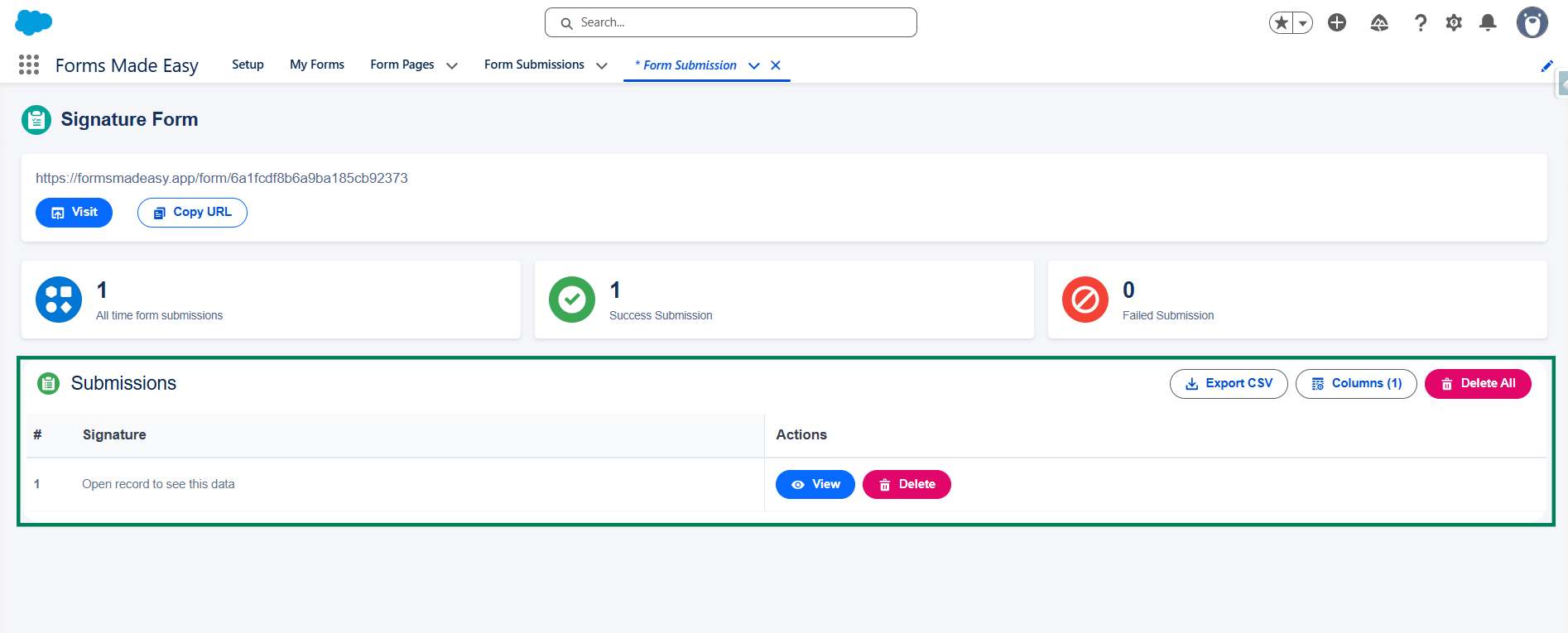
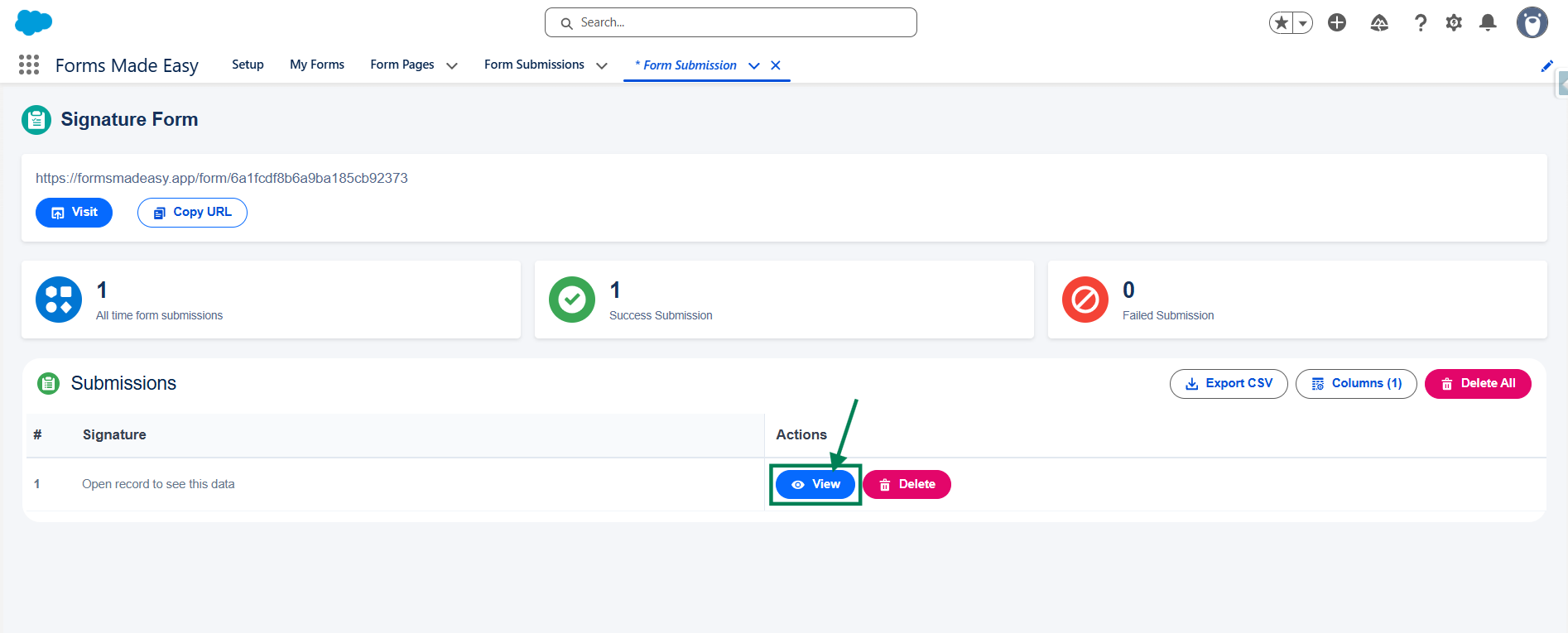
Step 15: Click on “View” button to view Form Submission Data.
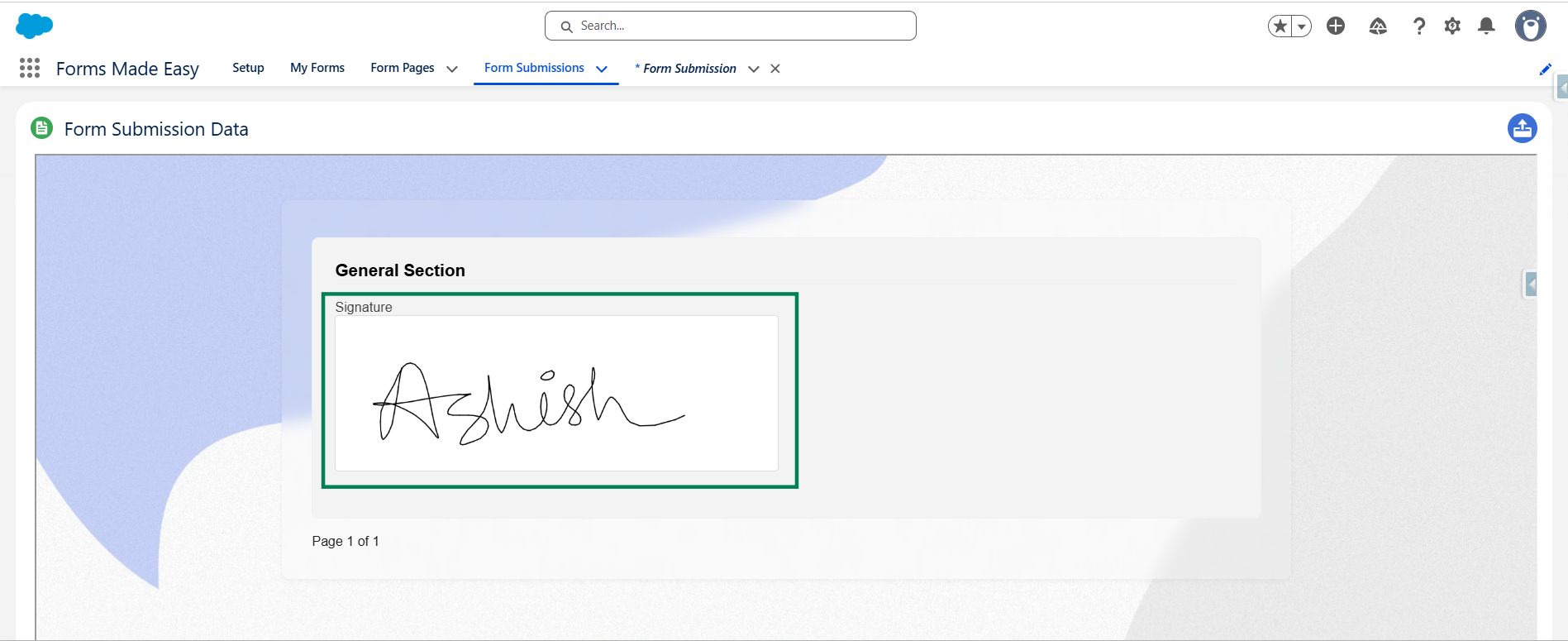
Step 16: When you click on the open record, now your form submission will be shown with the signature.
We hope this article helps! If you still face any issues, feel free to contact us at support@formsmadeasy.com.
Was this article helpful?
That’s Great!
Thank you for your feedback
Sorry! We couldn't be helpful
Thank you for your feedback
Feedback sent
We appreciate your effort and will try to fix the article