In this blog, we will walk through how to share a form for a specific record using the Quick Share options.
This functionality is useful when you need to share a form link or QR code prefilled with data from a specific record. To begin, create a form with the required fields and publish it. Once the form is published, a Publish tab becomes available. Under the Publish tab, you’ll find the Quick Share section, which provides two options: Share with Link and Share QR.
Inside Share with Link, the Get Prefilled Form URL option is available, and inside Share QR, you’ll find the Generate Prefilled QR Code option. Using these options, you can share the form for a specific record. The form will be linked to that record and prefilled with its data. It can be easily shared via a direct link or QR code, making it simple for users to access the form and submit their response with minimal effort.
Steps to Create the Form in Forms Made Easy :
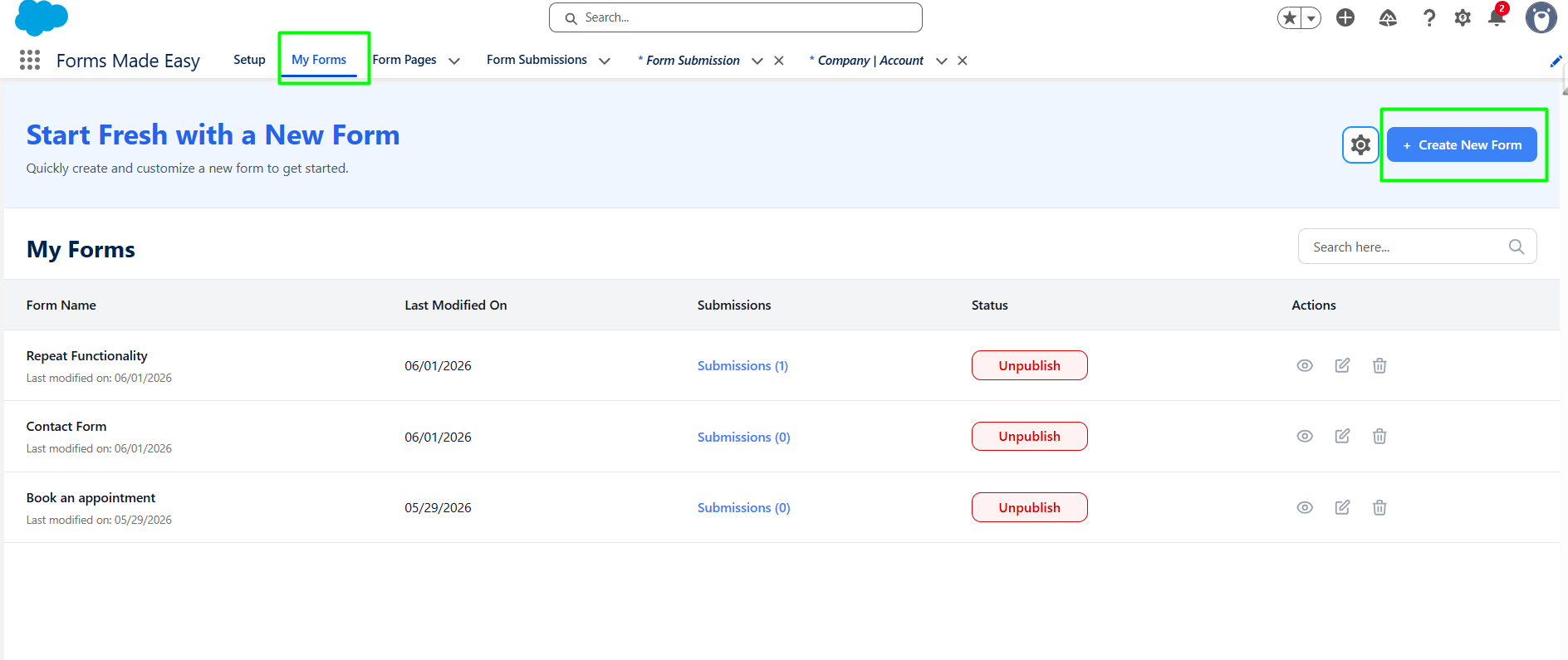
Step 1: Go to the My Forms tab and click on the "Create New Form" button.
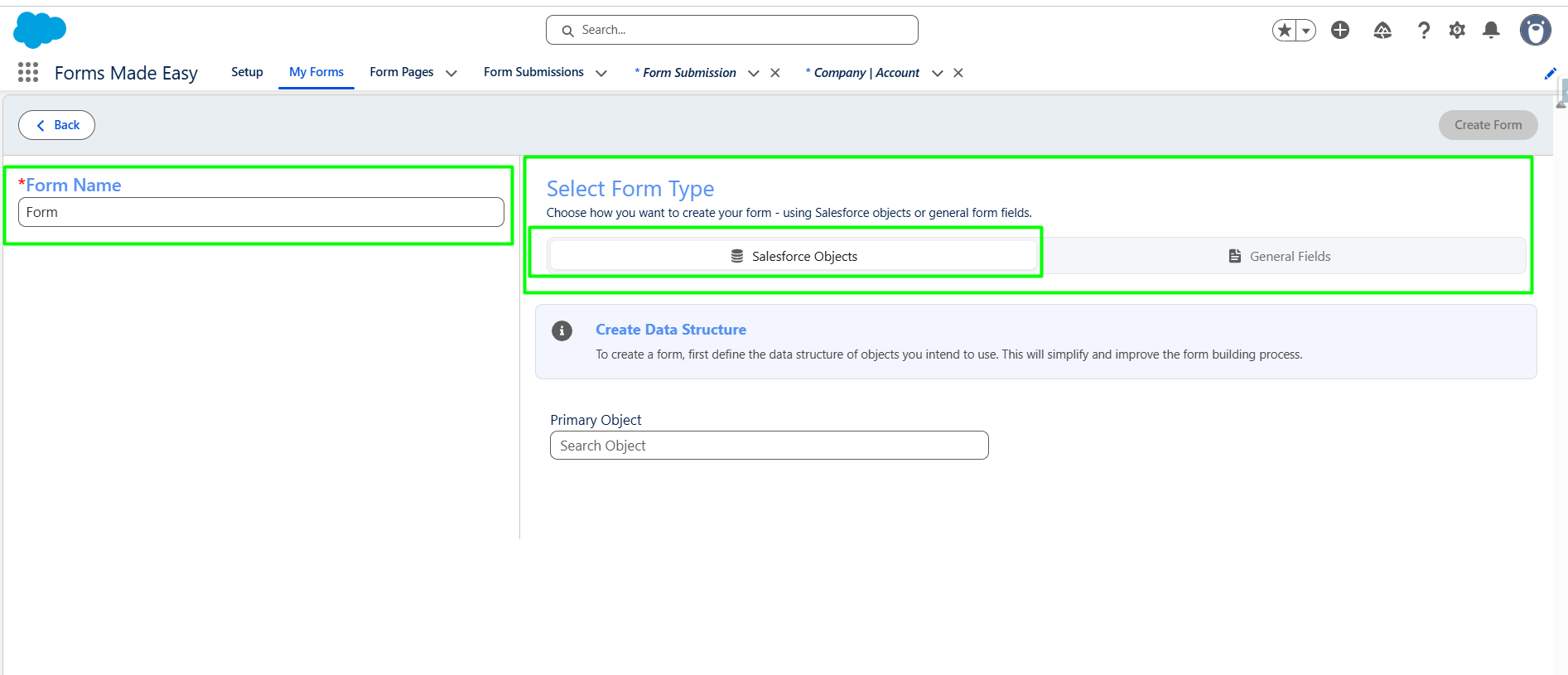
Step 2: Enter the form name and select the form type (Salesforce Objects or General Fields). Currently I have chosen the Salesforce Object option.
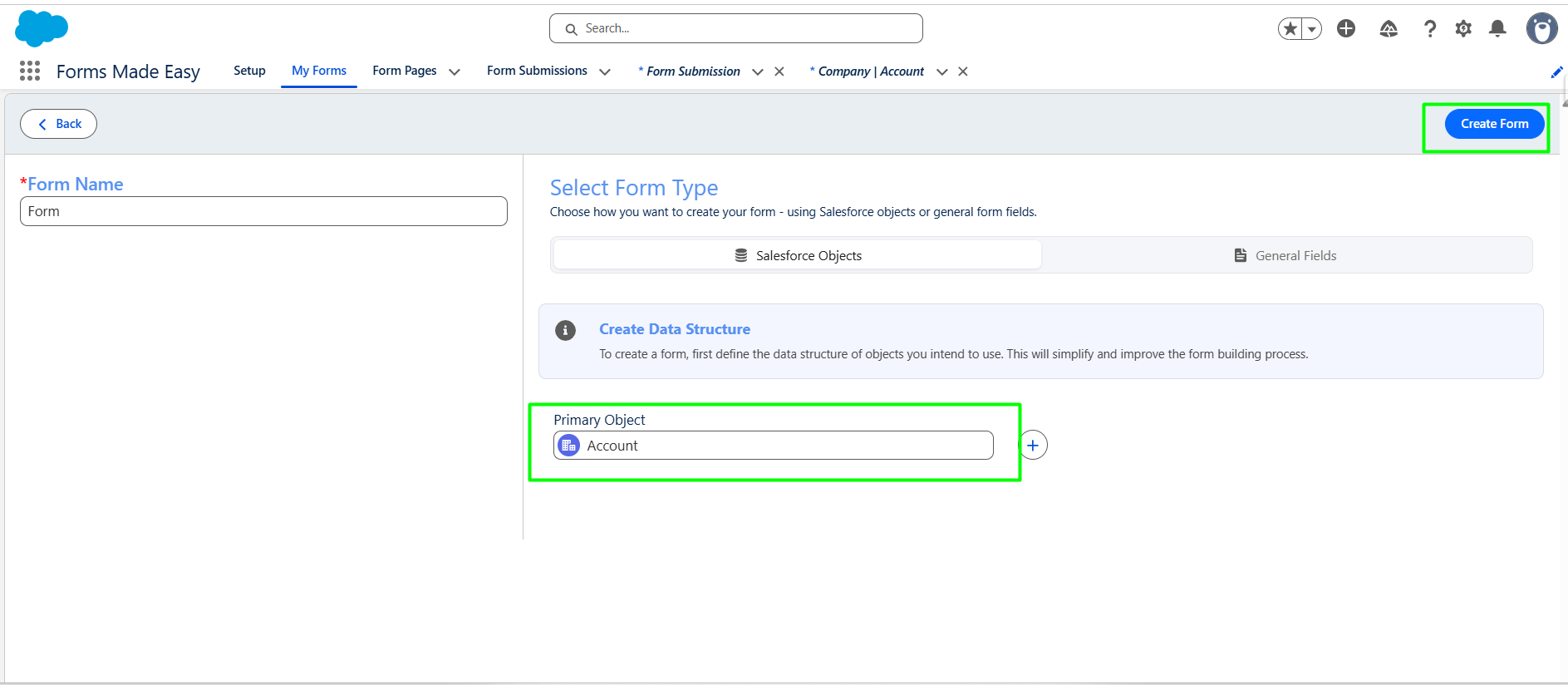
Step 3: Select "Account" as the Primary Object and click the "Create Form" button.
Step 4: Go to the Object Fields section and click on "Account."
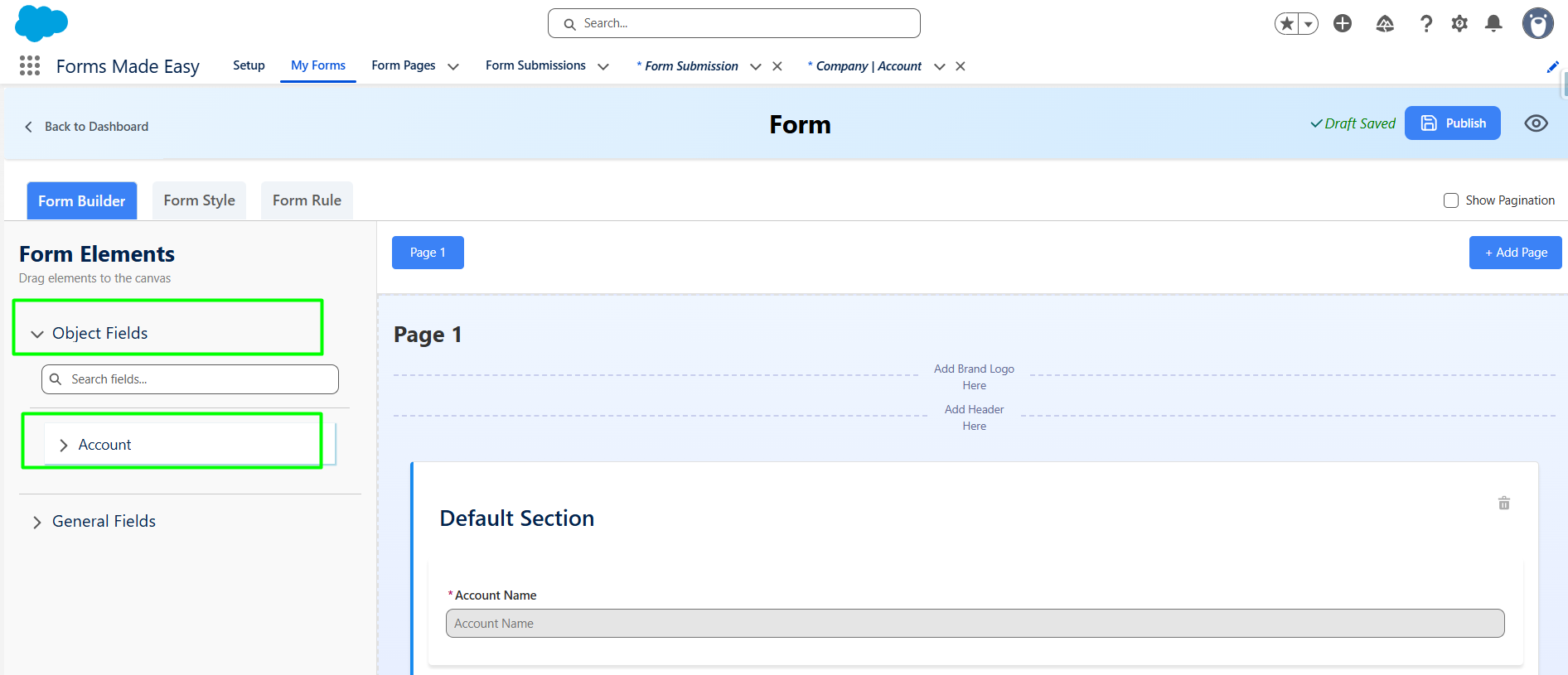
Step 5: Drag and drop your required fields onto the form.
(Note: The Account Name field is a mandatory field on the Account Object in Salesforce).
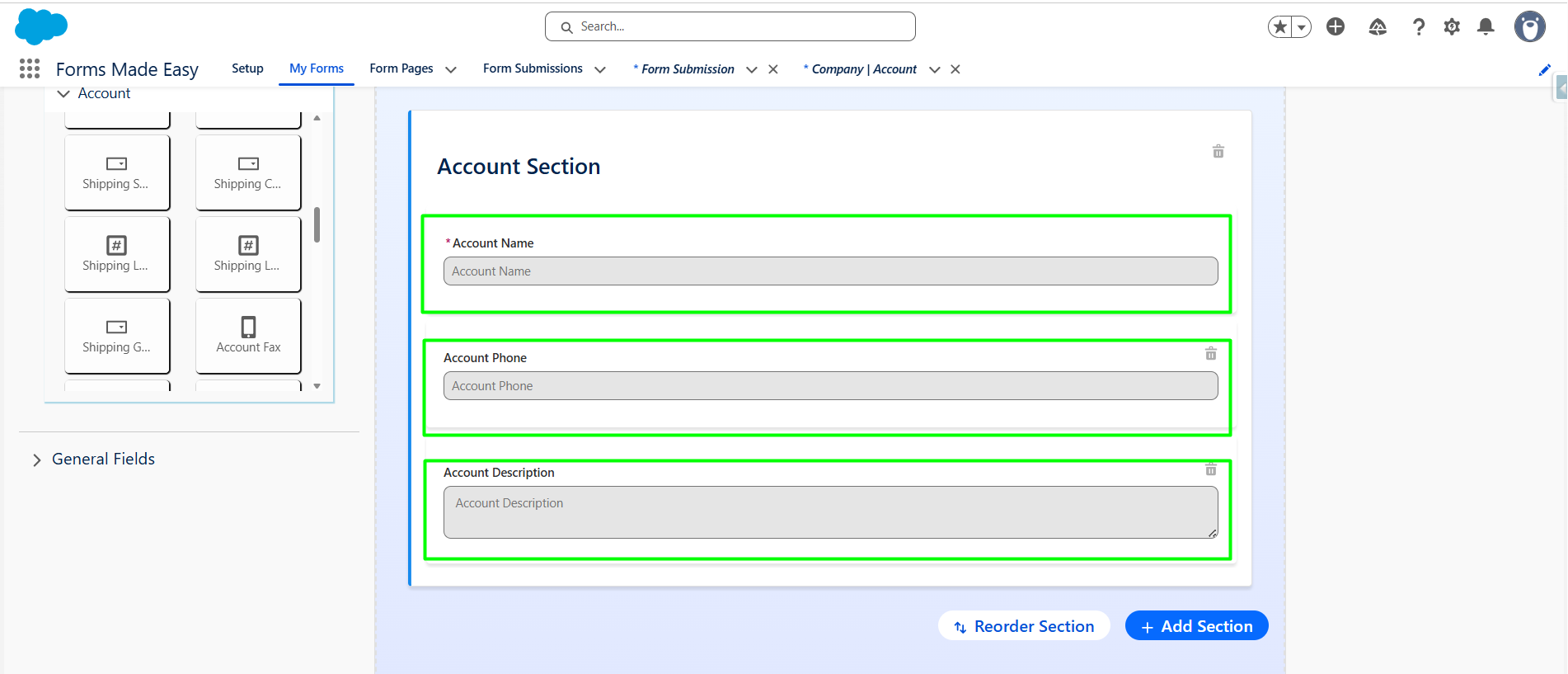
Step 6: After all of that, you can publish the form by clicking the "Publish" button.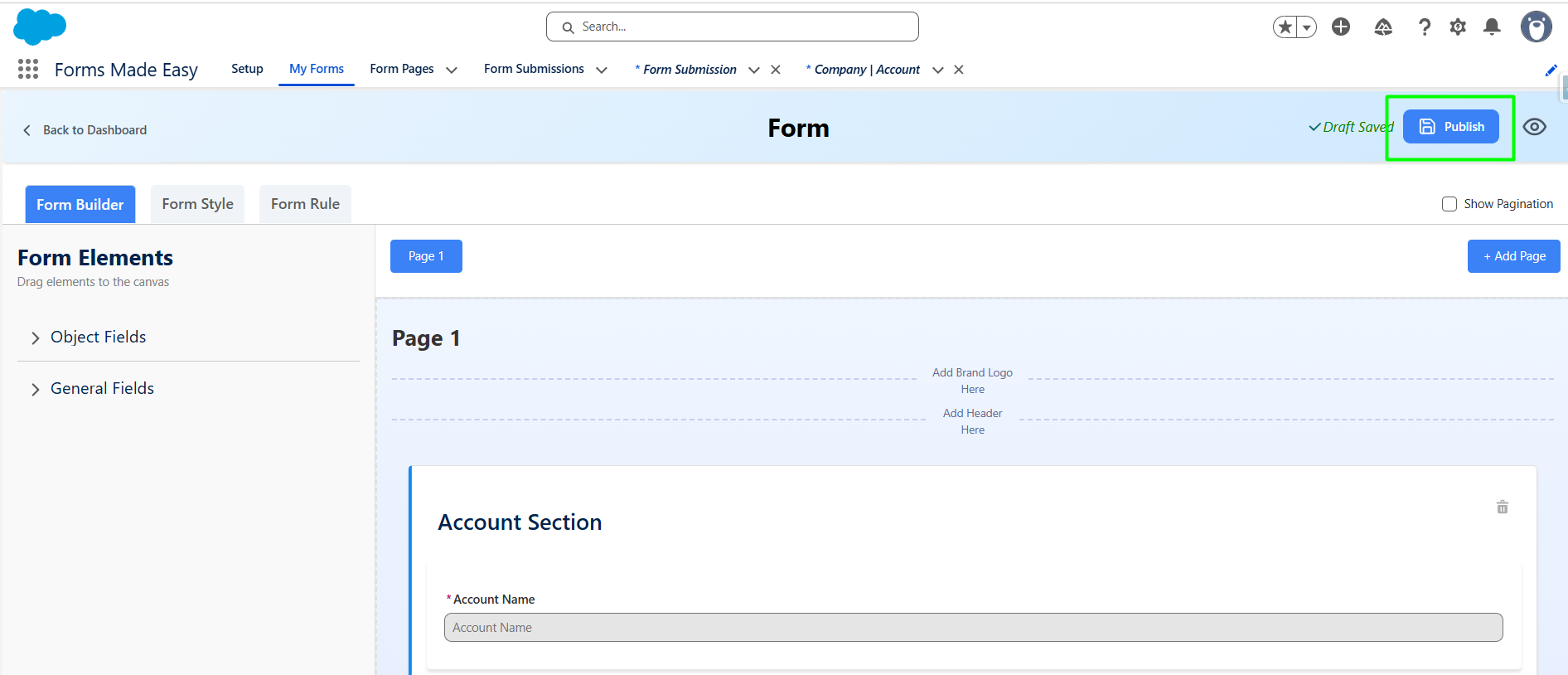
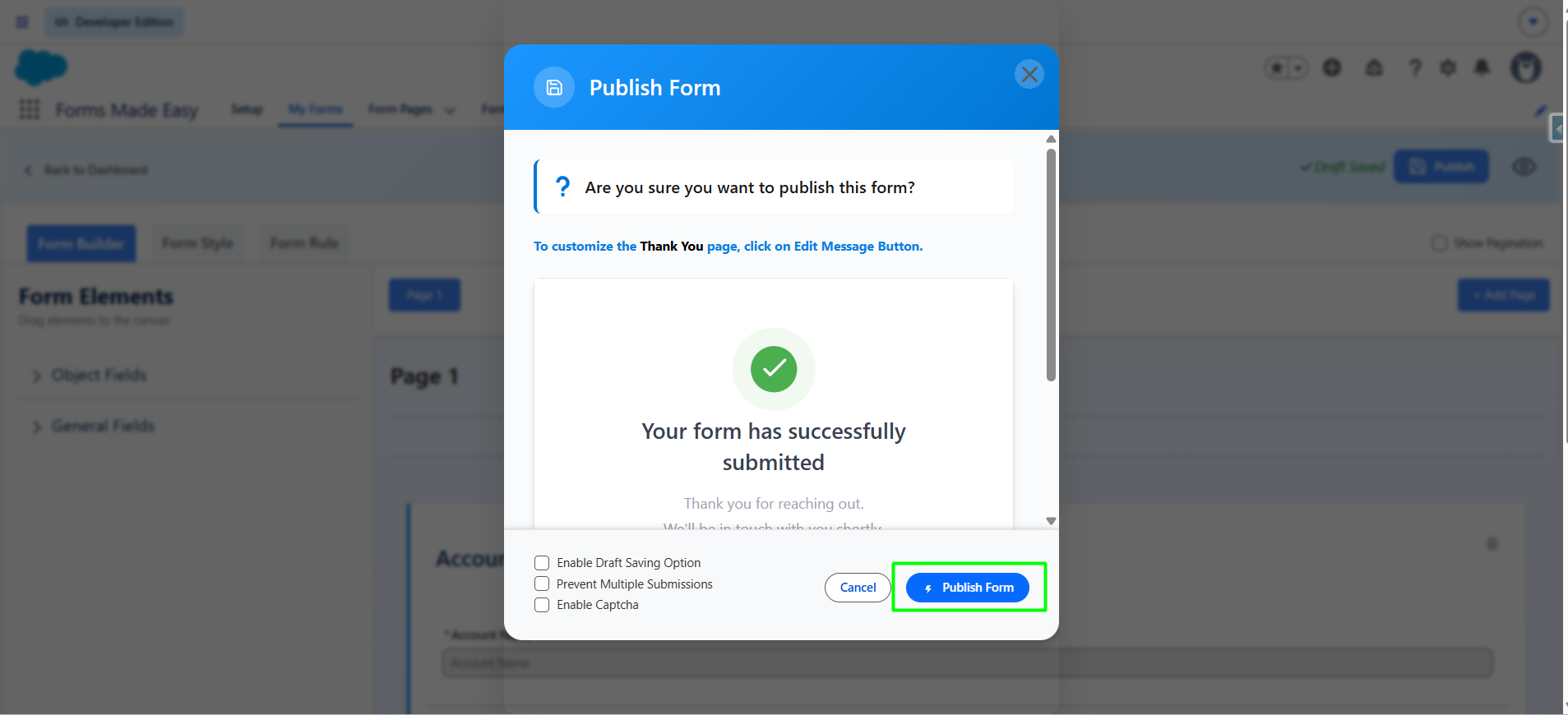
Step 7: Click the "Publish Form" button.
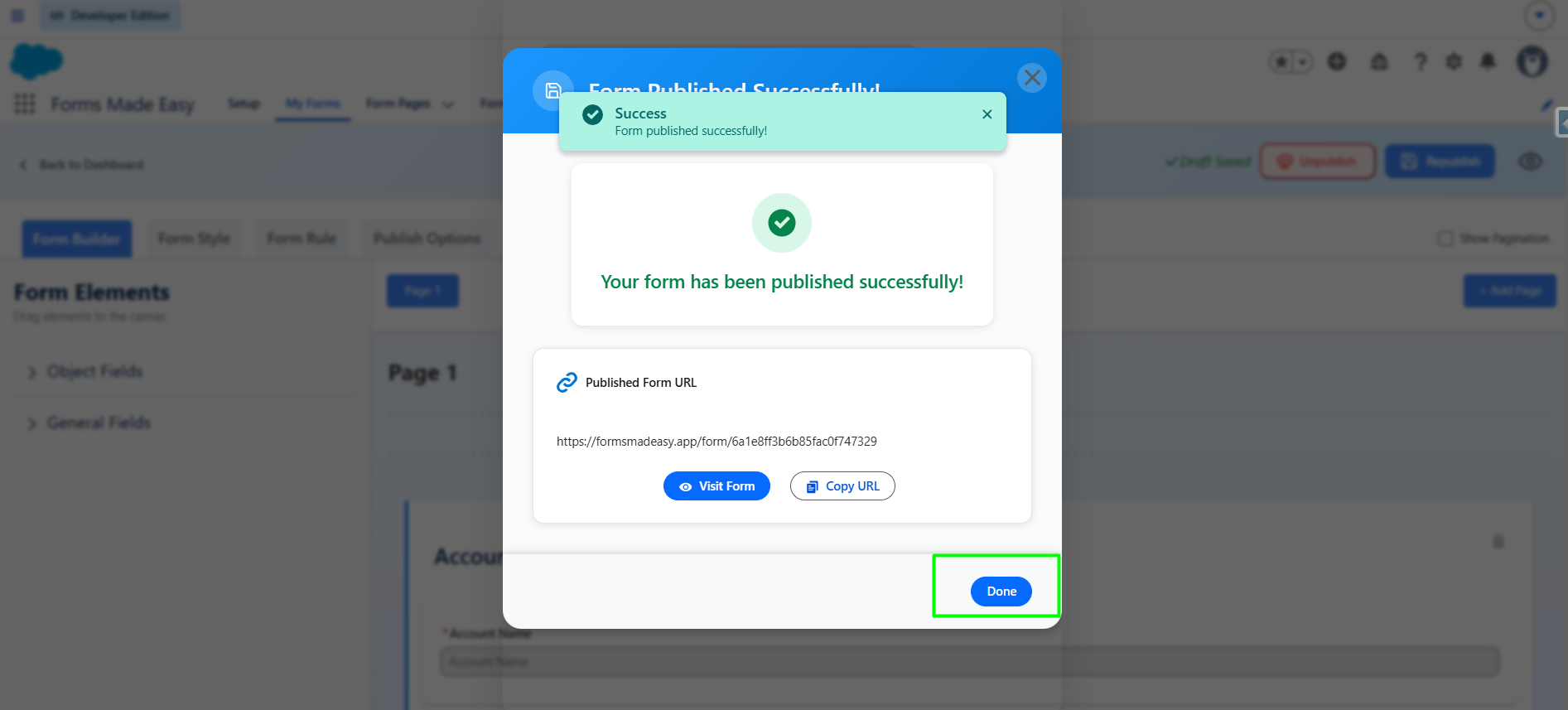
Step 8: Click on "Done" to close the modal.
Step 9: Once the form is published, an additional Publish Options tab becomes available. Under this tab, there is a sub-option called Quick Share. Click on "Quick Share."
(Note: If the form is already created, click "Edit," go to Publish Options, and click "Quick Share.")
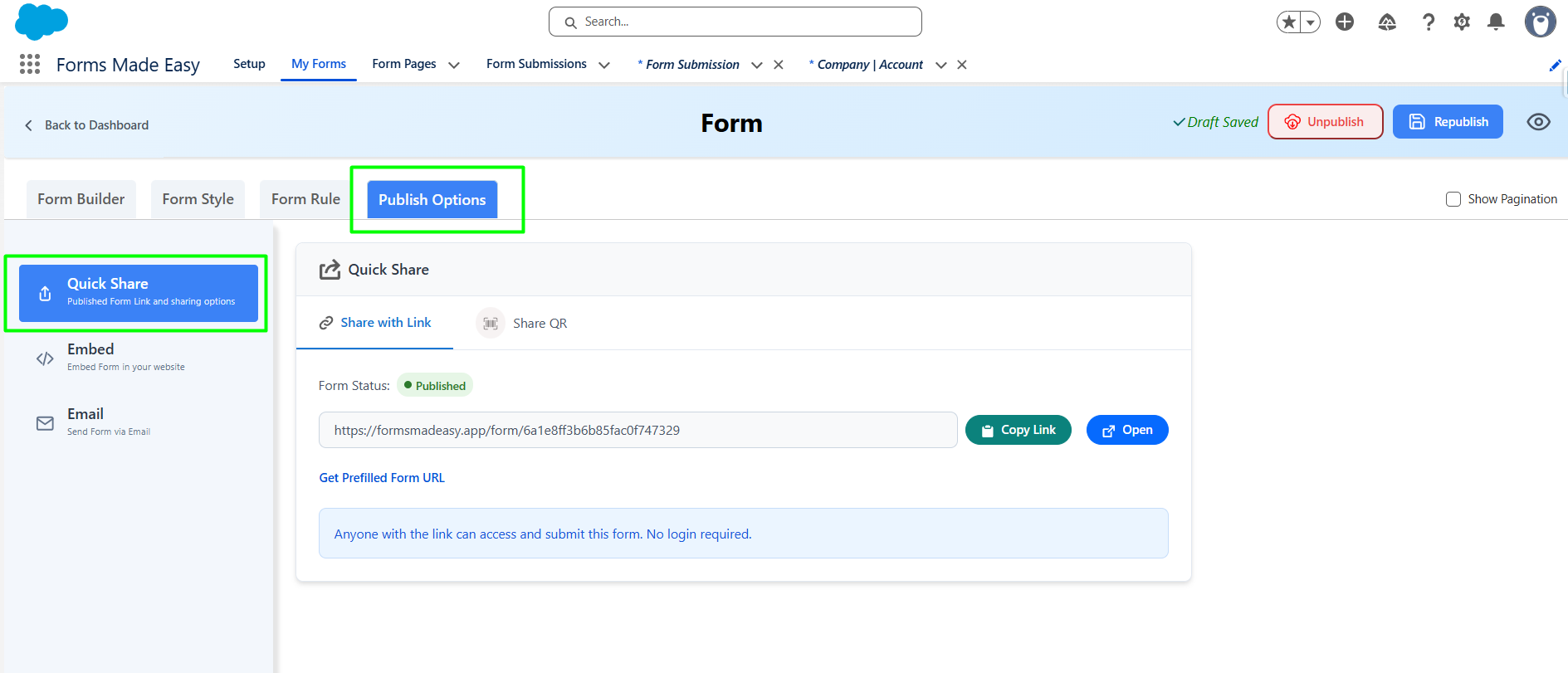
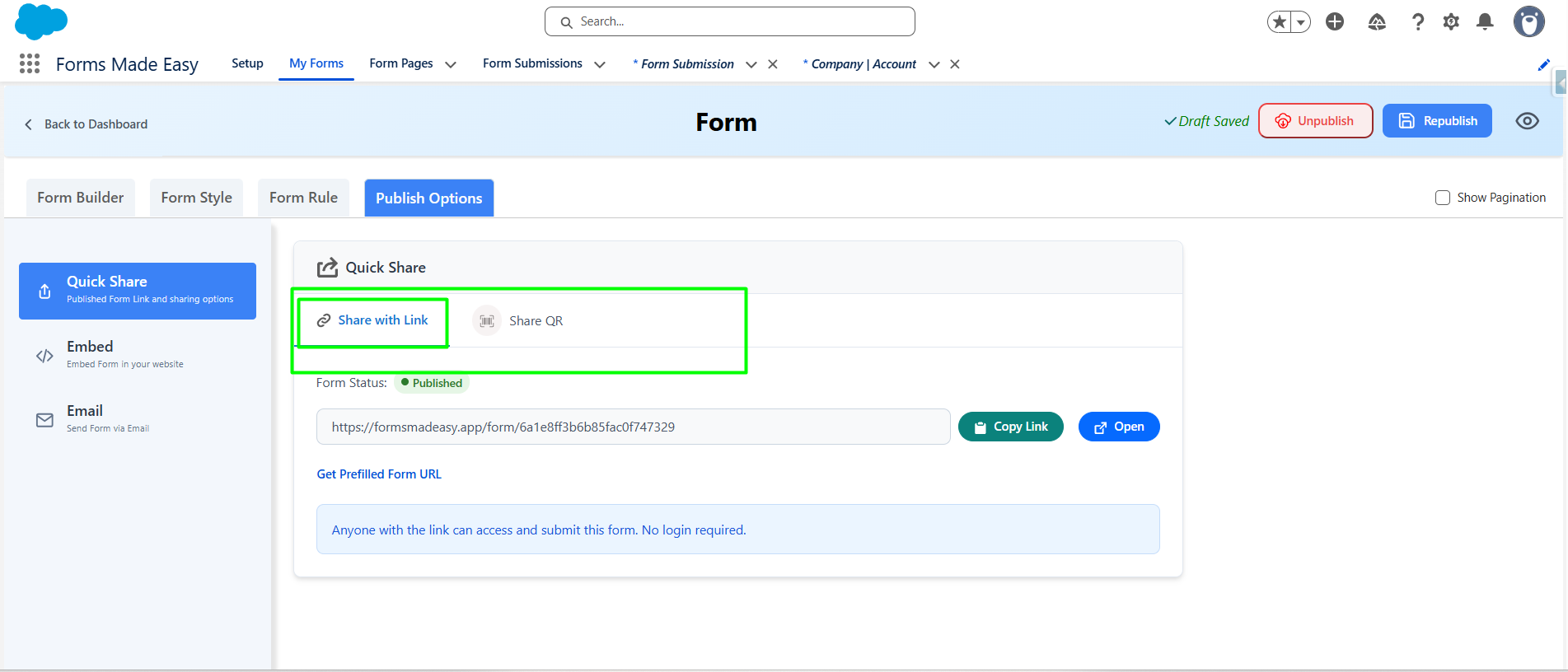
Step 10: Inside the Quick Share section, you will see two options : Share with Link and Share QR. Currently I have chosen the Share with Link.
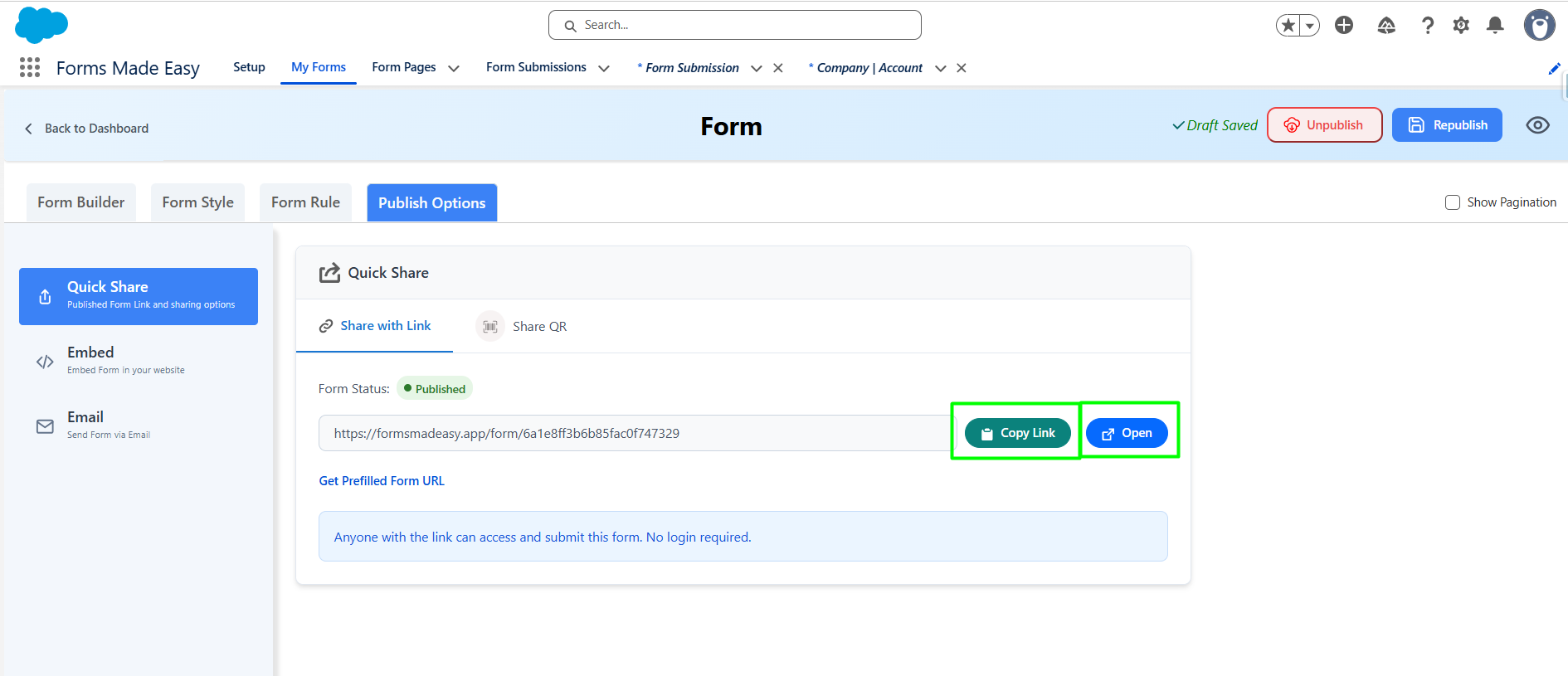
Step 11: Click on the "Copy Link" button to copy the form URL, which you can then share with others. You can also manually copy the link. Or Click on the "Open" button to directly open the form in your web browser.
Steps to Get Prefilled Form URL in Forms Made Easy :
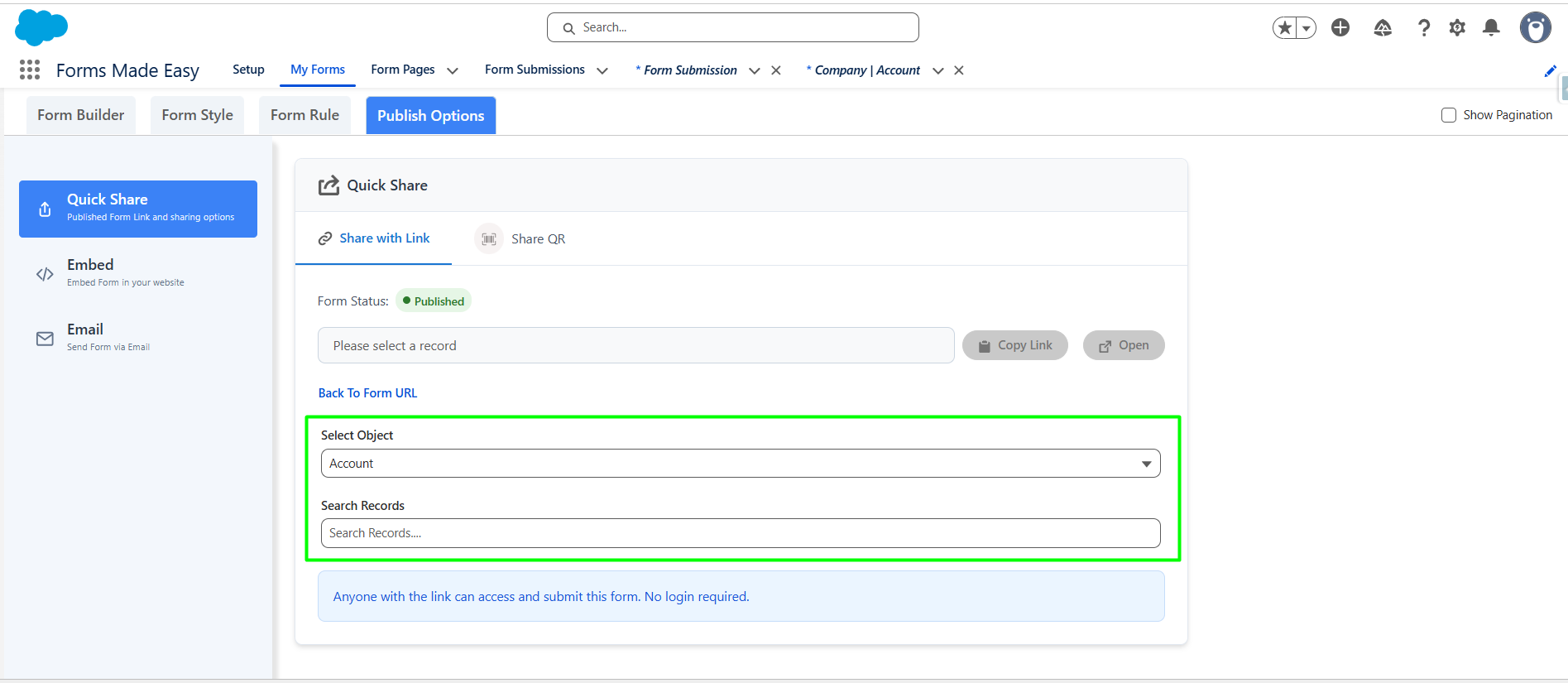
Step 12: Click on Get Prefilled Form URL to generate a link with prefilled data for the selected record.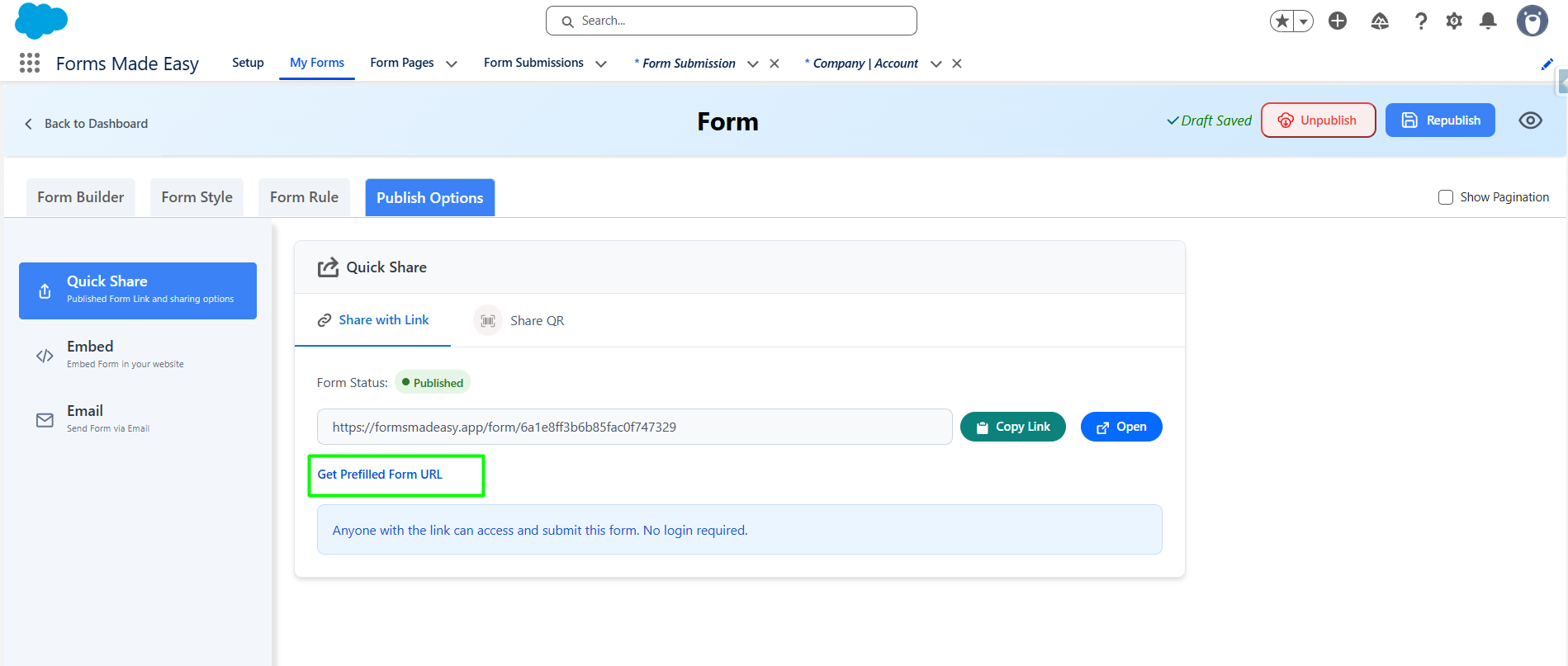
Step 13: Now, Inside the Search Records section, you can search for records of the selected object by their name.
(Note: In this case, we searched for records from the Account object. Make sure that the records exist in the selected object within Salesforce.)
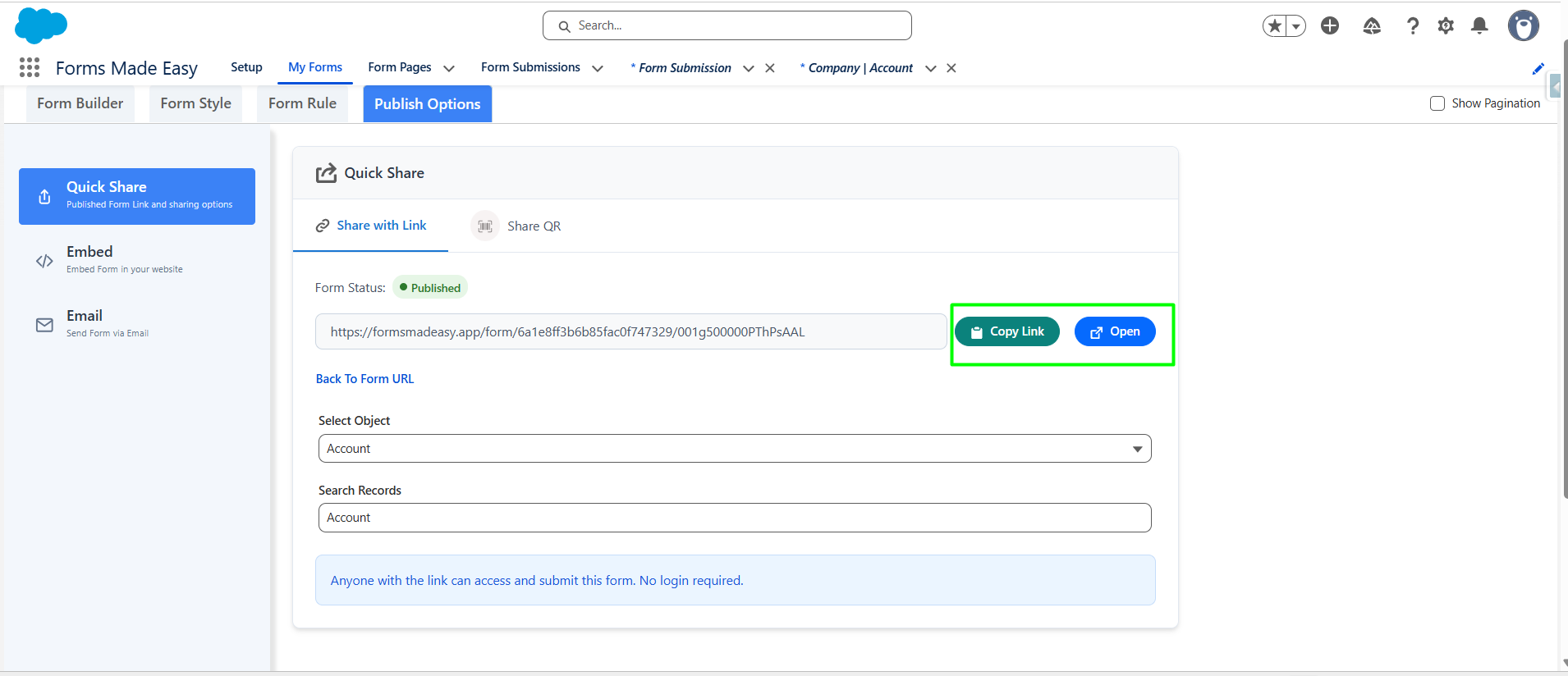
Step 14: Click the Copy Link button to copy the Prefilled Form URL, and the Open button to open the Prefilled Form in a new browser tab.
(Note: You’ll notice that the form link changes from the published form URL to the Get Prefilled Form URL, which includes prefilled data for the selected record.)
Step 15: You will see the prefilled form data displayed on the screen.You can update the prefilled values as needed and click the Submit button to save the changes. 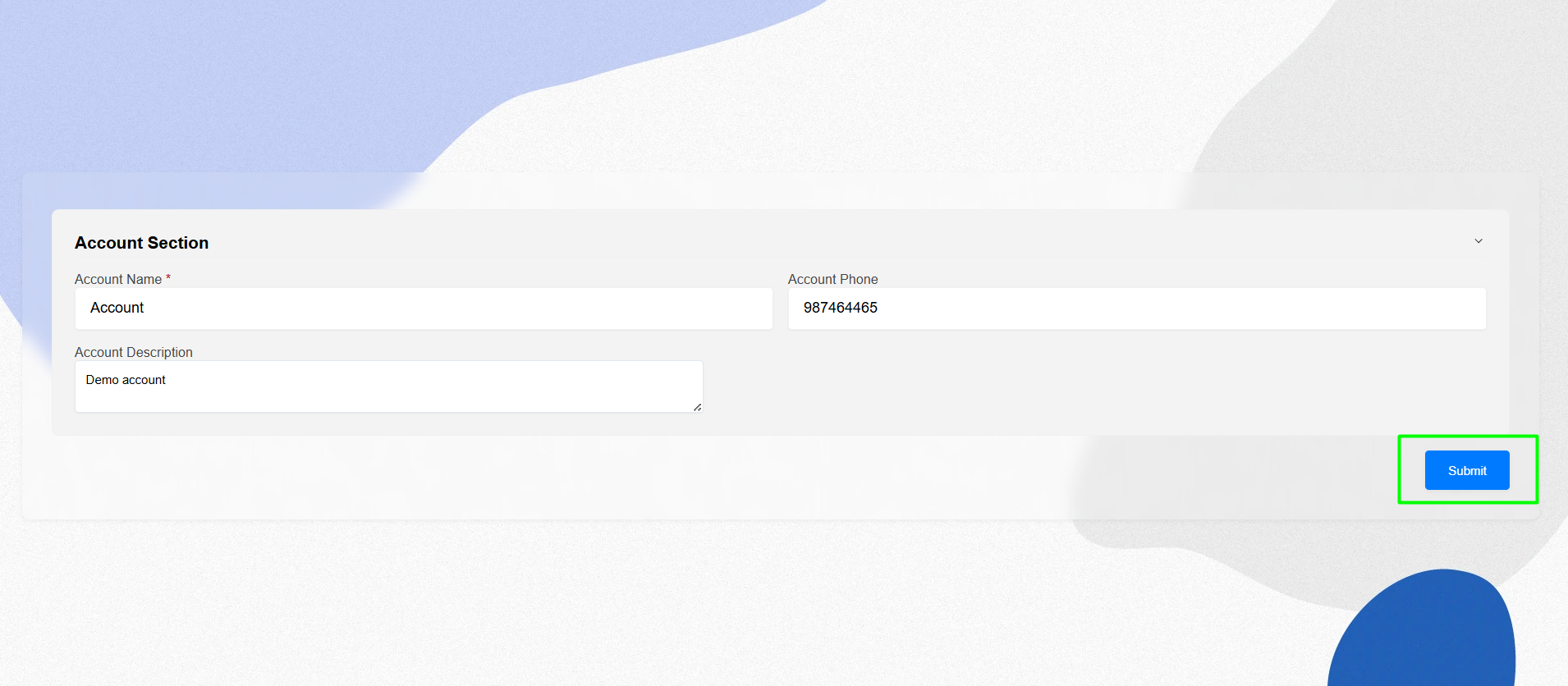
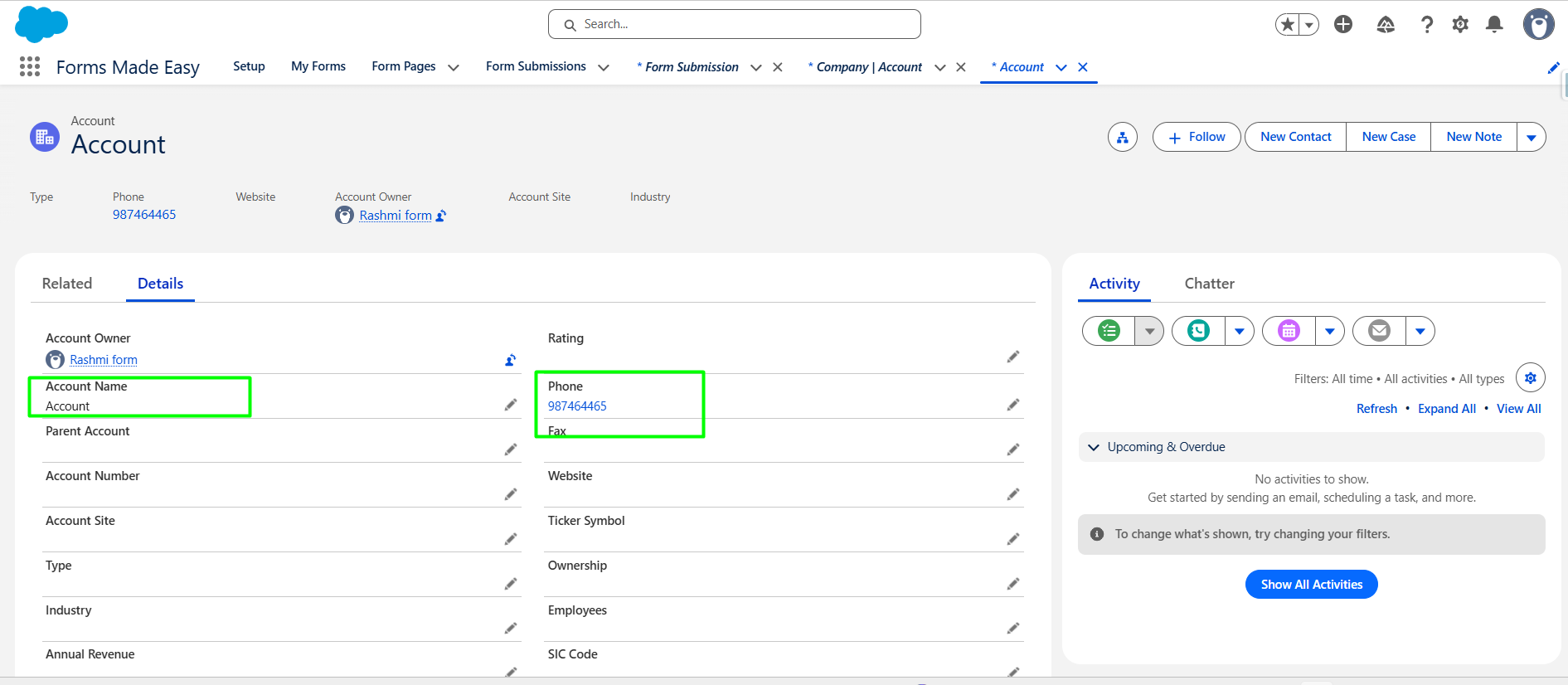
Step 16: Now, you will see that the values has been successfully updated in the Account object.
Steps to Generate Prefilled QR Code in Forms Made Easy :
Step 17: Now, click on the Share QR tab to generate a prefilled QR code. : Click on Generate Prefilled QR Code to create a QR code with prefilled data for the selected record.
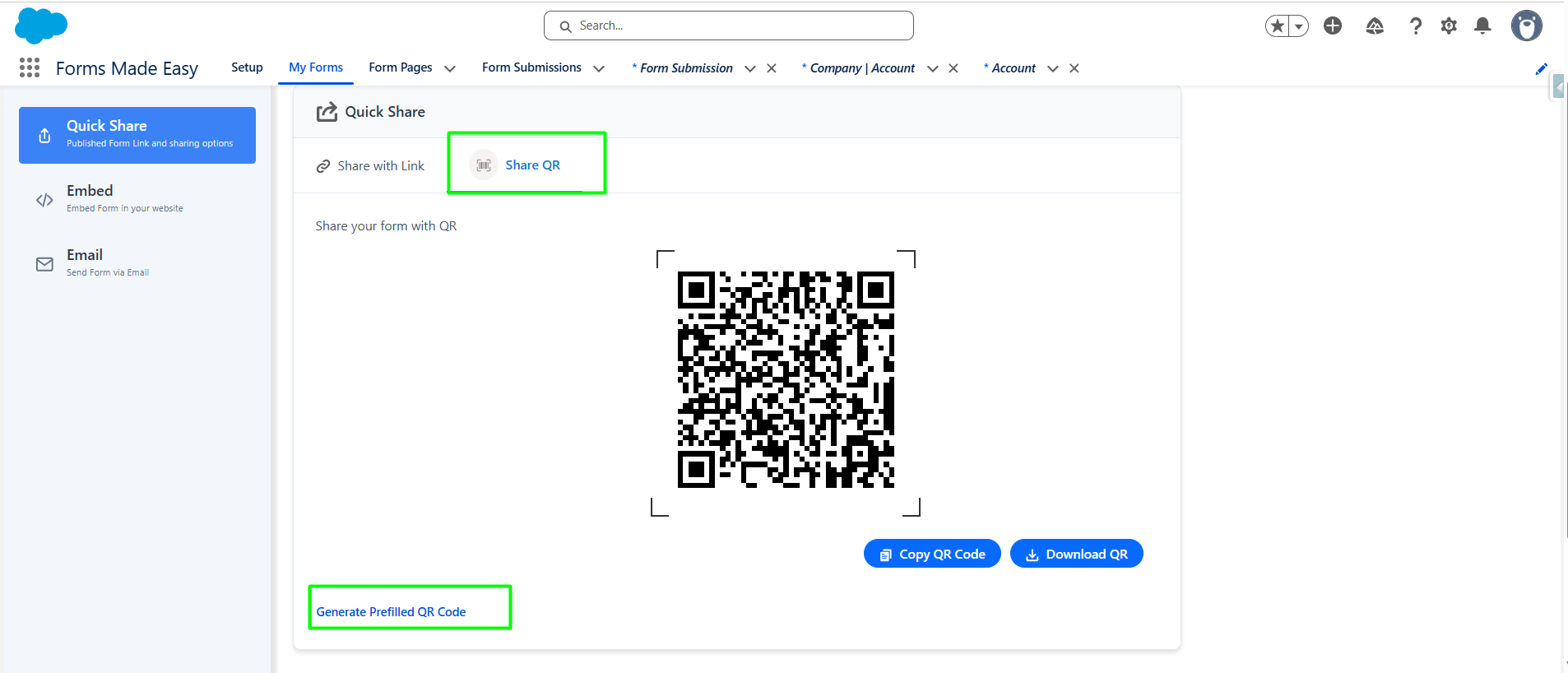
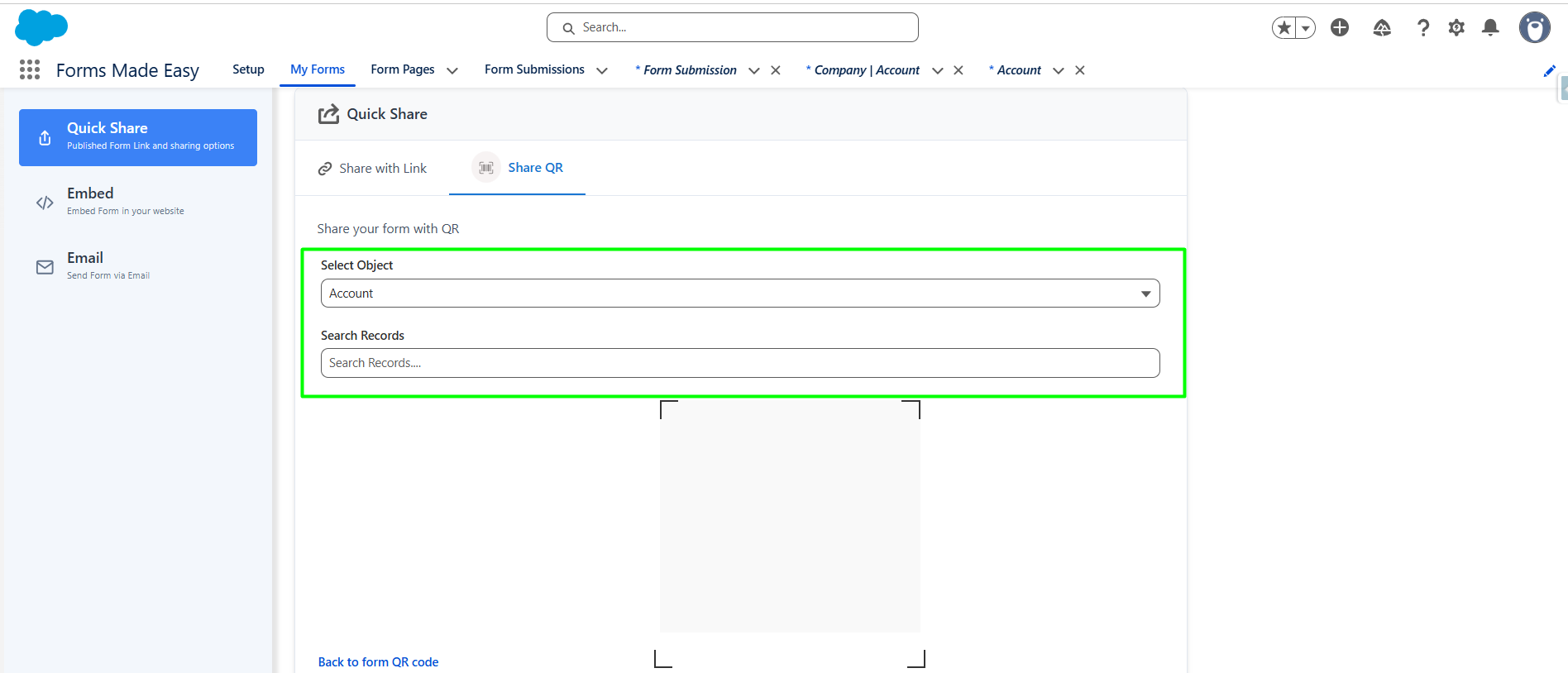
Step 18: Now, Inside the Search Records section, you can search for records of the selected object by their name. Once a record is selected, a QR Code will be generated with prefilled data.
(Note: In this case, we searched for records from the Account object. Make sure that the records exist in the selected object within Salesforce.)
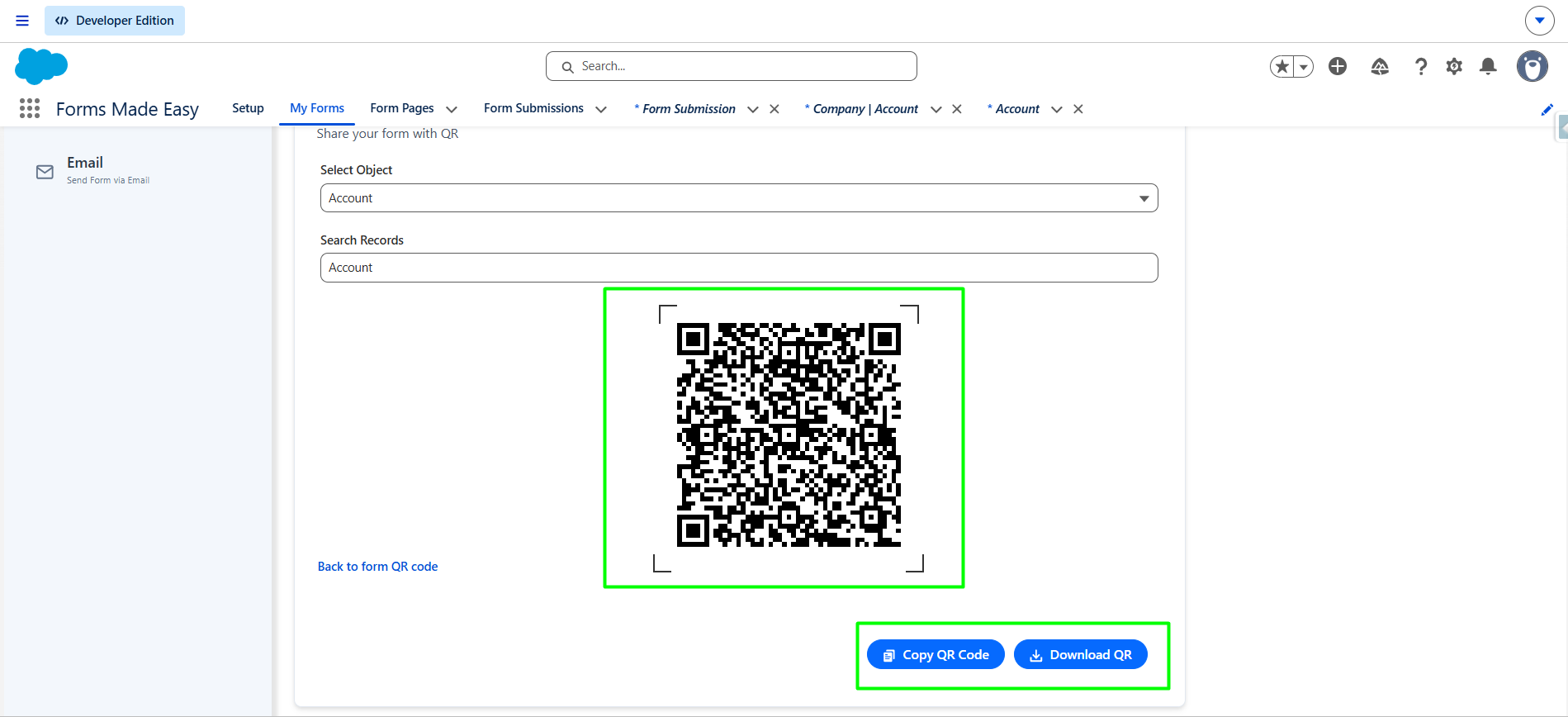
Step 19: Click on the Download QR button to download the QR Code containing the prefilled dat OR Copy QR Code to share prefilled data QR Code.
Was this article helpful?
That’s Great!
Thank you for your feedback
Sorry! We couldn't be helpful
Thank you for your feedback
Feedback sent
We appreciate your effort and will try to fix the article