In this step-by-step guide, we’ll walk through how to create a parent–child prefill form in Salesforce using Forms Made Easy, and how you can update a child record while keeping the parent record visible.
For this example:
- Account → Parent Object
- Contact → Child Object
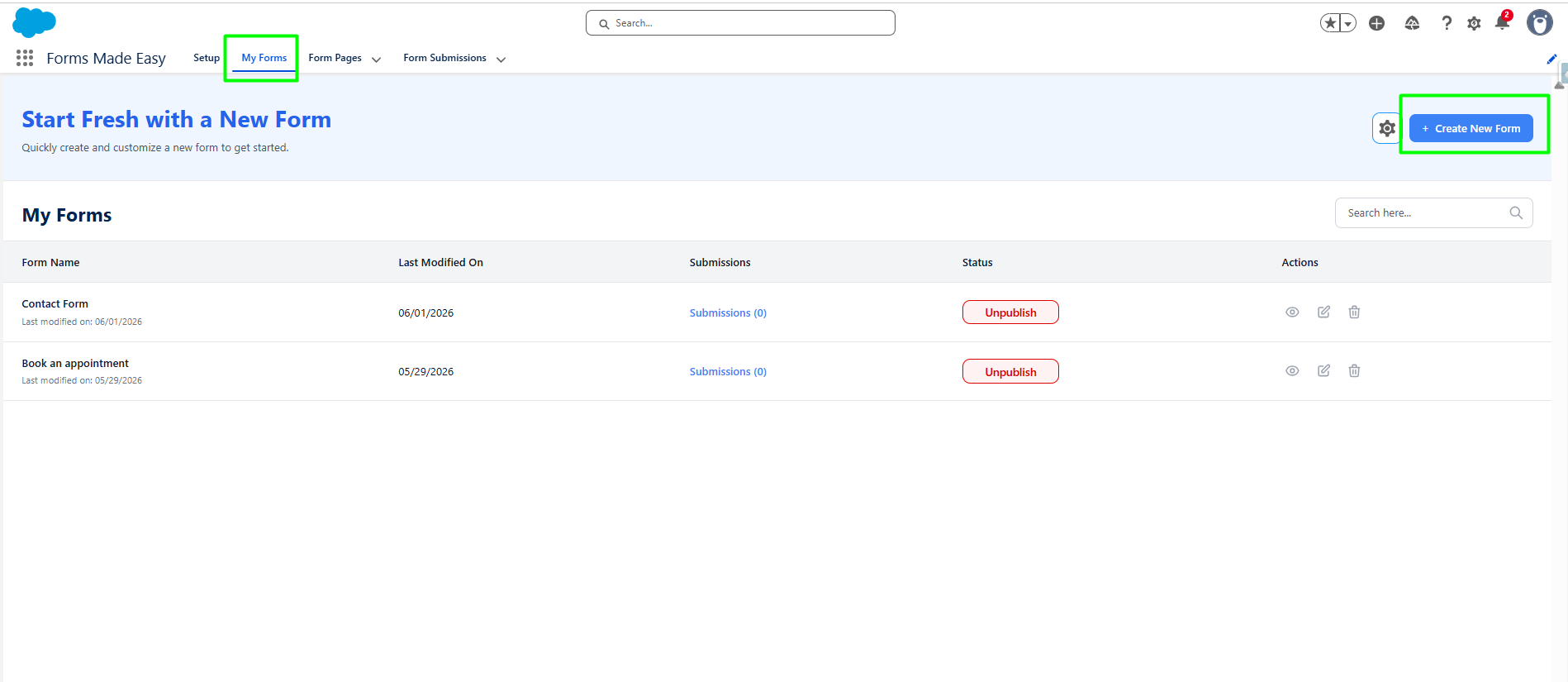
Step 1: Click on the My Forms tab, then click on Create New Form in the top right corner.
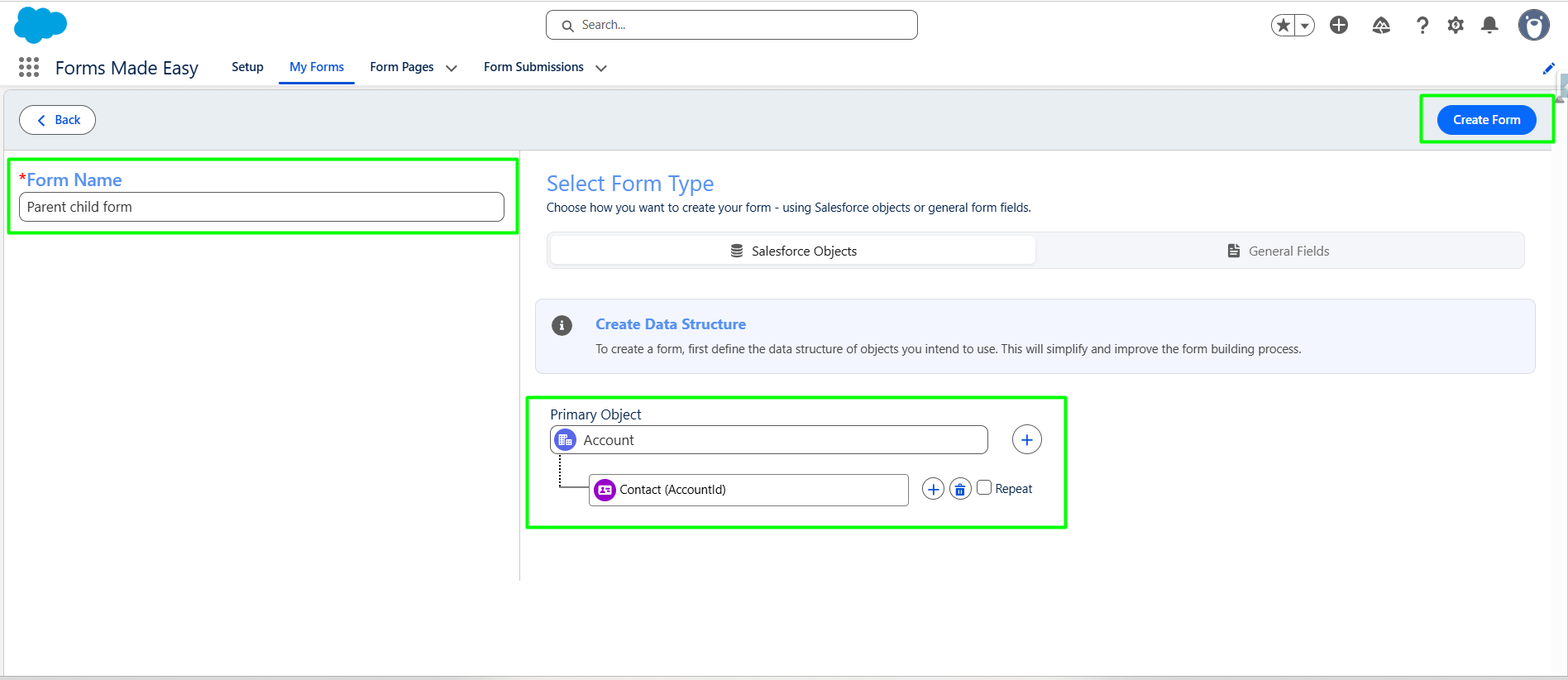
Step 2: Enter your desired Form Name. Select Account as the Primary Object and Contact as the Secondary Object, then click on Create Form.
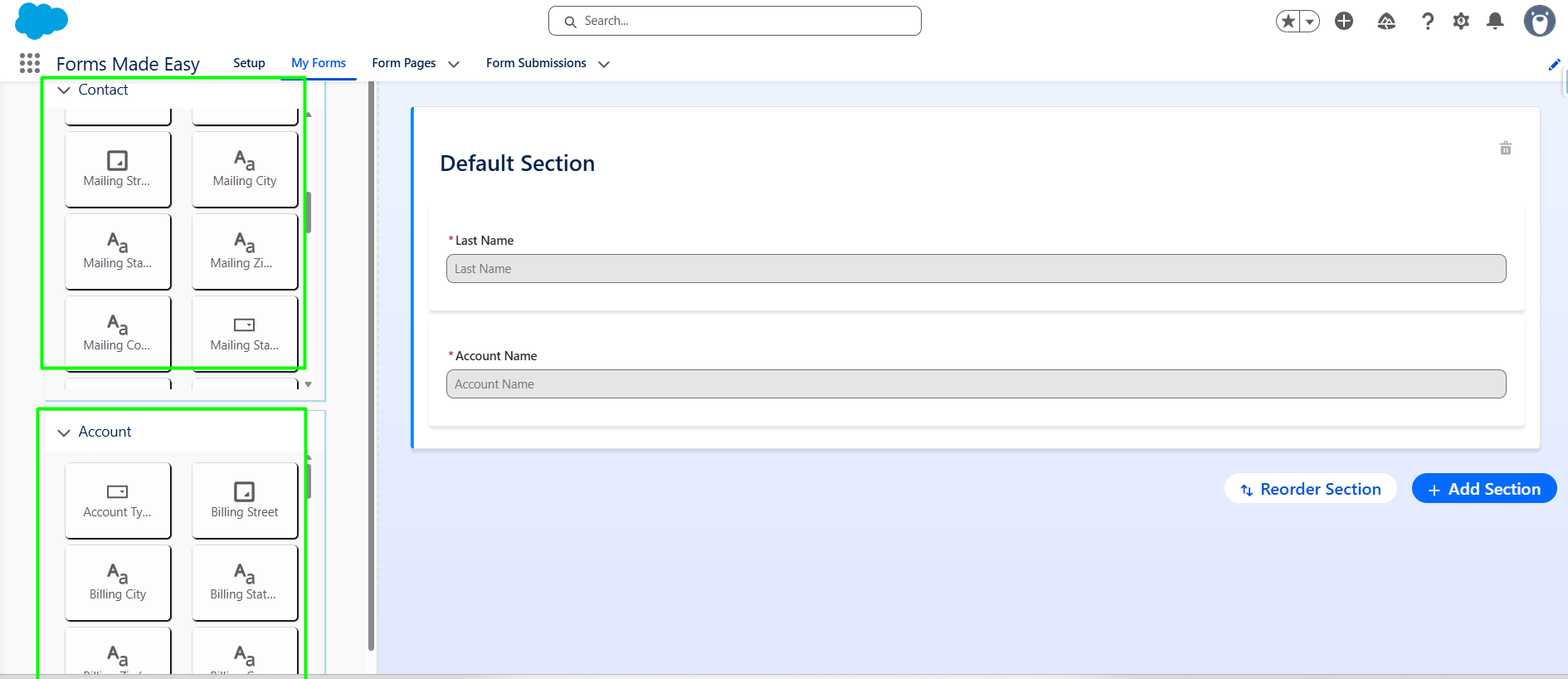
Step 3: Next, drag and drop the fields you want to display on the form. Add the required fields from both Account and Contact.
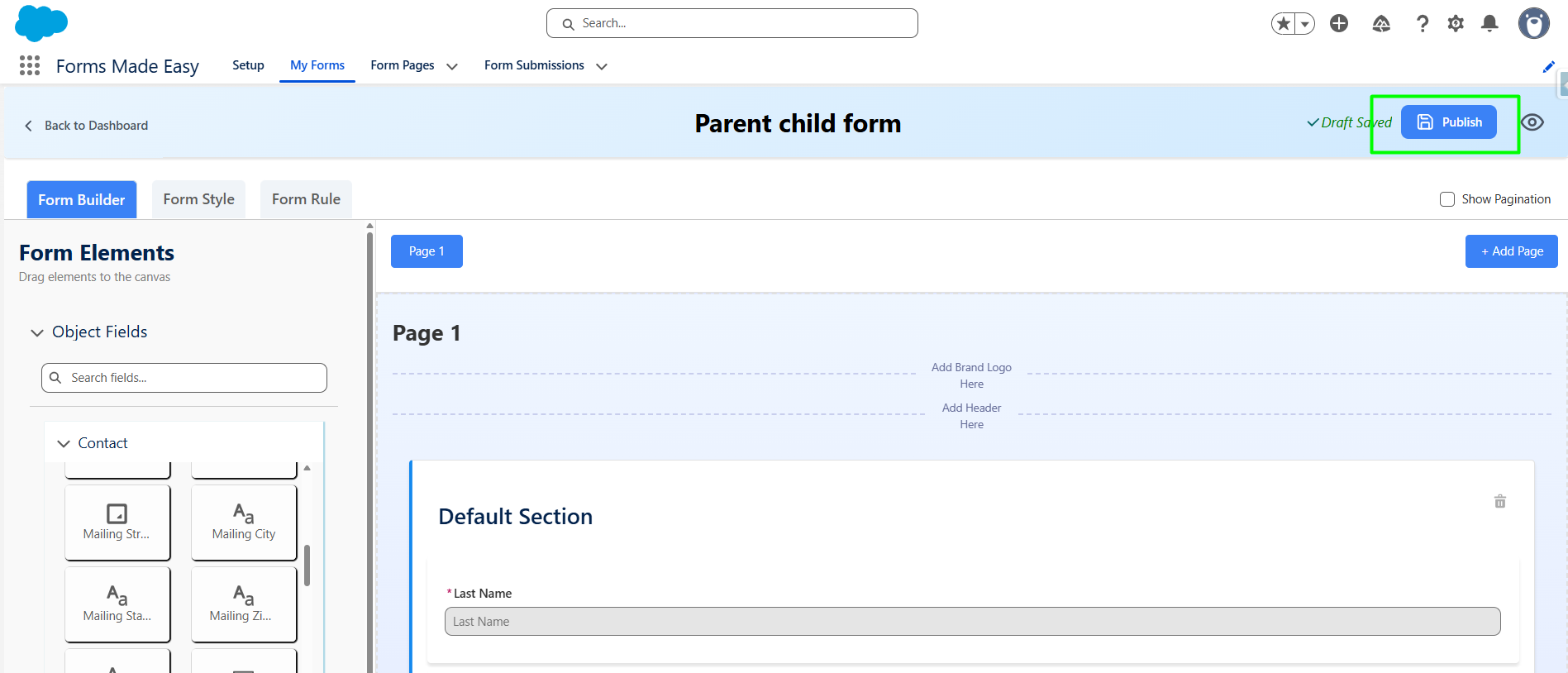
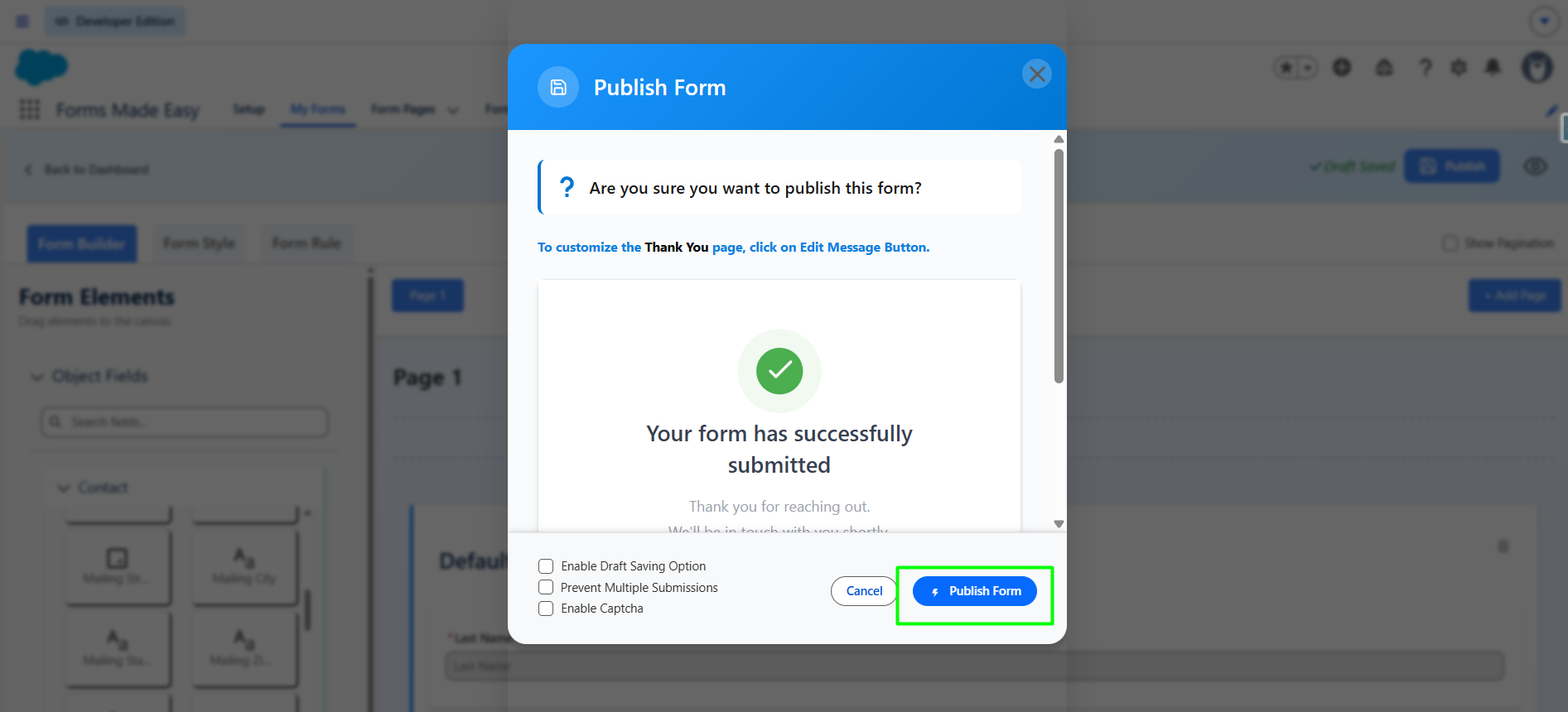
Step 4: Once all the fields are added, click on the Publish button.
Step 5: Click on the Publish Form button.
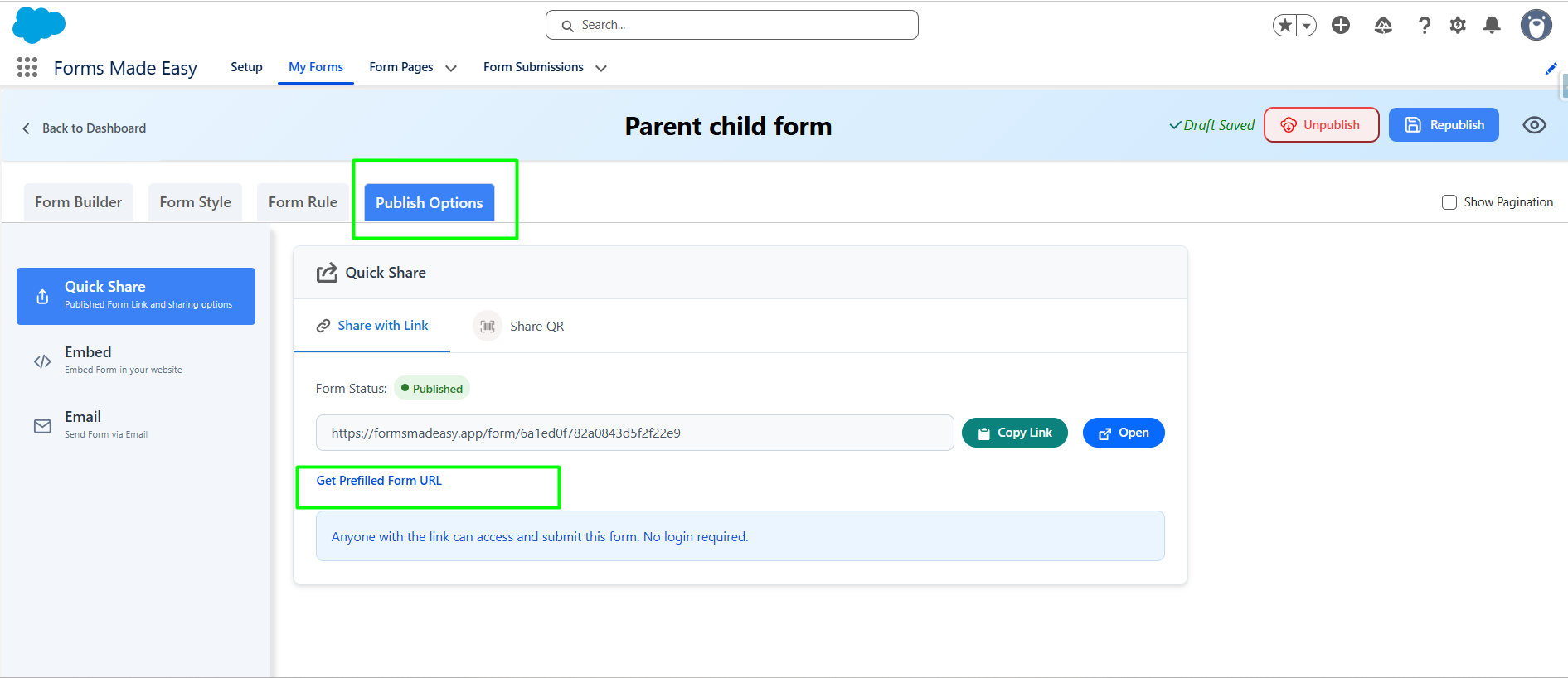
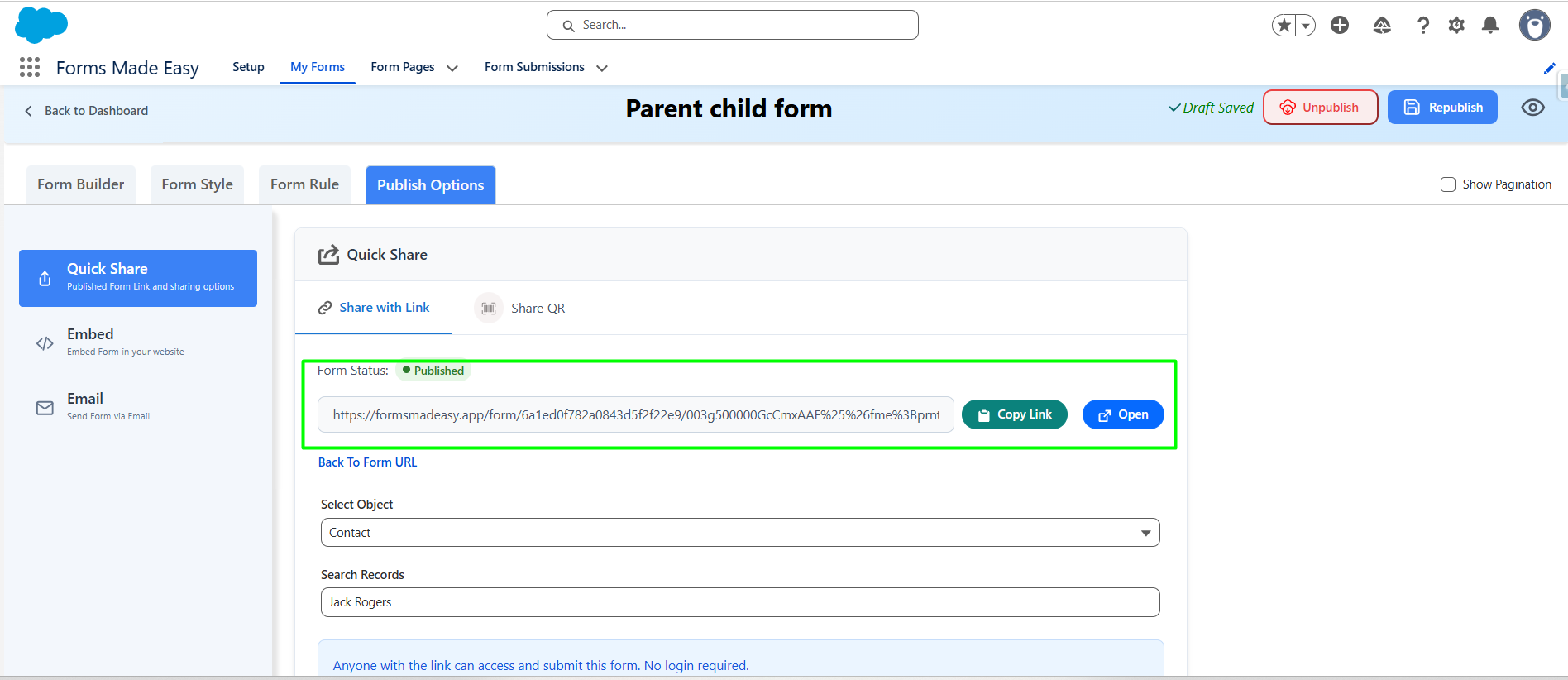
Step 6: Go to the Publish Option tab, click on Quick Share, and select Get Prefilled Form URL
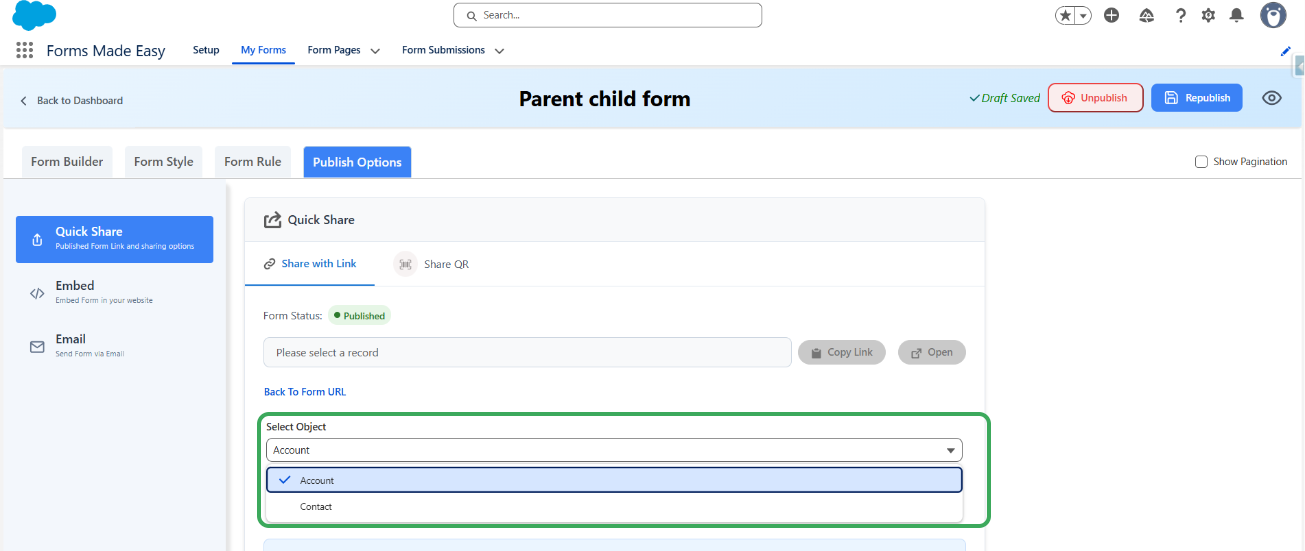
Step 7: Choose your Child object from the Select Object dropdown menu.
Step 8: Search for the specific Contact record you want to update and select it.
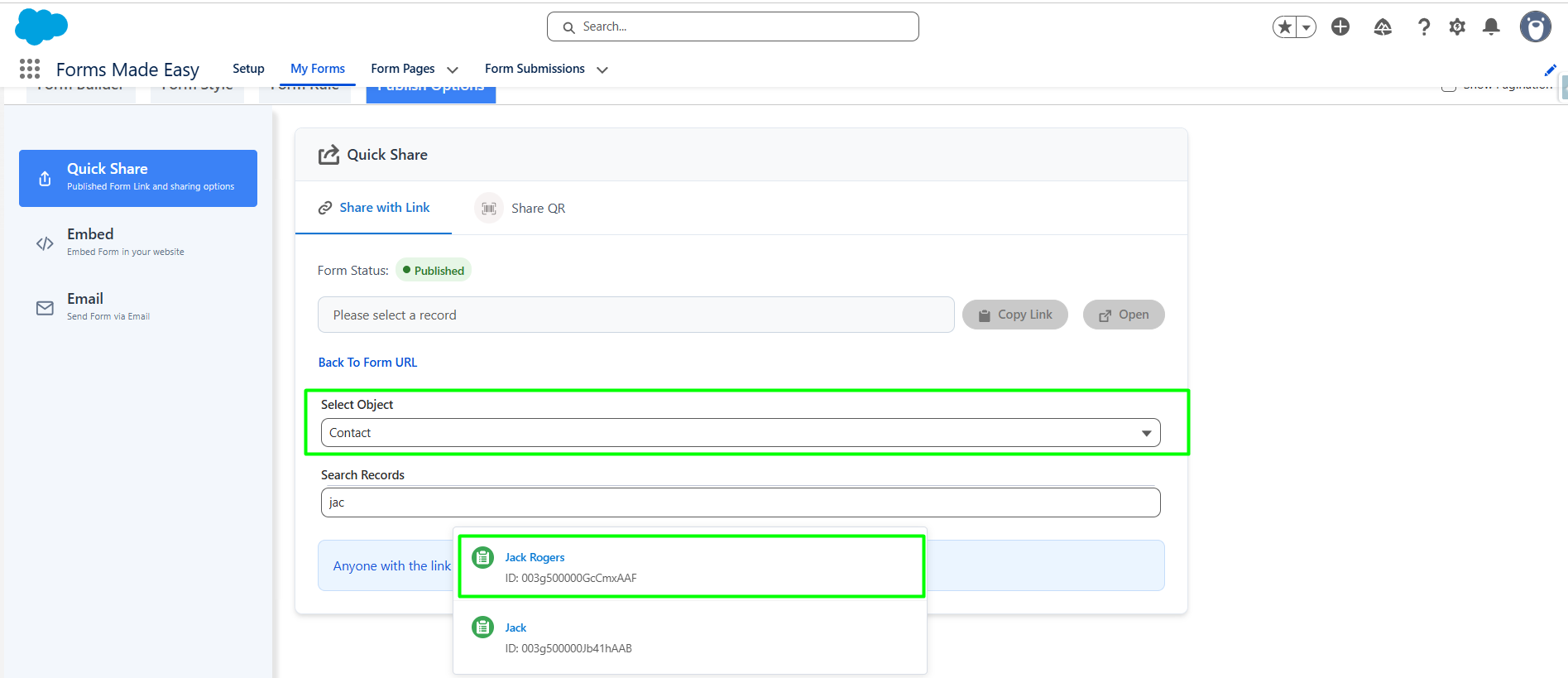
Step 9: Once selected, a unique Prefilled Form URL will be generated. Click on Open to view the form immediately, or click on Copy Link to save the URL to your clipboard.
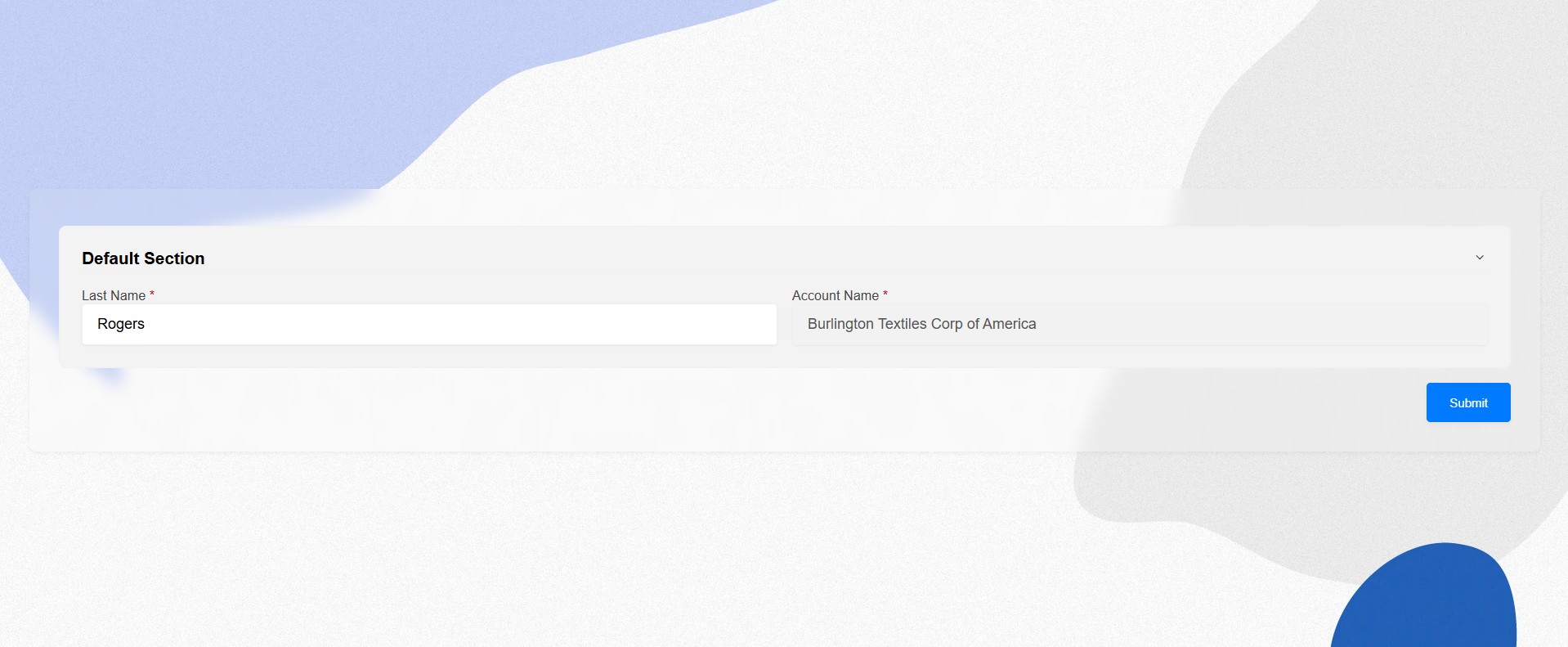
Step 10: Open the prefilled form link. You will notice that the Account (parent) details are already filled and automatically set to read-only. The Contact (child) details are also prefilled but remain editable. Update any field you need (for example, change the First Name) and click Submit.
Step 11: After submitting the form, go back to the My Forms and click on Submission for that specific form.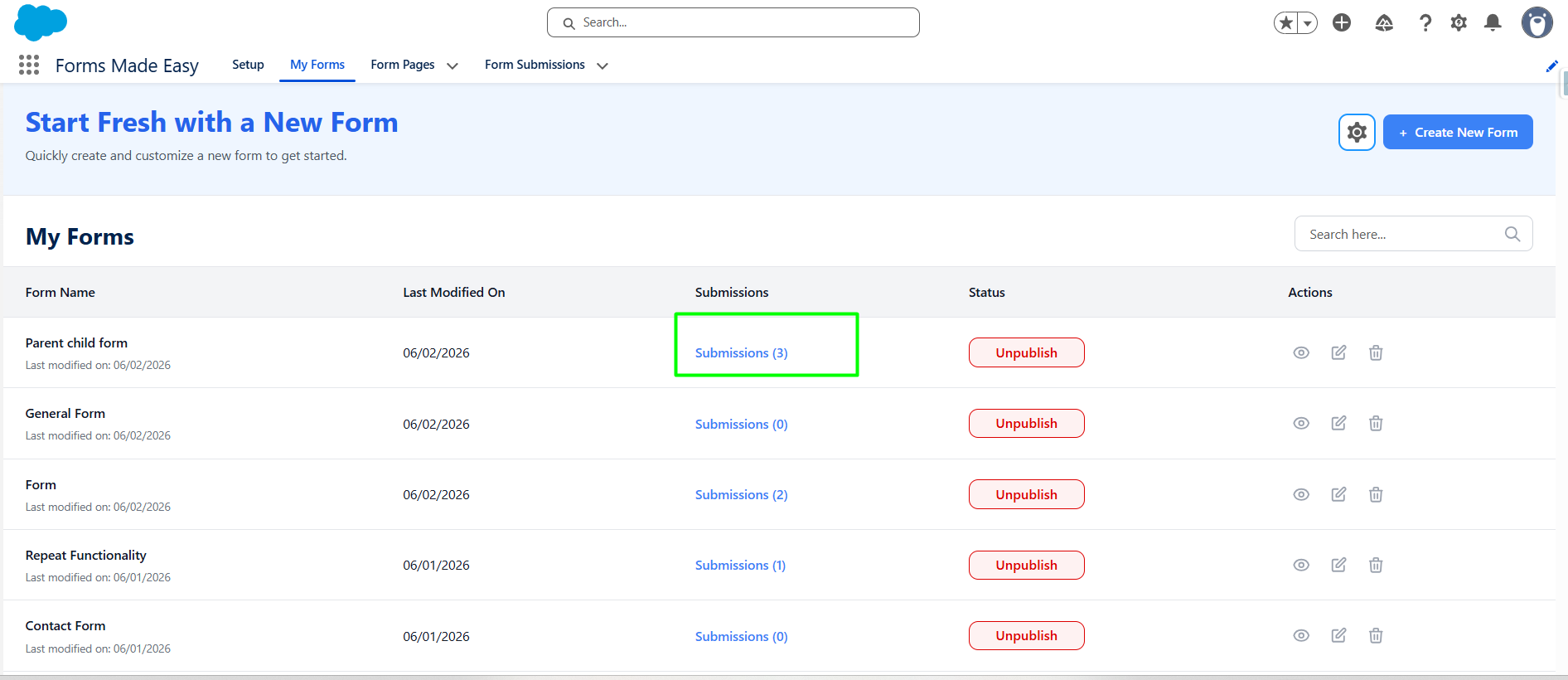
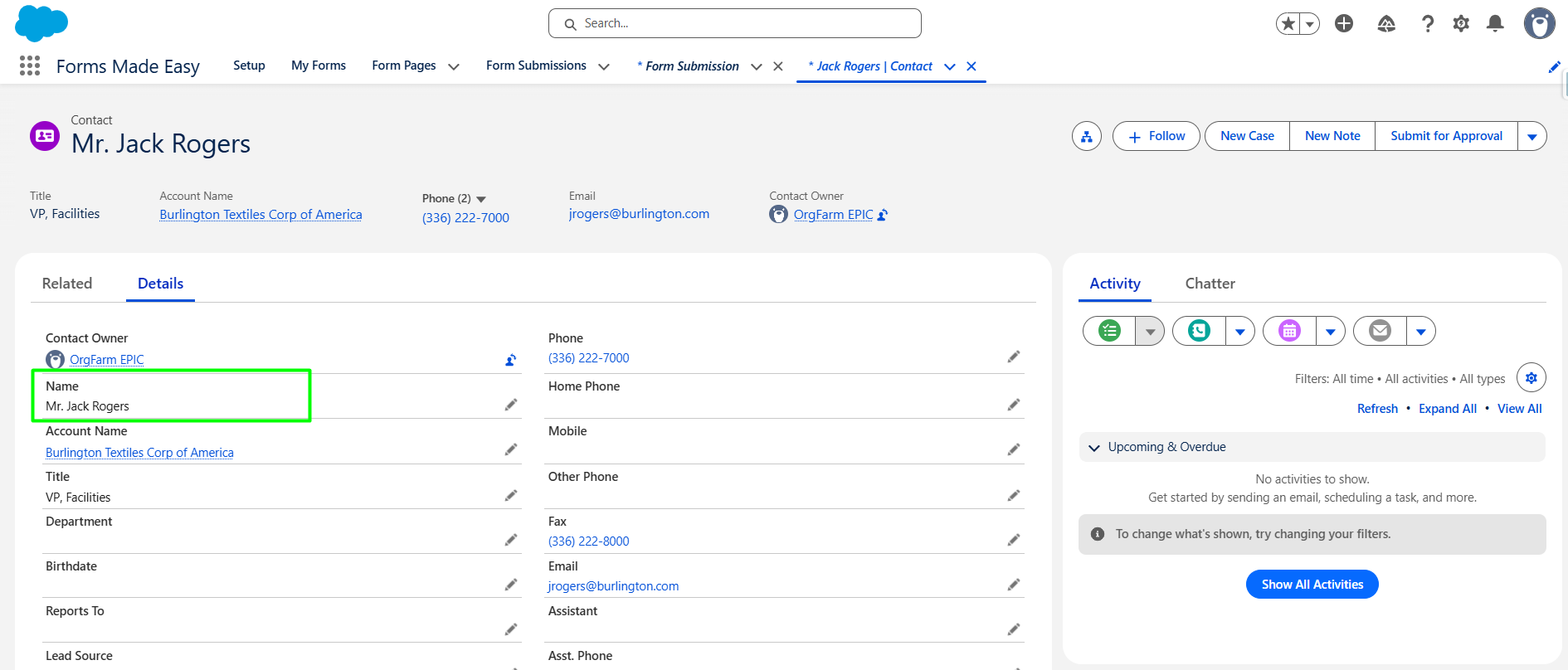
Step 12: Finally, click on View Records, open the Contact record you updated, and you’ll see the changes reflected there.
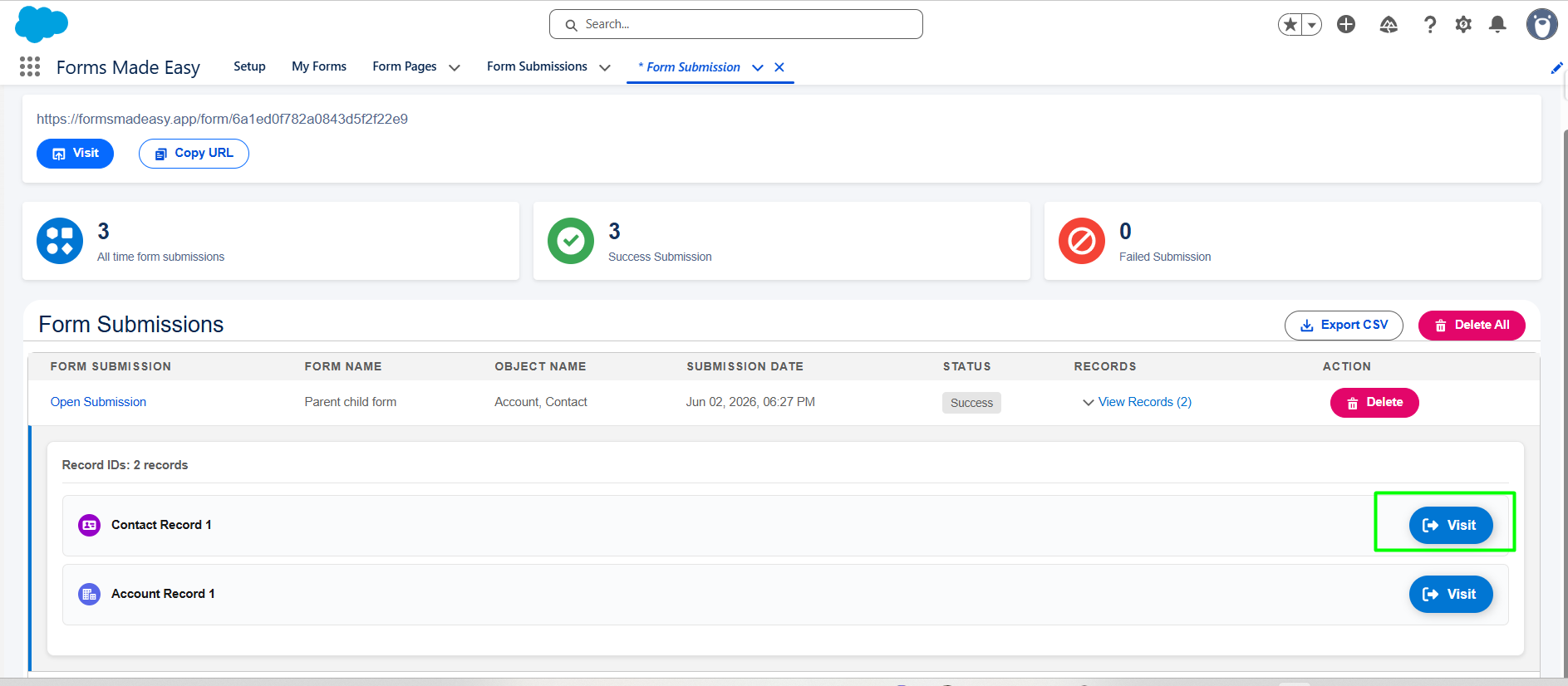
Step 13: Here you can see that in the contact record, the name is updated.
Was this article helpful?
That’s Great!
Thank you for your feedback
Sorry! We couldn't be helpful
Thank you for your feedback
Feedback sent
We appreciate your effort and will try to fix the article