In this blog, you will see how to Add Header on Form in Forms Made Easy to add custom headers to your form.
Steps to Add header on Form In Forms made easy:
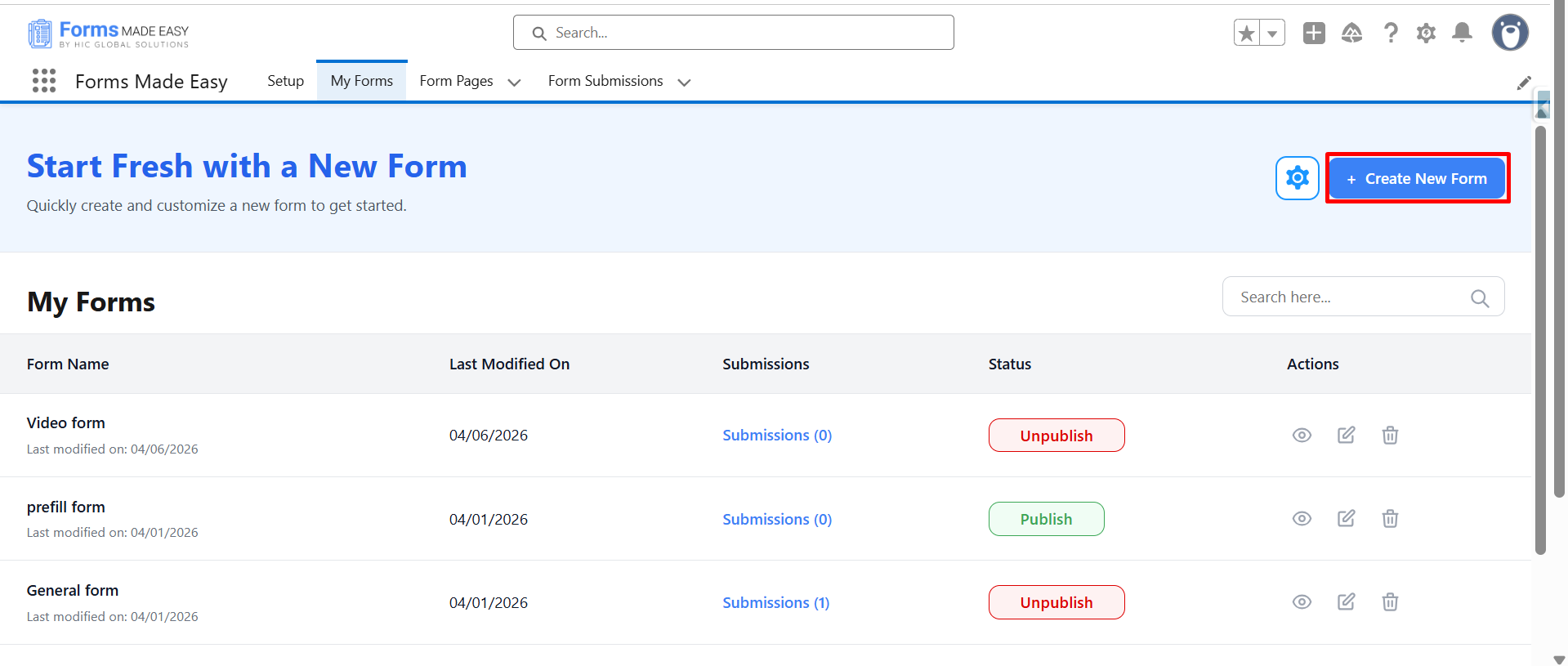
Step 1: Go to the My Forms tab and click on the "Create New” Form" button.
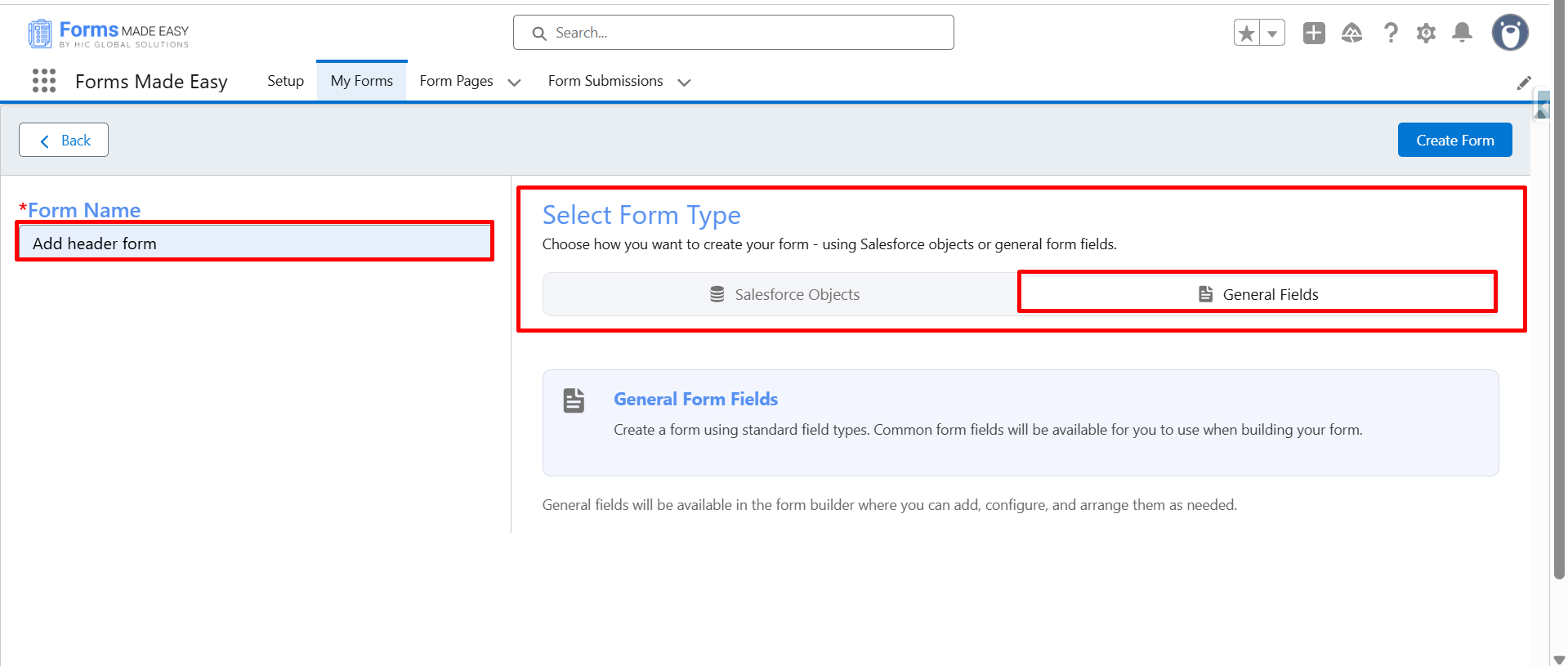
Step 2: Enter the form name and select the form type (Salesforce Objects or General Fields).
- Currently I have chosen the general fields option.
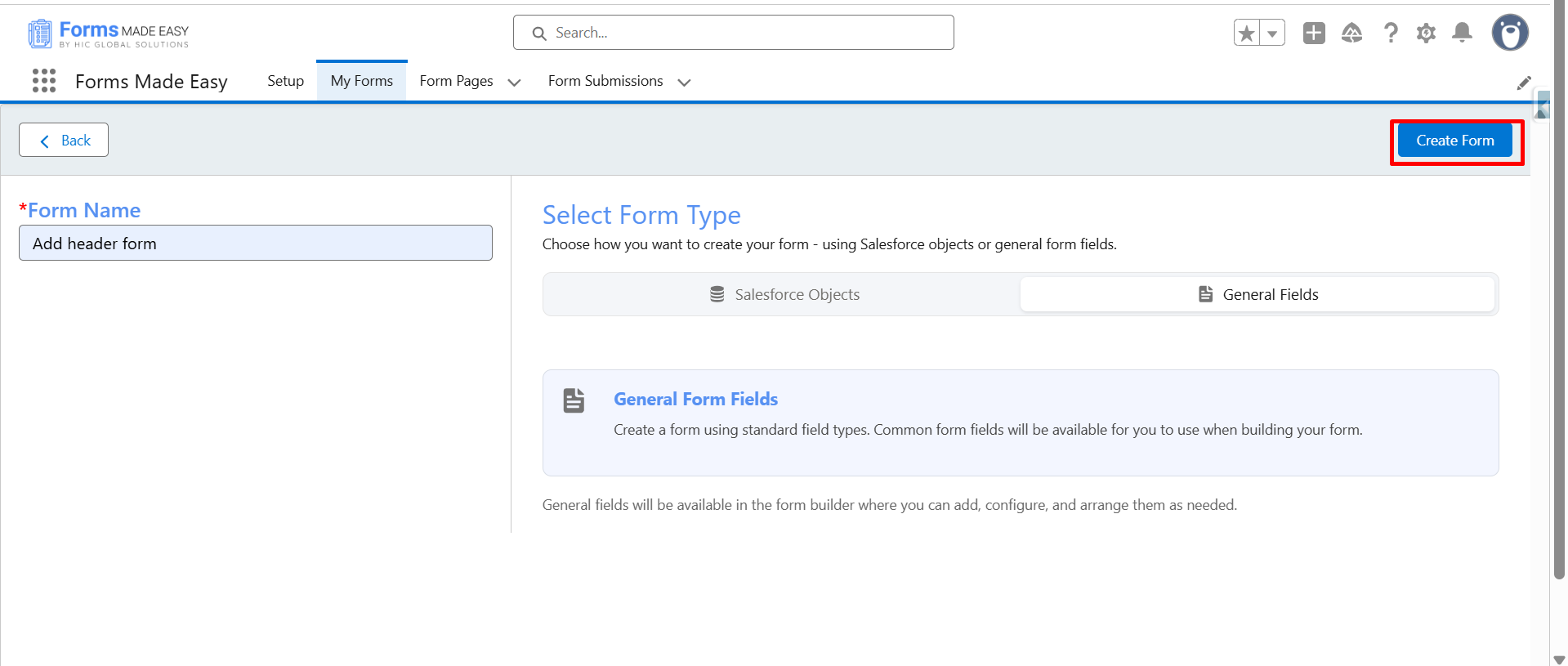
Step 3: Click on the "Create Form" button.
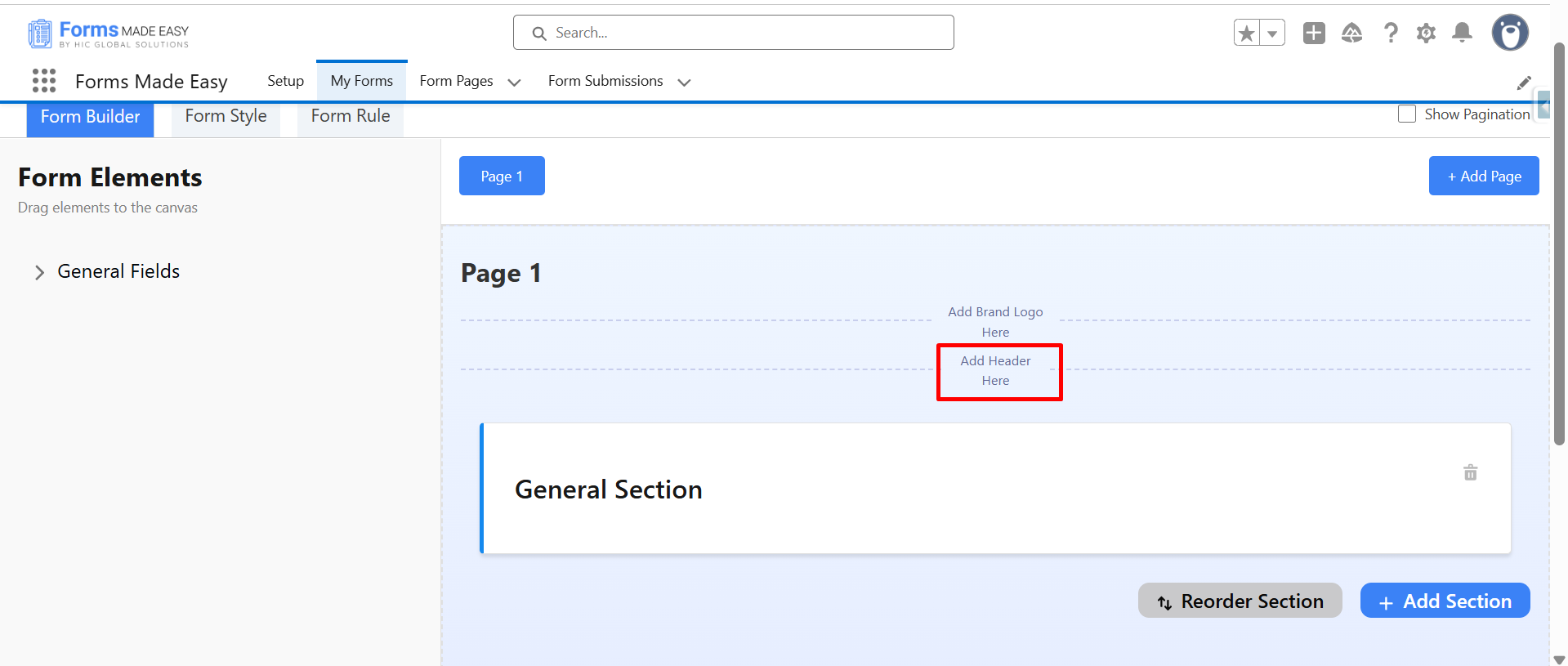
Step 4: To add form header, click on “Add header here”.
Step 5: Now a configuration side panel will be displayed.
- Locate the Header Text field. Enter the required header content.
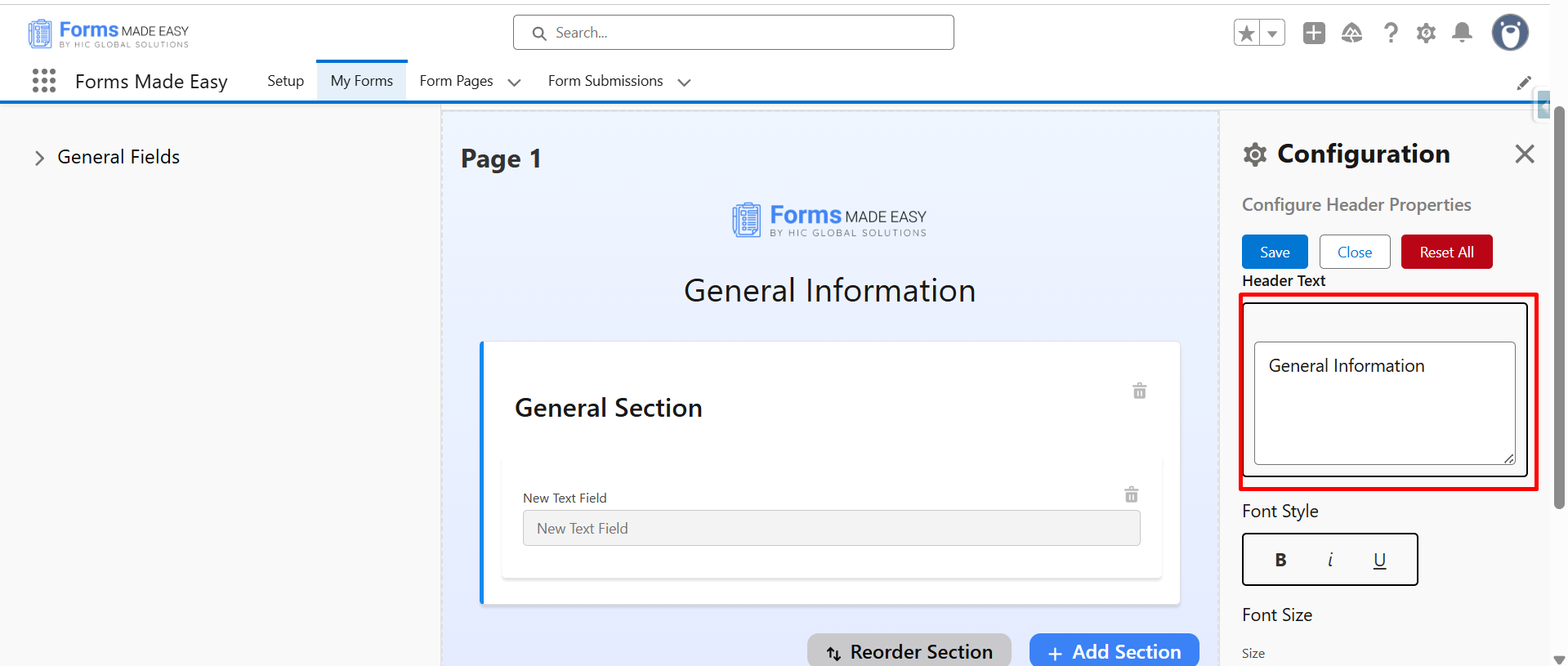
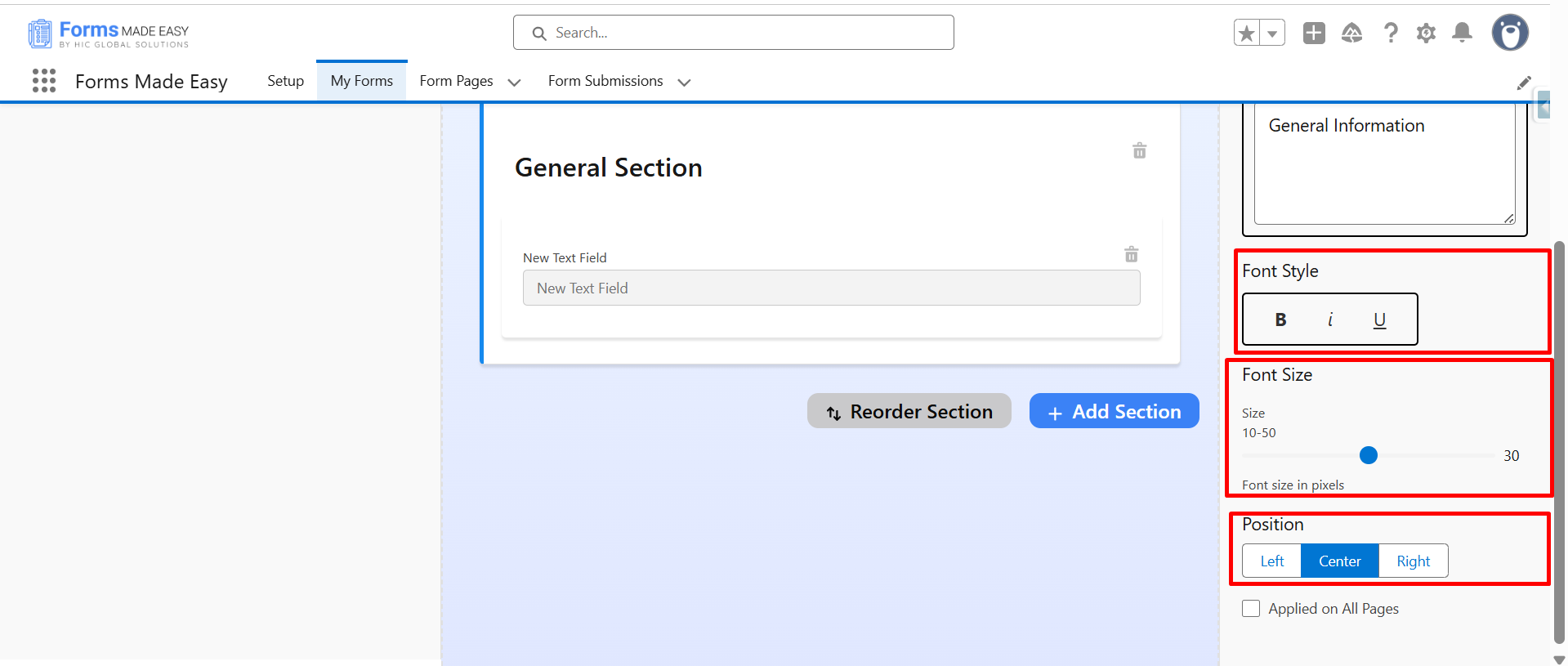
Step 6: Adjust font size/style if required.
And for alignment, click on “Position” to change the alignment of Header (like left, center, and right).
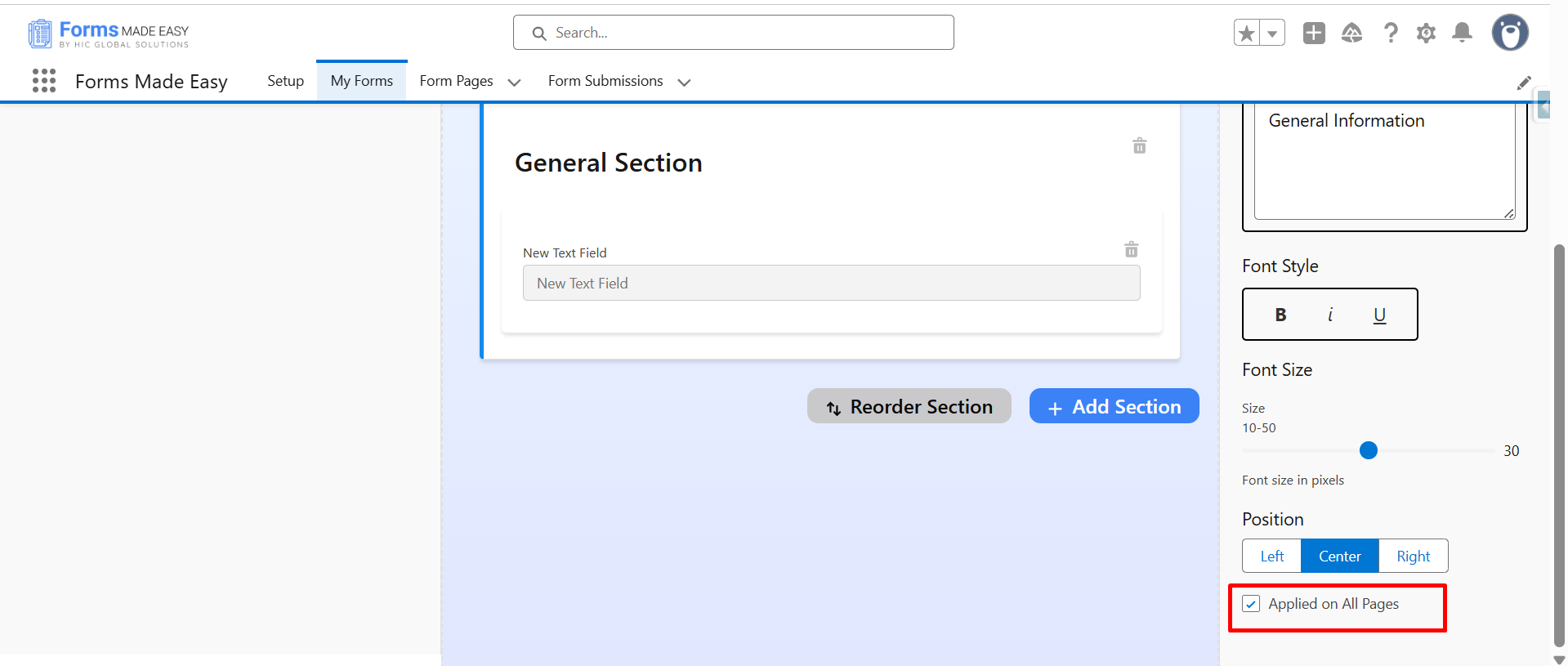
Step 7: For multi-page forms, enable "Apply on All Pages" to display the header across all pages.
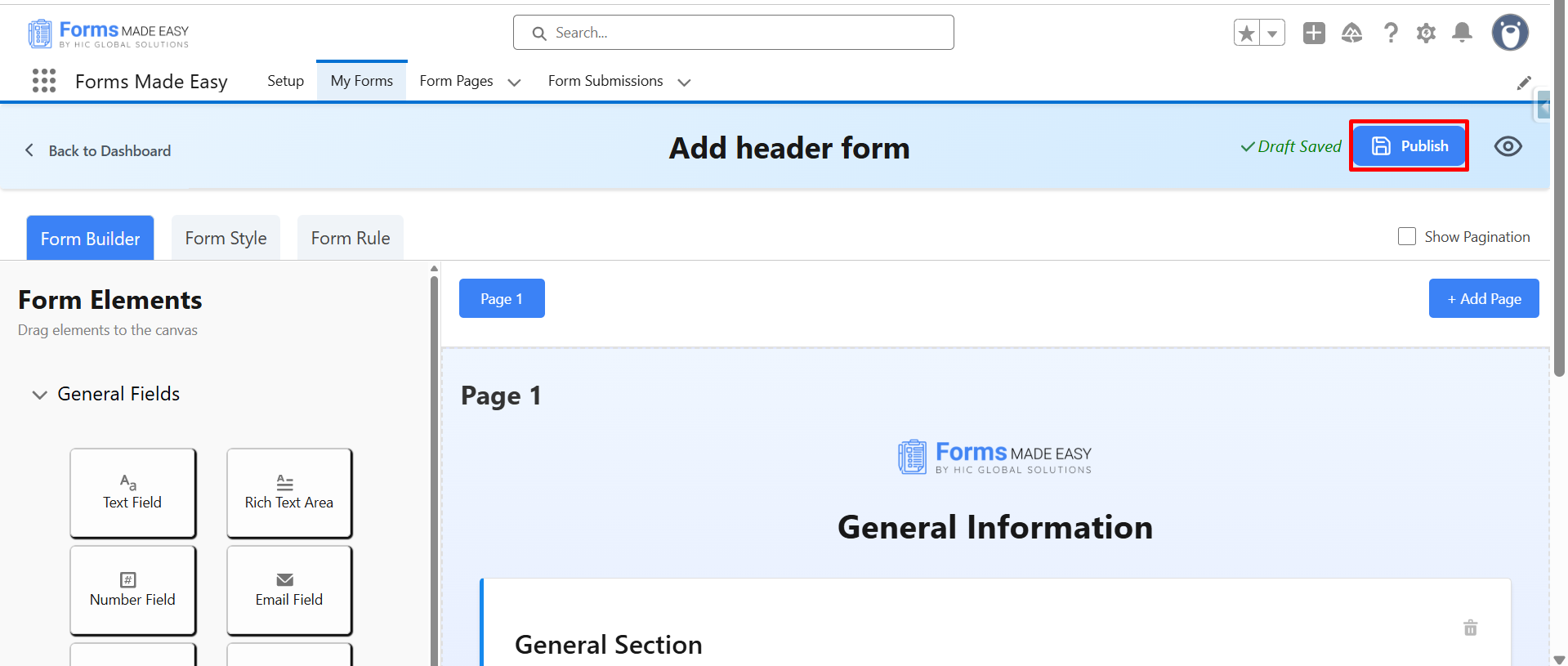
Step 8: Drag and drop your required fields on the form. After all of that, you can publish the form by clicking the "Publish" button.
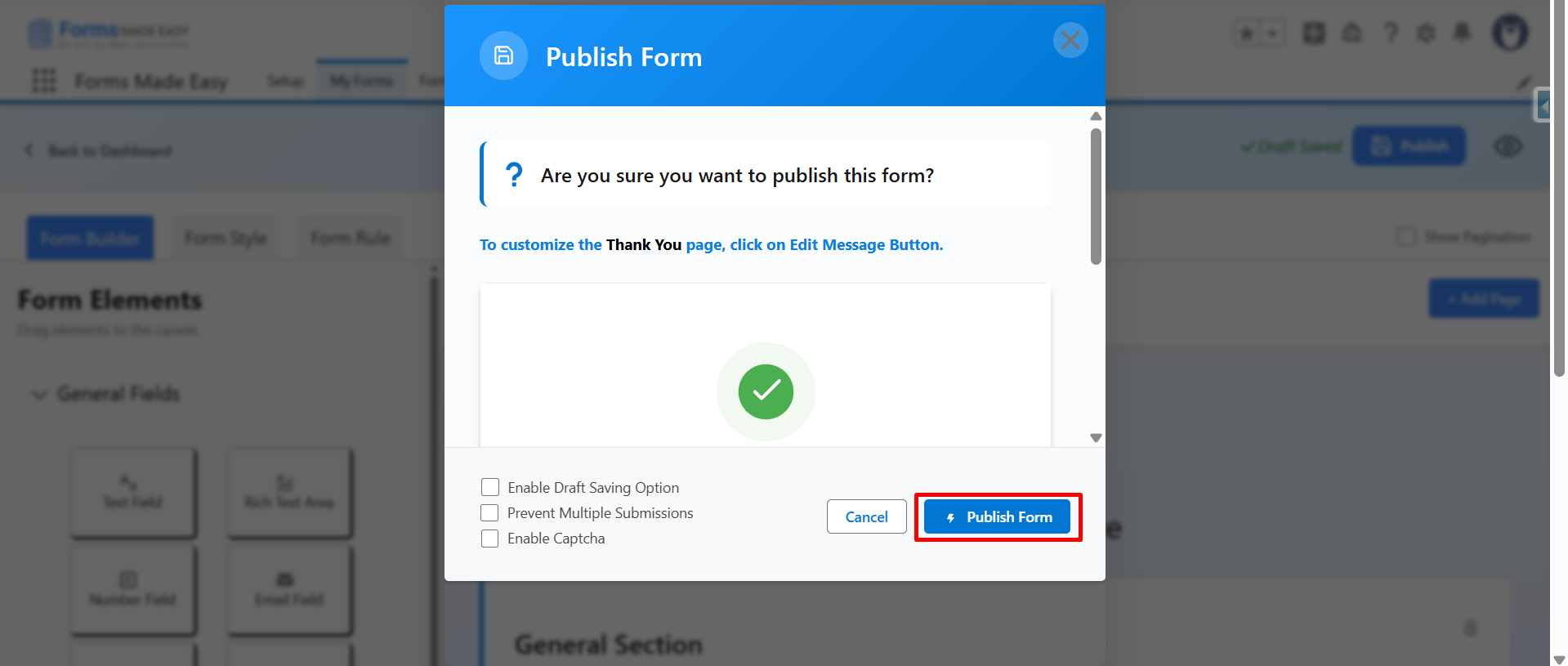
Step 9: Click the "Publish Form" button.
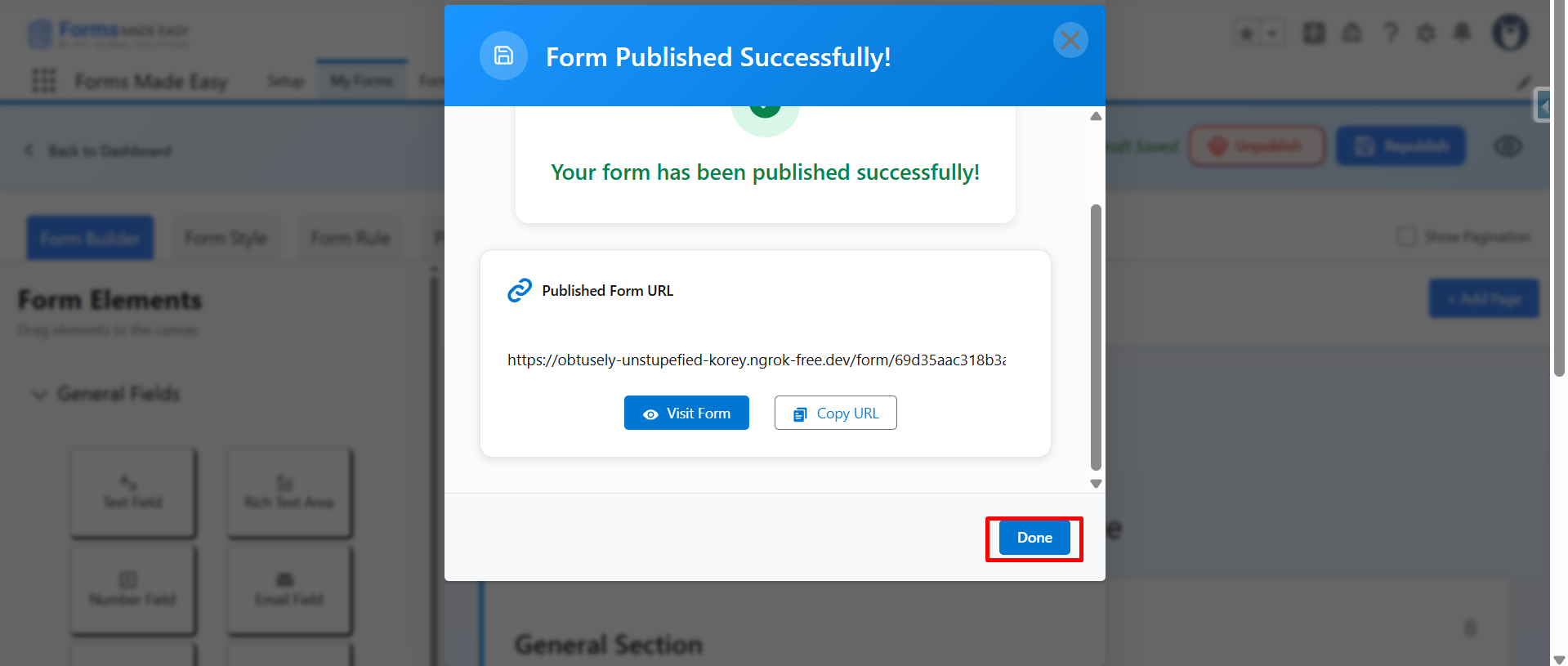
Step 10: Click on "Done" to close the modal.
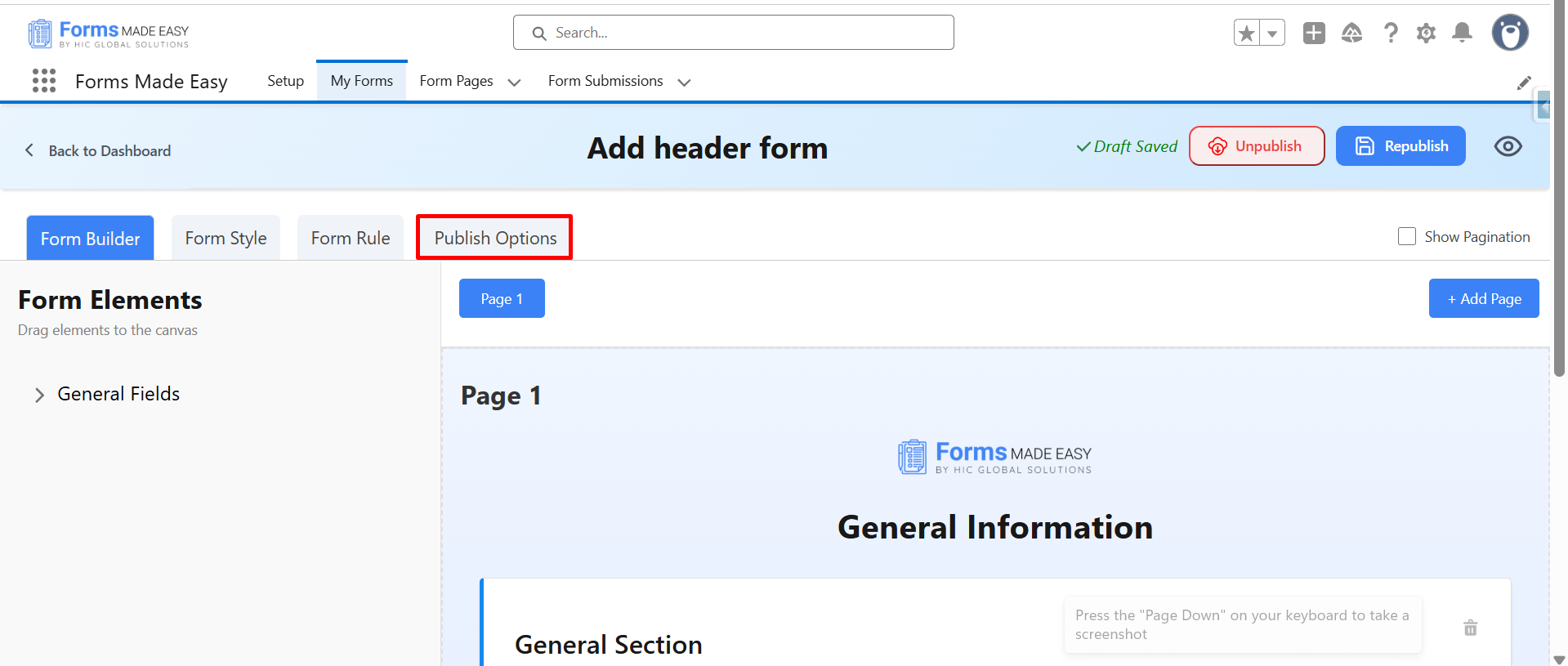
Step 11: Click on “publish Options”.
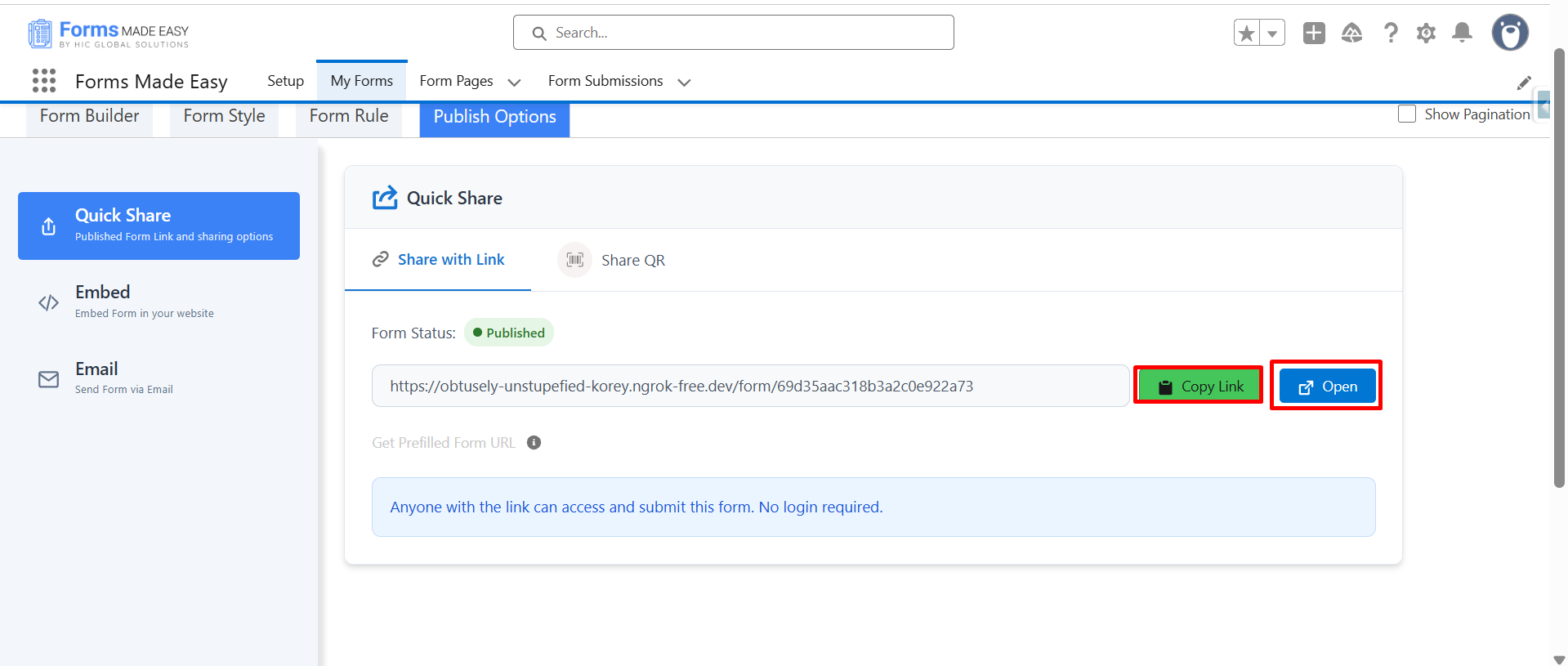
Step 12: Click on the “Copy Link” or “Open” buttons to open the forms directly on the web.
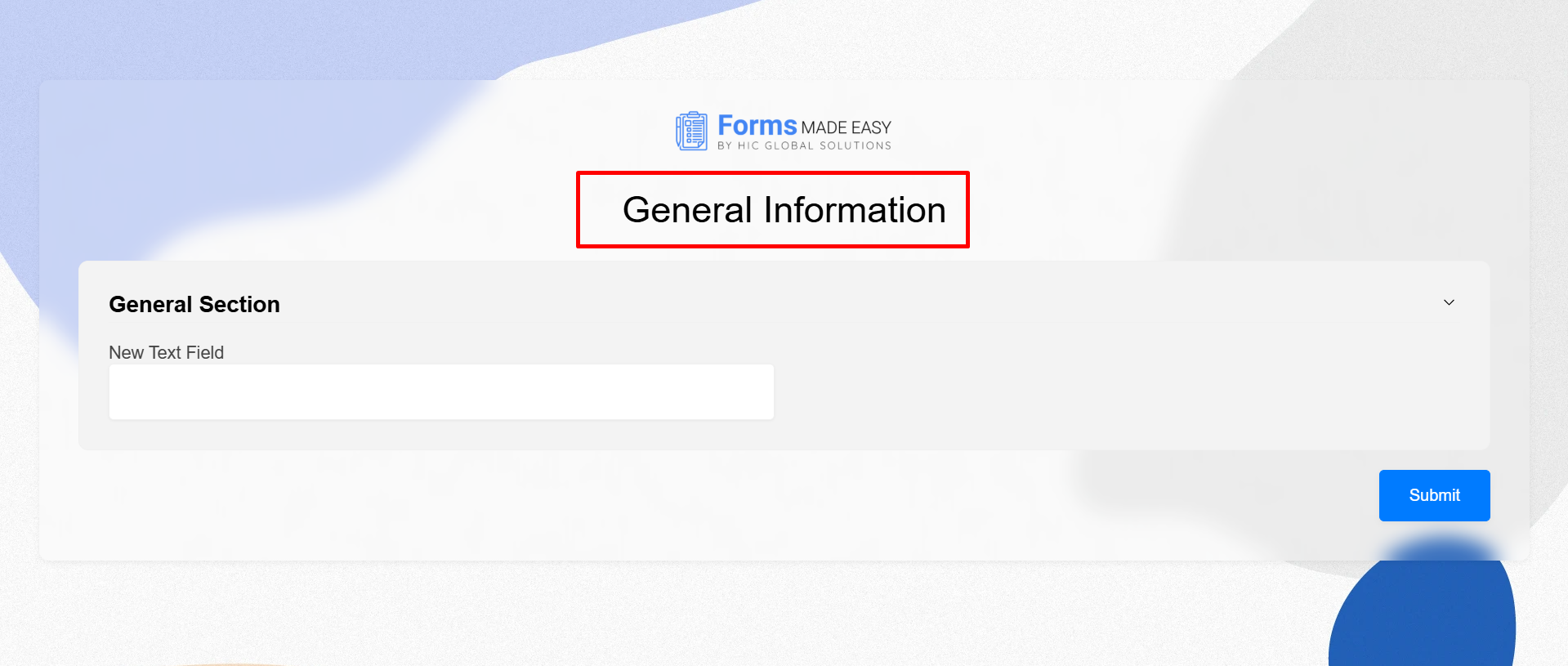
Step 13: The added header will be displayed on the form.
Was this article helpful?
That’s Great!
Thank you for your feedback
Sorry! We couldn't be helpful
Thank you for your feedback
Feedback sent
We appreciate your effort and will try to fix the article