If you need to temporarily take a form offline or permanently stop accepting new responses, you can easily unpublish it from your dashboard. Unpublishing a form ensures that respondents can no longer view or submit the form, while preserving all existing submission data for your review.
Follow these simple steps to unpublish your form:
Step 1: Navigate to "My Forms"
- Log into your Forms Made Easy account.
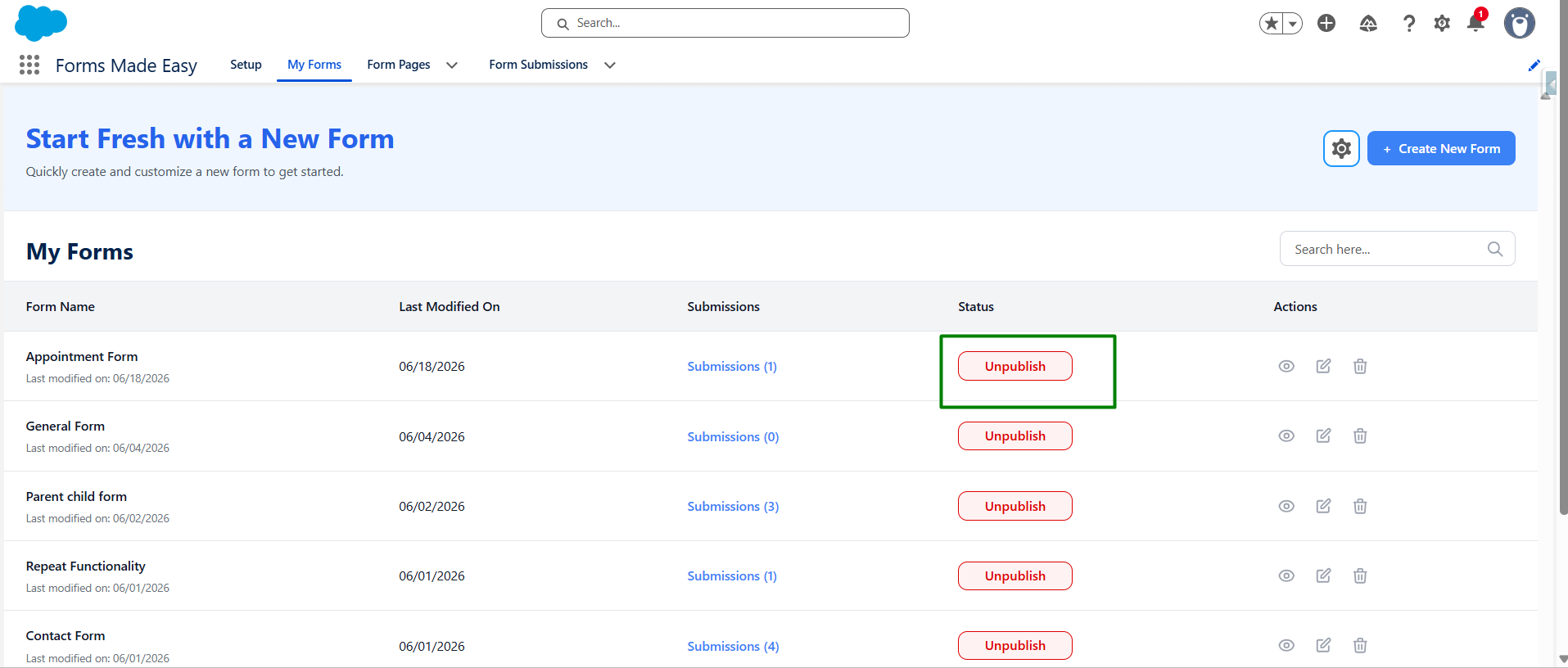
- From the main navigation menu or dashboard, click on the My Forms tab to view the list of all your created forms.
Step 2: Locate Your Published Form
- Scroll through your list of forms to find the specific form you want to take offline.
- Look at the Status column next to your form. If the form is currently live, you will see a green outline around the Unpublish action button.
Step 3: Click the Unpublish Button
- Click the pink Unpublish button located under the Status or Actions column for that specific form.
Step 4: Confirm Your Action
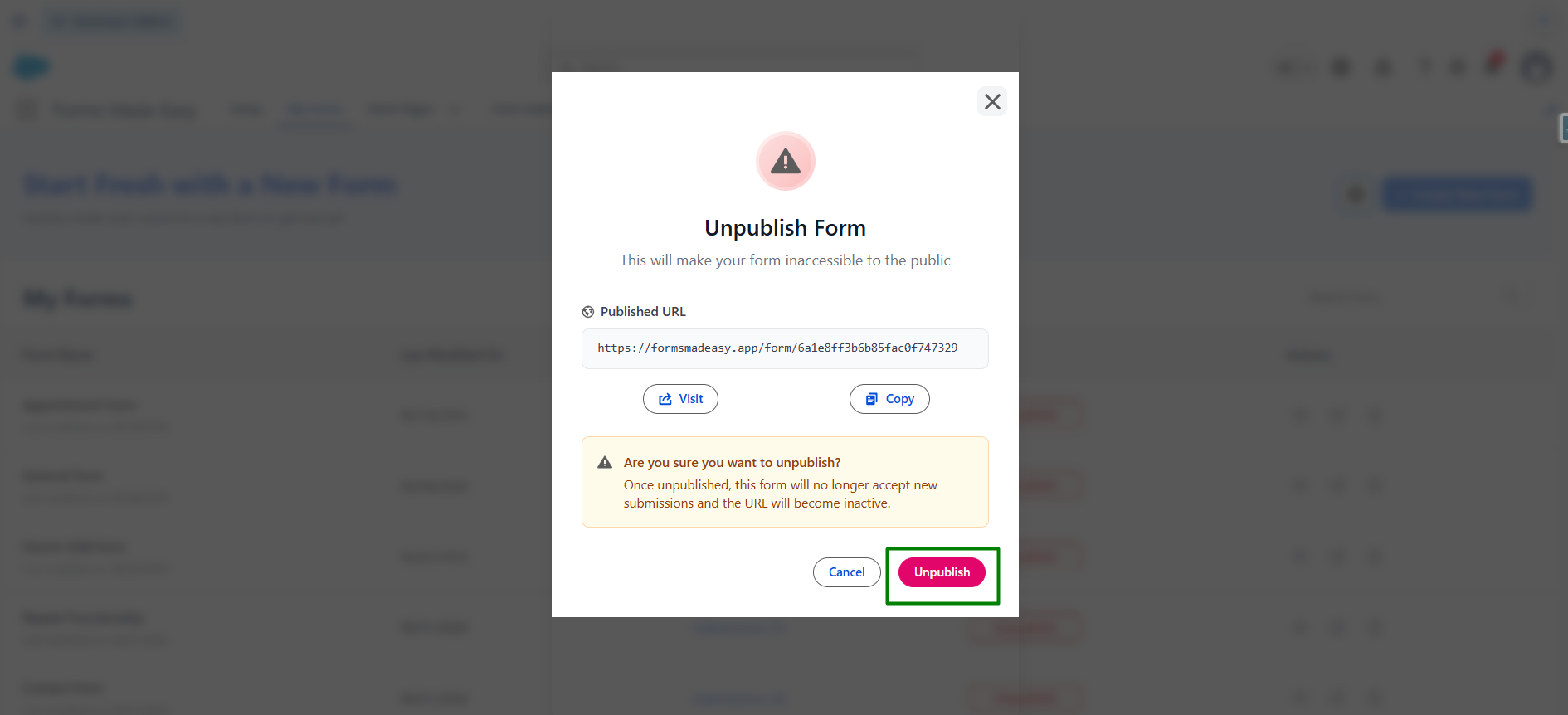
- A confirmation modal titled Unpublish Form will appear at the bottom of your screen to ensure you didn't click it by mistake.
- Click Confirm (or the primary action button within the pop-up) to finalize the change.
Note: Once unpublished, anyone attempting to access the form's URL will see a message stating that the form is no longer accepting submissions. You can re-publish the form at any time by returning to this dashboard.
Was this article helpful?
That’s Great!
Thank you for your feedback
Sorry! We couldn't be helpful
Thank you for your feedback
Feedback sent
We appreciate your effort and will try to fix the article