In this blog, we will walk through how to share a form for a specific record using the Quick Share Options.
This functionality is useful when you need to share a form link or QR code with a specific records. To begin, you create a form with the required fields and publish it. Once the form is published, a Publish tab becomes available. Under the Publish tab, you’ll find the Quick Share section, which provides two options : Share with Link and Share QR. Using these options, you can share the form for a specific records. The form will be linked to that record and can be easily shared via a direct link or QR code, making it simple for access and submit their response.
Steps to Create the Form in Forms Made Easy :
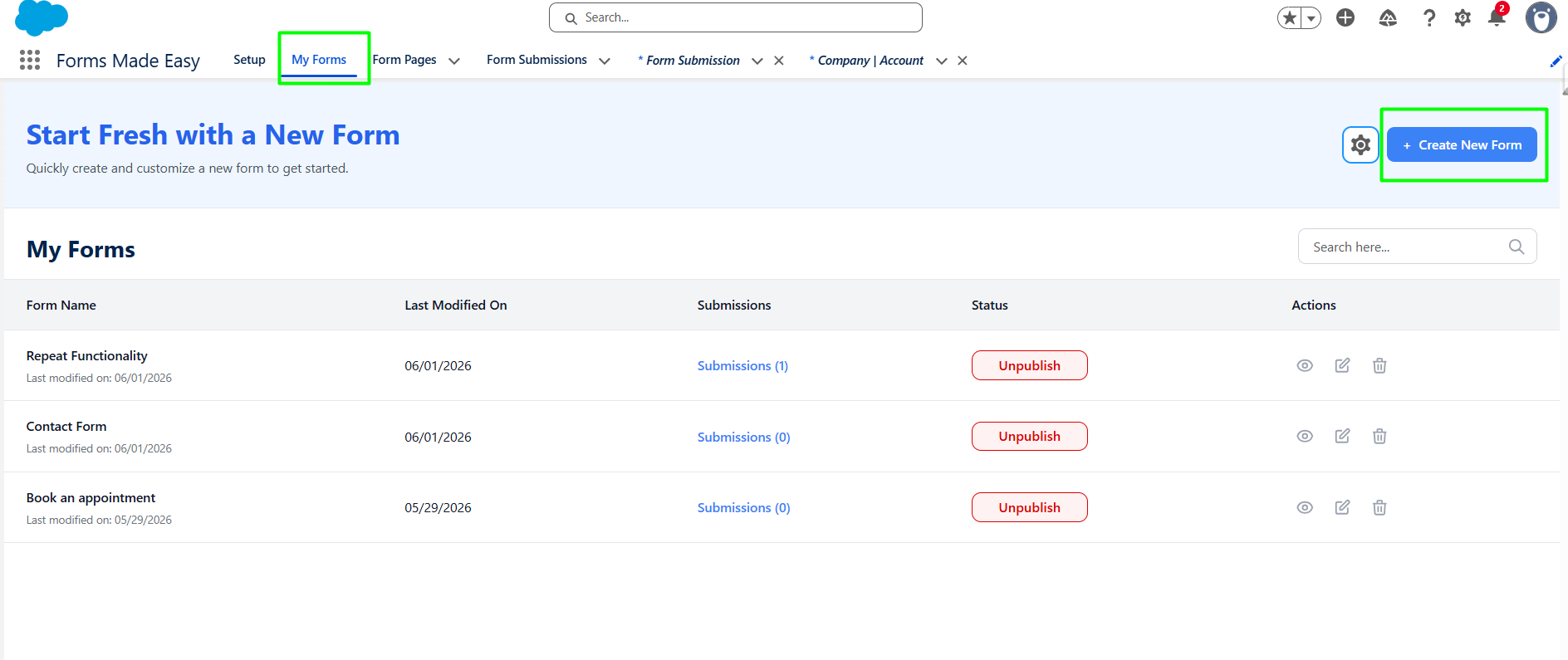
Step 1: Go to the My Forms tab and click on the "Create New Form" button.
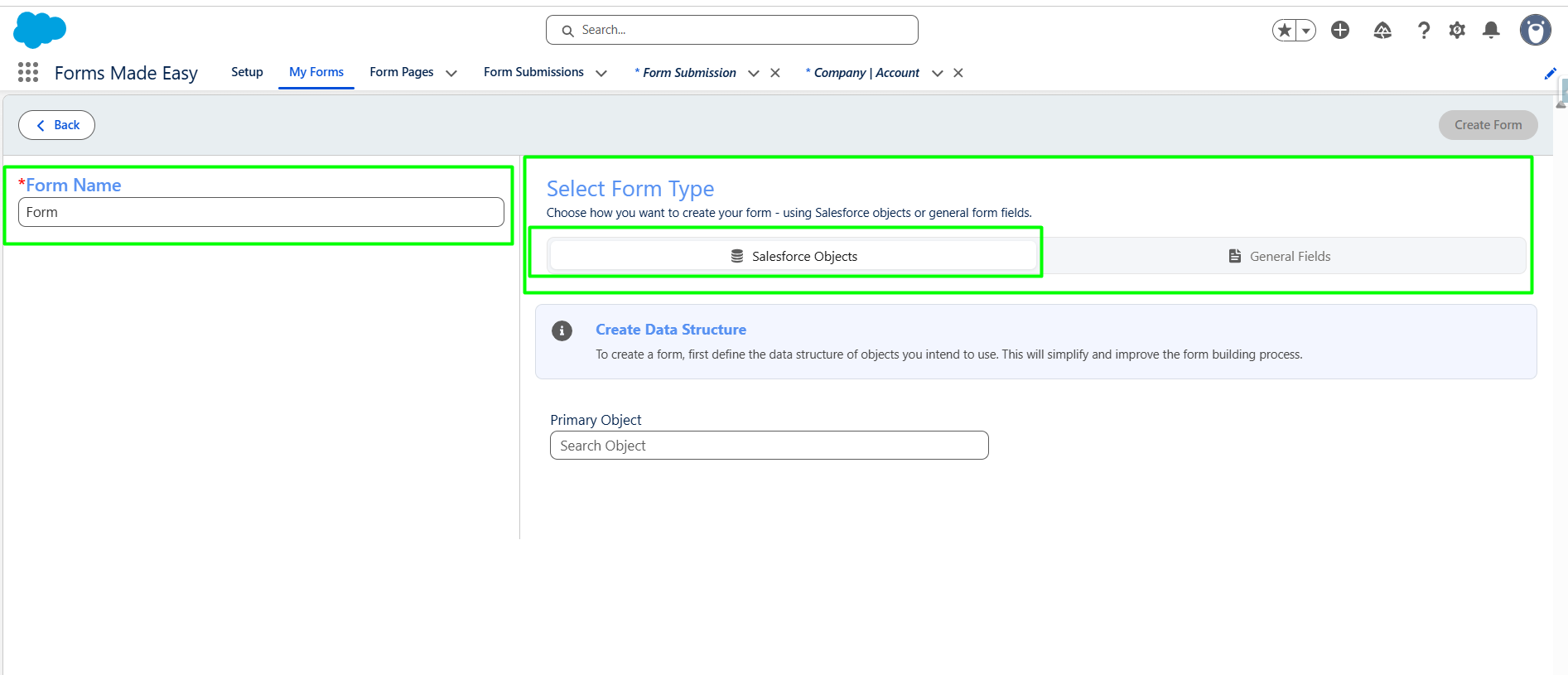
Step 2: Enter the form name and select the form type (Salesforce Objects or General Fields). Currently I have chosen the Salesforce Object option.
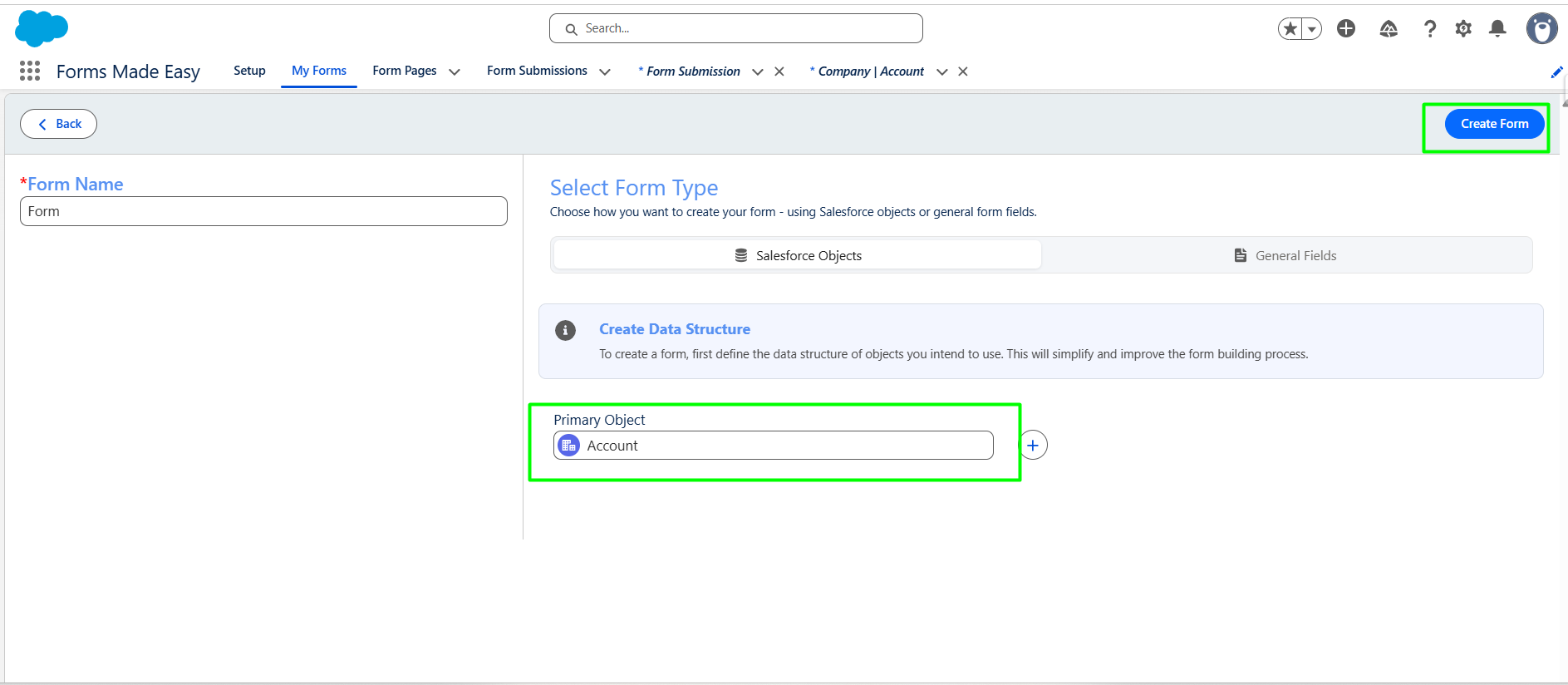
Step 3: Select "Account" as the Primary Object and click the "Create Form" button.
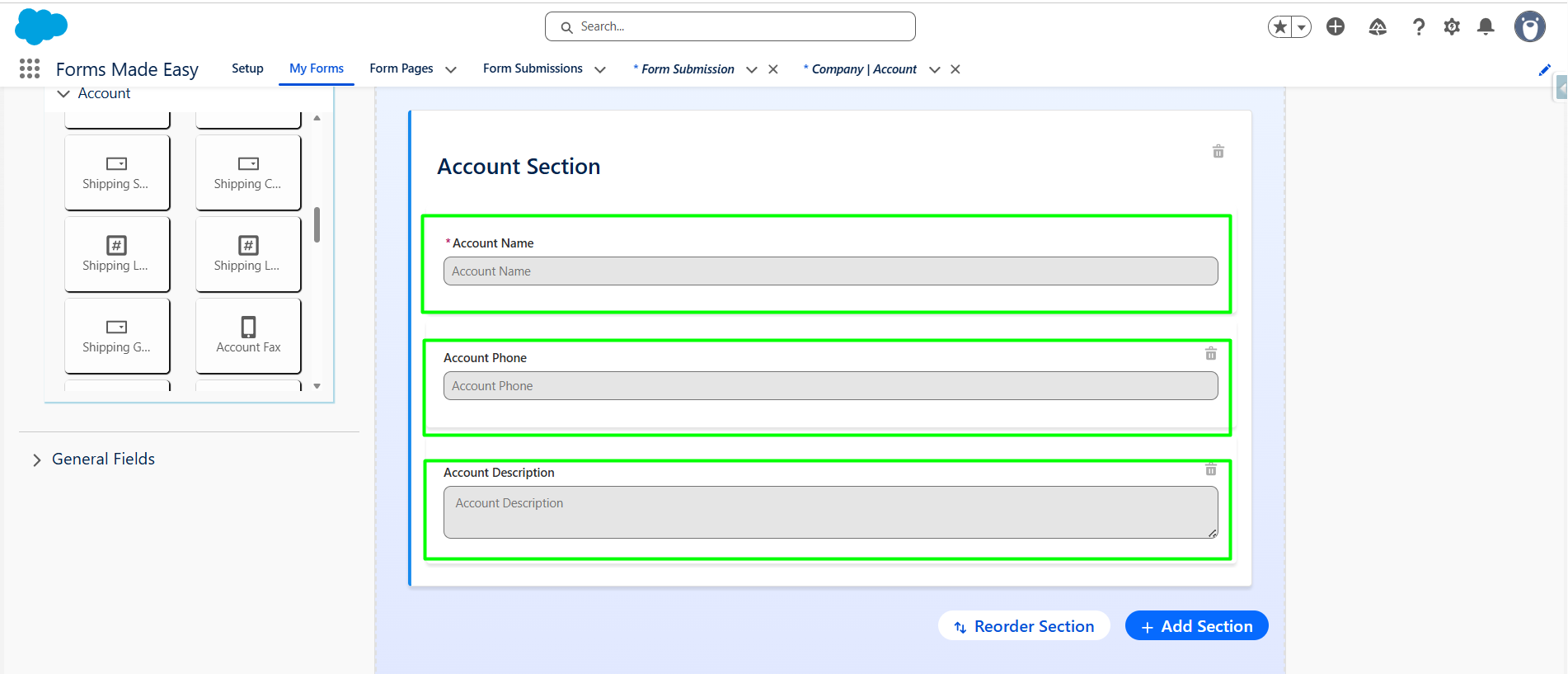
Step 4: Go to the Object Fields section and click on "Account."
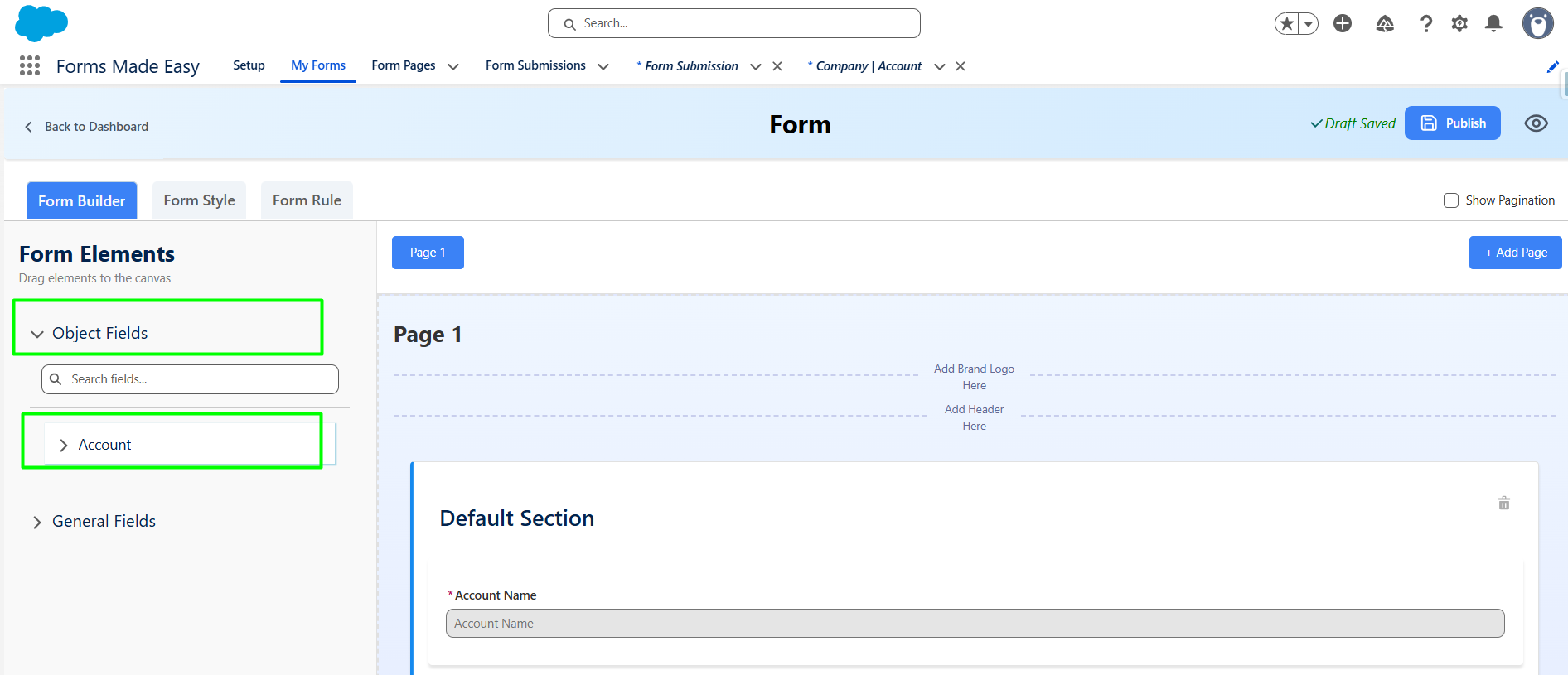
Step 5: Drag and drop the Account Phone and Account Description fields from Account.
Note: The Account Name field will be automatically populated because it is a mandatory field on the Account Object.
 .
.
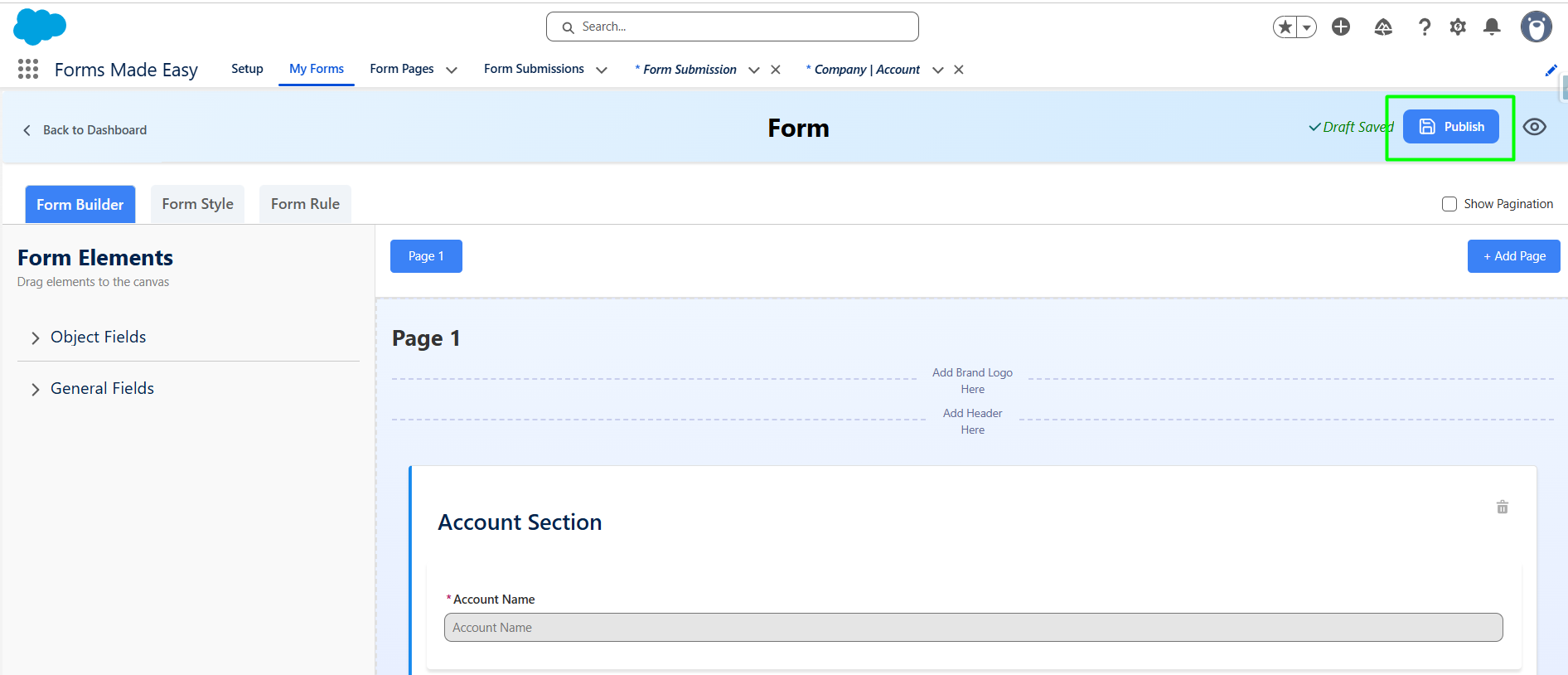
Step 6: After all of that, you can publish the form by clicking the "Publish" button.
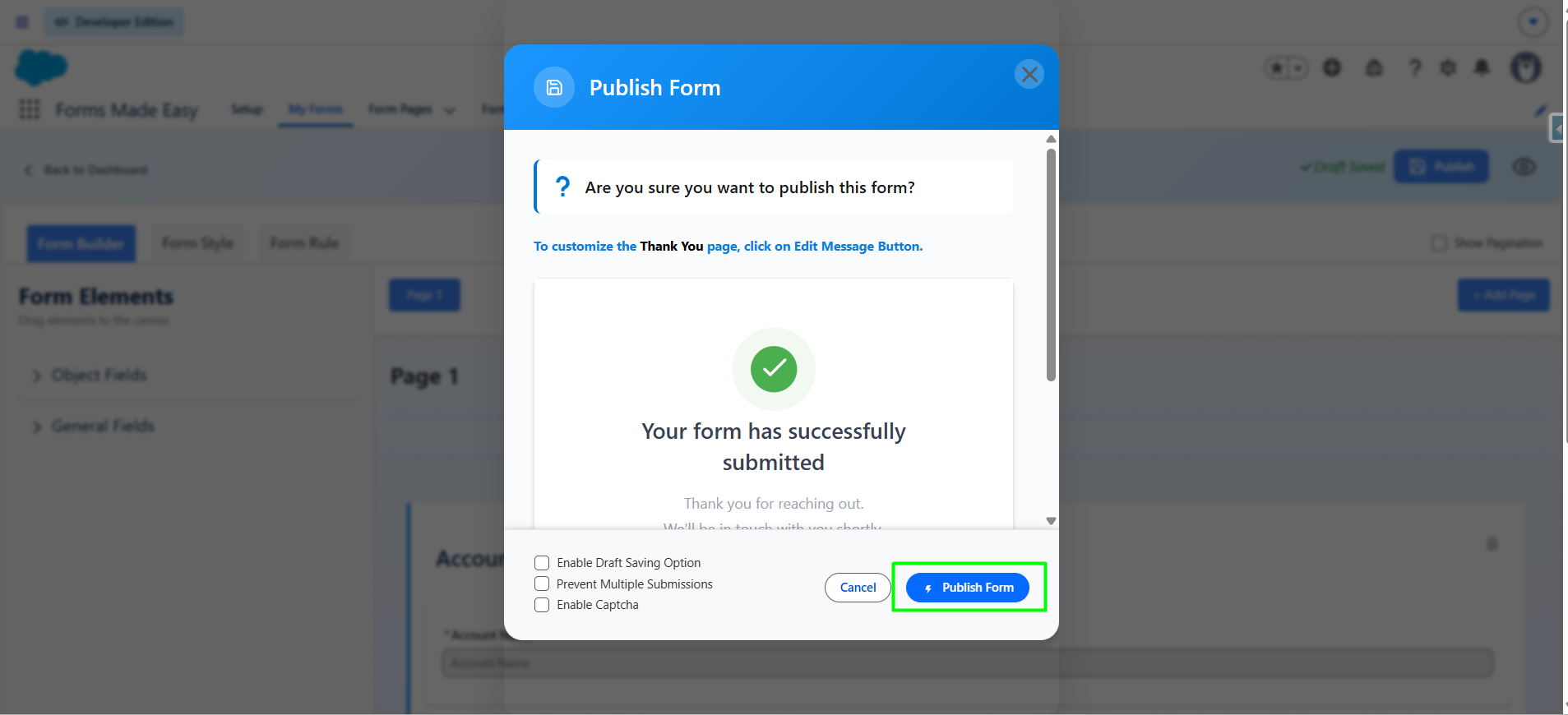
Step 7: Click the "Publish Form" button.
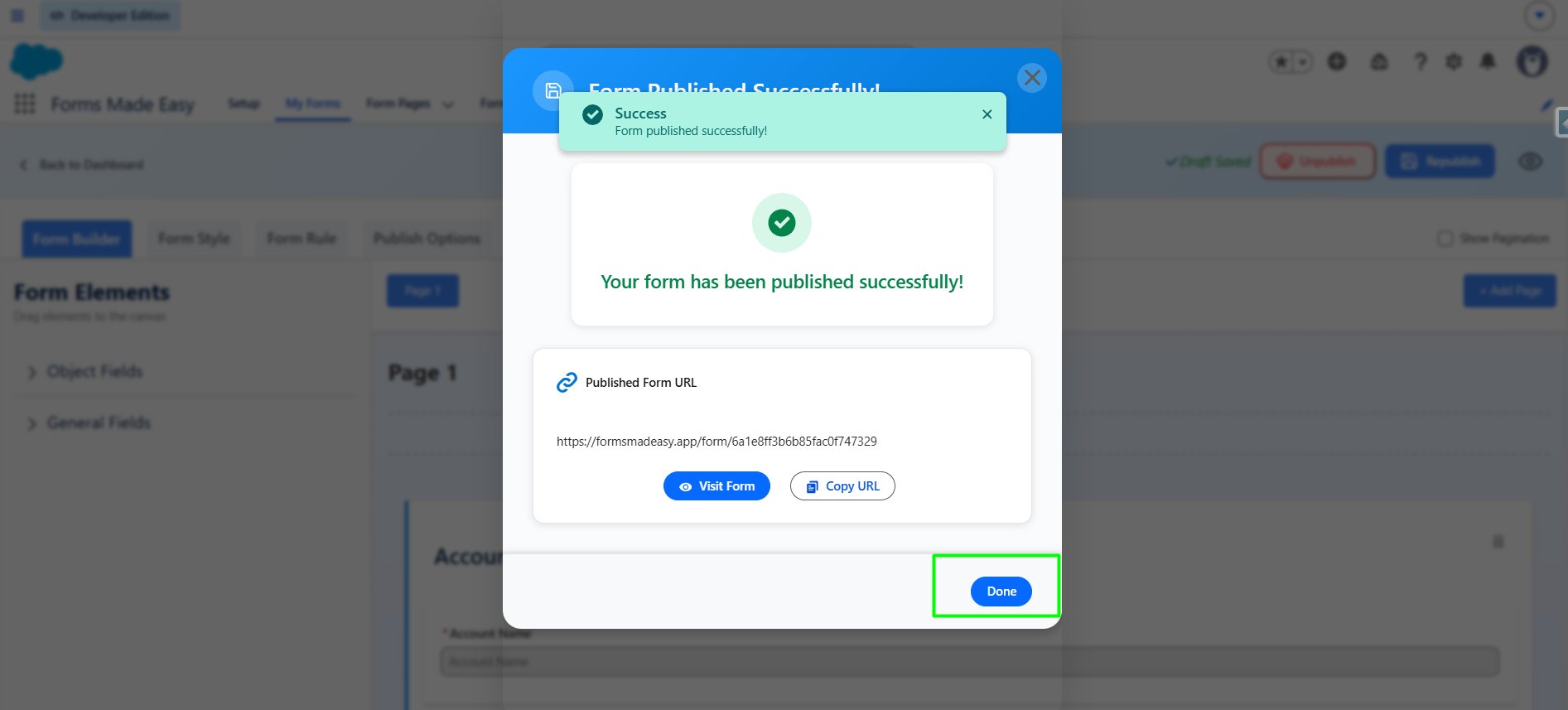
Step 8: Click on "Done" to close the modal.
Step 9: Once the form is published, an additional Publish Options tab becomes available. Under this tab, there is a sub-option called Quick Share. Click on "Quick Share."
Note: If the form is already created, click "Edit," go to Publish Options, and click "Quick Share."
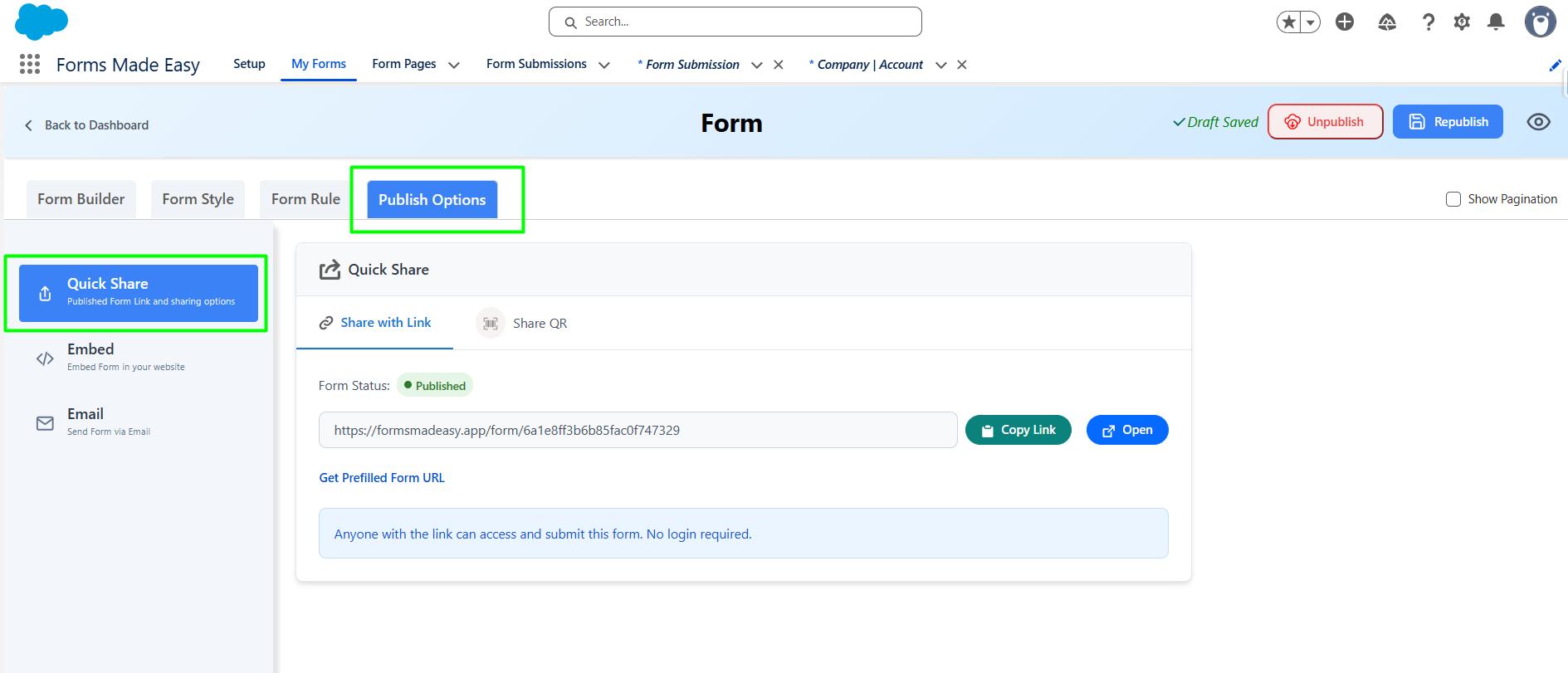
Step 10: Inside the Quick Share section, you will see two options :Share with Link and Share QR. Currently I have chosen the Share with Link.
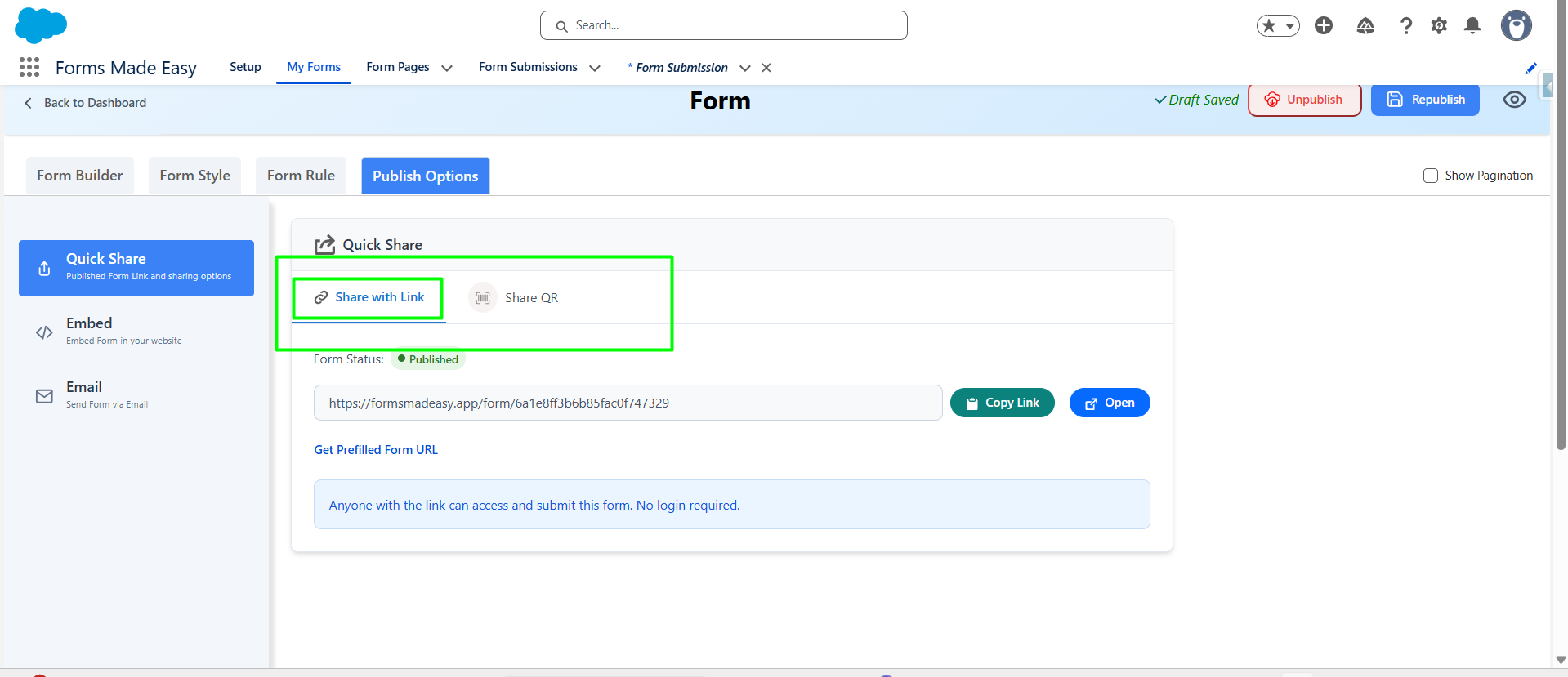
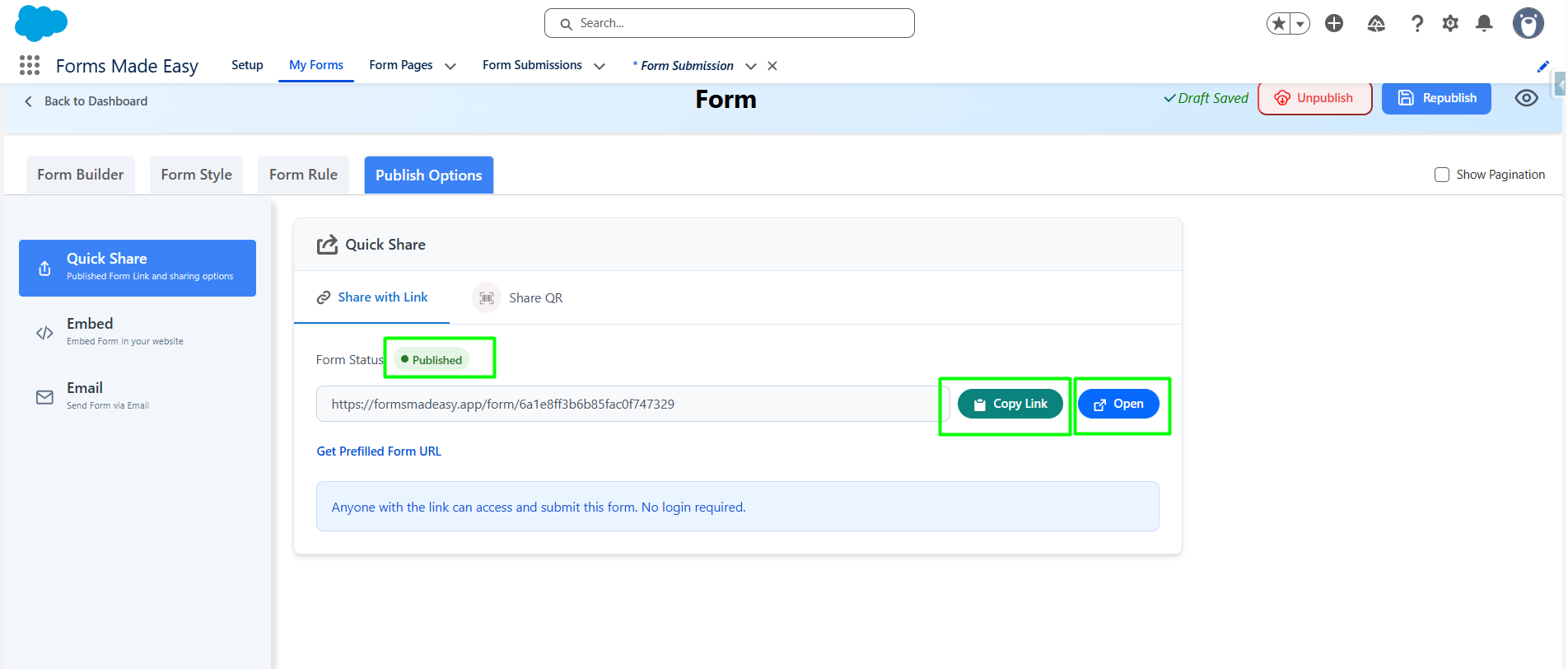
Step 11: Within the Share with Link section, you will see the Form Status displayed as : Published. Click on the "Copy Link" button to copy the form URL, which you can then share with others. You can also manually copy the link. OR Click on the "Open" button to directly open the form in your web browser.
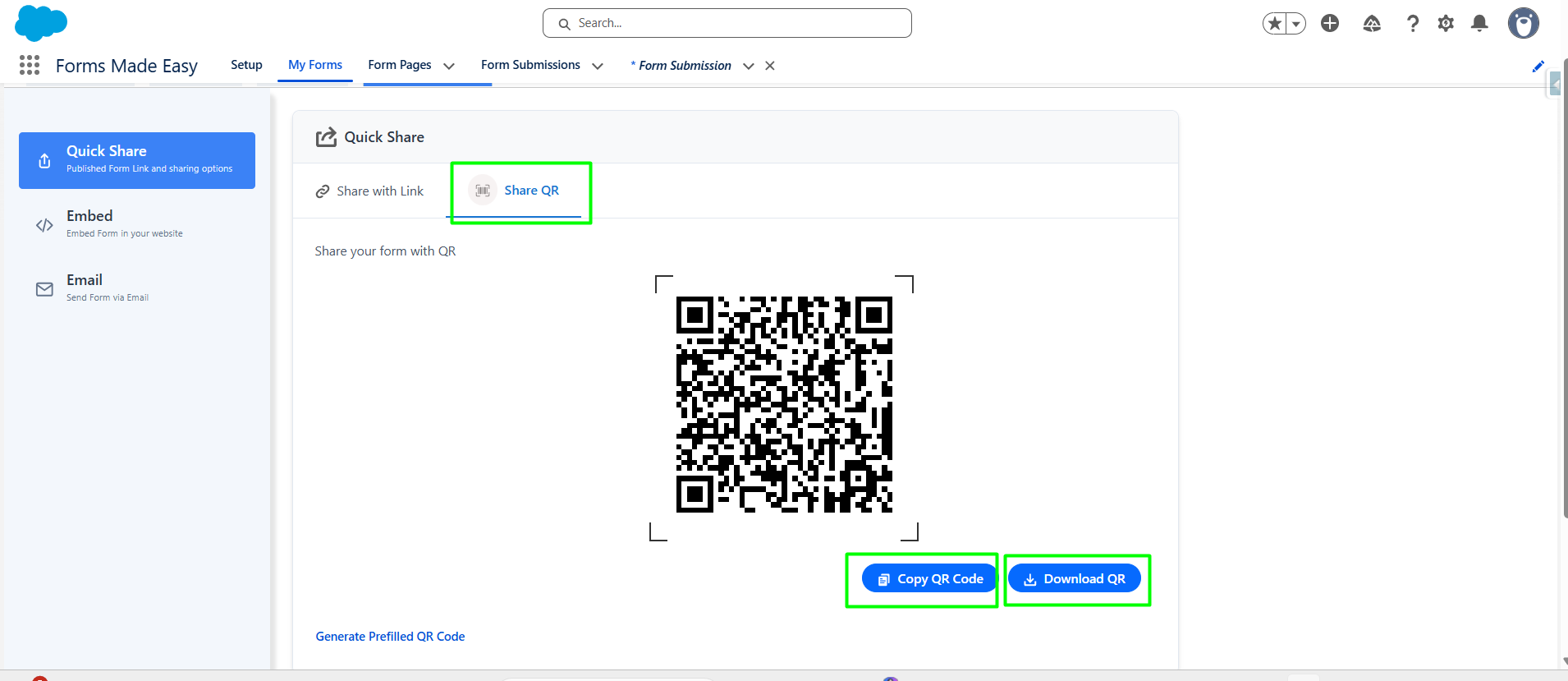
Step 12: Now, Click on the "Share QR" tab. Here You have 2 Option to share the QR code
- Click on the "Download QR" button to download the QR Code.
- Click on Copy QR Code to copy the QR code .
OR
You can also scan the QR code directly to open and fill out the form.
We hope this article helps! If you still face any issues, feel free to contact us at support@formsmadeasy.com.
Was this article helpful?
That’s Great!
Thank you for your feedback
Sorry! We couldn't be helpful
Thank you for your feedback
Feedback sent
We appreciate your effort and will try to fix the article