Smart Upsert in Forms Made Easy allows you to match form submissions with existing Salesforce records using a selected unique key field. This helps you identify matching records based on the submitted value instead of creating duplicate records.
You can configure Smart Upsert by selecting a Salesforce object field from your form canvas to use as the matching field.
Before You Start
Before configuring Smart Upsert, make sure:
Your form uses a Salesforce object, not just general fields.
The field you want to use for matching is already added to the form canvas.
Ideally, the selected field contains unique values, such as Email or an External ID.
Steps to Set Up Smart Upsert
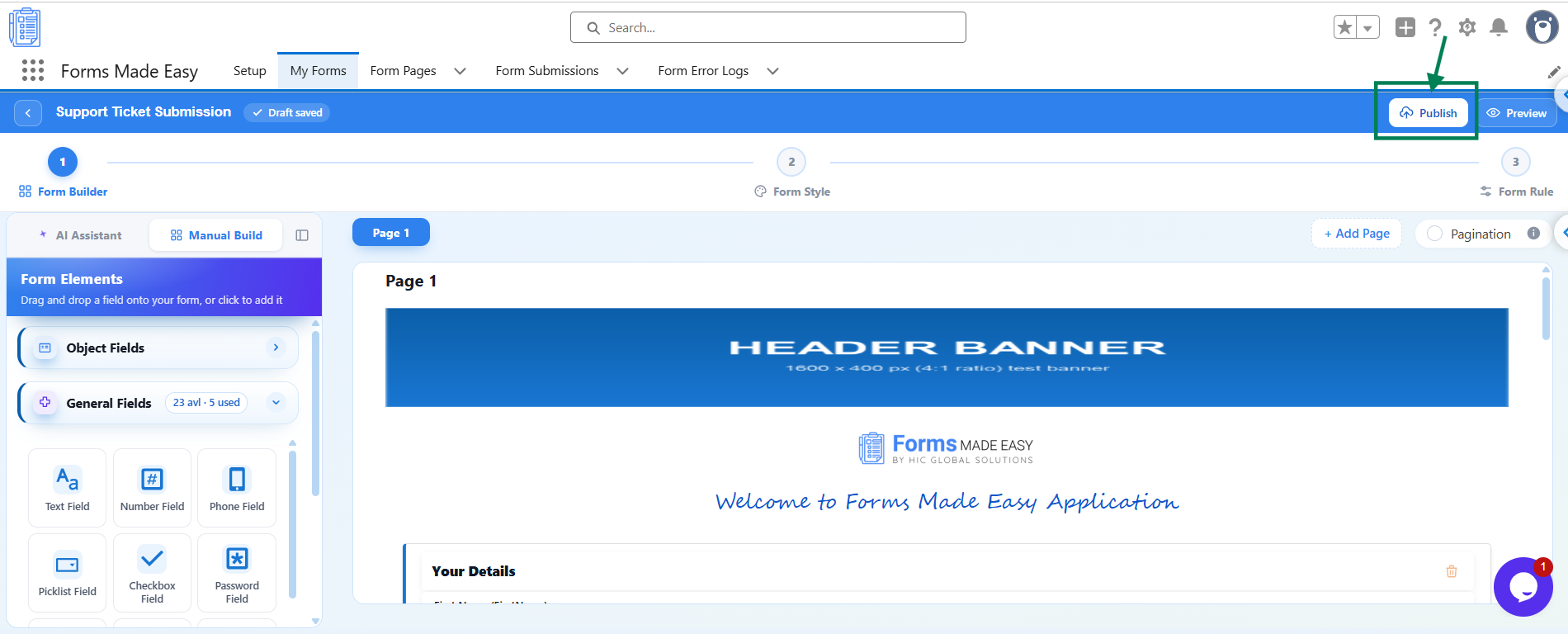
Step 1: Open your form in the Form Builder and click the Publish button (or Republish if your form is already published).
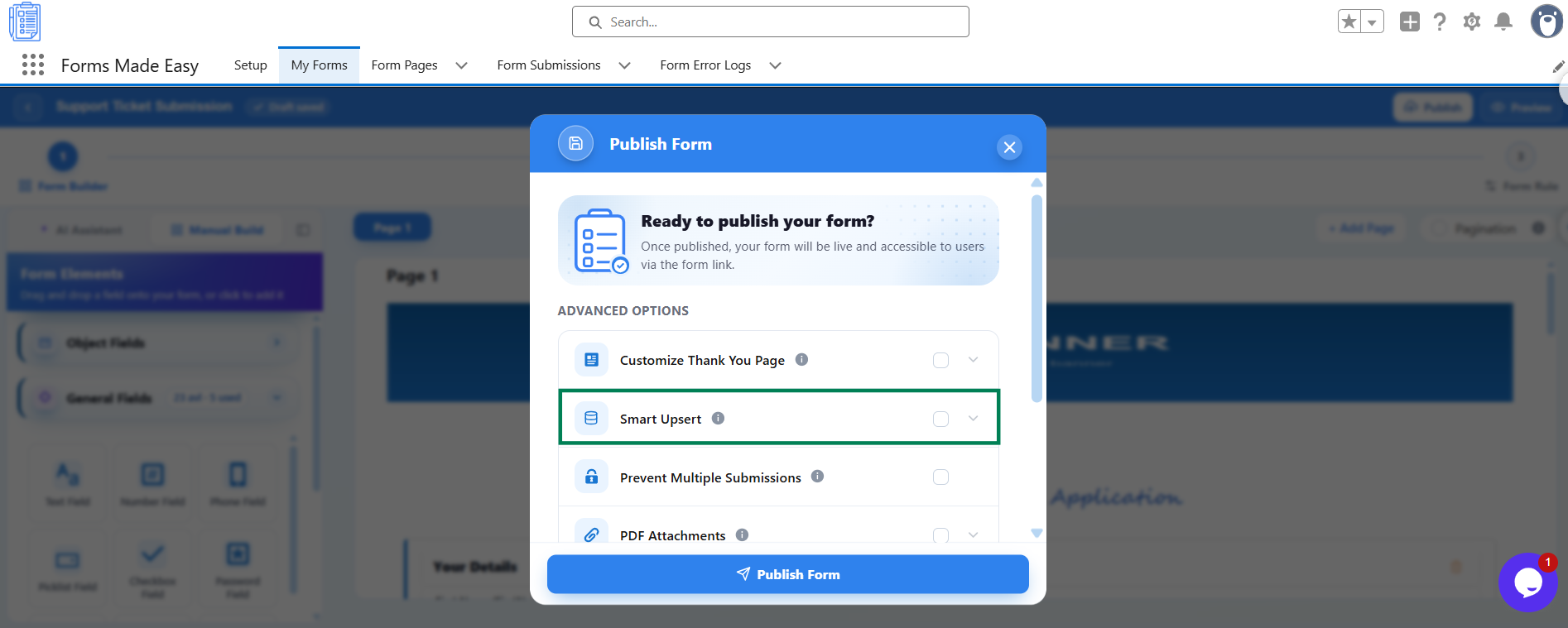
Step 2: A Publish Form window will appear with the message Ready to publish your form? Under Advanced Options, find the Smart Upsert option.
Step 3: Turn on Smart Upsert to enable the matching configuration.
Step 4: Choose the Unique Key Field.
Click Choose a field... to view the available fields.
Select a field from the form canvas that you want to use for matching existing Salesforce records.
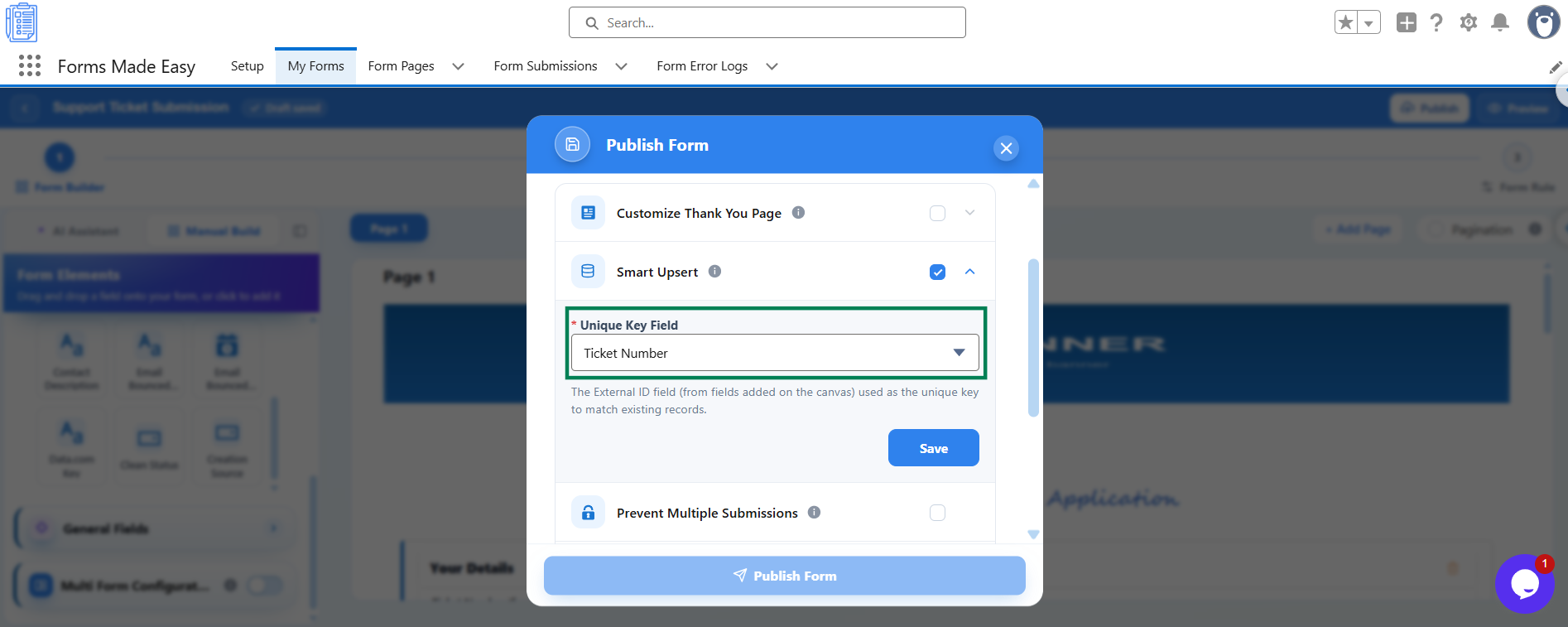
The selected Salesforce field will be used as the matching key for form submissions.
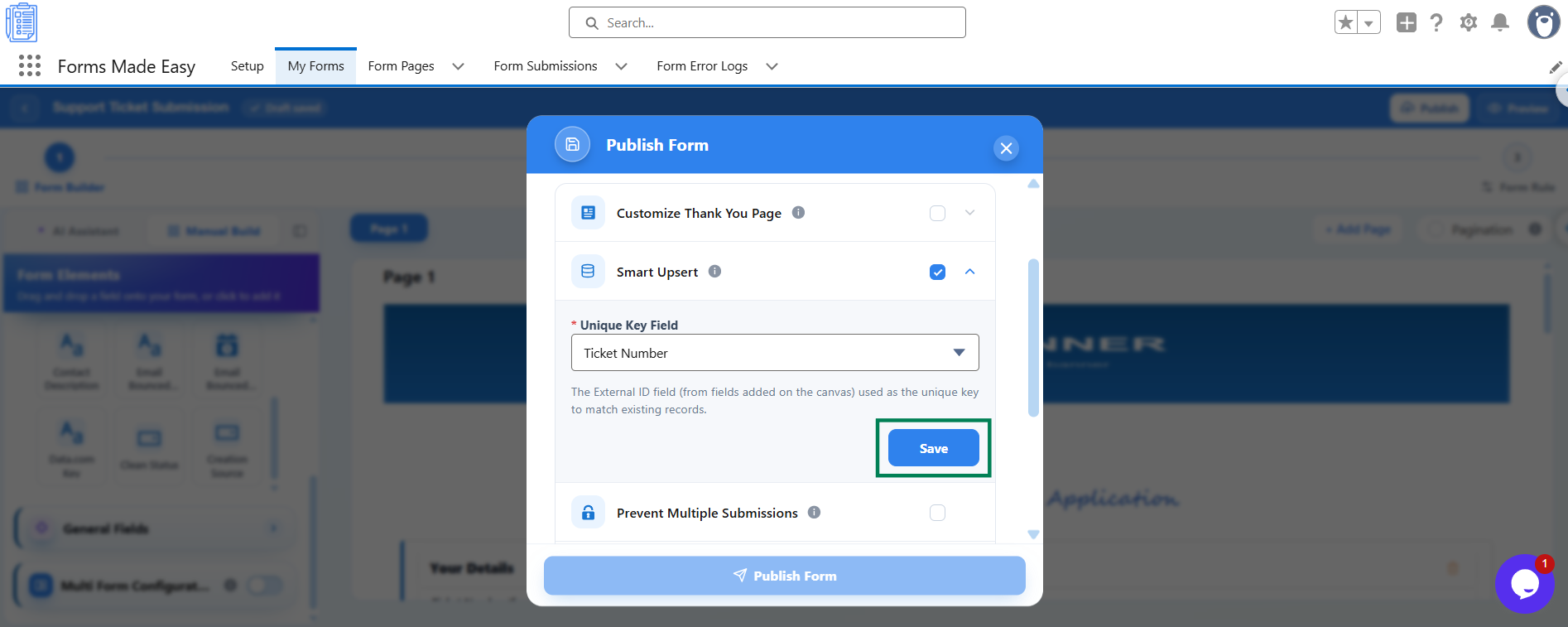
Step 5: Click Save to save your Smart Upsert configuration.
Step 6: Click Publish Form to publish your form with Smart Upsert enabled. If your form is already published, republish it to apply the latest changes.
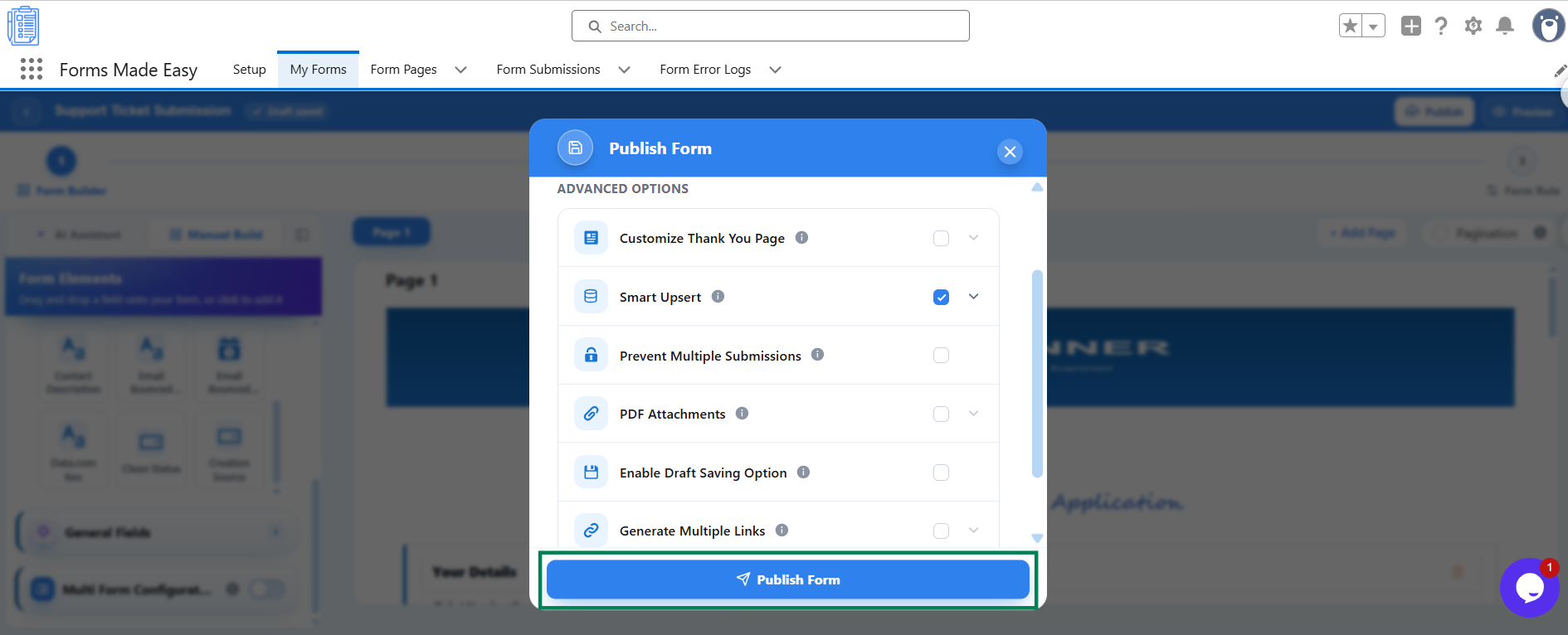
Once the form is published with Smart Upsert enabled, submissions can use the configured unique key field to match existing Salesforce records.
Important Notes
Salesforce object required: Smart Upsert requires a form that uses a Salesforce object.
Field availability: If no field is available for selection, add at least one Salesforce object field to the form canvas first.
Long text fields: Long text fields cannot be used as the unique key field.
Choose a suitable matching field: Select a field that contains unique values whenever possible, such as Email or an External ID.
Make the field required: Choose a field that respondents will always fill in and make it Required, so each submission can provide a matching value.
Match a specific record: If you want to update one specific record, you can also use a Prefilled Link from Share & Embed > Quick Share.
Was this article helpful?
That’s Great!
Thank you for your feedback
Sorry! We couldn't be helpful
Thank you for your feedback
Feedback sent
We appreciate your effort and will try to fix the article