PDF Attachments in Forms Made Easy allows you to attach form submissions as PDFs, along with uploaded files, to the selected Salesforce records. This helps you keep submitted form data and related files accessible from Salesforce.
Follow the steps below to enable PDF Attachments and configure the Salesforce objects where the files should be linked.
Before You Start
Before enabling PDF Attachments, make sure your form uses a Salesforce object and has at least one Salesforce object field added to the form canvas.
Steps to Enable PDF Attachments
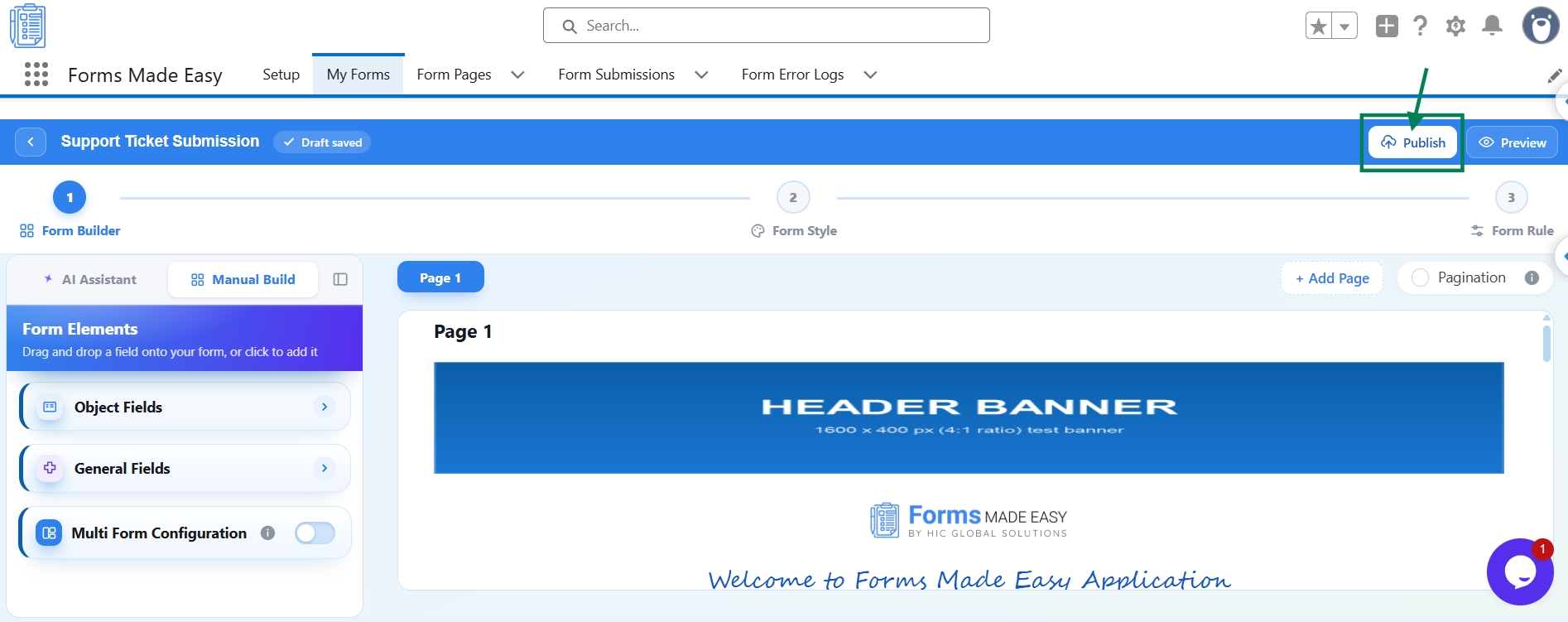
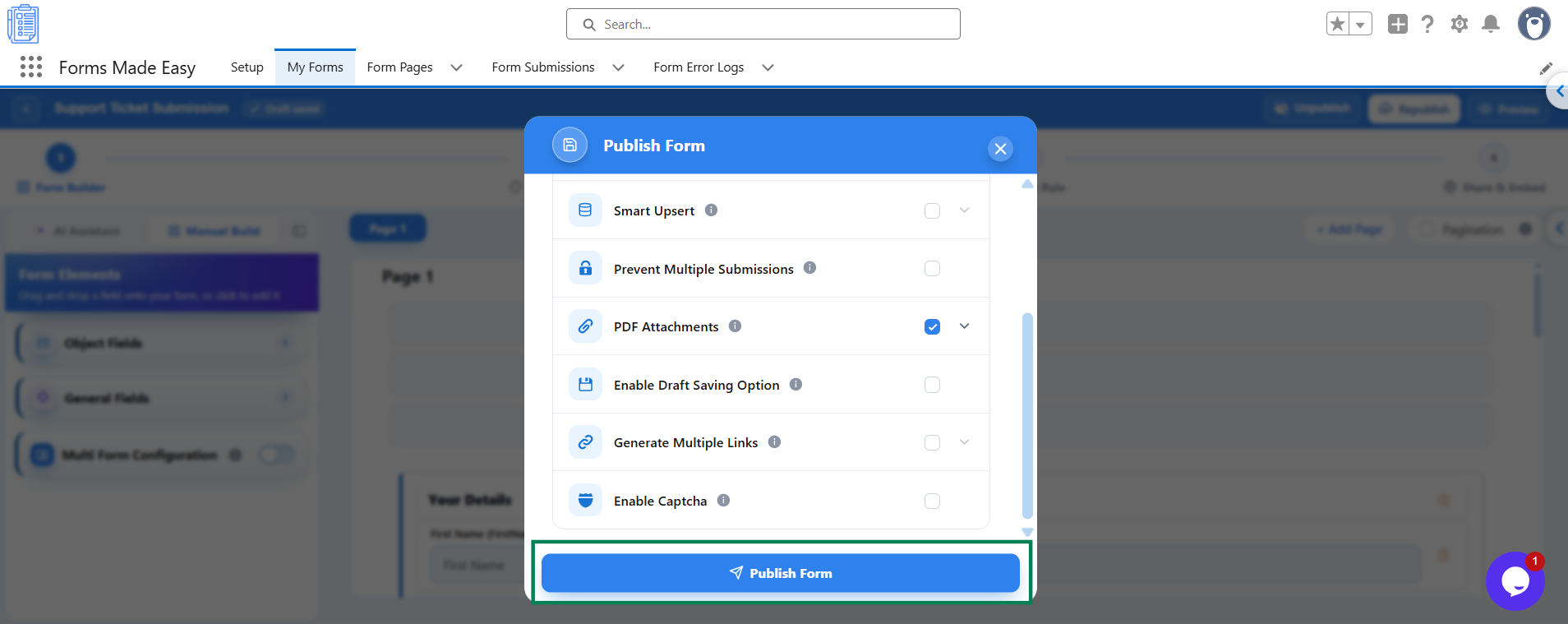
Step 1: Open your form in the Form Builder and click the Publish button (or Republish if your form is already published).
Step 2: A Publish Form window will appear with the message Ready to publish your form? Under Advanced Options, find the PDF Attachments option.
Step 3: Turn on PDF Attachments to enable the attachment configuration.
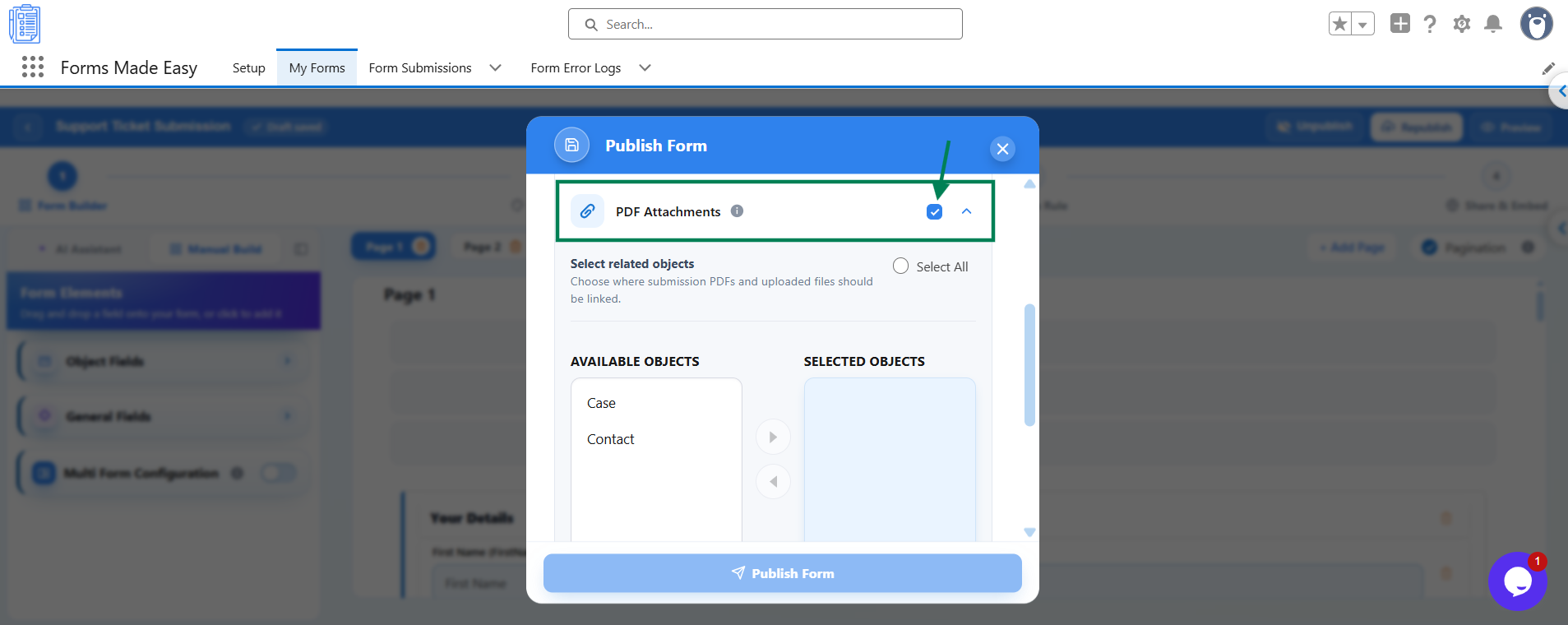
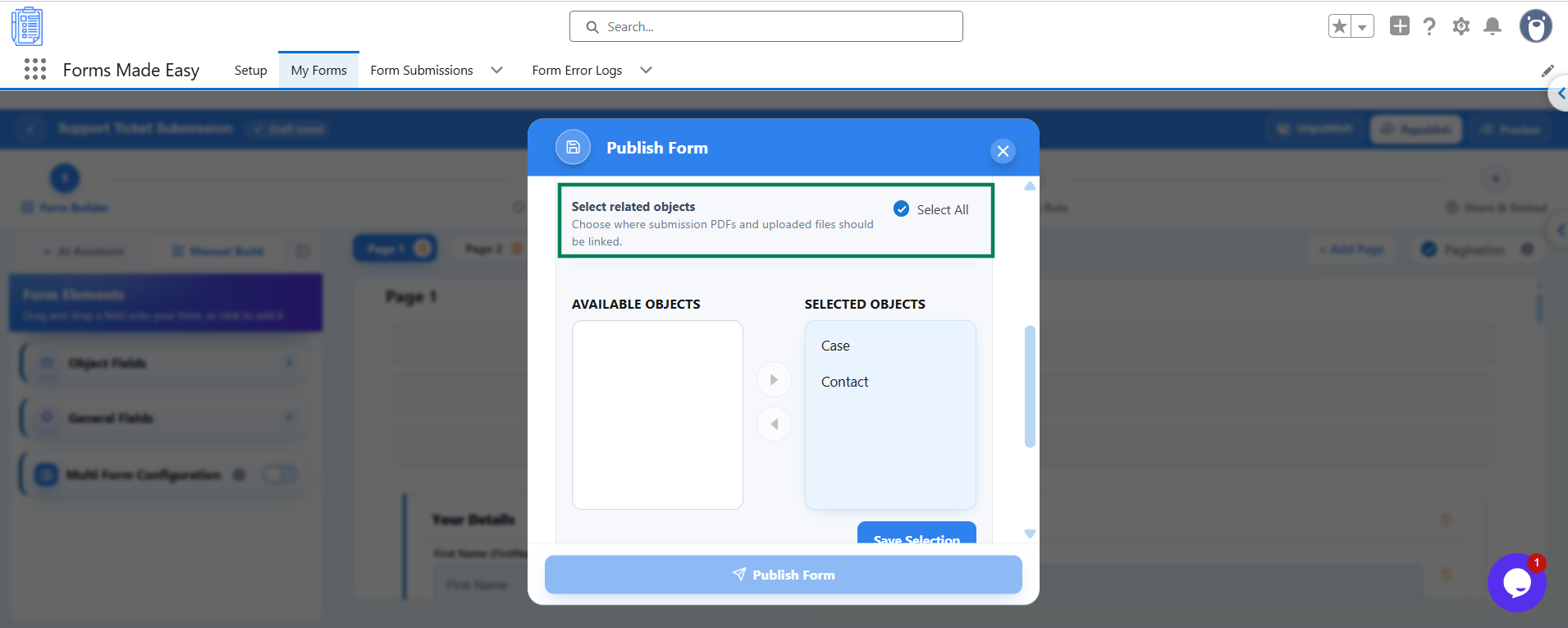
Step 4: Under Select related objects, choose the Salesforce objects where you want the generated PDFs and uploaded files to be linked.
Select Objects Individually: Choose the required objects from Available Objects and move them to Selected Objects.
Select All: Select this option if you want to choose all available objects
Step 5: Click Save Selection to save your selected objects.
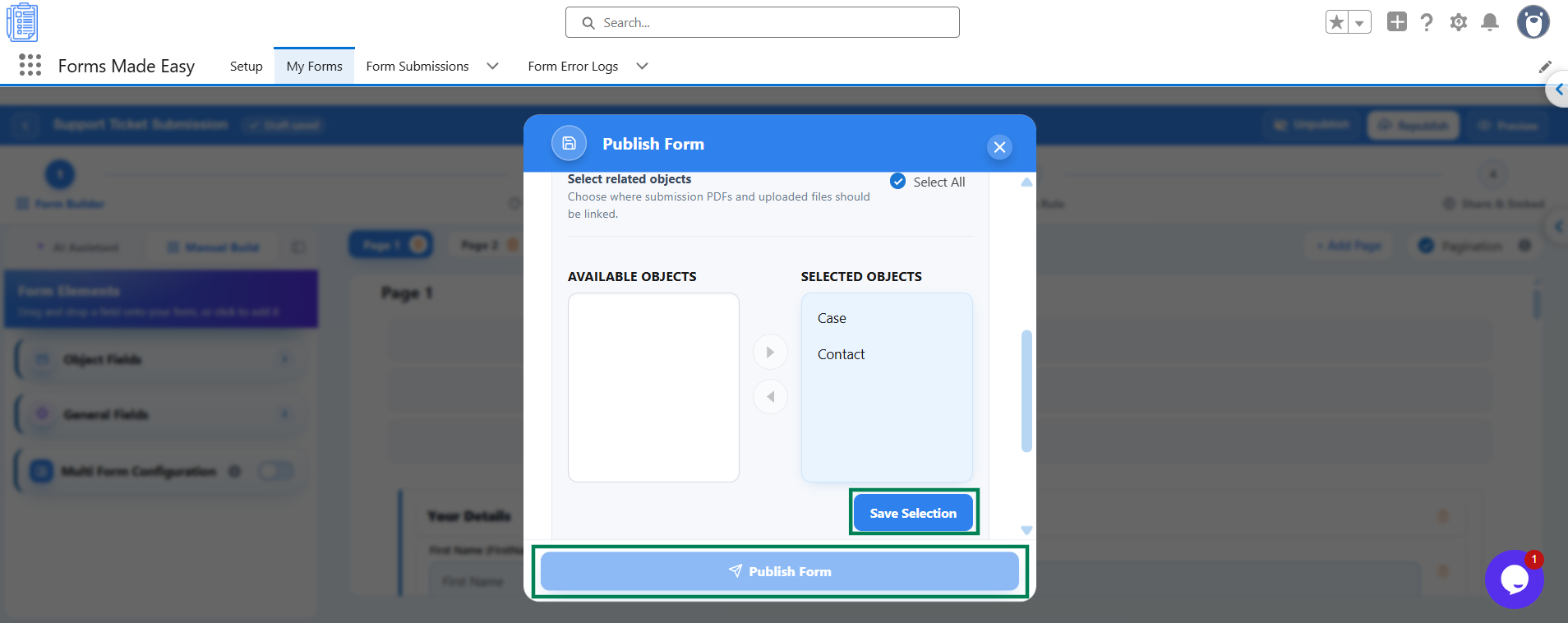
Step 6: Click Publish Form to publish your form with PDF Attachments enabled. If your form is already published, republish it to apply the updated settings.
Step 7: After a respondent submits the form, open the corresponding Salesforce record and check its Notes & Attachments related list to verify the attached PDFs and uploaded files.
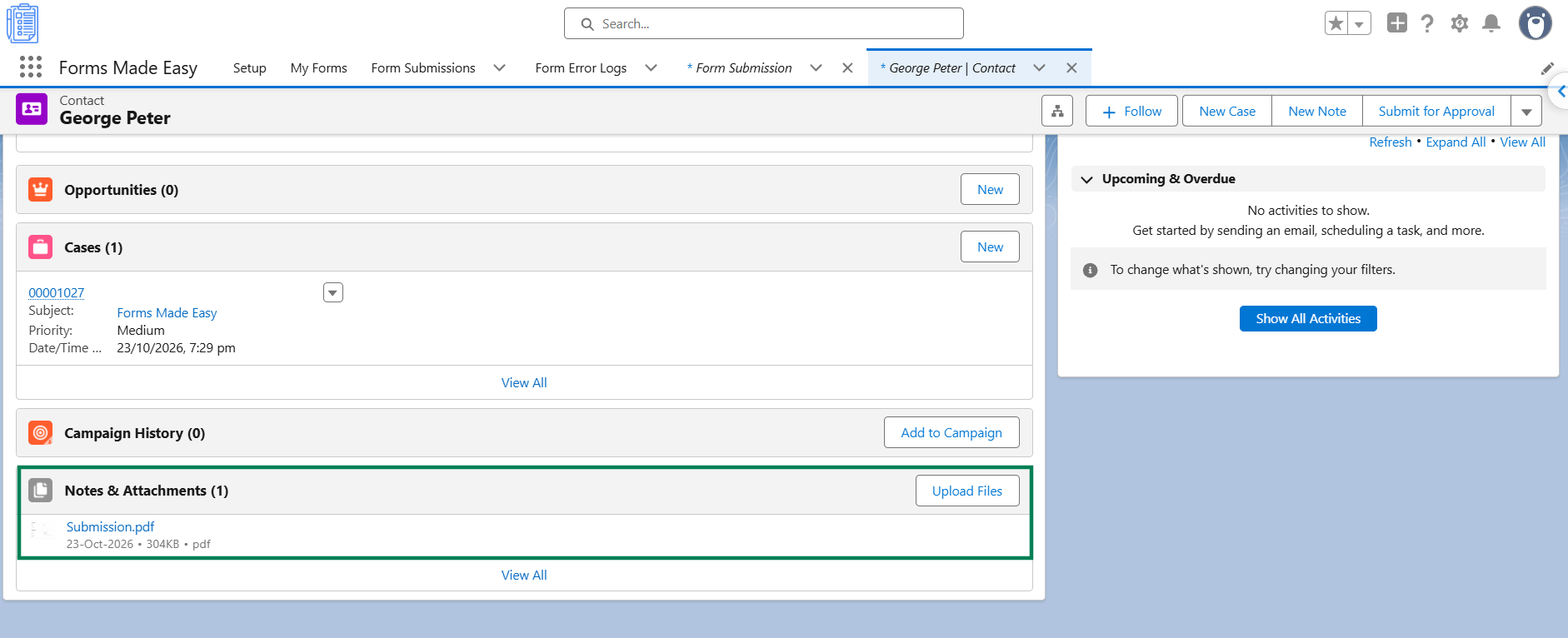
Once configured, the selected Salesforce records can store the PDFs and uploaded files associated with form submissions.
Important Notes
Salesforce object field required: If the PDF Attachments option is disabled, add at least one Salesforce object field to the form canvas first.
Print submissions as PDFs: You can also print individual submissions as PDFs from the Submissions page using the Print PDF option.
Combine PDFs in Multi-Form: If you are using Multi-Form, enable Combine into one PDF in Multi Form Configuration to generate a single combined PDF.
Was this article helpful?
That’s Great!
Thank you for your feedback
Sorry! We couldn't be helpful
Thank you for your feedback
Feedback sent
We appreciate your effort and will try to fix the article