Generate Multiple Links in Forms Made Easy allows you to create multiple unique links for the same form. Each link accepts one submission and can be configured to expire after a specified time from when it is first opened.
This feature also allows you to track link activity, including which links were opened, submitted, or expired. You can customize the messages displayed when a link has already been used or has expired.
Follow the steps below to generate and manage multiple form links.
How Generate Multiple Links Helps You
Generate Multiple Links helps you manage form responses for different recipients and use cases.
Track Every Recipient: View the status of each unique link, including Pending, Submitted, or Expired.
One Response Per Link: Each unique link accepts one submission, helping prevent duplicate submissions through the same link.
Time-Limited Responses: Set link expiry for timed assessments, limited offers, or time-sensitive registrations.
Customized Messages: Display personalized messages when a link has already been used or has expired.
Reusable Links: Reset a link when you want to allow the recipient to submit again.
Steps to Generate Multiple Links in Forms Made Easy
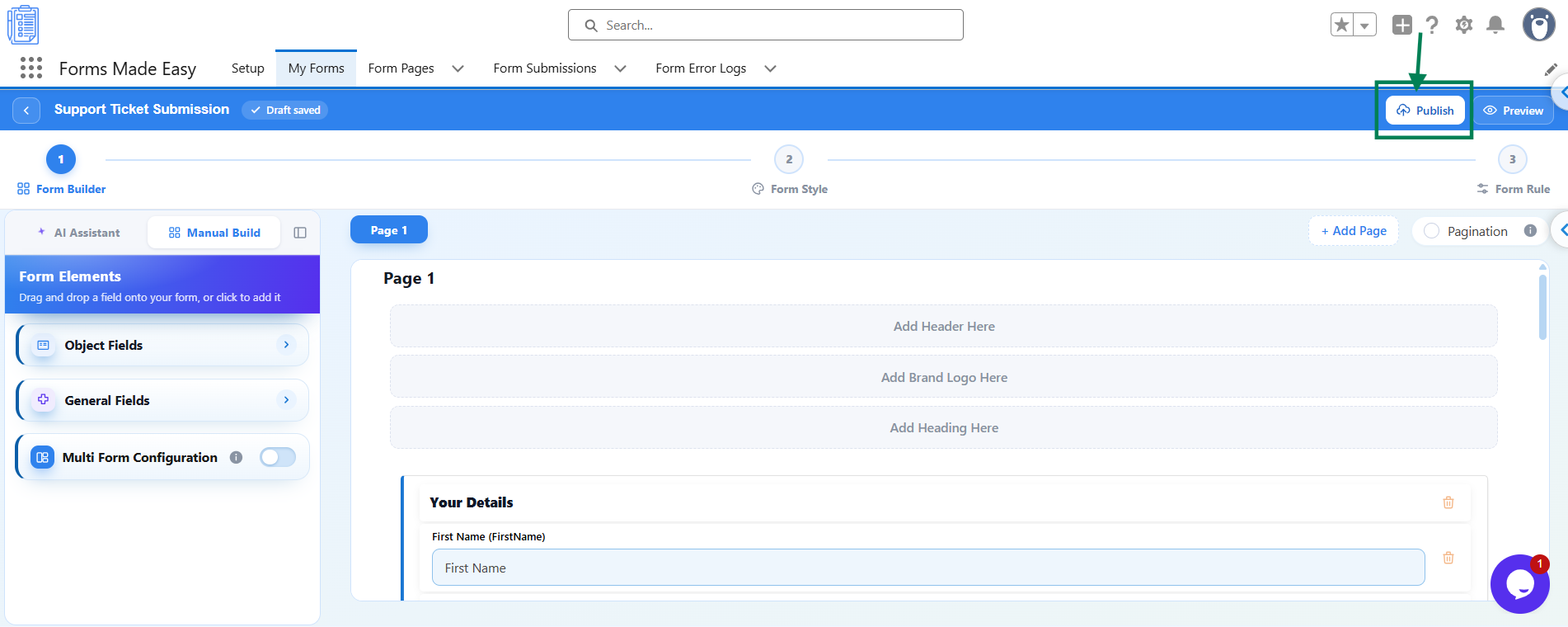
Step 1: Open your form in the Form Builder and click the Publish button (or Republish if your form is already published).
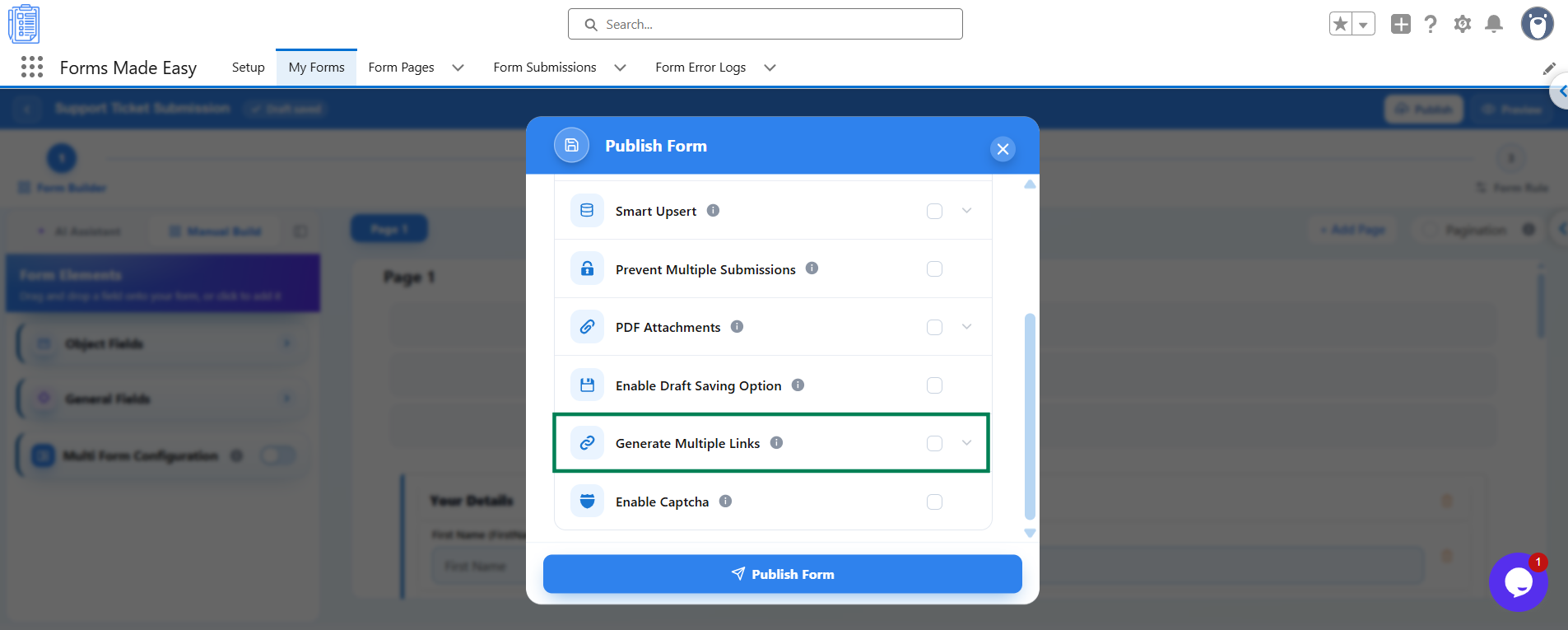
Step 2: A Publish Form window will appear with the message Ready to publish your form? Under Advanced Options, find the Generate Multiple Links option.
Step 3: Turn on Generate Multiple Links to configure the unique form links.
Step 4: Enter the following settings:
How many URLs do you want to generate? Enter the number of unique URLs you want to create. You can generate between 1 and 500 links.
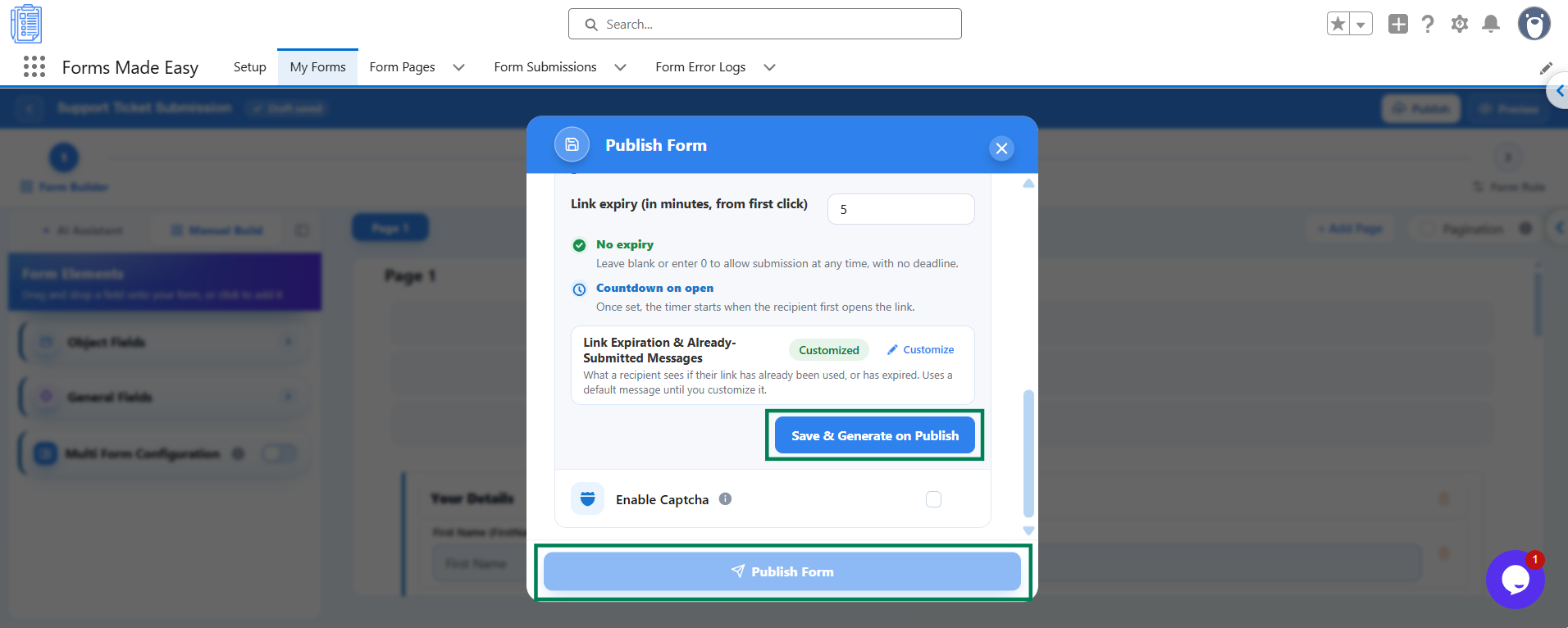
Link Expiry (in minutes, from first click): Enter the expiry duration in minutes, from 0 to 43,200. Leave this field blank or enter 0 if you do not want the links to expire.
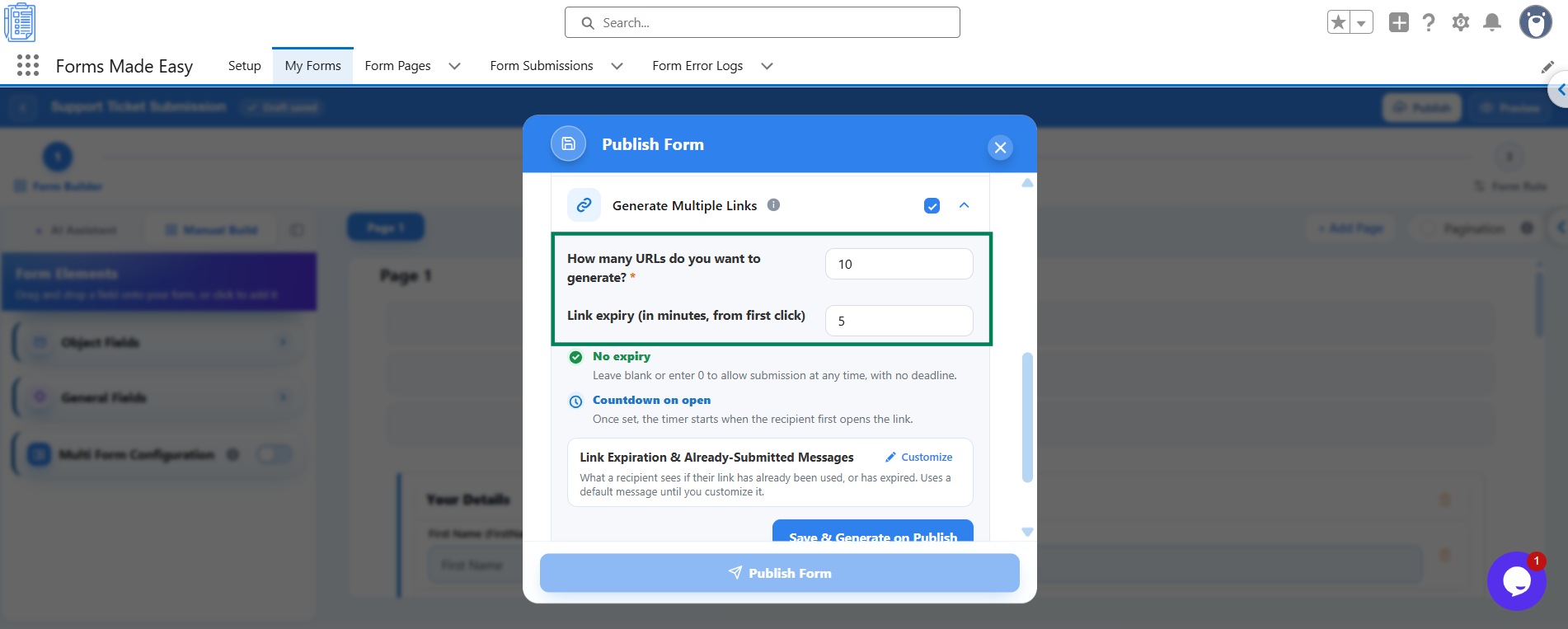
The countdown starts when the recipient first opens the link.
Step 5: Optionally, customize the messages displayed for submitted and expired links.
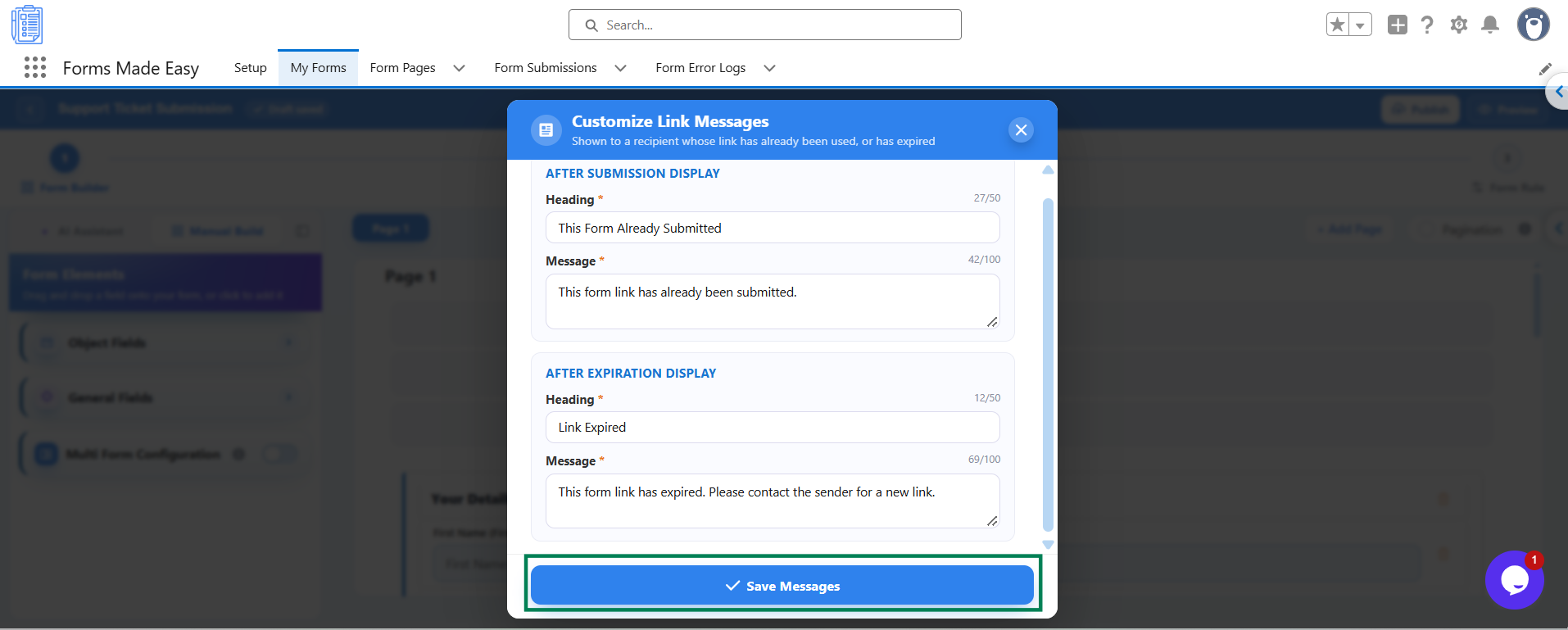
Under Link Expiration & Already-Submitted Messages, click Customize to configure the following:
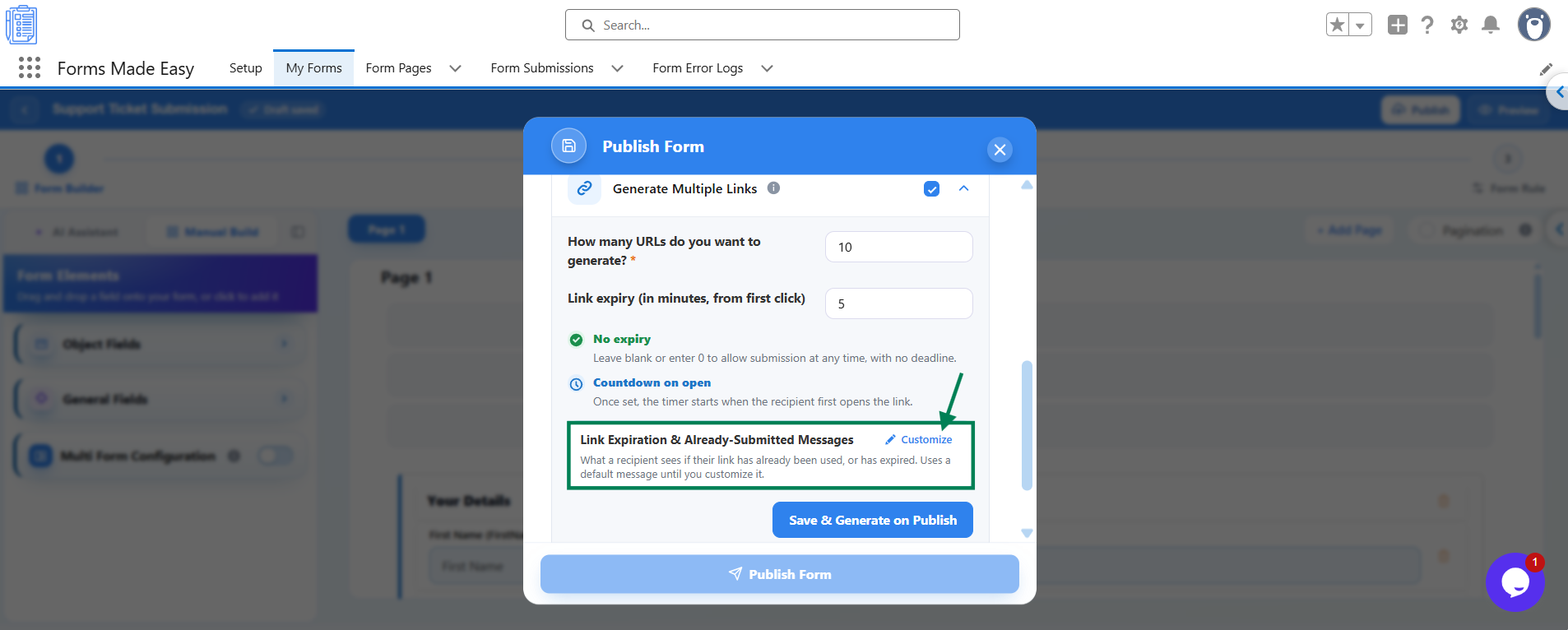
After Submission Display: Set the heading and message shown when someone opens a link that has already been used. For example, "This Form Already Submitted".
After Expiration Display: Set the heading and message shown when someone opens an expired link. For example, "Link Expired".
Click Save Messages to save your customized messages.
Step 6: Click Save & Generate in the Publish window, then click Publish Form to publish your form and generate the unique links.
Step 7: After publishing, use the available options to copy and share your generated links.
Copy Link: Click this option to copy an individual unique link.
Copy All Links: Click this option to copy all generated links.
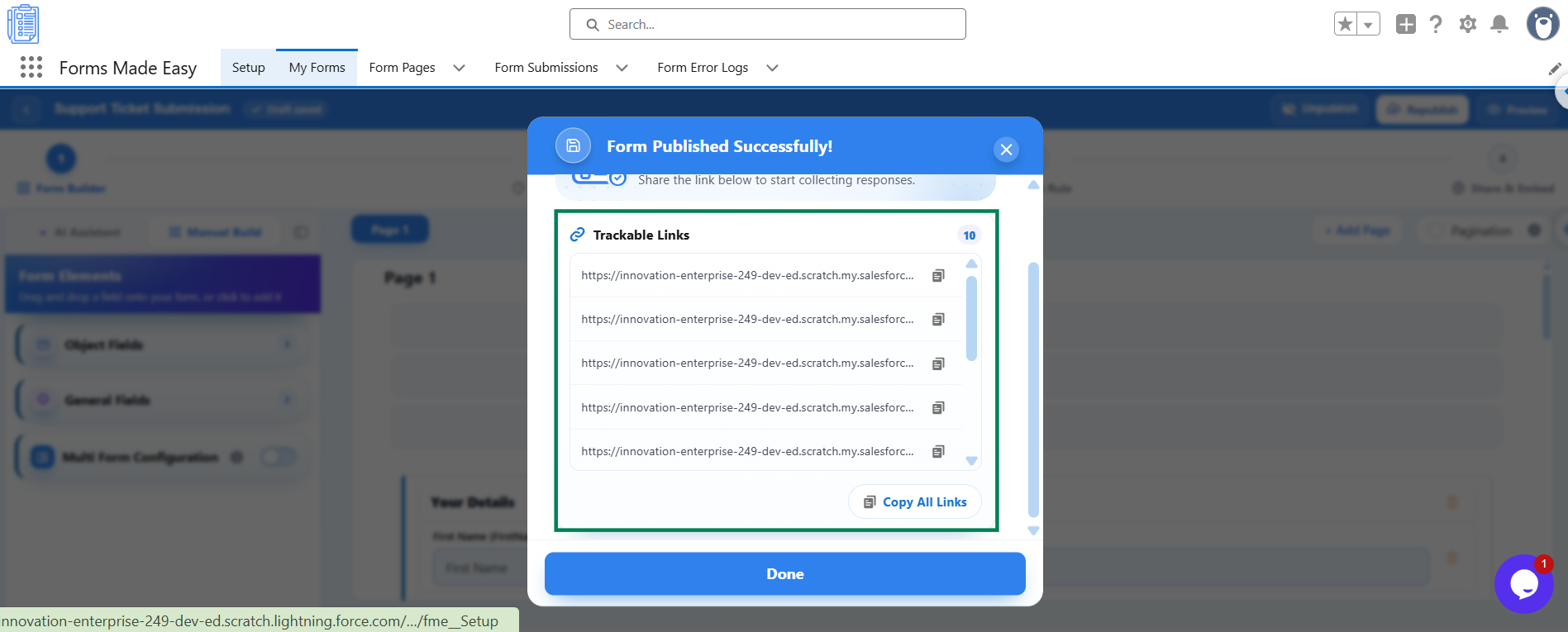
You can then distribute the unique links to the intended recipients.
Once the links are generated, you can track their activity from the Submissions page.
What Your Respondents See
Respondents can access the form through their assigned unique link.
Depending on your configuration and the link status, respondents may see:
Form: The form associated with their unique link.
Countdown: A countdown if link expiry is configured.
Already-Submitted Message: Your customized message if the link has already been used.
Expired Link Message: Your customized message if the link has expired.
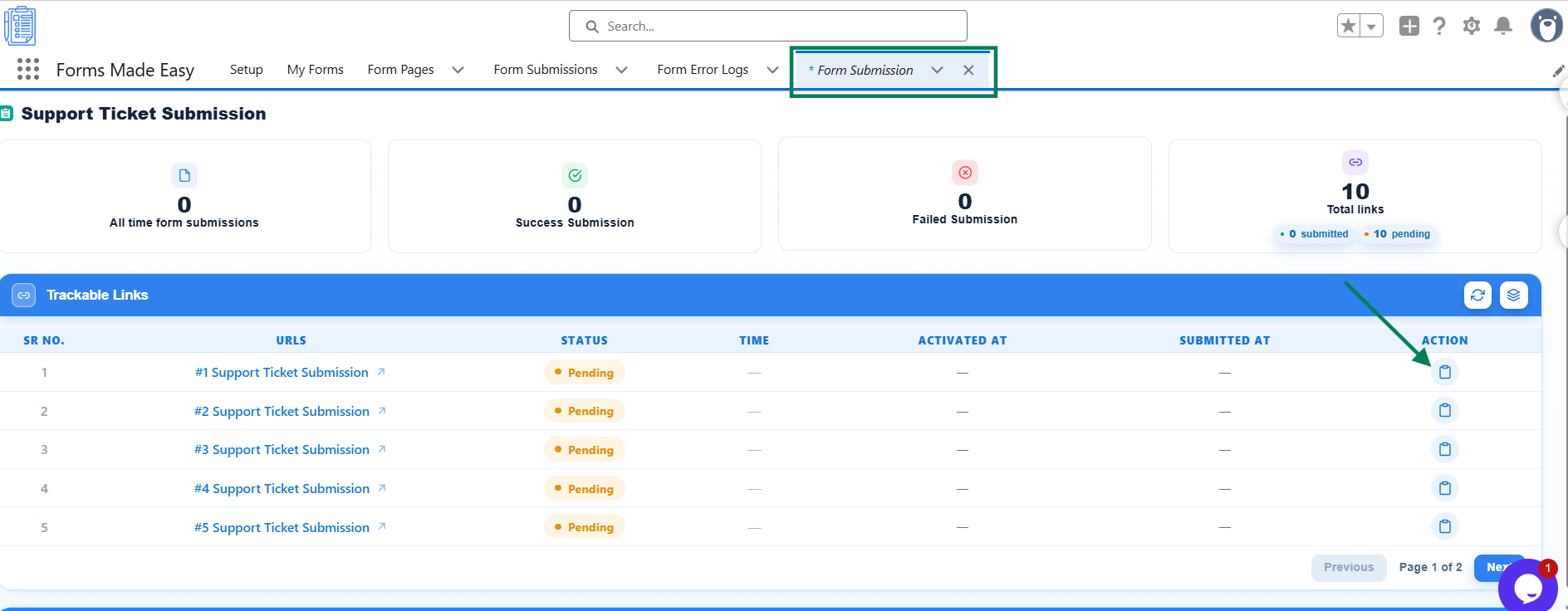
How to Track and Manage Generated Links
You can monitor and manage your generated links from the Submissions page.
Open the Submissions page.
Navigate to Trackable Links.
Review the available tracking details, including:
Status: Pending, Submitted, Re-submitted, Expired, or Re-share.
Time
Activated At
Submitted At
Click Refresh Status to update the displayed link statuses.
To allow a recipient to use a submitted or expired link again, use Reset — Allow Reuse on the relevant link.
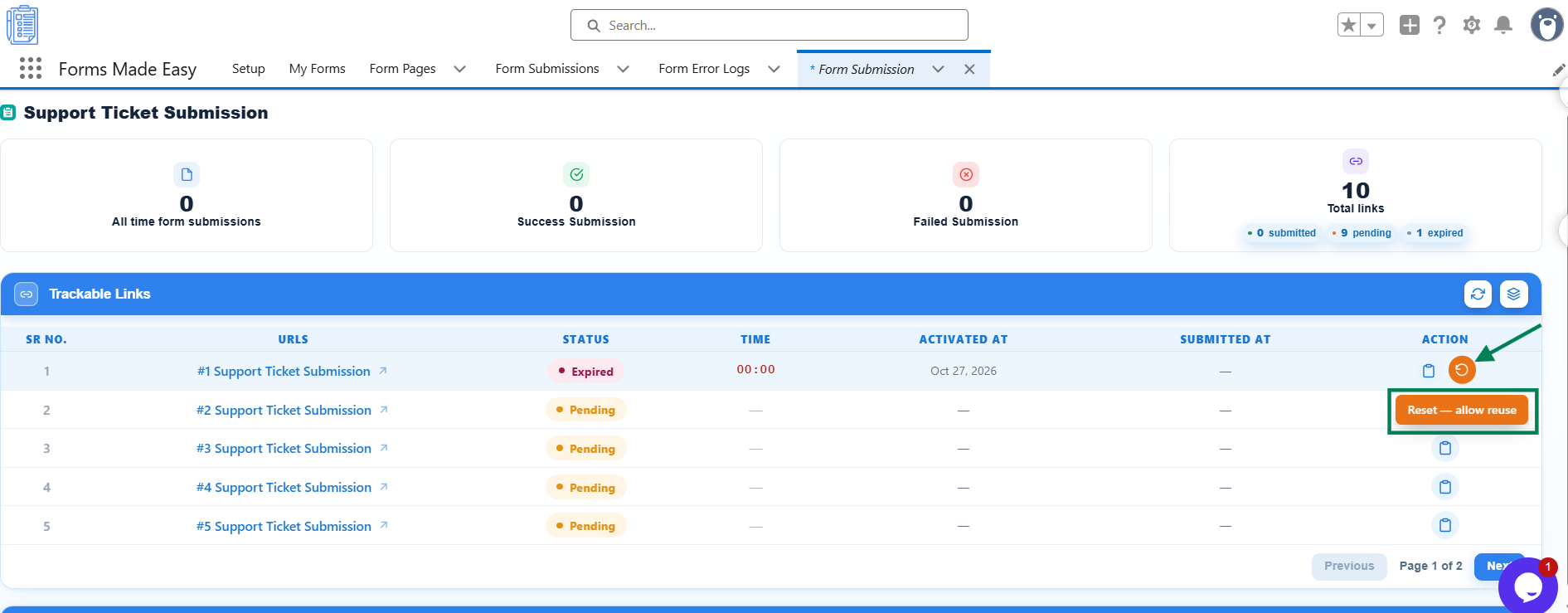
Once a link is reset to allow reuse, the recipient can use it again.
Was this article helpful?
That’s Great!
Thank you for your feedback
Sorry! We couldn't be helpful
Thank you for your feedback
Feedback sent
We appreciate your effort and will try to fix the article