In this blog, we will see how to copy the QR code of a form and understand this feature in Forms Made Easy.
By copying the QR code, we can share it with users so they can scan it and open the form directly.
Steps to Copy QR Code :
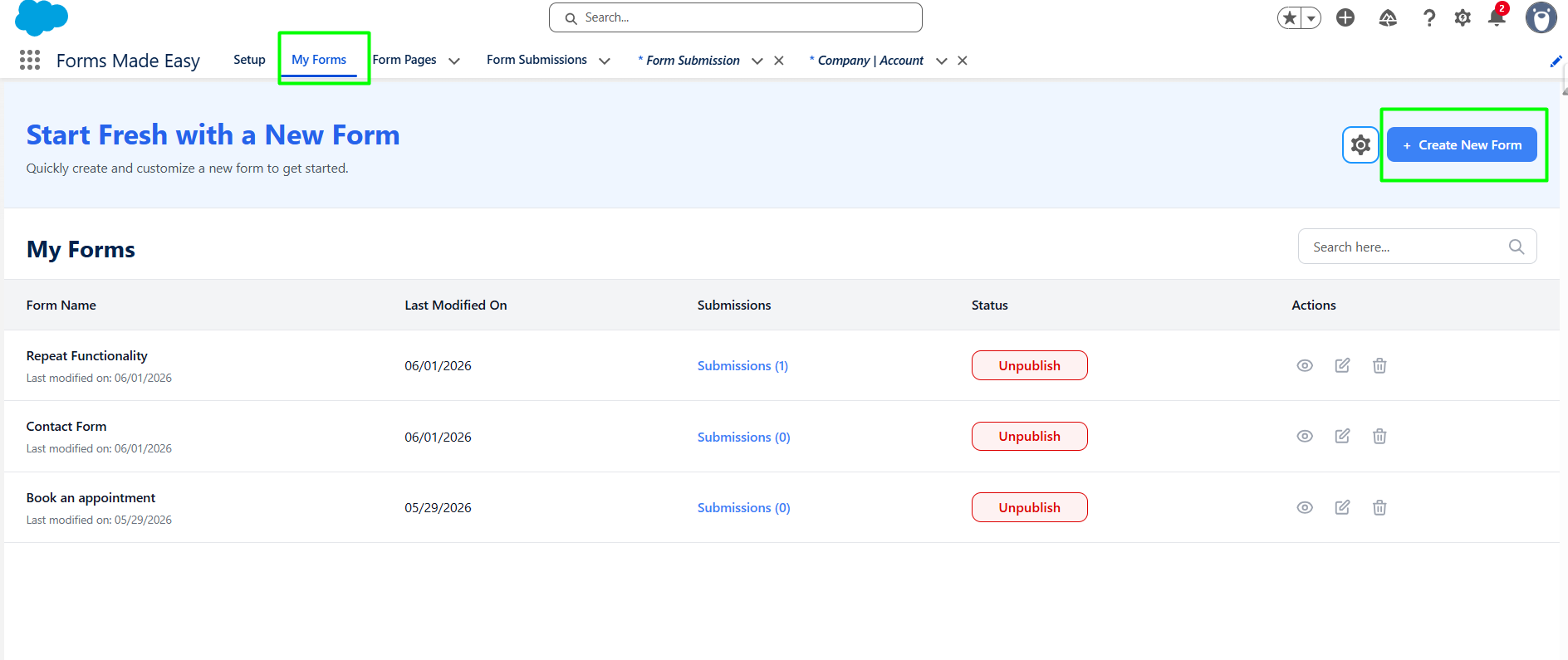
Step 1: Go to the My Forms tab and click on the "Create New Form" button.
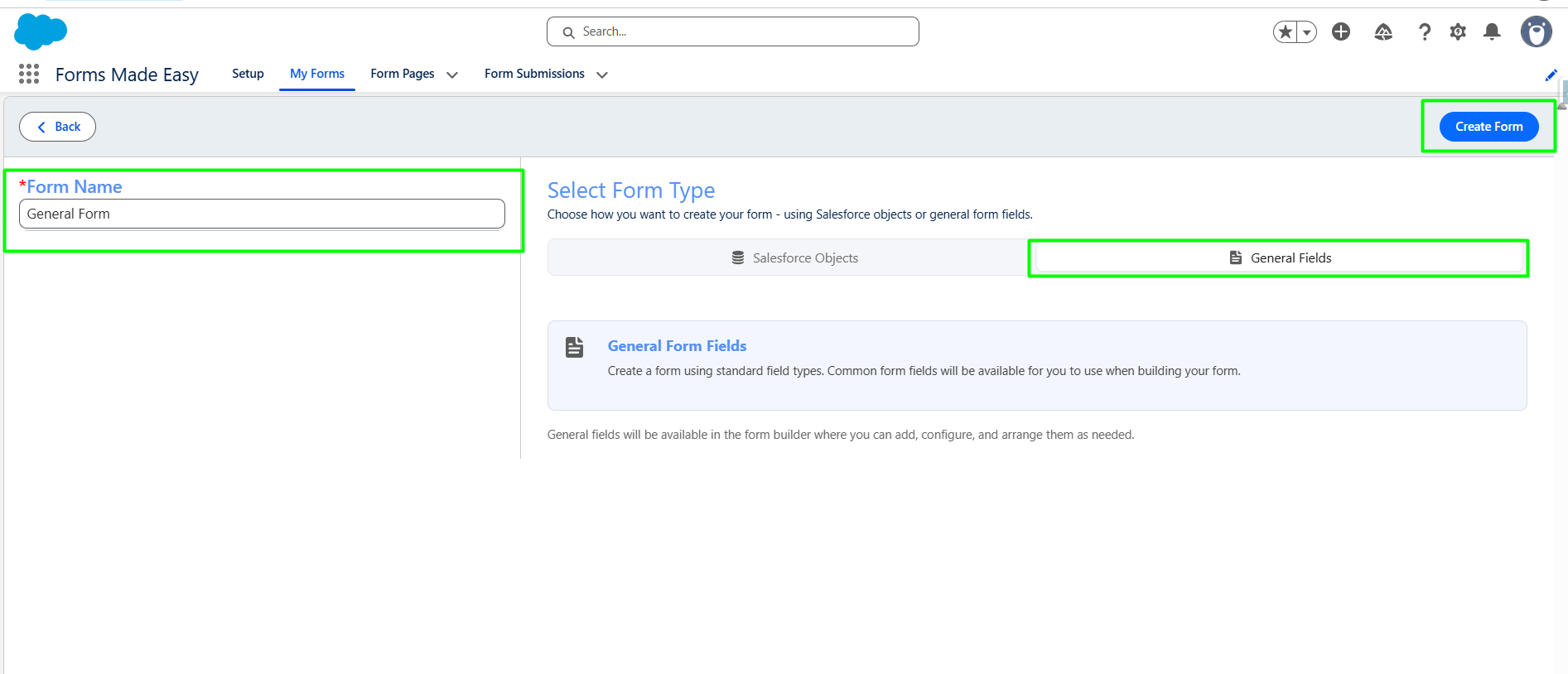
Step 2: Enter the form Name and select the Form Type (Salesforce Objects or General Fields). Currently I have chosen the General Fields option. Click on “Create form” button.
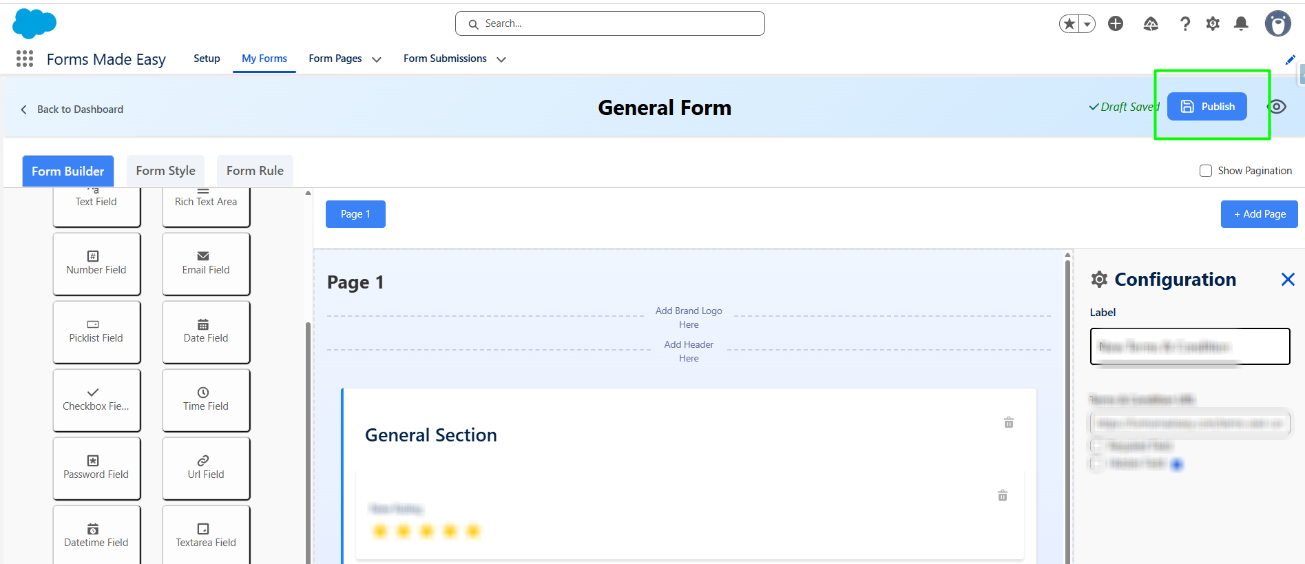
Step 3: Drag and drop your required fields on the form. After all of that, you can publish the form by clicking the "Publish" button.'
Step 4: Click on "Publish Form” button.

Step 5: Click on "Done" to close the modal.

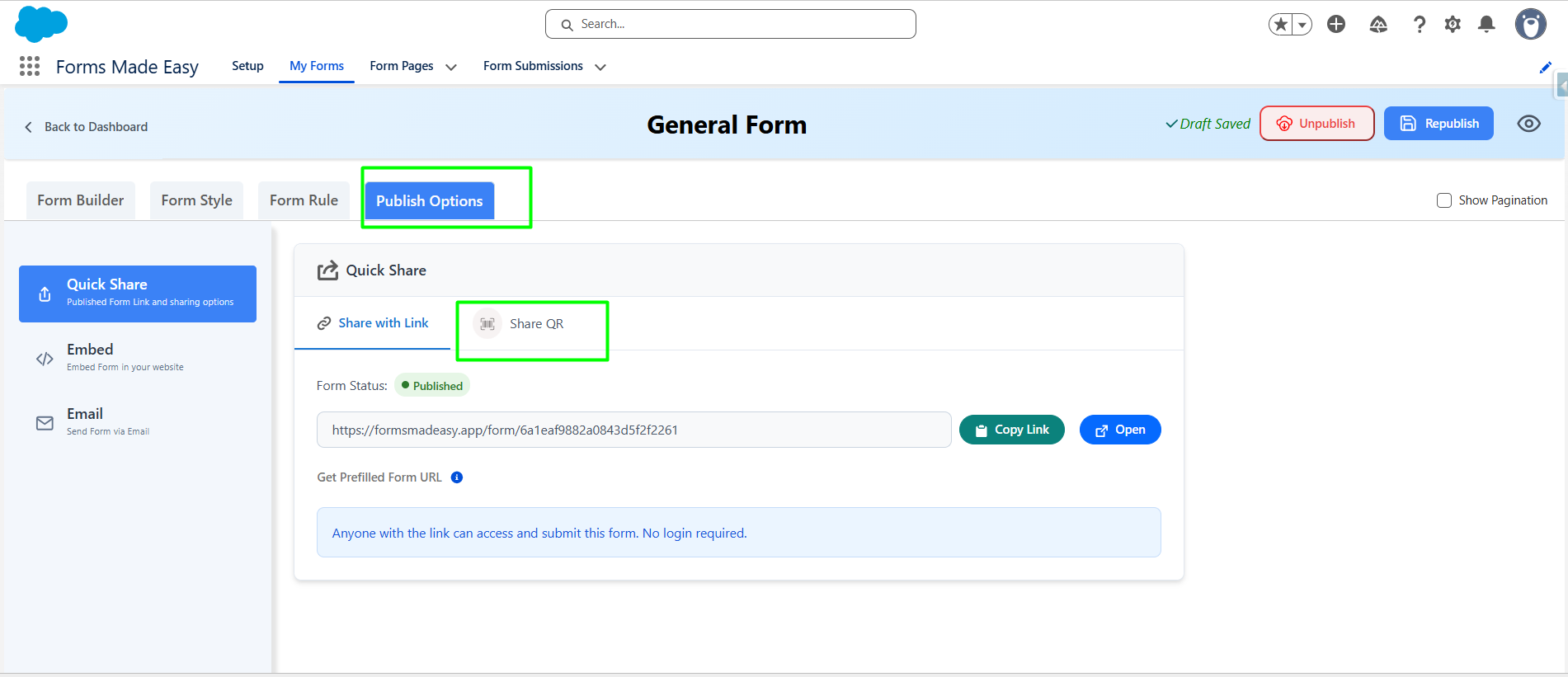
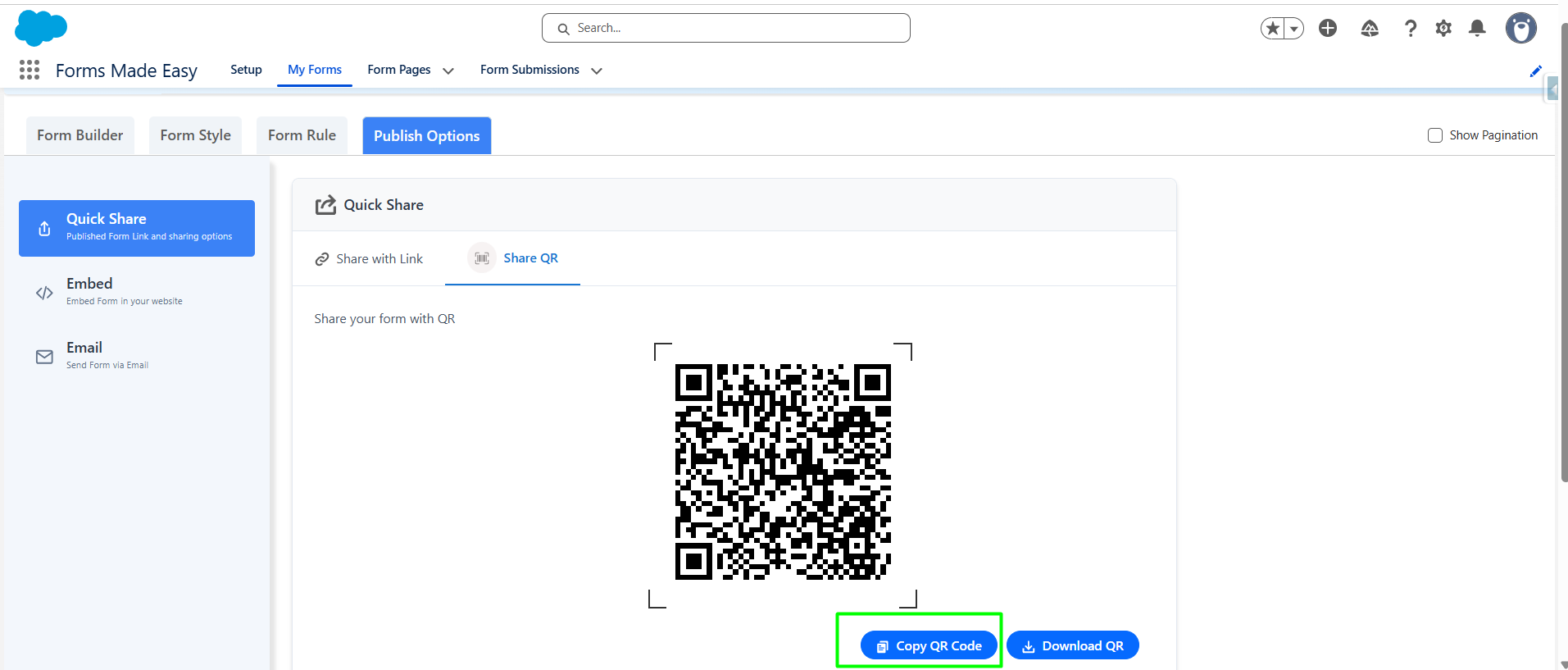
Step 6: Click on "Publish Options”. Click on “Share QR”.
Step 7: QR Code will be displayed on screen. Click on "Copy QR Code" button. QR Code copied to clipboard.
Was this article helpful?
That’s Great!
Thank you for your feedback
Sorry! We couldn't be helpful
Thank you for your feedback
Feedback sent
We appreciate your effort and will try to fix the article