In this blog we will create forms for those who has enabled the person account in there org:
A Person Account is an object that combines fields from the standard Account and Contact objects. When you create a Person Account record, the data is still stored in separate Account and Contact records "under the hood" of the Salesforce runtime. But in the user interface, you see a single, unified record.
In Person Account when an Account is Created, Related Contacts will created automatically.
Steps to Create Forms in Forms Made Easy :
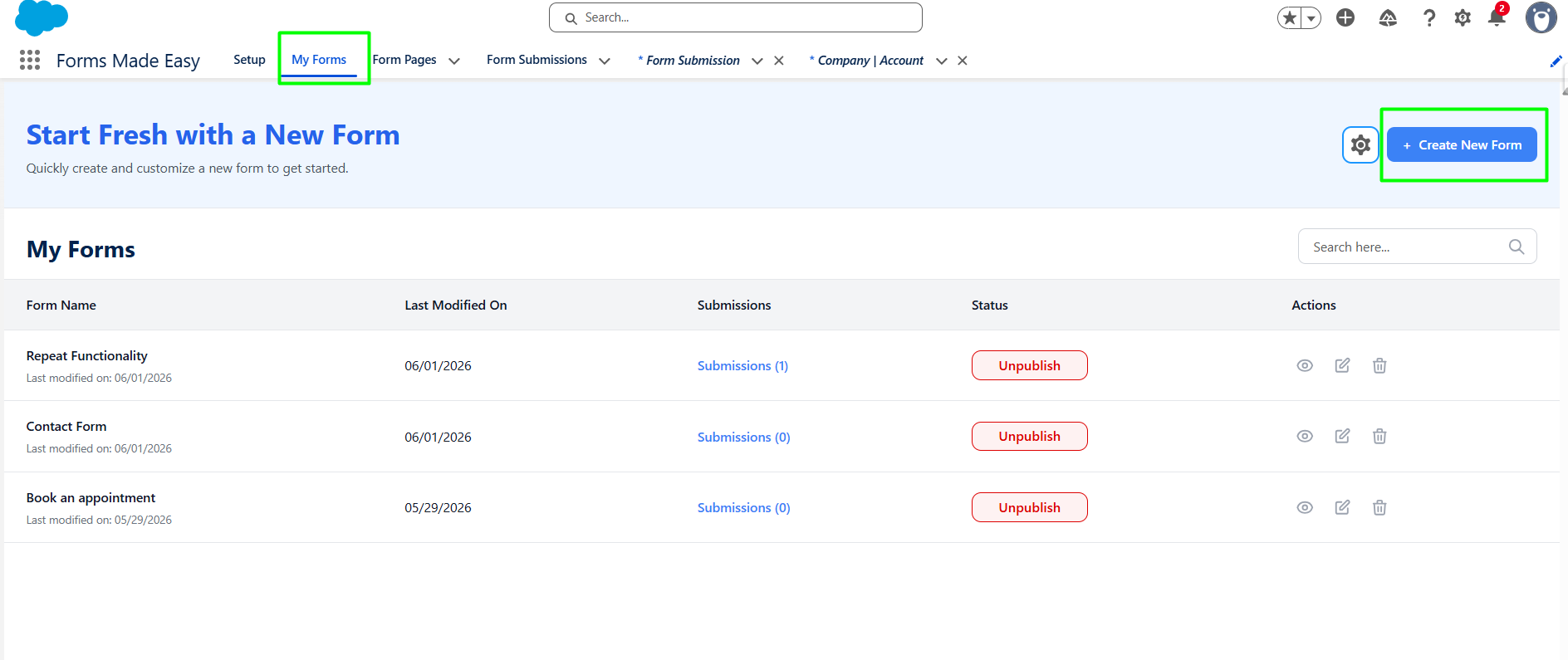
Step 1 : Go to the My Forms tab and click on the Create New Form Buttons.
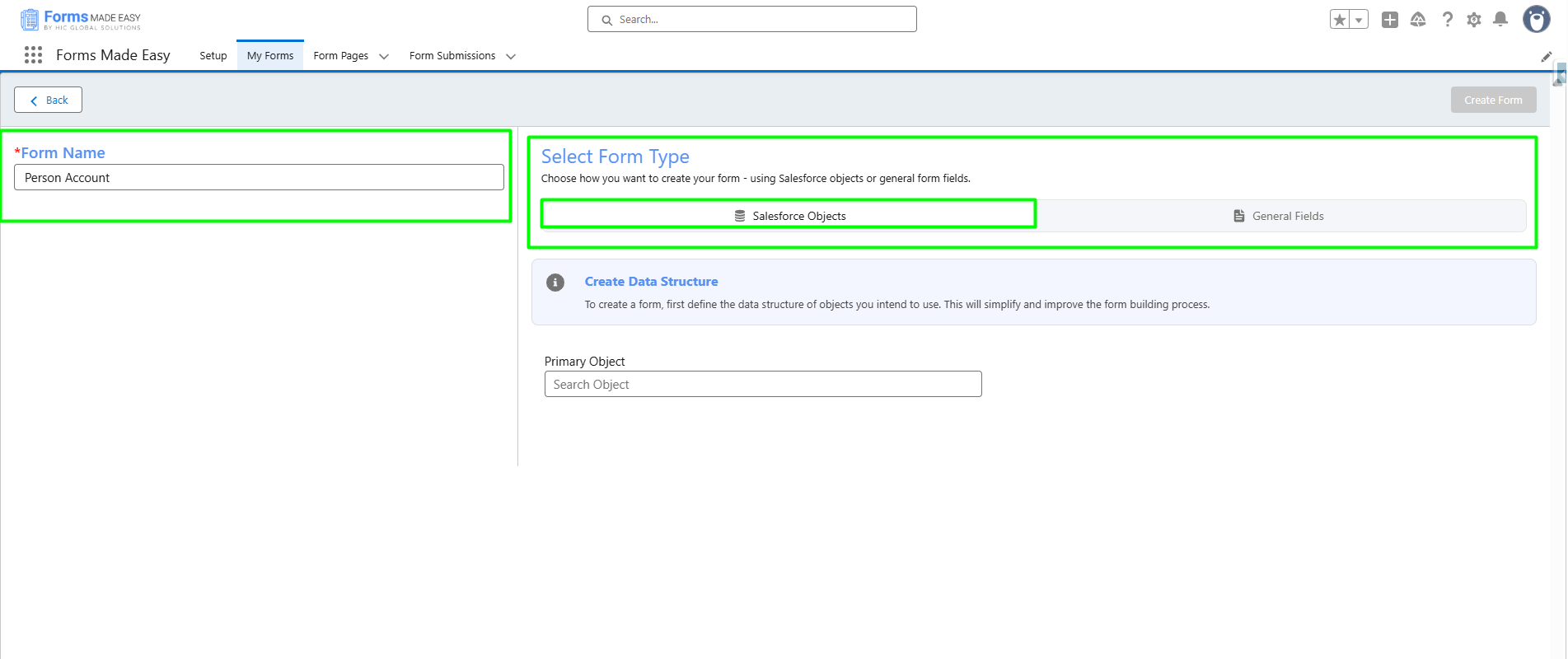
Step 2 : Enter the Form Name and Select Form Type Salesforce object.
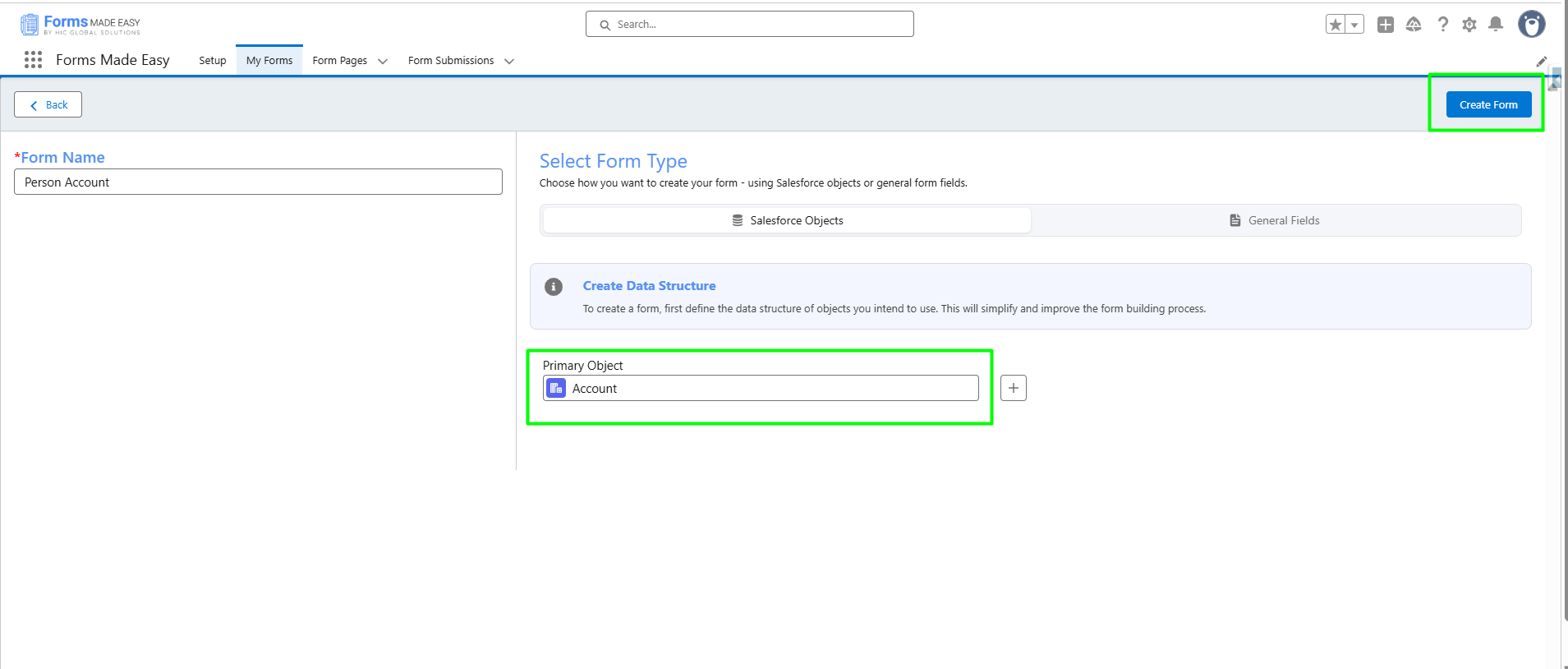
Step 3 : Select Account as a Primary Object and Click on Create Form Buttons.
Step 4 : Go to the Object Fields and Click on Account.
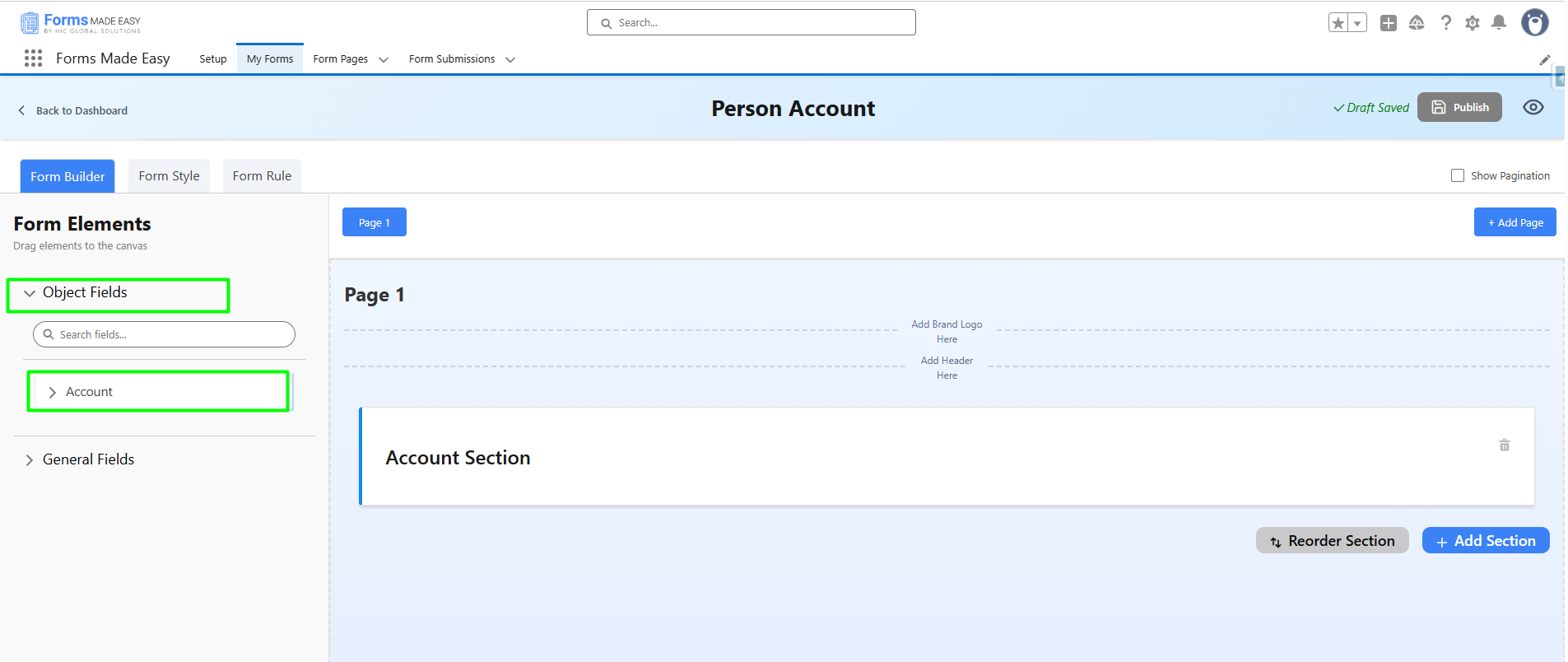
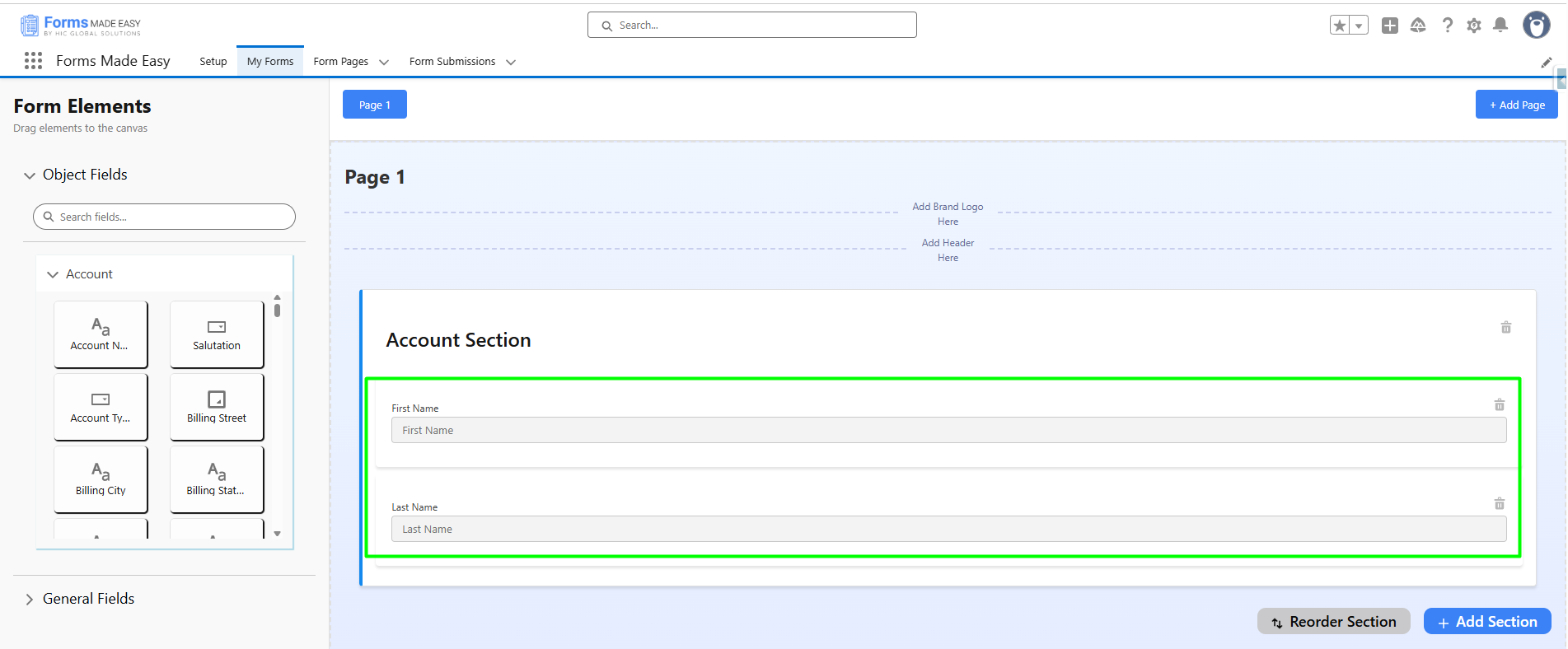
Step 5 : Drag & Drops First Name and Last Name Fields From Account.
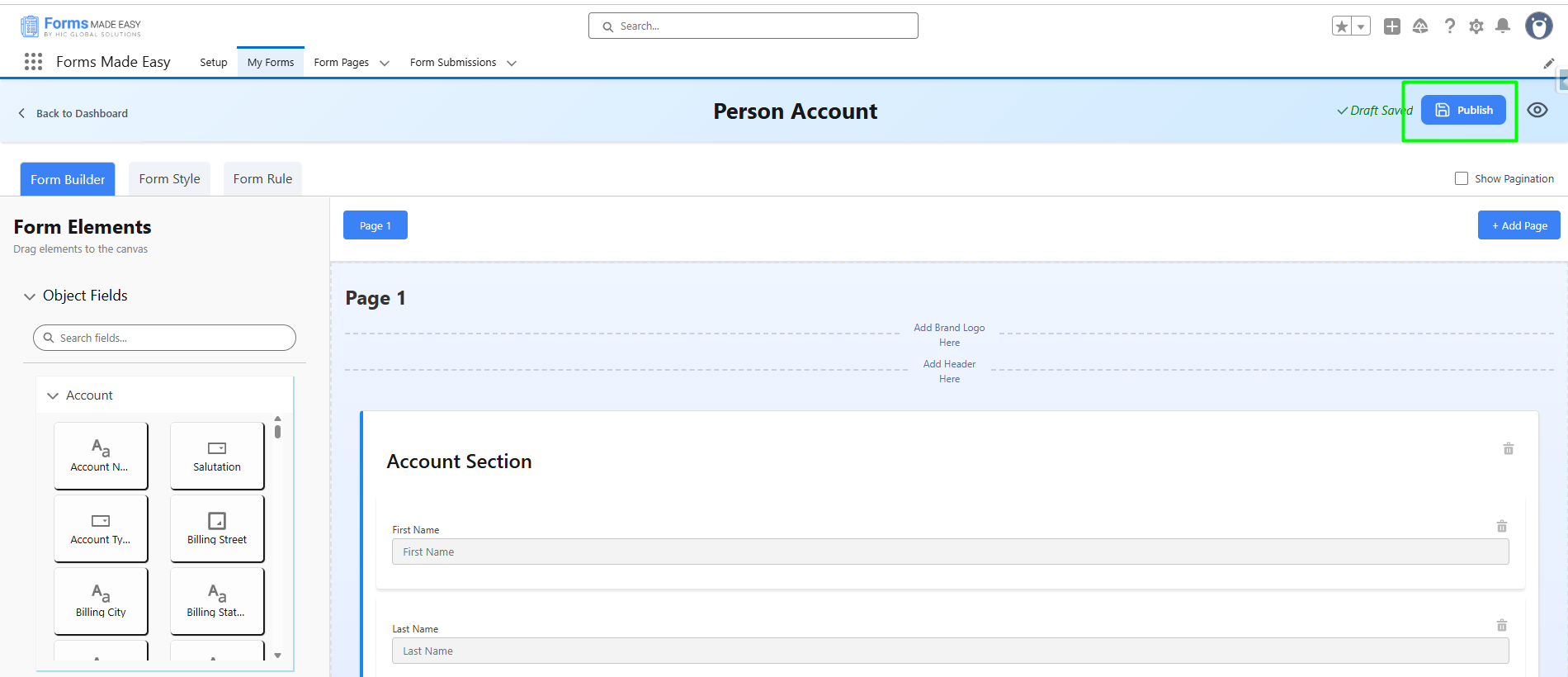
Step 6 : Click on Publish buttons.
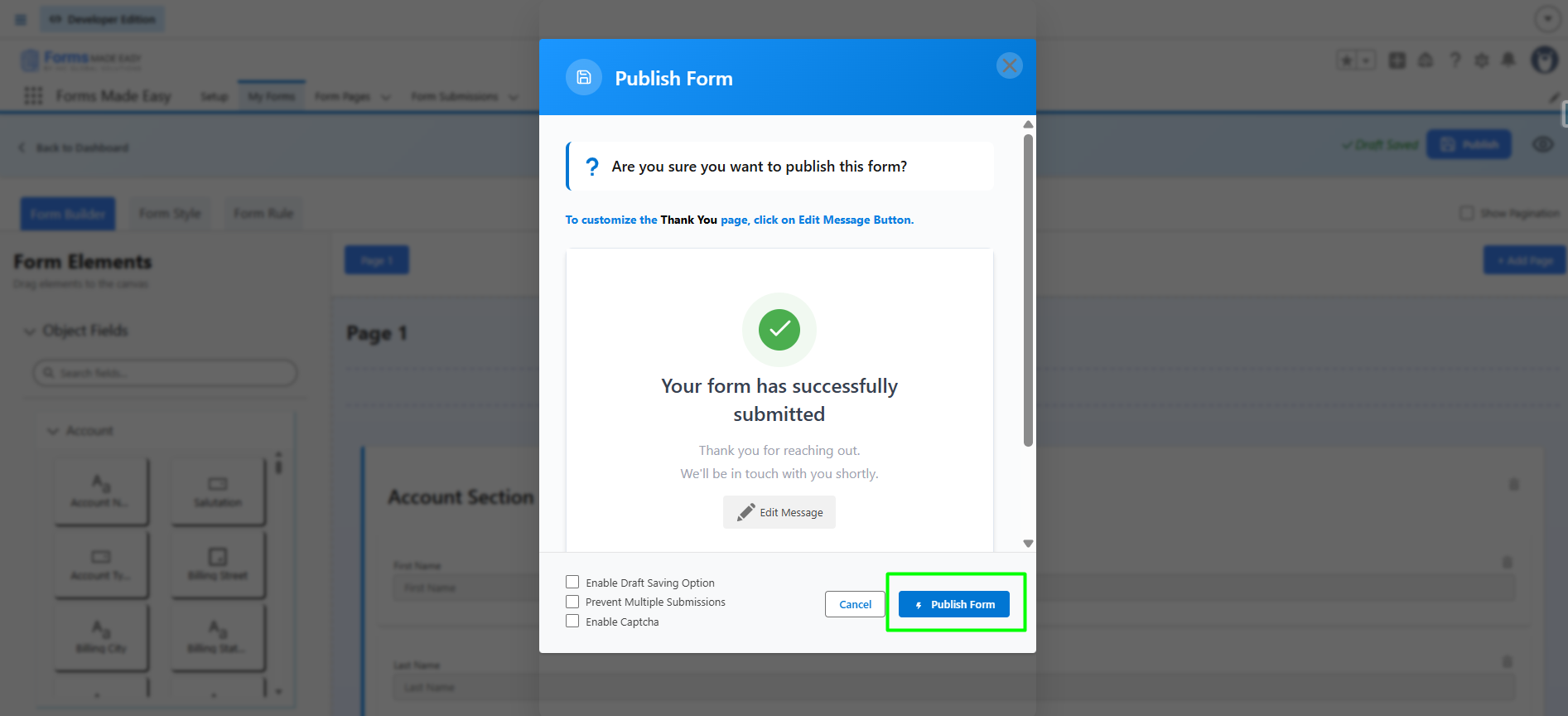
Step 7 : Click on Publish Form button.
Step 8 : Click on Done.
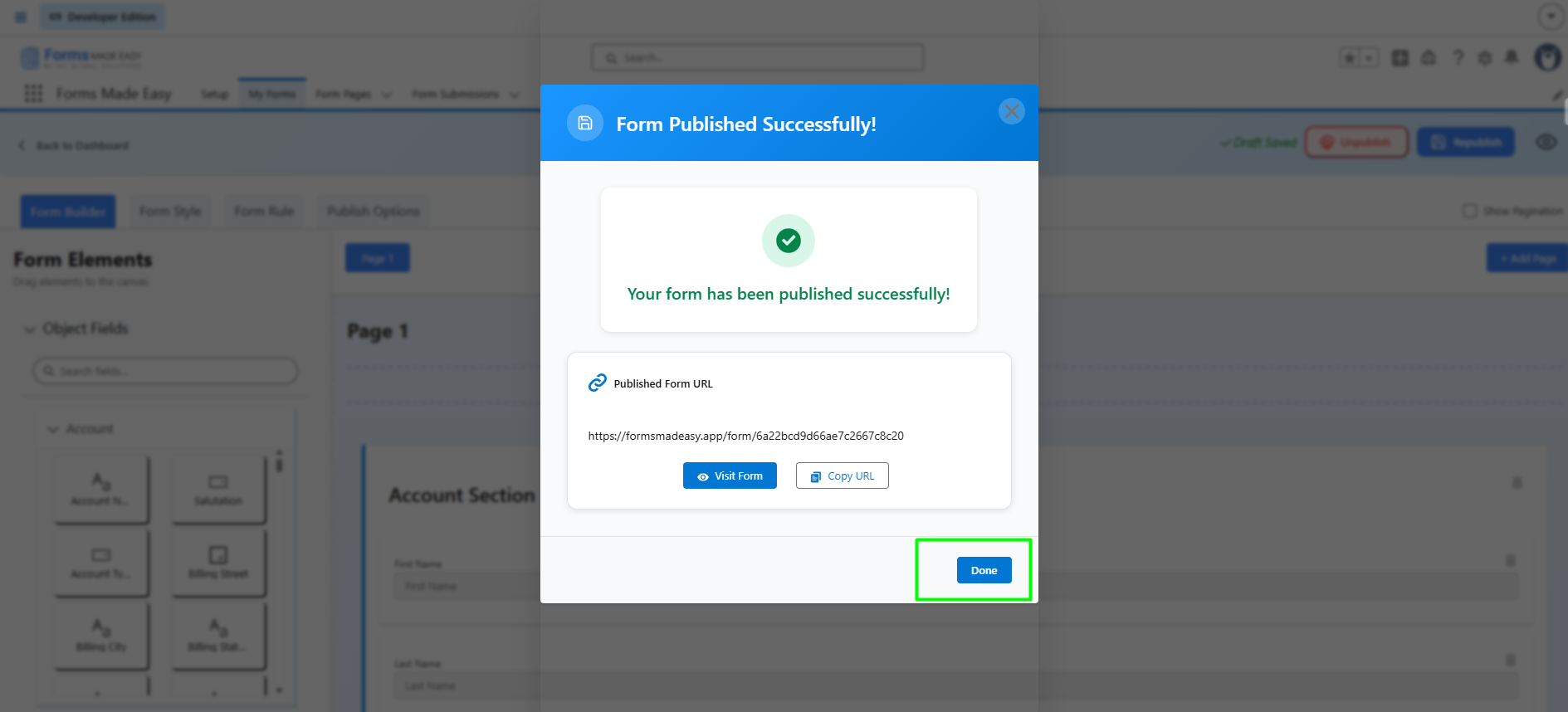
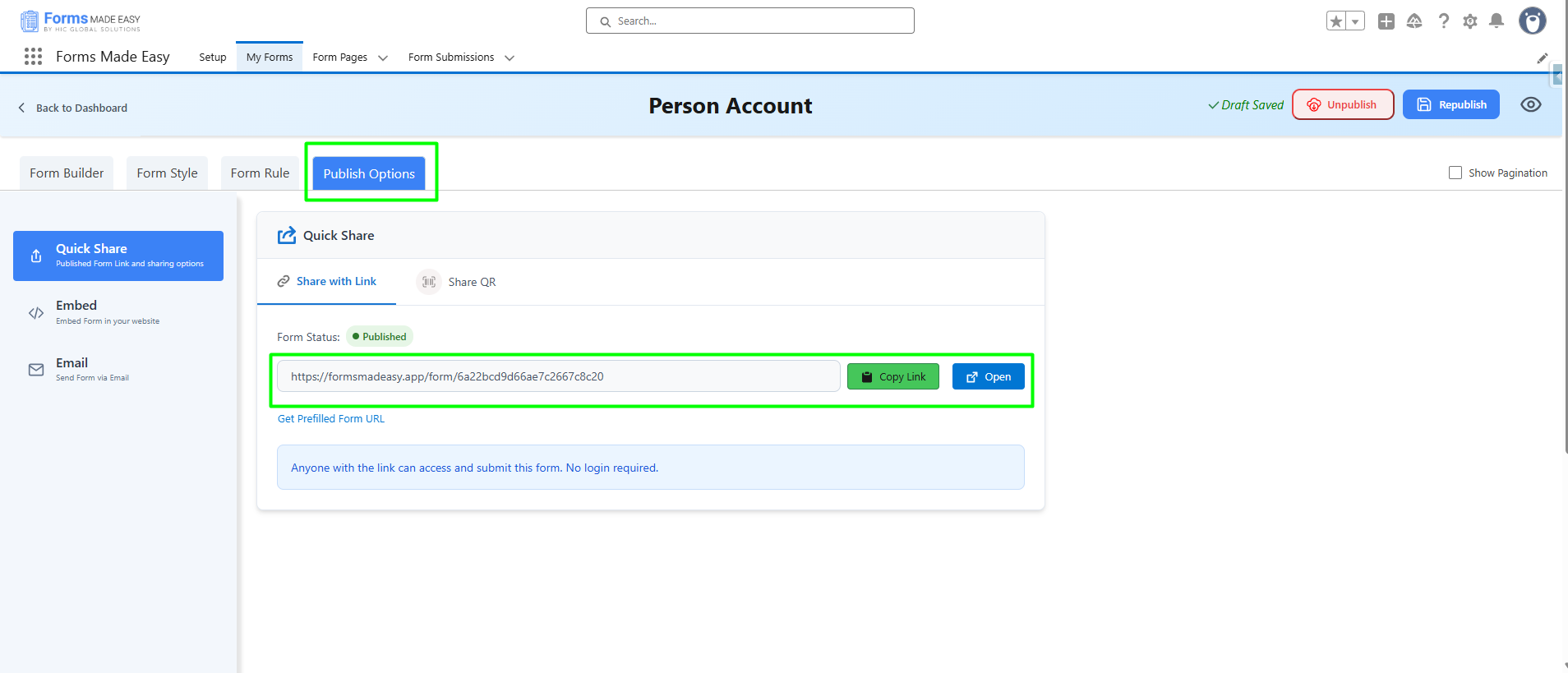
Step 9 : Click on Copy Link to copy the form link or click on Open Buttons to open the forms.
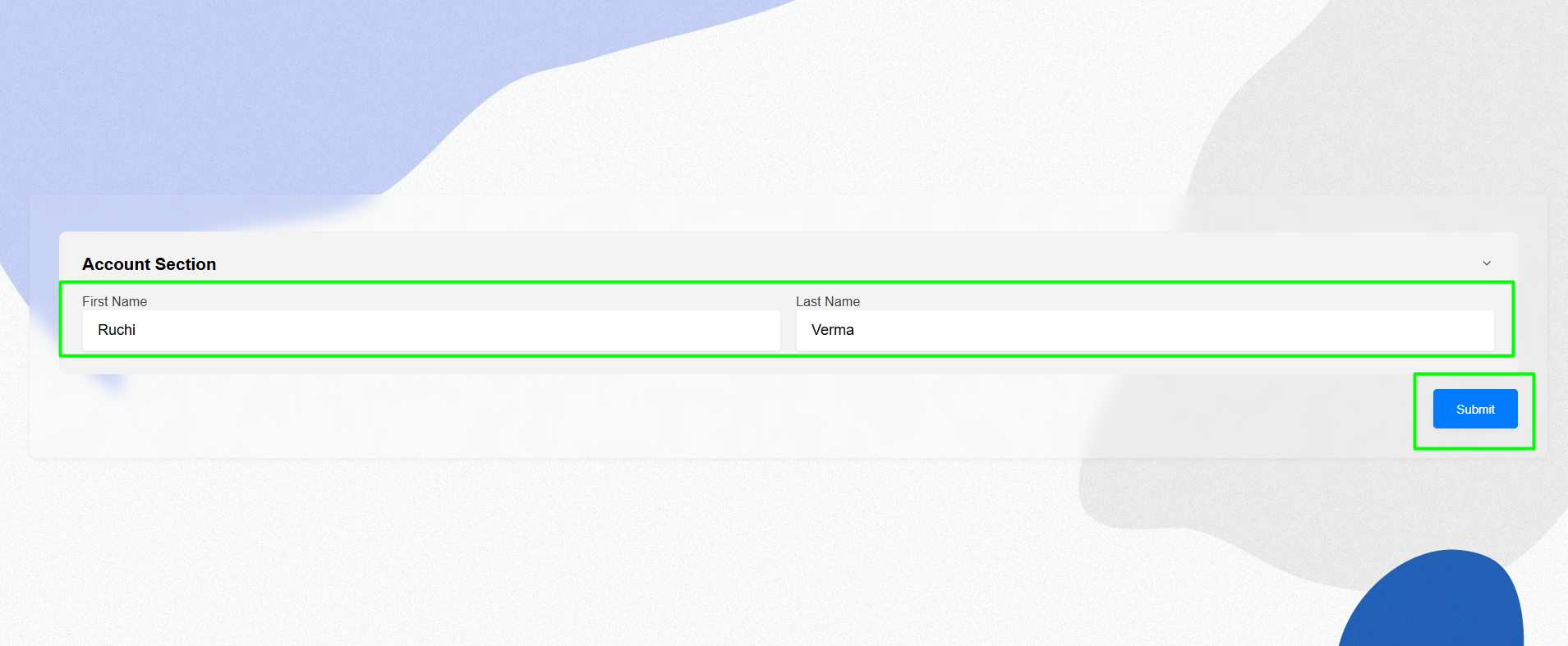
Step 10 : Fill the Details in the Person Account Form and Click on Submit.
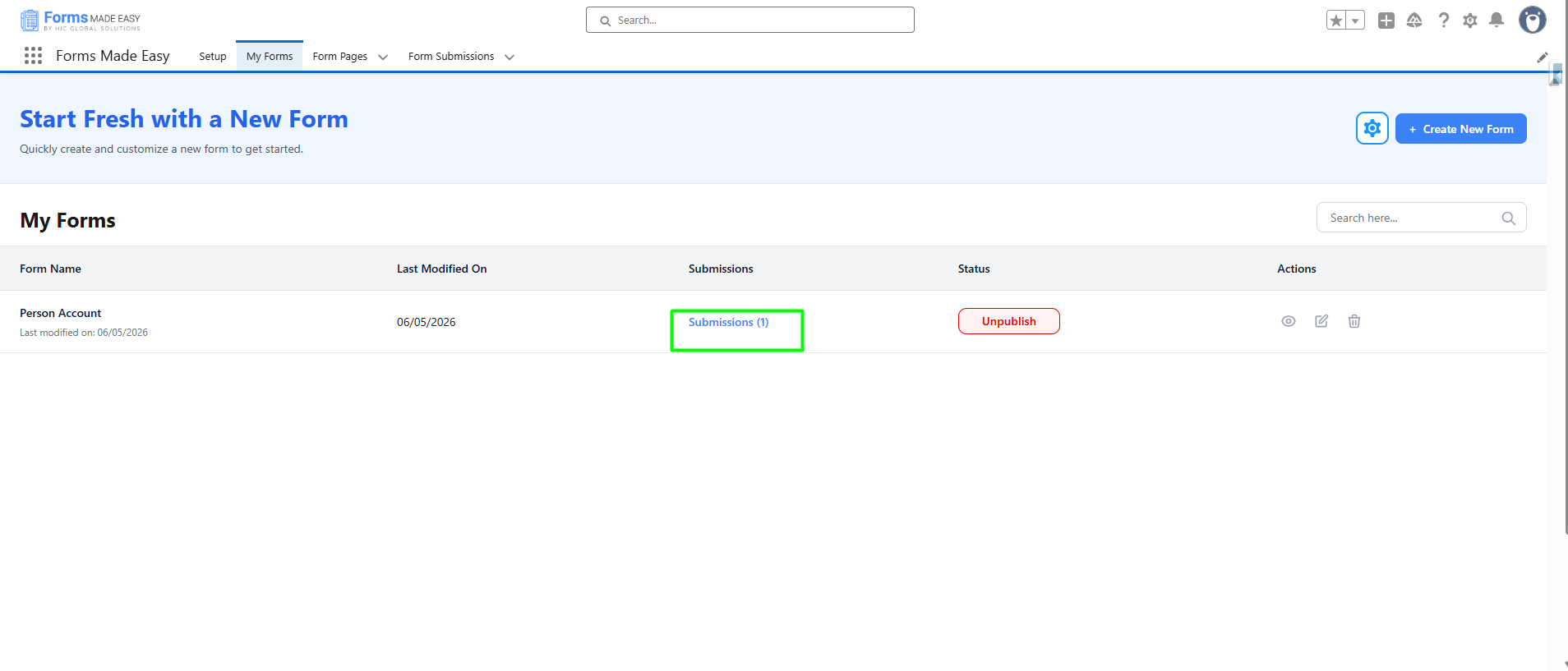
Step 11 : Go to the My Forms tab and refresh the page. Click on Submission Buttons to views the total Submissions.
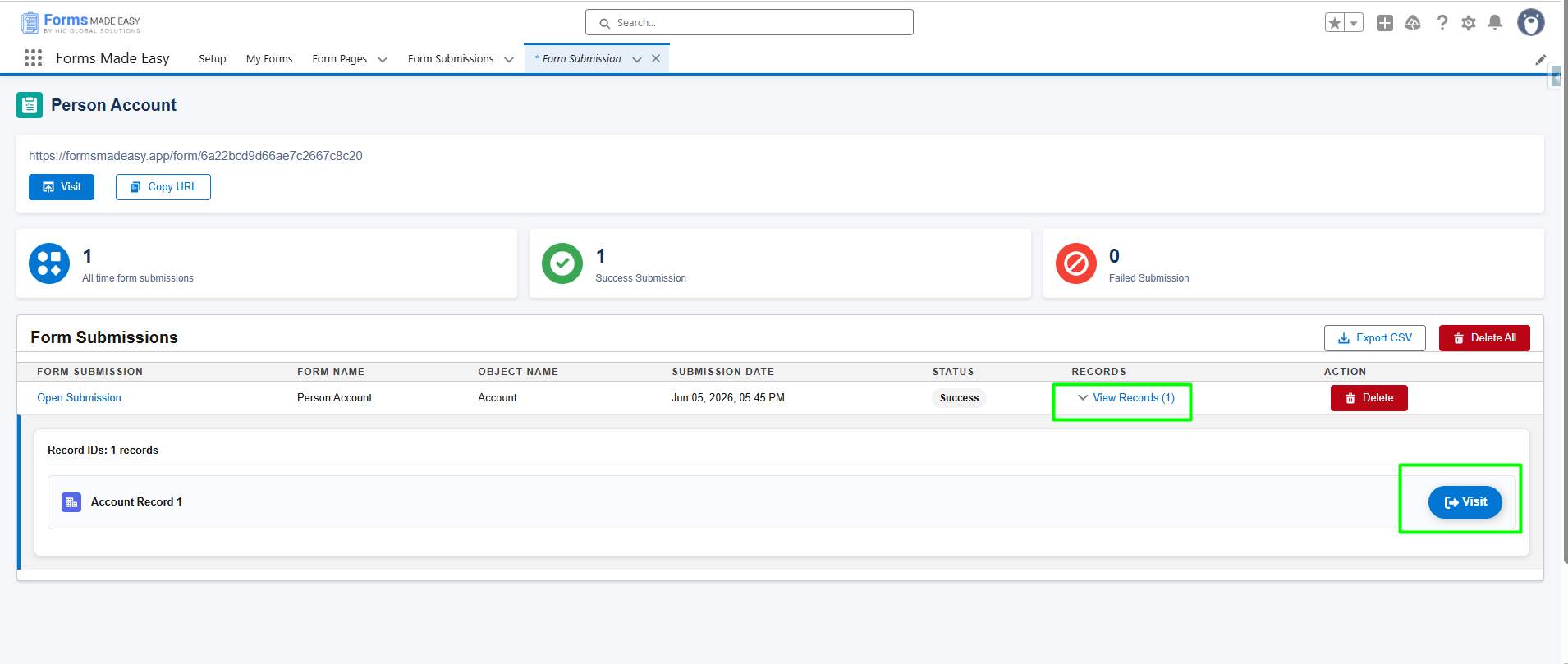
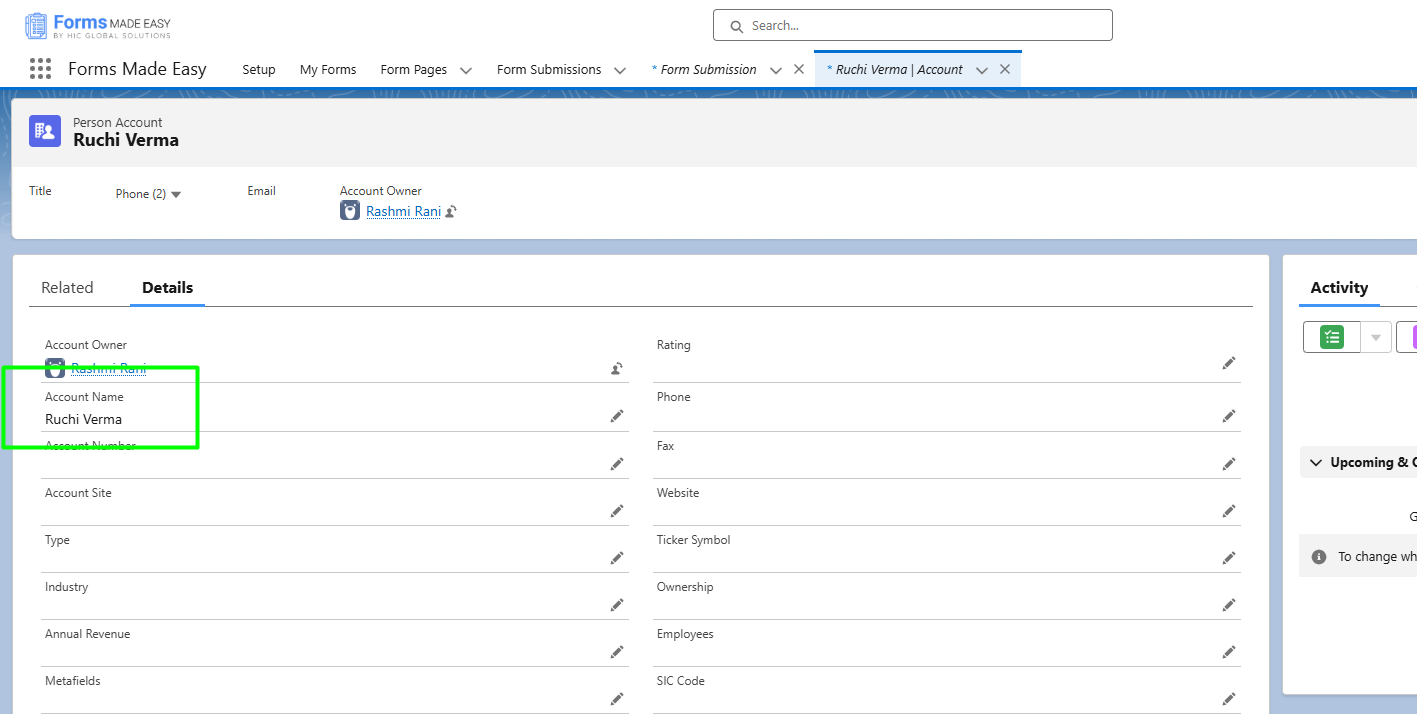
Step 12 : Here, all submissions for that form will be displayed. Click on View Records and then Click on Visit Buttons to view the created record.
Step 13 : Person account is Created Successfully.
Was this article helpful?
That’s Great!
Thank you for your feedback
Sorry! We couldn't be helpful
Thank you for your feedback
Feedback sent
We appreciate your effort and will try to fix the article