In this blog, you will see how to Prevent Multiple Submission from One User in Forms Made Easy, allowing you to restrict users from submitting the same form multiple times.
Here are the steps to Prevent Multiple Submission :
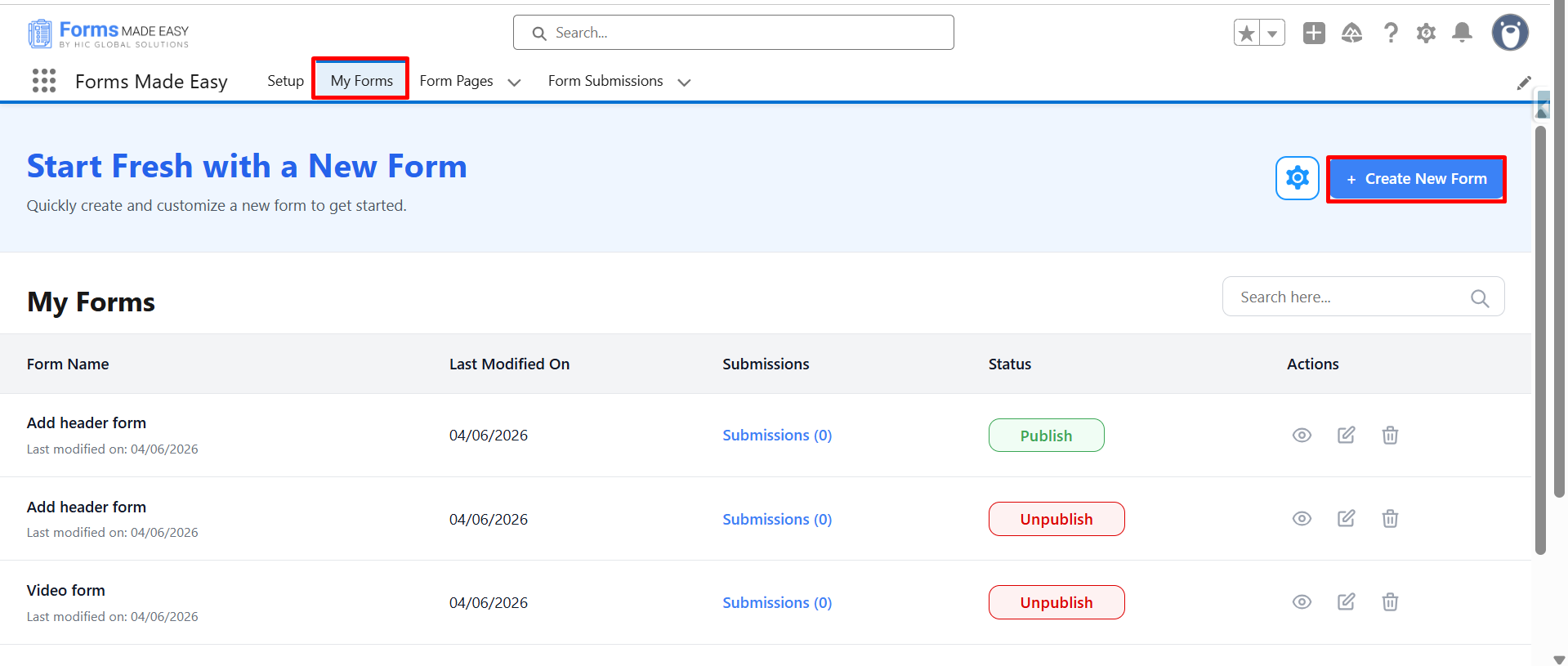
Step 1: Go to the My Forms tab and click on the "Create New Form" button.
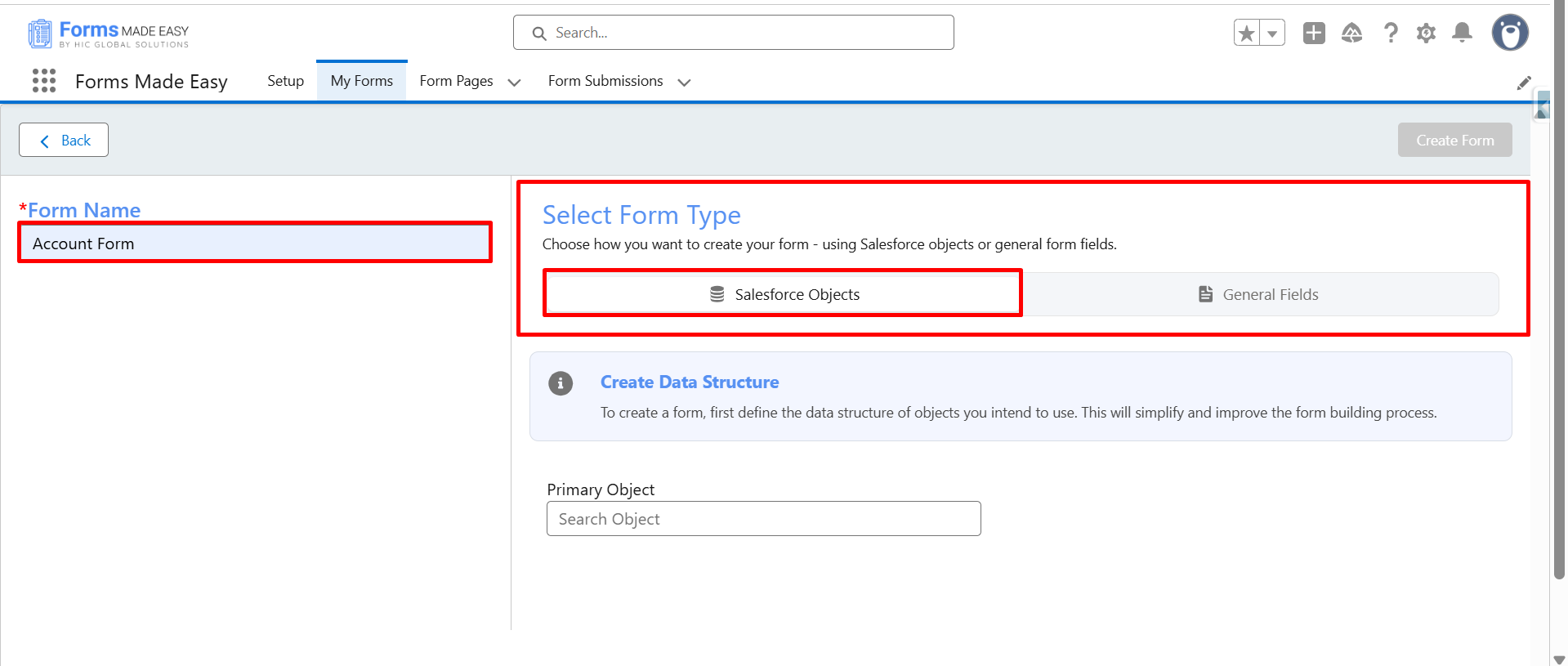
Step 2: Enter the Form Name and select the Form Type (Salesforce Objects / General Fields).
- Currently I have chosen the Salesforce Object option.
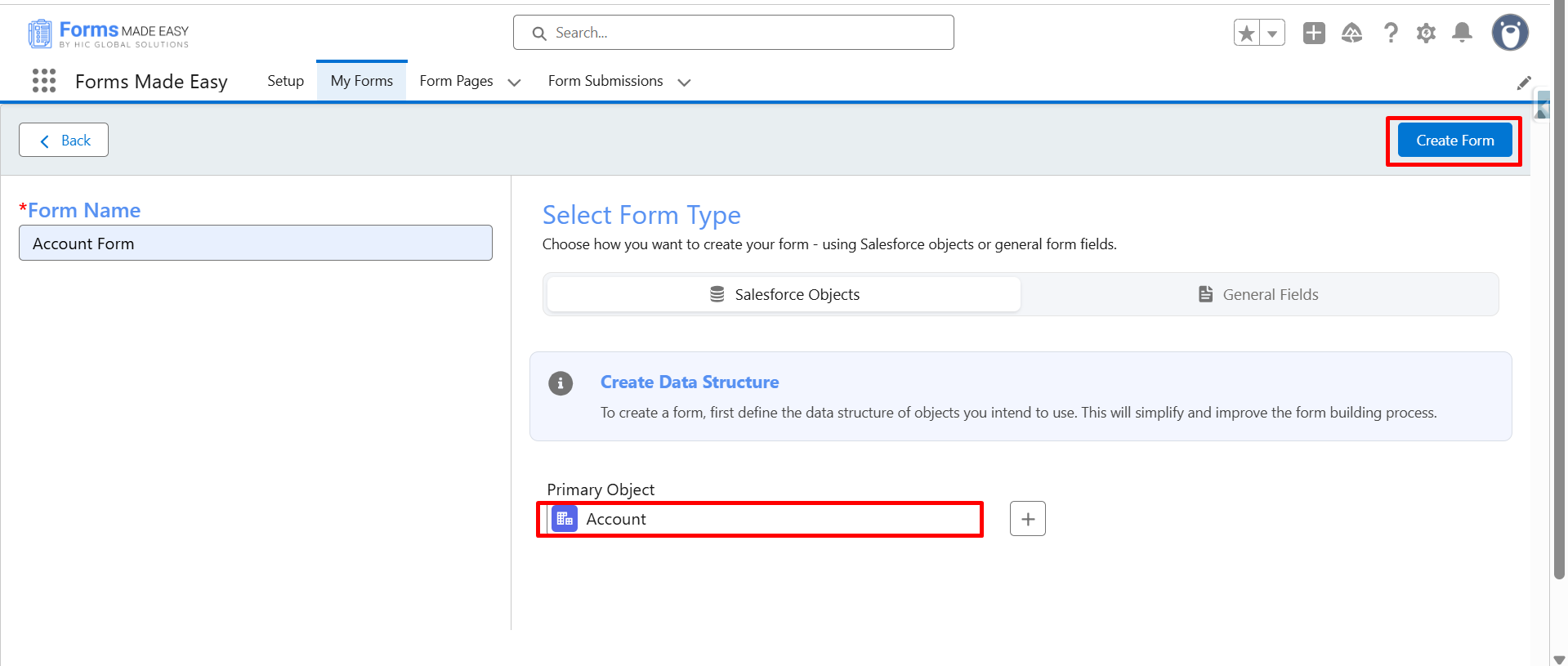
Step 3: Select "Account" as the Primary Object and click the "Create Form" button.
Step 4: Drag and drop your required fields on the form. After all of that, you can publish the form by clicking the "Publish" button.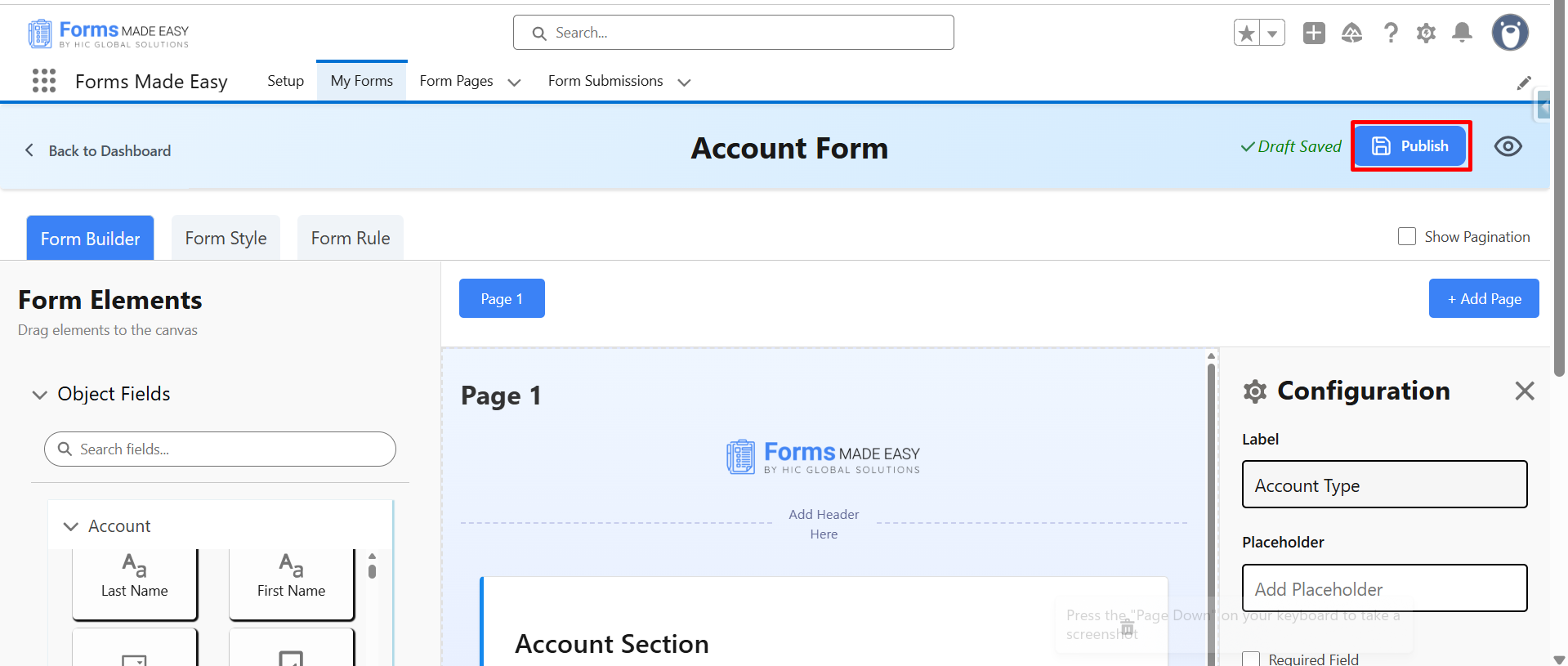
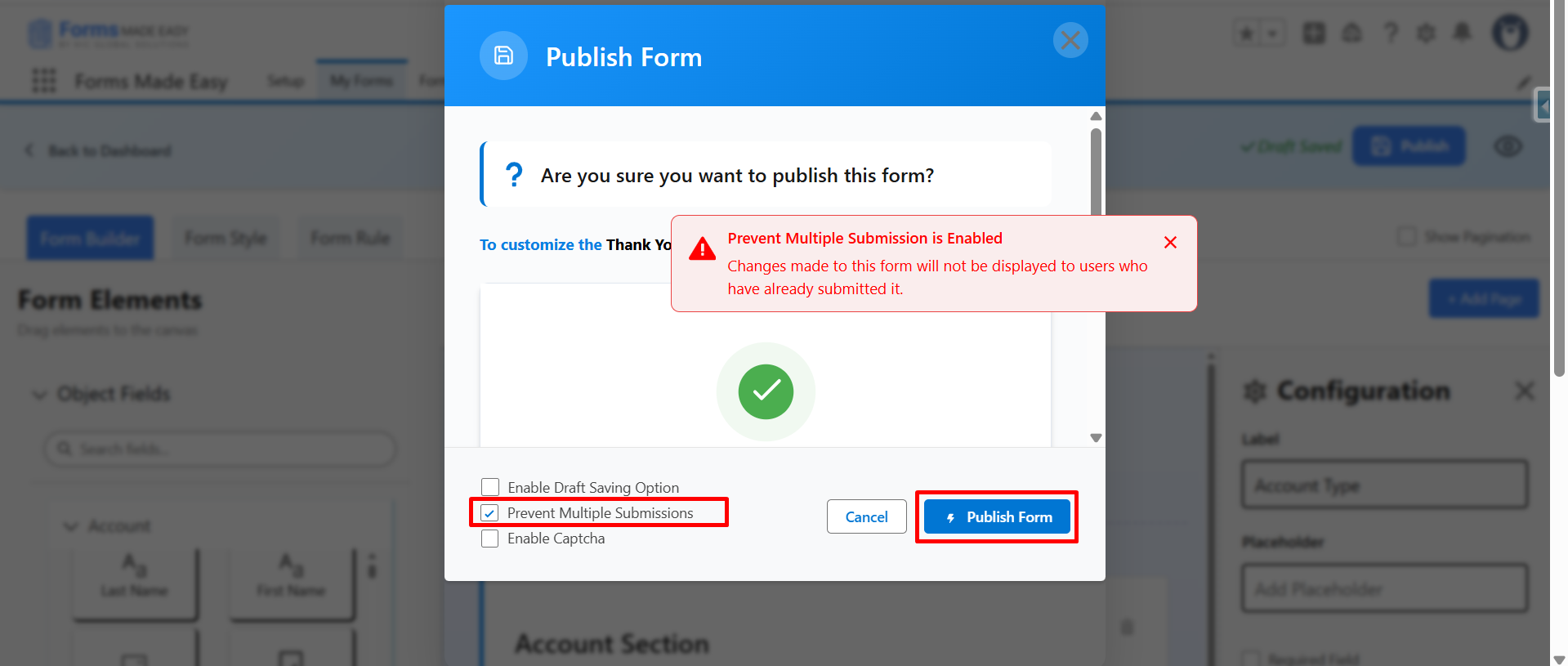
Step 5: Enable “Prevent multiple submission”
Click on “Publish form”.
A warning message appears.
(Note : Changes made to this form will not be displayed to users who have already submitted it.)
Step 6: Click on "Done" to close the modal.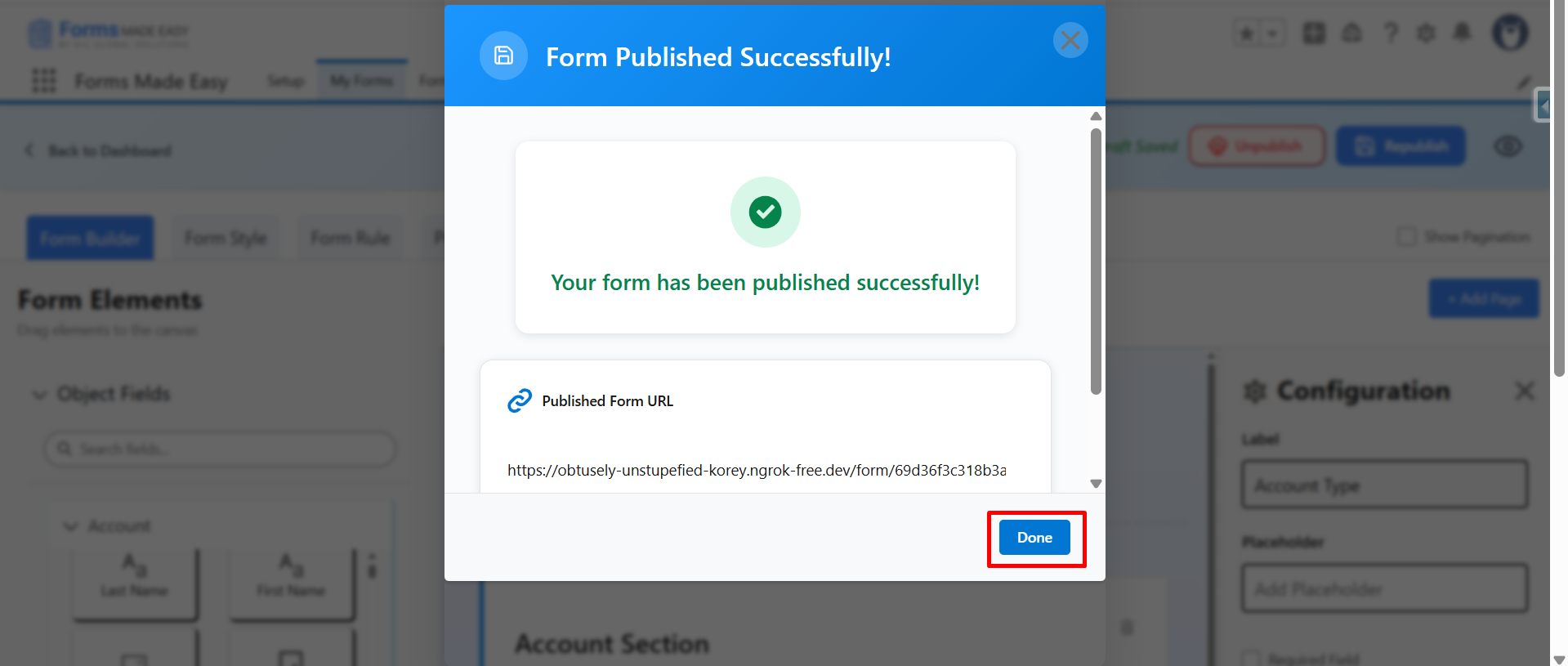
Step 7: Click on “publish Options”. 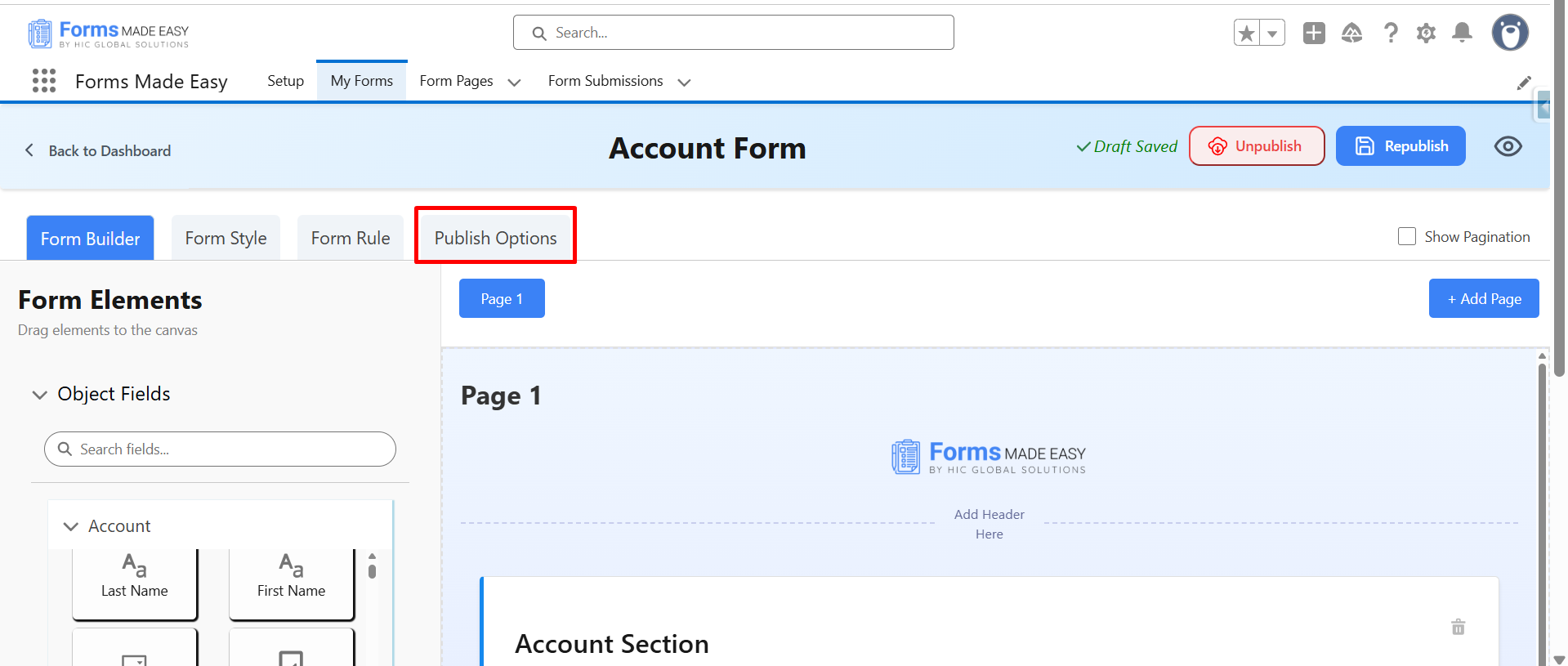
Step 8: Click on the “Copy Link” or “Open” buttons to open the forms directly on the web.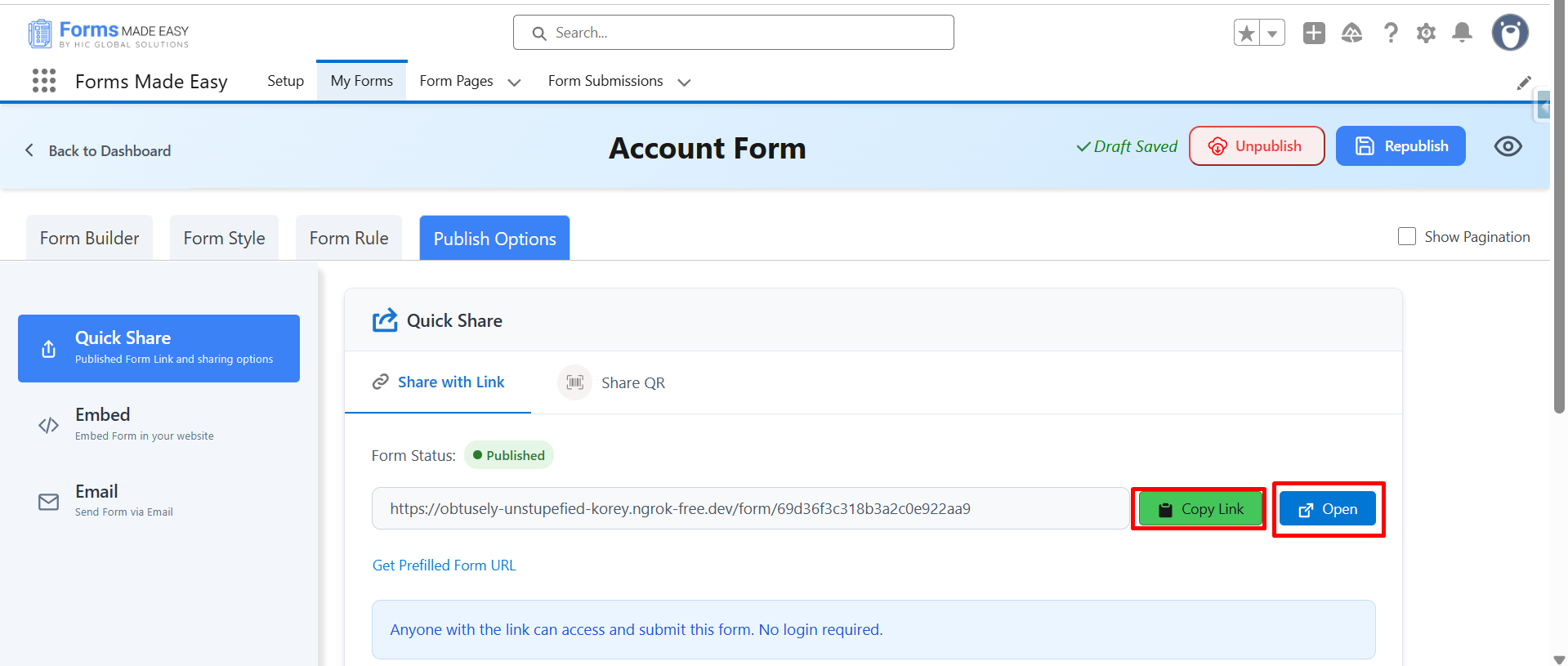
Step 9: After filling all the information, click the “Submit” button to submit the records.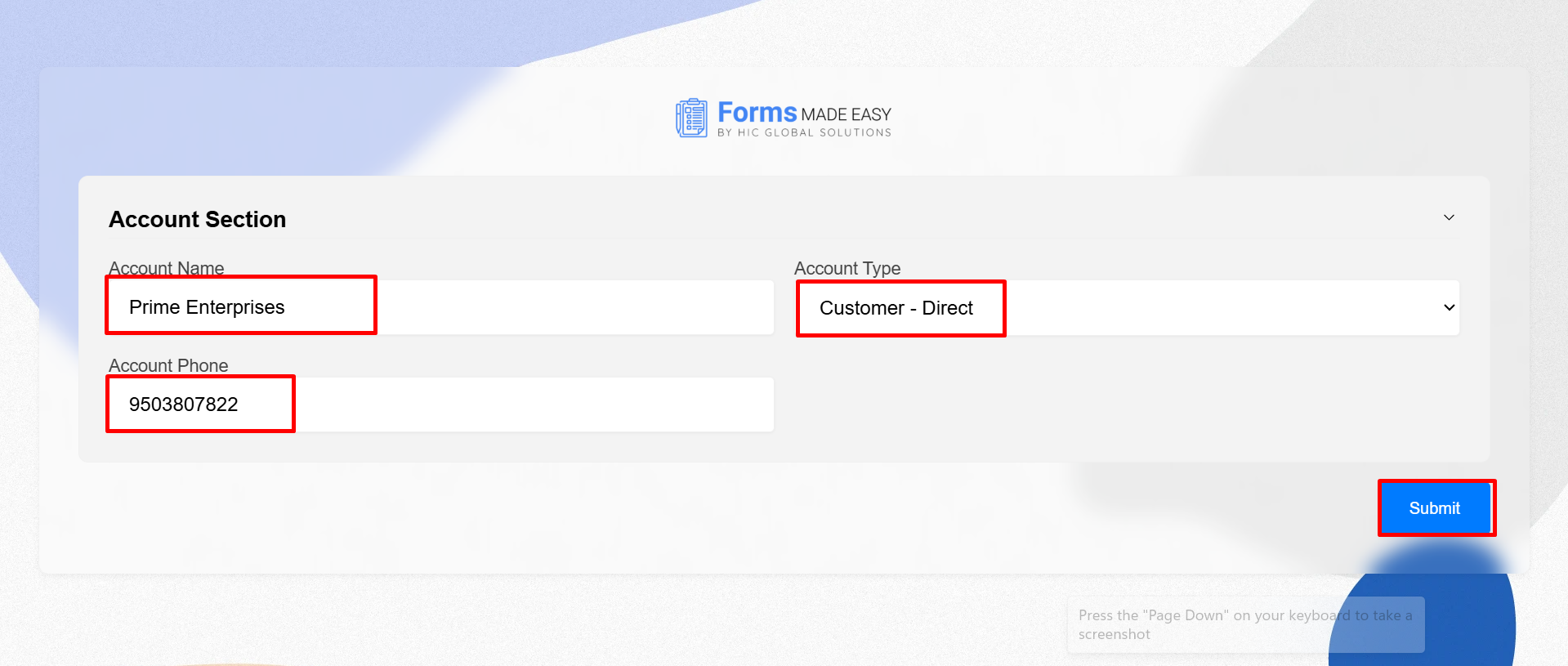
Step 10: Click on “Got It” Button to open the form again.
Step 11. Instead of opening a fresh form, the system shows:“Form Response – Your response has been recorded” screen.

Was this article helpful?
That’s Great!
Thank you for your feedback
Sorry! We couldn't be helpful
Thank you for your feedback
Feedback sent
We appreciate your effort and will try to fix the article