Publishing a form in Forms Made Easy allows you to make it accessible to respondents through a live form URL. Once published, you can copy the form URL to share it with others or open the live form directly in your browser.
Forms Made Easy also allows you to republish a form to apply changes to the live version or unpublish it when it is no longer needed. Follow the steps below to publish, republish, and unpublish a form.
Steps to Publish a Form
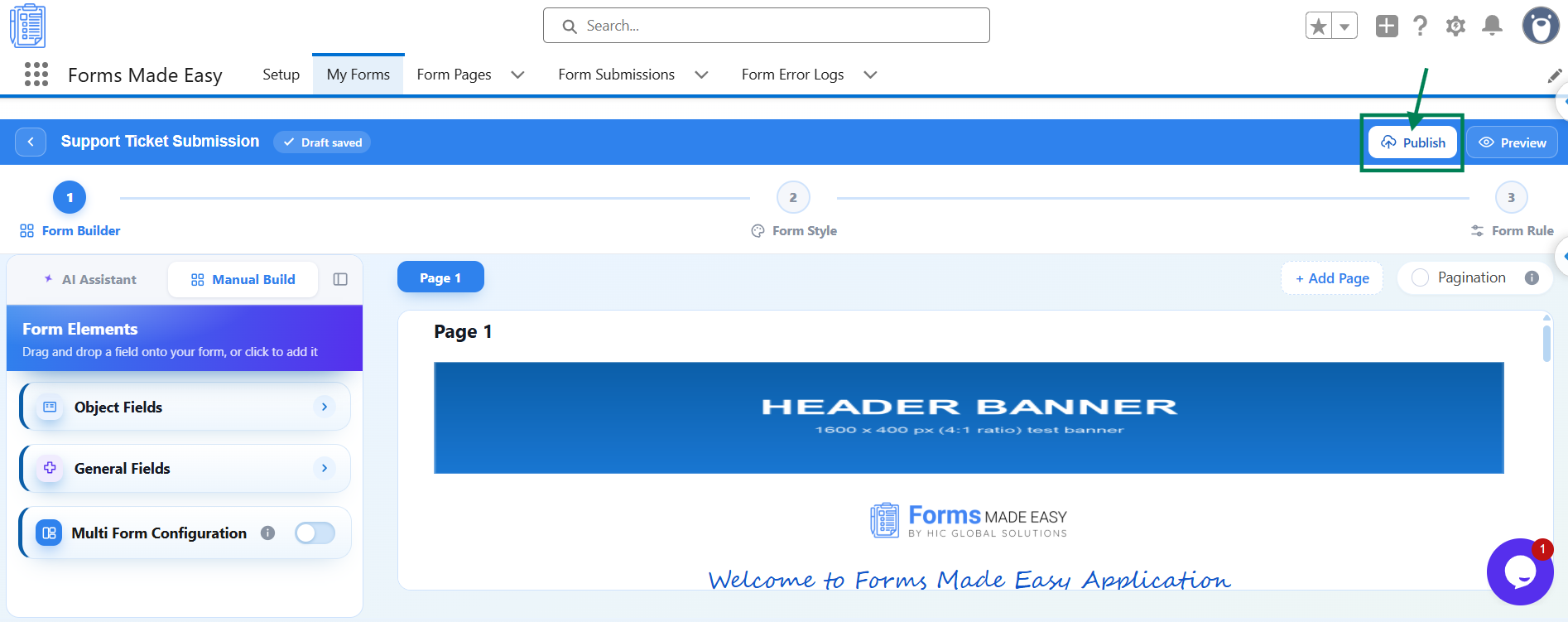
Step 1: Open your form in the Form Builder and click the Publish button.
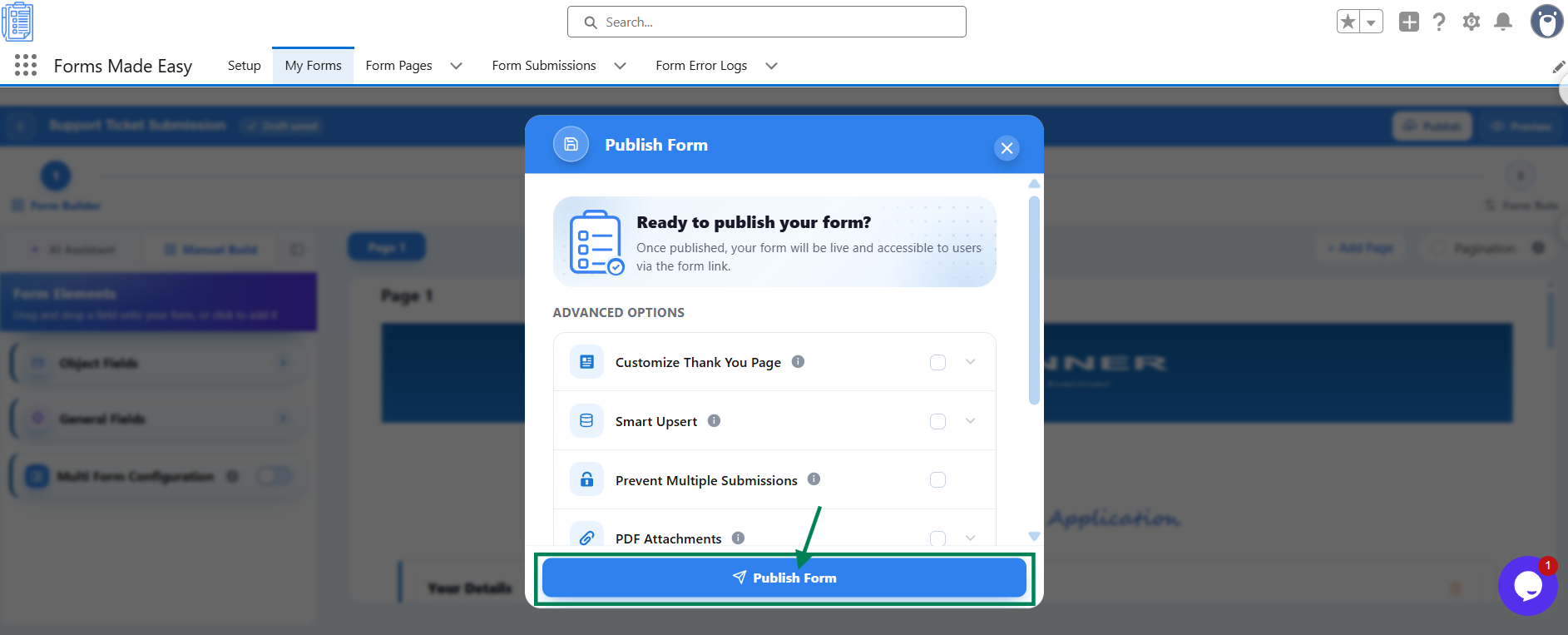
Step 2: A Publish Form window will appear, displaying the Publish Form button. You can also configure the required Advanced Options before publishing the form, if applicable.
Step 3: Click the Publish Form button to publish your form.
Step 4: Once the form is published successfully, you will see the confirmation message Form Published Successfully! Under Published Form URL, you will find two options:
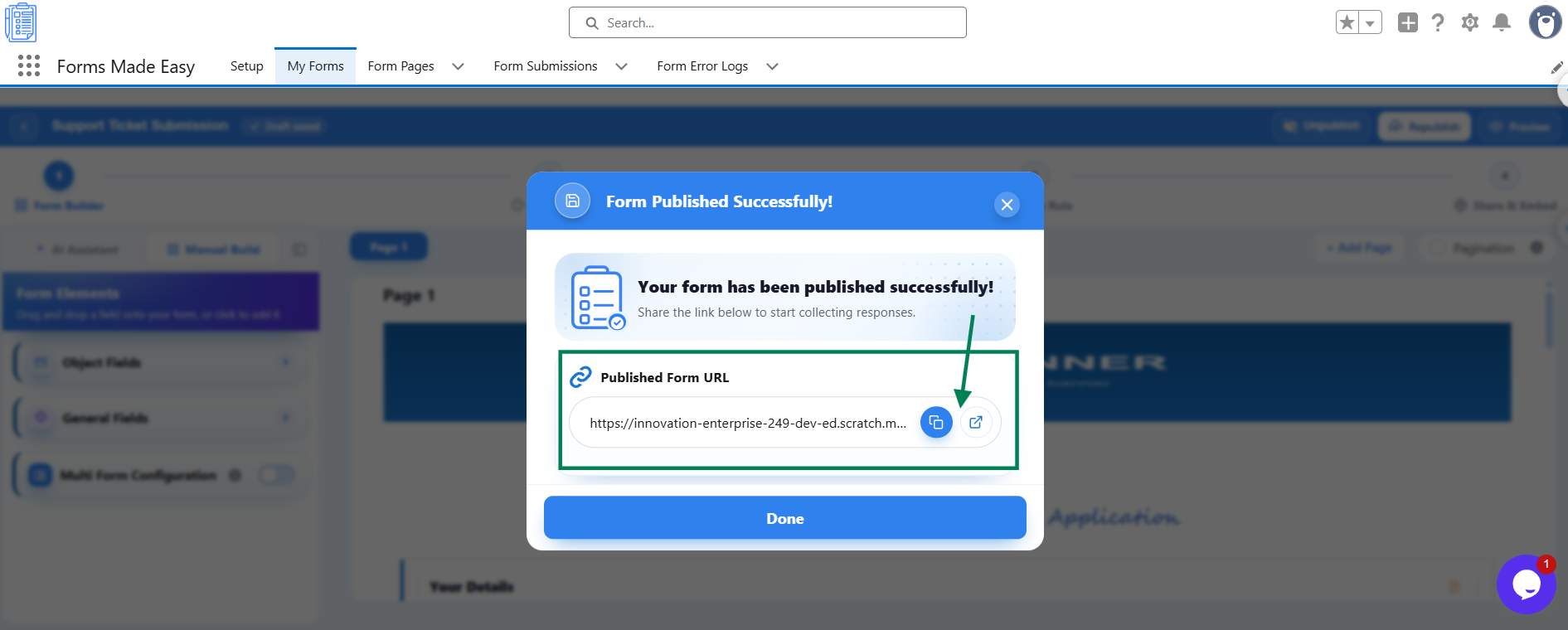
Copy URL: Click this option to copy the published form link, which you can share with respondents.
Visit Form: Click this option to open the live form in your browser.
Step 5: Click Done to close the confirmation window.
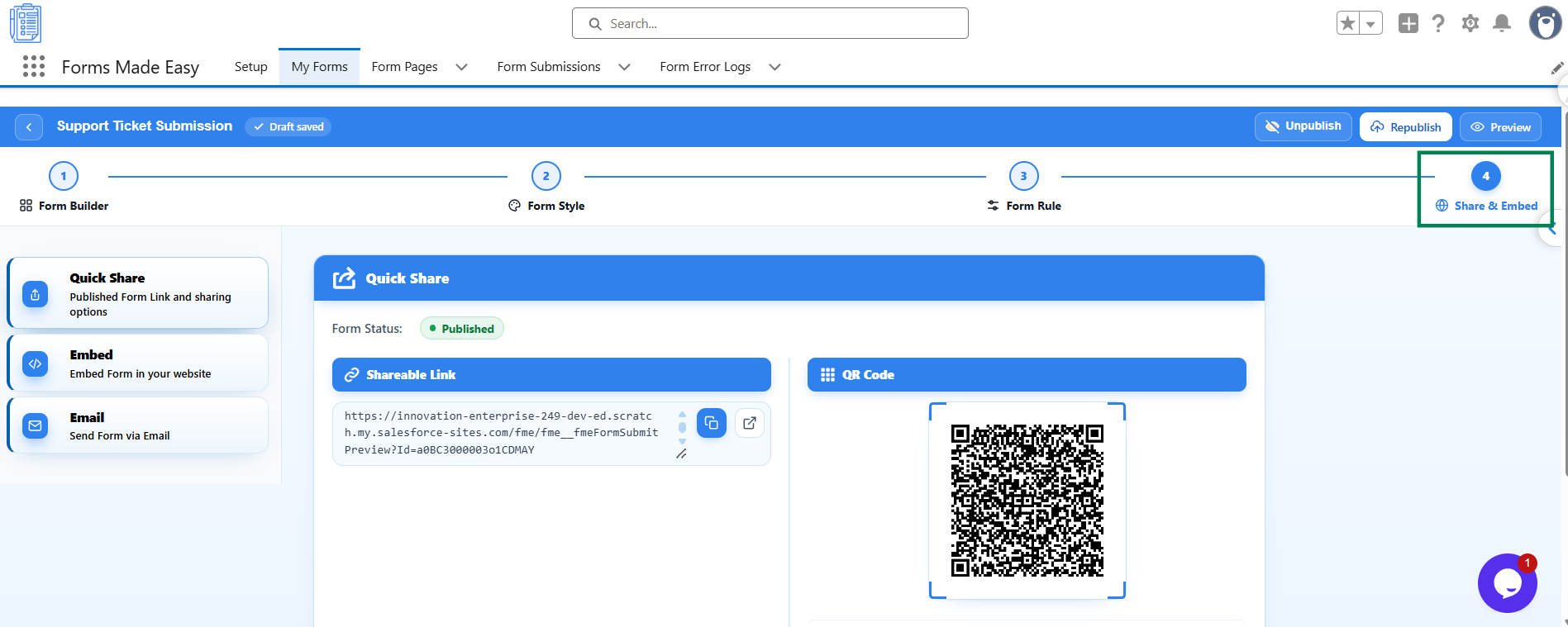
Once the form is published, the Share & Embed tab becomes available in the Form Builder, allowing you to access the available options for sharing and embedding your form.
Steps to Republish
If you make changes to an already published form, you need to republish it to apply those changes to the live form.
Step 6: Open the published form in the Form Builder and click the Republish button.
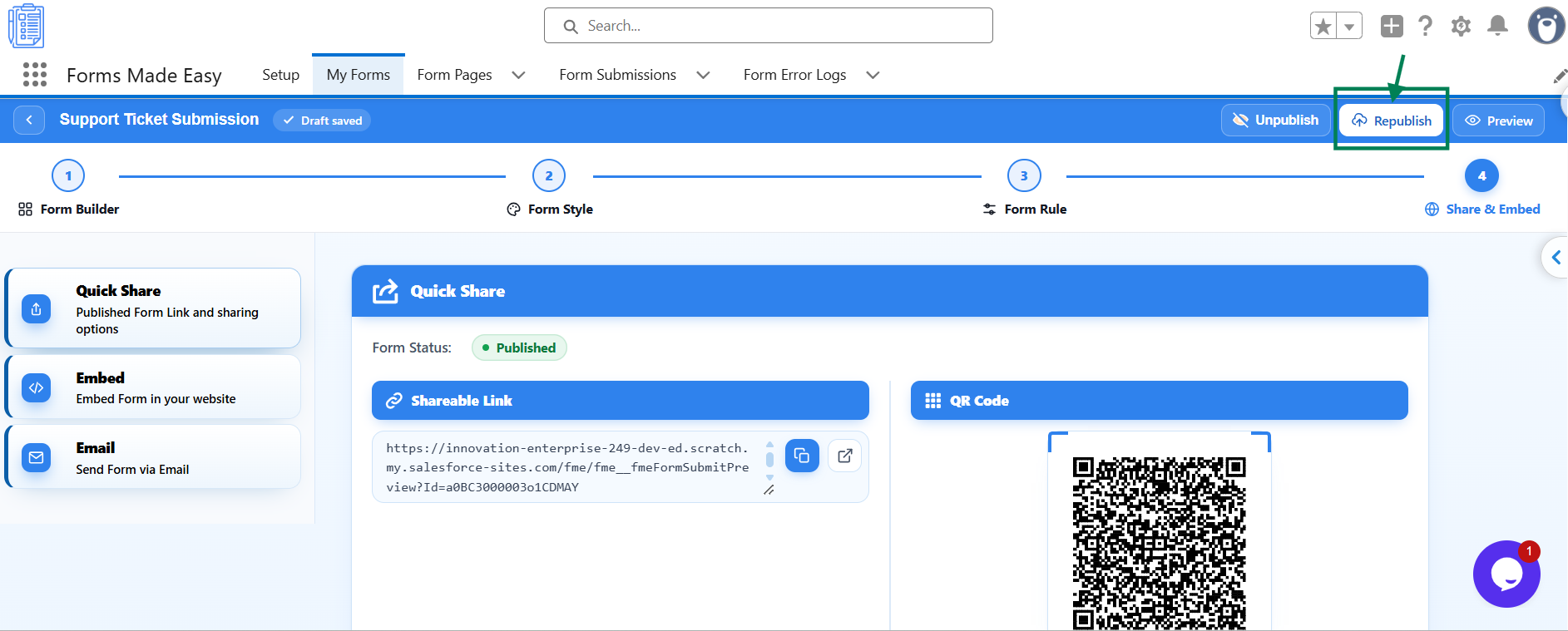
Step 7: A pop-up window will appear. Click the Publish Form button to apply the latest changes to the live form.
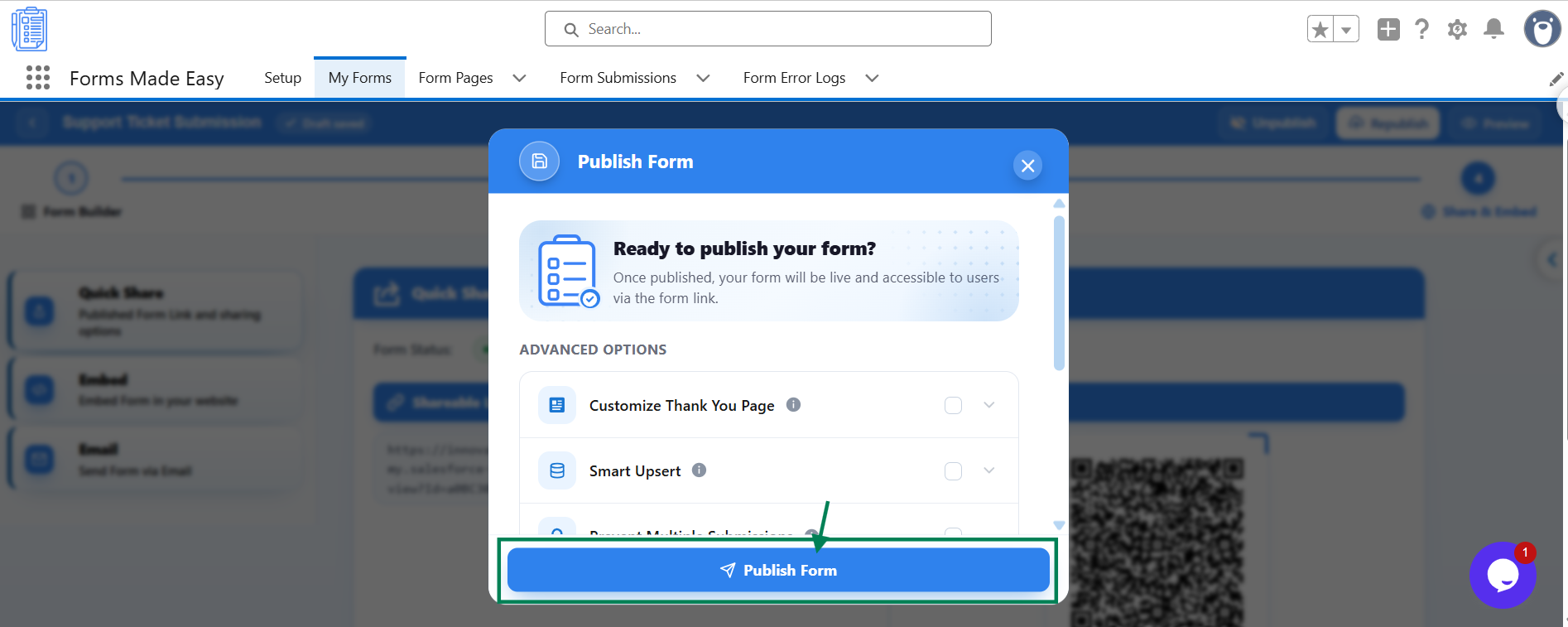
Once the form is republished, the updated version will be available to respondents through the published form URL.
Steps to Unpublish
If you no longer want respondents to access a published form, you can unpublish it.
Step 8: Open the published form in the Form Builder and click the Unpublish button.
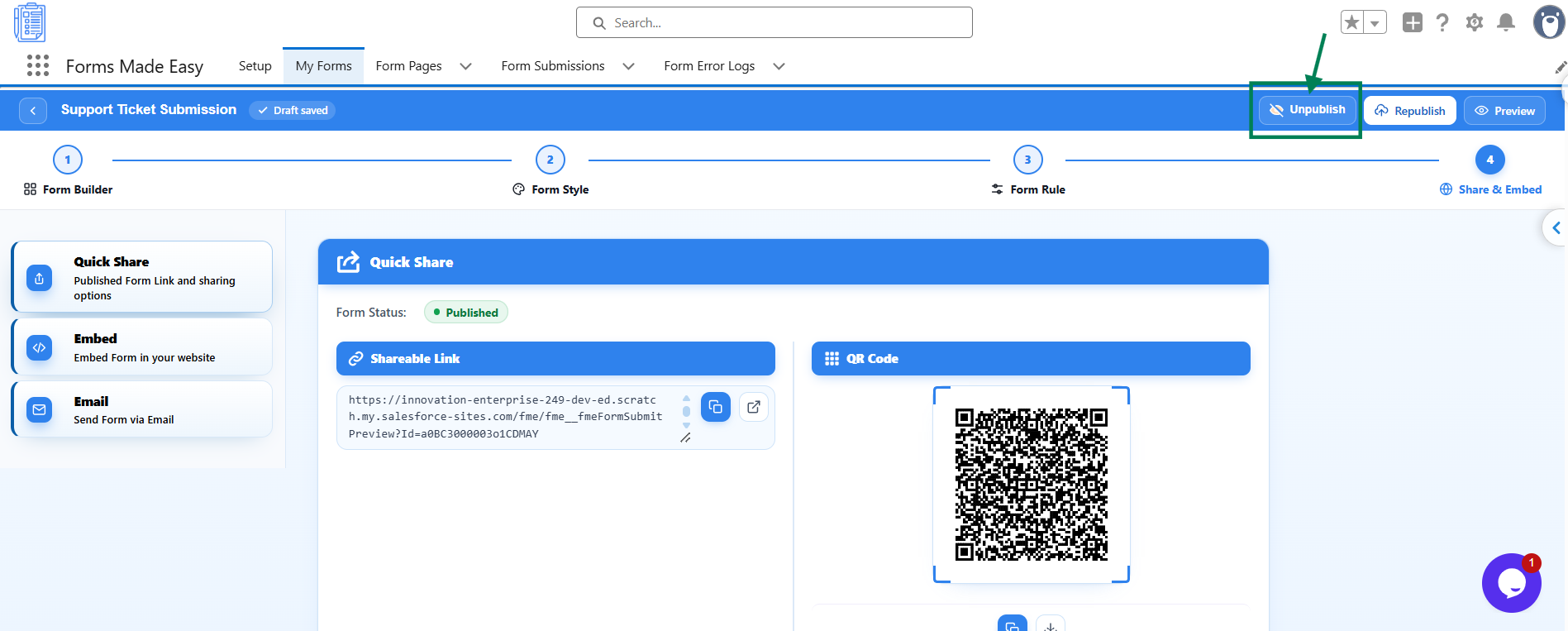
Alternatively, you can unpublish the form directly from the Actions column on the My Forms page.
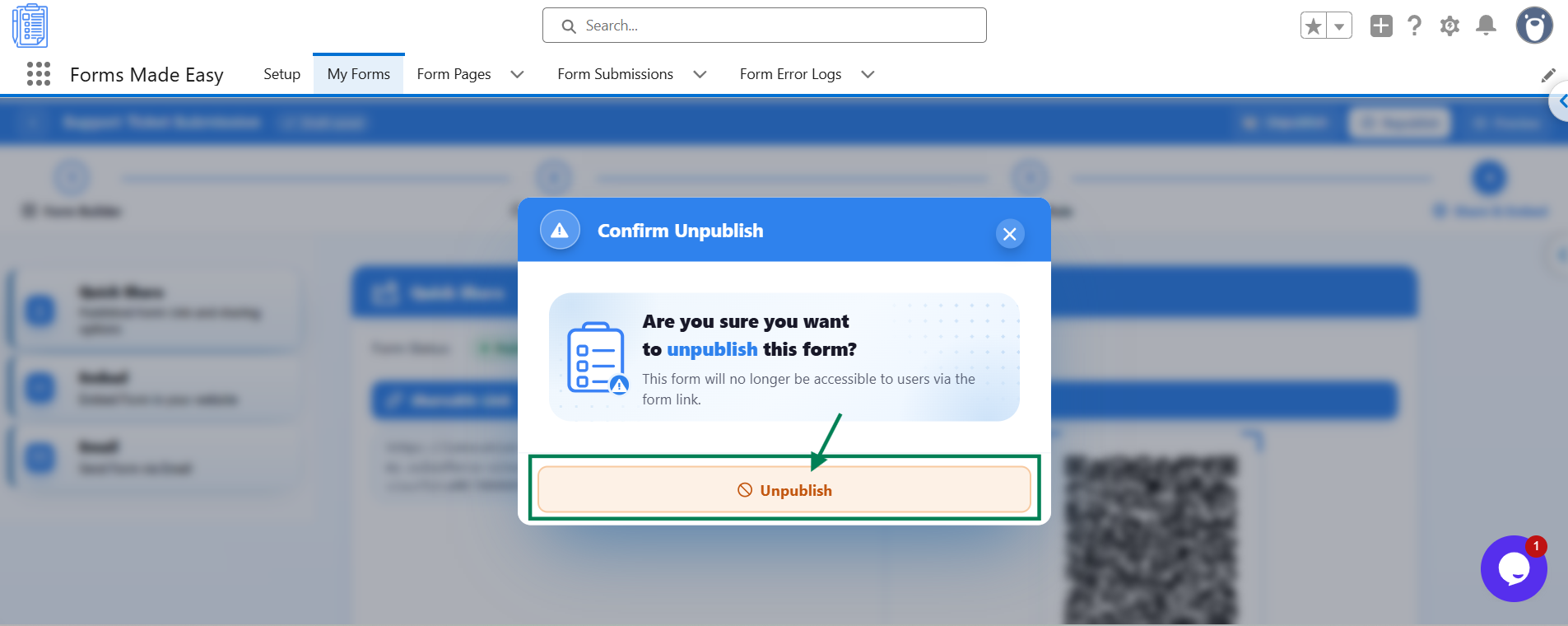
Step 9: A confirmation message will appear:
This form will no longer be accessible to users via the form link.
Step 10: Click Unpublish to confirm your action.
Once the form is unpublished, respondents will no longer be able to access it through the published form URL.
What Your Respondents See
When a form is published, respondents can access the live form through the published URL and submit their responses.
After the form is unpublished, the published link will no longer open the form for respondents.
Important Notes
Republish after making changes: Once a form is published, the Publish button changes to Republish. Click it after making changes to apply the updates to the live form.
At least one field is required: A form without any fields cannot be published. Add at least one field before publishing. Otherwise, the following message will appear: Please add at least one field to the form before publishing.
Publish or unpublish from My Forms: You can also publish and unpublish forms using the available actions in the Actions column on the My Forms page.
Was this article helpful?
That’s Great!
Thank you for your feedback
Sorry! We couldn't be helpful
Thank you for your feedback
Feedback sent
We appreciate your effort and will try to fix the article